
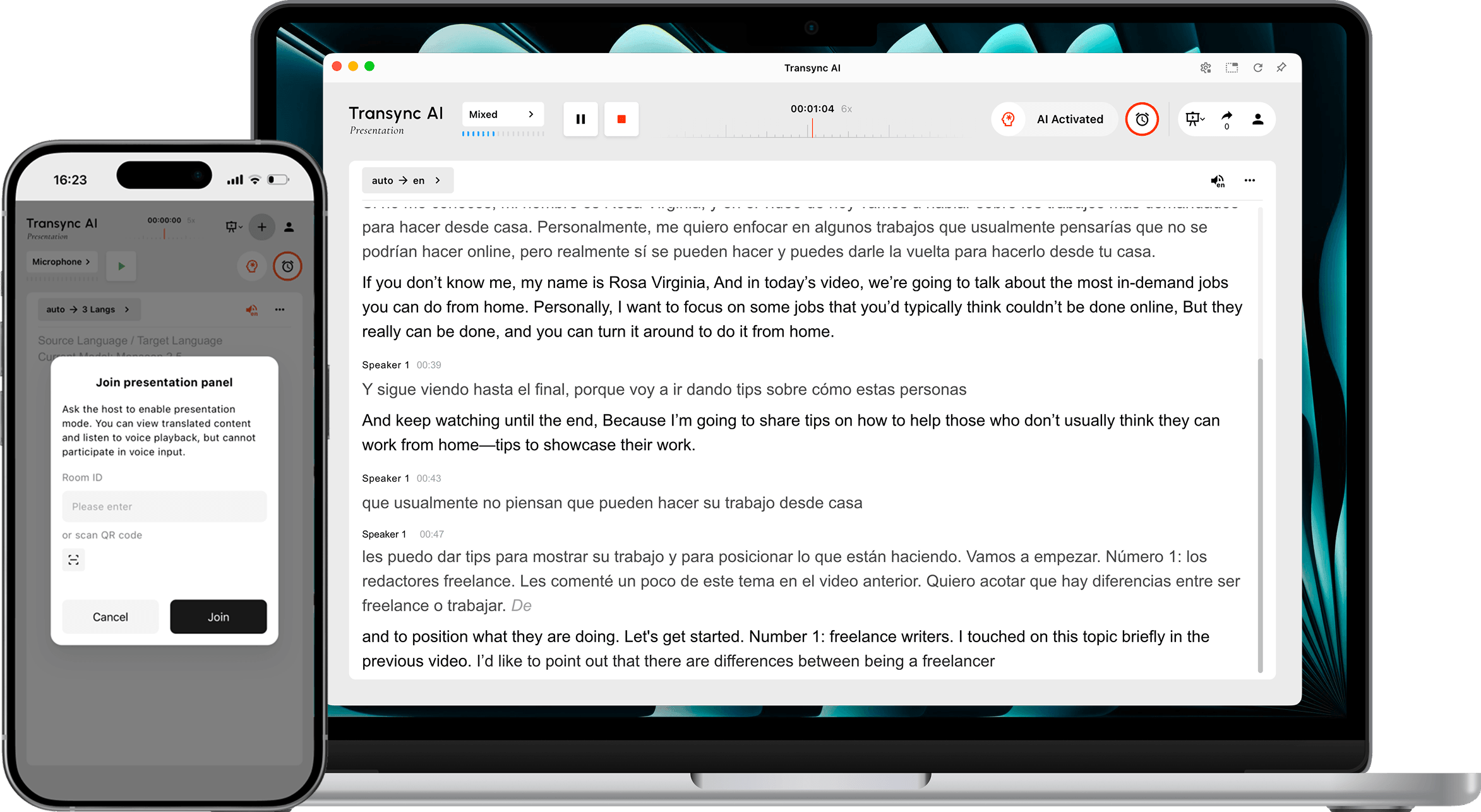
Режим презентації дозволяє одному ведучому ділитися перекладом у режимі реального часу з аудиторією. Ведучий розмовляє однією мовою оригіналу, тоді як кожен глядач стежить за презентацією мовою, яку ведучий увімкнув на своєму пристрої.
Використовуйте режим презентації для багатомовних конференцій, презентацій компаній, навчальних сесій, лекцій, громадських заходів або інших ситуацій з однією аудиторією. Учасники аудиторії можуть читати переклад у реальному часі та слухати голосове відтворення, але вони не можуть втручатися у завдання перекладу ведучого.
Примітка: Режим презентації наразі перебуває у бета-версії. Використання, що відображається в Transync AI, може змінюватися залежно від пікової аудиторії та кількості цільових мов. Перегляньте відображений множник перед початком.
Перш ніж почати #
Перш ніж відкрити презентацію для аудиторії, підготуйте наступне:
- Переконайтеся, що мікрофон хоста підключено та вибрано в Transync AI.
- Визначте, якою мовою розмовлятиме хост, або скористайтеся автоматичним визначенням мови оригіналу.
- Зберіть мови, які потрібні вашій аудиторії, щоб ви могли ввімкнути правильні цільові мови, перш ніж розпочати.
- Виберіть, де аудиторія знайде посилання для приєднання, QR-код або ідентифікатор кімнати, наприклад, у запрошенні на зустріч, на початковому слайді, на екрані події або в картці місця.
- Якщо це ваше перше завдання зі штучним інтелектом Transync, виконайте Короткий посібник із початку роботи з комп’ютером перший.
Розпочати презентацію #
1. Перейдіть у режим презентації #
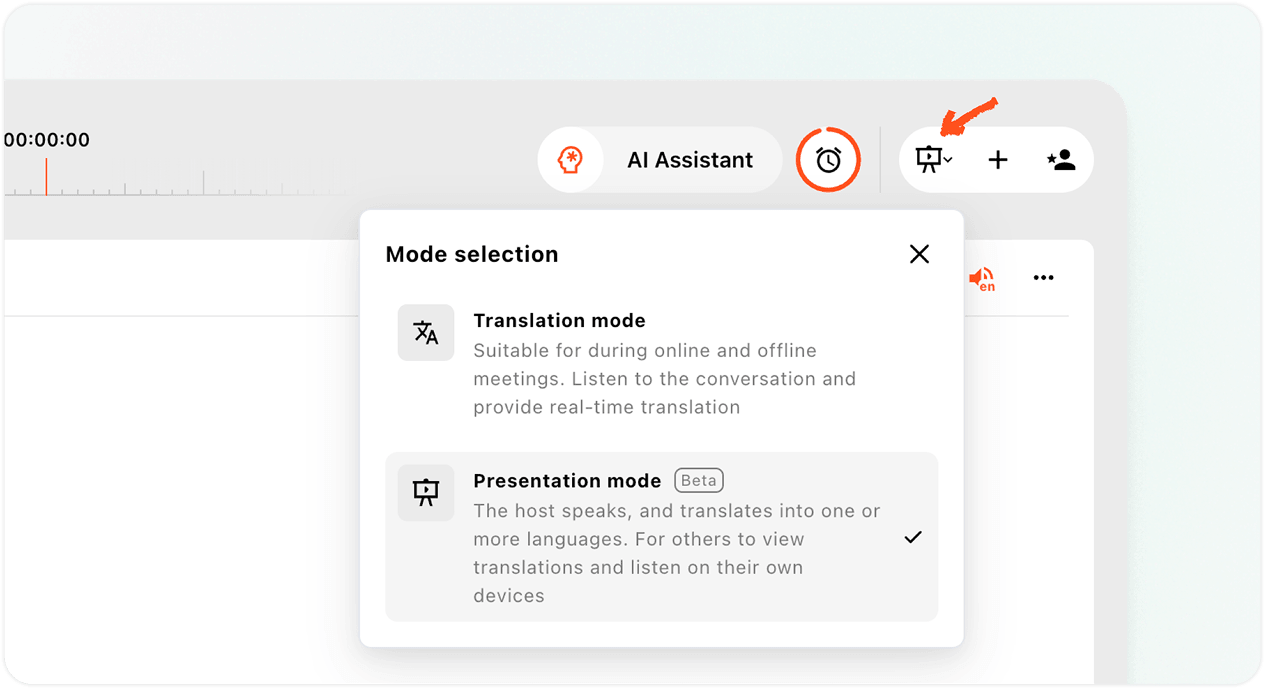
- Відкрийте Веб-додаток Transync AI або настільний додаток і знайдіть перемикач режимів у верхньому правому куті інтерфейсу перекладу.
- Відкрийте меню режимів.
- Виберіть Режим презентації.
Режим презентації відрізняється від багатомовного перекладу. Багатомовний переклад створює виводи кількома мовами в одному завданні перекладу. Режим презентації розповсюджує живий переклад серед учасників аудиторії на їхніх власних пристроях, де кожна людина може вибрати доступну мову.
2. Перегляньте Повідомлення про бета-версію та використання #
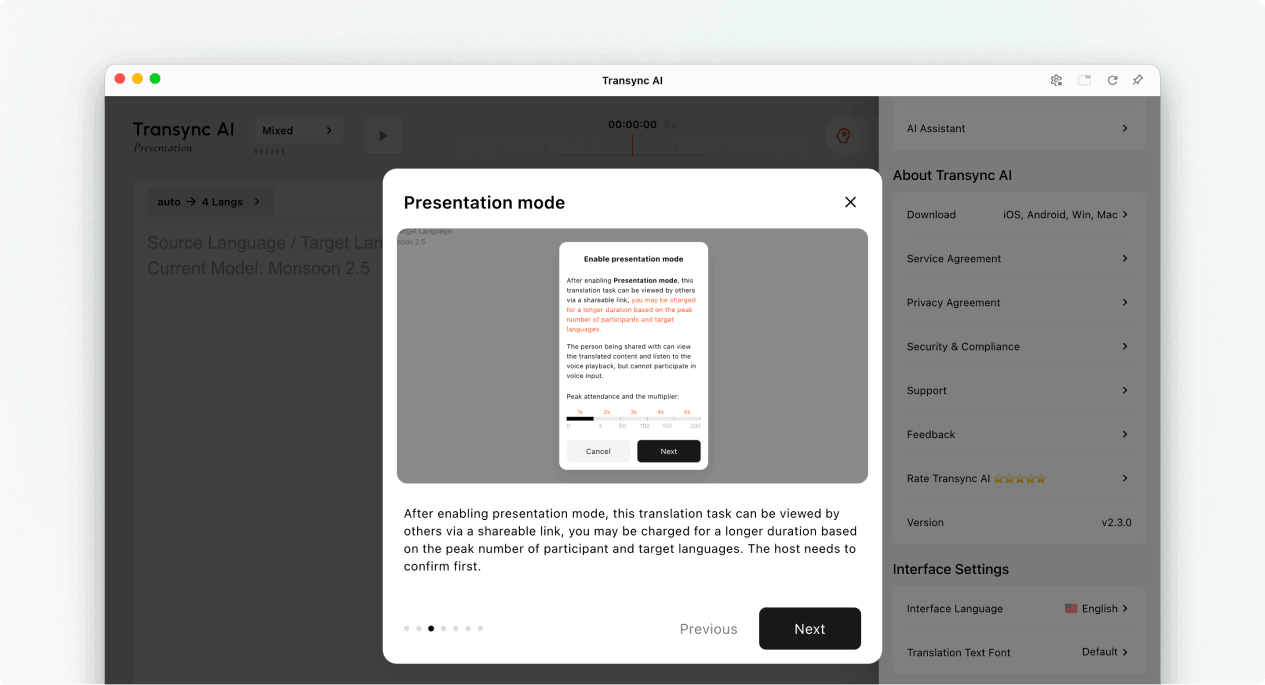
Коли ви вмикаєте режим презентації, Transync AI пояснює, що може робити аудиторія та як розраховується використання презентації. Перш ніж продовжити, прочитайте це повідомлення.
- Учасники аудиторії можуть переглядати перекладений контент на власних пристроях.
- Глядачі можуть слухати з голосовим відтворенням, коли воно доступне.
- Учасники аудиторії не можуть робити голосовий ввід для завдання ведучого.
- Загальний множник – це множник учасника плюс множник цільової мови.
Виберіть Далі коли ви будете готові налаштувати мови презентації.
3. Виберіть мову оригіналу та мову аудиторії #
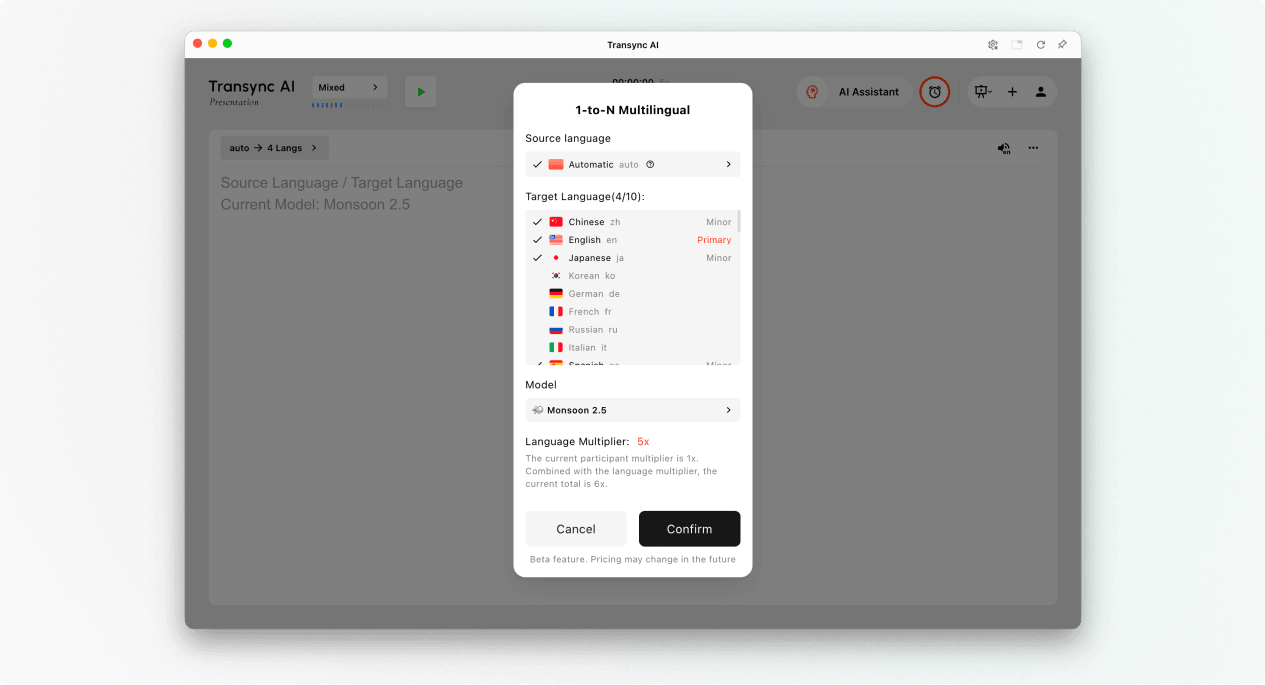
Налаштуйте мови перед початком презентації:
- Мова оригіналуМова, якою розмовляє хост. Використовуйте «Автоматично», якщо потрібно визначити мову оригіналу, або виберіть певну мову, якщо хост використовуватиме одну мову послідовно.
- Цільові мовиМови, які можуть вибрати глядачі. Поточний дизайн підтримує до 9 цільових мов в одному завданні презентації.
- ПервиннийОсновна цільова мова, що відображається в інтерфейсі презентації хоста.
- НезначнаДодаткові цільові мови, доступні для аудиторії.
Перегляньте цільову мову та загальні множники, що відображаються в Transync AI. Якщо очікуване використання вище запланованого, зменште кількість увімкнених мов перед початком роботи.
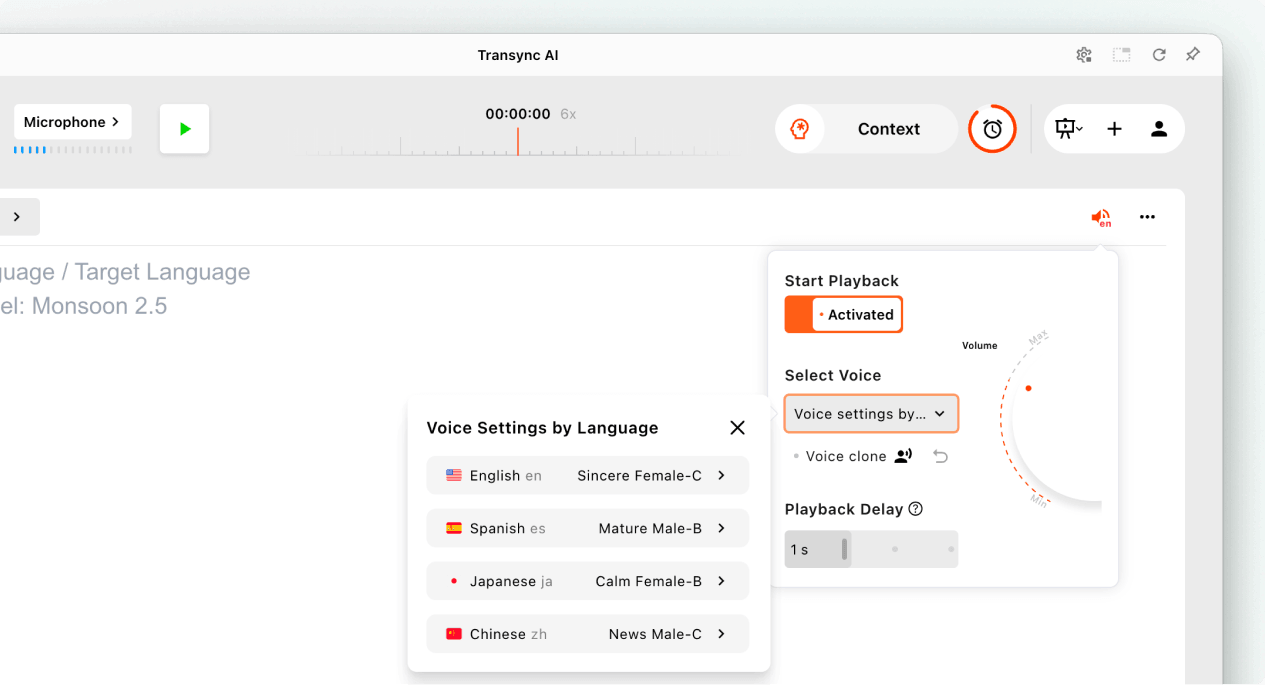
Налаштування відтворення голосу для кожної мови (необов'язково) #
Перед початком презентації відкрийте налаштування відтворення голосу, якщо ви хочете, щоб аудиторія чула перекладене мовлення.
- Увімкнути Почати відтворення.
- ВІДЧИНЕНО Налаштування голосу за мовою та виберіть голос для кожної цільової мови.
- Де Клон голосу доступний, виберіть клонований голос для мови.
- Налаштуйте гучність та затримку відтворення для комфортного прослуховування.
Ці параметри можна налаштувати окремо для кожної ввімкненої цільової мови перед початком презентації.
4. Розпочніть презентацію #
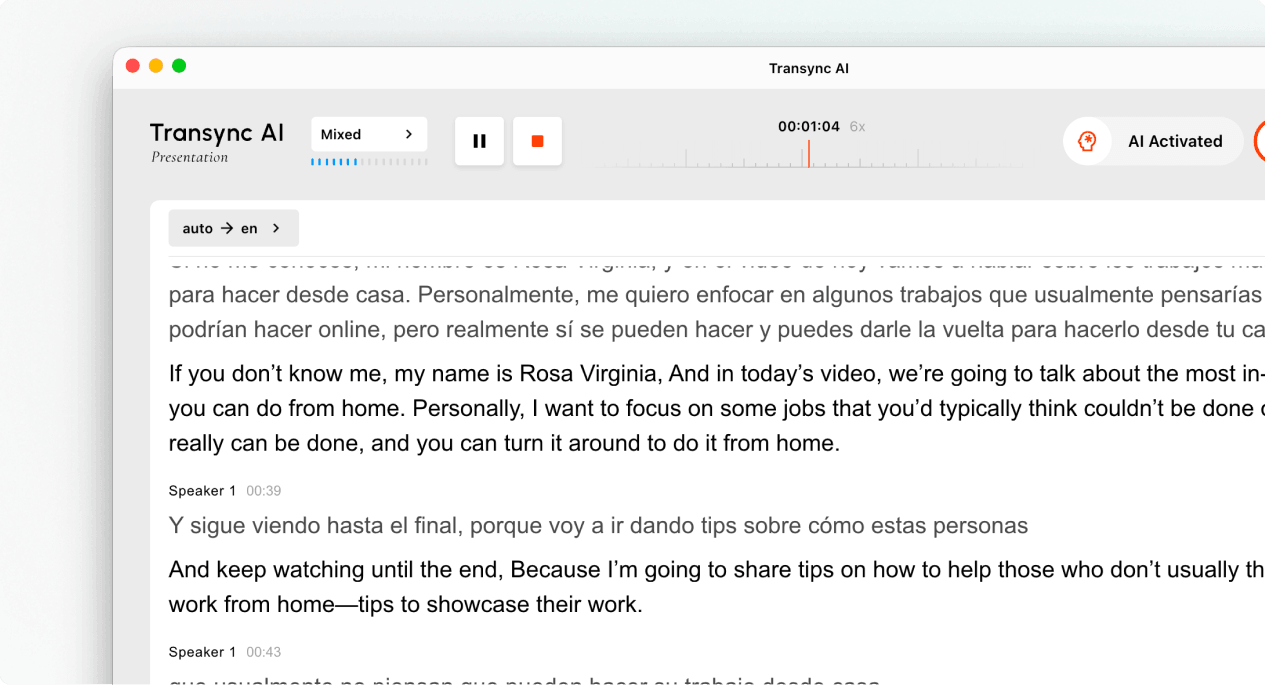
- Виберіть мікрофон або джерело аудіо, яке містить промову ведучого.
- Натисніть на Початок кнопка у верхньому лівому куті.
- Переконайтеся, що таймер завдання запущено, і що мовлення ведучого відображається як живий текст.
Говоріть природно та тримайте мікрофон достатньо близько, щоб записувати чіткий звук. Якщо аудиторія використовуватиме відтворення голосу, нагадайте їм, що навушники можуть допомогти запобігти луні в спільних приміщеннях.
5. Запросіть свою аудиторію #
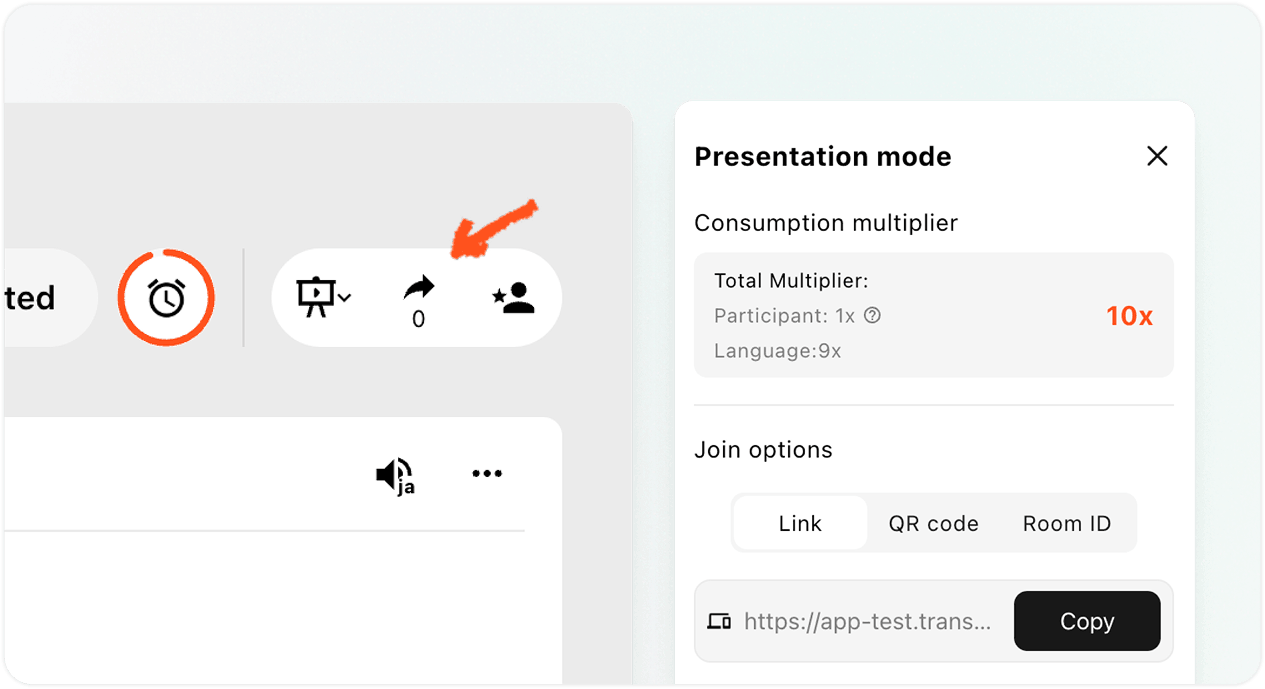
Відкрийте панель «Поділитися» у верхньому правому куті. Ви можете запросити аудиторію трьома способами:
- ПосиланняСкопіюйте посилання в запрошення на зустріч, електронний лист, чат або на сторінку події.
- QR-кодРозмістіть QR-код на слайді, екрані, друкованій картці або вивісці заходу, щоб глядачі могли відсканувати його телефоном.
- Ідентифікатор кімнатиПопросіть учасників аудиторії ввести ідентифікатор кімнати з запису приєднання до режиму презентації в Transync AI.
Надішліть глядачам Як приєднатися до презентації штучного інтелекту Transync посібник, коли їм потрібні покрокові інструкції щодо приєднання. Якщо Transync AI просить учасника аудиторії увійти, йому слід завершити вхід, а потім повернутися до підтвердження приєднання.
Керування презентацією та її завершення #
6. Керування живою презентацією #
Під час презентації ведучий може:
- Перевірте поточну кількість онлайн-аудиторії на панелі «Поділитися».
- Перегляньте коефіцієнт використання, що відображається за допомогою Transync AI.
- Знову відкрийте посилання, QR-код або ідентифікатор кімнати, коли потрібно приєднатися іншому учаснику аудиторії.
- Скористайтеся доступними елементами керування мовами, щоб переглянути мови, доступні аудиторії.
Учасники аудиторії обирають власну мову перегляду з мов, увімкнених ведучим. Ведучий може бачити кількість аудиторії, але в режимі презентації список учасників аудиторії не відображається на панелі прямого ефіру.
Примітка: Елементи керування мовою можуть відрізнятися залежно від версії програми. Перш ніж покладатися на зміну мови під час сеансу, переконайтеся, що потрібні мови вже ввімкнено.
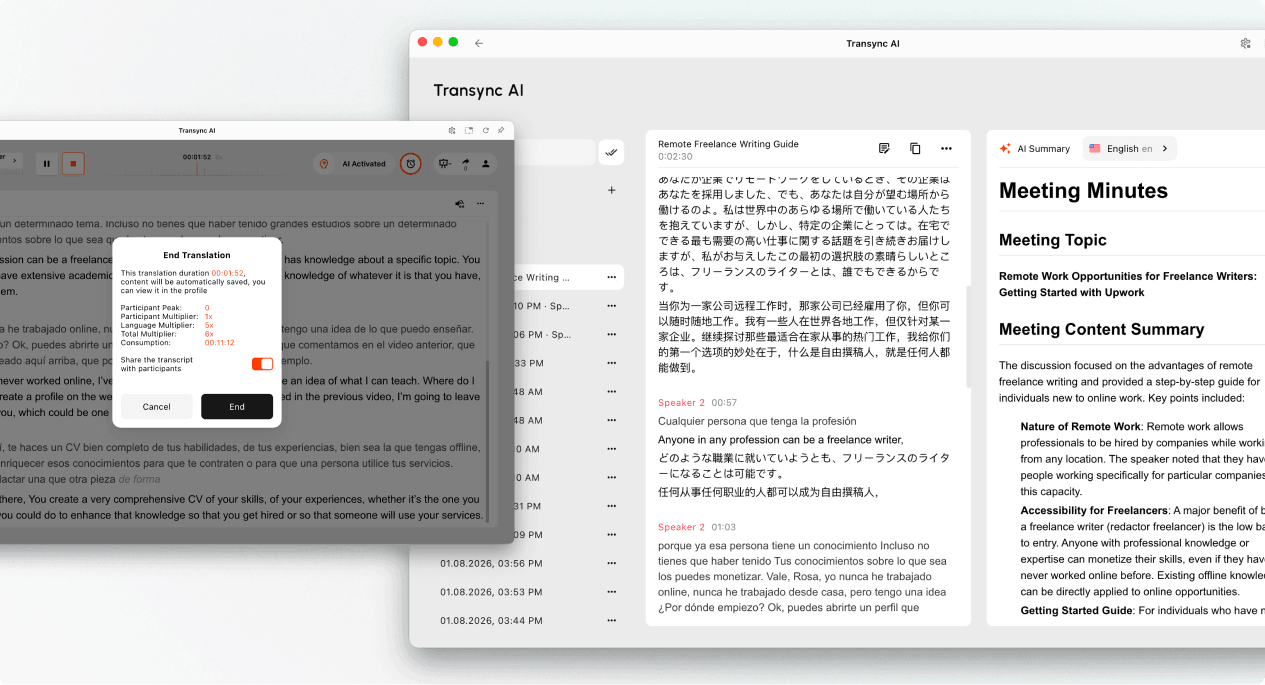
7. Завершіть презентацію та виберіть, чи поділитися стенограмою #
- Виберіть Кінець коли презентація закінчиться.
- Перегляньте тривалість завдання, пікову кількість учасників, відображений множник та кінцеве споживання.
- Якщо опція доступна, виберіть, чи її потрібно ввімкнути Поділіться стенограмою з учасниками.
- Підтвердіть, що ви хочете завершити презентацію.
Діліться стенограмою презентації лише тоді, коли її вміст підходить для збереження аудиторією. Якщо спільний доступ до стенограми не ввімкнено, аудиторія отримає повідомлення про завершення без спільного запису.
8. Перевірте використання та записи #
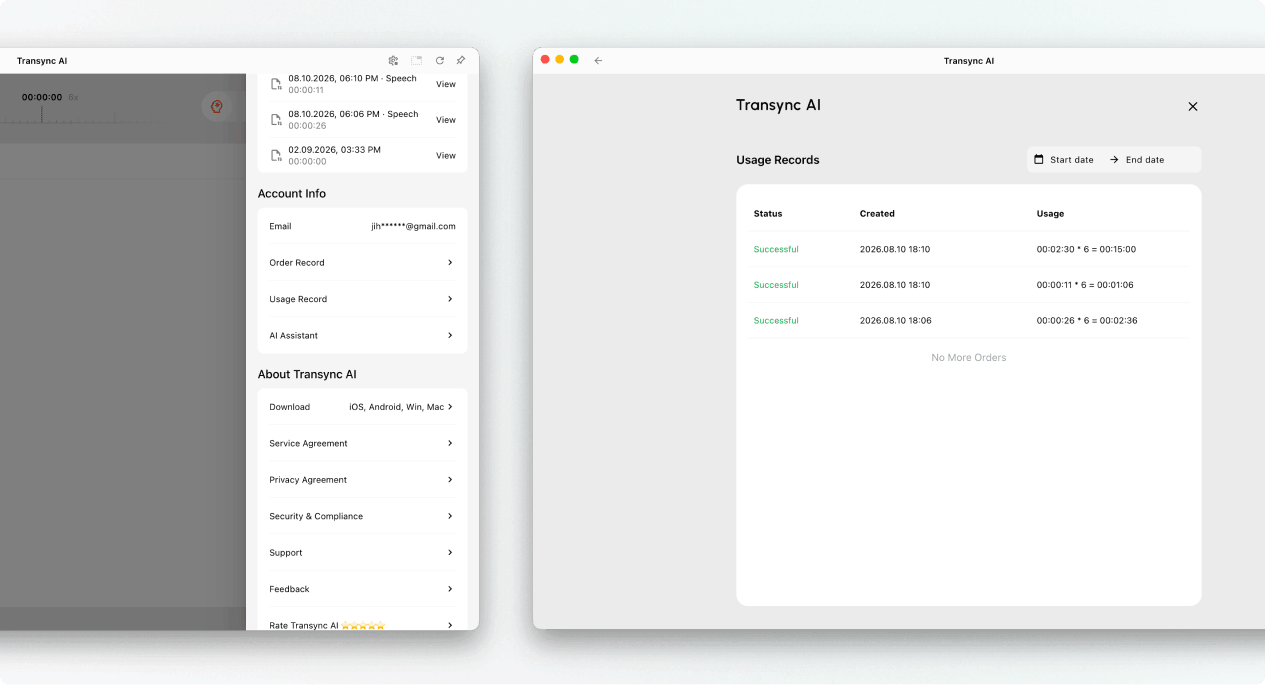
Ведучий може відкрити історію перекладів, щоб переглянути збережений запис презентації. Використання презентації також можна переглянути з Профіль → Запис використання.
Як розраховується використання режиму презентації #
Використання режиму презентації залежить від двох компонентів: пікової кількості учасників аудиторії та кількості ввімкнених цільових мов.
Множник учасника #
Множник учасників визначається найбільшою кількістю учасників аудиторії, які перебувають онлайн одночасно під час презентації.
| Пікова аудиторія учасників | Множник учасника |
|---|---|
| 0–3 | 1x |
| 4–50 | 2 рази |
| 51–100 | 3 рази |
| 101–150 | 4 рази |
| 151–200 | 5 разів |
Множник цільової мови #
Множник цільової мови починається з 1x і збільшується на 1x для кожної ввімкненої цільової мови.
| Кількість цільових мов | Множник цільової мови |
|---|---|
| 1 | 2 рази |
| 2 | 3 рази |
| 3 | 4 рази |
| 4 | 5 разів |
| 5 | 6 разів |
| 6 | 7 разів |
| 7 | 8 разів |
| 8 | 9 разів |
| 9 | 10 разів |
Загальний множник = множник учасника + множник цільової мови
Наприклад, якщо пікова аудиторія становить 30 осіб, а організатор надає доступ до 4 мов, коефіцієнт учасників становить 2x, а коефіцієнт цільової мови – 5x. Таким чином, загальний коефіцієнт становить 7x.
Щодо організації записів та експорту див. Як керувати записами перекладів. Щоб переглянути стенограми та зведені за допомогою штучного інтелекту резюме, див. Як отримати доступ до стенограм та підсумків зустрічей.
Усунення несправностей #
Глядачі не можуть приєднатися #
Переконайтеся, що презентація все ще активна. Знову відкрийте панель «Поділитися» та надішліть нову копію посилання, QR-коду або ідентифікатора кімнати. Якщо аудиторія бачить запит на вхід, попросіть її увійти, а потім підтвердіть запит на приєднання.
Аудиторія не бачить нового тексту #
Переконайтеся, що завдання хоста все ще активне, вибрано правильний мікрофон і відображається текст у реальному часі в інтерфейсі хоста. Якщо інтерфейс хоста не отримує мовлення, вирішіть проблему з аудіовхідним сигналом, перш ніж просити аудиторію знову приєднатися.
Учасник аудиторії обрав неправильну мову #
Попросіть учасника аудиторії відкрити селектор мов і вибрати іншу мову, яку ввімкнув організатор. Якщо потрібної мови немає у списку, перевірте налаштування цільової мови організатора.
Використання вище очікуваного #
Підтвердьте піковий рівень аудиторії та кількість увімкнених цільових мов. Додайте множник учасників та множник цільової мови, а потім порівняйте результат із записом завдання в Записі використання.
Найчастіші запитання #
Чим відрізняється режим презентації від багатомовного перекладу? #
Багатомовний переклад забезпечує кілька цільових мов в одному завданні. Режим презентації також дозволяє ведучому розповсюджувати живий переклад серед аудиторії, причому кожен учасник аудиторії стежить за ним на своєму пристрої.
Чи можуть глядачі висловлюватися щодо завдання ведучого? #
Ні. Учасники аудиторії можуть переглядати переклади та прослуховувати голосове відтворення, але вони не можуть надавати голосові вказівки для завдання ведучого.
Скільки цільових мов може підтримувати хостинг? #
Поточний дизайн режиму презентації підтримує до 9 цільових мов. Перевірте поточний інтерфейс програми, щоб дізнатися, які мови доступні для вашого завдання.
Як розраховується використання режиму презентації? #
Додайте множник учасників для пікового рівня аудиторії до множника цільової мови. Множник цільової мови починається з 1x і збільшується на 1x для кожної ввімкненої цільової мови. Перегляньте таблиці вище та порівняйте загальний множник зі значенням, що відображається в робочому процесі презентації.
Що відбувається після завершення презентації? #
Контент ведучого зберігається в історії перекладів. Якщо ведучий увімкнув спільний доступ до стенограм, учасники аудиторії зможуть відкрити спільний запис зі свого облікового запису після презентації.


