
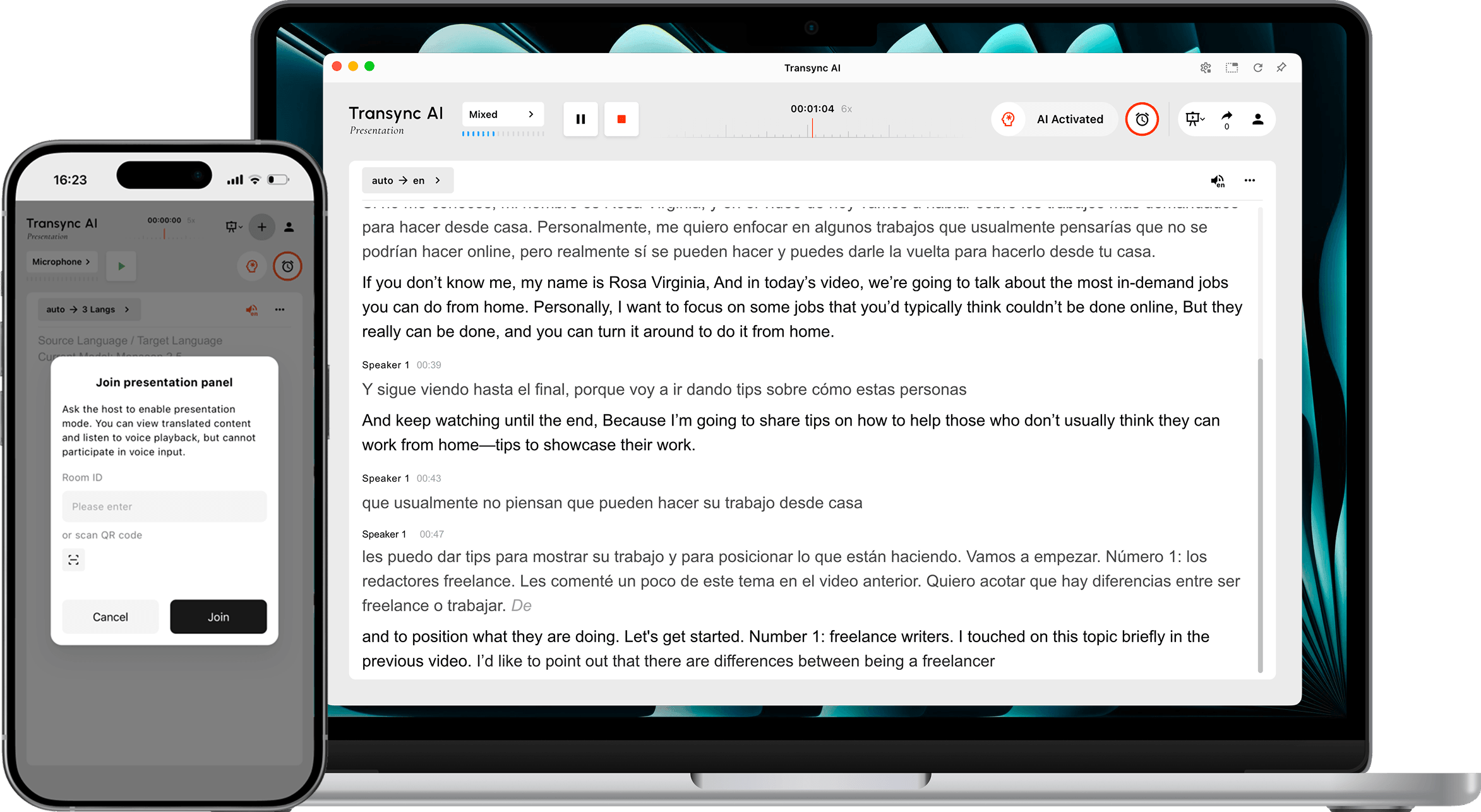
وضع العرض التقديمي تتيح هذه التقنية لمضيف واحد مشاركة الترجمة الفورية مع الجمهور. يتحدث المضيف بلغة المصدر، بينما يتابع كل فرد من الجمهور العرض التقديمي بلغة يُفعّلها المضيف على جهازه الخاص.
استخدم وضع العرض التقديمي للمؤتمرات متعددة اللغات، وعروض الشركات، والدورات التدريبية، والمحاضرات، والفعاليات المجتمعية، أو غيرها من المواقف التي تتطلب تفاعلاً بين شخص واحد ومجموعة من الأشخاص. يمكن للحضور قراءة الترجمة الفورية والاستماع إلى التسجيل الصوتي، ولكن لا يمكنهم التحدث أثناء مهمة الترجمة التي يقوم بها المضيف.
ملحوظة: وضع العرض التقديمي حاليًا في مرحلة تجريبية. قد يختلف الاستخدام الموضح في Transync AI بناءً على ذروة الجمهور وعدد اللغات المستهدفة. يُرجى مراجعة المضاعف المعروض قبل البدء.
قبل أن تبدأ #
قم بإعداد ما يلي قبل بدء العرض التقديمي أمام جمهورك:
- تأكد من أن ميكروفون المضيف متصل ومحدد في برنامج Transync AI.
- حدد اللغة التي سيتحدث بها المضيف، أو استخدم خاصية الكشف التلقائي عن لغة المصدر.
- اجمع اللغات التي يحتاجها جمهورك حتى تتمكن من تفعيل اللغات المستهدفة المناسبة قبل البدء.
- اختر المكان الذي سيجد فيه الجمهور رابط الانضمام أو رمز الاستجابة السريعة أو معرف الغرفة، مثل دعوة الاجتماع أو الشريحة الافتتاحية أو شاشة الحدث أو بطاقة المقعد.
- إذا كانت هذه أول مهمة لك في Transync AI، فأكملها. دليل البدء السريع لأجهزة الكمبيوتر المكتبية أولاً.
ابدأ عرضًا تقديميًا #
1. التبديل إلى وضع العرض التقديمي #
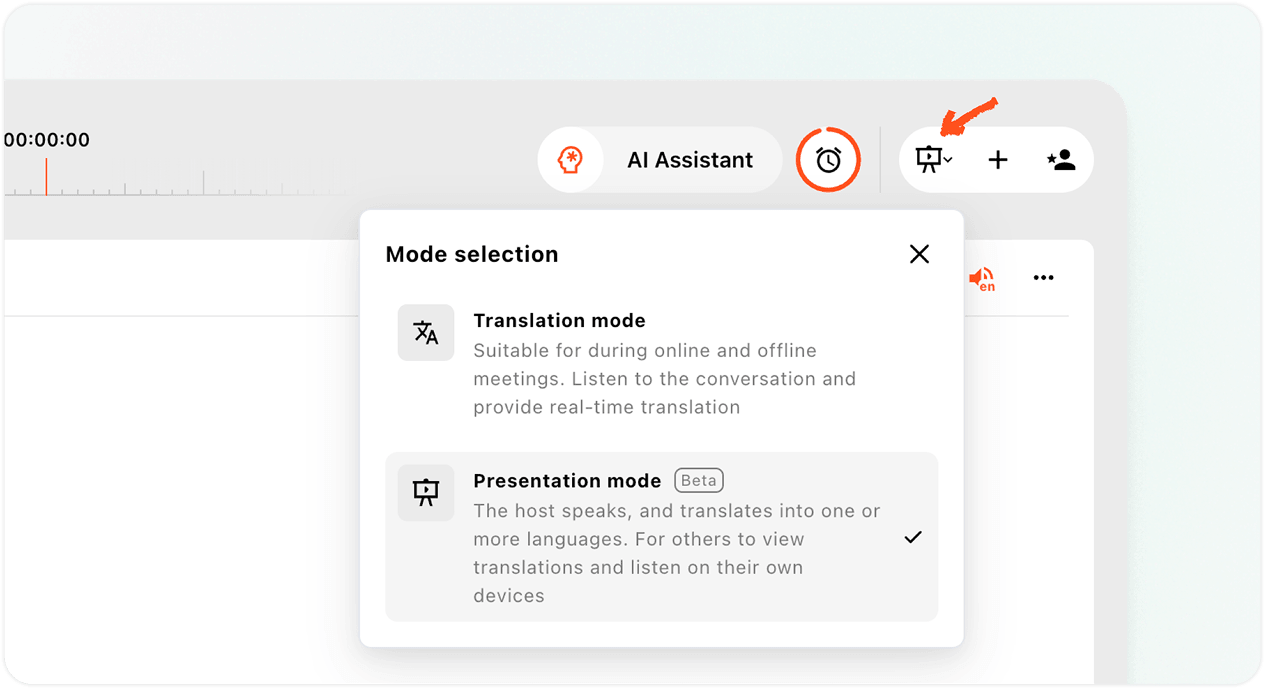
- افتح تطبيق Transync AI على الويب أو تطبيق سطح المكتب، وابحث عن محدد الوضع في المنطقة العلوية اليمنى من واجهة الترجمة.
- افتح قائمة الوضع.
- يختار وضع العرض التقديمي.
يختلف وضع العرض التقديمي عن الترجمة متعددة اللغات. فالترجمة متعددة اللغات تُنتج مخرجات بلغات متعددة ضمن مهمة ترجمة واحدة. أما وضع العرض التقديمي فيُوزّع الترجمة المباشرة على الحضور على أجهزتهم الشخصية، حيث يُمكن لكل شخص اختيار اللغة المُتاحة.
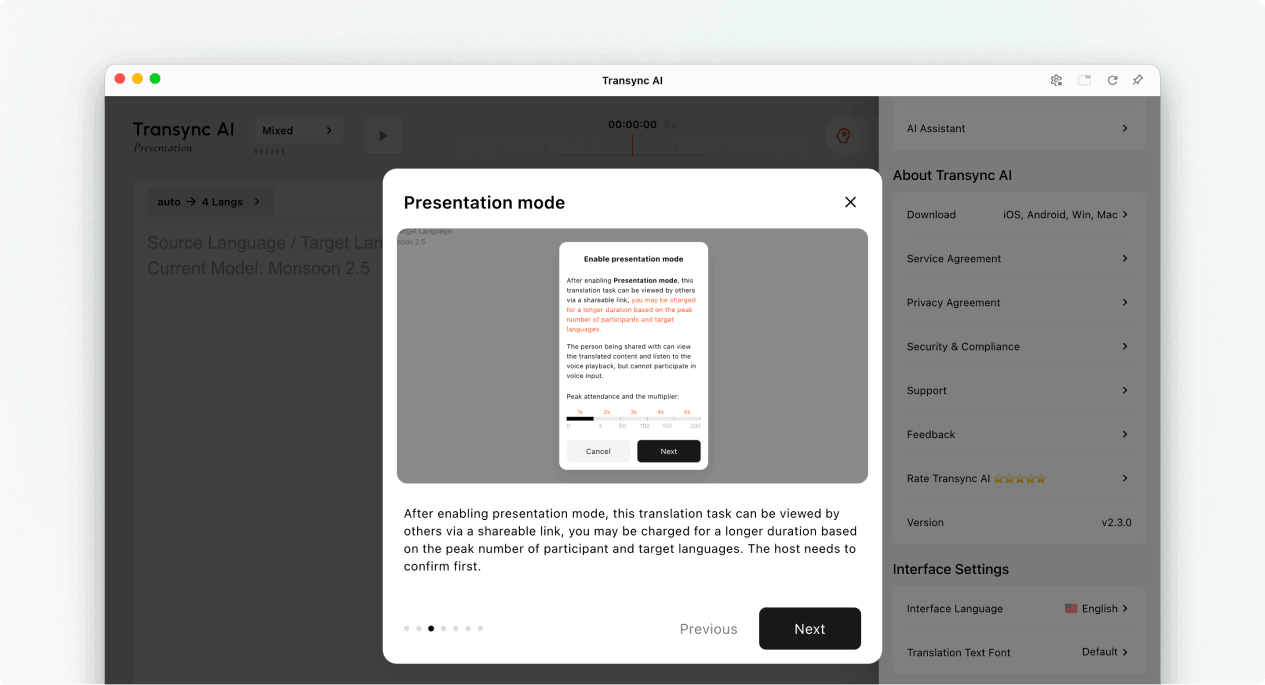
2. راجع إشعار الإصدار التجريبي وإشعار الاستخدام #
عند تفعيل وضع العرض التقديمي، يشرح لك نظام Transync AI ما يمكن للجمهور فعله وكيفية حساب استخدام العرض التقديمي. اقرأ هذا الإشعار قبل المتابعة.
- يمكن للمشاهدين الاطلاع على المحتوى المترجم على أجهزتهم الخاصة.
- يمكن لأفراد الجمهور الاستماع مع تشغيل الصوت عندما يكون ذلك متاحًا.
- لا يمكن لأفراد الجمهور المساهمة بتعليقات صوتية في مهمة المضيف.
- المضاعف الإجمالي هو مضاعف المشاركين بالإضافة إلى مضاعف اللغة الهدف.
يختار التالي عندما تكون مستعدًا لضبط لغات العرض التقديمي.
3. اختر لغة المصدر ولغة الجمهور #
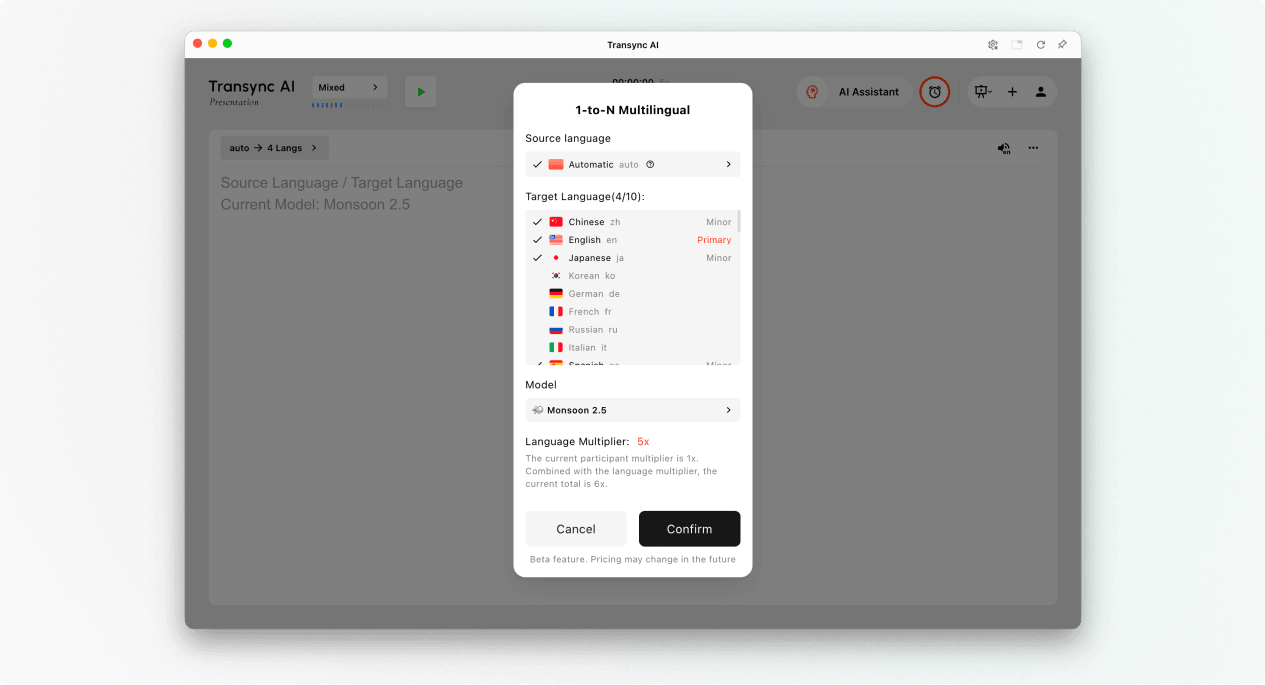
قم بضبط اللغات قبل بدء العرض التقديمي:
- لغة المصدراللغة التي يتحدث بها المضيف. استخدم الوضع التلقائي إذا كان يجب اكتشاف لغة المصدر، أو حدد لغة معينة عندما يستخدم المضيف لغة واحدة باستمرار.
- اللغات المستهدفةاللغات التي يمكن للجمهور اختيارها. يدعم التصميم الحالي ما يصل إلى 9 لغات مستهدفة في مهمة عرض تقديمي واحدة.
- أساسي: اللغة المستهدفة الرئيسية المعروضة في واجهة العرض الخاصة بالجهاز المضيف.
- صغيرتتوفر لغات مستهدفة إضافية للجمهور.
راجع اللغة المستهدفة وإجمالي عدد مرات الضرب المعروضة في برنامج Transync AI. إذا كان الاستخدام المتوقع أعلى من المخطط له، فقم بتقليل عدد اللغات المُفعّلة قبل البدء.
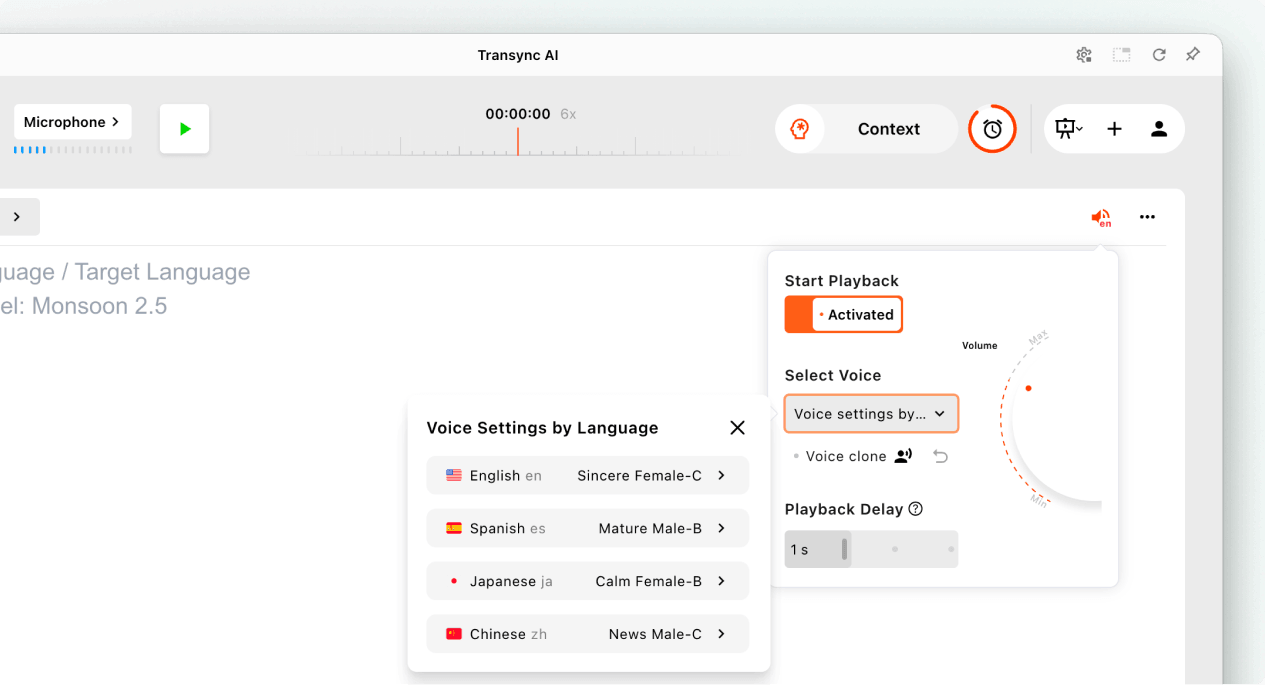
ضبط تشغيل الصوت لكل لغة (اختياري) #
قبل بدء العرض التقديمي، افتح إعدادات تشغيل الصوت إذا كنت تريد أن يسمع الجمهور الكلام المترجم.
- تشغيل ابدأ التشغيل.
- يفتح إعدادات الصوت حسب اللغة ثم اختر صوتًا لكل لغة مستهدفة.
- أين استنساخ الصوت إذا كان ذلك متاحًا، فاختر صوتًا مستنسخًا للغة.
- اضبط مستوى الصوت وتأخير التشغيل للحصول على تجربة استماع مريحة.
يمكن ضبط هذه الإعدادات بشكل منفصل لكل لغة مستهدفة مفعلة قبل بدء العرض التقديمي.
4. ابدأ العرض التقديمي #
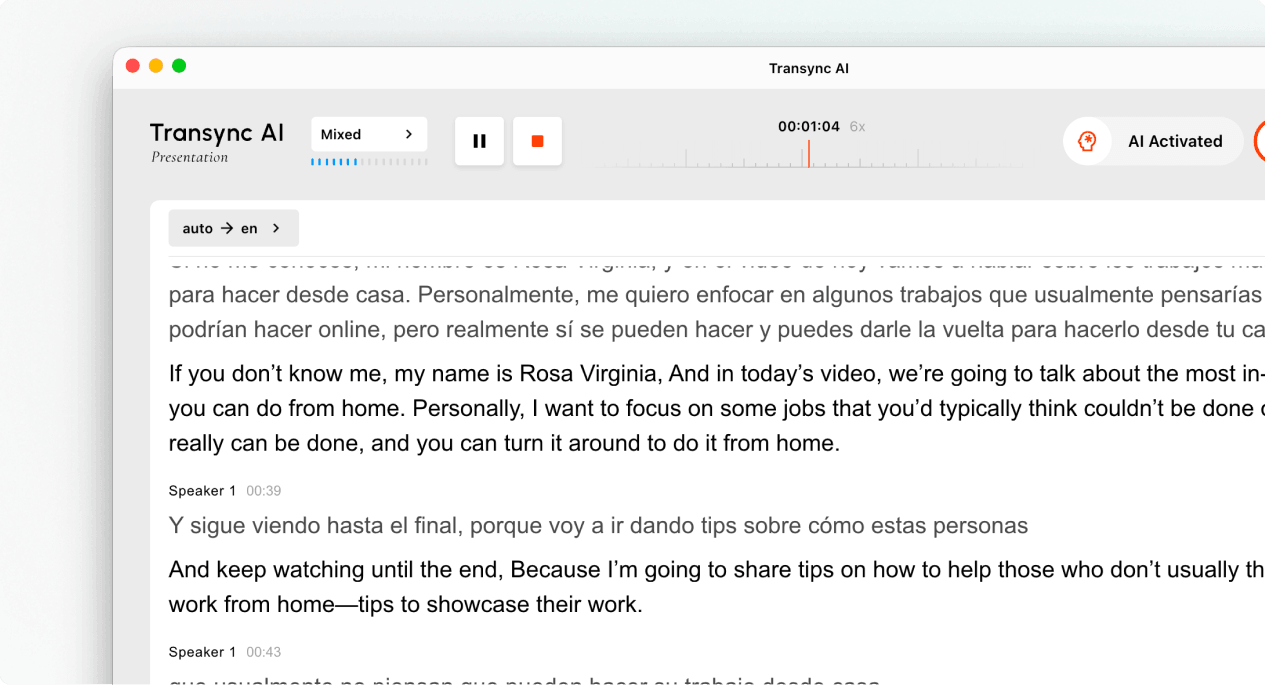
- حدد الميكروفون أو مصدر الصوت الذي يحتوي على كلام المضيف.
- انقر على يبدأ زر في المنطقة العلوية اليسرى.
- تأكد من بدء مؤقت المهمة وأن كلام المضيف يظهر كنص مباشر.
تحدث بشكل طبيعي، واحرص على إبقاء الميكروفون قريبًا بما يكفي لالتقاط صوت واضح. إذا كان الجمهور سيستخدم التسجيل الصوتي، فذكّرهم بأن سماعات الرأس تساعد في منع الصدى في الأماكن المشتركة.
5. ادعُ جمهورك #
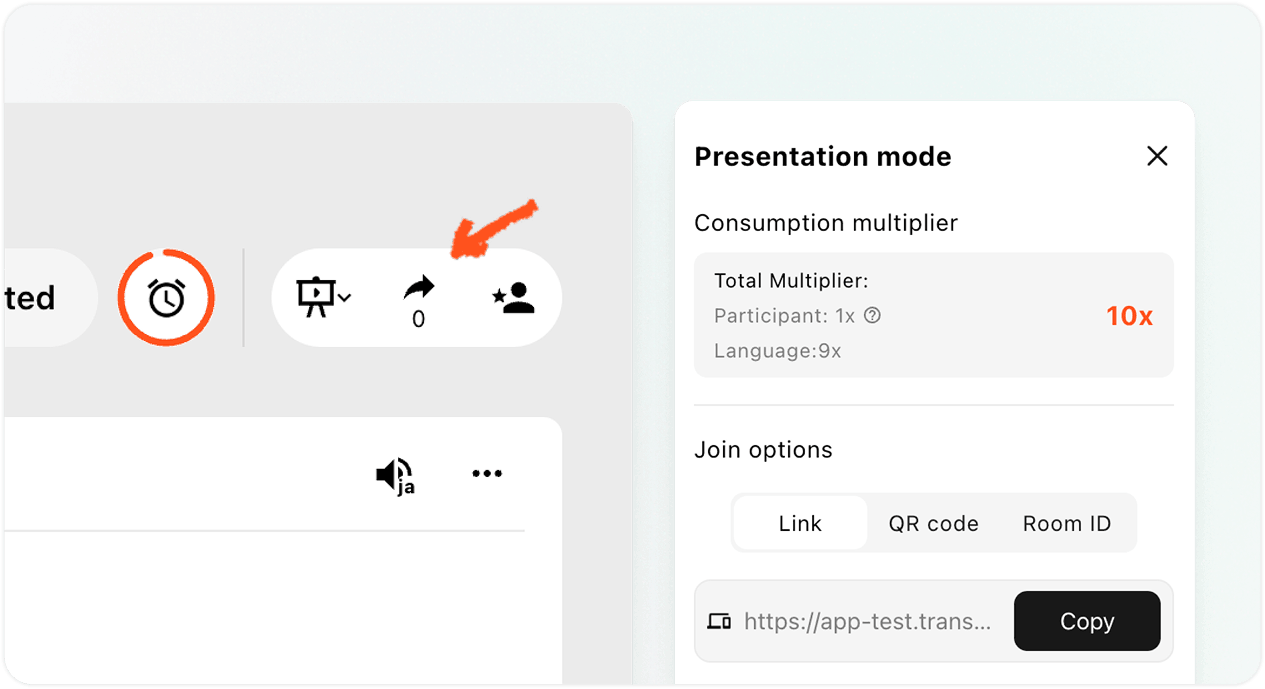
افتح لوحة المشاركة في الزاوية العلوية اليمنى. يمكنك دعوة الجمهور بثلاث طرق:
- وصلةانسخ الرابط إلى دعوة اجتماع أو بريد إلكتروني أو دردشة أو صفحة حدث.
- رمز الاستجابة السريعة: اعرض رمز الاستجابة السريعة على شريحة أو شاشة أو بطاقة مطبوعة أو لافتة خاصة بالحدث حتى يتمكن أفراد الجمهور من مسحه ضوئيًا باستخدام الهاتف.
- رقم الغرفة: اطلب من الحضور إدخال معرف الغرفة من خلال إدخال الانضمام إلى وضع العرض التقديمي في Transync AI.
أرسل لأفراد الجمهور كيفية الانضمام إلى عرض تقديمي لشركة Transync AI يُقدّم دليلٌ عند الحاجة إلى تعليمات انضمام خطوة بخطوة. إذا طلبت Transync AI من أحد الحضور تسجيل الدخول، فعليه إكمال عملية تسجيل الدخول ثم العودة إلى صفحة تأكيد الانضمام.
إدارة العرض التقديمي وإنهاؤه #
6. إدارة العرض التقديمي المباشر #
أثناء العرض التقديمي، يمكن للمضيف ما يلي:
- تحقق من عدد المشاهدين الحاليين عبر الإنترنت من لوحة المشاركة.
- راجع مُضاعِف الاستخدام الذي يعرضه برنامج Transync AI.
- أعد فتح الرابط أو رمز الاستجابة السريعة أو معرف الغرفة عندما يحتاج أحد الحضور الآخرين إلى الانضمام.
- استخدم أدوات التحكم اللغوية المتاحة لمراجعة اللغات المعروضة للجمهور.
يختار الحضور لغة المشاهدة التي تناسبهم من بين اللغات التي يُفعّلها المضيف. يستطيع المضيف رؤية عدد الحضور، لكن وضع العرض التقديمي لا يُظهر قائمة بأسماء الحضور في لوحة التحكم المباشرة.
ملحوظة: قد تختلف إعدادات اللغة باختلاف إصدار التطبيق. قبل الاعتماد على تغيير اللغة أثناء الجلسة، تأكد من تفعيل اللغات المطلوبة مسبقًا.
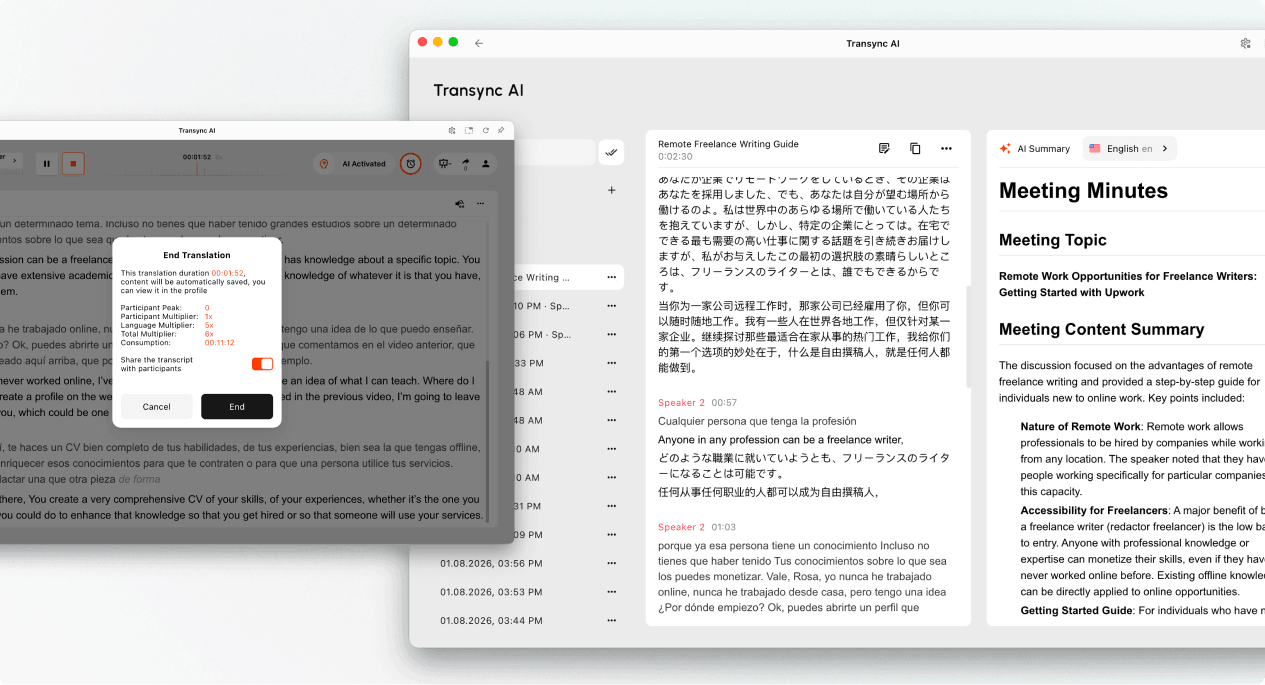
7. إنهاء العرض التقديمي واختيار ما إذا كنت ترغب في مشاركة النص المكتوب #
- يختار نهاية عند انتهاء العرض التقديمي.
- قم بمراجعة مدة المهمة، وذروة مشاركة المشاركين، والمضاعف المعروض، والاستهلاك النهائي.
- إذا كان الخيار متاحًا، فاختر ما إذا كنت تريد تفعيله شارك النص مع المشاركين.
- أكد رغبتك في إنهاء العرض التقديمي.
لا تشارك النص المكتوب إلا إذا كان محتوى العرض التقديمي مناسبًا لاستيعاب الجمهور. في حال عدم تفعيل خاصية مشاركة النص المكتوب، سيتلقى الجمهور إشعارًا بانتهاء العرض دون وجود سجل مشترك.
8. مراجعة الاستخدام والسجلات #
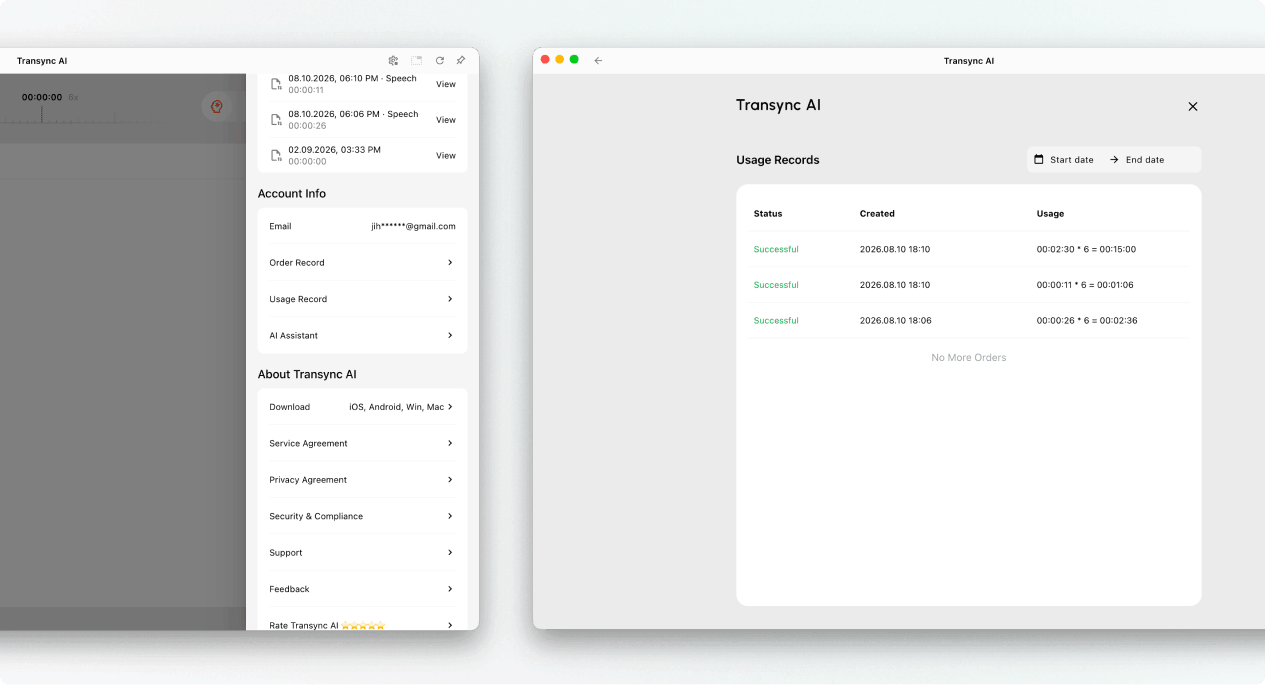
يمكن للمضيف فتح سجل الترجمة لمراجعة سجل العرض التقديمي المحفوظ. كما يمكن مراجعة استخدام العرض التقديمي من الملف الشخصي ← سجل الاستخدام.
كيفية حساب استخدام وضع العرض التقديمي #
يعتمد استخدام وضع العرض التقديمي على عنصرين: ذروة عدد أفراد الجمهور وعدد اللغات المستهدفة المفعلة.
مضاعف المشاركين #
يتم تحديد مضاعف المشاركين من خلال أعلى عدد من أفراد الجمهور المتواجدين عبر الإنترنت في نفس الوقت أثناء العرض التقديمي.
| أعضاء الجمهور في الذروة | مضاعف المشاركين |
|---|---|
| 0–3 | 1x |
| 4-50 | 2x |
| 51–100 | 3x |
| 101–150 | 4x |
| 151–200 | 5x |
مضاعف اللغة المستهدفة #
يبدأ مضاعف اللغة المستهدفة من 1x ويزداد بمقدار 1x لكل لغة مستهدفة مفعلة.
| عدد اللغات المستهدفة | مضاعف اللغة المستهدفة |
|---|---|
| 1 | 2x |
| 2 | 3x |
| 3 | 4x |
| 4 | 5x |
| 5 | 6x |
| 6 | 7x |
| 7 | 8x |
| 8 | 9x |
| 9 | 10x |
المضاعف الإجمالي = مضاعف المشاركين + مضاعف اللغة المستهدفة
على سبيل المثال، إذا كان الجمهور المستهدف في ذروته 30 شخصًا، وقام المضيف بتمكين 4 لغات مستهدفة، فإن مُضاعِف المشاركين هو 2x ومُضاعِف اللغة المستهدفة هو 5x. وبالتالي، فإن المُضاعِف الإجمالي هو 7x.
للاطلاع على معلومات حول تنظيم السجلات والتصدير، انظر كيفية إدارة سجلات الترجمة. للاطلاع على النصوص والملخصات التي تم إنشاؤها بواسطة الذكاء الاصطناعي، انظر كيفية الوصول إلى نصوص وملخصات الاجتماعات.
استكشاف الأخطاء وإصلاحها #
لا يمكن للجمهور الانضمام #
تأكد من أن العرض التقديمي لا يزال نشطًا. أعد فتح لوحة المشاركة وأرسل نسخة جديدة من الرابط أو رمز الاستجابة السريعة أو مُعرّف الغرفة. إذا رأى الحضور طلب تسجيل دخول، فاطلب منهم تسجيل الدخول ثم أكّد طلب الانضمام.
لا يرى الجمهور أي نص جديد #
تأكد من أن مهمة المضيف لا تزال نشطة، وأن الميكروفون الصحيح مُحدد، وأن النص المباشر يظهر على واجهة المضيف. إذا لم تستقبل واجهة المضيف الصوت، فقم بحل مشكلة إدخال الصوت قبل مطالبة الجمهور بالانضمام مجددًا.
اختار أحد الحضور اللغة الخاطئة #
اطلب من أحد الحضور فتح قائمة اختيار اللغة واختيار لغة أخرى مُفعّلة من قِبل المُضيف. إذا لم تكن اللغة المطلوبة مُدرجة، فتحقق من إعدادات اللغة المستهدفة لدى المُضيف.
الاستخدام أعلى من المتوقع #
تأكد من مستوى الجمهور المستهدف وعدد اللغات المستهدفة المُفعّلة. أضف مُضاعِف المشاركين ومُضاعِف اللغة المستهدفة، ثم قارن النتيجة مع بيانات المهمة في سجل الاستخدام.
الأسئلة الشائعة #
كيف يختلف وضع العرض التقديمي عن الترجمة متعددة اللغات؟ #
تتيح ميزة الترجمة متعددة اللغات إنتاج عدة لغات مستهدفة في مهمة واحدة. كما يتيح وضع العرض التقديمي للمضيف توزيع الترجمة المباشرة على الجمهور، حيث يتابع كل فرد من الجمهور عبر جهازه الخاص.
هل يمكن لأفراد الجمهور التدخل في مهمة المضيف؟ #
لا. يمكن لأفراد الجمهور مشاهدة الترجمات والاستماع إلى تشغيل الصوت، لكن لا يمكنهم تقديم مدخلات صوتية لمهمة المضيف.
كم عدد اللغات المستهدفة التي يمكن للمضيف تفعيلها؟ #
يدعم تصميم وضع العرض التقديمي الحالي ما يصل إلى 9 لغات مستهدفة. تحقق من واجهة التطبيق الحالية لمعرفة اللغات المتاحة في مهمتك.
كيف يتم حساب استخدام وضع العرض التقديمي؟ #
أضف مُضاعِف عدد المشاركين لفئة الجمهور الأعلى إلى مُضاعِف اللغة المستهدفة. يبدأ مُضاعِف اللغة المستهدفة من 1x ويزداد بمقدار 1x لكل لغة مستهدفة مُفعّلة. راجع الجداول أعلاه وقارن إجمالي المُضاعِف بالقيمة المعروضة في سير عمل العرض التقديمي.
ماذا يحدث بعد انتهاء العرض التقديمي؟ #
يتم حفظ محتوى المضيف في سجل الترجمة. إذا فعّل المضيف خاصية مشاركة النصوص، فيمكن لأفراد الجمهور فتح السجل المشترك من حساباتهم بعد انتهاء العرض التقديمي.


