
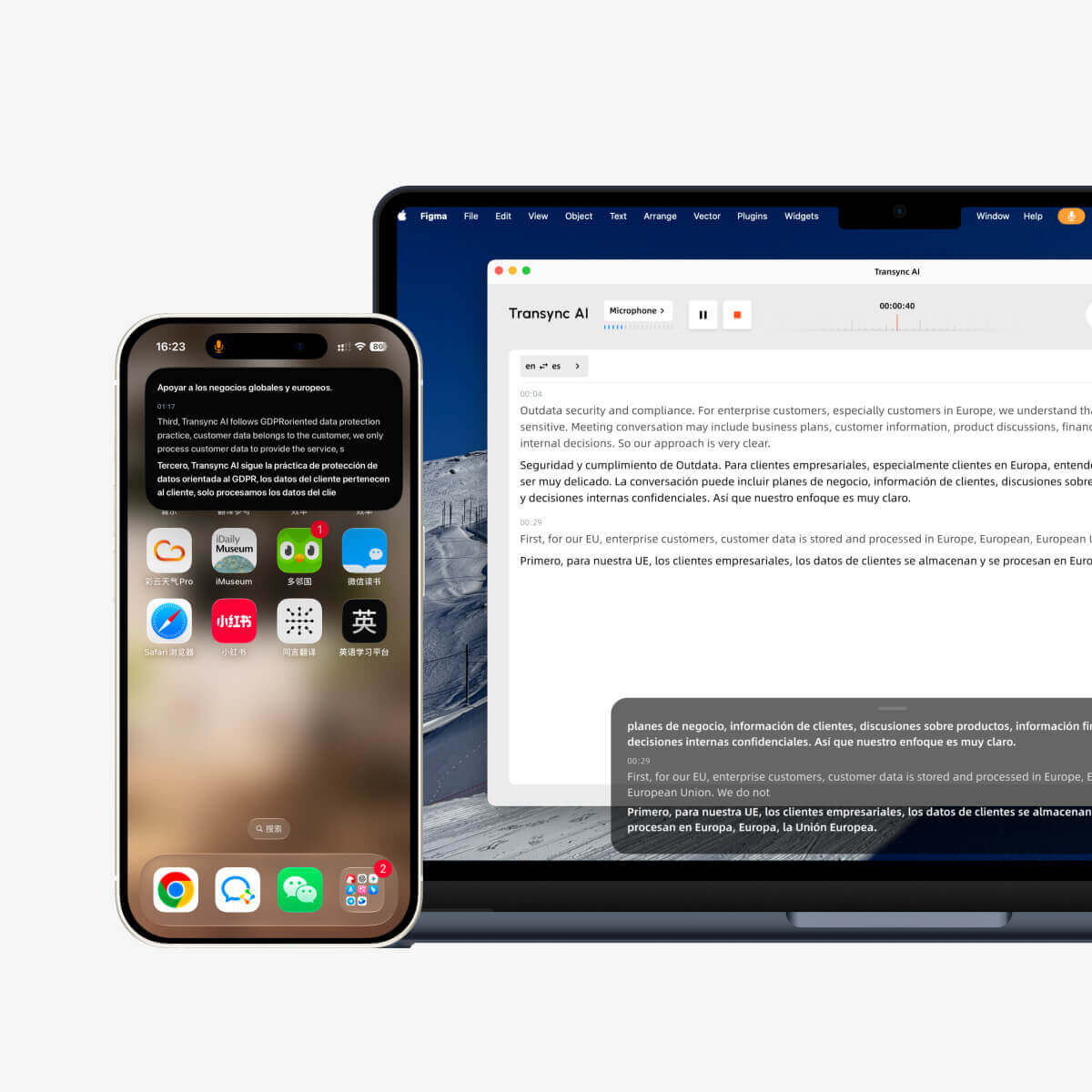
تتيح لك ميزة Picture-in-Picture (PiP) إبقاء الترجمة الفورية مرئية في نافذة عائمة أثناء استخدام تطبيقات أخرى. وهي مفيدة عند حضور اجتماع، أو مشاهدة عرض تقديمي، أو عرض محتوى مشترك، أو تدوين ملاحظات، بينما يواصل برنامج Transync AI الترجمة في الوقت الفعلي.
تتوفر ميزة Picture-in-Picture على Windows، ماك أو إس، آي أو إس، وأندرويد. وهو حاليًا غير متوفر على نسخة الويب.
قبل استخدام ميزة Picture-in-Picture (PiP)، تأكد من أنك قد بدأت بالفعل مهمة ترجمة. إذا كنت جديدًا على Transync AI، فقد ترغب في مراجعة دليلنا. البدء السريع أو تعلم كيفية بدء الترجمة في الوقت الفعلي أولاً.
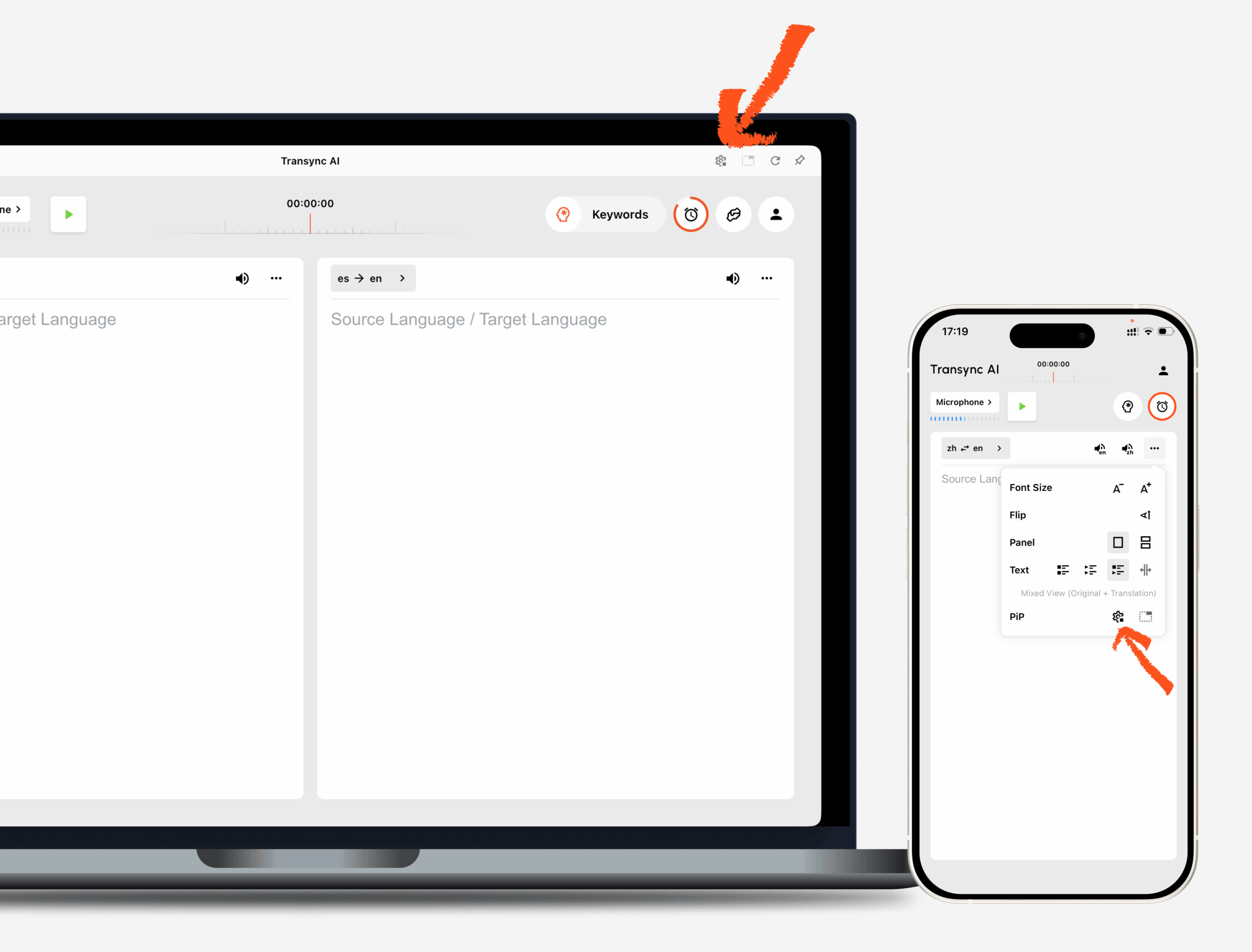
1. افتح إعدادات Picture-in-Picture #
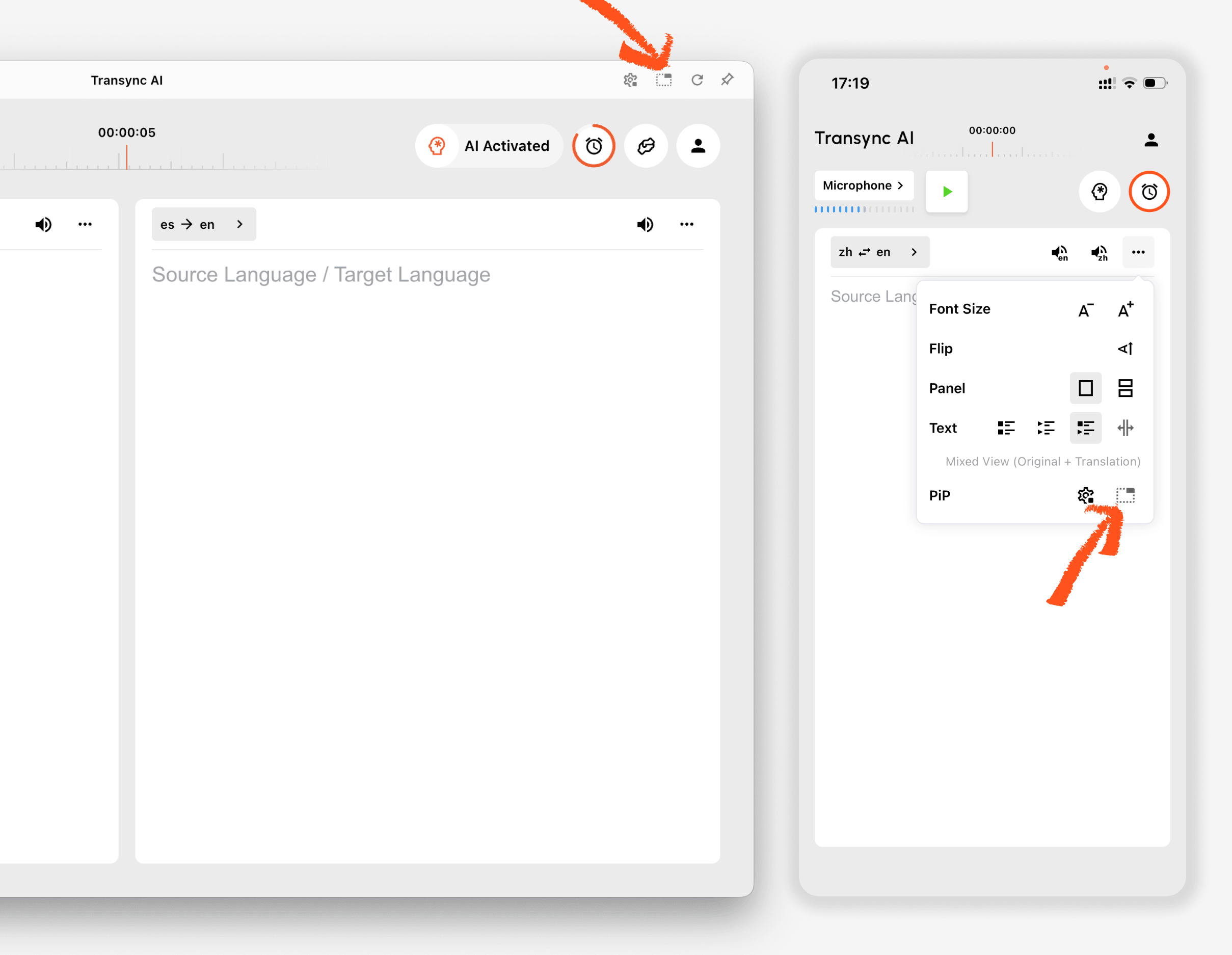
يفتح إعدادات في برنامج Transync AI، ابحث عن قسم إعدادات Picture-in-Picture (PiP). يمكنك ضبط كيفية ظهور نافذة الترجمة العائمة قبل استخدام خاصية Picture-in-Picture أثناء مهمة الترجمة.
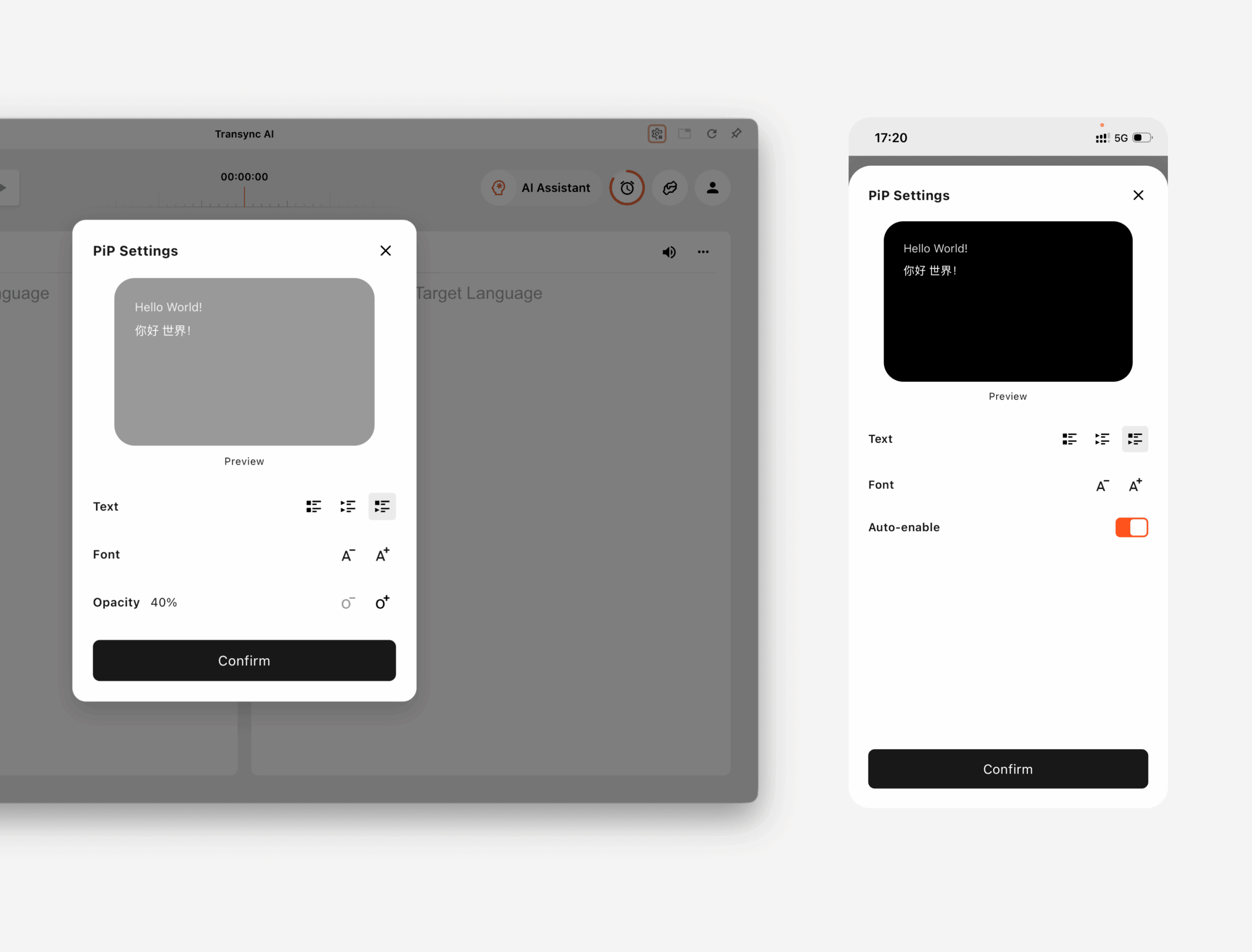
على Windows وماك أو إس, يمكنك التعديل:
- وضع عرض الترجمة
- حجم الخط
- شفافية النافذة
على iOS و Android, يمكنك التعديل:
- وضع عرض الترجمة
- حجم الخط
- تفعيل خاصية Picture-in-Picture تلقائياً
2. اختر وضع عرض الترجمة #
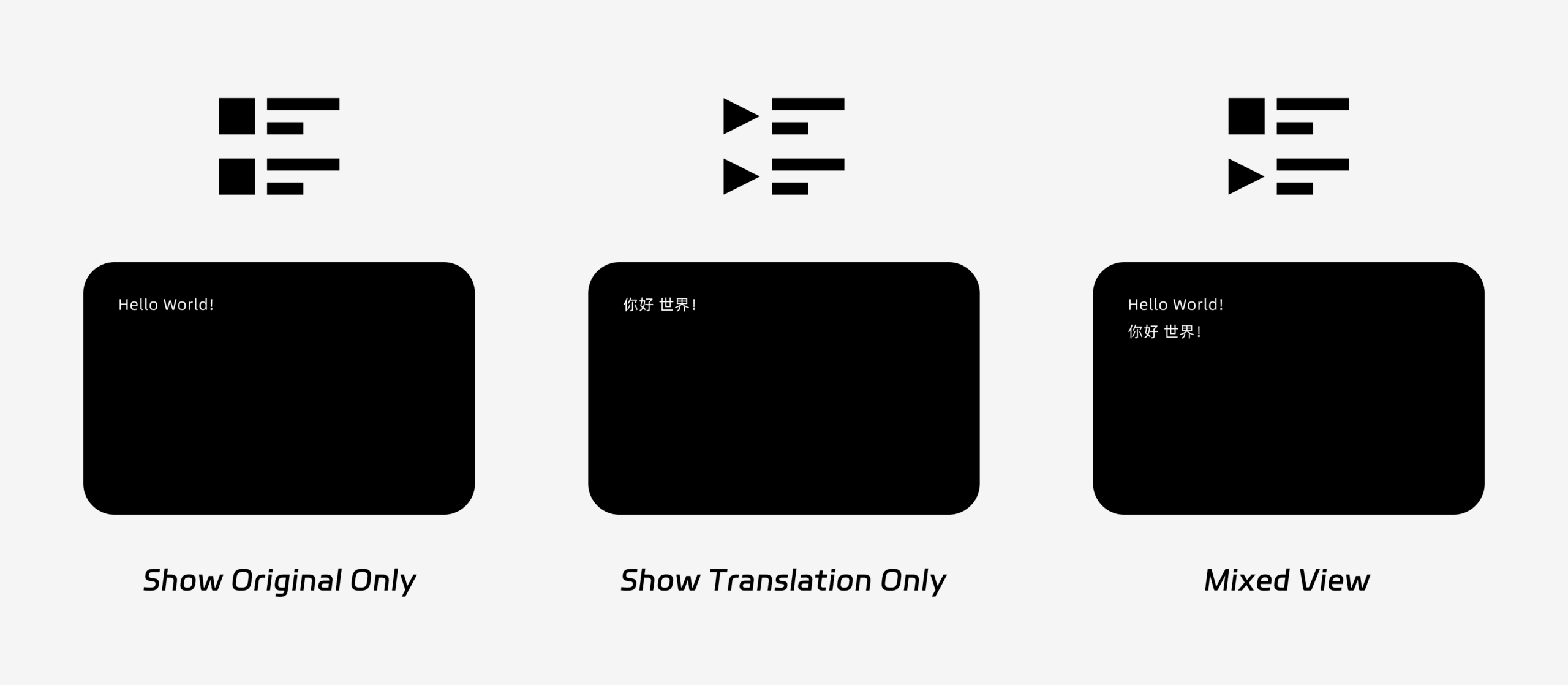
يدعم وضع Picture-in-Picture (PiP) ثلاثة أوضاع لعرض الترجمة:
- عرض النسخة الأصلية فقطيعرض النص الأصلي للكلام فقط.
- عرض الترجمة فقطيعرض النص المترجم فقط.
- منظر مختلطيعرض النص الأصلي والنص المترجم.
اختر وضع العرض بناءً على حالة استخدامك. للاجتماعات،, عرض الترجمة فقط يوفر عرضًا أوضح. لتعلم اللغات أو المراجعة ثنائية اللغة،, منظر مختلط يمكن أن يساعدك ذلك في مقارنة النص الأصلي والنص المترجم.
3. ضبط حجم الخط والعرض #
يستخدم حجم الخط لتسهيل قراءة الترجمة في نافذة Picture-in-Picture عائمة.
في نظامي التشغيل Windows وماك، يمكنك أيضًا ضبط شفافية النافذة. تساعد النافذة الأكثر شفافية على منع الترجمة من حجب محتوى الاجتماع أو الشرائح أو الشاشات المشتركة. أما النافذة الأقل شفافية فتجعل قراءة الترجمة أسهل.
إذا كنت تستخدم أيضًا الإخراج الصوتي أثناء الترجمة، فقد ترغب في معرفة المزيد حول كيفية استخدام تشغيل الصوت في Transync AI
4. ابدأ باستخدام Picture-in-Picture #
بعد ضبط إعدادات PiP، ابدأ مهمة الترجمة كالمعتاد.
استخدم خاصية Picture-in-Picture على نظامي التشغيل Windows أو ماك أو إس
بمجرد بدء إنشاء الترجمة، انقر فوق Picture-in-Picture زر لفتح نافذة الترجمة العائمة. يمكنك نقل نافذة صورة داخل صورة (PiP) إلى موضع مناسب على شاشتك أثناء استخدام Zoom أو Microsoft Teams أو Google Meet أو المتصفحات أو المستندات أو التطبيقات الأخرى. يتذكر Transync AI آخر موضع لنافذة PiP على سطح المكتب، بحيث يمكن إعادة فتح نافذة الترجمة من حيث تركتها في المرة القادمة التي تستخدم فيها PiP.
إذا كنت بحاجة إلى ترجمة الصوت الخاص بالاجتماع من جهاز الكمبيوتر الخاص بك، يمكنك أيضًا التحقق من كيفية مشاركة الصوت على الكمبيوتر
استخدم خاصية Picture-in-Picture على نظامي iOS أو Android
على الأجهزة المحمولة، يمكن تشغيل ميزة Picture-in-Picture (PiP) يدويًا أو تلقائيًا.
لو تفعيل خاصية Picture-in-Picture تلقائياً عند تشغيل خاصية Picture-in-Picture (PiP)، سيبدأ تشغيلها تلقائيًا عند تصغير تطبيق Transync AI أثناء مهمة ترجمة نشطة.
لو تفعيل خاصية Picture-in-Picture تلقائياً إذا تم إيقاف تشغيله، فانقر على Picture-in-Picture اضغط على الزر يدويًا لفتح نافذة الترجمة العائمة.
يتيح لك هذا إبقاء الترجمات مرئية أثناء استخدام تطبيقات الهاتف المحمول الأخرى.
5. عندما لا يكون وضع Picture-in-Picture متاحًا #
خاصية Picture-in-Picture غير متوفرة في نسخة الويب من برنامج Transync AI. لاستخدام هذه الخاصية، يُرجى استخدام تطبيق Windows أو macOS أو iOS أو Android.
إذا لم تظهر نافذة Picture-in-Picture، فتحقق مما يلي:
- تجري حاليًا مهمة ترجمة.
- أنت تستخدم منصة مدعومة.
- على الهاتف المحمول، يتم تشغيل خاصية التمكين التلقائي لخاصية Picture-in-Picture (PiP) إذا كنت تريد أن تبدأ خاصية Picture-in-Picture تلقائيًا.


