
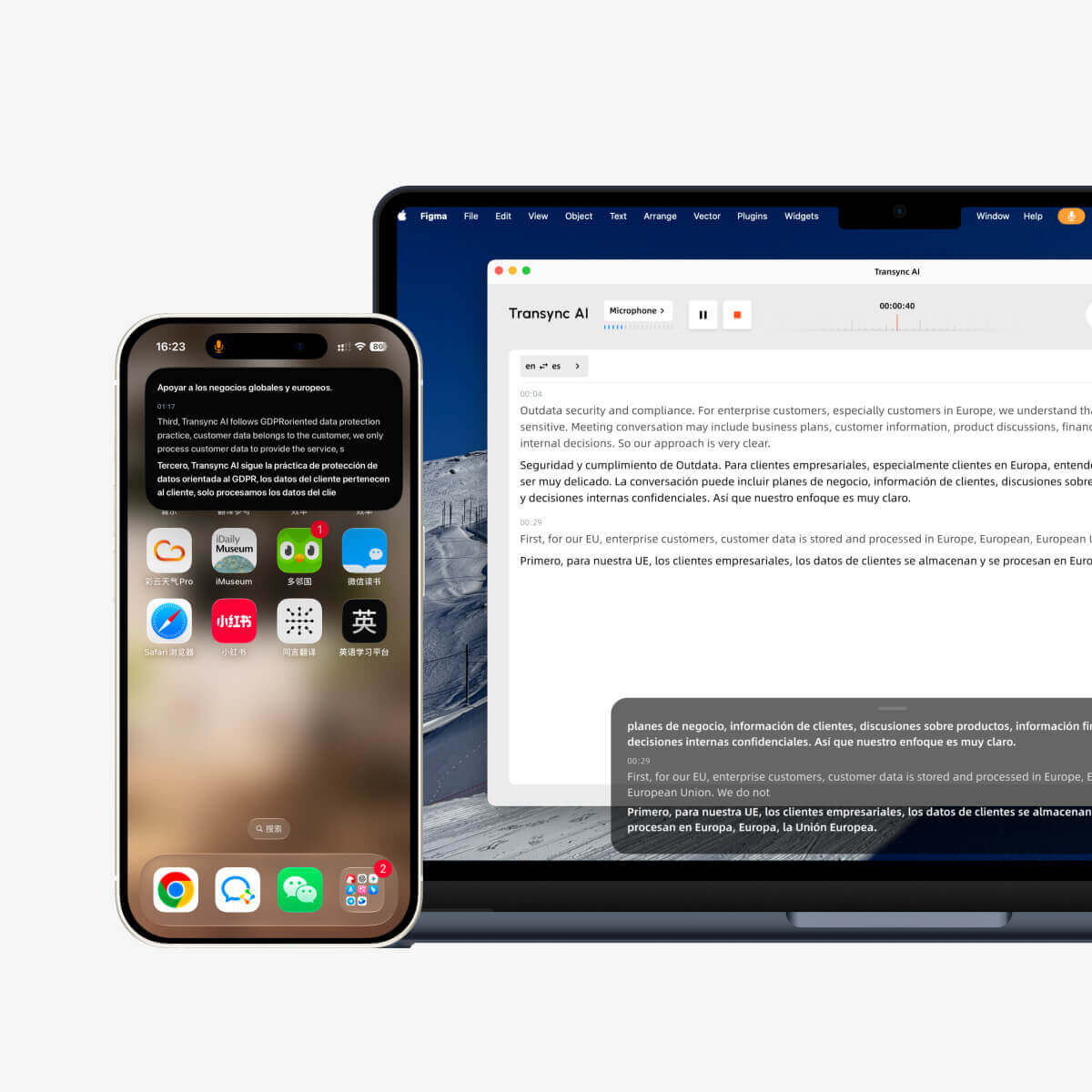
Tryb obrazu w obrazie (PIP) pozwala na wyświetlanie napisów na żywo w ruchomym oknie podczas korzystania z innych aplikacji. Jest to przydatne podczas spotkania, oglądania prezentacji, przeglądania udostępnianych treści lub robienia notatek, podczas gdy Transync AI kontynuuje tłumaczenie w czasie rzeczywistym.
PiP jest dostępny na Windows, macOS, iOS i Android. Obecnie jest niedostępne w wersji internetowej.
Przed użyciem funkcji PiP upewnij się, że rozpocząłeś już zadanie tłumaczenia. Jeśli dopiero zaczynasz korzystać z Transync AI, możesz zapoznać się z naszą Szybki start lub uczyć się Jak rozpocząć tłumaczenie w czasie rzeczywistym Pierwszy.
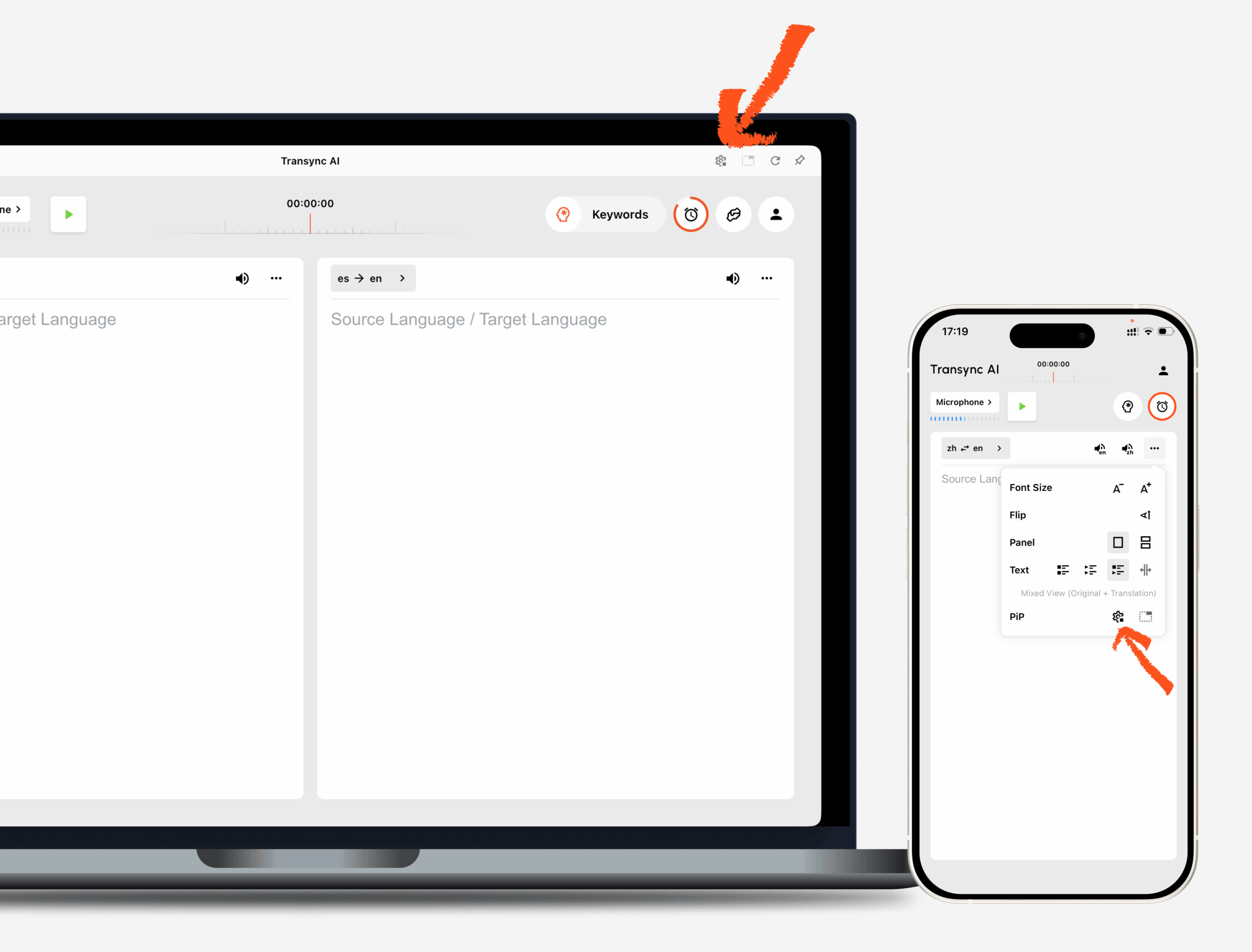
1. Otwórz ustawienia obrazu w obrazie #
Otwarte Ustawienia W Transync AI znajdź sekcję ustawień PiP. Możesz skonfigurować wygląd okna napisów ruchomych przed użyciem PiP podczas tłumaczenia.
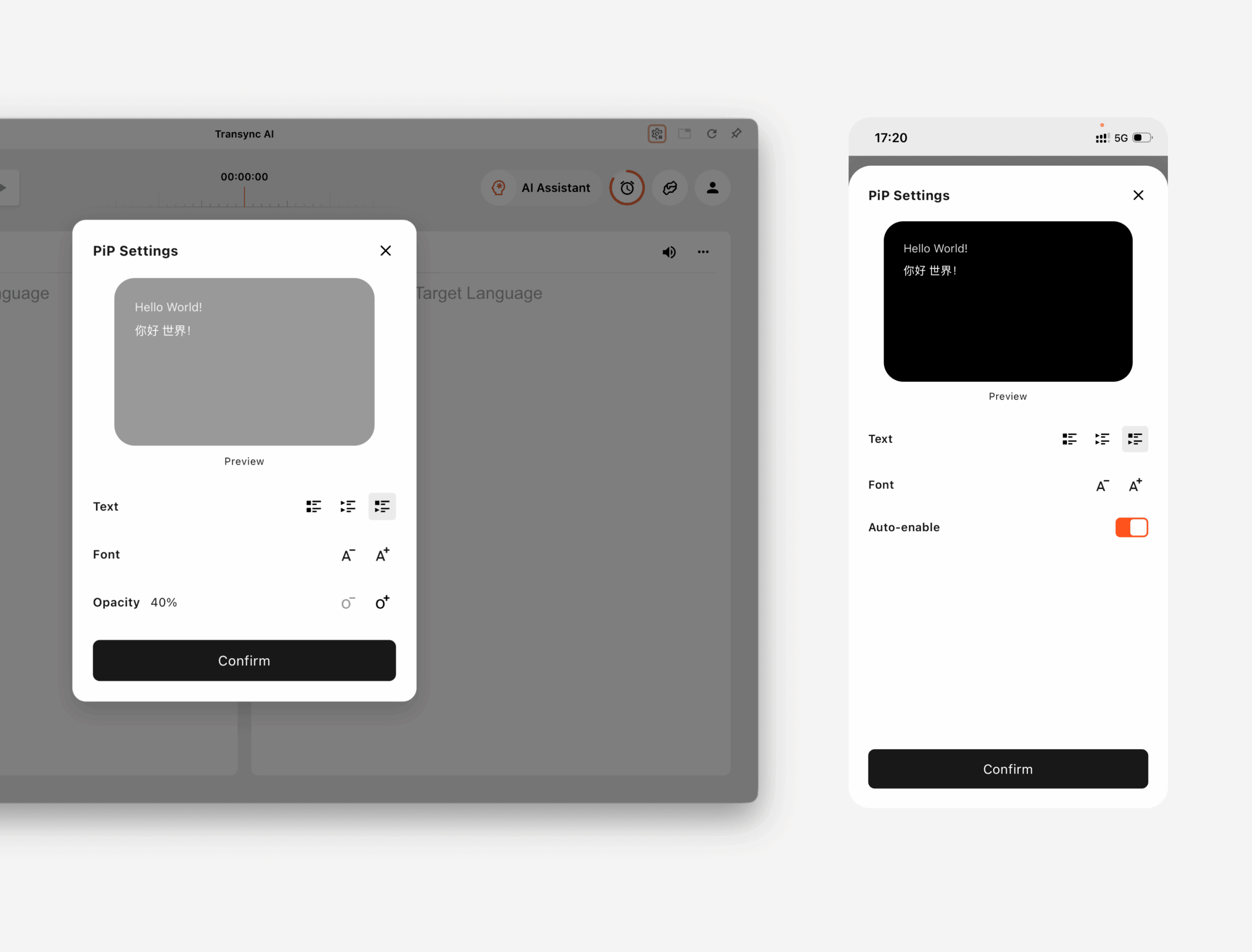
NA Windows i macOS, możesz dostosować:
- Tryb wyświetlania napisów
- Rozmiar czcionki
- Przezroczystość okna
NA iOS i Android, możesz dostosować:
- Tryb wyświetlania napisów
- Rozmiar czcionki
- Automatyczne włączanie PiP
2. Wybierz tryb wyświetlania napisów #
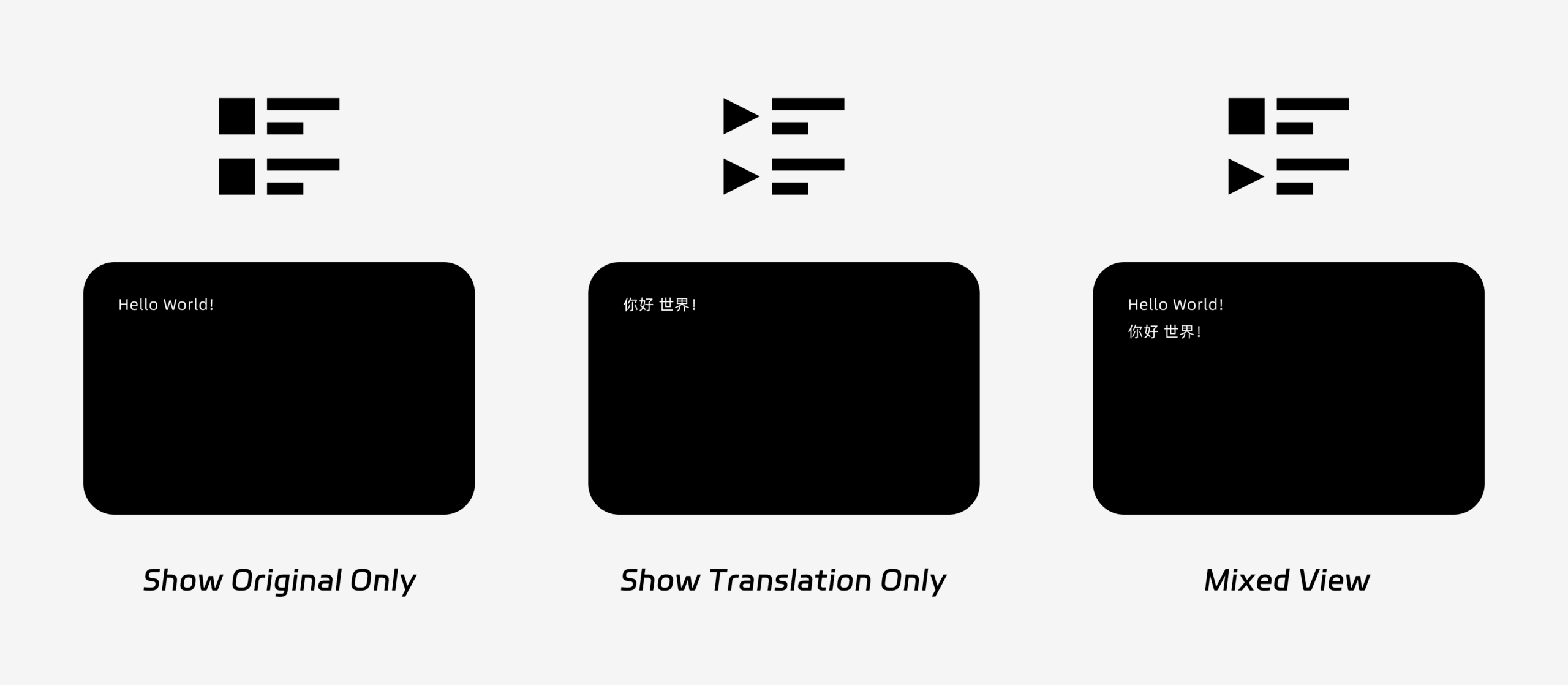
Funkcja PiP obsługuje trzy tryby wyświetlania napisów:
- Pokaż tylko oryginał: Wyświetla tylko oryginalny tekst mowy.
- Pokaż tylko tłumaczenie: Wyświetla tylko przetłumaczony tekst.
- Widok mieszany: Wyświetla zarówno tekst oryginalny, jak i tekst przetłumaczony.
Wybierz tryb wyświetlania w zależności od przypadku użycia. W przypadku spotkań, Pokaż tylko tłumaczenie zapewnia bardziej przejrzysty obraz. Do nauki języka lub powtórek dwujęzycznych, Widok mieszany może pomóc Ci porównać tekst oryginalny i przetłumaczony.
3. Dostosuj rozmiar czcionki i sposób wyświetlania #
Używać Rozmiar czcionki aby ułatwić czytanie napisów w oknie PiP.
W systemach Windows i macOS możesz również dostosować przezroczystość okna. Bardziej przezroczyste okno pomaga zapobiegać blokowaniu przez napisy treści spotkania, slajdów lub współdzielonych ekranów. Mniej przezroczyste okno może ułatwić odczytanie napisów.
Jeśli podczas tłumaczenia korzystasz również z wyjścia głosowego, możesz chcieć dowiedzieć się więcej na ten temat Jak korzystać z odtwarzania głosu w Transync AI
4. Zacznij używać PiP #
Po skonfigurowaniu ustawień PiP rozpocznij zadanie tłumaczenia w zwykły sposób.
Użyj funkcji PiP w systemie Windows lub macOS
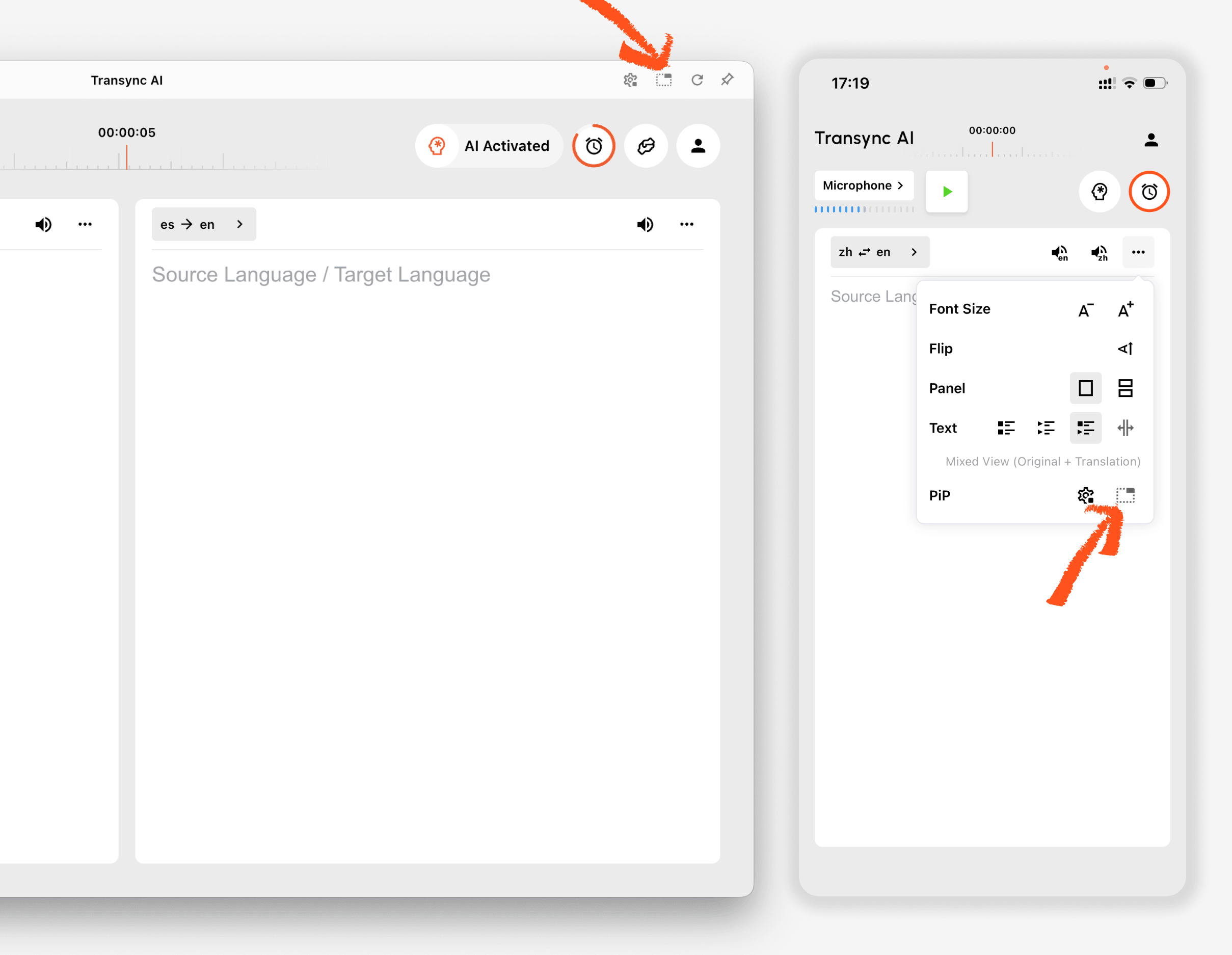
Po wygenerowaniu napisów kliknij Pypeć Aby otworzyć ruchome okno napisów, naciśnij przycisk. Możesz przenieść okno PiP w dogodne miejsce na ekranie podczas korzystania z Zoom, Microsoft Teams, Google Meet, przeglądarek, dokumentów lub innych aplikacji. Transync AI zapamiętuje ostatnią pozycję okna PiP na pulpicie, dzięki czemu okno napisów może otworzyć się ponownie w tym samym miejscu, gdy je zostawisz.
Jeśli chcesz przetłumaczyć dźwięk ze spotkania na swoim komputerze, możesz również sprawdzić Jak udostępniać dźwięk z komputera
Użyj funkcji PiP na iOS lub Androidzie
Na urządzeniach mobilnych funkcję PiP można uruchomić ręcznie lub automatycznie.
Jeśli Automatyczne włączanie PiP jeśli jest włączona, funkcja PiP uruchomi się automatycznie po zminimalizowaniu aplikacji Transync AI podczas aktywnego zadania tłumaczenia.
Jeśli Automatyczne włączanie PiP jest wyłączony, dotknij Pypeć Naciśnij przycisk ręcznie, aby otworzyć pływające okno napisów.
Dzięki temu tłumaczenia będą widoczne podczas korzystania z innych aplikacji mobilnych.
5. Kiedy funkcja PiP jest niedostępna #
Funkcja PiP nie jest dostępna w wersji internetowej Transync AI. Aby z niej skorzystać, skorzystaj z aplikacji na system Windows, macOS, iOS lub Android.
Jeżeli okno PiP się nie pojawi, sprawdź czy:
- Obecnie trwa zadanie tłumaczenia.
- Używasz obsługiwanej platformy.
- Na urządzeniach mobilnych opcja Automatyczne włączanie obrazu w obrazie jest włączona, jeśli chcesz, aby obraz w obrazie był włączany automatycznie.


