
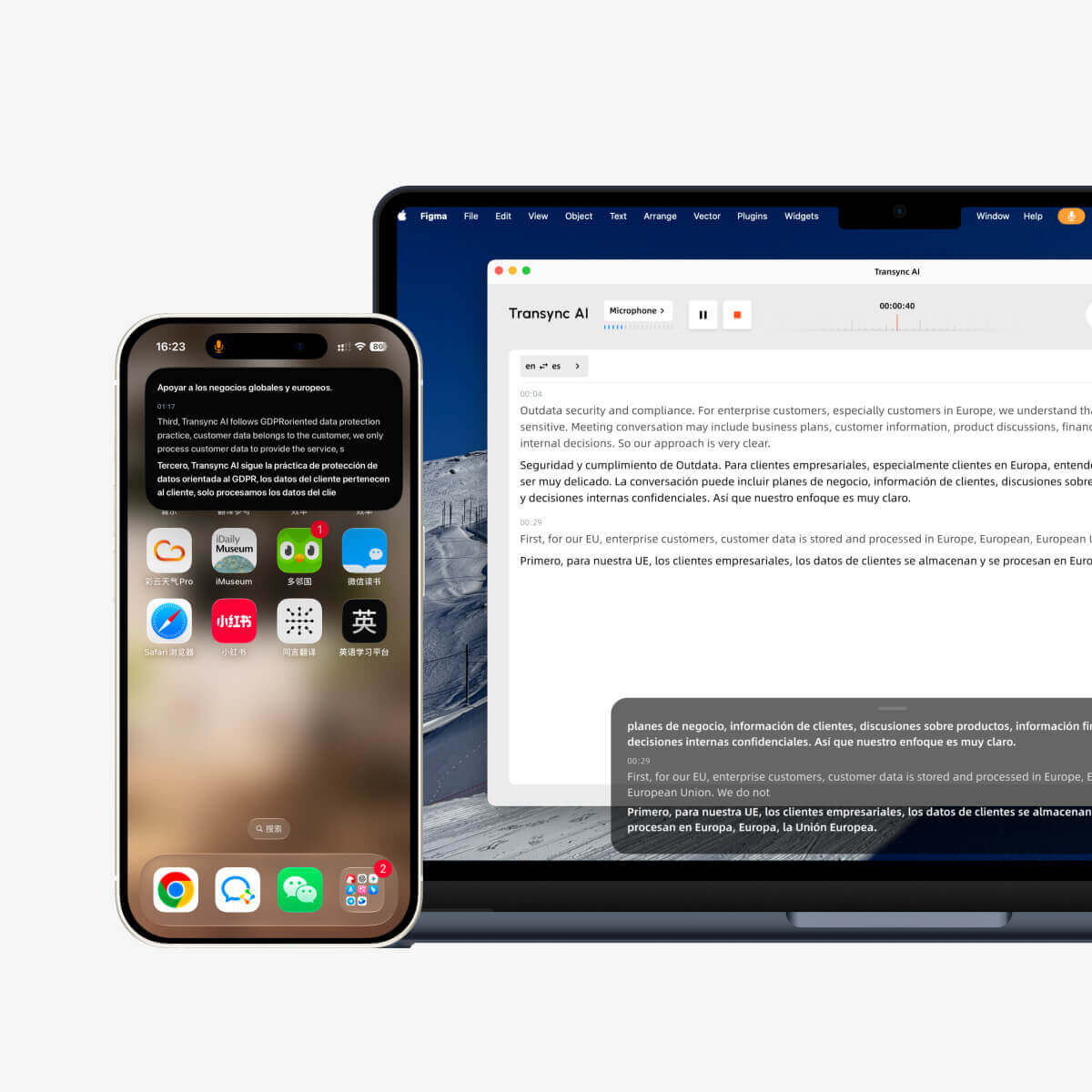
La modalità Picture-in-Picture, o PiP, consente di mantenere i sottotitoli in tempo reale visibili in una finestra mobile mentre si utilizzano altre applicazioni. È utile quando si partecipa a una riunione, si guarda una presentazione, si visualizzano contenuti condivisi o si prendono appunti mentre Transync AI continua a tradurre in tempo reale.
PiP è disponibile su Windows, macOS, iOS e Android. Attualmente è non disponibile nella versione Web.
Prima di utilizzare PiP, assicurati di aver già avviato un'attività di traduzione. Se non hai familiarità con Transync AI, potresti voler consultare la nostra Avvio rapido o imparare Come avviare la traduzione in tempo reale Primo.
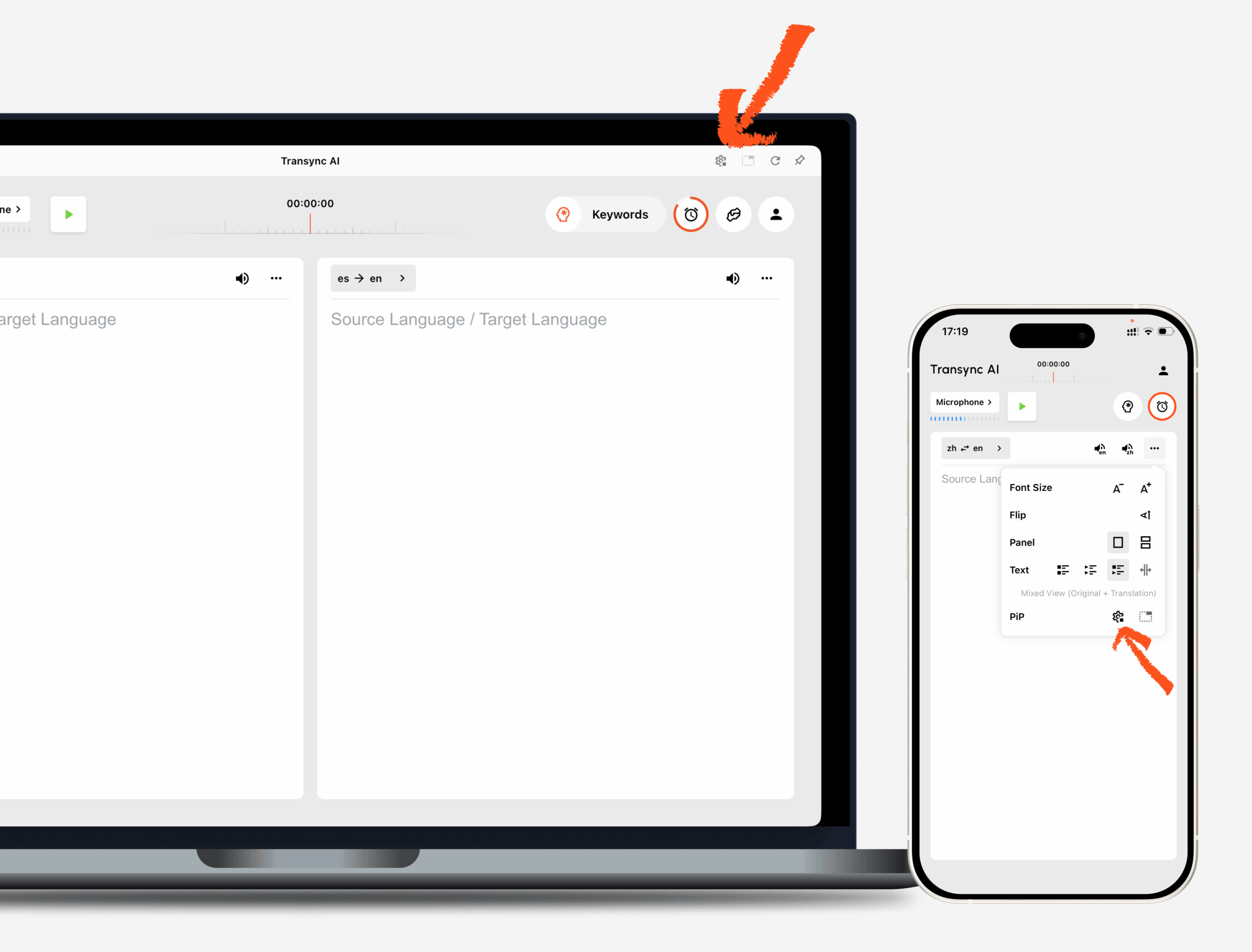
1. Apri le impostazioni PiP #
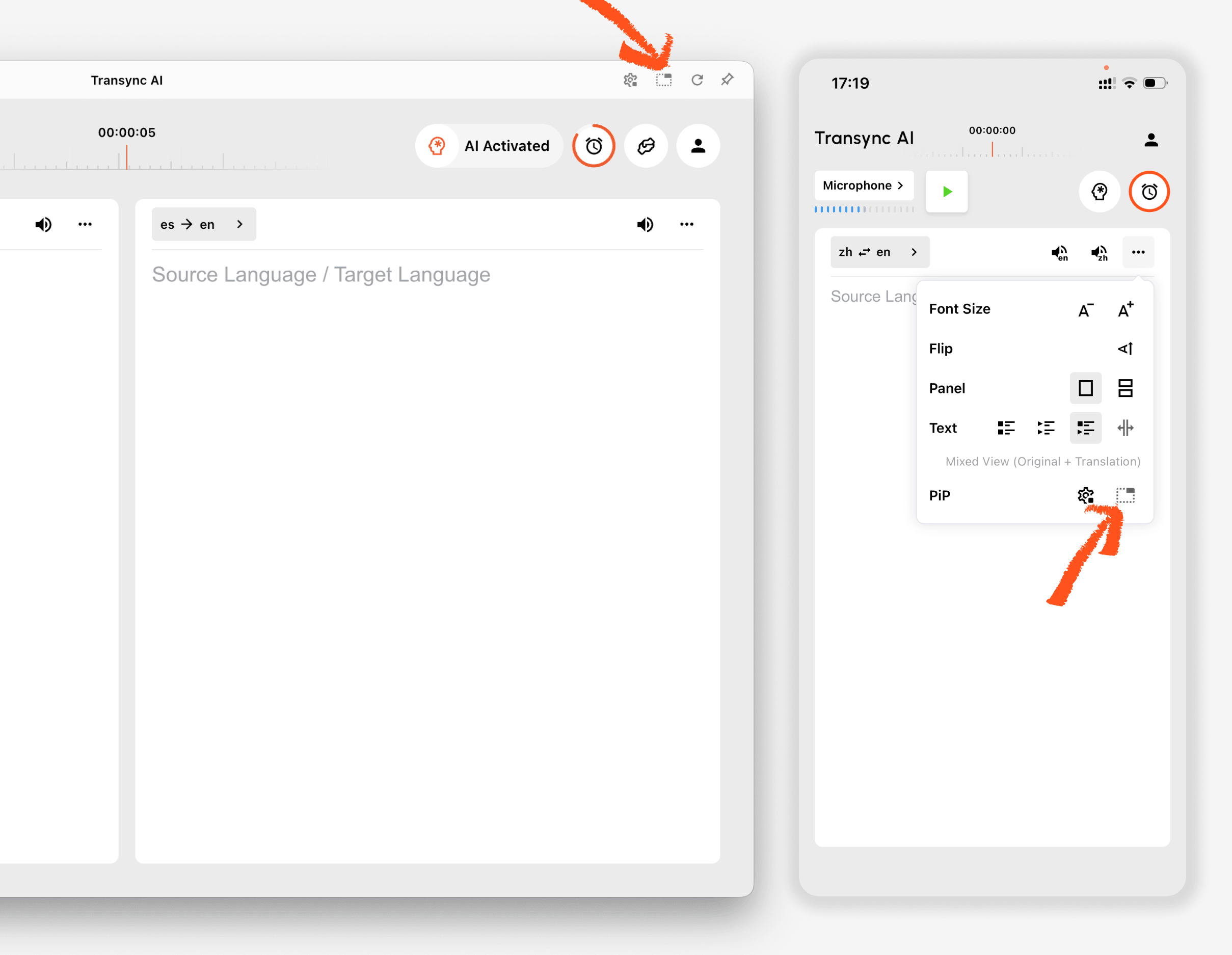
Aprire Impostazioni Apri Transync AI e individua la sezione delle impostazioni PiP. Qui puoi configurare l'aspetto della finestra dei sottotitoli fluttuanti prima di utilizzare la funzione PiP durante un'attività di traduzione.
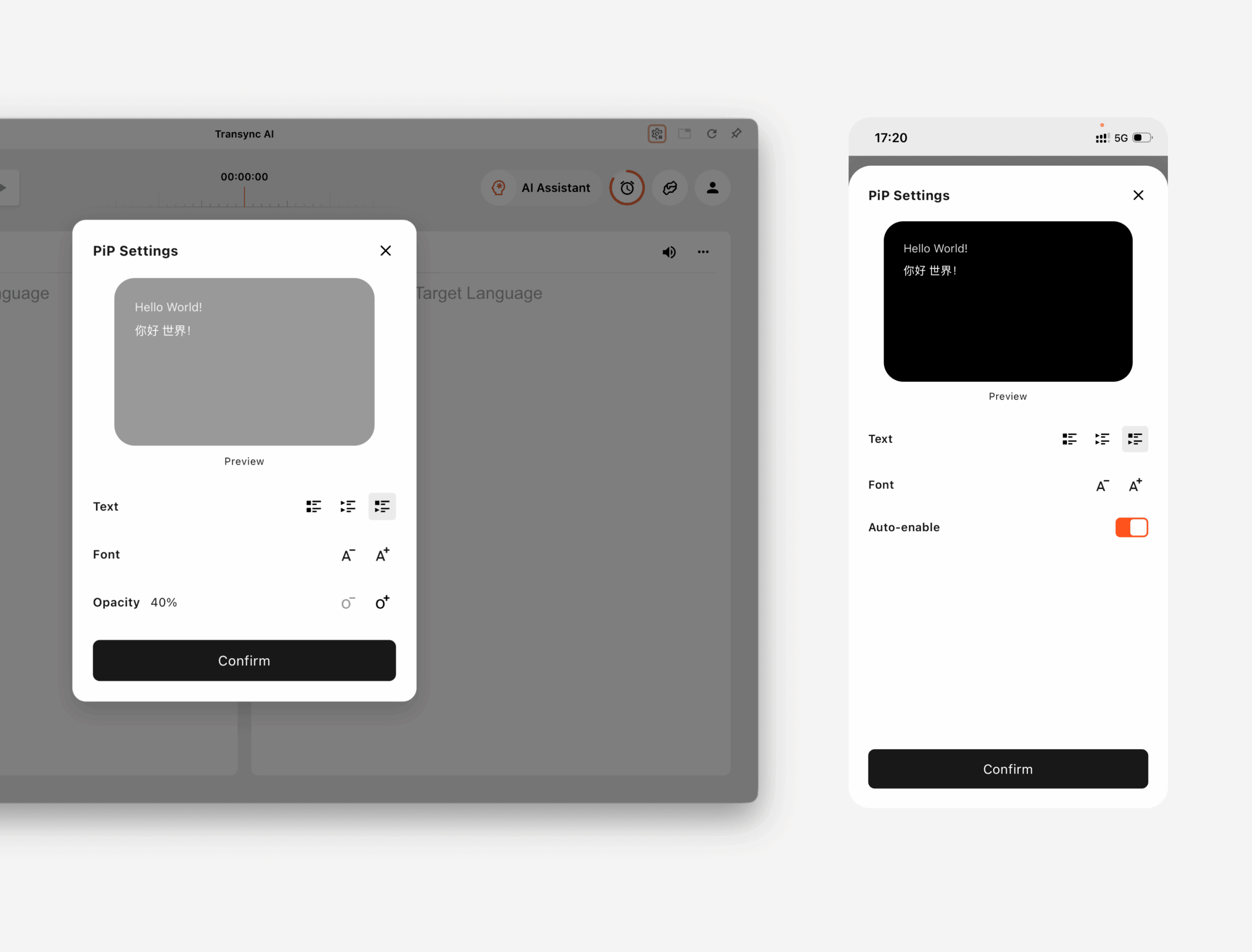
SU Windows e macOS, puoi regolare:
- Modalità di visualizzazione dei sottotitoli
- Dimensione del carattere
- Trasparenza della finestra
SU iOS e Android, puoi regolare:
- Modalità di visualizzazione dei sottotitoli
- Dimensione del carattere
- Attivazione automatica PiP
2. Scegli una modalità di visualizzazione dei sottotitoli #
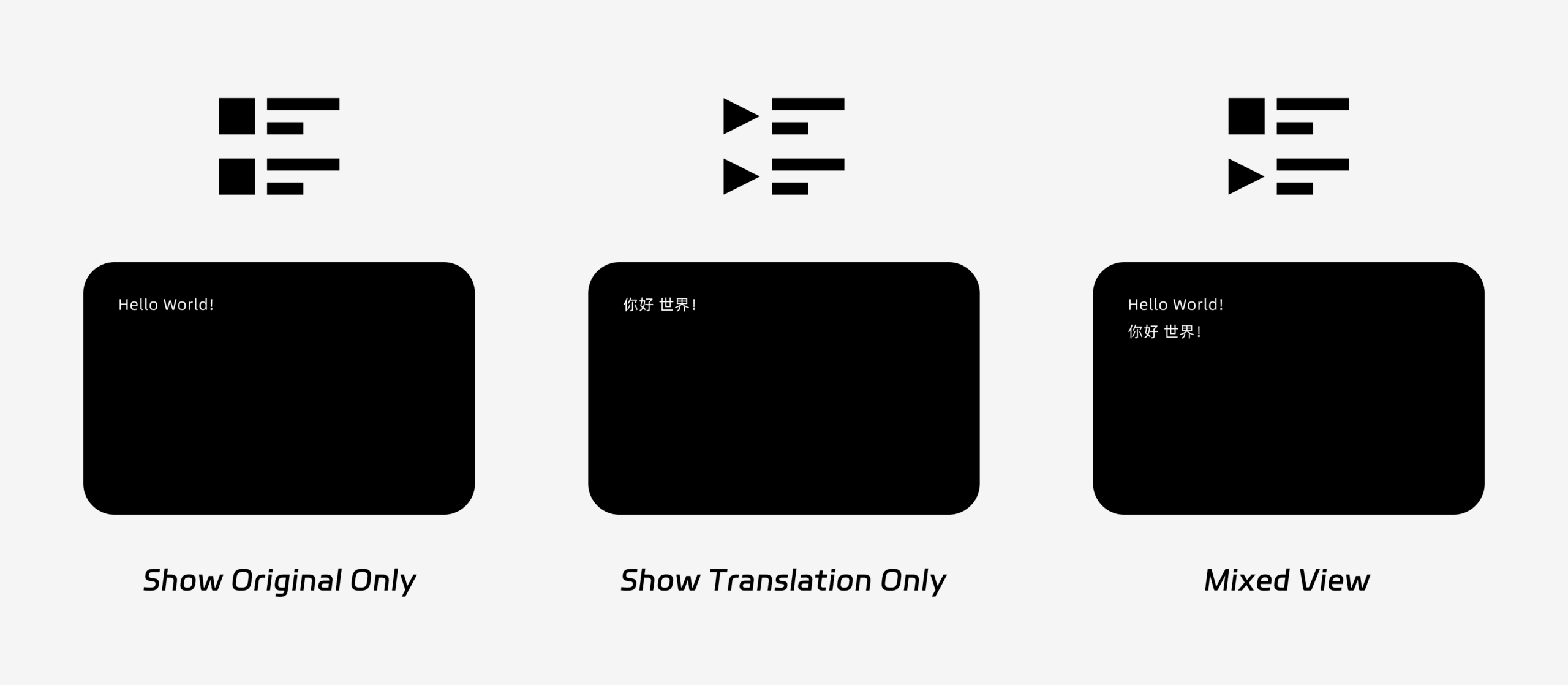
La funzione Picture-in-Picture (PiP) supporta tre modalità di visualizzazione dei sottotitoli:
- Mostra solo l'originale: Visualizza solo il testo originale del discorso.
- Mostra solo la traduzione: Visualizza solo il testo tradotto.
- Visione mista: Visualizza sia il testo originale che il testo tradotto.
Scegli la modalità di visualizzazione in base al tuo caso d'uso. Per le riunioni, Mostra solo la traduzione fornisce una visione più chiara. Per l'apprendimento delle lingue o la revisione bilingue, Visione mista può aiutarti a confrontare il testo originale e quello tradotto.
3. Regolare le dimensioni e la visualizzazione del carattere #
Utilizzo Dimensione del carattere per rendere i sottotitoli più facili da leggere nella finestra PiP mobile.
Su Windows e macOS è anche possibile regolare la trasparenza della finestra. Una finestra più trasparente aiuta a evitare che i sottotitoli coprano il contenuto della riunione, le diapositive o la condivisione dello schermo. Una finestra meno trasparente può rendere i sottotitoli più facili da leggere.
Se utilizzi anche l'output vocale durante la traduzione, potresti voler saperne di più su Come utilizzare la riproduzione vocale in Transync AI
4. Inizia a usare PiP #
Dopo aver configurato le impostazioni PiP, avvia un'attività di traduzione come di consueto.
Utilizza PiP su Windows o macOS
Una volta generati i sottotitoli, fai clic su PiP Il pulsante apre la finestra dei sottotitoli mobile. Puoi spostare la finestra PiP in una posizione comoda sullo schermo mentre utilizzi Zoom, Microsoft Teams, Google Meet, browser, documenti o altre app. Transync AI memorizza l'ultima posizione della finestra PiP sul desktop, in modo che la finestra dei sottotitoli possa riaprirsi esattamente dove l'hai lasciata la prossima volta che utilizzi la modalità PiP.
Se devi tradurre l'audio della riunione dal tuo computer, puoi anche controllare Come condividere l'audio del computer
Utilizza PiP su iOS o Android
Sui dispositivi mobili, la modalità PiP può essere avviata manualmente o automaticamente.
Se Attivazione automatica PiP Se la funzione PiP è attiva, si avvierà automaticamente quando si riduce a icona l'app Transync AI durante un'attività di traduzione in corso.
Se Attivazione automatica PiP è spento, toccare il PiP premere manualmente il pulsante per aprire la finestra dei sottotitoli fluttuanti.
Ciò consente di mantenere visibili le traduzioni mentre si utilizzano altre app per dispositivi mobili.
5. Quando PiP non è disponibile #
La funzione Picture-in-Picture (PiP) non è disponibile nella versione Web di Transync AI. Per utilizzare la funzione PiP, si prega di utilizzare l'app per Windows, macOS, iOS o Android.
Se la finestra PiP non viene visualizzata, verifica quanto segue:
- È in corso un'attività di traduzione.
- Stai utilizzando una piattaforma supportata.
- Sui dispositivi mobili, l'opzione "Attiva PiP automaticamente" è attivata se si desidera che la modalità PiP si avvii automaticamente.


