本文へスキップ
エンターキーを押して検索するか、ESCキーを押して閉じる
閉じる 検索
Transync AIのロゴ – Transync AIリアルタイム翻訳サービスの公式ブランドロゴ
  • 無料トライアル
メニュー
  • ツール
    • AIリアルタイム翻訳
    • AIライブ会議翻訳
    • AI会議メモ
    • AI音声翻訳機
    • AIアシスタント:キーワードとコンテキスト
    • ピクチャーインピクチャーフローティング字幕
    • サポートされている言語
  • ユースケース
    • ズーム翻訳
    • Microsoft Teams 翻訳
    • Google Meet 翻訳
    • WhatsApp翻訳音声通話
    • 対面会議翻訳
  • ブログ
  • 価格
  • 企業
  • サポート
  • ダウンロード
  • 無料トライアル
  • ツール
    • AIリアルタイム翻訳
    • AIライブ会議翻訳
    • AI会議メモ
    • AI音声翻訳機
    • AIアシスタント:キーワードとコンテキスト
    • ピクチャーインピクチャーフローティング字幕
    • サポートされている言語
  • ユースケース
    • ズーム翻訳
    • Microsoft Teams 翻訳
    • Google Meet 翻訳
    • WhatsApp翻訳音声通話
    • 対面会議翻訳
  • ブログ
  • 価格
  • 企業
  • サポート
  • ダウンロード

hello@transyncai.com

はじめる

2
  • クイックスタート
  • お問い合わせ

ユーザーガイド

11
  • Transync AIの登録方法
  • リアルタイム翻訳を始める方法
  • コンピューターのオーディオを共有する方法
  • Transsync AIで音声再生を使用する方法
  • ボイスクローンの使い方
  • 仮想マイクの使い方
  • ピクチャーインピクチャーモードの使い方
  • 会議の議事録と要約にアクセスする方法
  • AIアシスタントの使い方
  • 翻訳記録の管理方法
  • チャージと払い戻しの申請方法

企業

1
  • エンタープライズガイド

リソース

3
  • トラストセンター
  • 利用規約とポリシー
  • 変更履歴
カテゴリを表示
  • 家
  • ドキュメント
  • ユーザーガイド
  • ピクチャーインピクチャーモードの使い方

ピクチャーインピクチャーモードの使い方

3分で読めます

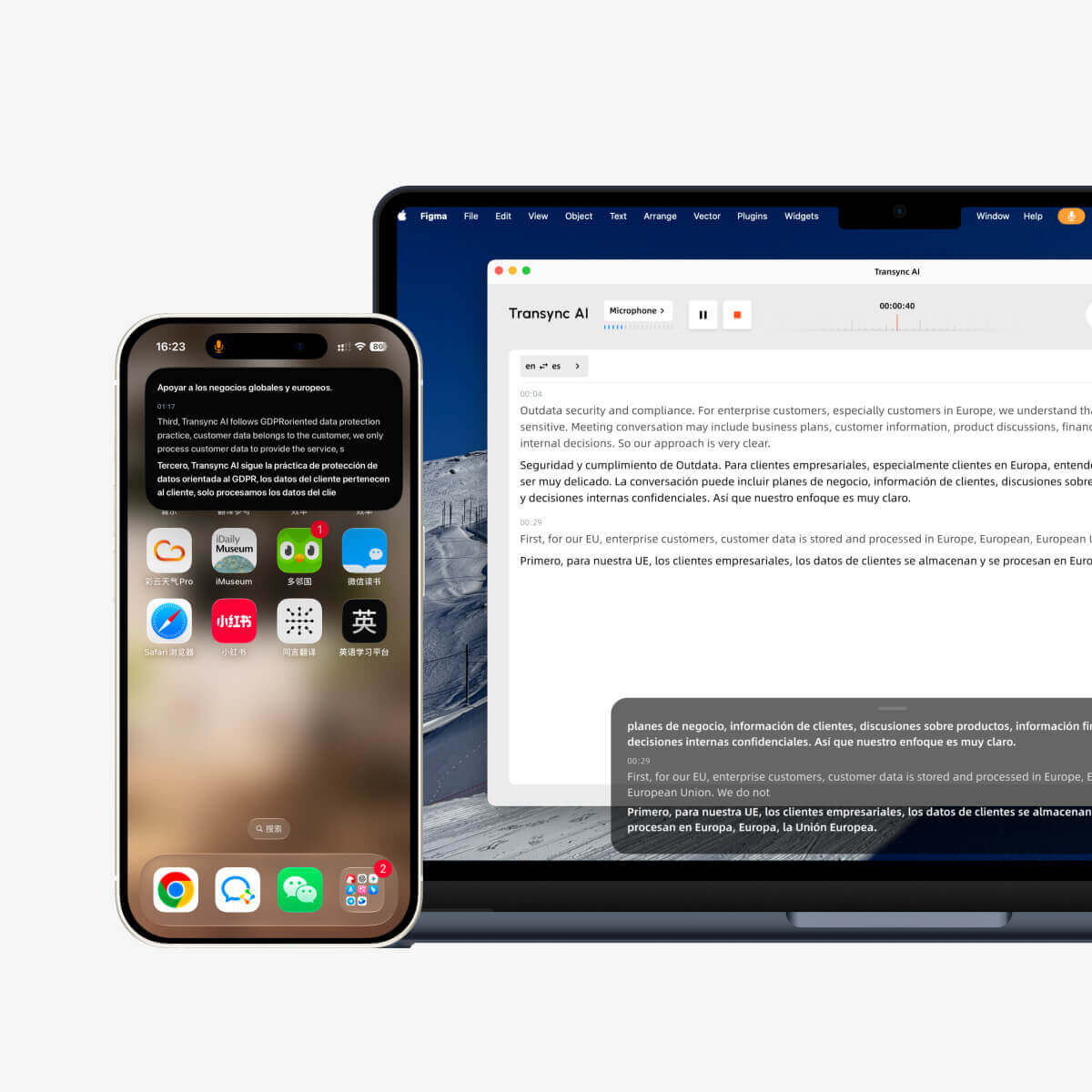
Picture-in-Picture mode, or PiP, lets you keep live subtitles visible in a floating window while using other apps. It is useful when you are in a meeting, watching a presentation, viewing shared content, or taking notes while Transync AI continues translating in real time.

PiP is available on Windows, macOS, iOS, and Android. It is currently not available on the web version.

Before using PiP, make sure you have already started a translation task. If you are new to Transync AI, you may want to check our クイックスタート または学ぶ リアルタイム翻訳を始める方法 初め。.

Transync AI Picture-in-Picture subtitles floating over desktop and mobile screens during translation.

1. Open PiP Settings #

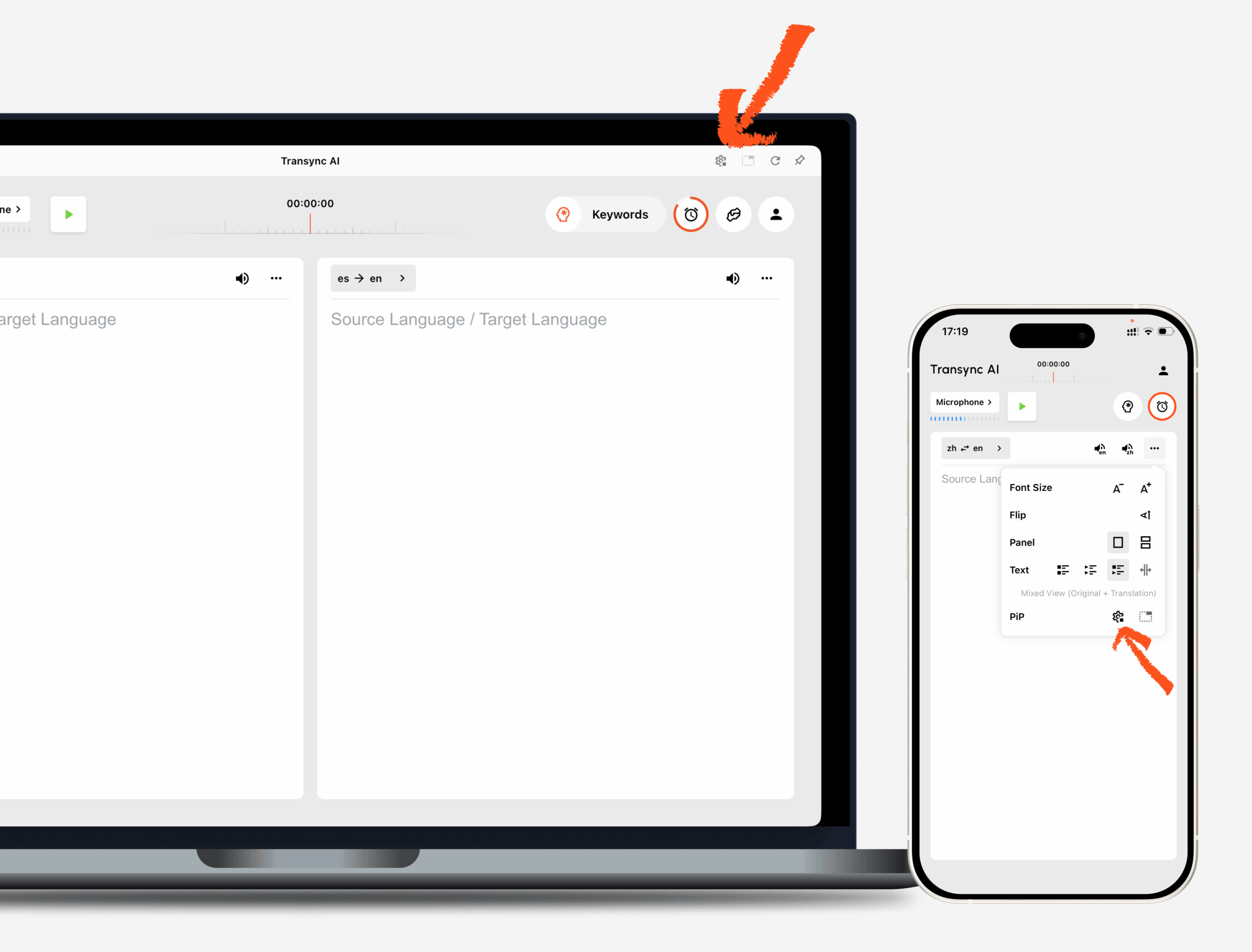
開ける Settings in Transync AI and find the PiP settings section. You can configure how the floating subtitle window appears before using PiP during a translation task.

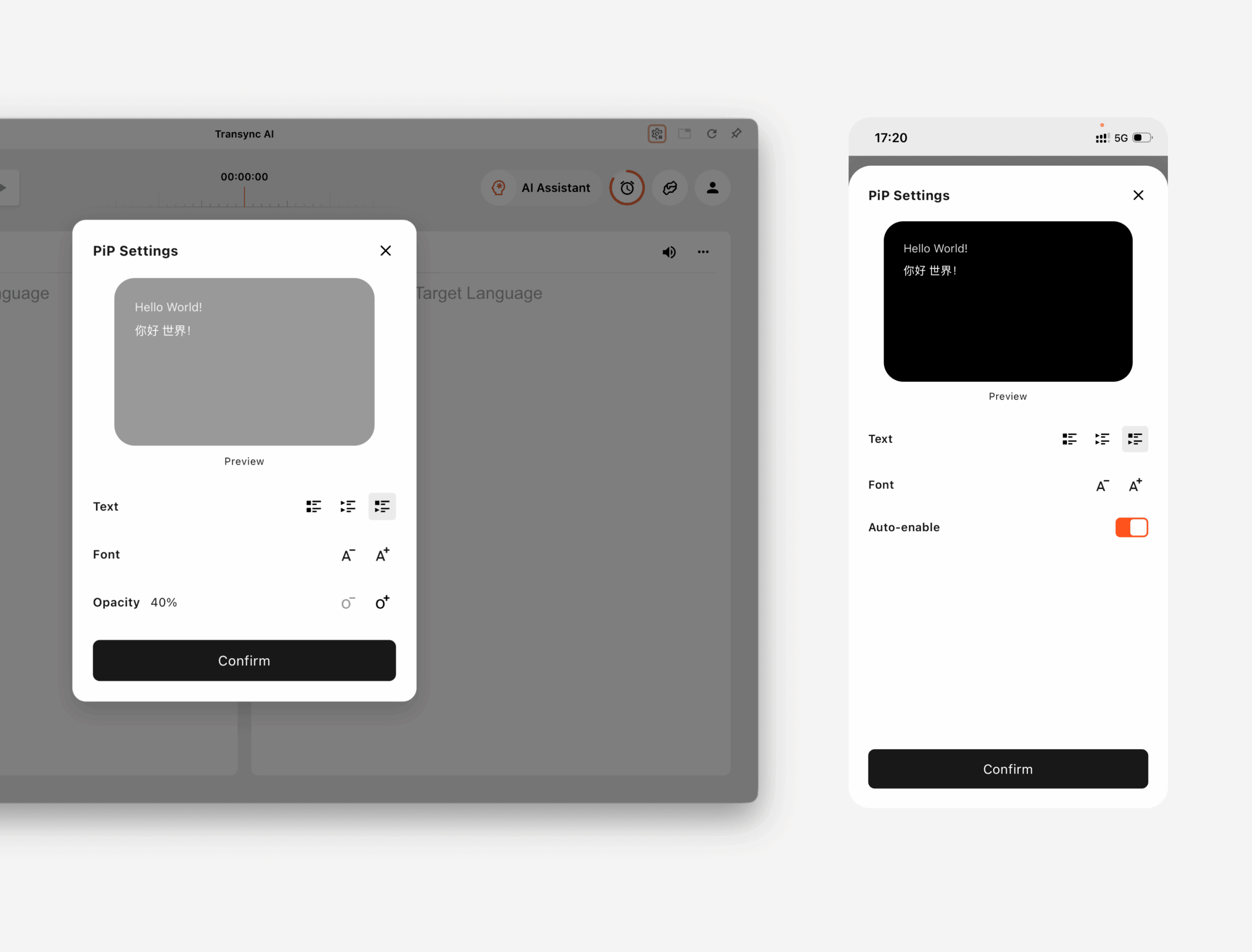
On WindowsとmacOS, you can adjust:

  • Subtitle display mode
  • Font size
  • Window transparency

On iOSとAndroid, you can adjust:

  • Subtitle display mode
  • Font size
  • Auto-enable PiP
PiP settings in the Transync AI desktop and mobile translation interface.

2. Choose a Subtitle Display Mode #

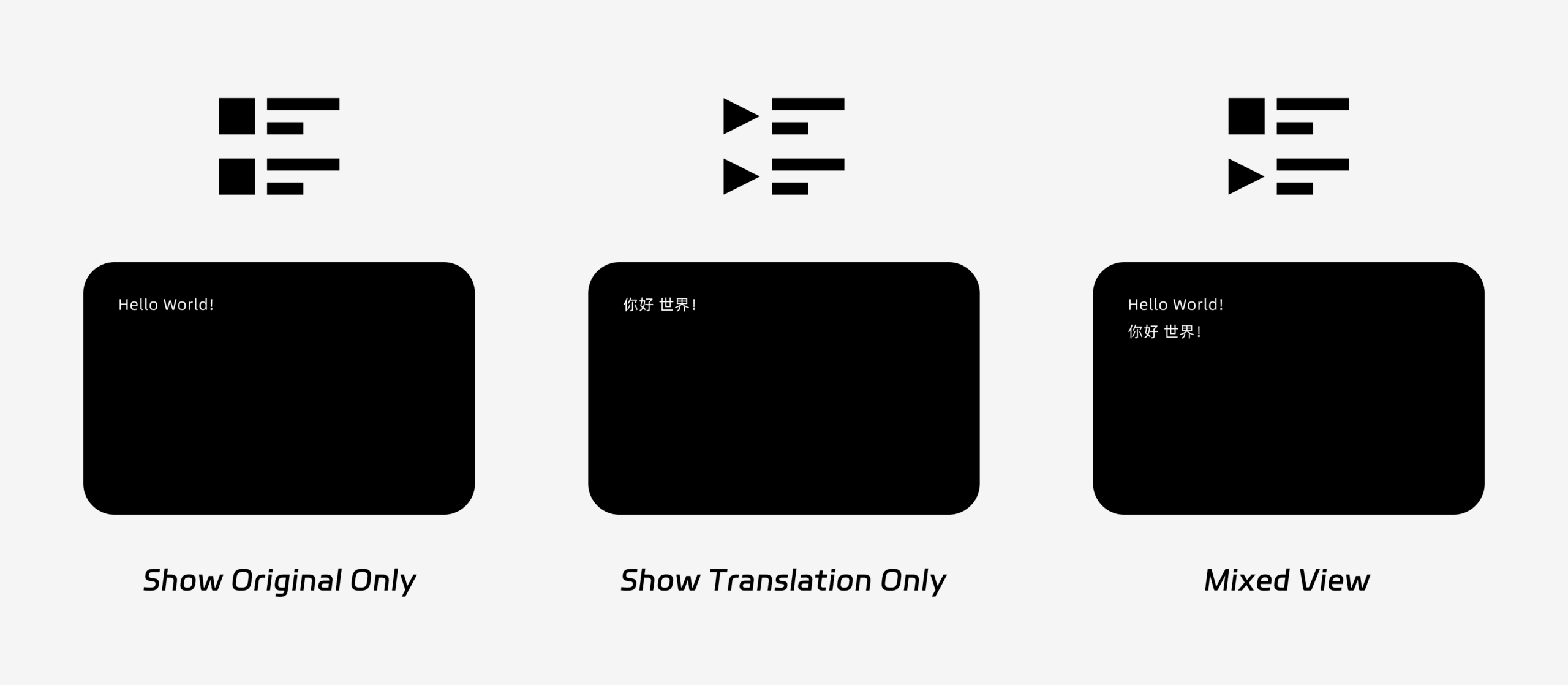
PiP supports three subtitle display modes:

  • Show original only: Displays only the original speech text.
  • Show translation only: Displays only the translated text.
  • Mixed view: Displays both the original text and the translated text.

Choose the display mode based on your use case. For meetings, Show translation only provides a cleaner view. For language learning or bilingual review, Mixed view can help you compare the original and translated text.

Three PiP subtitle display modes: Show Original Only, Show Translation Only, and Mixed View.

3. Adjust Font Size and Display #

使用 Font Size to make subtitles easier to read in the floating PiP window.

On Windows and macOS, you can also adjust window transparency. A more transparent window helps prevent subtitles from blocking meeting content, slides, or shared screens. A less transparent window can make subtitles easier to read.

If you also use voice output during translation, you may want to learn more about Transsync AIで音声再生を使用する方法.

PiP settings panel showing subtitle display mode, font size, opacity, and auto-enable options.

4. Start Using PiP #

After configuring PiP settings, start a translation task as usual.

Use PiP on Windows or macOS

Once subtitles are being generated, click the PiP button to open the floating subtitle window. You can move the PiP window to a convenient position on your screen while using Zoom, Microsoft Teams, Google Meet, browsers, documents, or other apps.

If you need to translate meeting audio from your computer, you can also check コンピューターのオーディオを共有する方法.

Use PiP on iOS or Android

On mobile devices, PiP can be started manually or automatically.

If Auto-enable PiP is turned on, PiP will start automatically when you minimize the Transync AI app during an active translation task.

If Auto-enable PiP is turned off, tap the PiP button manually to open the floating subtitle window.

This allows you to keep translations visible while using other mobile apps.

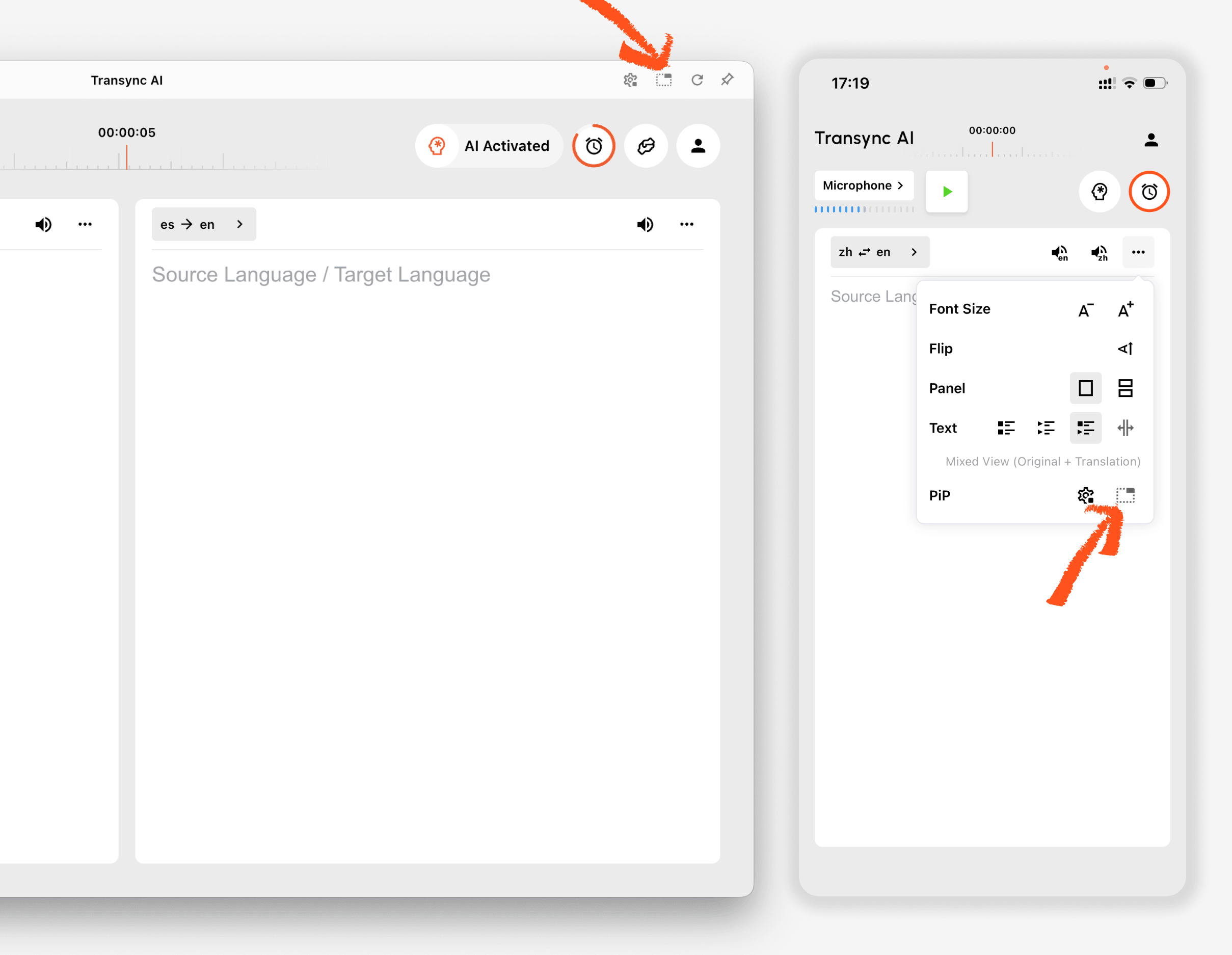
PiP button in the Transync AI desktop and mobile translation interface.

5. When PiP Is Not Available #

PiP is not available on the web version of Transync AI. To use PiP, please use the Windows, macOS, iOS, or Android app.

If the PiP window does not appear, check that:

  • A translation task is currently running.
  • You are using a supported platform.
  • On mobile, Auto-enable PiP is turned on if you want PiP to start automatically.
更新日 2026年5月9日

このドキュメントは役に立ちましたか?

  • ハッピー
  • 悲しい

この記事を共有する:

  • フェイスブック
  • X
  • リンクトイン
  • ピンタレスト
仮想マイクの使い方
目次
  • 1. Open PiP Settings
  • 2. Choose a Subtitle Display Mode
  • 3. Adjust Font Size and Display
  • 4. Start Using PiP
  • 5. When PiP Is Not Available

小红书 抖音 ビリビリ 知乎 ユーチューブ ティックトック リンクトイン

沪ICP备2025119728号

Contact:support@transyncai.com

製品

  • ツール
  • AIリアルタイム翻訳
  • AIライブミーティング翻訳
  • AI会議メモ
  • AI音声翻訳機
  • AIアシスタント
  • ピクチャーインピクチャーフローティング字幕
  • サポートされている言語
  • ユースケース
  • ズーム翻訳
  • チーム翻訳
  • Google Meet 翻訳
  • WhatsApp翻訳
  • 対面会議翻訳

ページ

  • 価格
  • ブログ
  • サポート
  • ダウンロード
  • 企業
  • 変更履歴
  • 無料トライアル

条項

  • プライバシー
  • 利用規約
  • 信頼センター

© 2026 Transync AI – リアルタイム翻訳。.

日本語
English 简体中文 한국어 Русский Français Español Deutsch Italiano Čeština ไทย 繁體中文繁體中文 Português do Brasil العربية हिन्दी Bahasa Indonesia Tiếng Việt Türkçe Nederlands Polski Українська