
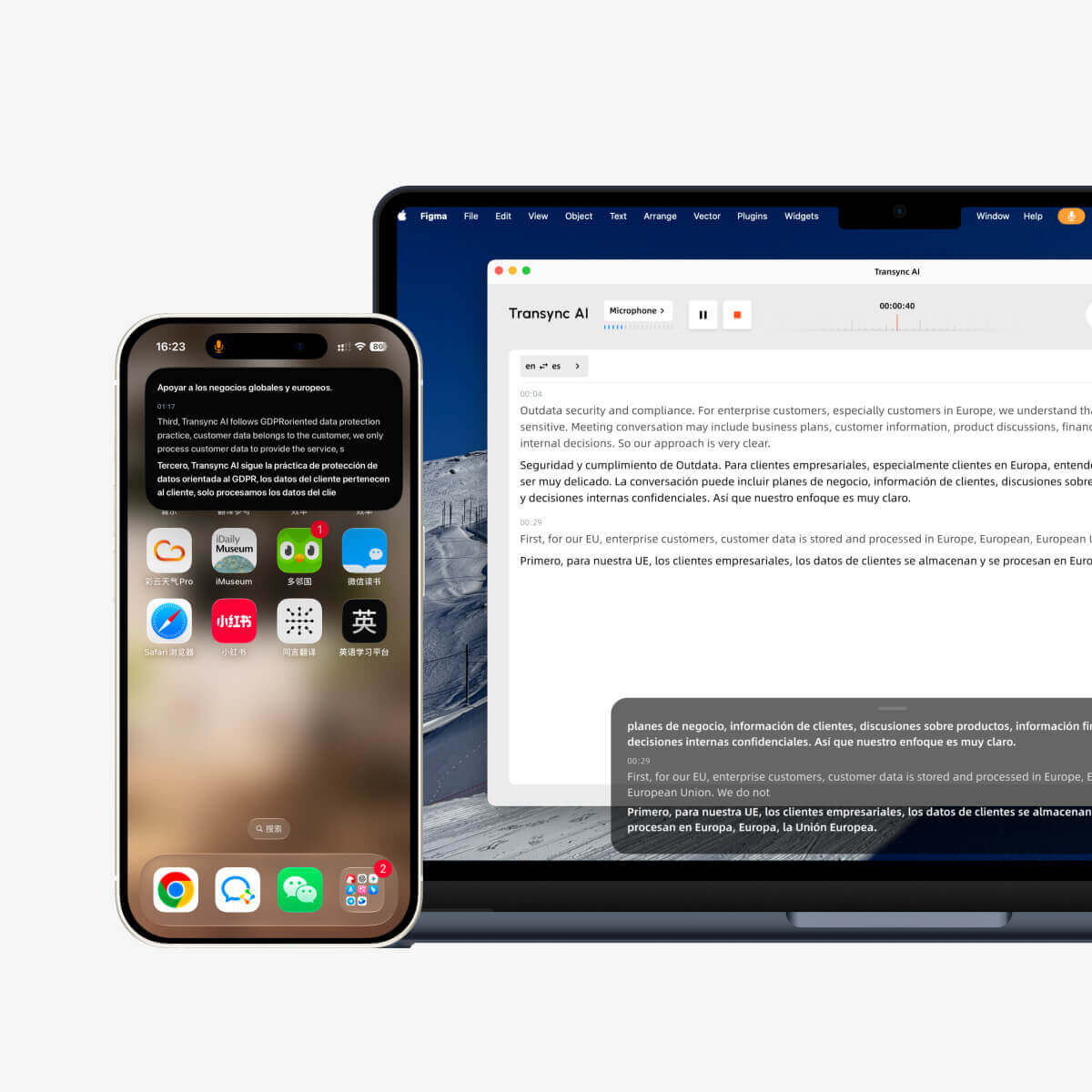
Режим «картинка в картинці», або PiP, дозволяє відображати субтитри в реальному часі у плаваючому вікні під час використання інших програм. Це корисно, коли ви перебуваєте на зустрічі, переглядаєте презентацію, переглядаєте спільний контент або робите нотатки, поки Transync AI продовжує перекладати в режимі реального часу.
Режим «Картина в картинці» доступний на Windows, macOS, iOS та Android. Наразі це недоступно у веб-версії.
Перш ніж використовувати PiP, переконайтеся, що ви вже розпочали завдання перекладу. Якщо ви новачок у Transync AI, можливо, вам варто ознайомитися з нашими Швидкий старт або навчитися Як розпочати переклад у режимі реального часу перший.
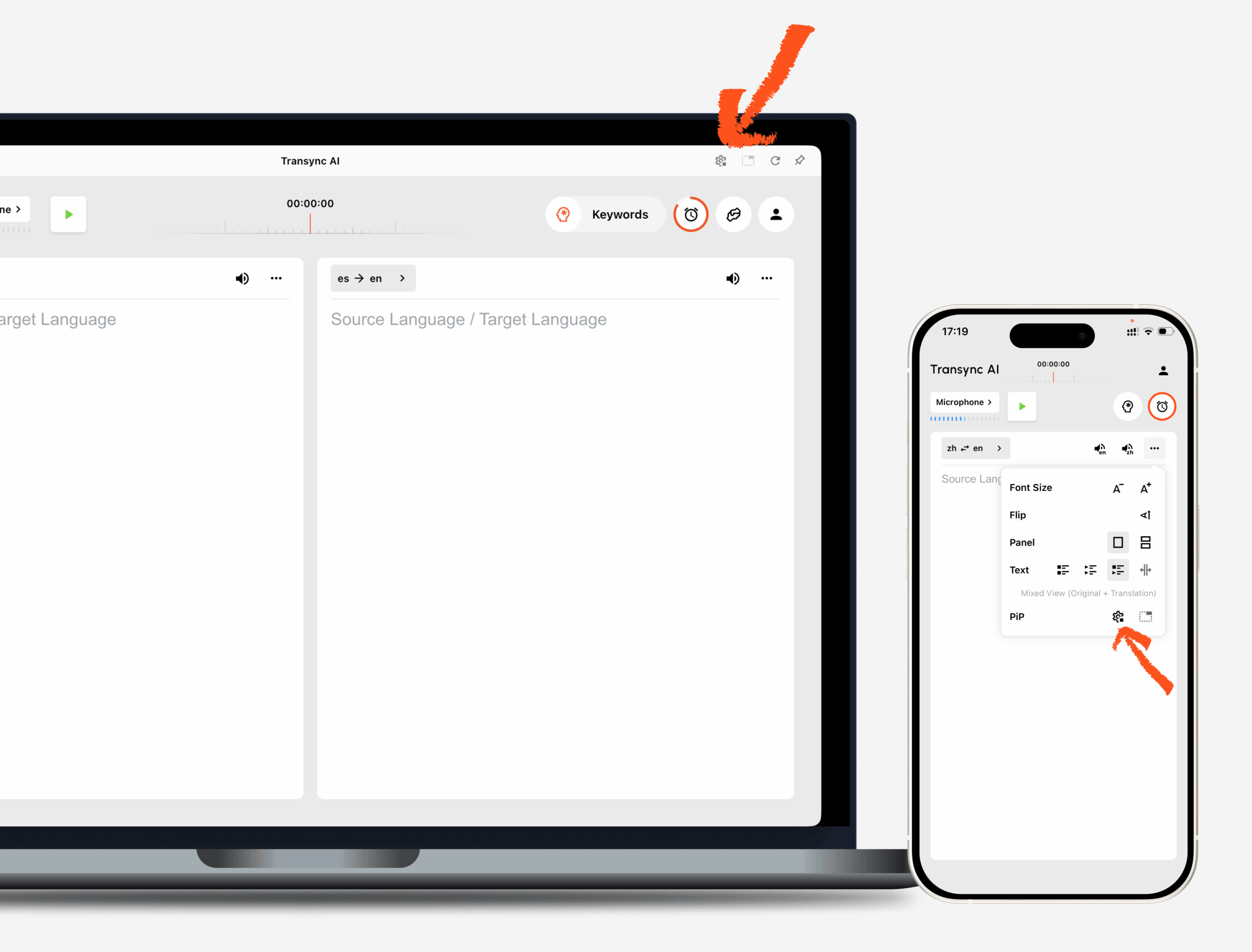
1. Відкрийте налаштування PiP #
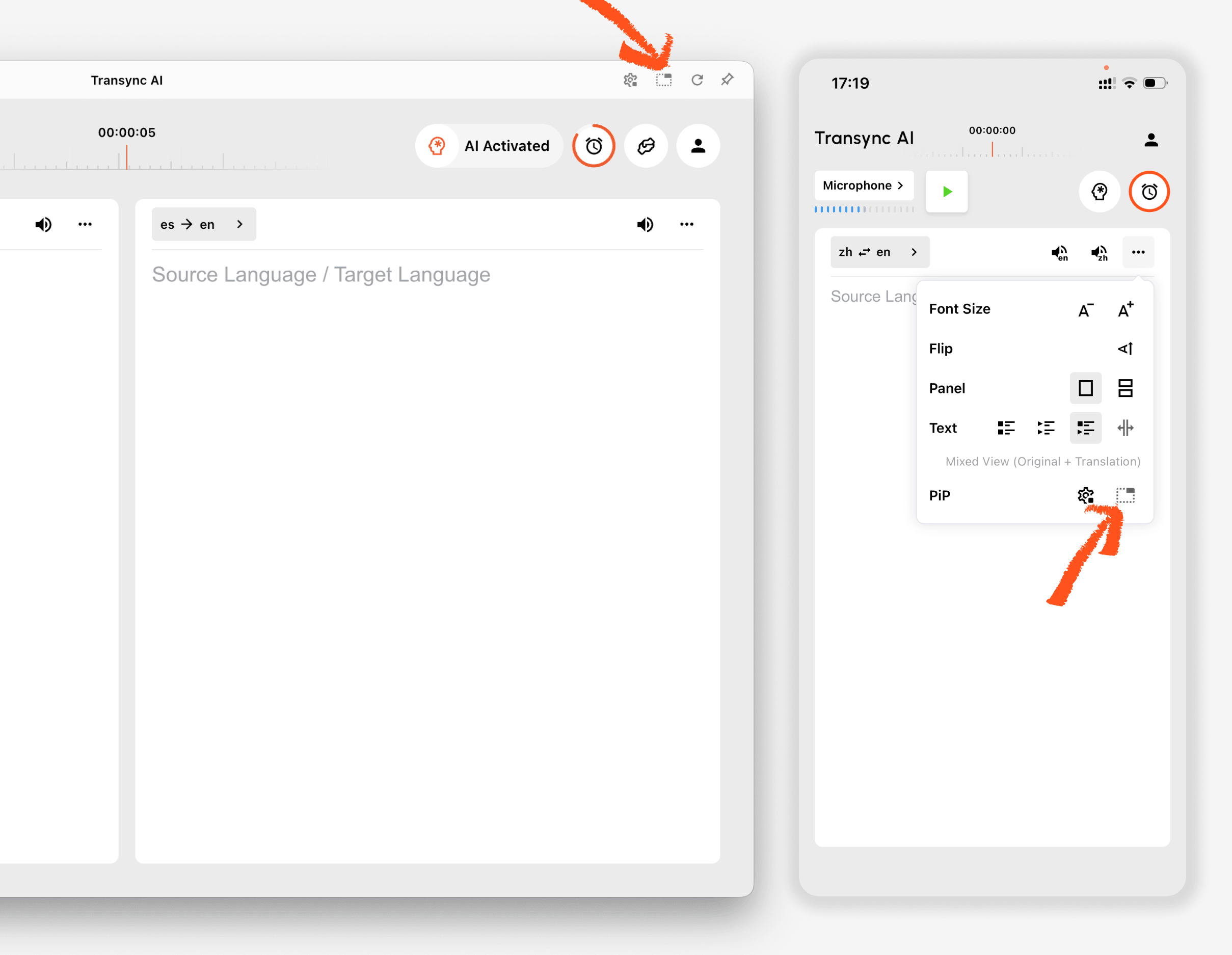
ВІДЧИНЕНО Налаштування У Transync AI знайдіть розділ налаштувань PiP. Ви можете налаштувати, як виглядатиме вікно плаваючих субтитрів, перш ніж використовувати PiP під час завдання перекладу.
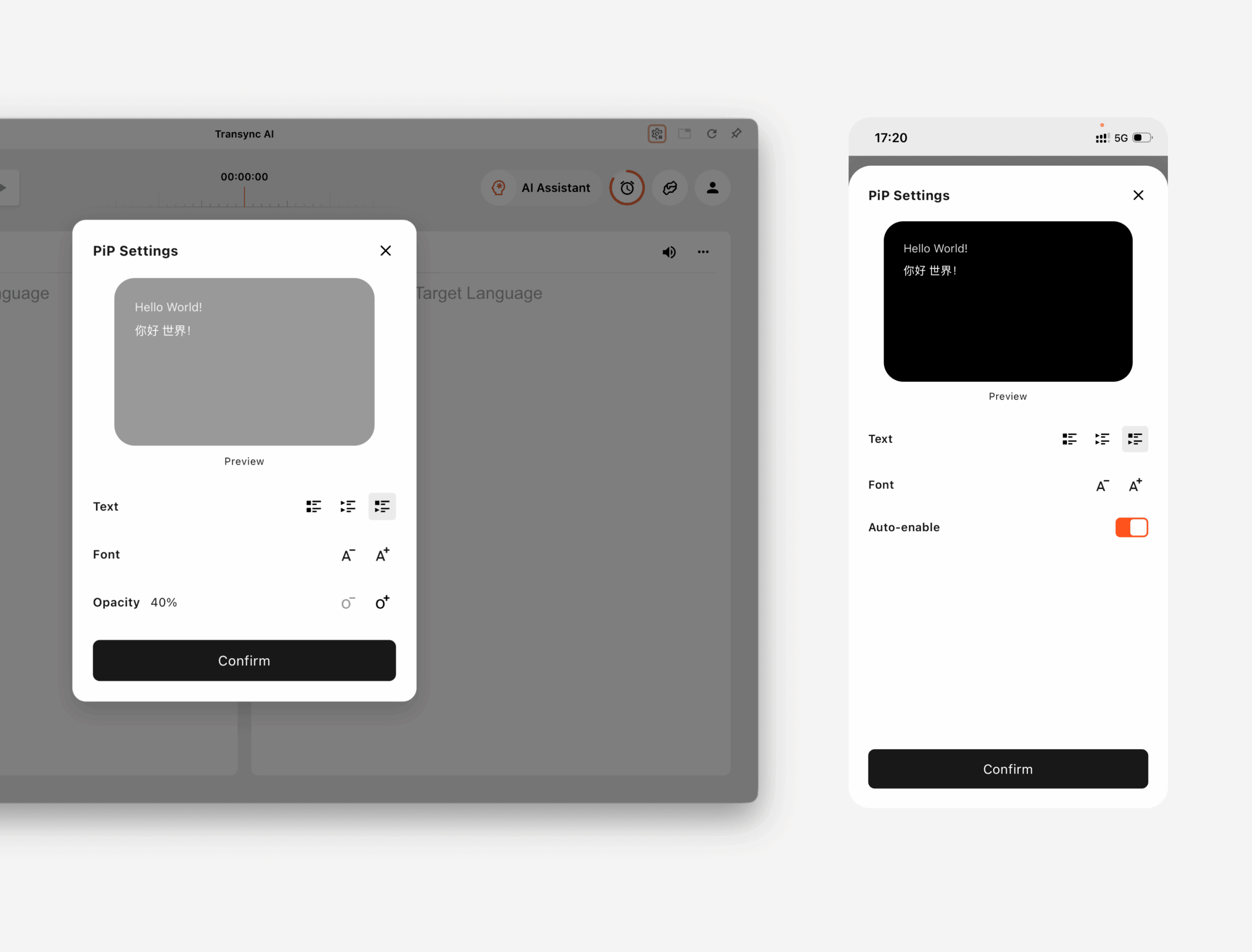
Увімкнено Windows та macOS, ви можете налаштувати:
- Режим відображення субтитрів
- Розмір шрифту
- Прозорість вікна
Увімкнено iOS та Android, ви можете налаштувати:
- Режим відображення субтитрів
- Розмір шрифту
- Автоматичне ввімкнення режиму «картинка в картинці»
2. Виберіть режим відображення субтитрів #
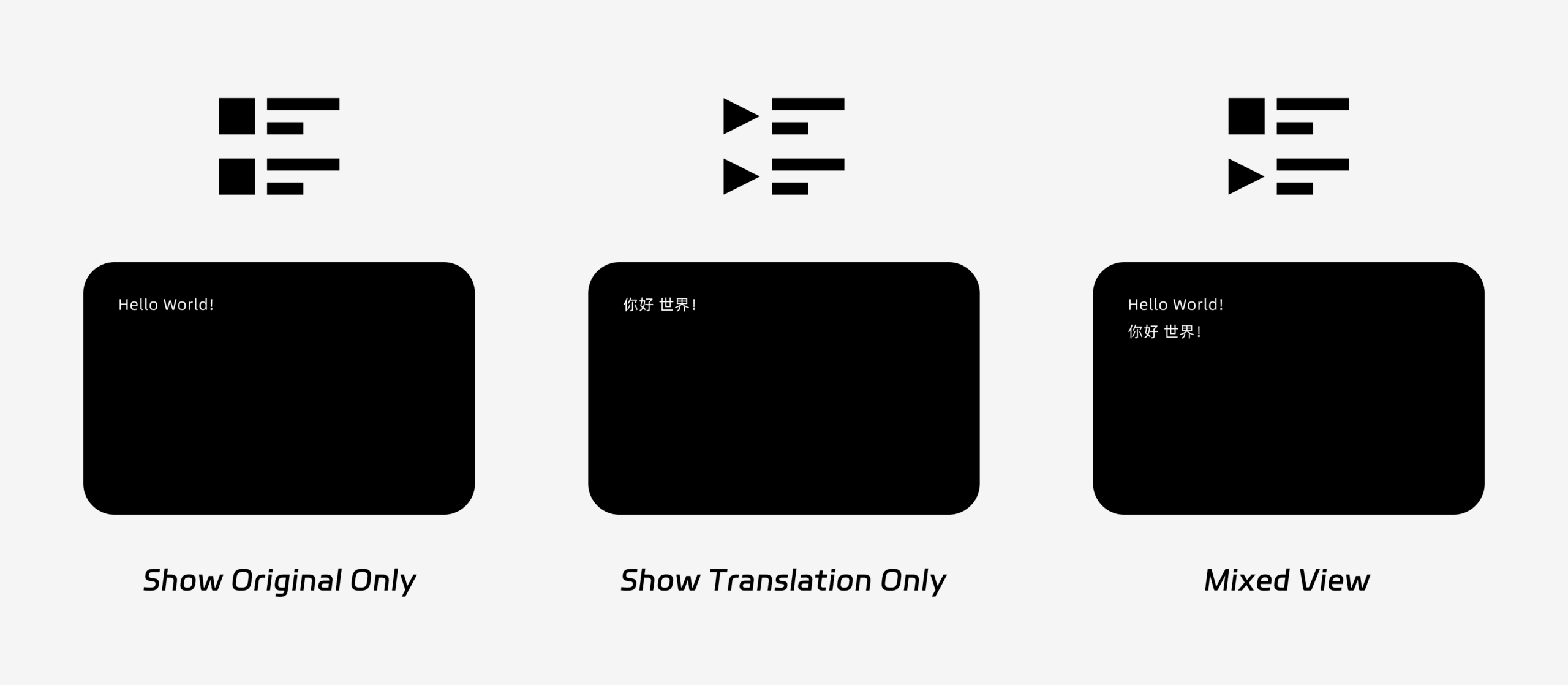
PiP підтримує три режими відображення субтитрів:
- Показувати лише оригінал: Відображає лише оригінальний текст мовлення.
- Показати лише переклад: Відображає лише перекладений текст.
- Змішаний погляд: Відображає як оригінальний текст, так і перекладений текст.
Виберіть режим відображення залежно від вашого випадку використання. Для зустрічей, Показати лише переклад забезпечує чіткіший огляд. Для вивчення мови або двомовного повторення, Змішаний погляд може допомогти вам порівняти оригінальний та перекладений текст.
3. Налаштуйте розмір шрифту та відображення #
Використання Розмір шрифту щоб субтитри було легше читати у плаваючому вікні PiP.
У Windows та macOS також можна налаштувати прозорість вікна. Більш прозоре вікно допомагає запобігти блокуванню субтитрами вмісту зустрічі, слайдів або спільних екранів. Менш прозоре вікно може зробити субтитри легшими для читання.
Якщо ви також використовуєте голосовий вивід під час перекладу, можливо, вам варто дізнатися більше про Як використовувати відтворення голосу в Transync AI
4. Почніть використовувати PiP #
Після налаштування параметрів PiP запустіть завдання перекладу як завжди.
Використання PiP у Windows або macOS
Після створення субтитрів натисніть кнопку Картинка в картинці кнопку, щоб відкрити плаваюче вікно субтитрів. Ви можете перемістити вікно PiP у зручне положення на екрані під час використання Zoom, Microsoft Teams, Google Meet, браузерів, документів або інших програм. Transync AI запам’ятовує останнє положення вікна PiP на робочому столі, тому вікно субтитрів може знову відкритися там, де ви його залишили, наступного разу, коли ви використовуватимете PiP.
Якщо вам потрібно перекласти аудіозапис зустрічі з вашого комп’ютера, ви також можете перевірити Як поділитися аудіо з комп'ютера
Використання PiP на iOS або Android
На мобільних пристроях функцію PiP можна запускати вручну або автоматично.
Якщо Автоматичне ввімкнення режиму «картинка в картинці» Якщо функцію ввімкнено, режим «PIP» запускатиметься автоматично, коли ви згортаєте додаток Transync AI під час активного завдання перекладу.
Якщо Автоматичне ввімкнення режиму «картинка в картинці» вимкнено, торкніться значка Картинка в картинці кнопку вручну, щоб відкрити плаваюче вікно субтитрів.
Це дозволяє вам залишати переклади видимими під час використання інших мобільних додатків.
5. Коли режим «PiP» недоступний #
Режим «PiP» недоступний у веб-версії Transync AI. Щоб використовувати PiP, скористайтеся додатком для Windows, macOS, iOS або Android.
Якщо вікно PiP не відображається, перевірте, чи:
- Наразі виконується завдання перекладу.
- Ви використовуєте підтримувану платформу.
- На мобільному пристрої опцію «Автоматичне ввімкнення PiP» увімкнено, якщо ви хочете, щоб PiP запускався автоматично.


