
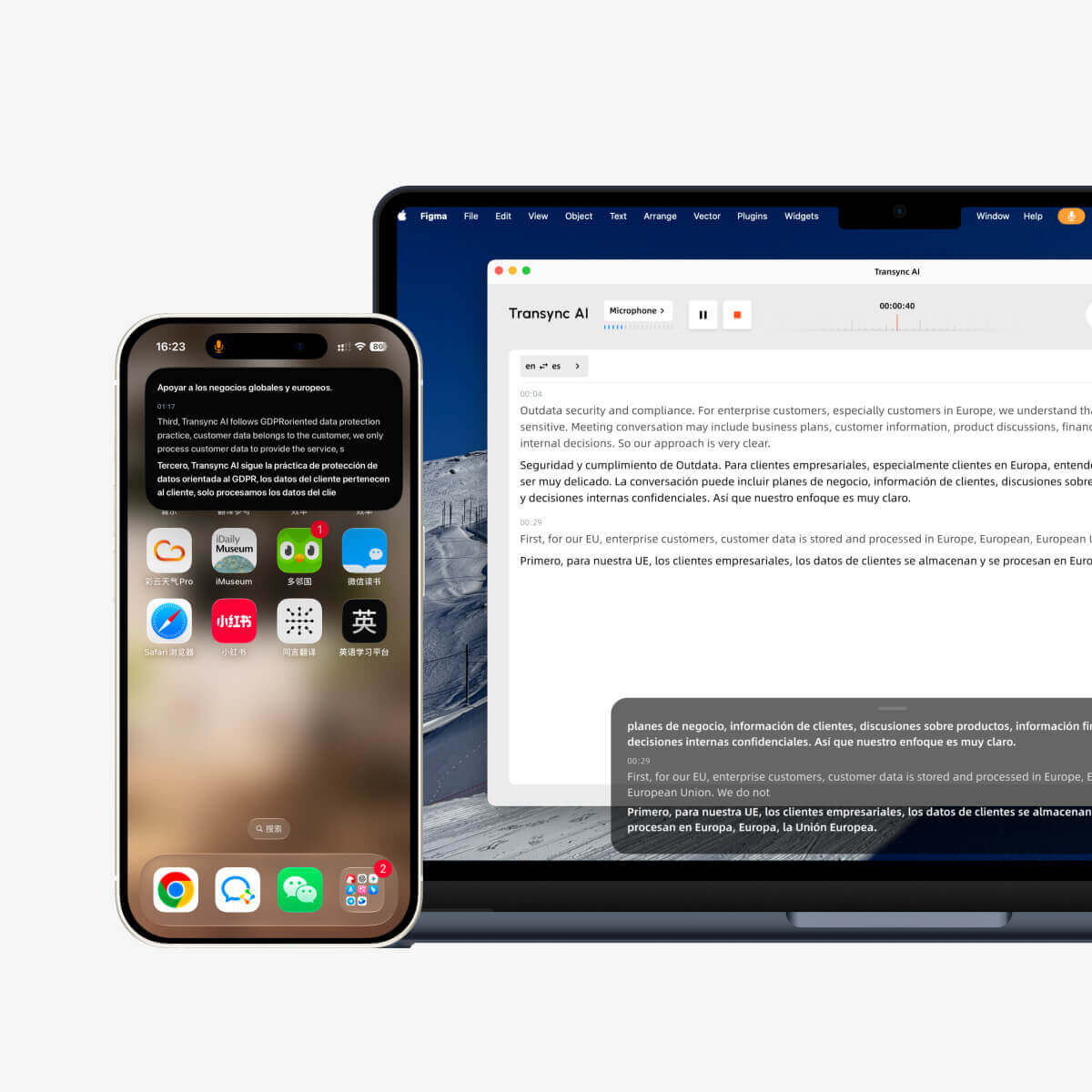
โหมด Picture-in-Picture (Picture-in-Picture หรือ PiP) ช่วยให้คุณแสดงคำบรรยายสดในหน้าต่างลอยขณะใช้งานแอปพลิเคชันอื่น ๆ ได้ มีประโยชน์เมื่อคุณอยู่ในที่ประชุม ดูการนำเสนอ ดูเนื้อหาที่แชร์ หรือจดบันทึก ในขณะที่ Transync AI ยังคงแปลคำบรรยายแบบเรียลไทม์ต่อไป.
PiP พร้อมใช้งานบน Windows, macOS, iOS และ Android. ปัจจุบัน ไม่สามารถใช้งานได้ในเวอร์ชันเว็บ.
ก่อนใช้งาน PiP โปรดตรวจสอบให้แน่ใจว่าคุณได้เริ่มงานแปลแล้ว หากคุณเป็นผู้ใช้ Transync AI ใหม่ คุณอาจต้องการตรวจสอบหน้าของเรา การเริ่มต้นอย่างรวดเร็ว หรือเรียนรู้ วิธีเริ่มการแปลแบบเรียลไทม์ อันดับแรก.
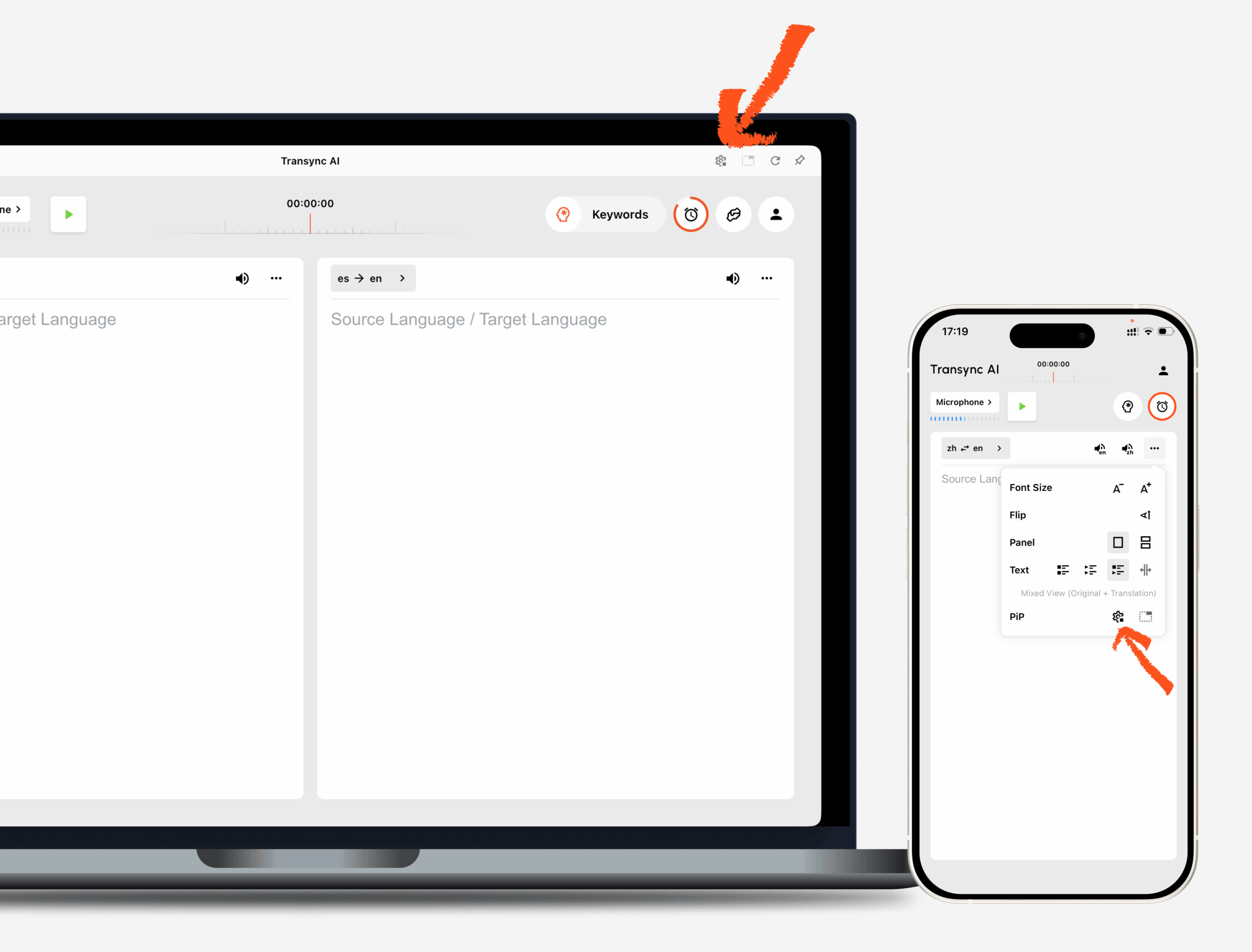
1. เปิดการตั้งค่า PiP #
เปิด การตั้งค่า ในโปรแกรม Transync AI ให้ไปที่ส่วนการตั้งค่า PiP คุณสามารถกำหนดวิธีการแสดงหน้าต่างคำบรรยายแบบลอยตัวก่อนใช้งาน PiP ในระหว่างงานแปลได้.
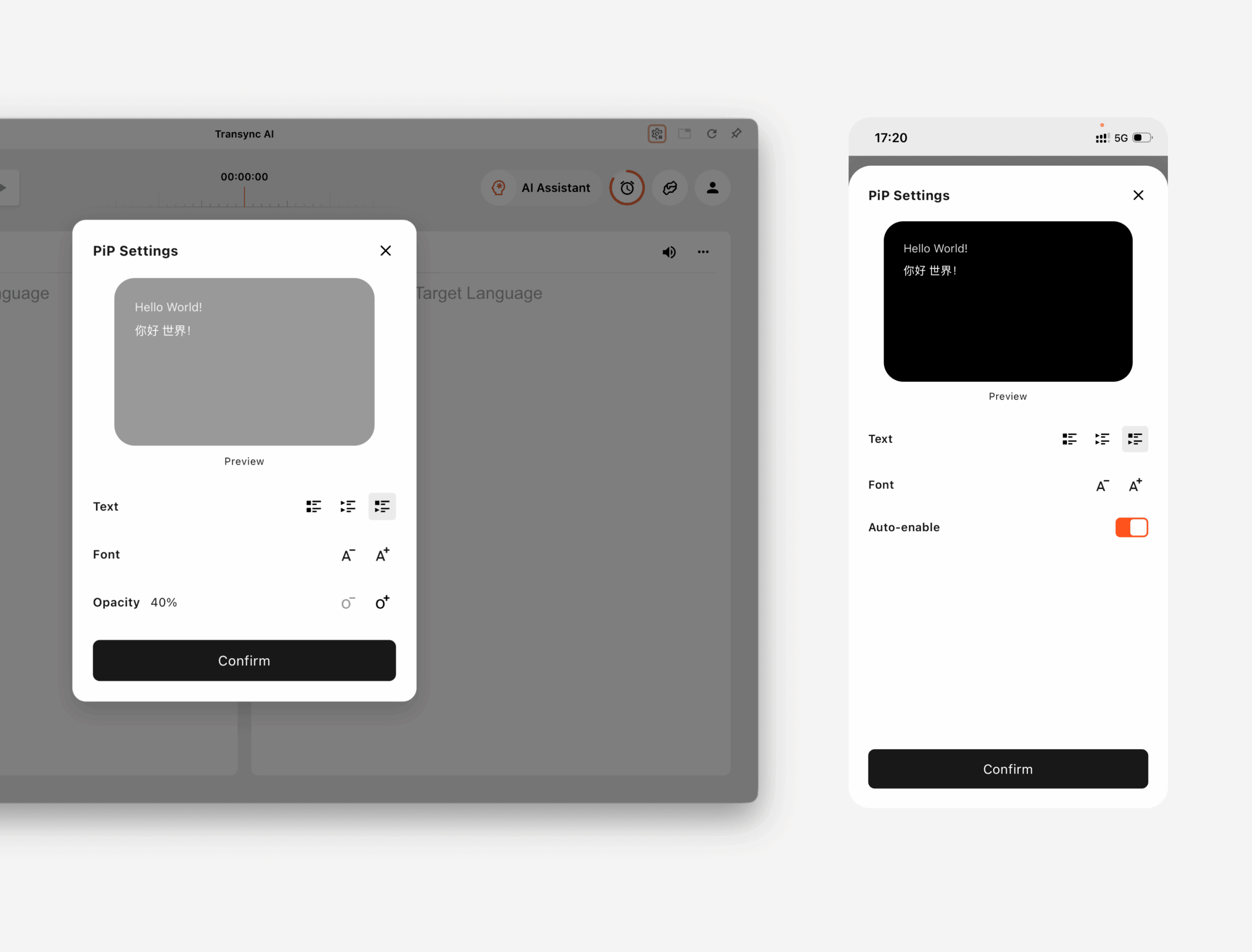
บน Windows และ macOS, คุณสามารถปรับแต่งได้:
- โหมดแสดงคำบรรยาย
- ขนาดตัวอักษร
- ความโปร่งใสของหน้าต่าง
บน iOS และ Android, คุณสามารถปรับแต่งได้:
- โหมดแสดงคำบรรยาย
- ขนาดตัวอักษร
- เปิดใช้งาน PiP อัตโนมัติ
2. เลือกโหมดแสดงคำบรรยาย #
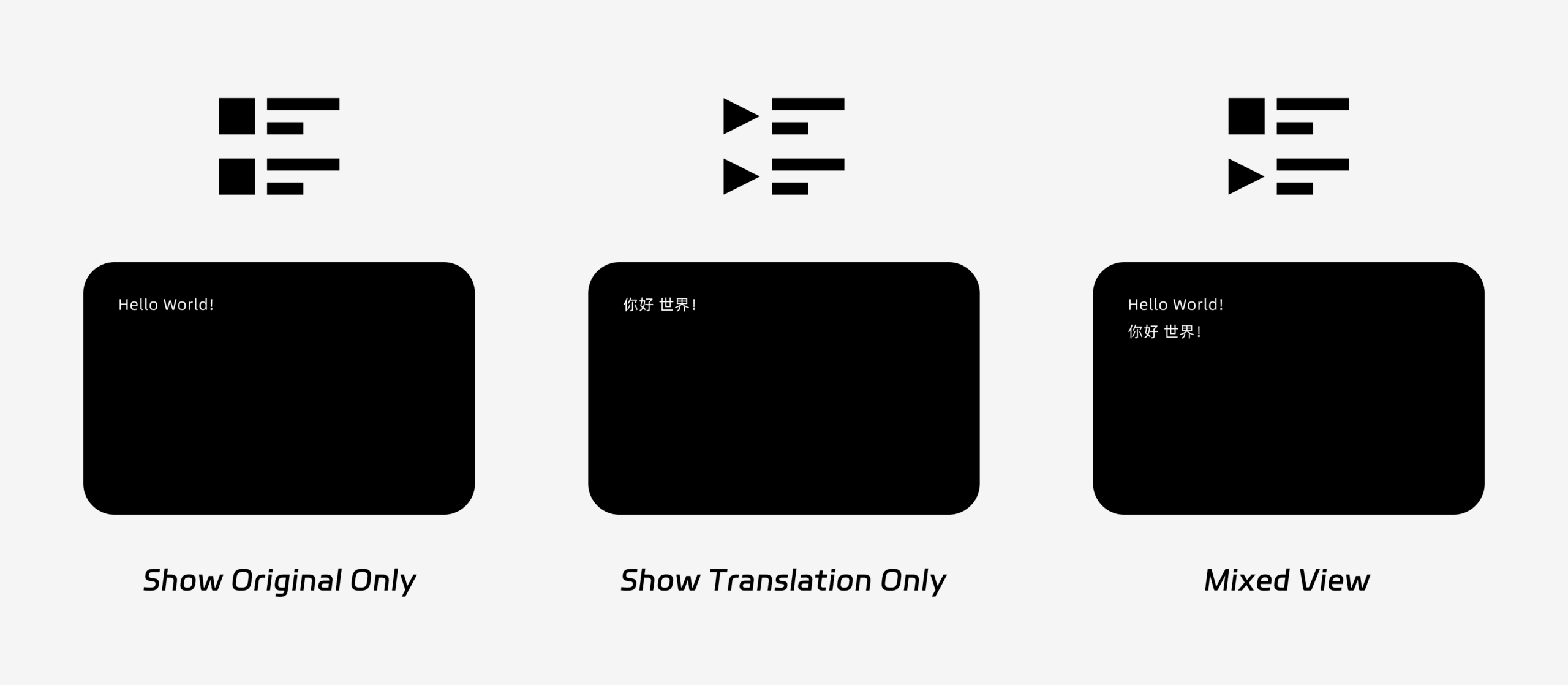
PiP รองรับโหมดการแสดงคำบรรยายสามโหมด:
- แสดงเฉพาะต้นฉบับเท่านั้น: แสดงเฉพาะข้อความเสียงต้นฉบับเท่านั้น.
- แสดงเฉพาะคำแปลแสดงเฉพาะข้อความที่แปลแล้ว.
- มุมมองที่หลากหลายแสดงทั้งข้อความต้นฉบับและข้อความที่แปลแล้ว.
เลือกโหมดการแสดงผลตามลักษณะการใช้งานของคุณ สำหรับการประชุม, แสดงเฉพาะคำแปล ให้มุมมองที่ชัดเจนยิ่งขึ้น เหมาะสำหรับการเรียนภาษาหรือการทบทวนแบบสองภาษา, มุมมองที่หลากหลาย สามารถช่วยคุณเปรียบเทียบข้อความต้นฉบับและข้อความที่แปลแล้วได้.
3. ปรับขนาดตัวอักษรและการแสดงผล #
ใช้ ขนาดตัวอักษร เพื่อให้คำบรรยายอ่านง่ายขึ้นในหน้าต่าง PiP แบบลอยตัว.
บนระบบปฏิบัติการ Windows และ macOS คุณยังสามารถปรับความโปร่งใสของหน้าต่างได้อีกด้วย หน้าต่างที่โปร่งใสมากขึ้นจะช่วยป้องกันไม่ให้คำบรรยายบังเนื้อหาการประชุม สไลด์ หรือหน้าจอที่แชร์ ในขณะที่หน้าต่างที่โปร่งใสน้อยลงจะช่วยให้อ่านคำบรรยายได้ง่ายขึ้น.
หากคุณใช้ฟังก์ชันการพากย์เสียงระหว่างการแปลด้วย คุณอาจต้องการเรียนรู้เพิ่มเติมเกี่ยวกับเรื่องนี้ วิธีใช้งานฟังก์ชั่นเล่นเสียงใน Transync AI
4. เริ่มใช้งาน PiP #
หลังจากตั้งค่า PiP เสร็จแล้ว ให้เริ่มงานแปลตามปกติ.
ใช้ PiP บน Windows หรือ macOS
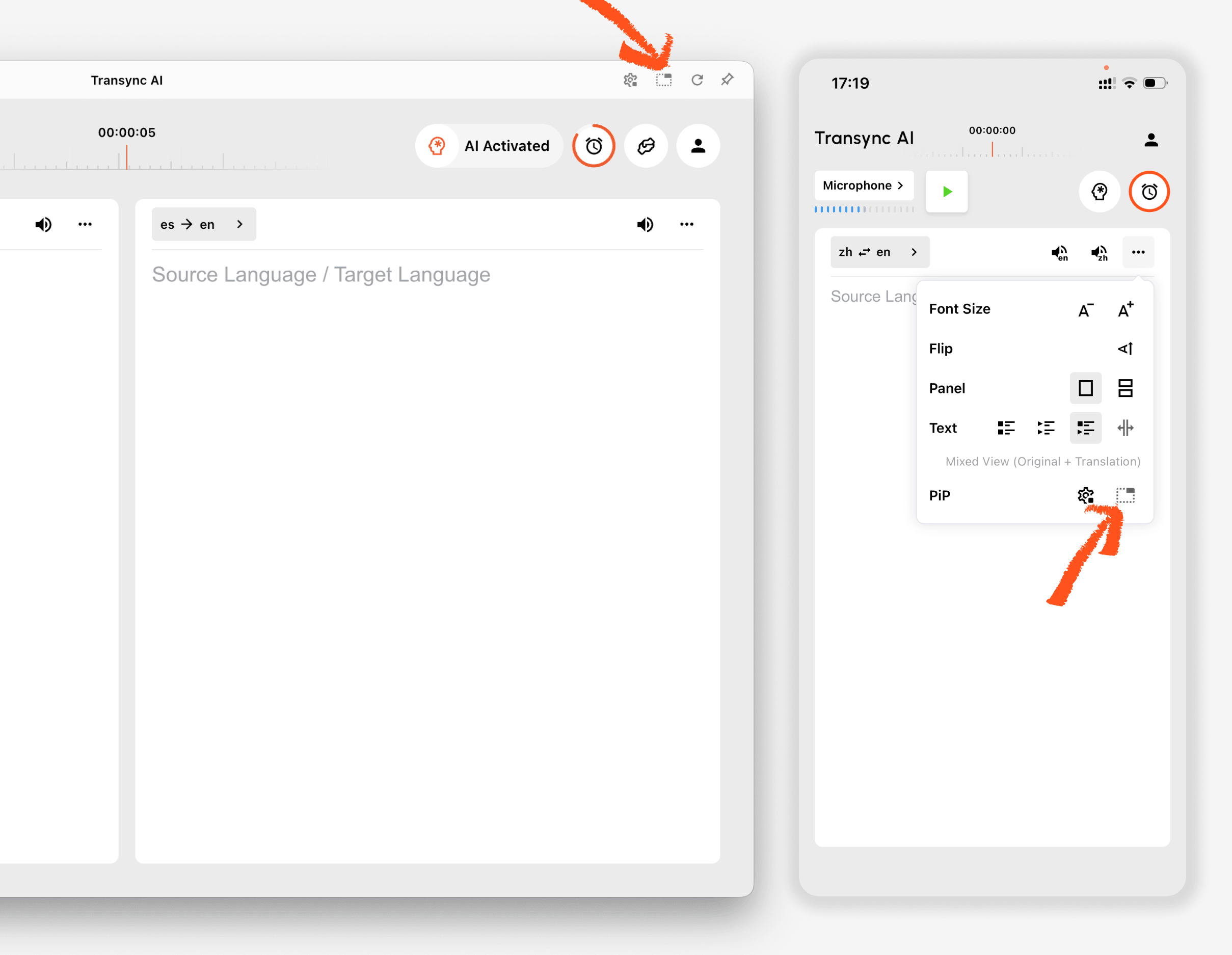
เมื่อเริ่มสร้างคำบรรยายแล้ว ให้คลิกที่... พีพี กดปุ่มเพื่อเปิดหน้าต่างคำบรรยายแบบลอย คุณสามารถย้ายหน้าต่าง PiP ไปยังตำแหน่งที่สะดวกบนหน้าจอของคุณขณะใช้งาน Zoom, Microsoft Teams, Google Meet, เว็บเบราว์เซอร์, เอกสาร หรือแอปพลิเคชันอื่นๆ Transync AI จะจดจำตำแหน่งสุดท้ายของหน้าต่าง PiP บนเดสก์ท็อป ดังนั้นหน้าต่างคำบรรยายจะสามารถเปิดขึ้นมาใหม่ในตำแหน่งที่คุณวางไว้ในครั้งต่อไปที่คุณใช้ PiP.
หากคุณต้องการแปลเสียงการประชุมจากคอมพิวเตอร์ คุณสามารถตรวจสอบได้ที่นี่เช่นกัน วิธีการแชร์เสียงคอมพิวเตอร์
ใช้ PiP บน iOS และ Android
บนอุปกรณ์เคลื่อนที่ สามารถเริ่มใช้งาน PiP ได้ด้วยตนเองหรือโดยอัตโนมัติ.
ถ้า เปิดใช้งาน PiP อัตโนมัติ หากเปิดใช้งาน PiP แล้ว PiP จะเริ่มทำงานโดยอัตโนมัติเมื่อคุณย่อแอป Transync AI ในระหว่างที่กำลังทำงานแปลอยู่.
ถ้า เปิดใช้งาน PiP อัตโนมัติ หากปิดอยู่ ให้แตะที่ พีพี กดปุ่มเพื่อเปิดหน้าต่างคำบรรยายแบบลอยตัวด้วยตนเอง.
วิธีนี้จะช่วยให้คุณเห็นคำแปลขณะใช้งานแอปพลิเคชันมือถืออื่นๆ ได้.
5. เมื่อ PiP ไม่พร้อมใช้งาน #
ฟังก์ชัน PiP ไม่สามารถใช้งานได้ในเวอร์ชันเว็บของ Transync AI หากต้องการใช้งาน PiP โปรดใช้แอปพลิเคชันสำหรับ Windows, macOS, iOS หรือ Android.
หากหน้าต่าง PiP ไม่ปรากฏขึ้น โปรดตรวจสอบสิ่งต่อไปนี้:
- ขณะนี้กำลังดำเนินการแปลอยู่.
- คุณกำลังใช้แพลตฟอร์มที่รองรับอยู่.
- บนอุปกรณ์มือถือ ตัวเลือก "เปิดใช้งาน PiP อัตโนมัติ" จะถูกเปิดใช้งานหากคุณต้องการให้ PiP เริ่มทำงานโดยอัตโนมัติ.


