
Режим «картинка в картинке» (PiP) позволяет отображать субтитры в плавающем окне во время работы с другими приложениями. Он полезен, когда вы находитесь на совещании, смотрите презентацию, просматриваете общий контент или делаете заметки, в то время как Transync AI продолжает переводить в реальном времени.
Режим «картинка в картинке» доступен на Windows, macOS, iOS и Android. В настоящее время это недоступно в веб-версии.
Перед использованием режима «картинка в картинке» убедитесь, что вы уже начали задачу перевода. Если вы новичок в Transync AI, вам может быть полезно ознакомиться с нашими рекомендациями. Быстрый старт или учиться Как начать перевод в реальном времени первый.
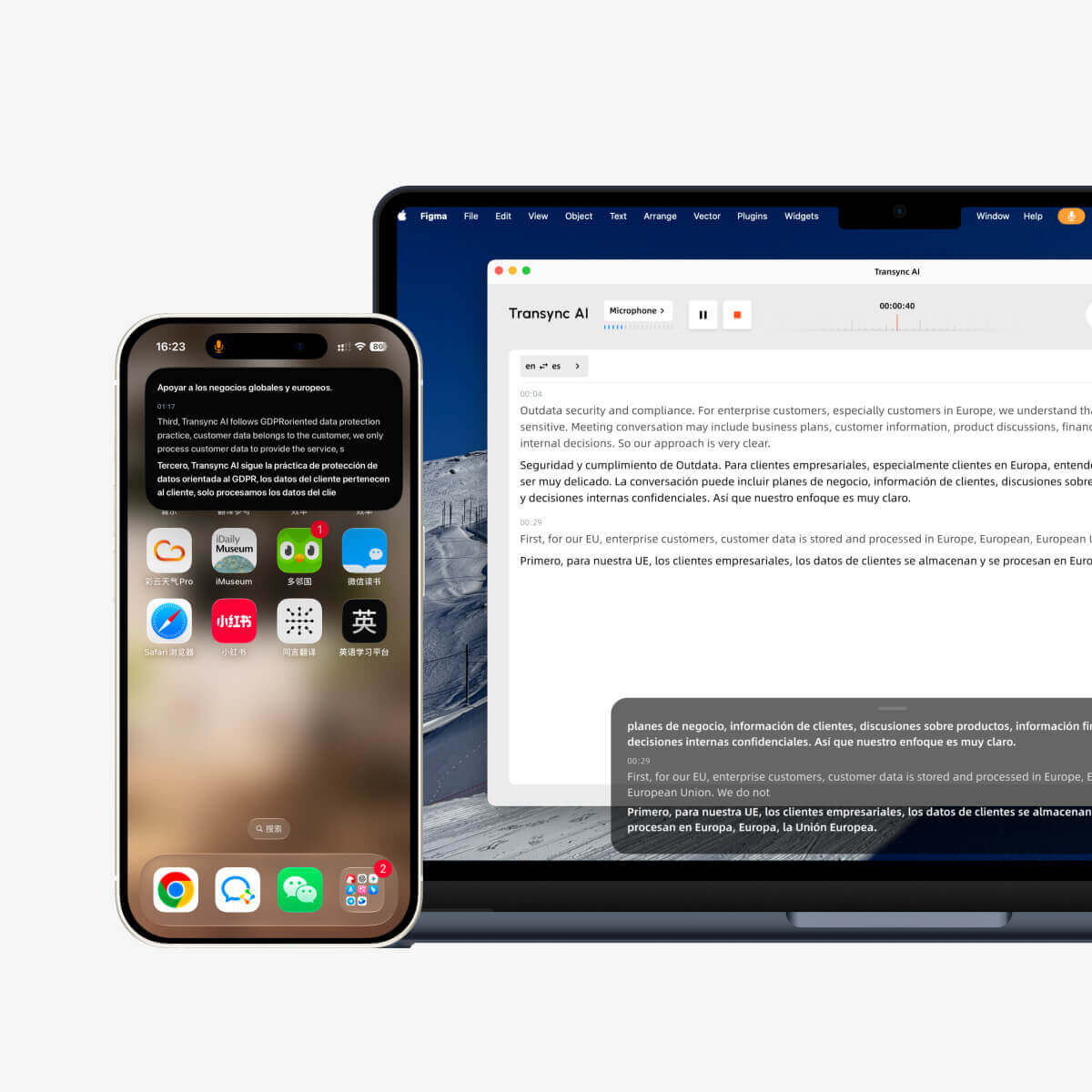
1. Откройте настройки PiP. #
Открыть Настройки В Transync AI найдите раздел настроек PiP. Там вы можете настроить отображение плавающего окна субтитров перед использованием PiP во время перевода.
На Windows и macOS, Вы можете настроить:
- режим отображения субтитров
- размер шрифта
- Прозрачность окна
На iOS и Android, Вы можете настроить:
- режим отображения субтитров
- размер шрифта
- Автоматическое включение режима «картинка в картинке»
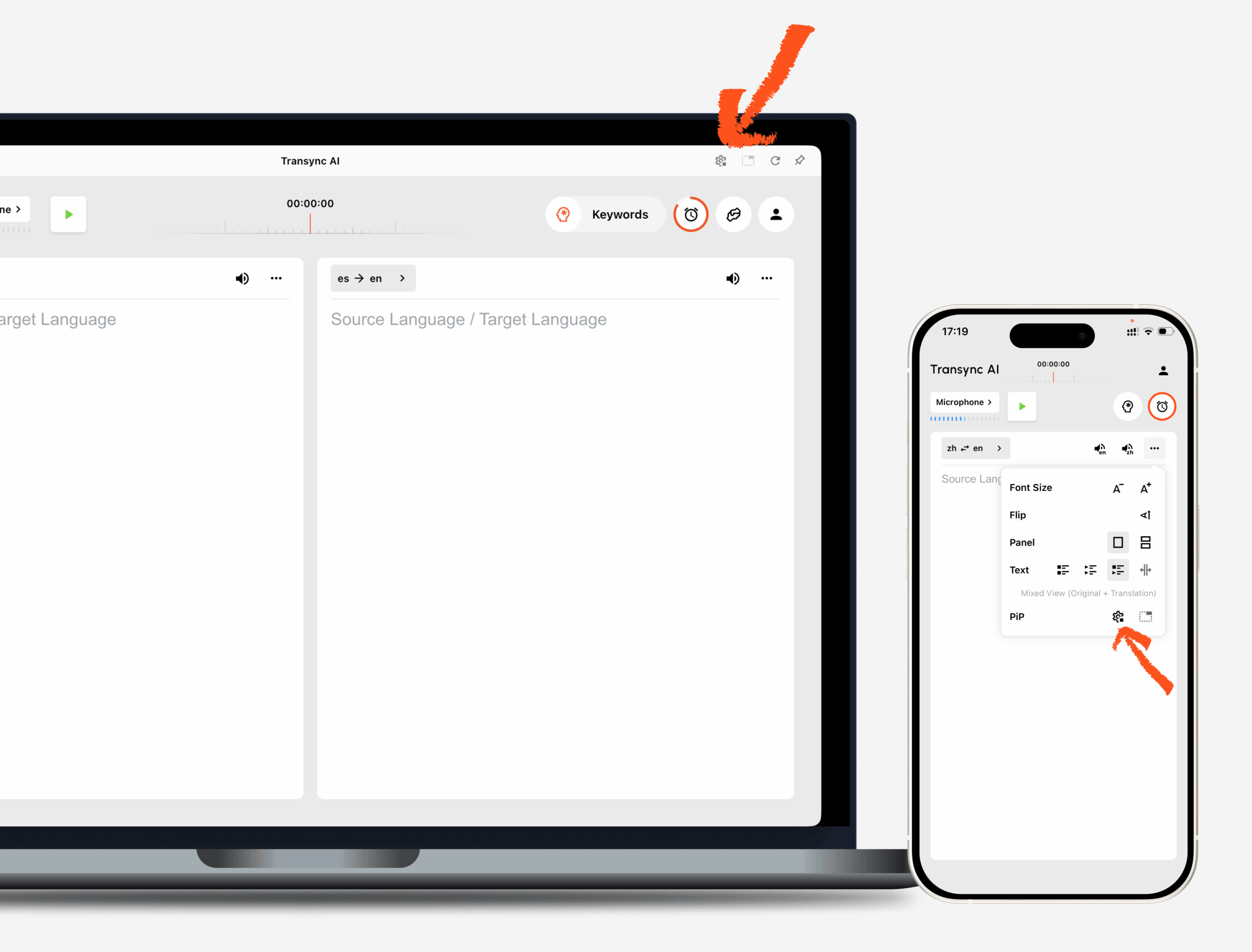
2. Выберите режим отображения субтитров. #
Функция «картинка в картинке» поддерживает три режима отображения субтитров:
- Показать только оригиналОтображает только оригинальный текст речи.
- Показать только переводОтображает только переведенный текст.
- Смешанное мнениеОтображает как оригинальный текст, так и переведенный текст.
Выберите режим отображения в зависимости от ваших задач. Для совещаний..., Показать только перевод Обеспечивает более наглядное представление. Для изучения языка или двуязычного повторения., Смешанное мнение Это поможет вам сравнить оригинальный и переведенный текст.
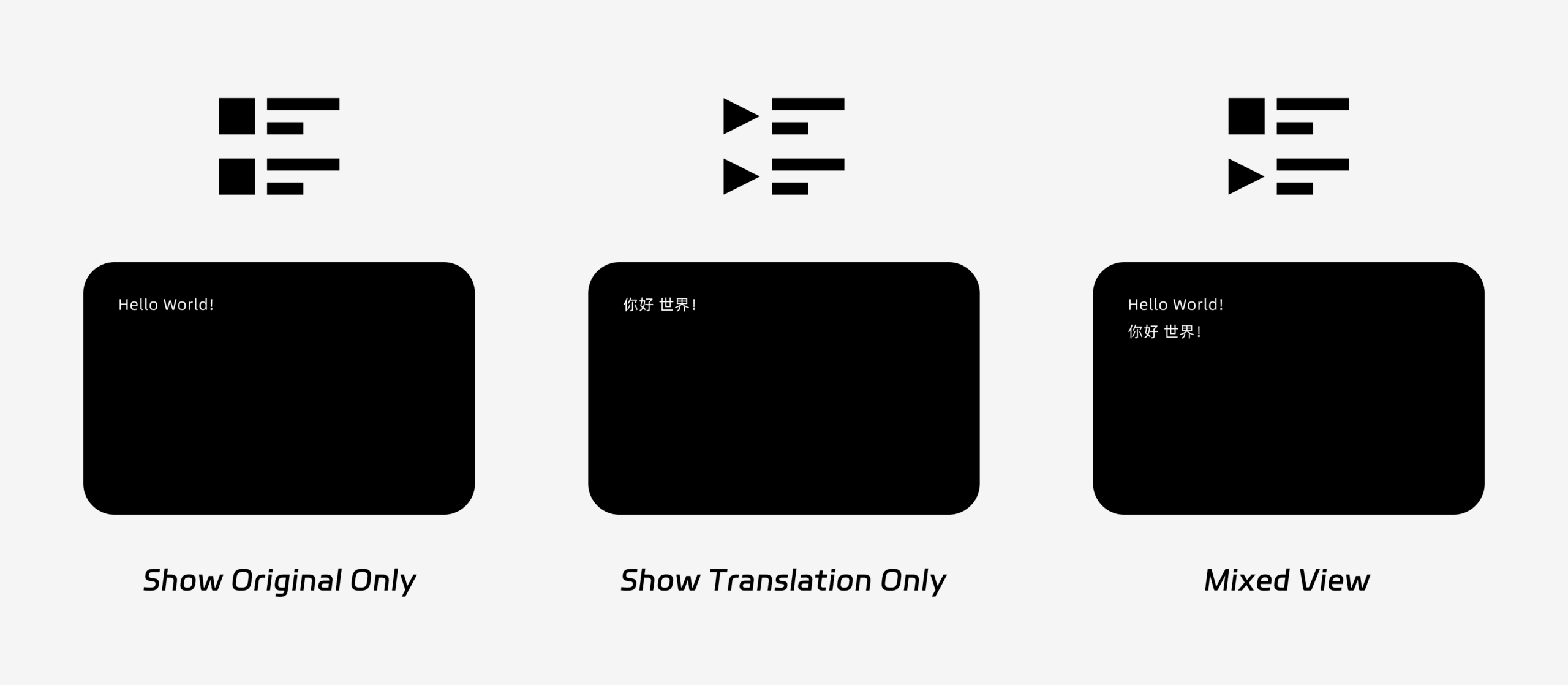
3. Настройка размера и отображения шрифта. #
Использовать Размер шрифта чтобы субтитры было легче читать в плавающем окне «картинка в картинке».
В Windows и macOS также можно настроить прозрачность окна. Более прозрачное окно помогает предотвратить перекрытие субтитрами содержимого совещания, слайдов или демонстрируемого экрана. Менее прозрачное окно может облегчить чтение субтитров.
Если вы также используете голосовой вывод во время перевода, вам может быть полезно узнать больше о... Как использовать воспроизведение голоса в Transync AI
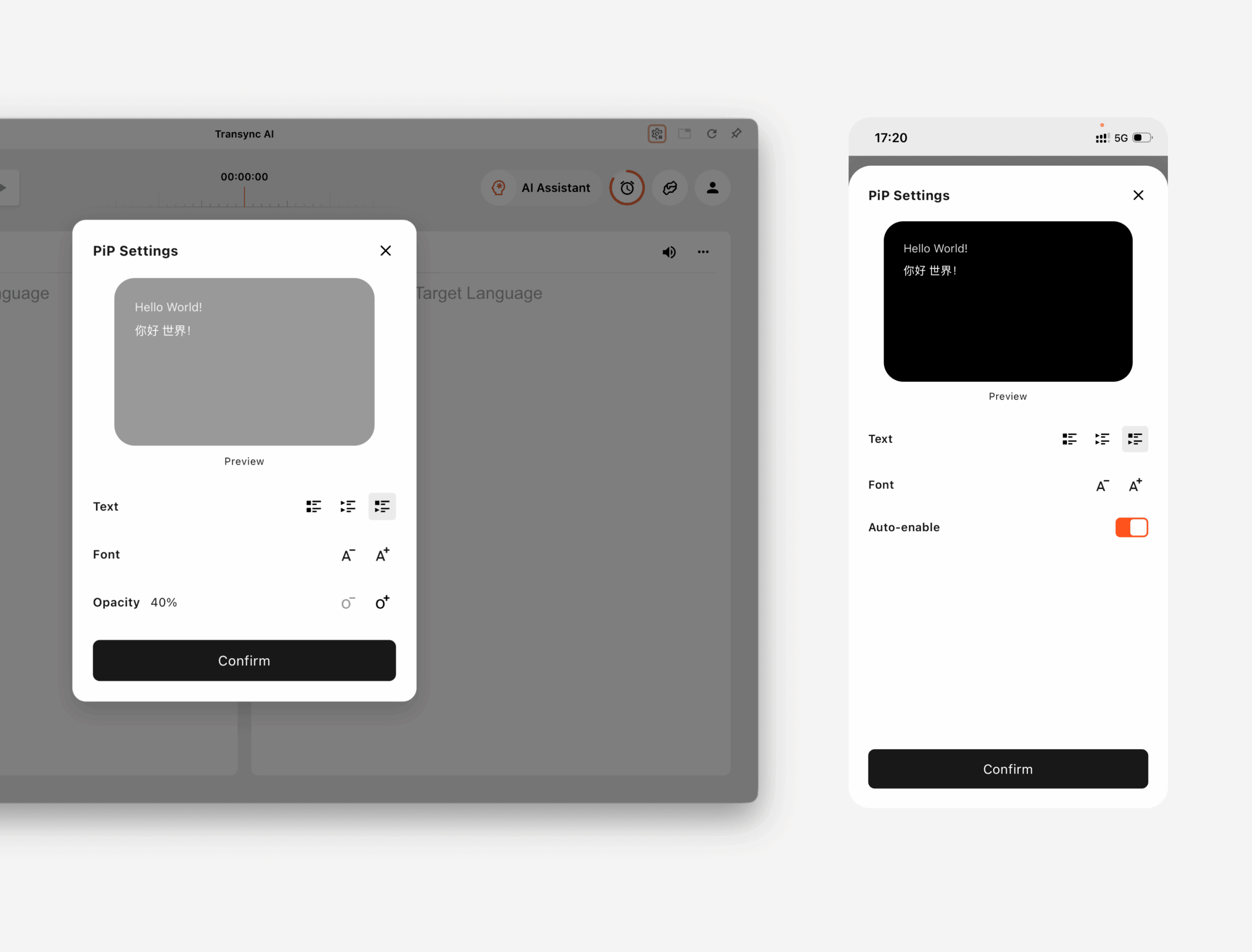
4. Начните использовать PiP #
После настройки параметров PiP запустите задачу перевода как обычно.
Используйте режим «картинка в картинке» в Windows или macOS.
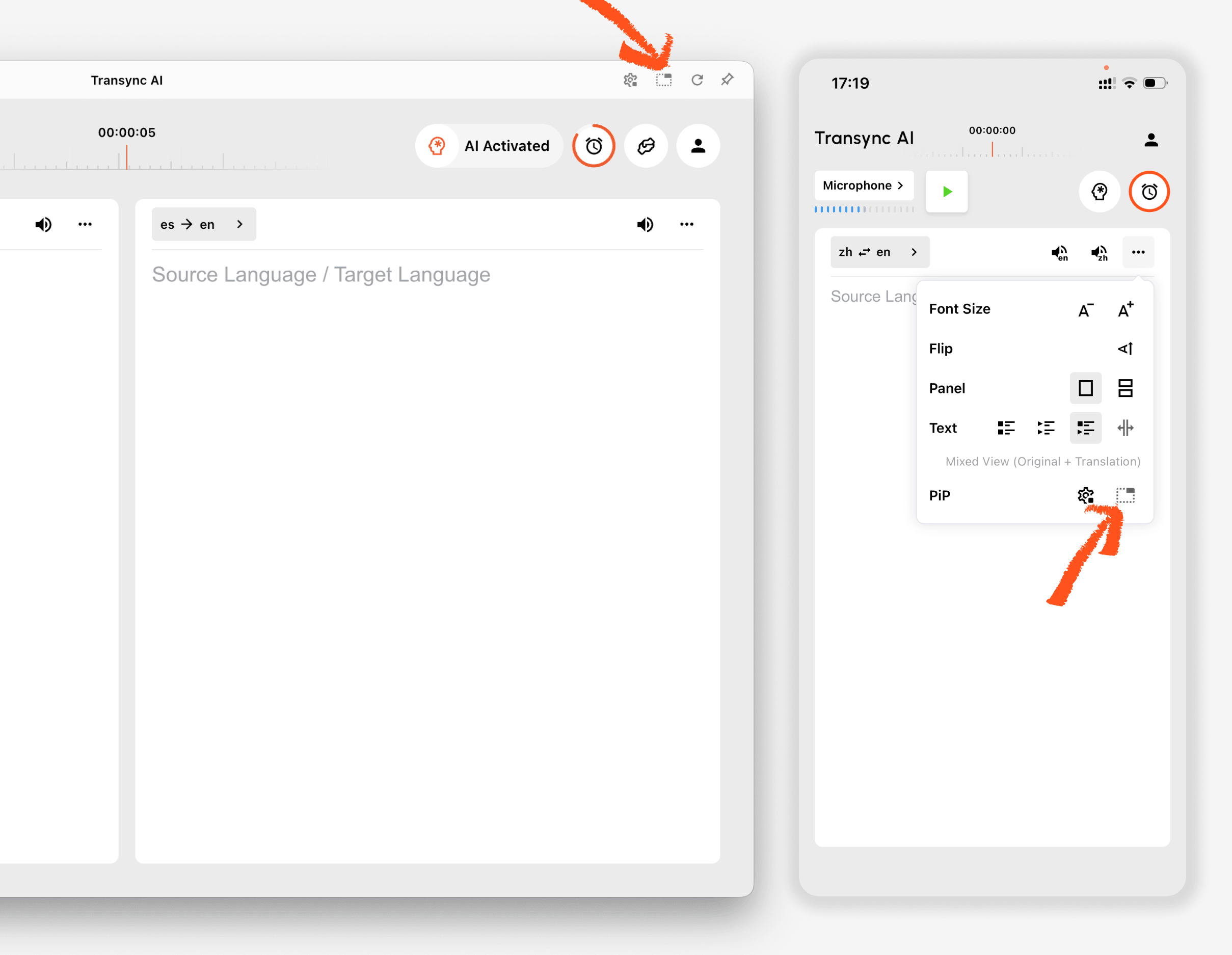
После того, как начнут создаваться субтитлы, нажмите кнопку ПиП Кнопка для открытия плавающего окна субтитров. Вы можете переместить окно «картинка в картинке» в удобное для вас место на экране при использовании Zoom, Microsoft Teams, Google Meet, браузеров, документов или других приложений. Transync AI запоминает последнее положение окна «картинка в картинке» на рабочем столе, поэтому окно субтитров может снова открыться с того места, где вы его оставили, при следующем использовании режима «картинка в картинке».
Если вам нужно перевести аудиозапись совещания с вашего компьютера, вы также можете проверить... Как поделиться компьютерным звуком
Используйте режим «картинка в картинке» на iOS или Android.
На мобильных устройствах режим «картинка в картинке» можно запустить вручную или автоматически.
Если Автоматическое включение режима «картинка в картинке» Если функция PiP включена, она будет запускаться автоматически при сворачивании приложения Transync AI во время активной задачи перевода.
Если Автоматическое включение режима «картинка в картинке» если выключено, нажмите ПиП Нажмите кнопку вручную, чтобы открыть плавающее окно субтитров.
Это позволяет сохранять переводы видимыми при использовании других мобильных приложений.
5. Когда PiP недоступен #
Функция «картинка в картинке» недоступна в веб-версии Transync AI. Для использования функции «картинка в картинке» воспользуйтесь приложением для Windows, macOS, iOS или Android.
Если окно «картинка в картинке» не появляется, проверьте следующее:
- В данный момент выполняется задача перевода.
- Вы используете поддерживаемую платформу.
- На мобильных устройствах функция автоматического включения режима «картинка в картинке» включена, если вы хотите, чтобы этот режим запускался автоматически.


