
1. Host an event
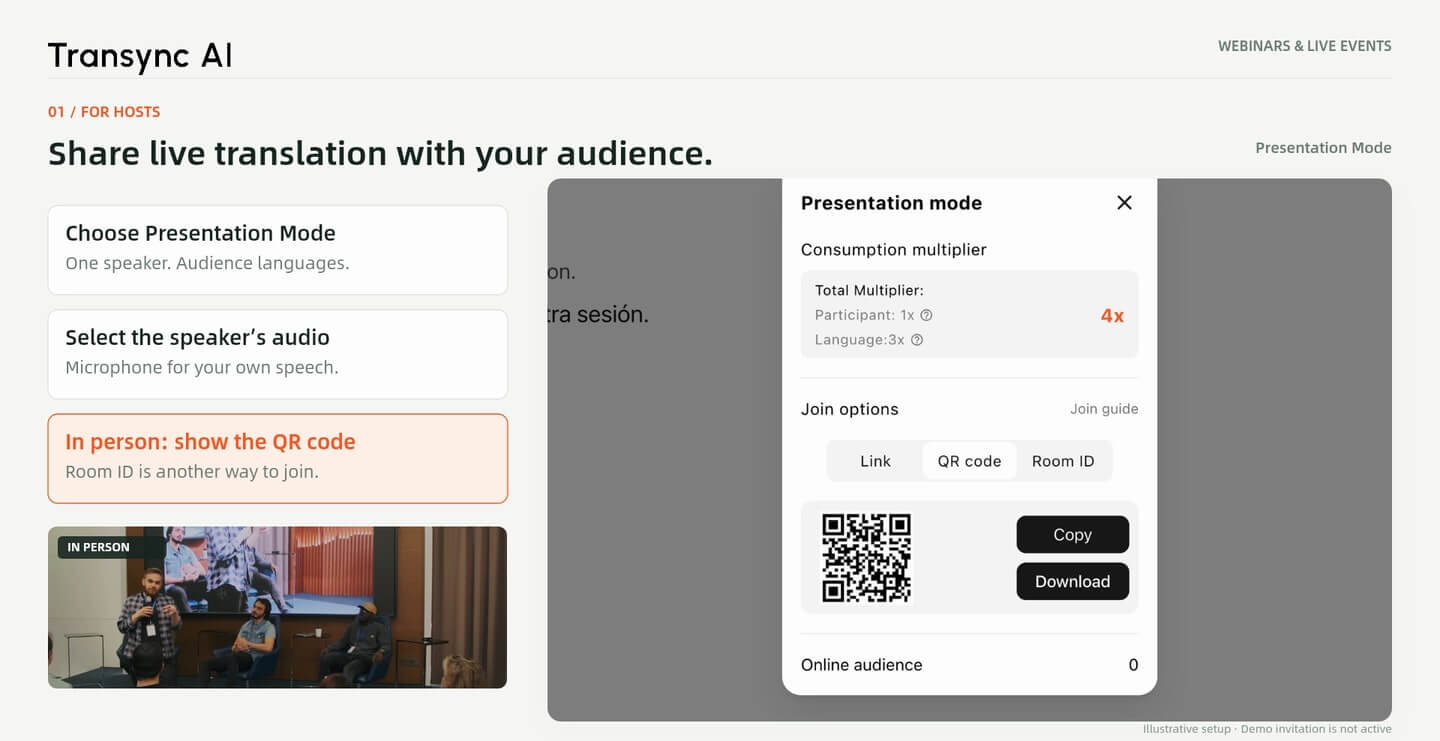
Choose Presentation Mode, set the source and audience languages, select the speaker’s audio and start. Share a link online or display the QR code in the venue.
Use webinar translation to follow online talks and in-person events across languages. Share live translation as a host, join a presentation on your own device, or translate independently when no shared session is available.
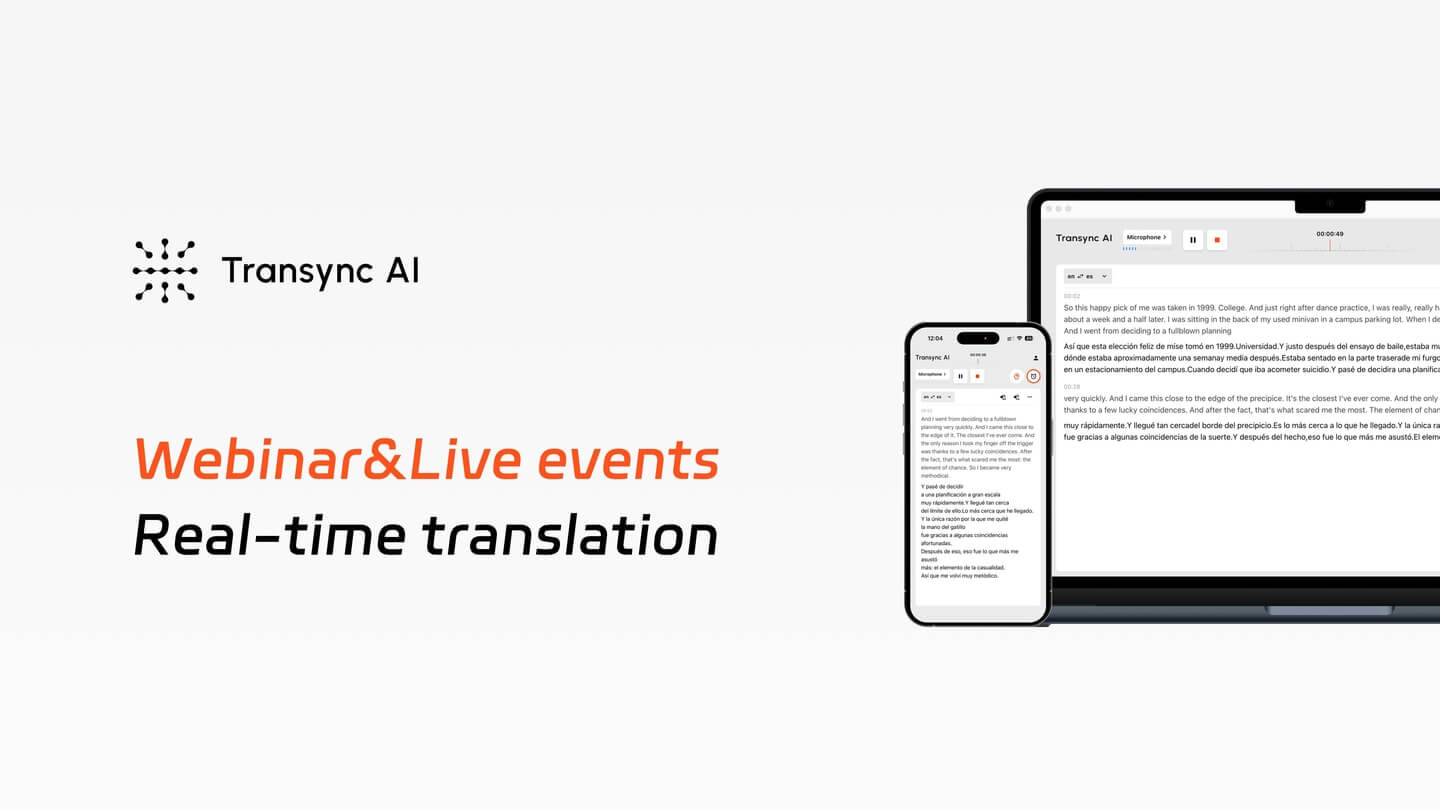
English to Spanish · Host, join, or translate independently. Product interfaces and translations are illustrative.
Hosting a multilingual audience
Give attendees a shared translation session and let them choose from the languages you enable.
Joining someone else’s event
Open the host’s presentation link or scan their QR code to read the live translation on your device.
Attending without a shared translation
Start your own One way session using audio from your computer or a microphone in the room.
Руководство по настройке
Start with your role. The walkthrough uses English to Spanish and covers both online and in-person events.
1. Host an event
Choose Presentation Mode, set the source and audience languages, select the speaker’s audio and start. Share a link online or display the QR code in the venue.
2. Join your host’s session
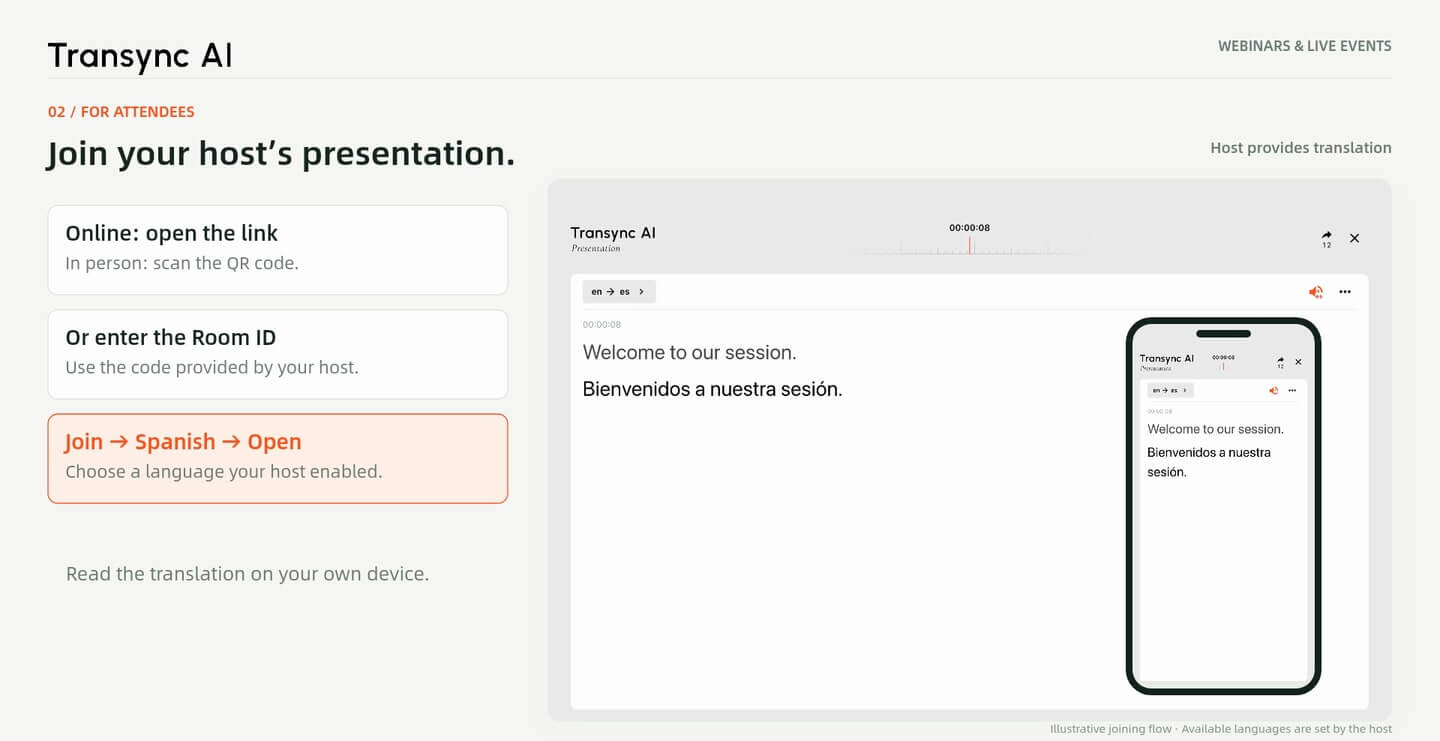
Open the link, scan the QR code or enter the Room ID. Join, choose a language offered by the host, and open the live translation.
3. Translate on your own
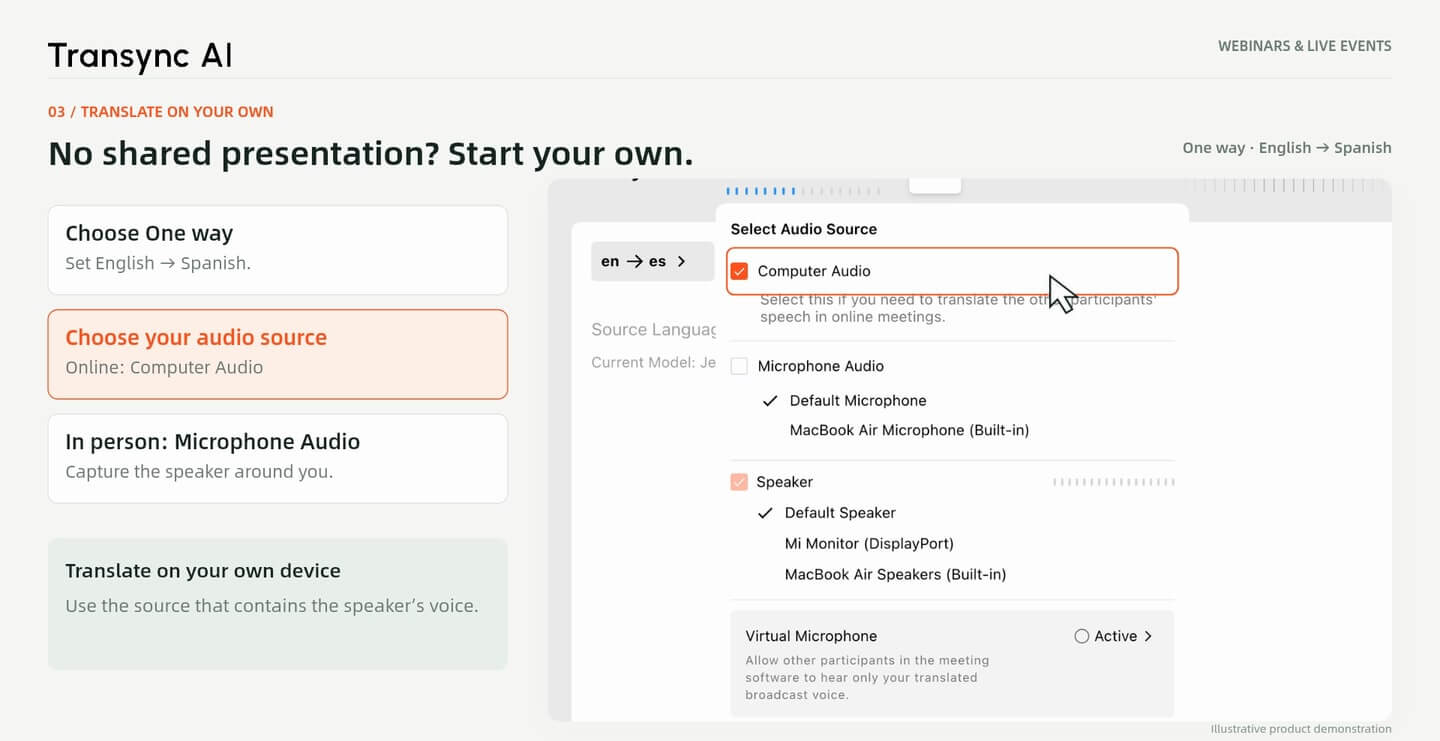
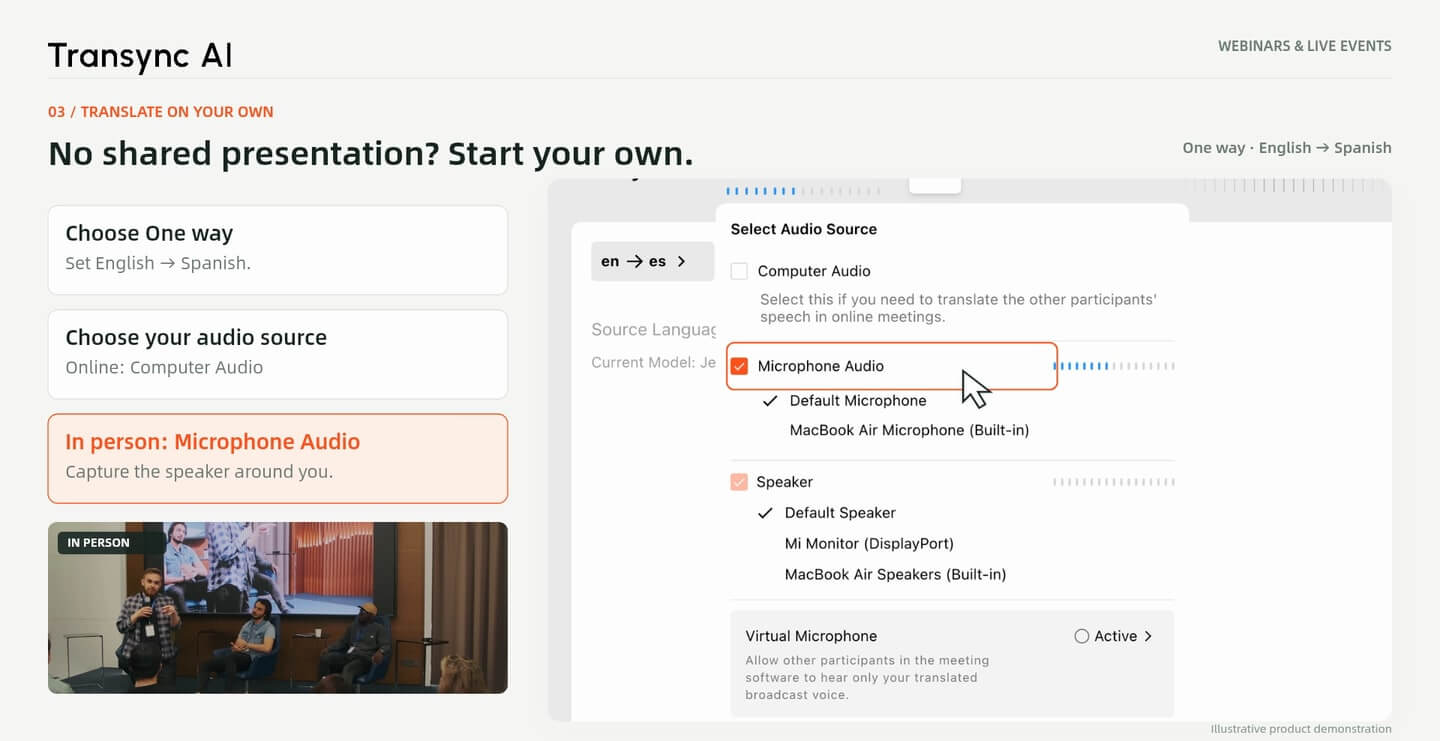
Choose One way and your language pair. Select Computer Audio for an online webinar or Microphone Audio for an in-person talk, then start.
В Режим презентации, choose the language of the talk and enable the target languages your audience needs. Select the audio source carrying the speaker’s voice, then start the session.
For an online webinar, share the presentation link. At an in-person event, display the QR code so attendees can join on their own devices. A Room ID provides another way to enter the session.
If the host provides a presentation, open the invitation, select Присоединиться, choose an available language and select Открыть. The walkthrough uses Spanish for an English-language talk.
The host supplies the audio for this shared session. Attendees joining it do not need to set up their own microphone or computer-audio capture. Your language options depend on what the host has enabled.
No presentation link? Open Transync AI and choose В одну сторону. Set the speaker’s language as the source and the language you want to read as the target.
Play the webinar on your computer, select Звук компьютера, and start translation. Open Картинка в картинке to keep the floating captions visible while you watch. Place the window where it does not cover the slides.
For your own translation session at a venue, select Микрофонный звук instead of Computer Audio. Choose the source and target languages before starting.
Use a microphone that can pick up the speaker clearly. Follow the organizer’s rules for audio capture, and check the sound before the talk begins. If the host already offers Presentation Mode, you can join that shared session instead.
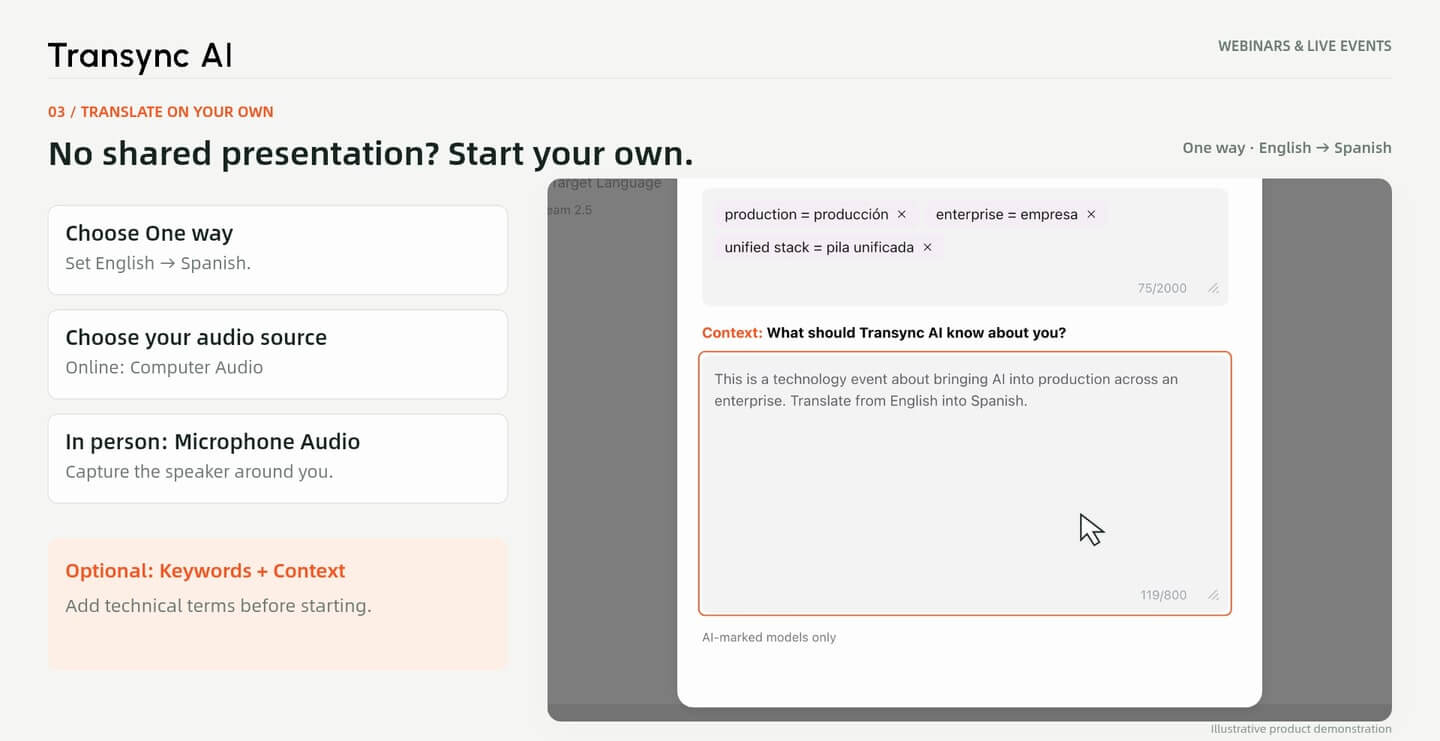
Before a technical webinar, optionally add Ключевые слова и Контекст in AI Assistant. Include relevant terms and a short description of the topic.
The walkthrough uses terminology from an AI presentation, including “production” and “unified stack.” This preparation provides context; it does not guarantee every term will be translated correctly.
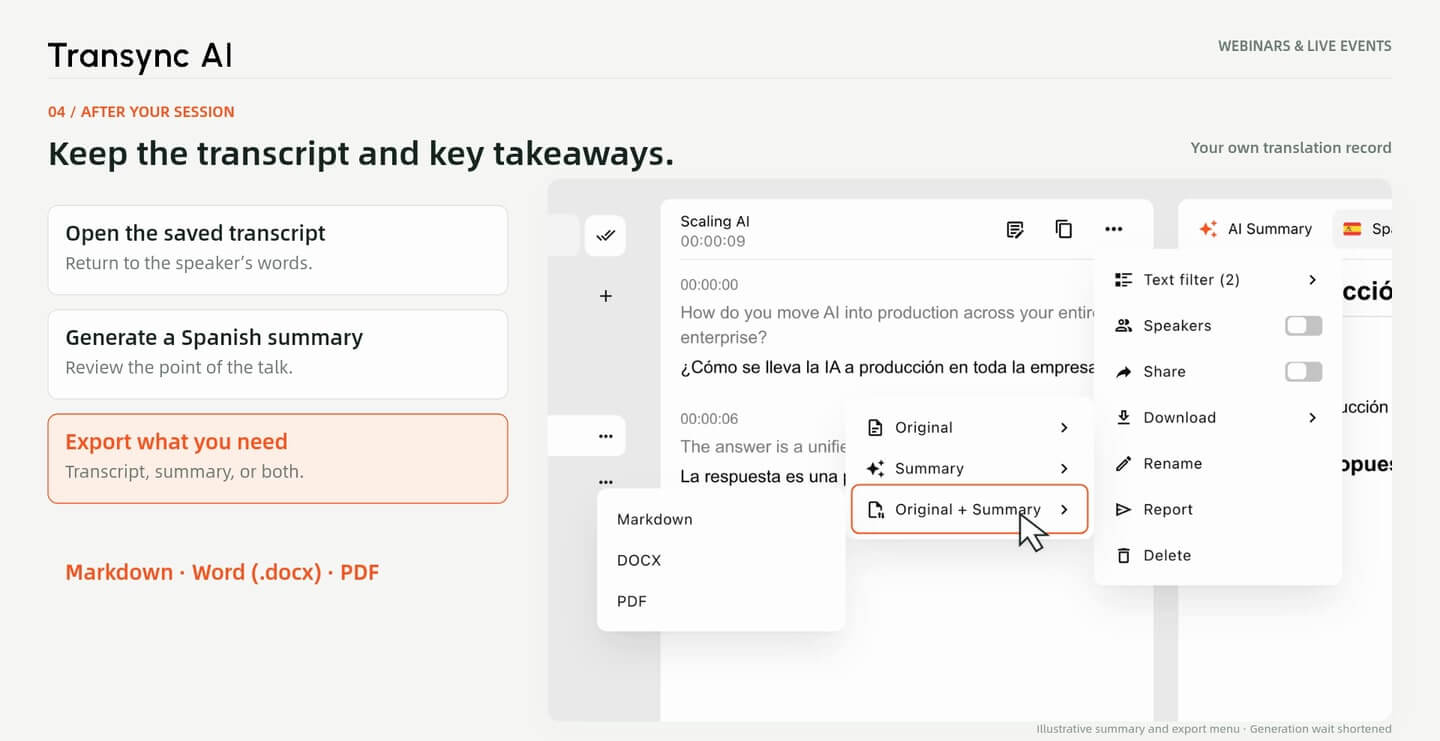
After your own translation session, open the saved transcript and generate an Резюме ИИ in your chosen language. The example creates a Spanish summary.
In the download menu, choose Оригинал, Краткое содержание или Оригинал + Краткое содержание. Export as Маркдаун, Word (.docx) или PDF for later review. Check important details against the original talk.
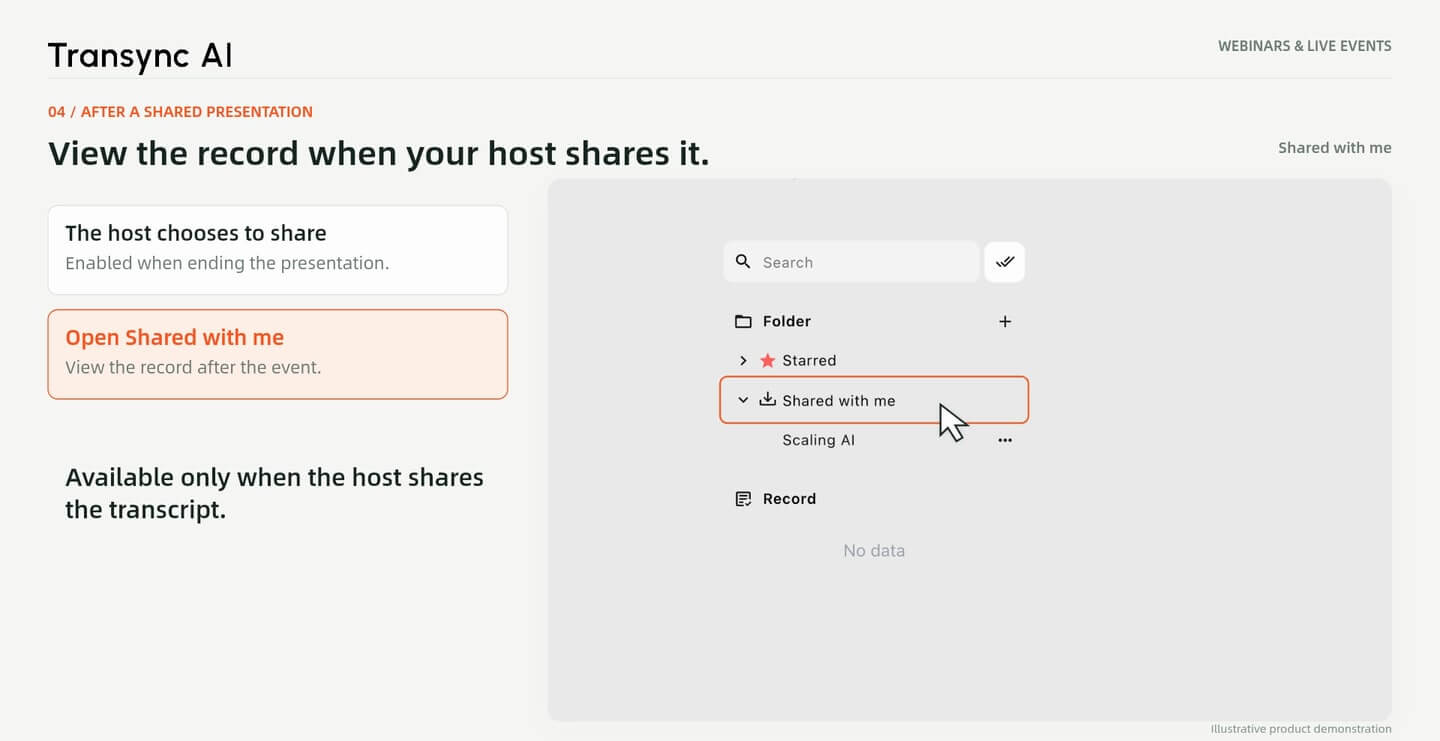
Joining a live presentation does not automatically give you access to its record afterward. Attendees can view the record only when the host chooses to share it.
The walkthrough shows the shared record under Shared with me. This is separate from the transcript saved after a translation session you started yourself.
Frames from the Webinar V4 walkthrough. Product screens, room details, translations and summaries are illustrative workflow examples. The QR code and Room ID shown are not live invitations. Event imagery illustrates the setting and does not imply endorsement.
Choose the setup that fits your role before the event: share a presentation, join your host, or start your own translation.
Быстрые ответы
Hosting, joining, audio setup and records after the event.
Hosts use Presentation Mode to share translation with an audience. Attendees can join the host’s session. If no shared presentation is available, start your own One way translation.
Yes. The walkthrough shows all three entry options. After joining, choose a language the host has enabled and open the live translation.
No. The host supplies the audio for that shared presentation. Computer Audio or Microphone Audio is needed when you run your own translation session.
Use Computer Audio for a webinar playing on your computer. Use Microphone Audio for an in-person talk, subject to the venue’s audio-capture rules.
Open Picture in Picture during your own translation session to keep a floating subtitle window in view. Move it away from important slide content.
For your own session, open the saved transcript, generate a summary and export the original, summary or both. If you joined a presentation, its record is available only when the host shares it.
For a shared presentation, choose from the languages enabled by the host. For your own session, select an available source and target language in Transync AI. The example uses English to Spanish. Посмотреть список поддерживаемых языков.
No. AI output can contain errors, especially with unclear audio or unfamiliar terminology. Review important details against the speaker’s original words and materials.