
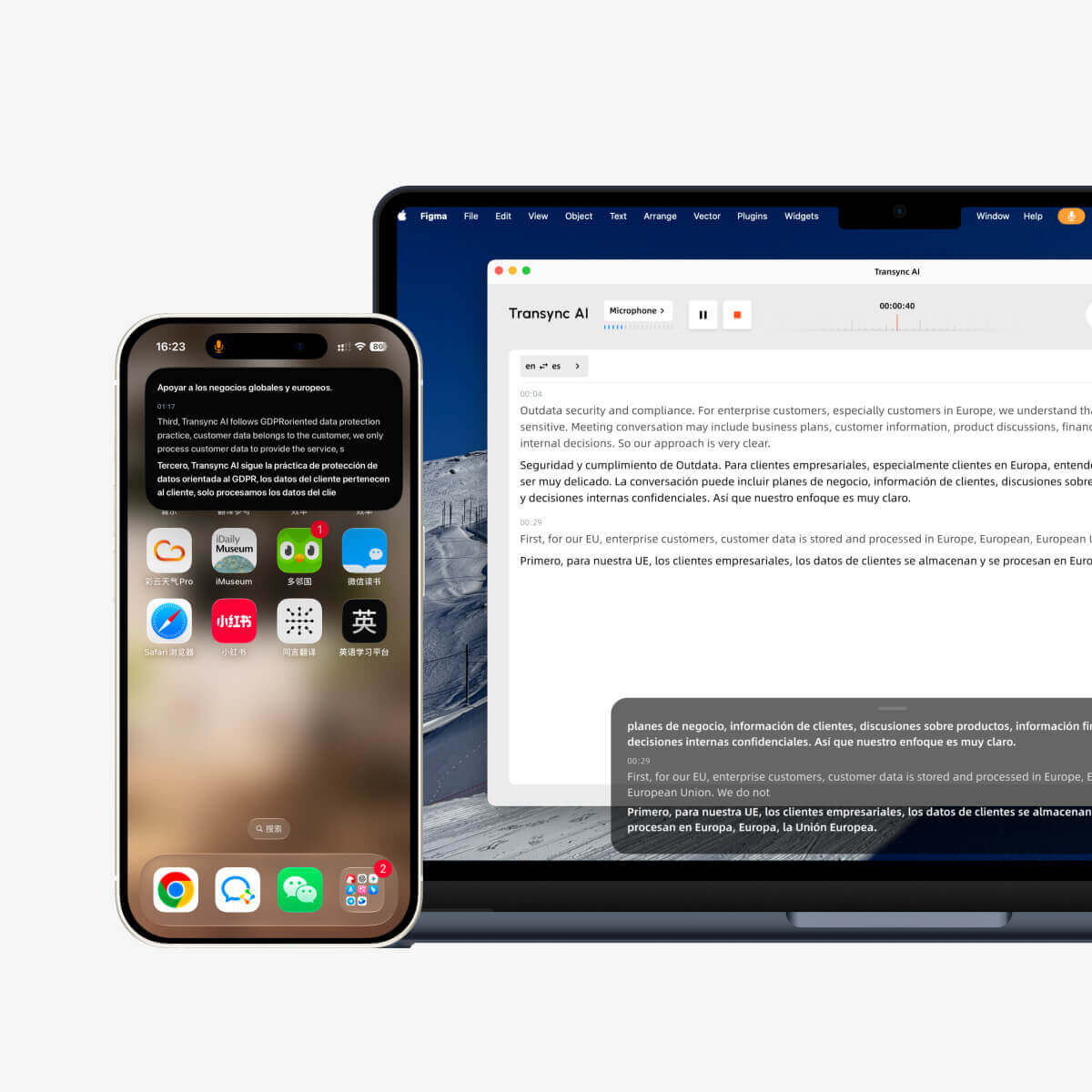
Der Picture-in-Picture-Modus (PiP) ermöglicht es Ihnen, Live-Untertitel in einem schwebenden Windows anzuzeigen, während Sie andere Apps nutzen. Dies ist besonders nützlich in Meetings, Präsentationen, beim Betrachten geteilter Inhalte oder beim Anfertigen von Notizen, während Transync AI die Übersetzung in Echtzeit fortsetzt.
PiP ist verfügbar auf Windows, macOS, iOS und Android. Es ist derzeit Nicht in der Web-Version verfügbar.
Bevor Sie PiP verwenden, stellen Sie sicher, dass Sie bereits einen Übersetzungsauftrag gestartet haben. Falls Sie Transync AI noch nicht kennen, empfehlen wir Ihnen unsere [Link/Dokumentation]. Schnellstart oder lernen So starten Sie die Echtzeitübersetzung Erste.
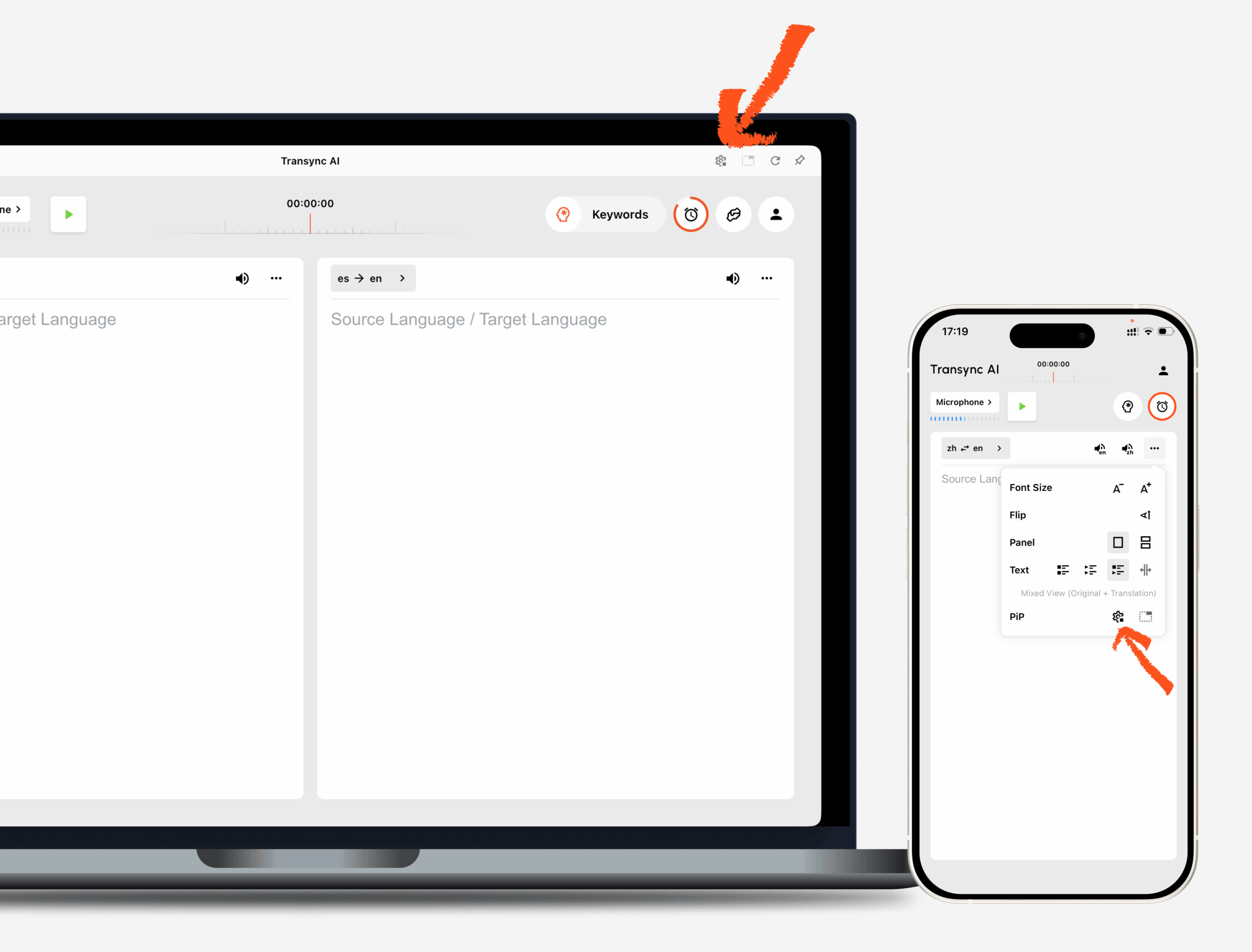
1. Öffnen Sie die PiP-Einstellungen. #
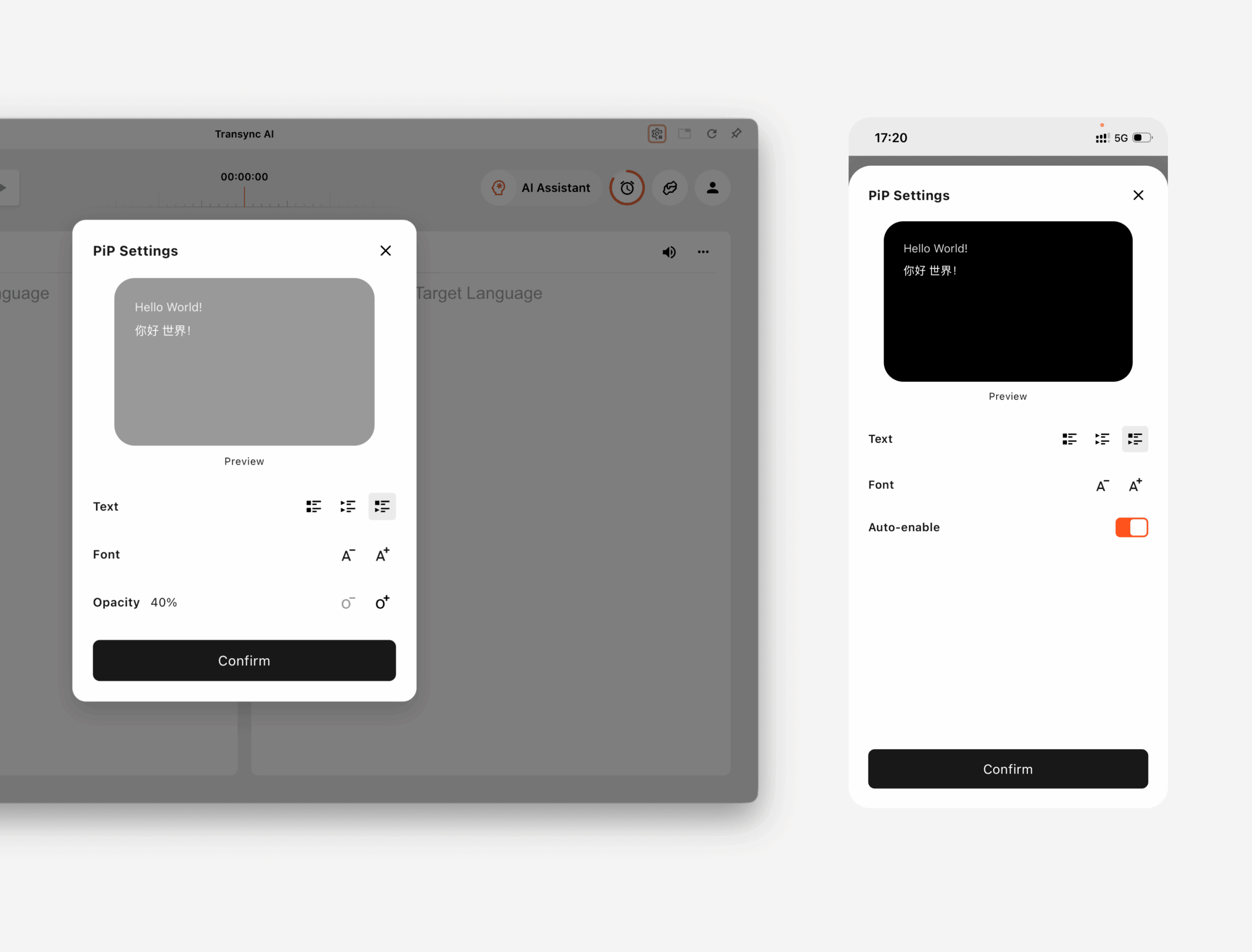
Offen Einstellungen Öffnen Sie Transync AI und suchen Sie den Abschnitt „PiP-Einstellungen“. Dort können Sie festlegen, wie das schwebende UntertitelWindows vor der Verwendung von PiP während einer Übersetzungsaufgabe angezeigt wird.
An Windows und macOS, Sie können Folgendes anpassen:
- Untertitel-Anzeigemodus
- Schriftgröße
- Windowstransparenz
An iOS und Android, Sie können Folgendes anpassen:
- Untertitel-Anzeigemodus
- Schriftgröße
- Automatische Aktivierung von PiP
2. Wählen Sie einen Untertitel-Anzeigemodus. #
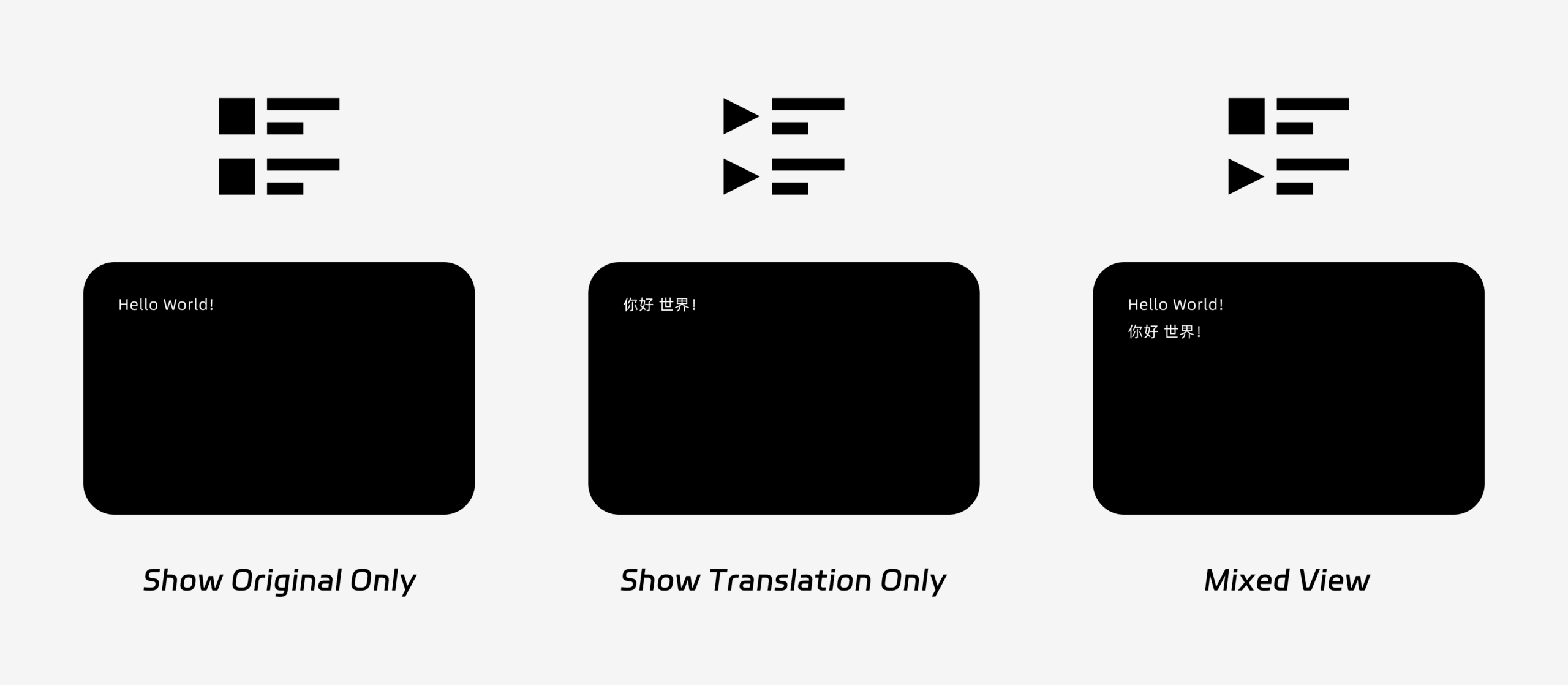
PiP unterstützt drei Untertitelanzeigemodi:
- Nur Original anzeigenZeigt nur den ursprünglichen gesprochenen Text an.
- Nur Übersetzung anzeigenZeigt nur den übersetzten Text an.
- Gemischte AnsichtZeigt sowohl den Originaltext als auch den übersetzten Text an.
Wählen Sie den Anzeigemodus entsprechend Ihrem Anwendungsfall. Für Besprechungen, Nur Übersetzung anzeigen bietet eine übersichtlichere Darstellung. Zum Sprachenlernen oder zur Wiederholung zweisprachiger Sprachen., Gemischte Ansicht kann Ihnen dabei helfen, den Originaltext und den übersetzten Text zu vergleichen.
3. Schriftgröße und Anzeige anpassen #
Verwenden Schriftgröße um die Untertitel im schwebenden PiP-Windows besser lesbar zu machen.
Unter Windows und macOS lässt sich auch die Windowstransparenz anpassen. Ein transparenteres Windows verhindert, dass Untertitel den Besprechungsinhalt, die Folien oder den freigegebenen Bildschirm verdecken. Ein weniger transparentes Windows kann die Lesbarkeit der Untertitel verbessern.
Wenn Sie während der Übersetzung auch Sprachausgabe verwenden, möchten Sie vielleicht mehr darüber erfahren. So verwenden Sie die Sprachwiedergabe in Transync AI
4. Beginnen Sie mit der Verwendung von PiP. #
Nachdem Sie die PiP-Einstellungen konfiguriert haben, starten Sie wie gewohnt einen Übersetzungsauftrag.
Verwenden Sie PiP unter Windows oder macOS
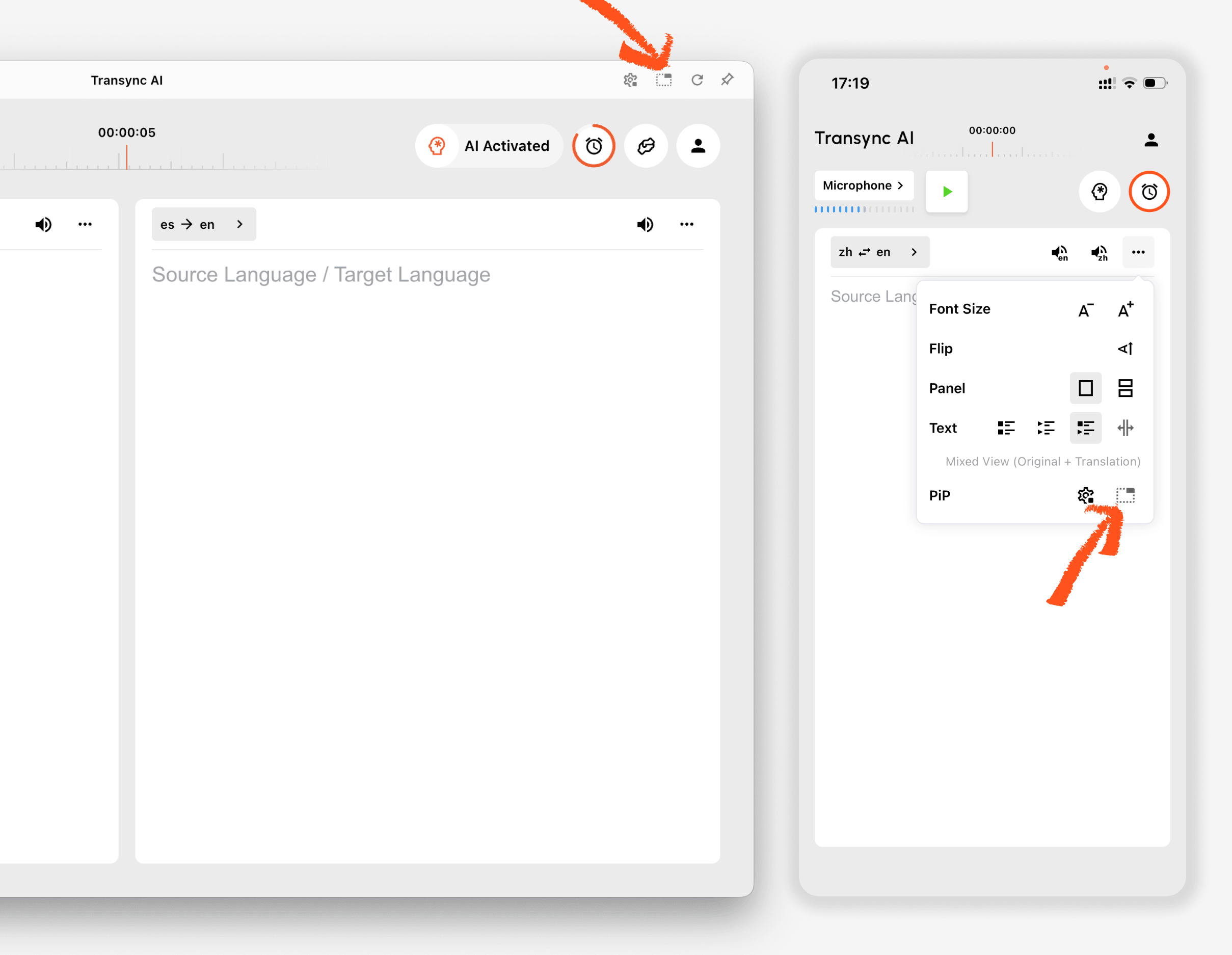
Sobald die Untertitel generiert werden, klicken Sie auf die Schaltfläche Pip Klicken Sie auf diese Schaltfläche, um das schwebende Untertitelfenster zu öffnen. Sie können das Bild-in-Bild-Fenster (PiP) an eine beliebige Position auf Ihrem Bildschirm verschieben, während Sie Zoom, Microsoft Teams, Google Meet, Browser, Dokumente oder andere Apps verwenden. Transync AI merkt sich die letzte Position des PiP-Fensters auf dem Desktop, sodass das Untertitelfenster beim nächsten Start von PiP genau dort wieder geöffnet wird, wo Sie es verlassen haben.
Wenn Sie die Audioaufzeichnung eines Meetings von Ihrem Computer übersetzen müssen, können Sie auch Folgendes überprüfen: So geben Sie Computer Audio frei
PiP auf iOS oder Android verwenden
Auf Mobilgeräten kann PiP manuell oder automatisch gestartet werden.
Wenn Automatische Aktivierung von PiP Wenn PiP aktiviert ist, startet es automatisch, wenn Sie die Transync AI-App während einer aktiven Übersetzungsaufgabe minimieren.
Wenn Automatische Aktivierung von PiP ist ausgeschaltet, tippen Sie auf Pip Drücken Sie die entsprechende Taste, um das schwebende UntertitelWindows manuell zu öffnen.
Dadurch bleiben die Übersetzungen auch bei der Verwendung anderer mobiler Apps sichtbar.
5. Wenn PiP nicht verfügbar ist #
Picture-in-Picture ist in der Web-Version von Transync AI nicht verfügbar. Um Picture-in-Picture zu nutzen, verwenden Sie bitte die App für Windows, macOS, iOS oder Android.
Falls das PiP-Windows nicht angezeigt wird, überprüfen Sie Folgendes:
- Ein Übersetzungsprozess läuft aktuell.
- Sie nutzen eine unterstützte Plattform.
- Auf Mobilgeräten ist die automatische Aktivierung von PiP eingeschaltet, wenn PiP automatisch starten soll.


