
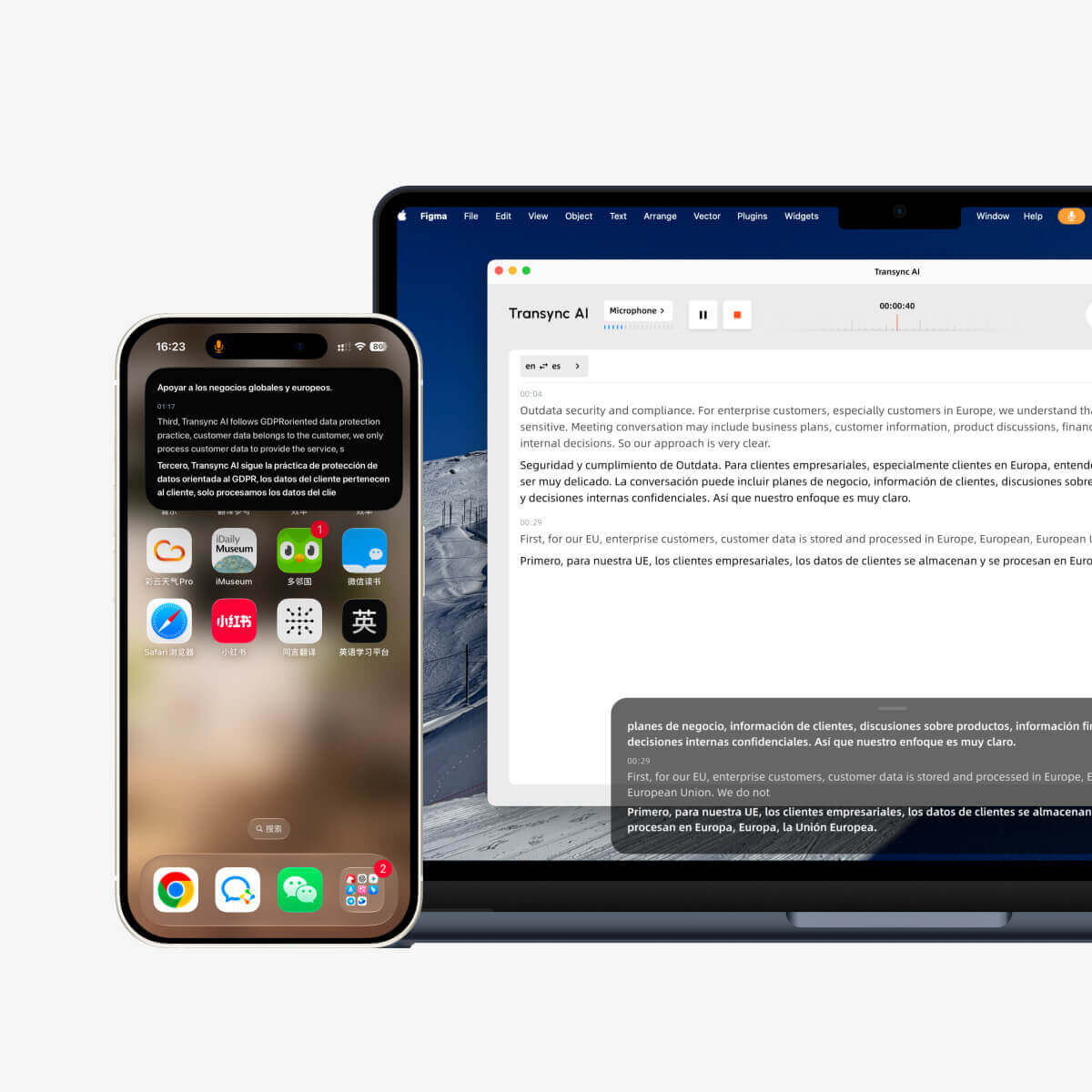
El modo Imagen en Imagen (PiP) te permite mantener los subtítulos en tiempo real visibles en una ventana flotante mientras usas otras aplicaciones. Es útil cuando estás en una reunión, viendo una presentación, visualizando contenido compartido o tomando notas mientras Transync AI continúa traduciendo en tiempo real.
PiP está disponible en Windows, macOS, iOS y Android. Actualmente es No disponible en la versión Web..
Antes de usar PiP, asegúrese de haber iniciado una tarea de traducción. Si es nuevo en Transync AI, puede consultar nuestra Inicio rápido o aprender Cómo iniciar la traducción en tiempo real primero.
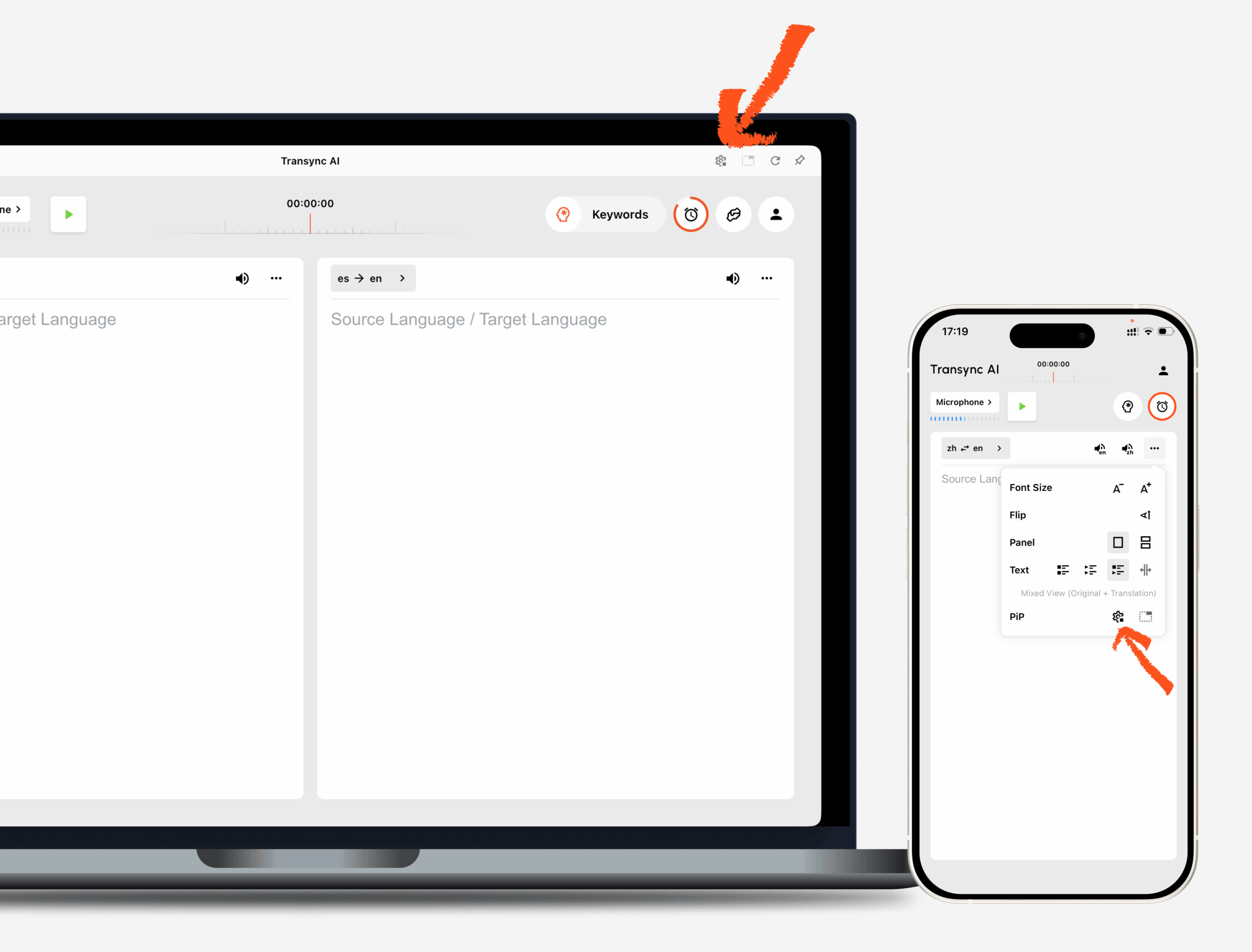
1. Abre la configuración de PiP. #
Abierto Ajustes En Transync AI, busque la sección de configuración de PiP. Allí podrá configurar cómo se muestra la ventana flotante de subtítulos antes de usar PiP durante una tarea de traducción.
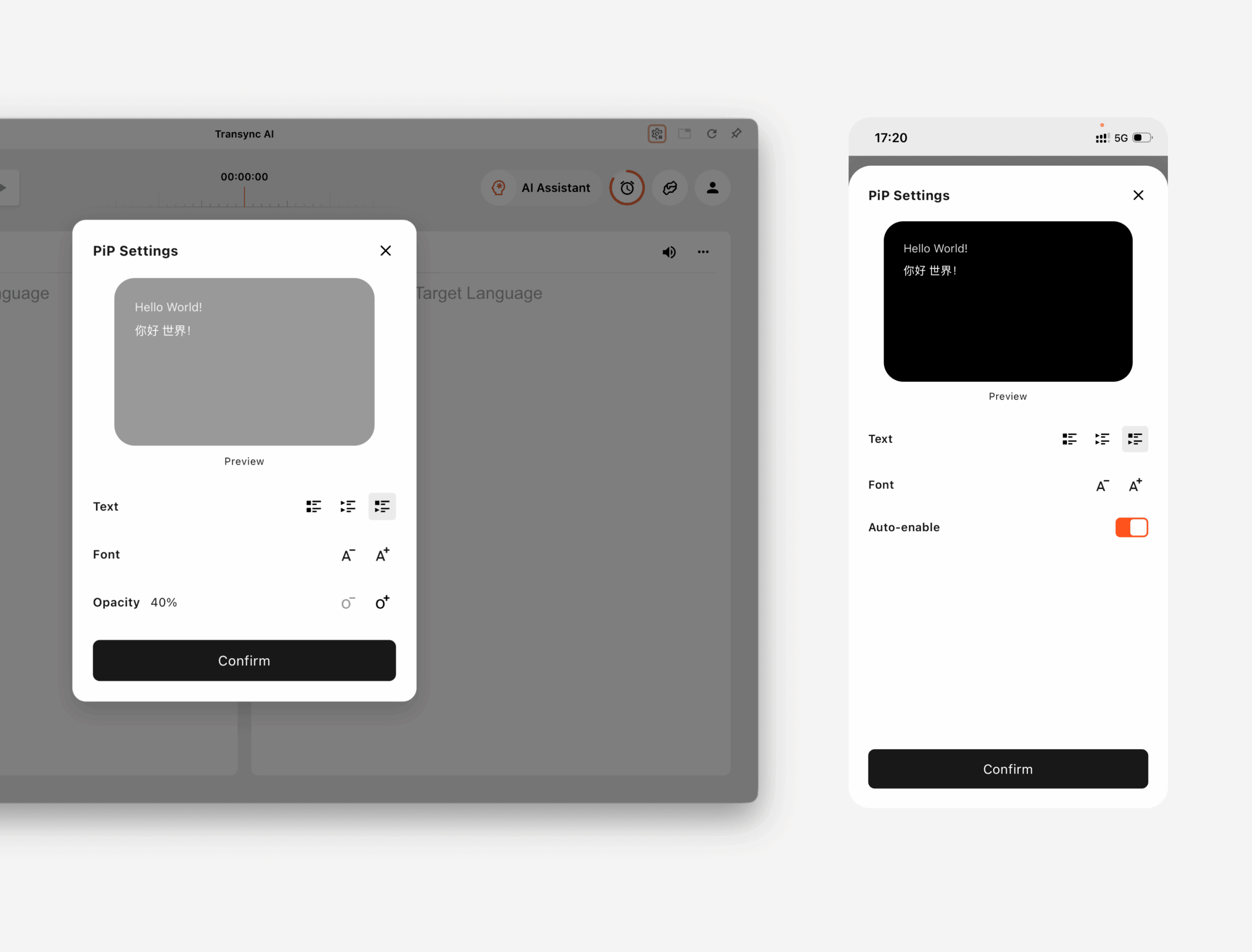
En Windows y macOS, puedes ajustar:
- Modo de visualización de subtítulos
- Tamaño de fuente
- Transparencia de la ventana
En iOS y Android, puedes ajustar:
- Modo de visualización de subtítulos
- Tamaño de fuente
- Activación automática de PiP
2. Elija un modo de visualización de subtítulos. #
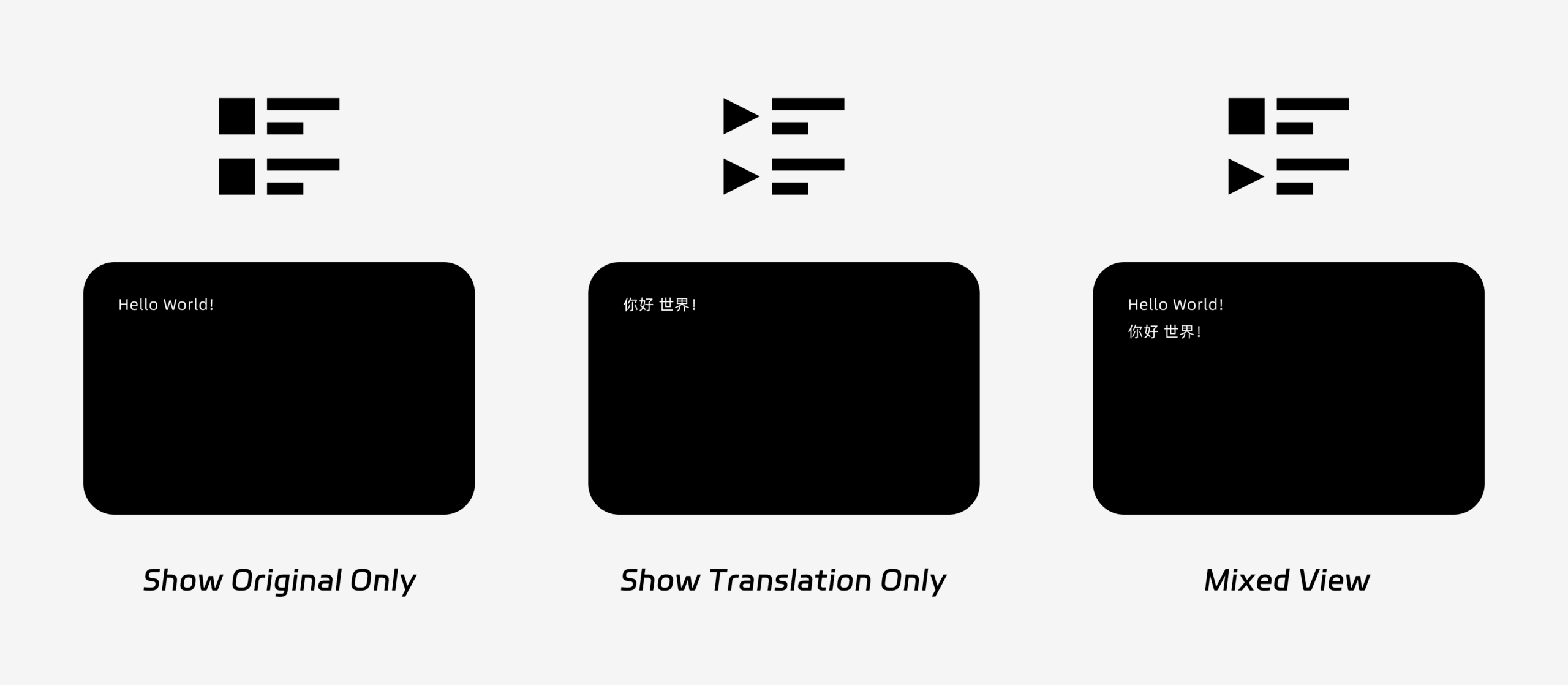
PiP admite tres modos de visualización de subtítulos:
- Mostrar solo el original: Muestra únicamente el texto de voz original.
- Mostrar solo la traducción: Muestra únicamente el texto traducido.
- Vista mixta: Muestra tanto el texto original como el texto traducido.
Elija el modo de visualización según su caso de uso. Para reuniones, Mostrar solo la traducción proporciona una visión más clara. Para el aprendizaje de idiomas o la revisión bilingüe, Vista mixta puede ayudarte a comparar el texto original con el texto traducido.
3. Ajustar el tamaño de la fuente y la visualización #
Usar Tamaño de fuente para que los subtítulos sean más fáciles de leer en la ventana flotante PiP.
En Windows y macOS, también puedes ajustar la transparencia de la ventana. Una ventana más transparente evita que los subtítulos tapen el contenido de la reunión, las diapositivas o las pantallas compartidas. Una ventana menos transparente facilita la lectura de los subtítulos.
Si también utiliza salida de voz durante la traducción, es posible que desee obtener más información sobre Cómo usar la reproducción de voz en Transync AI
4. Empiece a usar PiP #
Tras configurar los ajustes de PiP, inicie una tarea de traducción como de costumbre.
Utiliza PiP en Windows o macOS.
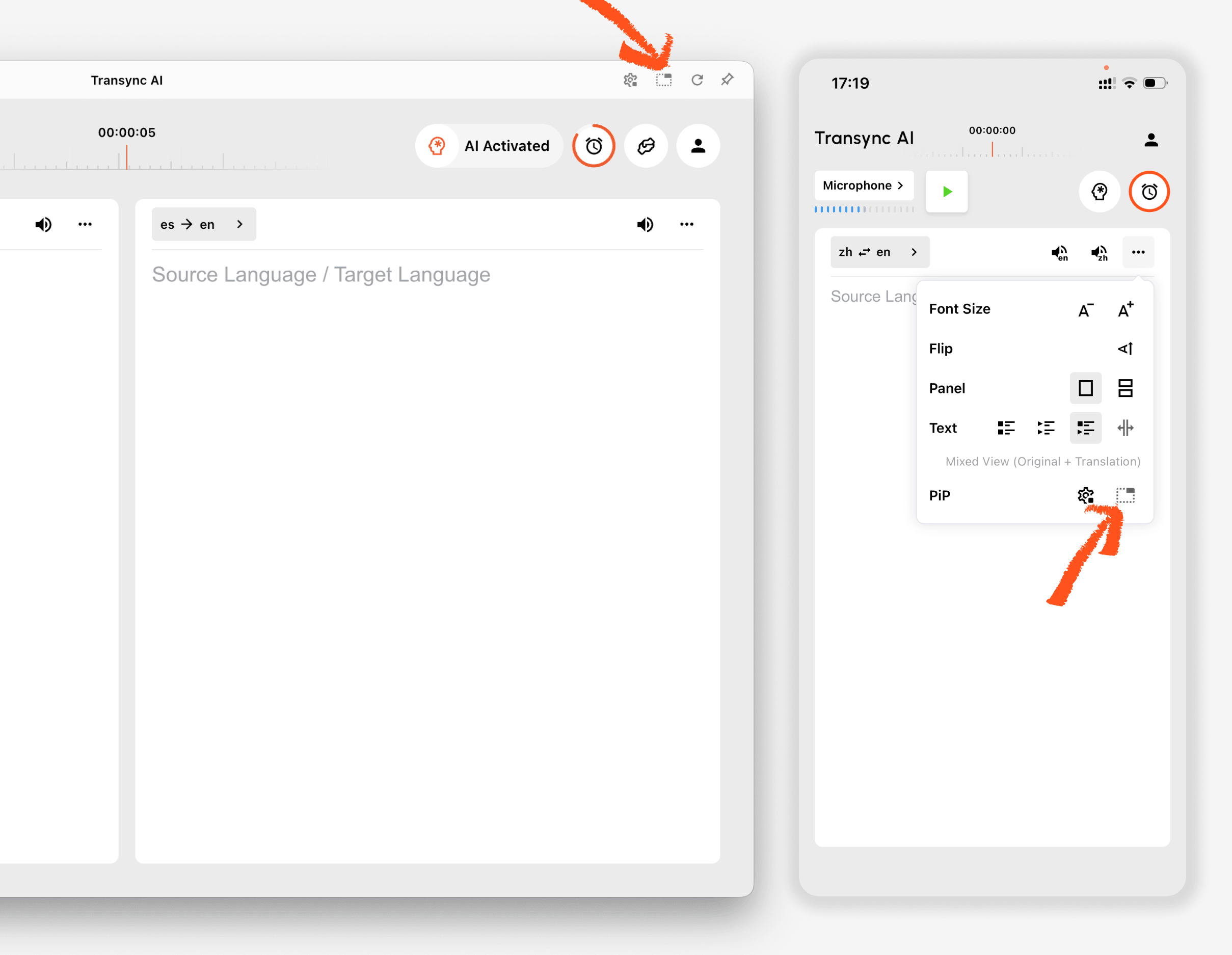
Una vez que se estén generando los subtítulos, haga clic en el Pepita Botón para abrir la ventana flotante de subtítulos. Puedes mover la ventana PiP a una posición conveniente en tu pantalla mientras usas Zoom, Microsoft Teams, Google Meet, navegadores, documentos u otras aplicaciones. Transync AI recuerda la última posición de la ventana PiP en el escritorio, para que la ventana de subtítulos se vuelva a abrir donde la dejaste la próxima vez que uses PiP.
Si necesita traducir el audio de una reunión desde su computadora, también puede consultar Cómo compartir el audio de la computadora
Usa PiP en iOS o Android.
En dispositivos móviles, la función PiP (Picture-in-Picture) se puede iniciar de forma manual o automática.
Si Activación automática de PiP Si la opción PiP está activada, se iniciará automáticamente al minimizar la aplicación Transync AI durante una tarea de traducción activa.
Si Activación automática de PiP está apagado, toque el Pepita Presione el botón manualmente para abrir la ventana flotante de subtítulos.
Esto te permite mantener las traducciones visibles mientras usas otras aplicaciones móviles.
5. Cuando PiP no está disponible #
La función PiP no está disponible en la versión Web de Transync AI. Para usar PiP, utilice la aplicación para Windows, macOS, iOS o Android.
Si no aparece la ventana PiP, compruebe lo siguiente:
- Actualmente se está ejecutando una tarea de traducción.
- Estás utilizando una plataforma compatible.
- En dispositivos móviles, la opción "Activar PiP automáticamente" está activada si desea que PiP se inicie automáticamente.


