
Para unirte al Modo Presentación en Transync AI, usa el enlace, el código QR o el ID de la sala que te proporcionó el anfitrión. Una vez dentro, puedes elegir uno de los idiomas habilitados por el anfitrión y seguir la traducción en directo en tu dispositivo.
Los espectadores pueden leer el texto original y traducido, y escuchar la reproducción de audio cuando esté disponible. Los espectadores no pueden intervenir ni controlar la traducción del presentador.
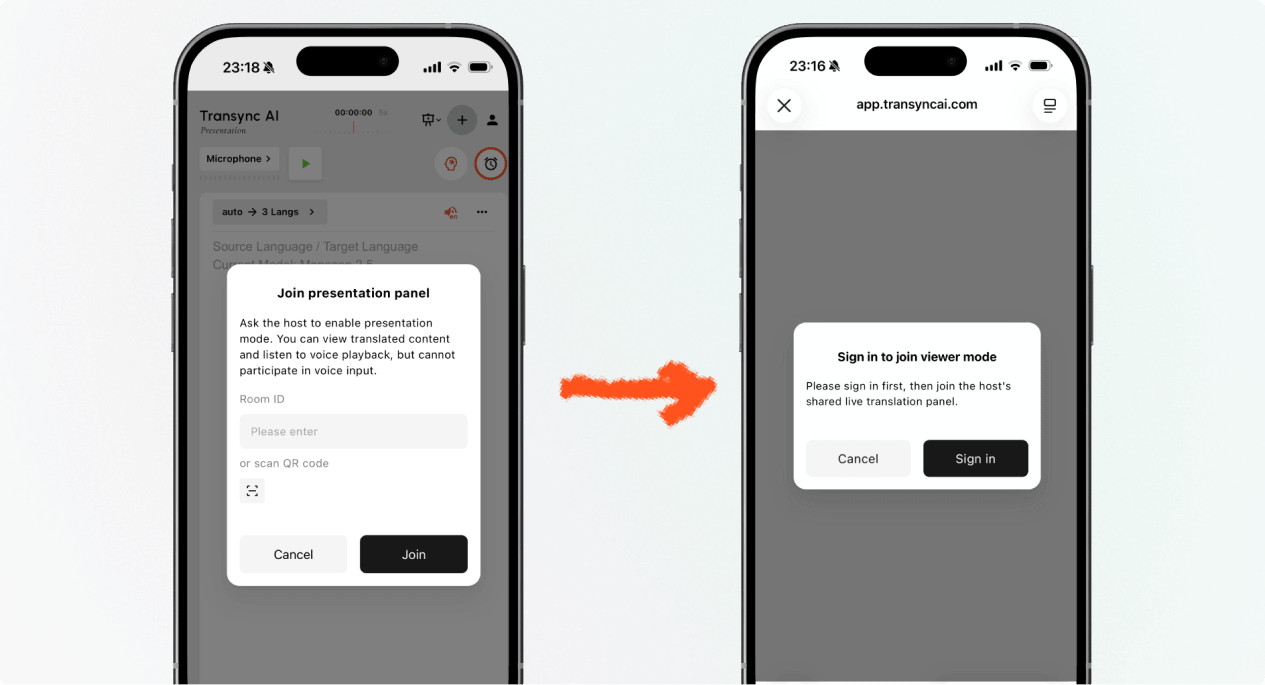
1. Únase al modo de presentación con un enlace o código QR. #
- Abre el enlace enviado por el anfitrión o escanea el código QR de la presentación con tu teléfono.
- Revisa el nombre o la cuenta anónima de la persona que comparte la presentación.
- Si Transync AI te pide que inicies sesión, completa el inicio de sesión y regresa para unirte al Modo Presentación.
- Seleccionar Unirse.
Al unirte al Modo Presentación mediante un enlace o código QR, tu dispositivo podría abrir la experiencia web o ofrecerte continuar en la aplicación Transync AI. Si la presentación ya no está activa, solicita al anfitrión un nuevo enlace, código QR o ID de sala.
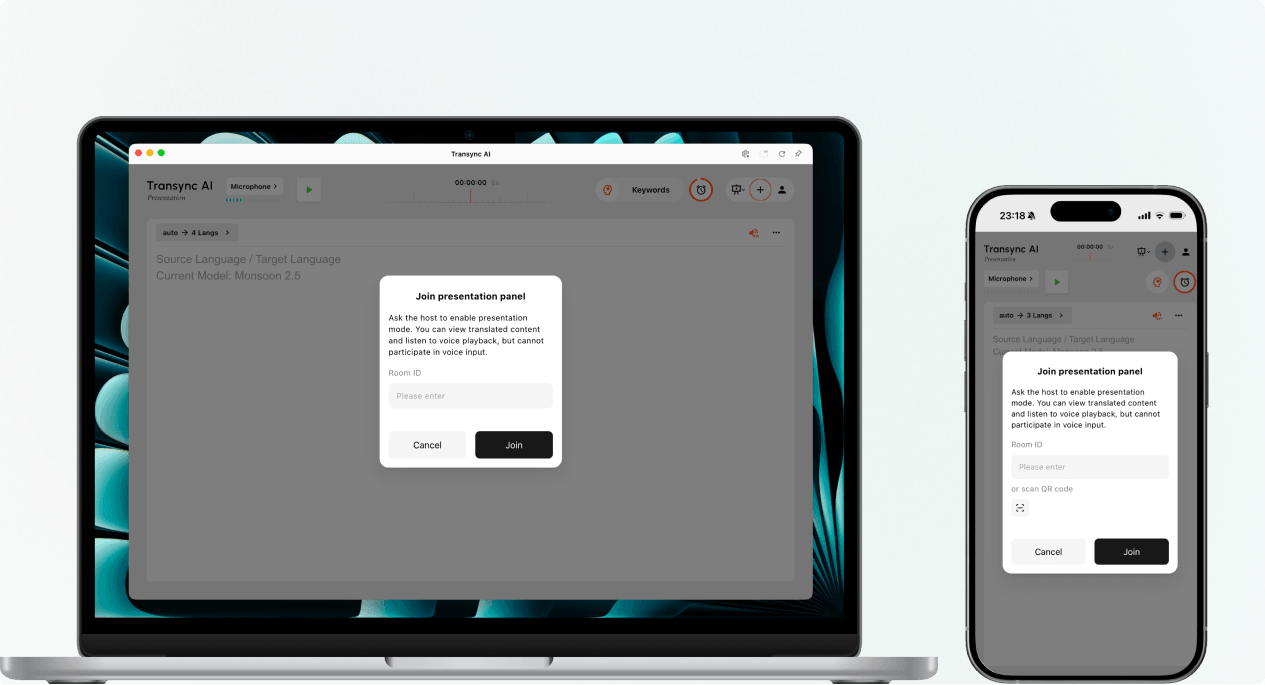
2. Únase al modo de presentación con un ID de sala. #
- Abra la entrada de unión del modo de presentación en el Aplicación web de IA Transsync o la aplicación Transync AI.
- Introduzca el ID de la sala proporcionado por el anfitrión o utilice el botón de escaneo para escanear un código QR de la presentación.
- Seleccionar Unirse.
Nota: El ID de la sala solo funciona mientras la presentación del anfitrión esté activa. Si no puedes unirte al modo de presentación, confirma el ID de la sala y ponte en contacto con el anfitrión.
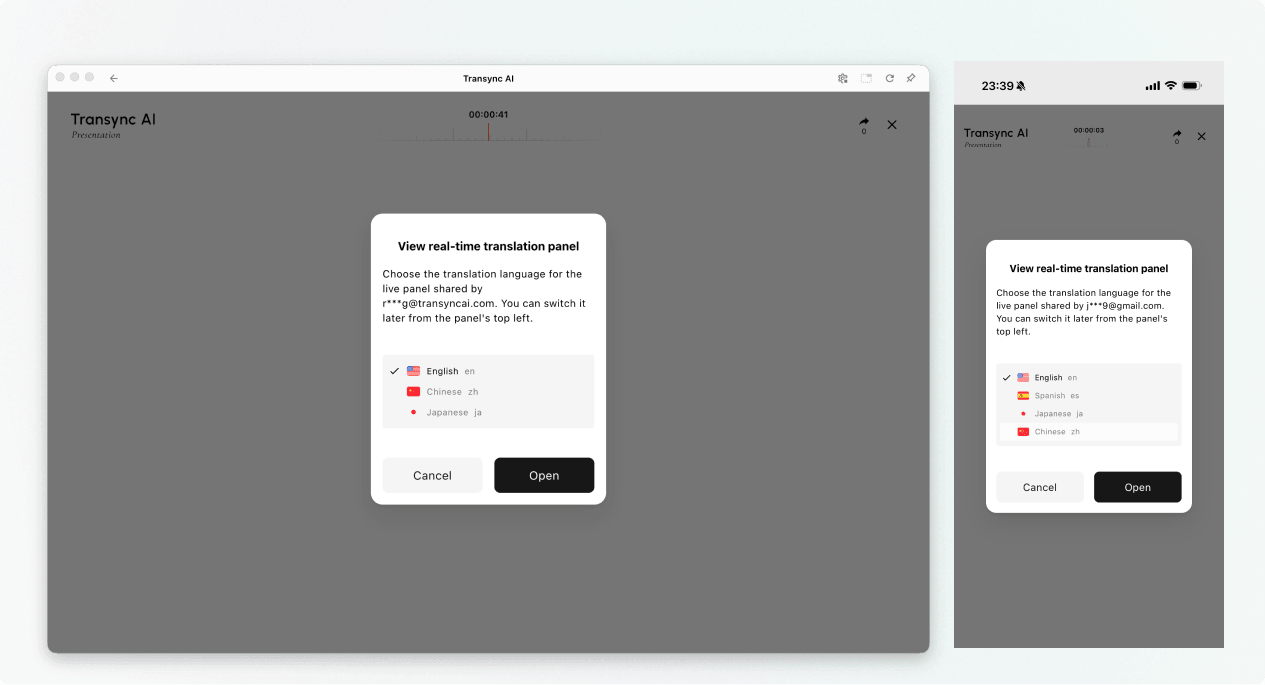
3. Elige tu idioma #
Antes de que se abra el panel de presentación en directo, seleccione el idioma en el que desea leer y escuchar. La lista muestra los idiomas de destino habilitados por el anfitrión. También puede mostrarse el idioma de origen del anfitrión a modo de referencia.
- Seleccione uno de los idiomas de traducción disponibles.
- Revise el idioma de origen que se muestra.
- Seleccionar Abierto para unirse al Modo Presentación y abrir el panel de presentación.
4. Lee y escucha durante la presentación. #
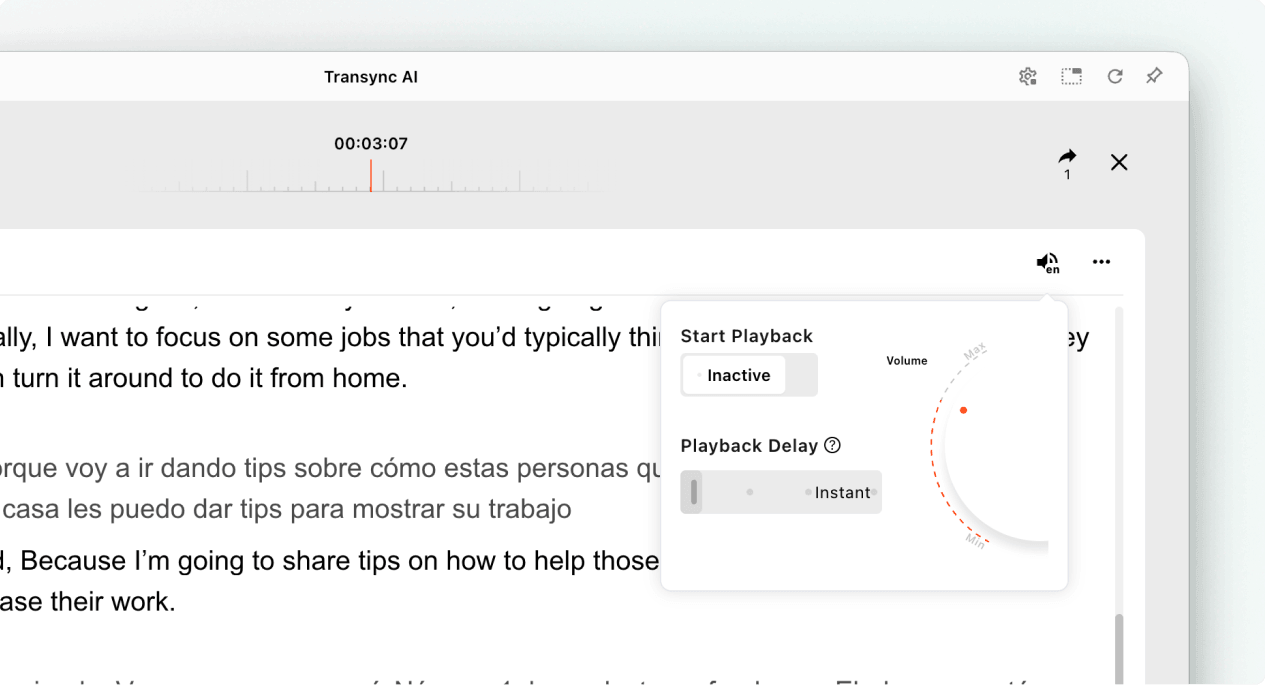
Después de unirte al Modo Presentación, el panel de presentación muestra el discurso del anfitrión y la traducción en tiempo real. Puedes:
- Lea el texto original y el texto traducido.
- Utilice los controles de visualización disponibles para facilitar la lectura del texto.
- Active la reproducción de voz cuando esté disponible para el idioma seleccionado.
- Utilice auriculares cuando escuche música en un espacio compartido para reducir el eco y evitar molestar a los demás asistentes.
- Consulta el número actual de espectadores en línea cuando se muestre.
Para obtener más información sobre la configuración de escucha, consulte Cómo usar la reproducción de voz en Transync AI.
5. Cambiar de idioma #
Si desea seguir la presentación en otro idioma, abra el selector de idiomas y elija otro idioma habilitado por el anfitrión. Si el idioma que necesita no aparece en la lista, pregunte al anfitrión si puede agregarlo a la presentación.
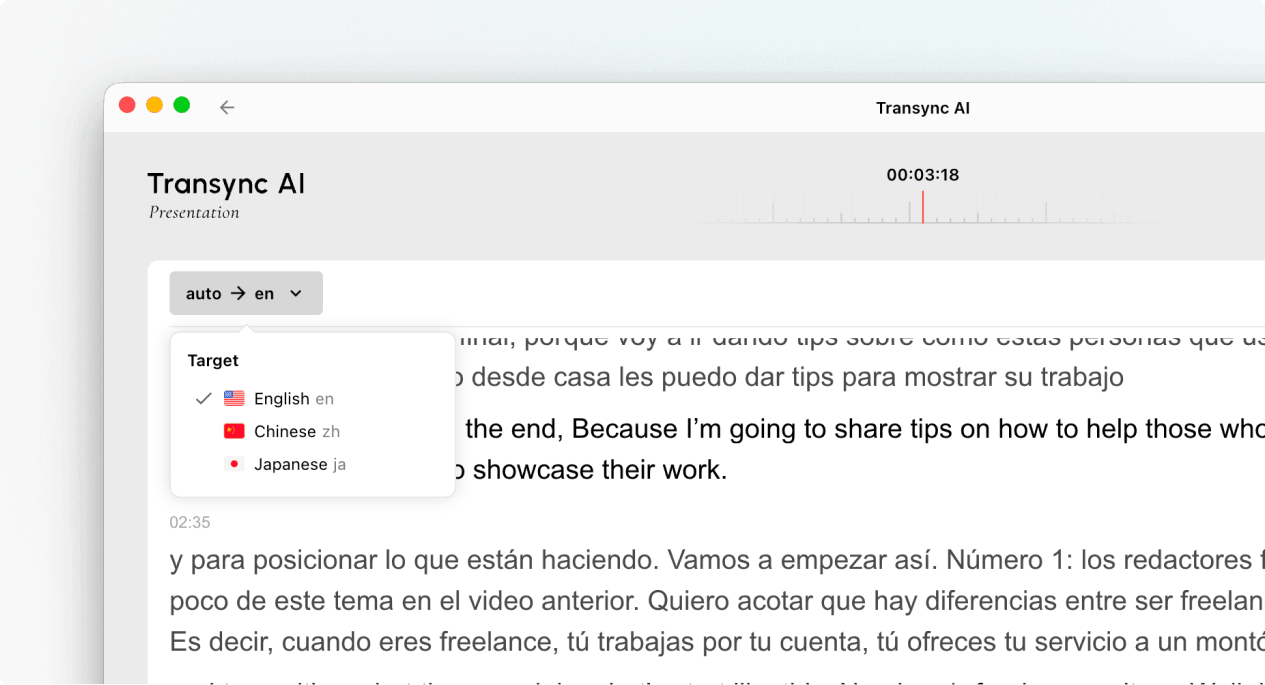
6. Abandonar o reincorporarse a la presentación. #
Al salir del panel de presentación, la tarea del anfitrión no finaliza. Si la presentación del anfitrión sigue activa, puede volver a unirse al Modo Presentación mediante el enlace, el código QR o el ID de la sala.
Cuando Transync AI te pida que confirmes la salida, selecciona Salida Solo si deseas cerrar tu panel de audiencia.
7. Visualice un registro compartido después de la presentación. #
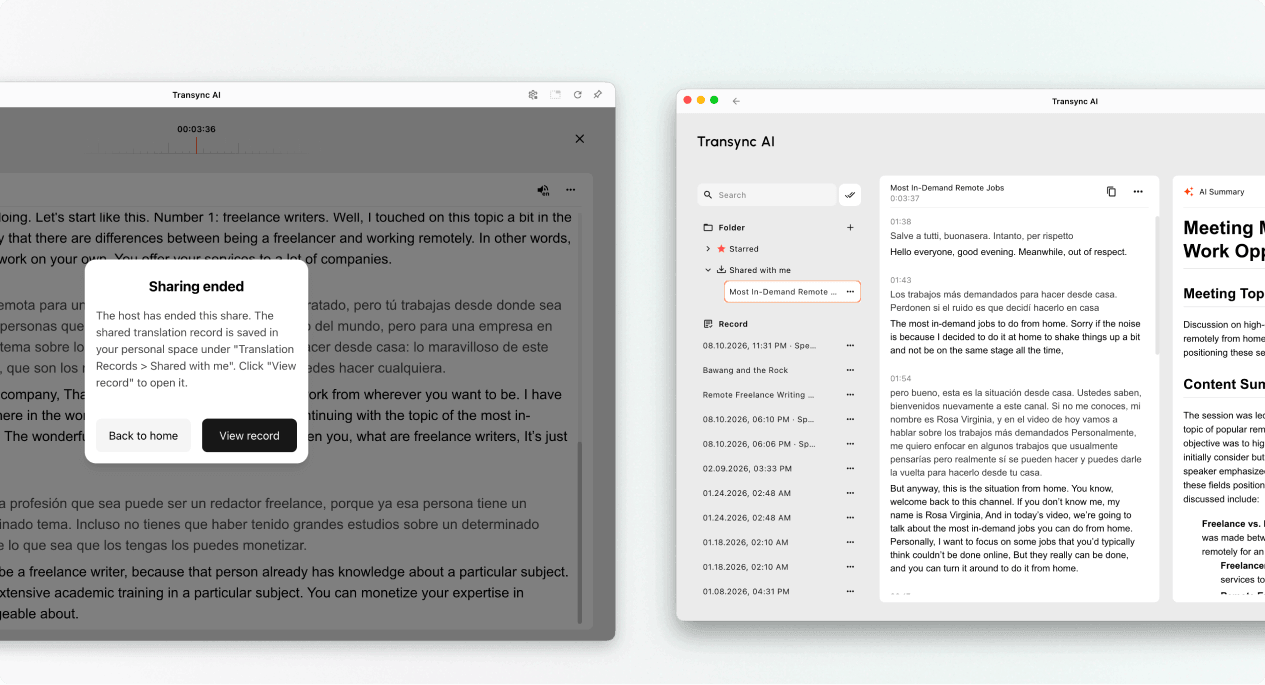
Cuando el anfitrión finaliza la presentación, Transync AI muestra un mensaje de finalización de uso compartido. Si el anfitrión eligió compartir la transcripción, seleccione Ver registro o abierto Perfil → Historial de traducciones → Compartido conmigo.
Si el anfitrión no compartió la transcripción, puede cerrar el mensaje final, pero no recibirá un registro de la presentación compartida.
Solución de problemas #
Se me pide que inicie sesión #
Completa el inicio de sesión y regresa para unirte al Modo Presentación. Si no tienes una cuenta, sigue estos pasos: Cómo registrar Transync AI, luego vuelva a abrir el enlace de la presentación activa o el ID de la sala.
No puedo unirme al Modo Presentación #
Es posible que el anfitrión no haya iniciado el Modo Presentación o que la presentación haya finalizado. Comuníquese con el anfitrión y solicite una opción de acceso activa.
No puedo encontrar mi idioma #
Los espectadores solo pueden seleccionar los idiomas habilitados por el anfitrión. Pregúntele al anfitrión si se puede agregar el idioma.
No puedo escuchar la reproducción de voz #
Comprueba el volumen de tu dispositivo, confirma que la reproducción de voz esté disponible y activada, y asegúrate de que el idioma esté seleccionado. Puedes seguir leyendo el texto traducido en tiempo real incluso con la reproducción de voz desactivada.
Preguntas frecuentes #
¿Necesito una cuenta de Transync AI? #
Si el proceso de registro te pide que inicies sesión, hazlo antes de unirte. La experiencia de acceso puede variar según el dispositivo, el navegador y la versión del producto.
¿Puedo intervenir en la presentación? #
No. El panel de audiencia es para ver y escuchar. Solo el presentador proporciona la entrada de voz para la presentación.
¿Puedo cambiar mi idioma después de registrarme? #
Sí, puedes cambiar a otro idioma que el anfitrión haya habilitado para la presentación activa.
¿Puedo reincorporarme después de haberme ido? #
Sí, siempre y cuando la presentación del anfitrión permanezca activa y usted siga teniendo un enlace, código QR o ID de sala válidos.
¿Recibiré la transcripción después de la presentación? #
Solo si el anfitrión decide compartirlo. Las grabaciones de presentaciones compartidas aparecen en la sección "Compartido conmigo" una vez finalizada la tarea.


