주요 콘텐츠로 건너뛰기
검색하려면 Enter 키를, 닫으려면 ESC 키를 누릅니다.
검색 닫기
Transync AI 로고 – Transync AI 실시간 번역 서비스의 공식 브랜드 로고입니다.
  • 무료 체험
메뉴
  • 도구
    • AI 실시간 번역
    • AI 라이브 회의 번역
    • 프레젠테이션 모드
    • AI 회의 노트
    • AI 화자 분리
    • AI 음성 번역기
    • AI 어시스턴트: 키워드 및 컨텍스트
    • Picture-in-Picture, 떠다니는 자막
    • 지원 언어
  • 사용 사례
    • 줌 번역
    • Microsoft Teams 번역
    • Google Meet 번역
    • WhatsApp 음성 통화 번역
    • 대면 회의 통역
  • 블로그
  • 가격
  • 기업
  • 연락하다
  • 지원하다
  • 다운로드
  • 무료 체험
  • 도구
    • AI 실시간 번역
    • AI 라이브 회의 번역
    • 프레젠테이션 모드
    • AI 회의 노트
    • AI 화자 분리
    • AI 음성 번역기
    • AI 어시스턴트: 키워드 및 컨텍스트
    • Picture-in-Picture, 떠다니는 자막
    • 지원 언어
  • 사용 사례
    • 줌 번역
    • Microsoft Teams 번역
    • Google Meet 번역
    • WhatsApp 음성 통화 번역
    • 대면 회의 통역
  • 블로그
  • 가격
  • 기업
  • 연락하다
  • 지원하다
  • 다운로드

hello@transyncai.com

시작하기

4
  • 데스크톱 빠른 시작 가이드
  • 모바일 빠른 시작 가이드
  • 회의 오디오 설정 체크리스트
  • 문의하기

사용자 가이드

13
  • Transync AI 등록 방법
  • 실시간 번역을 시작하는 방법
  • Transync AI에서 번역 모드를 선택하는 방법
  • 컴퓨터 음성를 공유하는 방법
  • Transync AI에서 음성 재생 기능을 사용하는 방법
  • 음성 복제 기능 사용 방법
  • macOS에서 Virtual Microphone를 사용하는 방법
  • 윈도우에서 Virtual Microphone를 설정하는 방법
  • Picture-in-Picture 모드 사용 방법
  • 회의 기록 및 요약에 액세스하는 방법
  • AI 어시스턴트 사용 방법
  • 번역 기록 관리 방법
  • 충전 및 환불 요청 방법

프레젠테이션 모드

2
  • Transync AI에서 프레젠테이션 모드를 사용하는 방법
  • Transync AI 프레젠테이션에 참여하는 방법

기업

1
  • 기업 가이드

자원

3
  • 신뢰 센터
  • 이용 약관 및 정책
  • 변경 사항
카테고리 보기
  • 홈
  • 문서
  • 프레젠테이션 모드
  • Transync AI 프레젠테이션에 참여하는 방법

Transync AI 프레젠테이션에 참여하는 방법

5분 읽기

To join Presentation Mode in Transync AI, use the link, QR code, or Room ID shared by the host. After joining, you can choose one of the languages enabled by the host and follow the live translation on your own device.

Audience members can read the original and translated text and listen with voice playback when it is available. Audience members cannot speak into or control the host’s translation task.

1. Join Presentation Mode with a Link or QR Code #

  1. Open the link sent by the host, or scan the presentation QR code with your phone.
  2. Review the name or masked account of the person sharing the presentation.
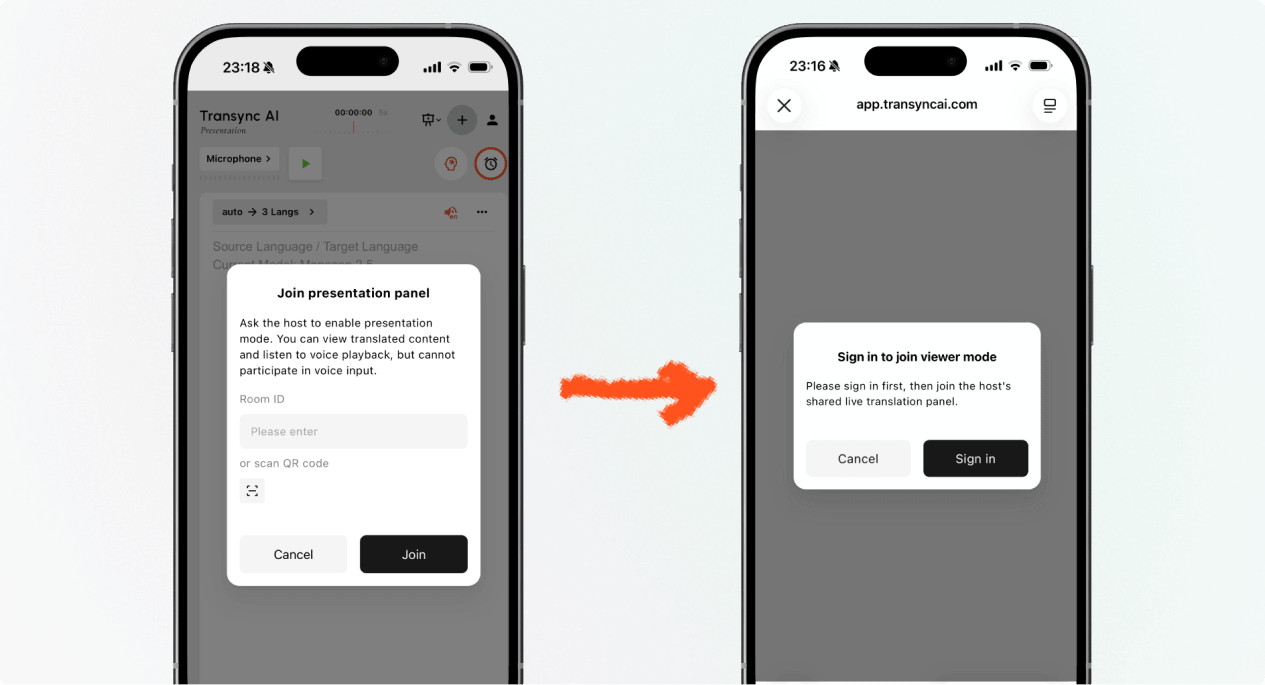
  3. If Transync AI asks you to sign in, complete sign-in and return to join Presentation Mode.
  4. 선택하다 가입하다.

When you join Presentation Mode with a link or QR code, your device may open the web experience or offer to continue in the Transync AI app. If the presentation is no longer active, ask the host for a new active link, QR code, or Room ID.

Sign in to Transync AI before you join Presentation Mode on mobile.
Sign in when Transync AI asks you to confirm your account before joining.

2. Join Presentation Mode with a Room ID #

  1. Open the Presentation Mode join entry in the Transync AI web app or Transync AI app.
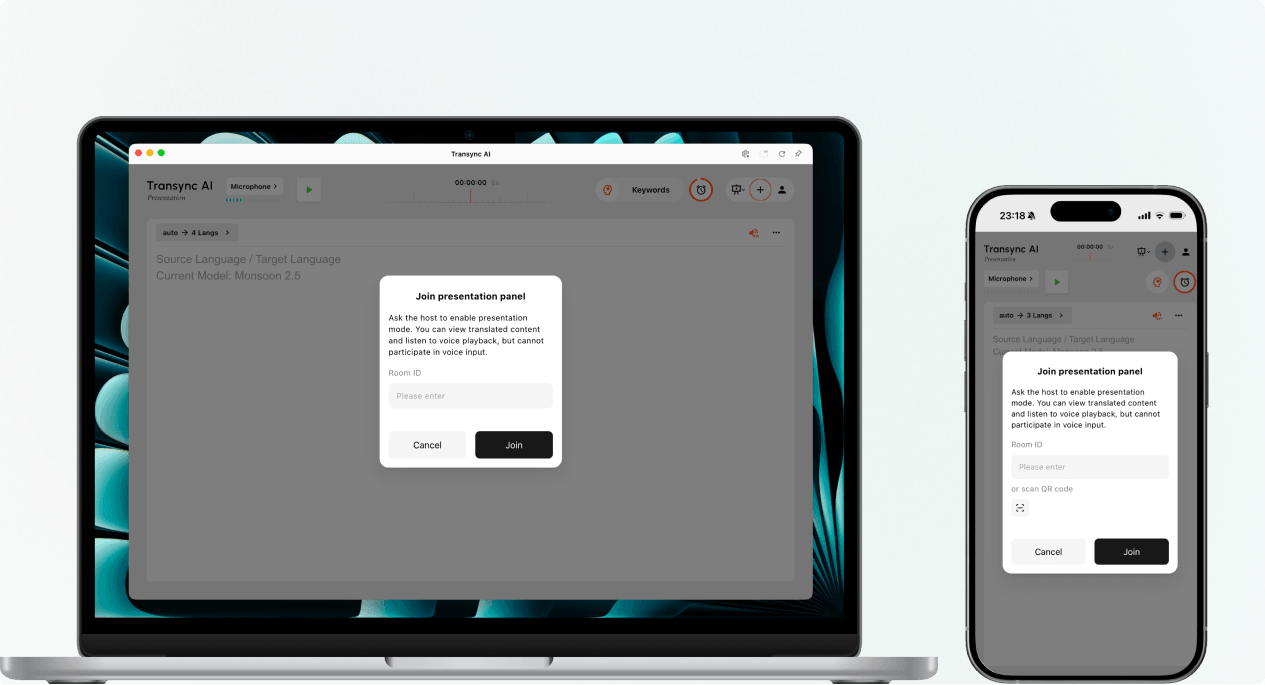
  2. Enter the Room ID provided by the host, or use the scan button to scan a presentation QR code.
  3. 선택하다 가입하다.

메모: A Room ID only works while the host’s presentation is active. If you cannot join Presentation Mode, confirm the Room ID and contact the host.

Enter a Presentation Mode Room ID or scan a QR code on desktop or mobile.
Enter the host's Room ID or scan the presentation QR code.

3. Choose Your Language #

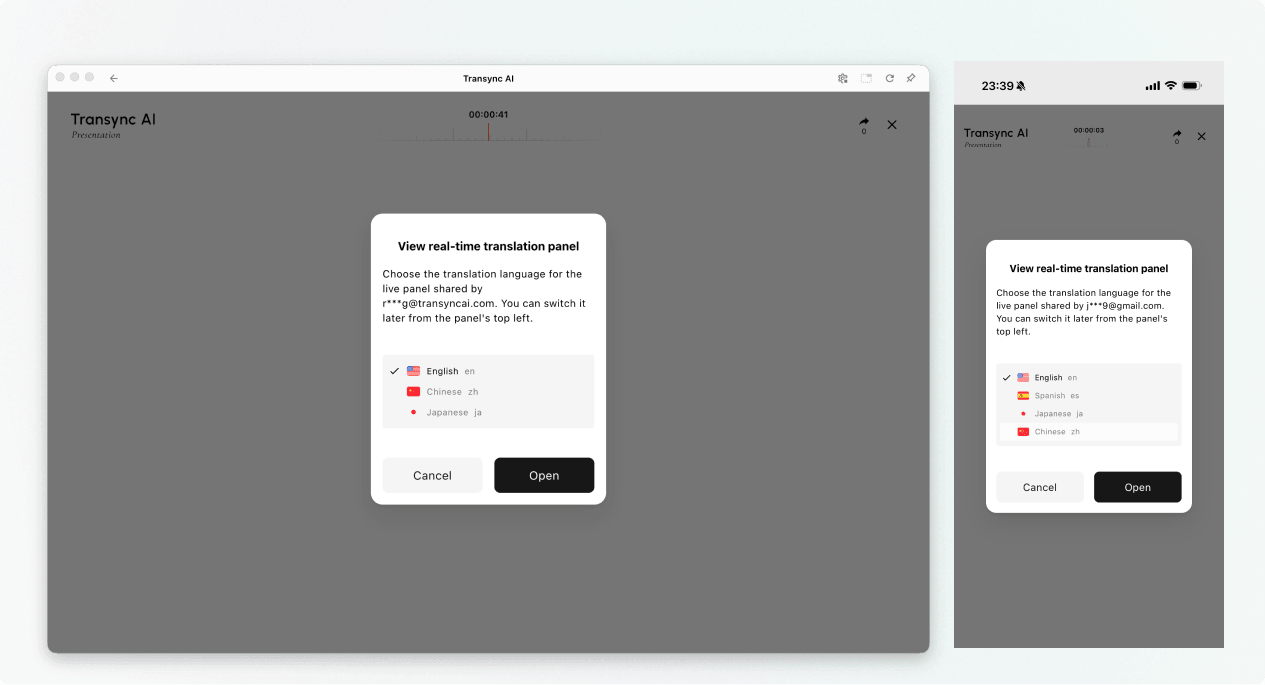
Before the live presentation panel opens, choose the language you want to read and hear. The list contains the target languages enabled by the host. The host’s source language may also be shown for reference.

  1. Select one available translation language.
  2. Review the displayed source language.
  3. 선택하다 열려 있는 to join Presentation Mode and open the presentation panel.
Choose an available translation language before opening the live presentation panel.
Choose the language you want to read and hear.

4. Read and Listen During the Presentation #

After you join Presentation Mode, the presentation panel shows the host’s speech and the translation in real time. You can:

  • Read the original text and translated text.
  • Use the available display controls to make the text easier to read.
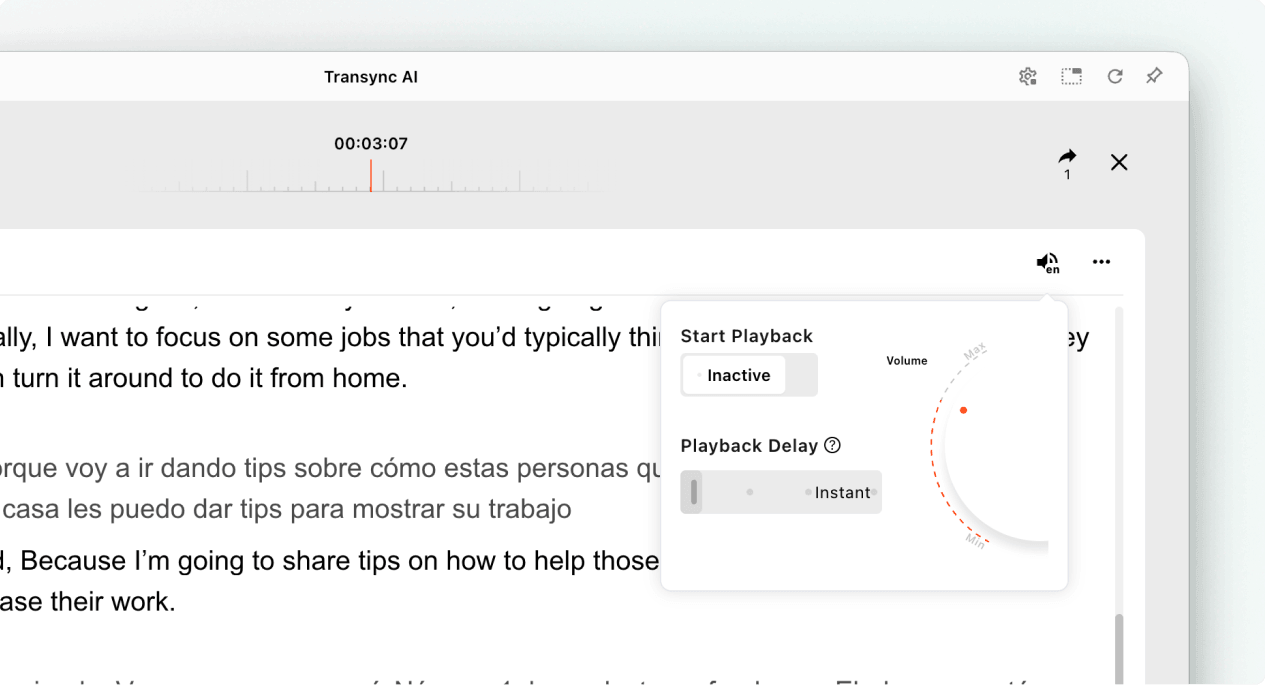
  • Turn on voice playback when it is available for the selected language.
  • Use headphones when listening in a shared space to reduce echo and avoid disturbing other audience members.
  • View the current online audience count when it is displayed.

For more information about listening settings, see Transync AI에서 음성 재생 기능을 사용하는 방법.

Open voice playback settings while viewing a live Transync AI presentation.
Turn on voice playback and adjust its delay and volume when needed.

5. Switch Languages #

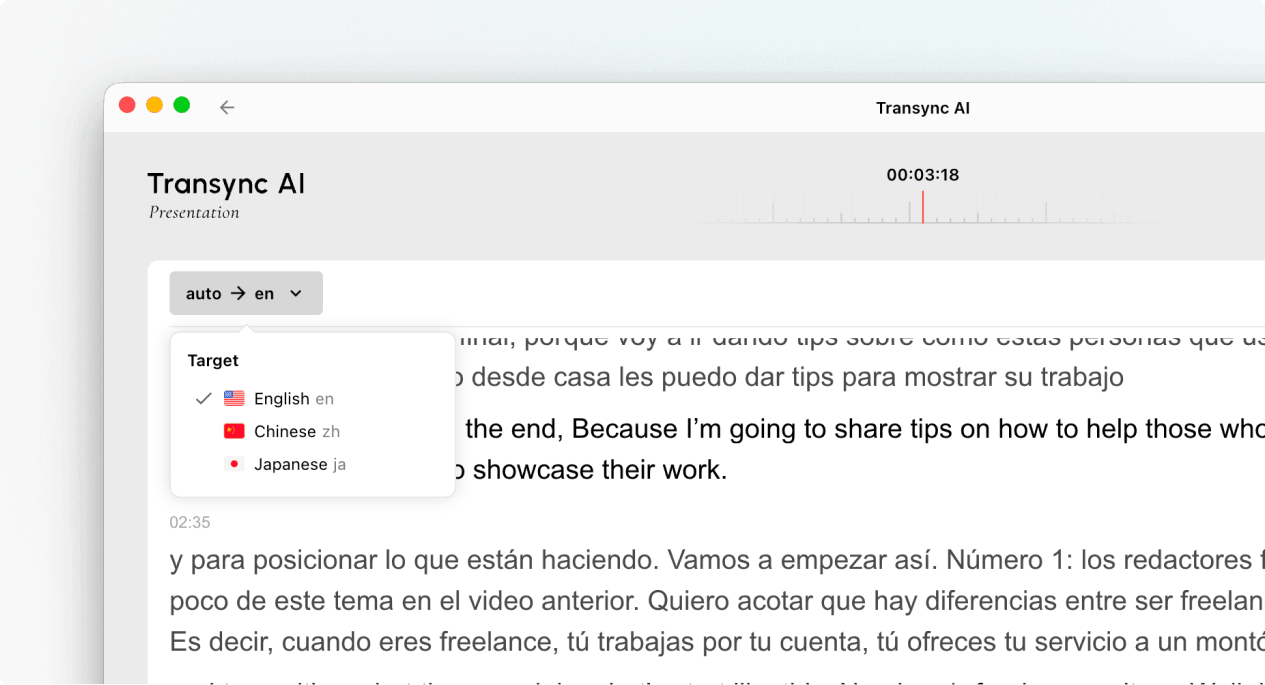
If you want to follow the presentation in another language, open the language selector and choose another language enabled by the host. If the language you need is not listed, ask the host whether it can be added to the presentation.

Use the language selector to switch the audience translation language during a presentation.
Switch to another language enabled by the host.

6. Leave or Rejoin the Presentation #

Leaving your presentation panel does not end the host’s task. If the host’s presentation is still active, you can join Presentation Mode again using the active link, QR code, or Room ID.

When Transync AI asks you to confirm the exit, select Exit only if you want to close your audience panel.

7. View a Shared Record After the Presentation #

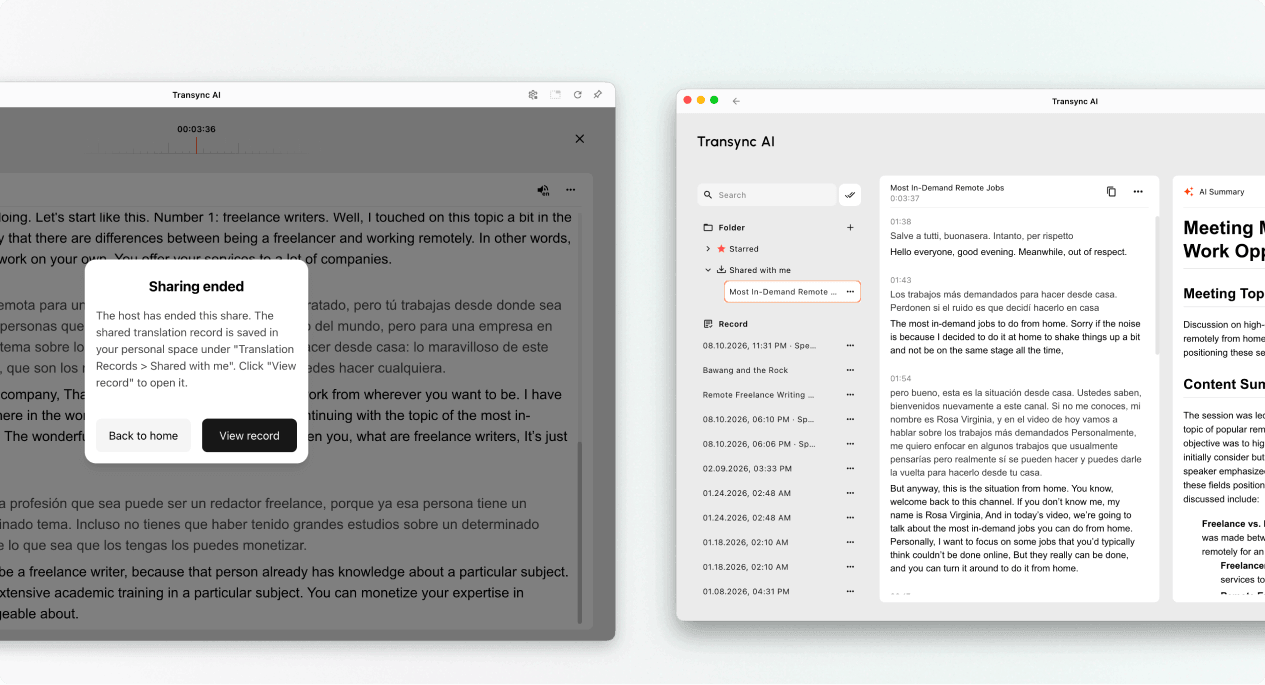
When the host ends the presentation, Transync AI shows a sharing-ended message. If the host chose to share the transcript, select View record or open Profile → Translation History → Shared with Me.

If the host did not share the transcript, you can close the end message but will not receive a shared presentation record.

Open a shared presentation record from Shared with Me after the host ends sharing.
When sharing ends, open the record from Shared with Me if the host shared it.

Troubleshooting #

I am asked to sign in #

Complete sign-in and return to join Presentation Mode. If you do not have an account, follow Transync AI 등록 방법, then reopen the active presentation link or Room ID.

I cannot join Presentation Mode #

The host may not have started Presentation Mode, or the presentation may have ended. Contact the host and request a currently active join option.

I cannot find my language #

Audience members can only select languages enabled by the host. Ask the host whether the language can be added.

I cannot hear voice playback #

Check your device volume, confirm that voice playback is available and enabled, and make sure the correct language is selected. You can continue reading the live translated text even when voice playback is off.

자주 묻는 질문 #

Do I need a Transync AI account? #

If the join flow asks you to sign in, complete sign-in before joining. The exact entry experience may depend on the device, browser, and current product version.

Can I speak into the presentation? #

No. The audience panel is for viewing and listening. Only the host provides voice input to the presentation task.

Can I change my language after joining? #

Yes, you can switch to another language that the host has enabled for the active presentation.

Can I rejoin after leaving? #

Yes, as long as the host’s presentation remains active and you still have a valid link, QR code, or Room ID.

Will I receive the transcript after the presentation? #

Only if the host chooses to share it. Shared presentation records appear in Shared with Me after the task ends.

Related Articles #

  • Transync AI에서 프레젠테이션 모드를 사용하는 방법
  • Transync AI 등록 방법
  • Transync AI에서 음성 재생 기능을 사용하는 방법
  • 번역 기록 관리 방법
업데이트됨 2026년 8월 11일

이 문서가 도움이 되었나요?

  • 도움이 됨
  • 도움이 되지 않음

이 기사를 공유하세요 :

  • 페이스북
  • 엑스
  • 링크드인
  • 핀터레스트
Transync AI에서 프레젠테이션 모드를 사용하는 방법Transync AI에서 프레젠테이션 모드를 사용하는 방법
목차
  • 1. Join Presentation Mode with a Link or QR Code
  • 2. Join Presentation Mode with a Room ID
  • 3. Choose Your Language
  • 4. Read and Listen During the Presentation
  • 5. Switch Languages
  • 6. Leave or Rejoin the Presentation
  • 7. View a Shared Record After the Presentation
  • Troubleshooting
    • I am asked to sign in
    • I cannot join Presentation Mode
    • I cannot find my language
    • I cannot hear voice playback
  • 자주 묻는 질문
    • Do I need a Transync AI account?
    • Can I speak into the presentation?
    • Can I change my language after joining?
    • Can I rejoin after leaving?
    • Will I receive the transcript after the presentation?
  • Related Articles

RedNote Douyin 빌리빌리 知乎 유튜브 TikTok 링크드인

沪ICP备2025119728号

연락하다:support@transyncai.com

도구

  • 도구
  • AI 실시간 번역
  • AI 라이브 미팅 번역
  • AI 회의 노트
  • AI 음성 번역기
  • AI 어시스턴트
  • Picture-in-Picture, 떠다니는 자막
  • 지원 언어
  • 사용 사례
  • 줌 번역
  • Microsoft Teams 번역
  • Google Meet 번역
  • WhatsApp 번역
  • 대면 회의 통역

페이지

  • 가격
  • 블로그
  • 지원하다
  • 다운로드
  • 기업
  • 변경 사항
  • 무료 체험

자원

  • 트랜싱크 AI 관련 정보
  • Transync AI를 비교해 보세요
  • Transync AI 대안

약관

  • 개인정보처리방침
  • 서비스 약관
  • 신뢰 센터

© 2026 Transync AI – 실시간 번역.

한국어
English 简体中文 日本語 Русский Français Español Deutsch Italiano Čeština ไทย 繁體中文繁體中文 Português do Brasil العربية हिन्दी Bahasa Indonesia Tiếng Việt Türkçe Nederlands Polski Українська