
Pour rejoindre le mode Présentation de Transync AI, utilisez le lien, le code QR ou l'identifiant de salle partagés par l'organisateur. Une fois connecté, vous pourrez choisir une des langues proposées par l'organisateur et suivre la traduction en direct sur votre appareil.
Les membres du public peuvent lire le texte original et sa traduction, et écouter la lecture audio lorsqu'elle est disponible. Ils ne peuvent ni intervenir dans la traduction effectuée par l'animateur, ni la contrôler.
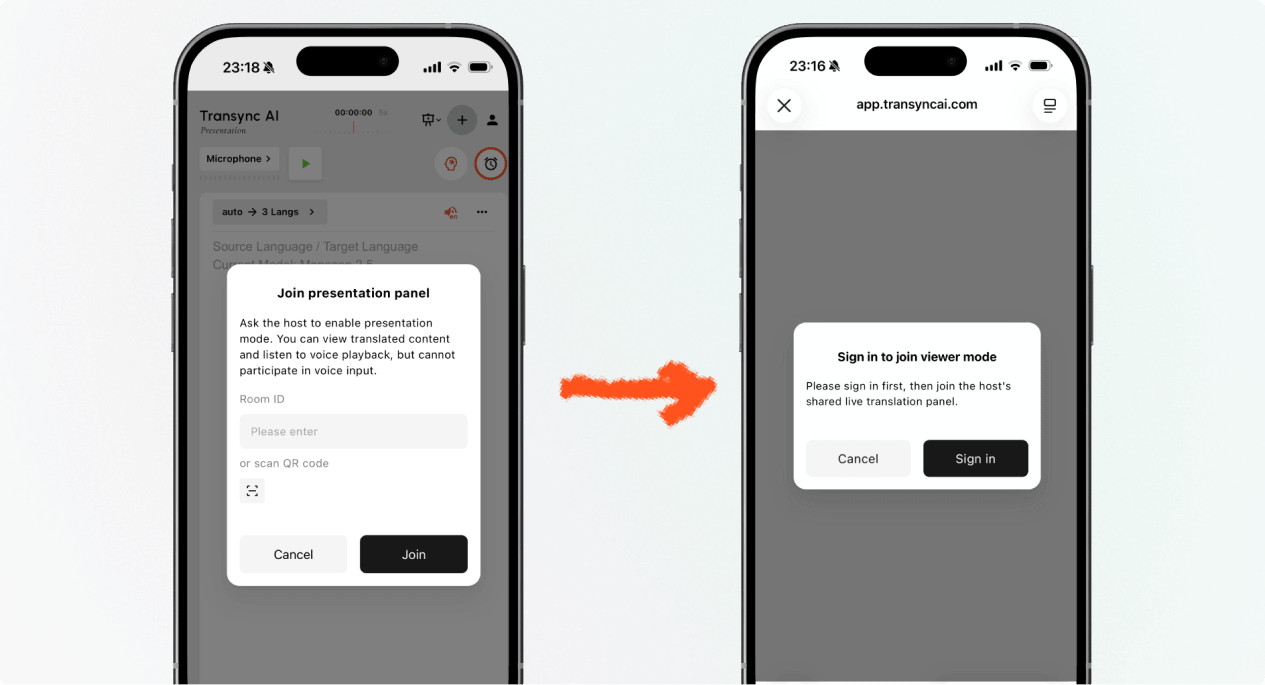
1. Rejoignez le mode présentation avec un lien ou un code QR #
- Ouvrez le lien envoyé par l'hôte ou scannez le code QR de la présentation avec votre téléphone.
- Vérifiez le nom ou le compte masqué de la personne qui partage la présentation.
- Si Transync AI vous demande de vous connecter, veuillez vous connecter et revenir en mode Présentation.
- Sélectionner Rejoindre.
Lorsque vous rejoignez le mode Présentation via un lien ou un code QR, votre appareil peut ouvrir la page web ou vous proposer de poursuivre la présentation dans l'application Transync AI. Si la présentation n'est plus active, demandez à l'organisateur un nouveau lien, code QR ou identifiant de salle.
2. Rejoignez le mode Présentation avec un identifiant de salle #
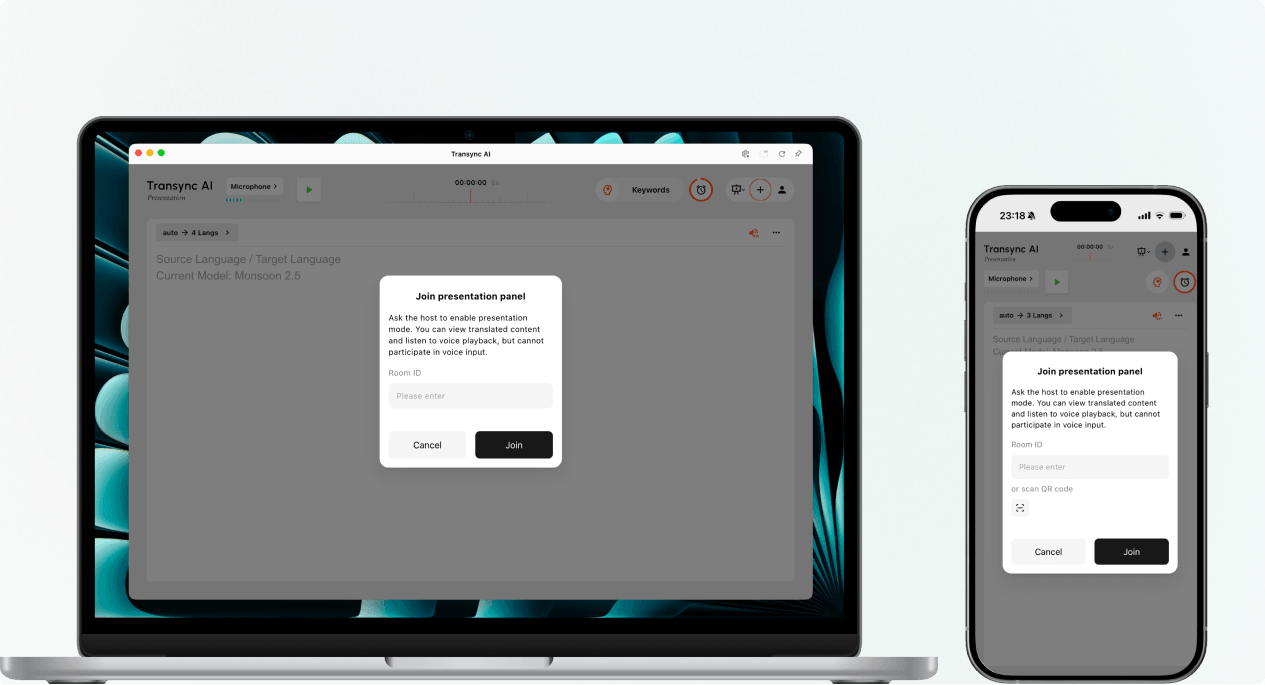
- Ouvrez l'entrée de jonction du mode présentation dans le Application Web Transync AI ou l'application Transync AI.
- Saisissez l'identifiant de la salle fourni par l'hôte ou utilisez le bouton de numérisation pour scanner un code QR de présentation.
- Sélectionner Rejoindre.
Note: L'identifiant de la salle n'est valide que pendant la présentation de l'hôte. Si vous ne parvenez pas à rejoindre le mode Présentation, veuillez vérifier l'identifiant de la salle et contacter l'hôte.
3. Choisissez votre langue #
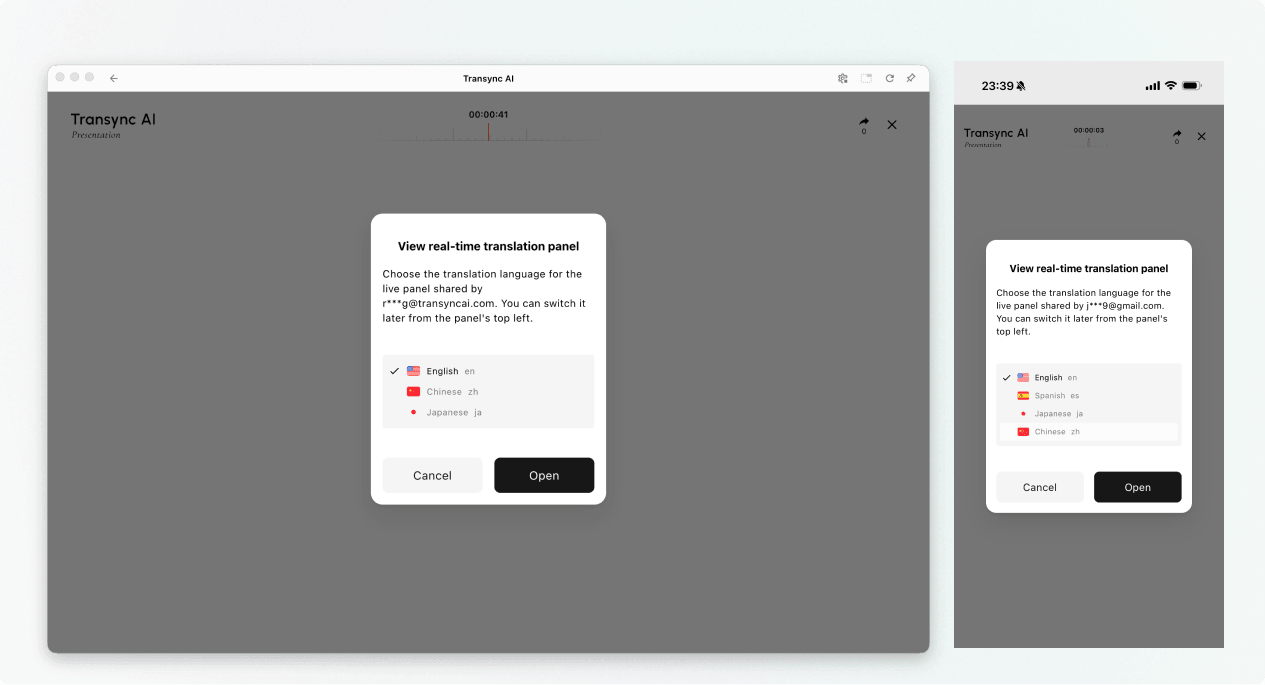
Avant l'ouverture du panneau de présentation en direct, choisissez la langue dans laquelle vous souhaitez lire et entendre. La liste affiche les langues cibles activées par l'hôte. La langue source de l'hôte peut également être affichée à titre indicatif.
- Sélectionnez une langue de traduction disponible.
- Vérifiez la langue source affichée.
- Sélectionner Ouvrir pour passer en mode Présentation et ouvrir le panneau de présentation.
4. Lisez et écoutez pendant la présentation. #
Une fois en mode Présentation, le panneau affiche le discours de l'animateur et sa traduction en temps réel. Vous pouvez alors :
- Lisez le texte original et le texte traduit.
- Utilisez les commandes d'affichage disponibles pour faciliter la lecture du texte.
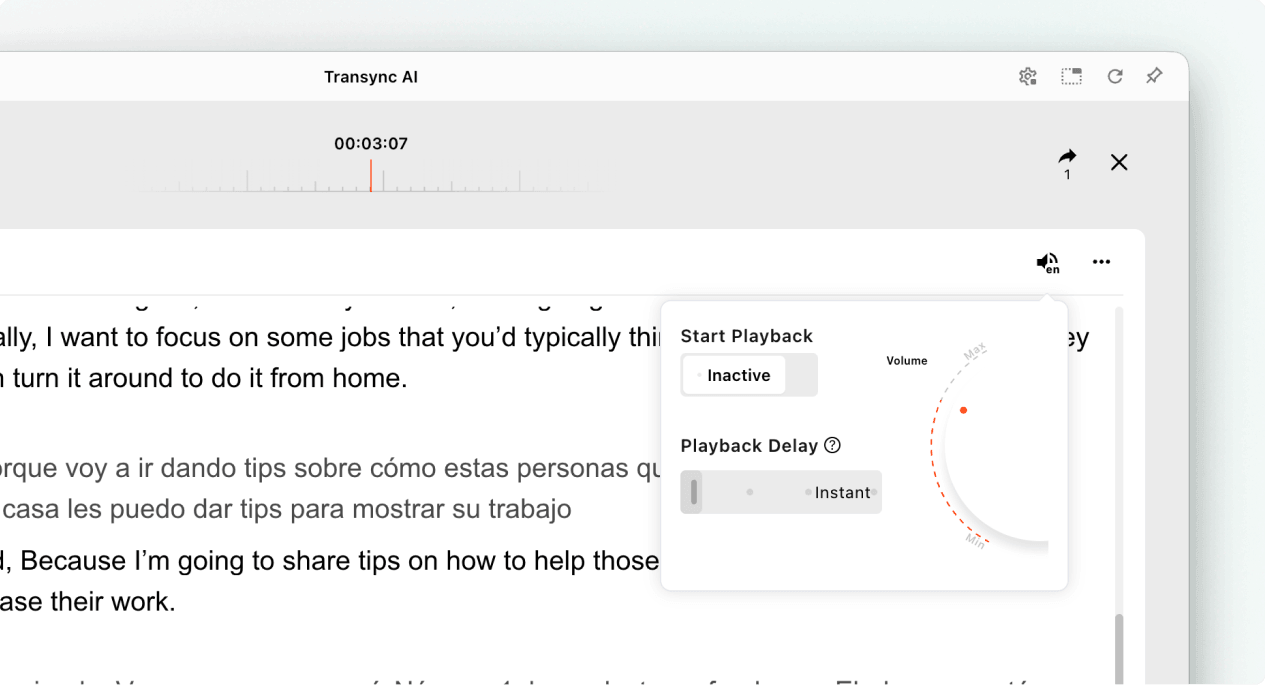
- Activez la lecture vocale lorsqu'elle est disponible pour la langue sélectionnée.
- Utilisez des écouteurs lorsque vous écoutez de la musique dans un espace partagé afin de réduire l'écho et d'éviter de déranger les autres spectateurs.
- Consultez le nombre de spectateurs en ligne actuel lorsqu'il est affiché.
Pour plus d'informations sur les paramètres d'écoute, consultez Comment utiliser la lecture vocale dans Transync AI.
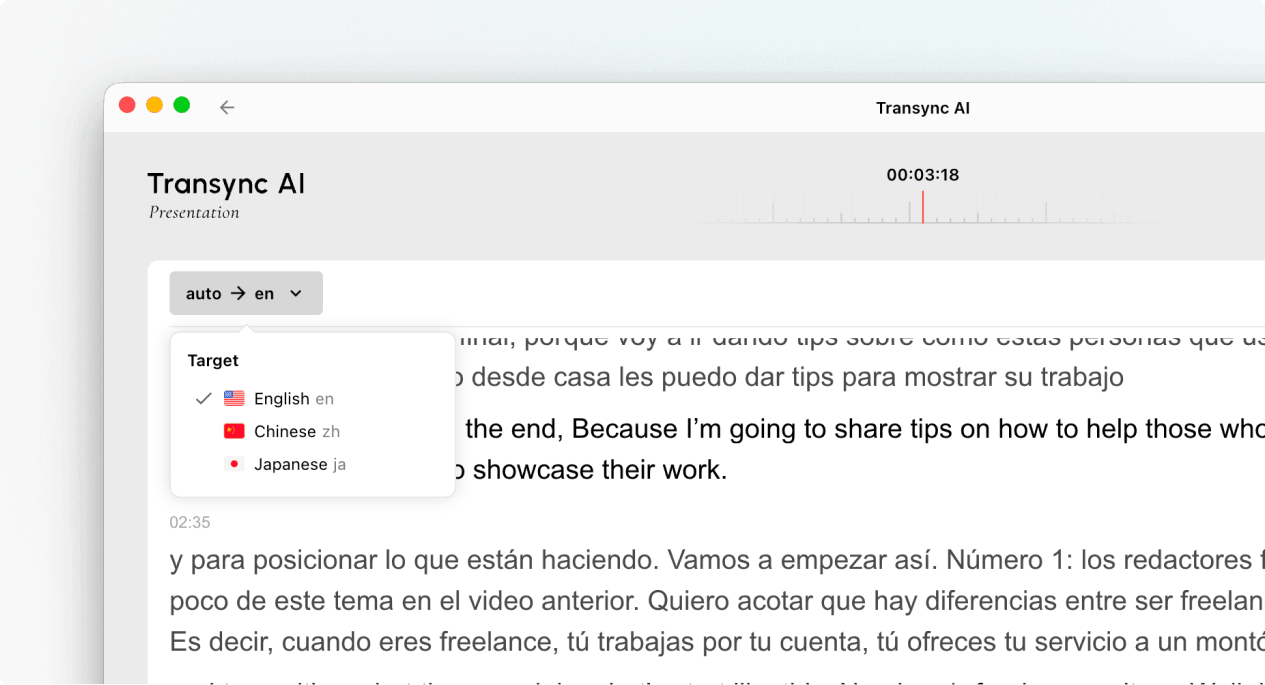
5. Changer de langue #
Si vous souhaitez suivre la présentation dans une autre langue, ouvrez le sélecteur de langue et choisissez une langue proposée par l'organisateur. Si la langue souhaitée n'est pas disponible, demandez à l'organisateur s'il est possible de l'ajouter à la présentation.
6. Quitter ou rejoindre la présentation #
Quitter votre panneau de présentation ne met pas fin à la tâche de l'hôte. Si la présentation de l'hôte est toujours active, vous pouvez rejoindre le mode Présentation à l'aide du lien actif, du code QR ou de l'identifiant de la salle.
Lorsque Transync AI vous demande de confirmer la sortie, sélectionnez Sortie uniquement si vous souhaitez fermer votre panel d'audience.
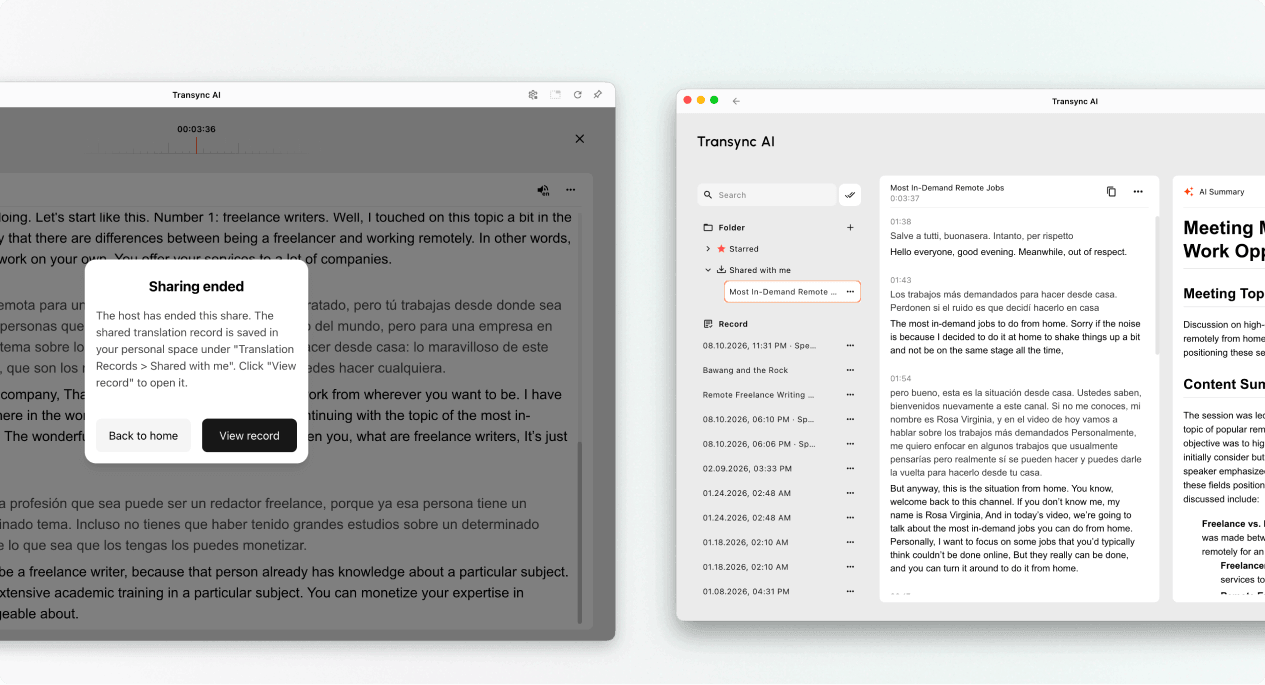
7. Consultez l'enregistrement partagé après la présentation. #
Lorsque l'animateur termine la présentation, Transync AI affiche un message de fin de partage. Si l'animateur a choisi de partager la transcription, sélectionnez Consulter l'enregistrement ou ouvert Profil → Historique des traductions → Partagé avec moi.
Si l'organisateur n'a pas partagé la transcription, vous pouvez fermer le message de fin, mais vous ne recevrez pas d'enregistrement de la présentation partagée.
Dépannage #
On me demande de me connecter #
Connectez-vous et revenez pour rejoindre le mode Présentation. Si vous n'avez pas de compte, suivez les instructions. Comment enregistrer Transync AI, puis rouvrez le lien de présentation actif ou l'identifiant de salle.
Je ne peux pas rejoindre le mode présentation. #
Il se peut que l'organisateur n'ait pas activé le mode présentation ou que la présentation soit terminée. Veuillez le contacter pour lui demander une option de participation active.
Je ne trouve pas ma langue #
Les membres du public ne peuvent sélectionner que les langues activées par l'animateur. Demandez à l'animateur si la langue souhaitée peut être ajoutée.
Je n'entends pas la lecture audio #
Vérifiez le volume de votre appareil, assurez-vous que la lecture vocale est disponible et activée, et vérifiez que la langue sélectionnée est correcte. Vous pouvez continuer à lire le texte traduit en direct même lorsque la lecture vocale est désactivée.
FAQ #
Ai-je besoin d'un compte Transync AI ? #
Si le processus d'inscription vous demande de vous connecter, veuillez le faire avant de vous inscrire. L'expérience d'inscription exacte peut varier selon l'appareil, le navigateur et la version du produit.
Puis-je prendre la parole pendant la présentation ? #
Non. Le panneau réservé au public sert uniquement à regarder et à écouter. Seul l'animateur intervient vocalement lors de la présentation.
Puis-je changer ma langue après mon inscription ? #
Oui, vous pouvez passer à une autre langue que l'hôte a activée pour la présentation active.
Puis-je me réinscrire après être parti ? #
Oui, à condition que la présentation de l'hôte reste active et que vous disposiez toujours d'un lien, d'un code QR ou d'un identifiant de salle valide.
Recevrai-je la transcription après la présentation ? #
Uniquement si l'hôte choisit de la partager. Les enregistrements de présentations partagées apparaissent dans « Partagés avec moi » une fois la tâche terminée.


