跳至主要內容
按 Enter 鍵搜尋或按 ESC 鍵關閉
關閉搜尋
Transync AI 標誌 – Transync AI 即時翻譯服務的官方品牌標誌
  • 免費試用
選單
  • 產品
    • AI 即時翻譯
    • AI實時會議翻譯
    • 演示模式
    • AI 會議記錄
    • AI說話者分離
    • AI 語音翻譯
    • AI 助手:關鍵詞和語境
    • 畫中畫浮動字幕
    • 支援的語言
  • 用例
    • Zoom 翻譯
    • Microsoft Teams 翻譯
    • Google Meet 翻譯
    • WhatsApp 翻譯語音通話
    • 現場會議翻譯
  • 部落格
  • 定價
  • 企業版
  • 接觸
  • 支援
  • 下載
  • 免費試用
  • 產品
    • AI 即時翻譯
    • AI實時會議翻譯
    • 演示模式
    • AI 會議記錄
    • AI說話者分離
    • AI 語音翻譯
    • AI 助手:關鍵詞和語境
    • 畫中畫浮動字幕
    • 支援的語言
  • 用例
    • Zoom 翻譯
    • Microsoft Teams 翻譯
    • Google Meet 翻譯
    • WhatsApp 翻譯語音通話
    • 現場會議翻譯
  • 部落格
  • 定價
  • 企業版
  • 接觸
  • 支援
  • 下載

hello@transyncai.com

入門

4
  • 桌面快速入門指南
  • 行動裝置快速入門指南
  • 會議音訊設定檢查清單
  • 聯絡我們

使用者指南

13
  • 如何註冊Transync AI
  • 如何開始即時翻譯
  • 如何在Transync AI中選擇翻譯模式
  • 如何共享電腦音訊
  • 如何在 Transync AI 中使用語音播放功能
  • 如何使用語音克隆
  • 如何在 macOS 上使用Virtual Microphone
  • 如何在 Windows 上設定Virtual Microphone
  • 如何使用畫中畫模式
  • 如何存取會議記錄和摘要
  • 如何使用AI助手
  • 如何管理翻譯記錄
  • 如何預付和申請退款

演示模式

2
  • 如何在 Transsync AI 中使用示範模式
  • 如何參加 Transsync AI 演示

企業版

1
  • 企業指南

資源

3
  • 信任中心
  • 條款與政策
  • 變更日誌
查看類別
  • 首頁
  • 文件
  • 演示模式
  • 如何參加 Transsync AI 演示

如何參加 Transsync AI 演示

閱讀時間:5分鐘

To join Presentation Mode in Transync AI, use the link, QR code, or Room ID shared by the host. After joining, you can choose one of the languages enabled by the host and follow the live translation on your own device.

Audience members can read the original and translated text and listen with voice playback when it is available. Audience members cannot speak into or control the host’s translation task.

1. Join Presentation Mode with a Link or QR Code #

  1. Open the link sent by the host, or scan the presentation QR code with your phone.
  2. Review the name or masked account of the person sharing the presentation.
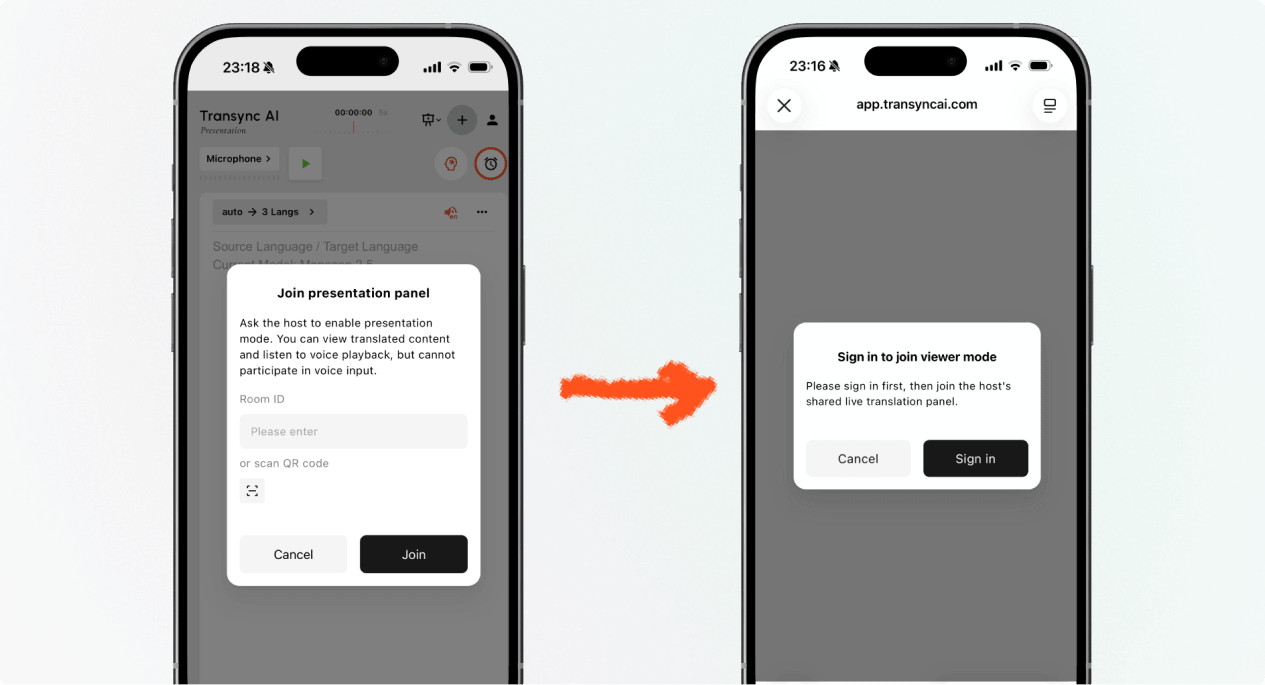
  3. If Transync AI asks you to sign in, complete sign-in and return to join Presentation Mode.
  4. 選擇 加入.

When you join Presentation Mode with a link or QR code, your device may open the web experience or offer to continue in the Transync AI app. If the presentation is no longer active, ask the host for a new active link, QR code, or Room ID.

Sign in to Transync AI before you join Presentation Mode on mobile.
Sign in when Transync AI asks you to confirm your account before joining.

2. Join Presentation Mode with a Room ID #

  1. Open the Presentation Mode join entry in the Transync AI web app or Transync AI app.
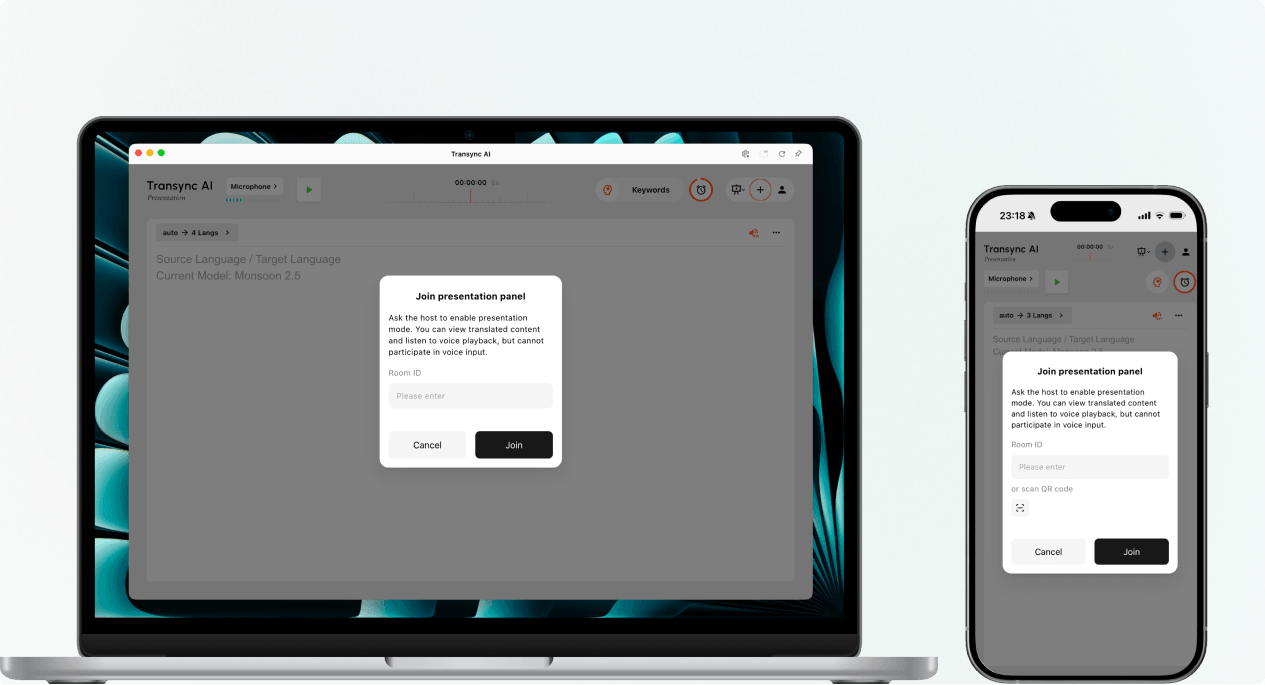
  2. Enter the Room ID provided by the host, or use the scan button to scan a presentation QR code.
  3. 選擇 加入.

筆記: A Room ID only works while the host’s presentation is active. If you cannot join Presentation Mode, confirm the Room ID and contact the host.

Enter a Presentation Mode Room ID or scan a QR code on desktop or mobile.
Enter the host's Room ID or scan the presentation QR code.

3. Choose Your Language #

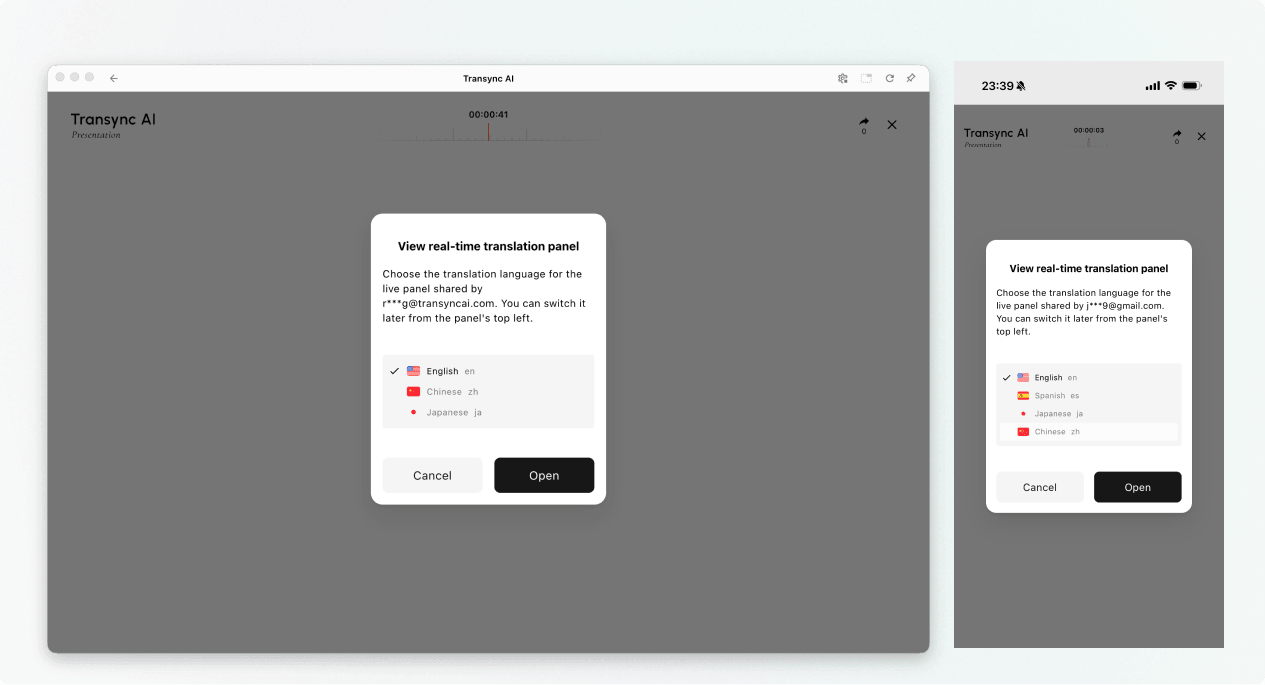
Before the live presentation panel opens, choose the language you want to read and hear. The list contains the target languages enabled by the host. The host’s source language may also be shown for reference.

  1. Select one available translation language.
  2. Review the displayed source language.
  3. 選擇 打開 to join Presentation Mode and open the presentation panel.
Choose an available translation language before opening the live presentation panel.
Choose the language you want to read and hear.

4. Read and Listen During the Presentation #

After you join Presentation Mode, the presentation panel shows the host’s speech and the translation in real time. You can:

  • Read the original text and translated text.
  • Use the available display controls to make the text easier to read.
  • Turn on voice playback when it is available for the selected language.
  • Use headphones when listening in a shared space to reduce echo and avoid disturbing other audience members.
  • View the current online audience count when it is displayed.

For more information about listening settings, see 如何在 Transync AI 中使用語音播放功能.

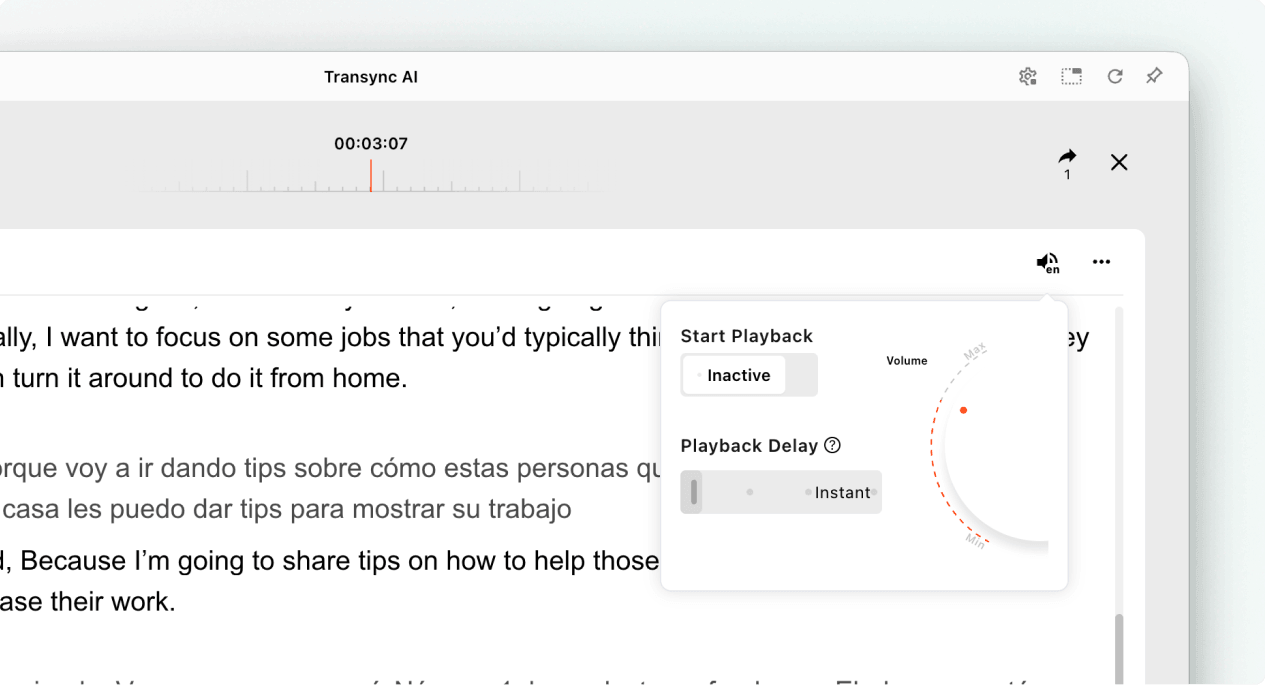
Open voice playback settings while viewing a live Transync AI presentation.
Turn on voice playback and adjust its delay and volume when needed.

5. Switch Languages #

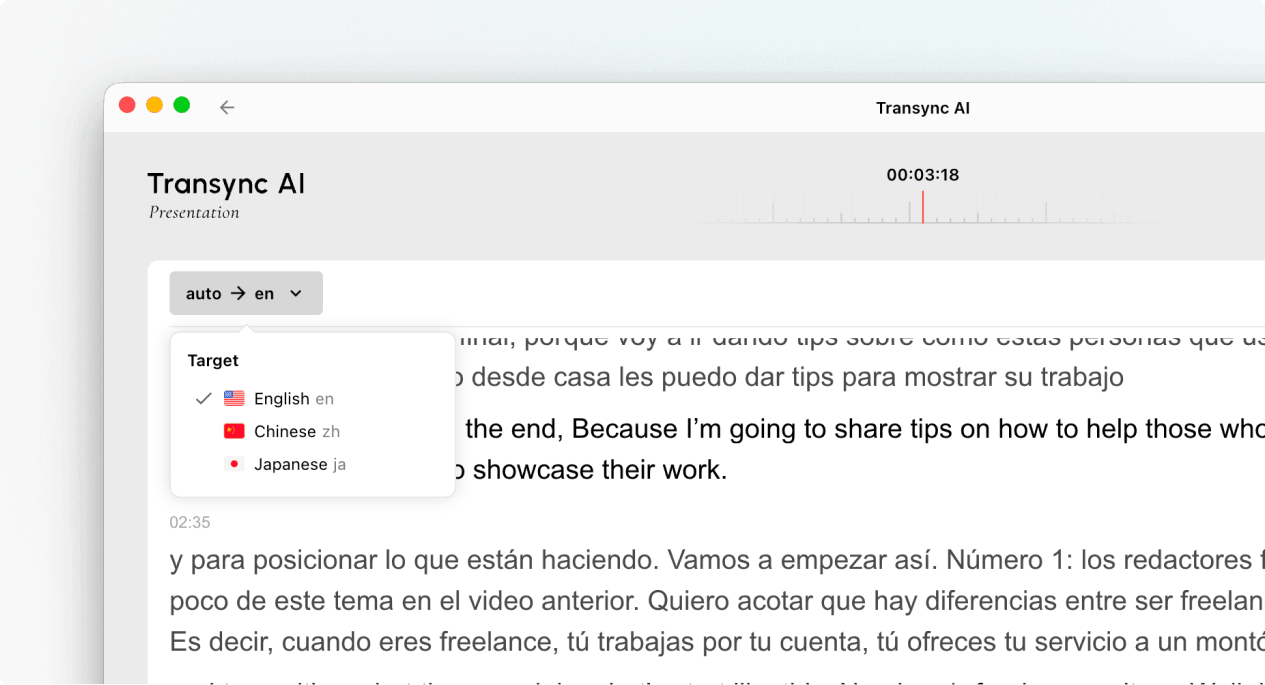
If you want to follow the presentation in another language, open the language selector and choose another language enabled by the host. If the language you need is not listed, ask the host whether it can be added to the presentation.

Use the language selector to switch the audience translation language during a presentation.
Switch to another language enabled by the host.

6. Leave or Rejoin the Presentation #

Leaving your presentation panel does not end the host’s task. If the host’s presentation is still active, you can join Presentation Mode again using the active link, QR code, or Room ID.

When Transync AI asks you to confirm the exit, select Exit only if you want to close your audience panel.

7. View a Shared Record After the Presentation #

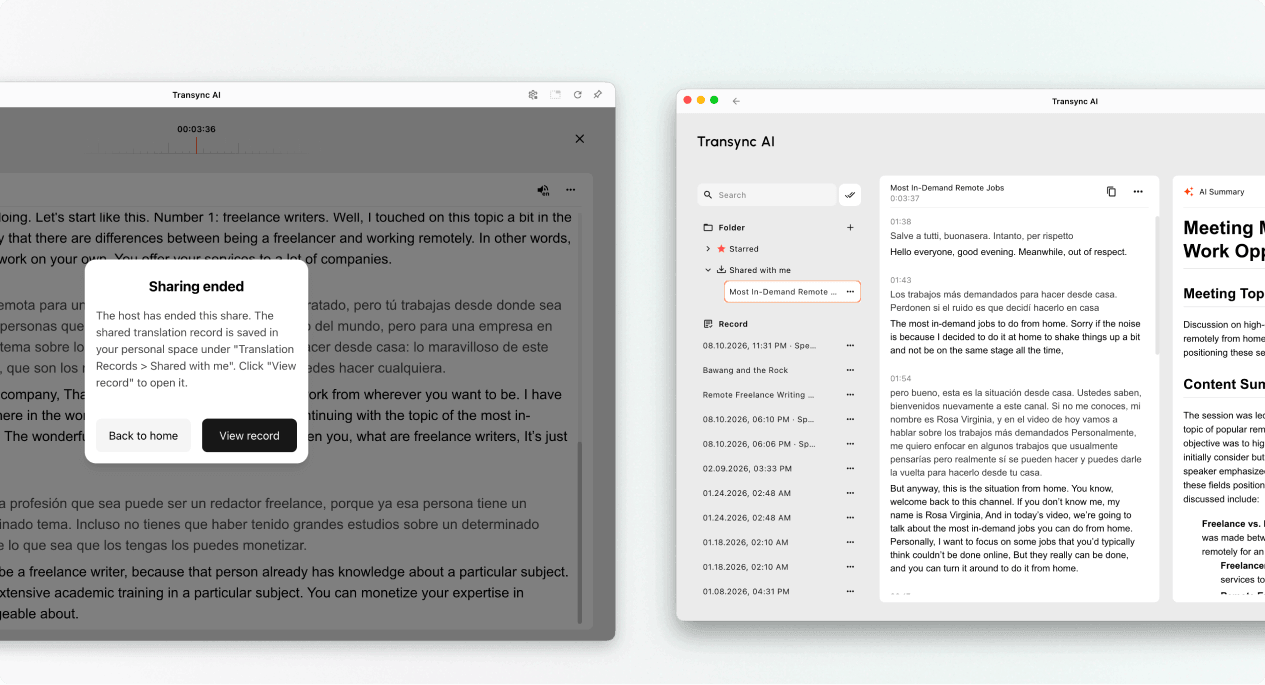
When the host ends the presentation, Transync AI shows a sharing-ended message. If the host chose to share the transcript, select View record or open Profile → Translation History → Shared with Me.

If the host did not share the transcript, you can close the end message but will not receive a shared presentation record.

Open a shared presentation record from Shared with Me after the host ends sharing.
When sharing ends, open the record from Shared with Me if the host shared it.

Troubleshooting #

I am asked to sign in #

Complete sign-in and return to join Presentation Mode. If you do not have an account, follow 如何註冊Transync AI, then reopen the active presentation link or Room ID.

I cannot join Presentation Mode #

The host may not have started Presentation Mode, or the presentation may have ended. Contact the host and request a currently active join option.

I cannot find my language #

Audience members can only select languages enabled by the host. Ask the host whether the language can be added.

I cannot hear voice playback #

Check your device volume, confirm that voice playback is available and enabled, and make sure the correct language is selected. You can continue reading the live translated text even when voice playback is off.

常見問題解答 #

Do I need a Transync AI account? #

If the join flow asks you to sign in, complete sign-in before joining. The exact entry experience may depend on the device, browser, and current product version.

Can I speak into the presentation? #

不。觀眾席僅供觀看和聆聽。只有主持人才能對簡報內容進行語音輸入。.

Can I change my language after joining? #

Yes, you can switch to another language that the host has enabled for the active presentation.

Can I rejoin after leaving? #

Yes, as long as the host’s presentation remains active and you still have a valid link, QR code, or Room ID.

Will I receive the transcript after the presentation? #

Only if the host chooses to share it. Shared presentation records appear in Shared with Me after the task ends.

Related Articles #

  • 如何在 Transsync AI 中使用示範模式
  • 如何註冊Transync AI
  • 如何在 Transync AI 中使用語音播放功能
  • 如何管理翻譯記錄
更新日期 2026 年 8 月 11 日

這篇文件有幫助嗎?

  • 有幫助
  • 沒有幫助

分享這篇文章 。

  • Facebook
  • 十
  • LinkedIn
  • Pinterest
如何在 Transsync AI 中使用示範模式如何在 Transsync AI 中使用示範模式
目錄
  • 1. Join Presentation Mode with a Link or QR Code
  • 2. Join Presentation Mode with a Room ID
  • 3. Choose Your Language
  • 4. Read and Listen During the Presentation
  • 5. Switch Languages
  • 6. Leave or Rejoin the Presentation
  • 7. View a Shared Record After the Presentation
  • Troubleshooting
    • I am asked to sign in
    • I cannot join Presentation Mode
    • I cannot find my language
    • I cannot hear voice playback
  • 常見問題解答
    • Do I need a Transync AI account?
    • Can I speak into the presentation?
    • Can I change my language after joining?
    • Can I rejoin after leaving?
    • Will I receive the transcript after the presentation?
  • Related Articles

RedNote 抖音 嗶哩嗶哩 知乎 YouTube TikTok LinkedIn

滬ICP備2025119728號

接觸:support@transyncai.com

產品

  • 工具
  • AI 即時翻譯
  • AI 實時會議翻譯
  • AI 會議記錄
  • AI 語音翻譯
  • AI 助手
  • 畫中畫浮動字幕
  • 支援的語言
  • 用例
  • Zoom 翻譯
  • Microsoft Teams 翻譯
  • Google Meet 翻譯
  • WhatsApp翻譯
  • 現場會議翻譯

頁面

  • 定價
  • 部落格
  • 支援
  • 下載
  • 企業版
  • 變更日誌
  • 免費試用

資源

  • Transsync AI 事實
  • 比較 Transsync AI
  • Transsync AI替代方案

條款

  • 隱私
  • 服務條款
  • 信任中心

© 2026 Transync AI – 即時翻譯。

繁體中文繁體中文
English 简体中文 日本語 한국어 Русский Français Español Deutsch Italiano Čeština ไทย Português do Brasil العربية हिन्दी Bahasa Indonesia Tiếng Việt Türkçe Nederlands Polski Українська