Ana içeriğe geç
Aramak için enter'a veya kapatmak için ESC'ye basın
Aramayı Kapat
Transync AI logosu – Transync AI gerçek zamanlı çeviri hizmetinin resmi marka logosu.
  • Ücretsiz Deneme
Menü
  • Ürün
    • Yapay Zeka Gerçek Zamanlı Çeviri
    • Yapay Zeka Canlı Toplantı Çevirisi
    • Sunum Modu
    • Yapay Zeka Toplantı Notları
    • Yapay Zeka Hoparlör Ayrımı
    • Yapay Zeka Ses Çevirmeni
    • Yapay Zeka Asistanı: Anahtar Sözcükler ve Bağlam
    • Picture-in-Picture, yüzen altyazılar
    • Desteklenen Diller
  • Kullanım Örnekleri
    • Yakınlaştırma çevirisi
    • Microsoft Teams çevirisi
    • Google Meet Çevirisi
    • WhatsApp Çeviri sesli arama
    • Yüz Yüze Görüşme Çevirisi
  • Blog
  • Fiyatlandırma
  • Girişim
  • Temas etmek
  • Destek
  • İndirmek
  • Ücretsiz Deneme
  • Ürün
    • Yapay Zeka Gerçek Zamanlı Çeviri
    • Yapay Zeka Canlı Toplantı Çevirisi
    • Sunum Modu
    • Yapay Zeka Toplantı Notları
    • Yapay Zeka Hoparlör Ayrımı
    • Yapay Zeka Ses Çevirmeni
    • Yapay Zeka Asistanı: Anahtar Sözcükler ve Bağlam
    • Picture-in-Picture, yüzen altyazılar
    • Desteklenen Diller
  • Kullanım Örnekleri
    • Yakınlaştırma çevirisi
    • Microsoft Teams çevirisi
    • Google Meet Çevirisi
    • WhatsApp Çeviri sesli arama
    • Yüz Yüze Görüşme Çevirisi
  • Blog
  • Fiyatlandırma
  • Girişim
  • Temas etmek
  • Destek
  • İndirmek

hello@transyncai.com

Başlarken

4
  • Masaüstü Hızlı Başlangıç Kılavuzu
  • Mobil Hızlı Başlangıç Kılavuzu
  • Toplantı Ses Sistemi Kurulumu Kontrol Listesi
  • Bize Ulaşın

Kullanıcı Kılavuzu

13
  • Transync AI Nasıl Kaydedilir?
  • Gerçek Zamanlı Çeviri Nasıl Başlatılır
  • Transync AI'da Çeviri Modu Nasıl Seçilir?
  • Bilgisayar Sesi Nasıl Paylaşılır
  • Transync AI'da Ses Oynatma Nasıl Kullanılır?
  • Ses Klonu Nasıl Kullanılır?
  • macOS'ta Sanal Mikrofon Nasıl Kullanılır?
  • Windows'ta Sanal Mikrofon Nasıl Kurulur?
  • Resim İçinde Resim Modu Nasıl Kullanılır?
  • Toplantı Transkriptlerine ve Özetlerine Nasıl Erişilir?
  • Yapay Zeka Asistanı Nasıl Kullanılır?
  • Çeviri Kayıtları Nasıl Yönetilir?
  • Şarj Etme ve Para İadesi Talebinde Bulunma

Sunum Modu

2
  • Transync AI'da Sunum Modu Nasıl Kullanılır?
  • Transync Yapay Zeka Sunumuna Nasıl Katılabilirsiniz?

Girişim

1
  • İşletme rehberi

Kaynaklar

3
  • Güven Merkezi
  • Şartlar ve Politika
  • Değişiklik günlüğü
Kategorileri Görüntüle
  • Ev
  • Belgeler
  • Sunum Modu
  • Transync Yapay Zeka Sunumuna Nasıl Katılabilirsiniz?

Transync Yapay Zeka Sunumuna Nasıl Katılabilirsiniz?

5 dakikalık okuma süresi

To join Presentation Mode in Transync AI, use the link, QR code, or Room ID shared by the host. After joining, you can choose one of the languages enabled by the host and follow the live translation on your own device.

Audience members can read the original and translated text and listen with voice playback when it is available. Audience members cannot speak into or control the host’s translation task.

1. Join Presentation Mode with a Link or QR Code #

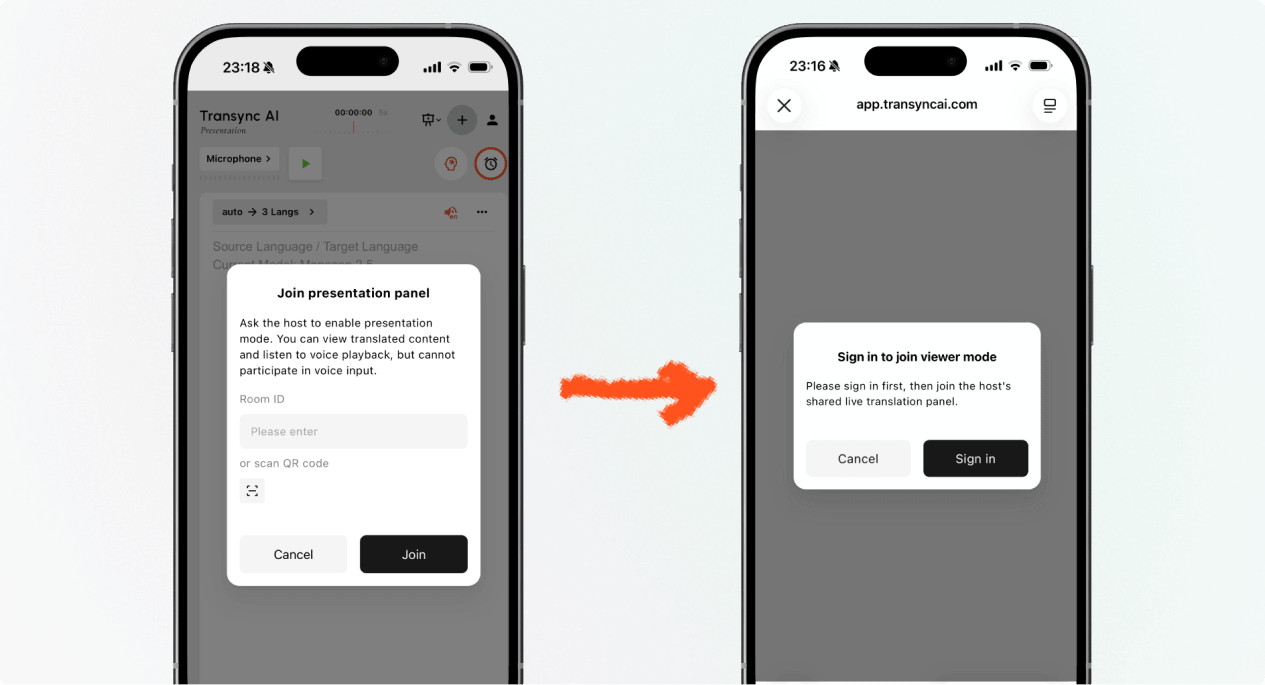
  1. Open the link sent by the host, or scan the presentation QR code with your phone.
  2. Review the name or masked account of the person sharing the presentation.
  3. If Transync AI asks you to sign in, complete sign-in and return to join Presentation Mode.
  4. Seçme Katılmak.

When you join Presentation Mode with a link or QR code, your device may open the web experience or offer to continue in the Transync AI app. If the presentation is no longer active, ask the host for a new active link, QR code, or Room ID.

Sign in to Transync AI before you join Presentation Mode on mobile.
Sign in when Transync AI asks you to confirm your account before joining.

2. Join Presentation Mode with a Room ID #

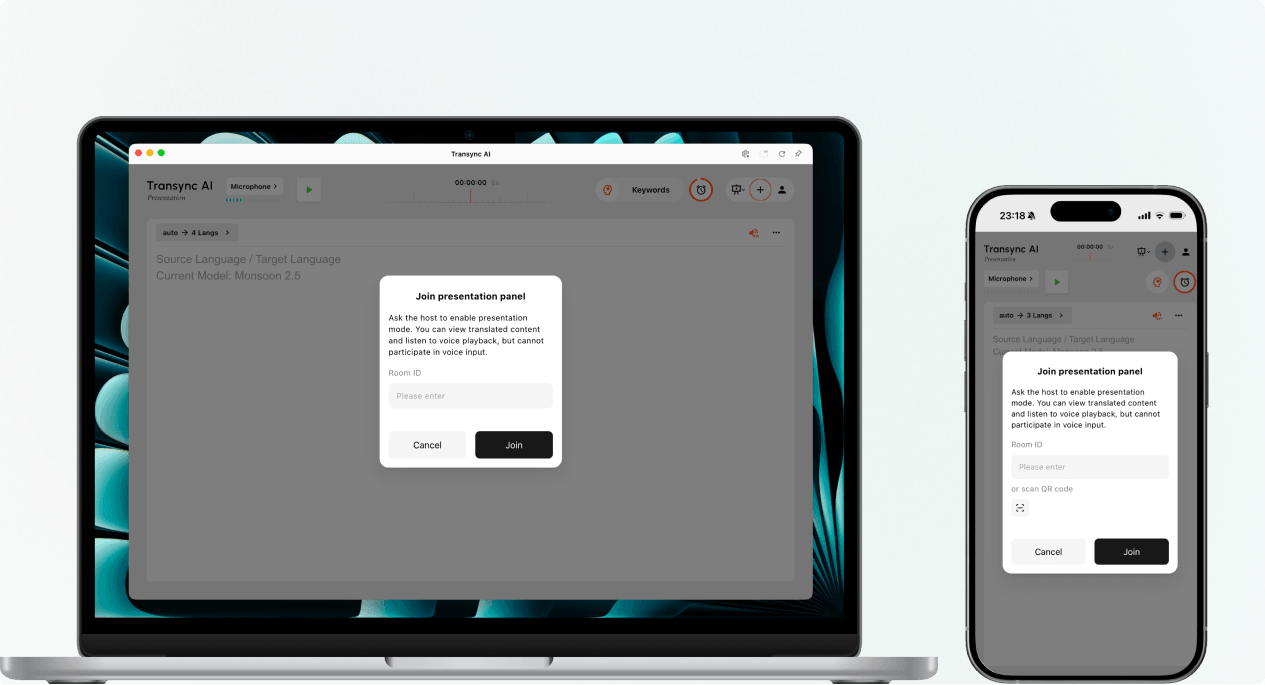
  1. Open the Presentation Mode join entry in the Transync AI web app or Transync AI app.
  2. Enter the Room ID provided by the host, or use the scan button to scan a presentation QR code.
  3. Seçme Katılmak.

Not: A Room ID only works while the host’s presentation is active. If you cannot join Presentation Mode, confirm the Room ID and contact the host.

Enter a Presentation Mode Room ID or scan a QR code on desktop or mobile.
Enter the host's Room ID or scan the presentation QR code.

3. Choose Your Language #

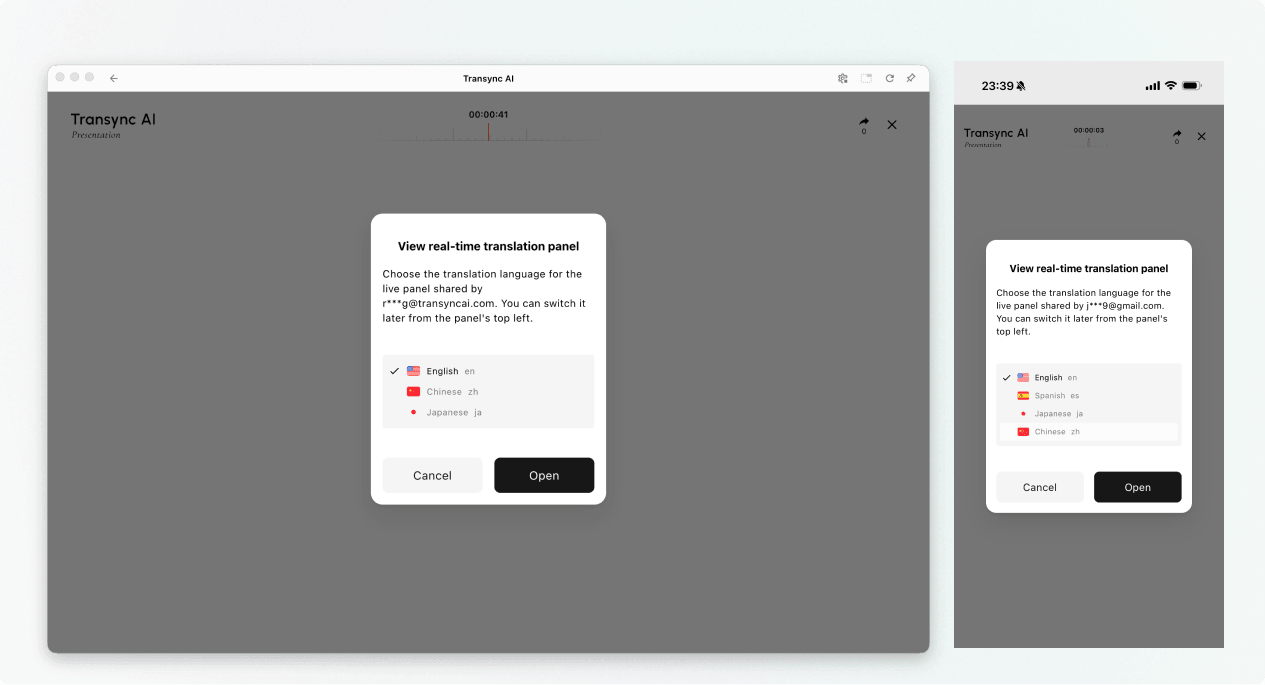
Before the live presentation panel opens, choose the language you want to read and hear. The list contains the target languages enabled by the host. The host’s source language may also be shown for reference.

  1. Select one available translation language.
  2. Review the displayed source language.
  3. Seçme Açık to join Presentation Mode and open the presentation panel.
Choose an available translation language before opening the live presentation panel.
Choose the language you want to read and hear.

4. Read and Listen During the Presentation #

After you join Presentation Mode, the presentation panel shows the host’s speech and the translation in real time. You can:

  • Read the original text and translated text.
  • Use the available display controls to make the text easier to read.
  • Turn on voice playback when it is available for the selected language.
  • Use headphones when listening in a shared space to reduce echo and avoid disturbing other audience members.
  • View the current online audience count when it is displayed.

For more information about listening settings, see Transync AI'da Ses Oynatma Nasıl Kullanılır?.
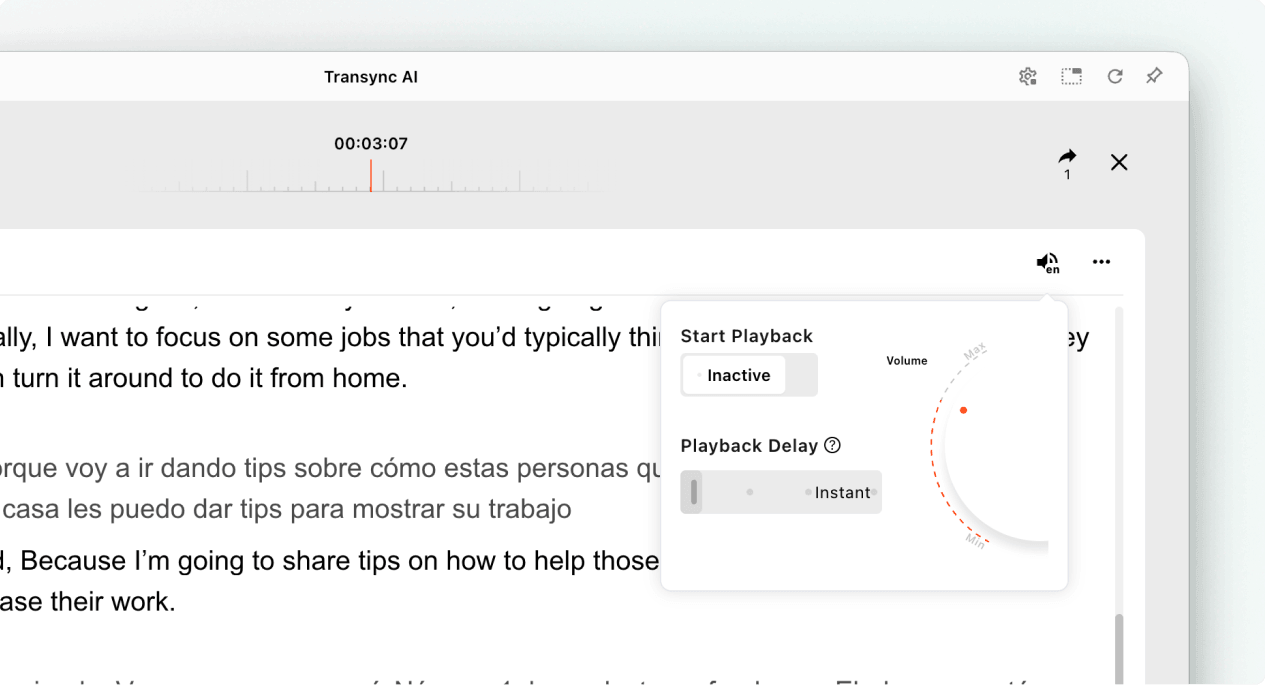
Open voice playback settings while viewing a live Transync AI presentation.
Turn on voice playback and adjust its delay and volume when needed.

5. Switch Languages #

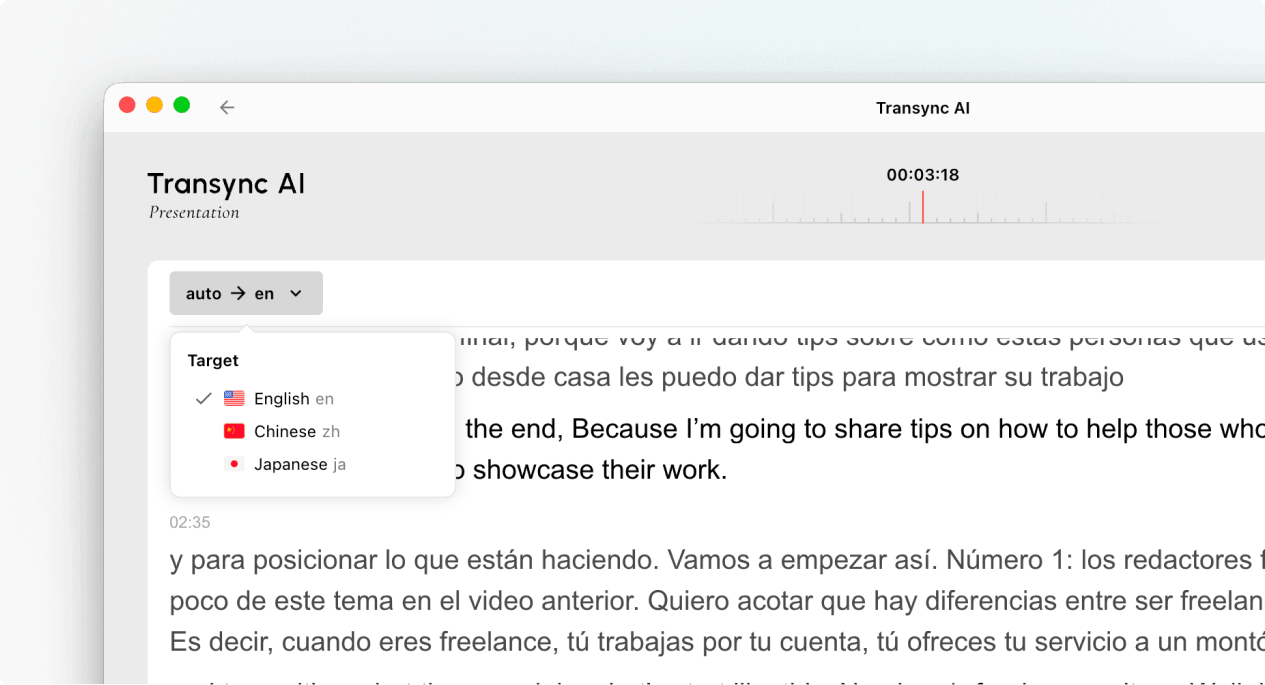
If you want to follow the presentation in another language, open the language selector and choose another language enabled by the host. If the language you need is not listed, ask the host whether it can be added to the presentation.

Use the language selector to switch the audience translation language during a presentation.
Switch to another language enabled by the host.

6. Leave or Rejoin the Presentation #

Leaving your presentation panel does not end the host’s task. If the host’s presentation is still active, you can join Presentation Mode again using the active link, QR code, or Room ID.

When Transync AI asks you to confirm the exit, select Exit only if you want to close your audience panel.

7. View a Shared Record After the Presentation #

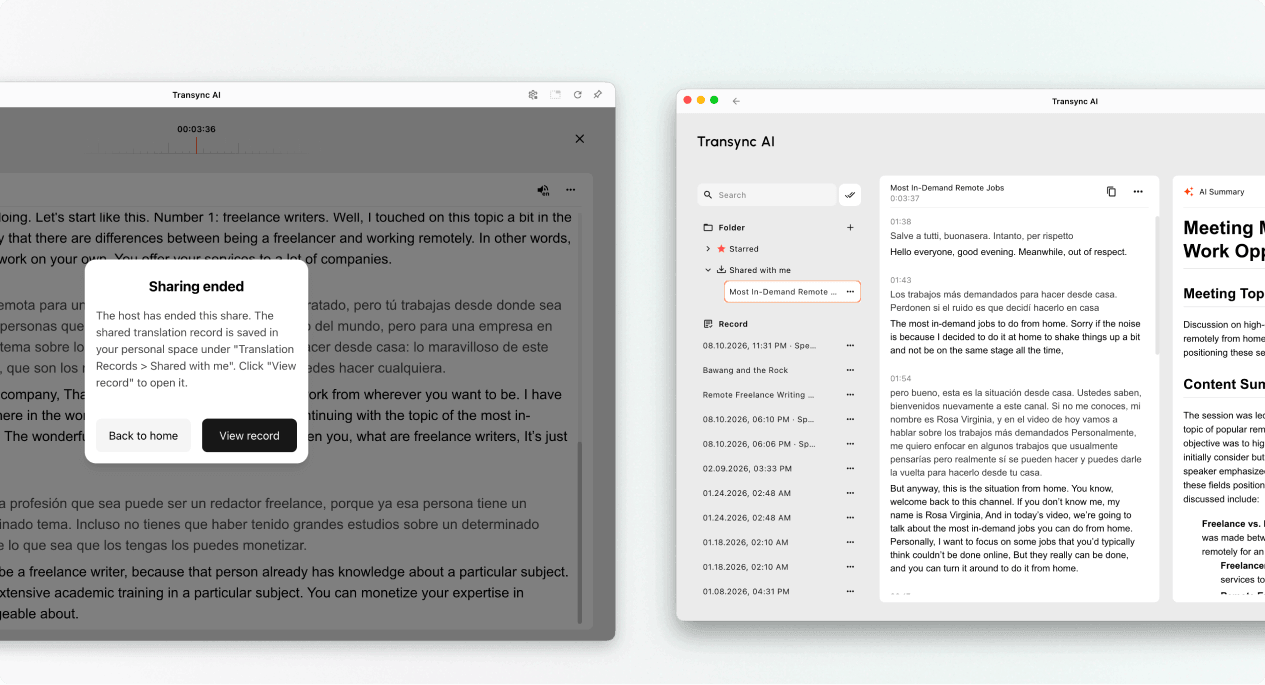
When the host ends the presentation, Transync AI shows a sharing-ended message. If the host chose to share the transcript, select View record or open Profile → Translation History → Shared with Me.

If the host did not share the transcript, you can close the end message but will not receive a shared presentation record.

Open a shared presentation record from Shared with Me after the host ends sharing.
When sharing ends, open the record from Shared with Me if the host shared it.

Troubleshooting #

I am asked to sign in #

Complete sign-in and return to join Presentation Mode. If you do not have an account, follow Transync AI Nasıl Kaydedilir?, then reopen the active presentation link or Room ID.

I cannot join Presentation Mode #

The host may not have started Presentation Mode, or the presentation may have ended. Contact the host and request a currently active join option.

I cannot find my language #

Audience members can only select languages enabled by the host. Ask the host whether the language can be added.

I cannot hear voice playback #

Check your device volume, confirm that voice playback is available and enabled, and make sure the correct language is selected. You can continue reading the live translated text even when voice playback is off.

SSS #

Do I need a Transync AI account? #

If the join flow asks you to sign in, complete sign-in before joining. The exact entry experience may depend on the device, browser, and current product version.

Can I speak into the presentation? #

Hayır. İzleyici paneli sadece izleme ve dinleme amaçlıdır. Sunum görevine sesli girdi sağlayan yalnızca sunucudur.

Can I change my language after joining? #

Yes, you can switch to another language that the host has enabled for the active presentation.

Can I rejoin after leaving? #

Yes, as long as the host’s presentation remains active and you still have a valid link, QR code, or Room ID.

Will I receive the transcript after the presentation? #

Only if the host chooses to share it. Shared presentation records appear in Shared with Me after the task ends.

Related Articles #

  • Transync AI'da Sunum Modu Nasıl Kullanılır?
  • Transync AI Nasıl Kaydedilir?
  • Transync AI'da Ses Oynatma Nasıl Kullanılır?
  • Çeviri Kayıtları Nasıl Yönetilir?
Güncellendi 11 Ağustos 2026

Bu belge faydalı mı?

  • Yararlı
  • Yararlı değil

Bu makaleyi paylaş :

  • Facebook
  • X
  • LinkedIn
  • Pinterest
Transync AI'da Sunum Modu Nasıl Kullanılır?Transync AI'da Sunum Modu Nasıl Kullanılır?
İçindekiler
  • 1. Join Presentation Mode with a Link or QR Code
  • 2. Join Presentation Mode with a Room ID
  • 3. Choose Your Language
  • 4. Read and Listen During the Presentation
  • 5. Switch Languages
  • 6. Leave or Rejoin the Presentation
  • 7. View a Shared Record After the Presentation
  • Troubleshooting
    • I am asked to sign in
    • I cannot join Presentation Mode
    • I cannot find my language
    • I cannot hear voice playback
  • SSS
    • Do I need a Transync AI account?
    • Can I speak into the presentation?
    • Can I change my language after joining?
    • Can I rejoin after leaving?
    • Will I receive the transcript after the presentation?
  • Related Articles

RedNote Douyin Bilibili 知乎 YouTube TikTok LinkedIn

ICP备2025119728号

Temas etmek:support@transyncai.com

Ürün

  • Aletler
  • Yapay Zeka Gerçek Zamanlı Çeviri
  • AI Canlı Toplantı çevirisi
  • Yapay Zeka Toplantı Notları
  • Yapay Zeka Ses Çevirmeni
  • Yapay Zeka Asistanı
  • Picture-in-Picture, yüzen altyazılar
  • Desteklenen diller
  • Kullanım Örnekleri
  • Zoom Çevirisi
  • Microsoft Teams çevirisi
  • Google Meet Çevirisi
  • WhatsApp Çevirisi
  • Yüz Yüze Görüşme Çevirisi

Sayfalar

  • Fiyatlandırma
  • Blog
  • Destek
  • İndirmek
  • Girişim
  • Değişiklik günlüğü
  • Ücretsiz Deneme

Kaynaklar

  • Transync Yapay Zeka Gerçekleri
  • Transync AI'yı karşılaştırın
  • Transync Yapay Zeka Alternatifleri

Şartlar

  • Mahremiyet
  • Hizmet Şartları
  • Güven merkezi

© 2026 Transync AI – Gerçek Zamanlı Çeviri.

Türkçe
English 简体中文 日本語 한국어 Русский Français Español Deutsch Italiano Čeština ไทย 繁體中文繁體中文 Português do Brasil العربية हिन्दी Bahasa Indonesia Tiếng Việt Nederlands Polski Українська