
Щоб приєднатися до режиму презентації в Transync AI, скористайтеся посиланням, QR-кодом або ідентифікатором кімнати, наданим організатором. Після приєднання ви можете вибрати одну з мов, доступних організатором, і слідкувати за перекладом у реальному часі на своєму пристрої.
Глядачі можуть читати оригінальний та перекладений текст, а також слухати з голосовим відтворенням, коли воно доступне. Глядачі не можуть втручатися або контролювати завдання перекладу ведучого.
1. Приєднайтеся до режиму презентації за допомогою посилання або QR-коду #
- Відкрийте посилання, надіслане організатором, або відскануйте QR-код презентації за допомогою телефону.
- Перевірте ім’я або замаскований обліковий запис особи, яка надає доступ до презентації.
- Якщо Transync AI попросить вас увійти, завершіть вхід і поверніться, щоб приєднатися до режиму презентації.
- Виберіть Приєднатися.
Коли ви приєднуєтеся до режиму презентації за допомогою посилання або QR-коду, ваш пристрій може відкрити веб-версію або запропонувати продовжити в додатку Transync AI. Якщо презентація більше не активна, попросіть організатора надати нове активне посилання, QR-код або ідентифікатор кімнати.
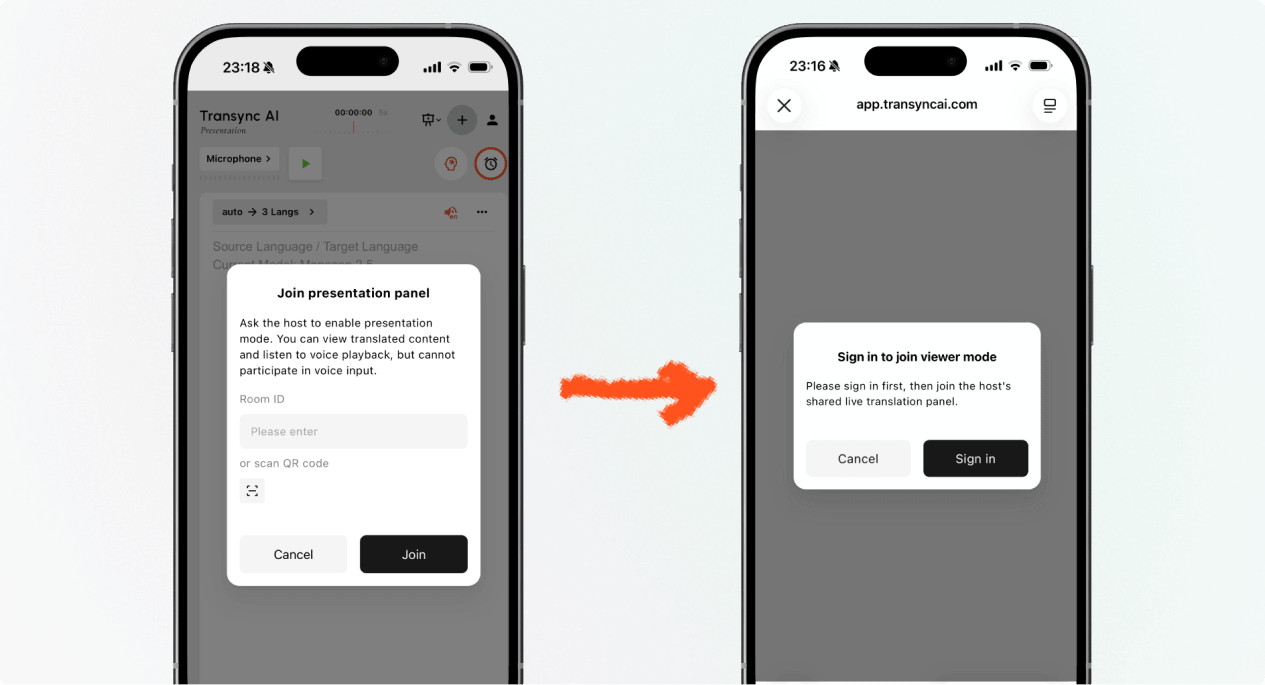
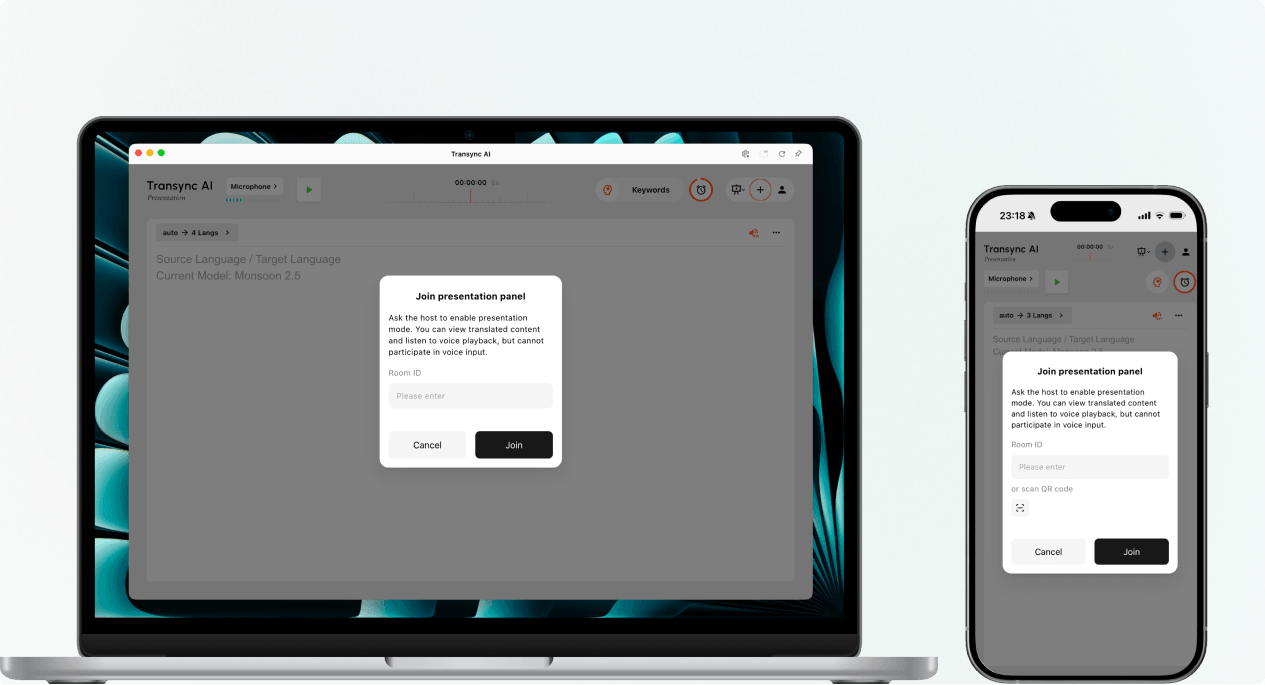
2. Приєднайтеся до режиму презентації за допомогою ідентифікатора кімнати #
- Відкрийте запис приєднання до режиму презентації в Веб-додаток Transync AI або додаток Transync AI.
- Введіть ідентифікатор кімнати, наданий організатором, або скористайтеся кнопкою сканування, щоб відсканувати QR-код презентації.
- Виберіть Приєднатися.
Примітка: Ідентифікатор кімнати працює лише під час активної презентації організатора. Якщо ви не можете приєднатися до режиму презентації, підтвердьте ідентифікатор кімнати та зв’яжіться з організатором.
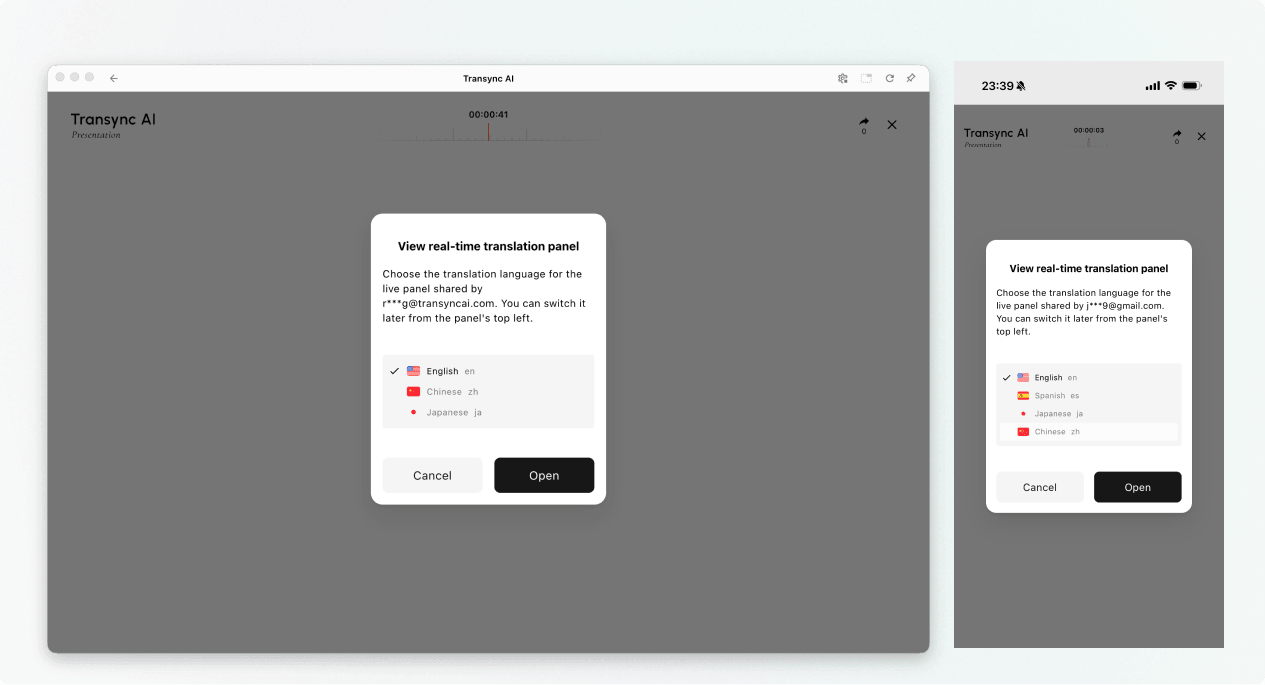
3. Виберіть свою мову #
Перш ніж відкриється панель живої презентації, виберіть мову, якою ви хочете читати та чути. Список містить цільові мови, увімкнені хостом. Оригінальна мова хоста також може відображатися для довідки.
- Виберіть одну доступну мову перекладу.
- Перегляньте відображену мову оригіналу.
- Виберіть ВІДЧИНЕНО щоб приєднатися до режиму презентації та відкрити панель презентацій.
4. Читайте та слухайте під час презентації #
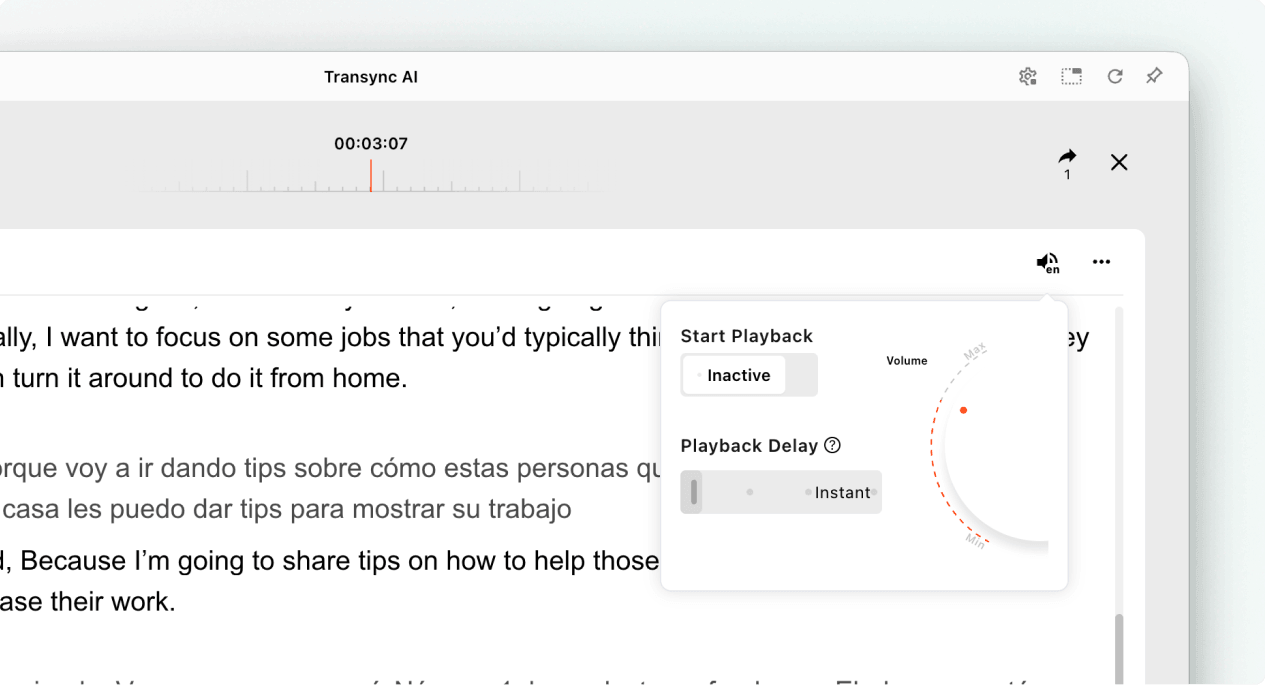
Після того, як ви приєднаєтеся до режиму презентації, панель презентації відображає промову ведучого та переклад у режимі реального часу. Ви можете:
- Прочитайте оригінальний текст та перекладений текст.
- Використовуйте доступні елементи керування відображенням, щоб зробити текст легшим для читання.
- Увімкнути відтворення голосу, коли воно доступне для вибраної мови.
- Використовуйте навушники під час прослуховування у спільному просторі, щоб зменшити луну та не турбувати інших глядачів.
- Переглядайте поточну кількість онлайн-аудиторії, коли вона відображається.
Щоб отримати додаткові відомості про налаштування прослуховування, див. Як використовувати відтворення голосу в Transync AI.
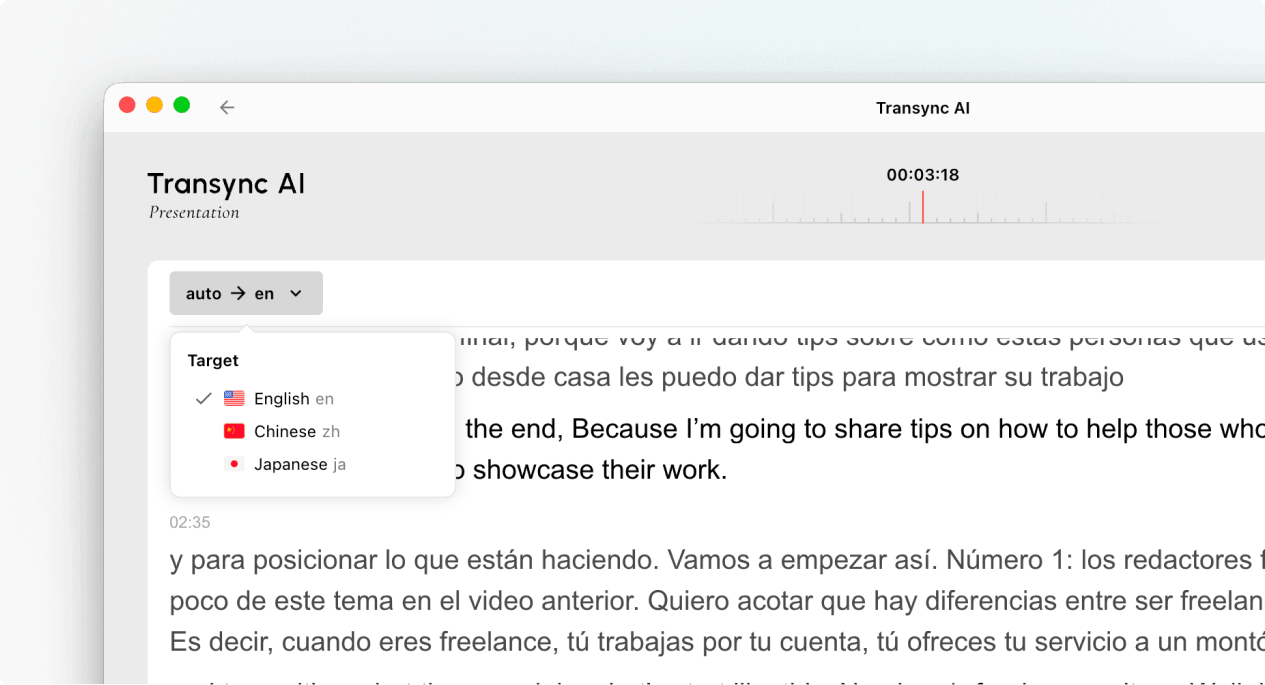
5. Перемикання мов #
Якщо ви хочете переглянути презентацію іншою мовою, відкрийте селектор мов і виберіть іншу мову, яку підтримує організатор. Якщо потрібної мови немає у списку, запитайте організатора, чи можна додати її до презентації.
6. Залиште презентацію або знову приєднайтеся до неї #
Вихід із панелі презентації не завершує завдання організатора. Якщо презентація організатора все ще активна, ви можете знову приєднатися до режиму презентації, використовуючи активне посилання, QR-код або ідентифікатор кімнати.
Коли Transync AI попросить вас підтвердити вихід, виберіть Вихід лише якщо ви хочете закрити панель аудиторії.
7. Перегляд спільного запису після презентації #
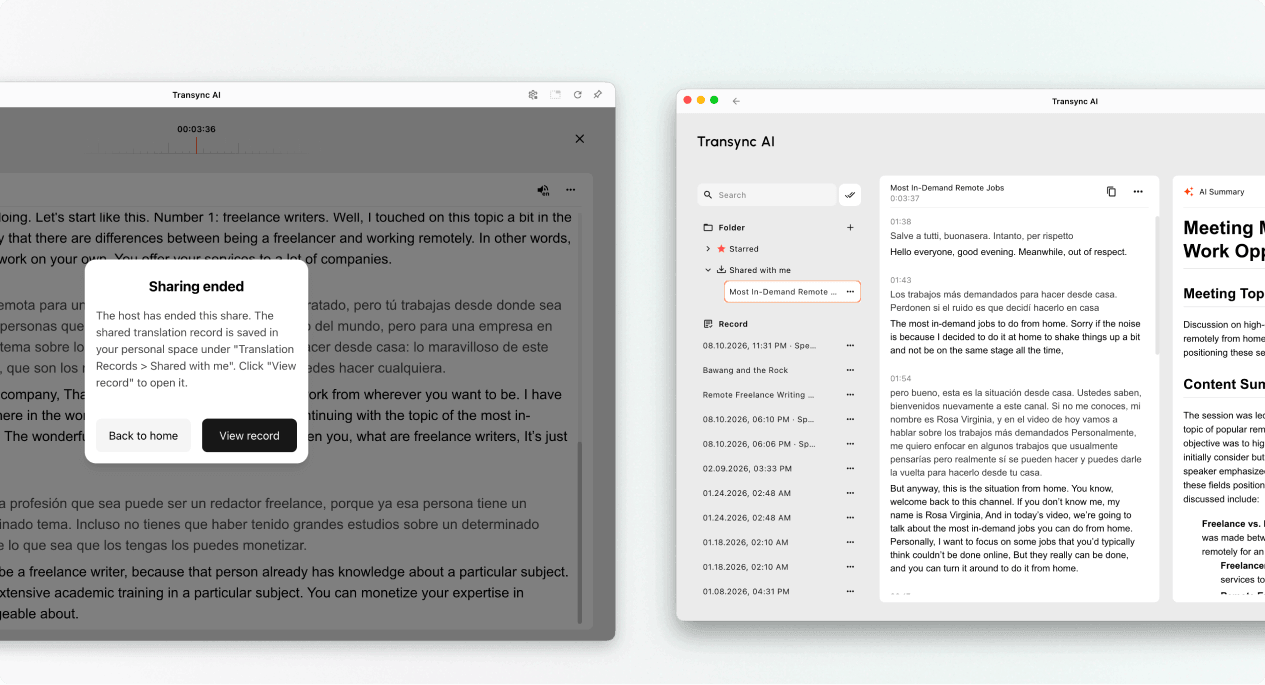
Коли ведучий завершує презентацію, Transync AI показує повідомлення про завершення спільного доступу. Якщо ведучий вирішив поділитися стенограмою, виберіть Переглянути запис або відкрити Профіль → Історія перекладів → Спільне використання зі мною.
Якщо організатор не поділився стенограмою, ви можете закрити кінцеве повідомлення, але не отримаєте спільного запису презентації.
Усунення несправностей #
Мене просять увійти #
Завершіть вхід і поверніться, щоб приєднатися до режиму презентації. Якщо у вас немає облікового запису, виконайте Як зареєструвати Transync AI, а потім знову відкрийте активне посилання на презентацію або ідентифікатор кімнати.
Я не можу приєднатися до режиму презентації #
Можливо, організатор не розпочав режим презентації, або презентація завершилася. Зверніться до організатора та запросіть активний наразі варіант приєднання.
Я не можу знайти свою мову #
Учасники аудиторії можуть вибирати лише мови, увімкнені організатором. Запитайте організатора, чи можна додати мову.
Я не чую відтворення голосу #
Перевірте гучність пристрою, переконайтеся, що голосове відтворення доступне та ввімкнене, а також вибрано правильну мову. Ви можете продовжувати читати перекладений текст у реальному часі, навіть коли голосове відтворення вимкнено.
Найчастіші запитання #
Чи потрібен мені обліковий запис Transync AI? #
Якщо під час процесу приєднання вам буде запропоновано ввійти, завершіть вхід перед приєднанням. Точний процес входу може залежати від пристрою, браузера та поточної версії продукту.
Чи можу я говорити під час презентації? #
Ні. Панель аудиторії призначена для перегляду та прослуховування. Голосові вказівки щодо презентації надає лише ведучий.
Чи можу я змінити свою мову після реєстрації? #
Так, ви можете переключитися на іншу мову, яку організатор увімкнув для активної презентації.
Чи можу я знову приєднатися після виходу? #
Так, за умови, що презентація організатора залишається активною, а у вас все ще є дійсне посилання, QR-код або ідентифікатор кімнати.
Чи отримаю я стенограму після презентації? #
Тільки якщо організатор вирішить надати до нього спільний доступ. Записи спільних презентацій відображаються в розділі «Спільні зі мною» після завершення завдання.


