
Функція Voice Clone дозволяє Transync AI використовувати голос, який звучить ближче до вашого власного, під час відтворення. Після ввімкнення вам не потрібно покладатися лише на попередньо встановлені голоси, що робить перекладене відтворення більш природним та персоналізованим під час розмов.
Перш ніж почати, переконайтеся, що ви знаєте, як розпочати переклад у реальному часі та використовувати голосове відтворення:
- Швидкий старт
- Як розпочати переклад у режимі реального часу
- Як використовувати відтворення голосу в Transync AI
- Як поділитися аудіо з комп'ютера
Якщо ви хочете спочатку перевірити, чи підтримує мова переклад, див. Підтримувані мови
Клонування голосу наразі підтримується для таких мов:
- Китайська (мандаринська)
- Англійська
- Іспанська
- Російська
- італійська
- Французька
- Корейська
- Японська
- Німецька
- Португальська
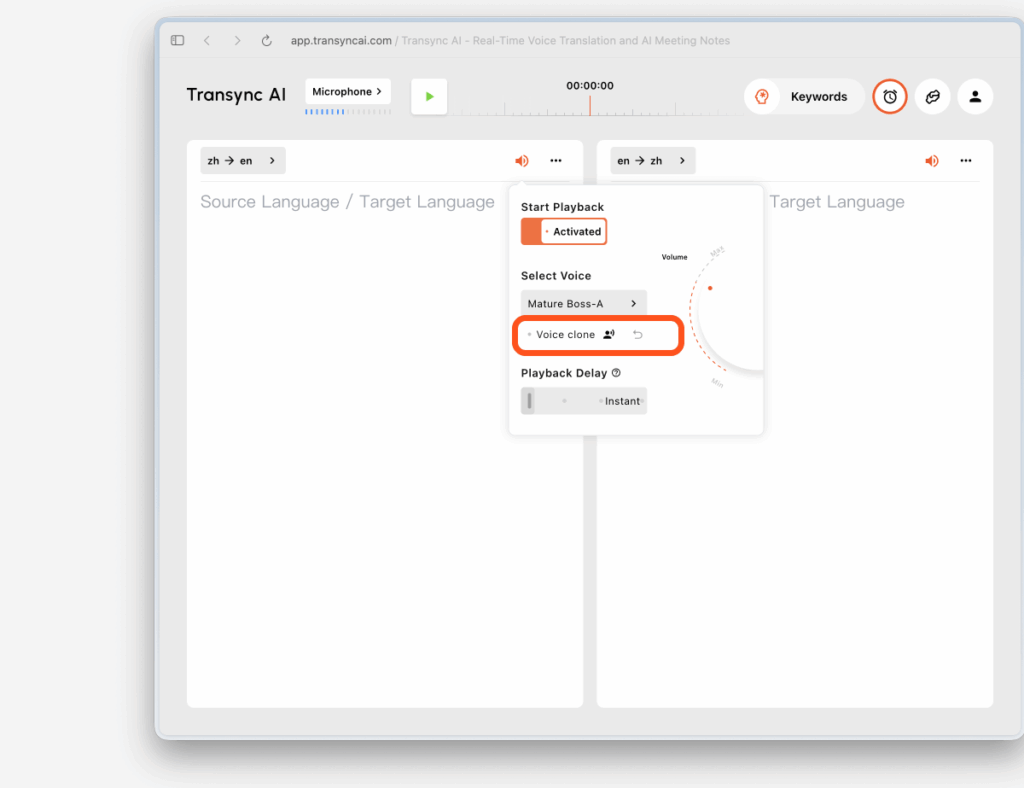
1. Увімкніть відтворення голосу та клонування голосу перед початком перекладу #
Перш ніж розпочати переклад, відкрийте налаштування відтворення голосу для цільової мови та увімкніть як відтворення голосу, так і клонування голосу.
Це одночасно налаштовує дві речі:
- Перекладена мова буде відтворена вибраним вами голосом
- Voice Clone почне підготовку до збору вашого голосу, щойно розпочнеться переклад
Якщо поточна мова підтримує клонування голосу, ви побачите опцію клонування голосу в налаштуваннях голосу. Якщо мова не підтримується, опція буде недоступною.
2. Розпочніть переклад і дозвольте Voice Clone зібрати ваш голос #
Після початку перекладу відтворення розпочнеться з голосу, який ви вибрали в налаштуваннях відтворення голосу.
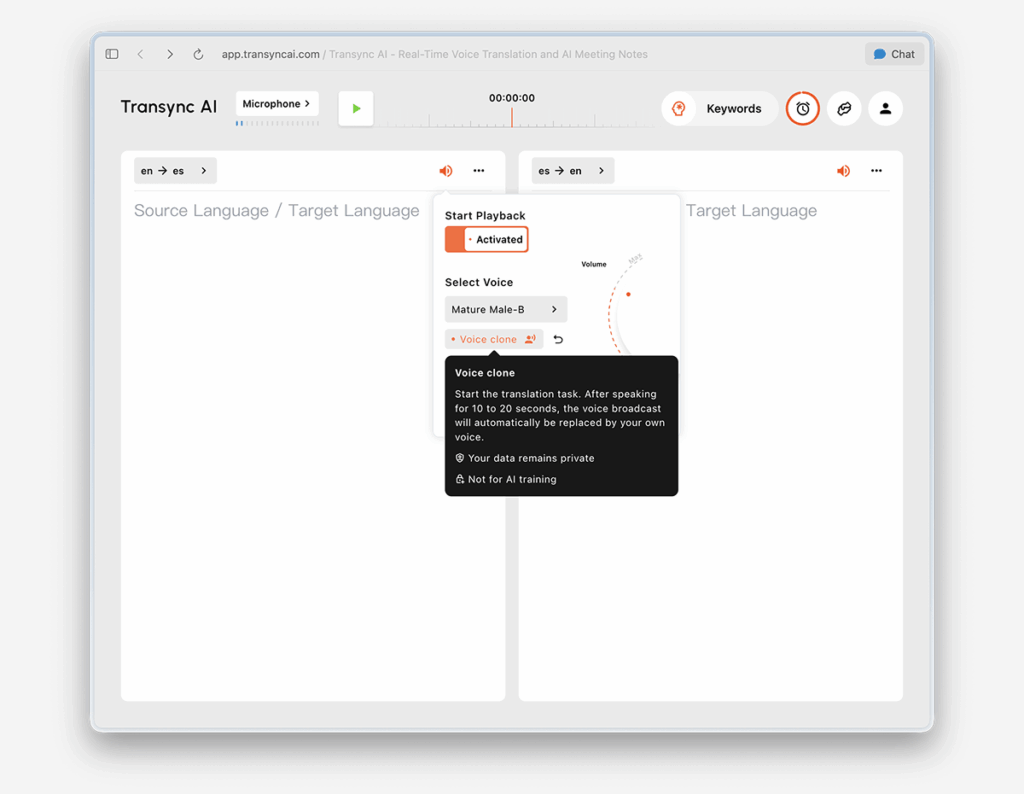
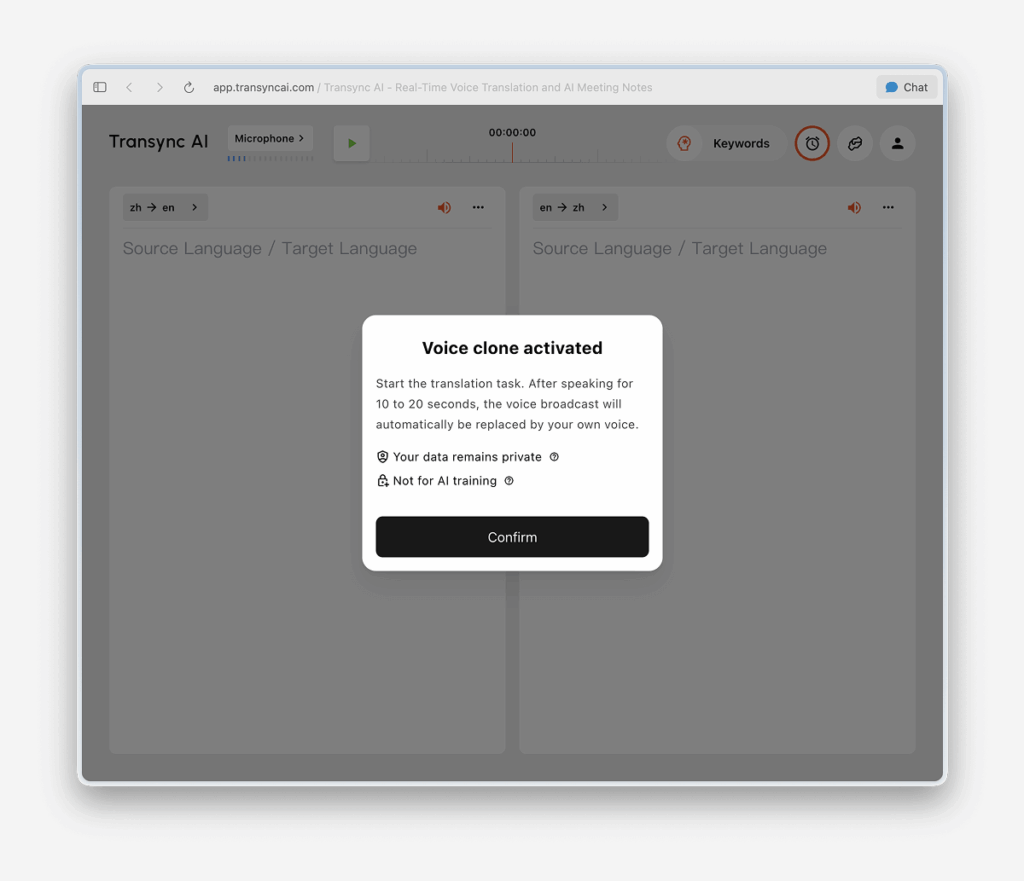
Водночас, Voice Clone перейде в режим збору даних у фоновому режимі. Продовжуйте говорити природно протягом приблизно 10-20 секунд, щоб Transync AI міг записати достатньо голосових даних.
Для найкращого результату ми рекомендуємо вам:
- Говоріть безперервно протягом 10-20 секунд, замість того, щоб читати лише дуже коротку фразу
- Використовуйте чіткий та природний темп мовлення
- Завершіть першу колекцію у відносно тихій обстановці
3. Зачекайте, поки відтворення переключиться на ваш клонований голос #
Клонування голосу не набуває чинності негайно. Протягом періоду збору даних перекладене відтворення продовжуватиметься з використанням вибраного голосу.
Приблизно через 10-20 секунд ви побачите спливаюче повідомлення:
Тепер для відтворення використовується ваш клонований голос.
Це означає, що збір голосу завершено, і відтворення перемикається на ваш клонований голос.
Якщо перемикання не відбувається належним чином, спробуйте ось що:
- Продовжуйте сеанс перекладу
- Продовжуйте говорити ще трохи
- Переконайтеся, що ваш мікрофон працює належним чином, а фоновий шум обмежений
- За потреби повторіть клонування голосу
4. Використовуйте свій клонований голос на майбутніх зустрічах #
Після успішного отримання даних про клонування голосу вам не потрібно збирати їх знову під час наступної зустрічі.
На майбутніх зустрічах ви можете ввімкнути відтворення голосу та використовувати свій існуючий клонований голос безпосередньо, не повторюючи процес налаштування.
5. Використовуйте його всіма підтримуваними мовами #
Після успішного створення голосового клону його можна використовувати для інших мов, які підтримують цю функцію. У більшості випадків вам не потрібно повторювати процес збору для кожної підтримуваної цільової мови.
Це допомагає забезпечити більш узгоджене голосове враження під час перемикання між підтримуваними мовами.
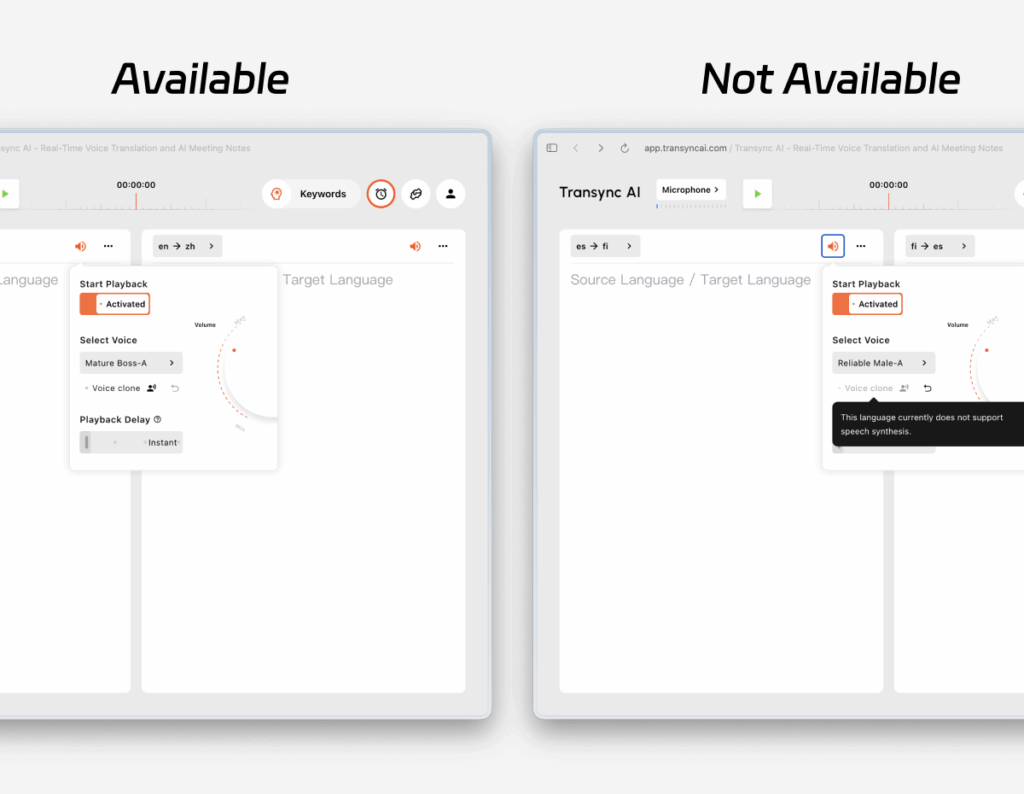
6. Непідтримувані мови відображатимуться як недоступні #
Клонування голосу доступне не для всіх мов. Для мов, які наразі не підтримуються, опція клонування голосу буде вимкнена, зазвичай зі зменшеною непрозорістю.
Коли ви наводите курсор на вимкнену опцію, Transync AI показує повідомлення про те, що клонування голосу не підтримується для цієї мови. Ви все ще можете використовувати звичайне відтворення голосу, але ваш клонований голос поки що не буде доступний для цієї мови.
7. Скинути клон голосу #
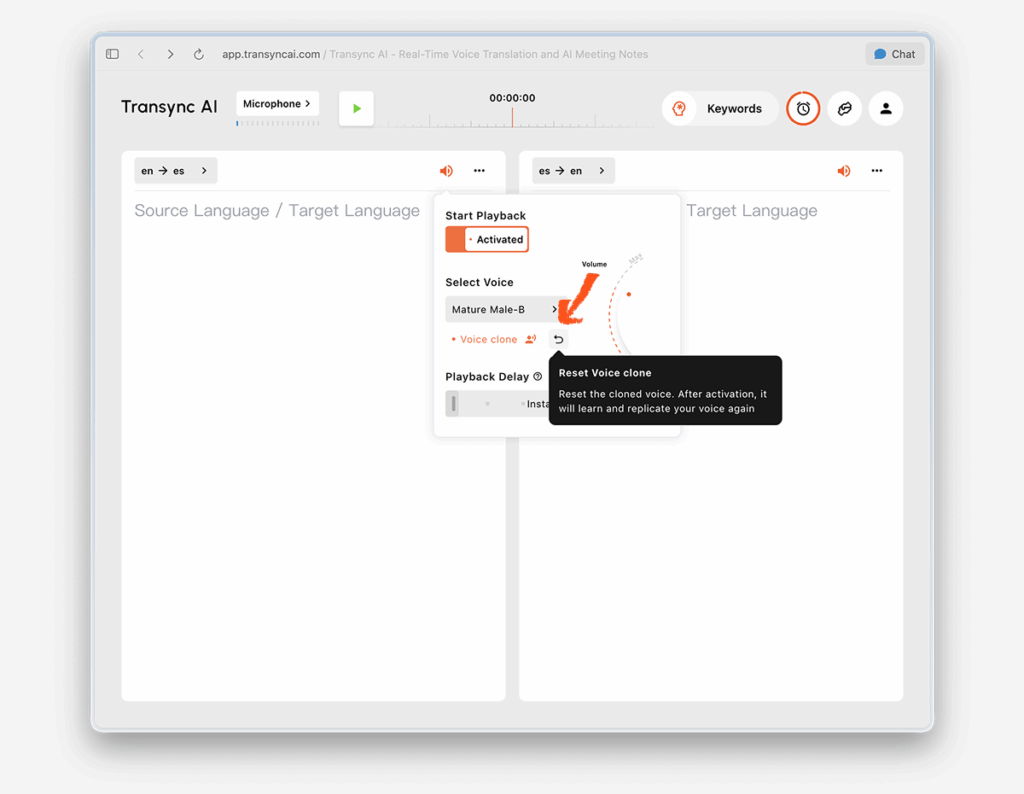
Якщо ви хочете видалити поточний результат і отримати новий, натисніть «Скинути клон голосу».
Скидання налаштувань видаляє ваш існуючий клонований голос. Після цього, наступного разу, коли ви використовуватимете функцію Voice Clone, Transync AI знову збере ваш голос і створить новий клонований голос.
Це корисно, якщо ви хочете покращити результат або повторити налаштування в тихішому середовищі.
Конфіденційність #
Виходячи з поточного повідомлення продукту, Voice Clone розроблено з урахуванням таких принципів:
- Ваші голосові дані залишаються конфіденційними
- Ваші голосові дані не використовуються для навчання
Щоб дізнатися більше, див.:
Найчастіші запитання #
Чи працює Voice Clone миттєво? #
Ні. Під час першого використання Transync AI зазвичай потрібно від 10 до 20 секунд, щоб зібрати вашу мову. Протягом цього часу відтворення продовжується з вибраним вами голосом. Після завершення збору ви побачите повідомлення «Відтворення тепер використовує ваш клонований голос».
Чи потрібно клонувати свій голос окремо для кожної мови? #
Зазвичай ні. Після успішного налаштування ваш клонований голос можна буде використовувати повторно в майбутніх зустрічах та іншими мовами, які підтримують функцію «Клонування голосу».
Що робити, якщо мова не підтримує клонування голосу? #
Ви все ще можете використовувати стандартне відтворення голосу для цієї мови. Просто функція «Клонування голосу» там поки що недоступна.
Клонування голосу наразі доступне для китайської (мандарин), англійської, іспанської, російської, італійської, французької, корейської, японської, німецької та португальської мов.
Що робити, якщо я захочу знову записати свій голос? #
Використайте команду «Скинути клон голосу», щоб очистити поточний клон. Після цього ще раз пройдіть процес колекціонування, щоб створити новий.


