
تتيح ميزة "استنساخ الصوت" لتقنية Transync AI استخدام صوت أقرب إلى صوتك أثناء تشغيل الصوت. بمجرد تفعيلها، لن تضطر إلى الاعتماد فقط على الأصوات المُعدّة مسبقًا، مما يجعل تشغيل الترجمة يبدو أكثر طبيعية وشخصية في جميع المحادثات.
قبل البدء، تأكد من أنك على دراية بكيفية بدء الترجمة الفورية واستخدام تشغيل الصوت:
- البدء السريع
- كيفية بدء الترجمة في الوقت الفعلي
- كيفية استخدام تشغيل الصوت في Transync AI
- كيفية مشاركة الصوت على الكمبيوتر
إذا كنت ترغب في التحقق أولاً مما إذا كانت لغة ما تدعم الترجمة، فراجع اللغات المدعومة
يدعم تطبيق Voice Clone حاليًا اللغات التالية:
- الصينية (الماندرين)
- إنجليزي
- الأسبانية
- الروسية
- إيطالي
- فرنسي
- كوري
- اليابانية
- الألمانية
- البرتغالية
1. قم بتشغيل تشغيل الصوت واستنساخ الصوت قبل بدء الترجمة #
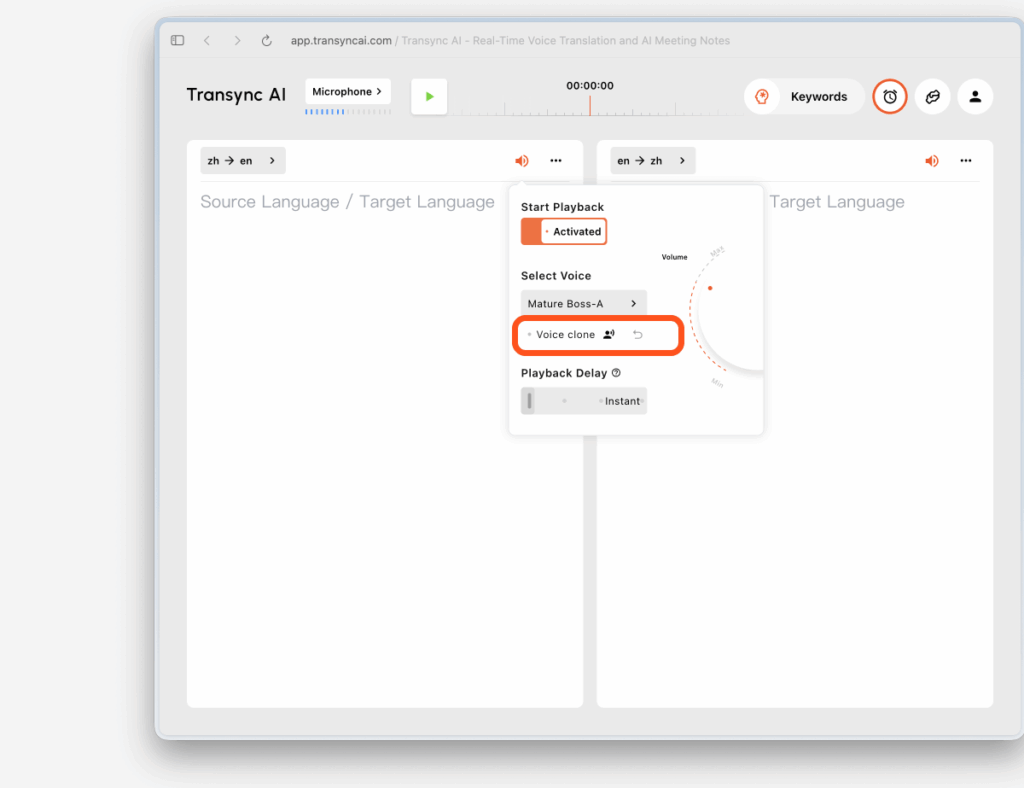
قبل أن تبدأ الترجمة، افتح إعدادات تشغيل الصوت للغة الهدف وقم بتشغيل كل من تشغيل الصوت واستنساخ الصوت.
وهذا يُهيئ أمرين في الوقت نفسه:
- سيتم تشغيل الكلام المترجم باستخدام الصوت الذي اخترته
- سيبدأ برنامج Voice Clone في تجهيز تسجيل صوتك بمجرد بدء عملية الترجمة
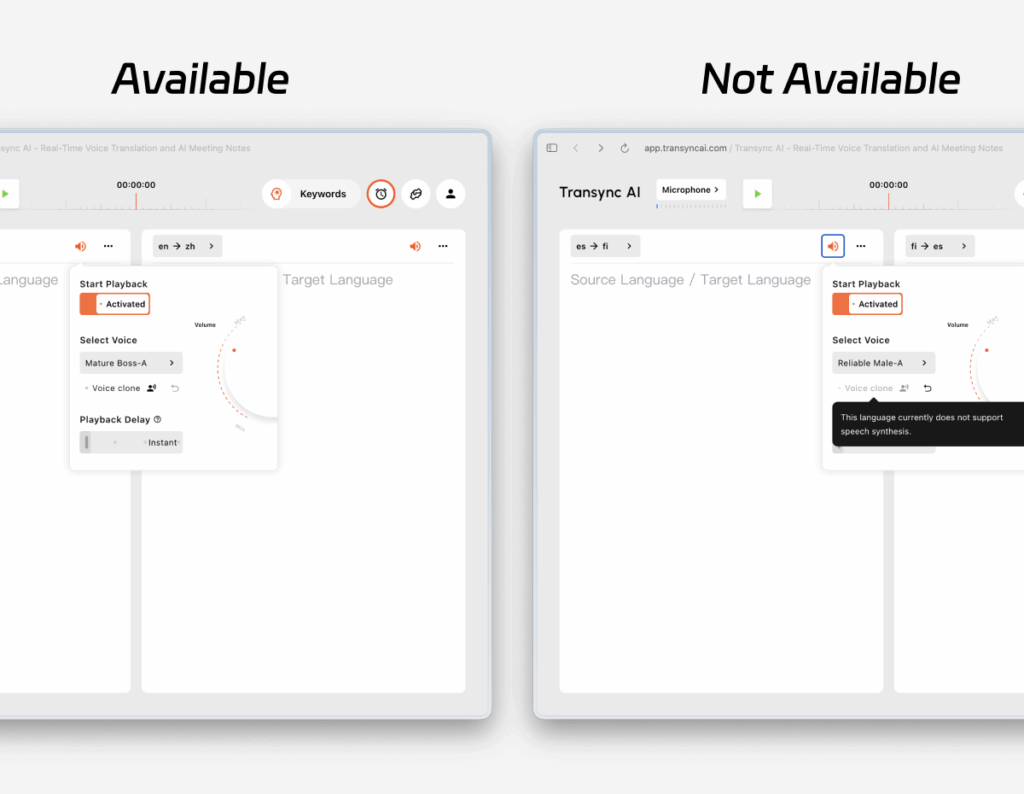
إذا كانت اللغة الحالية تدعم ميزة استنساخ الصوت، فسترى خيار استنساخ الصوت في إعدادات الصوت. أما إذا كانت اللغة غير مدعومة، فسيظهر الخيار غير متاح.
2. ابدأ الترجمة ودع برنامج Voice Clone يجمع صوتك #
بعد بدء الترجمة، سيبدأ التشغيل بالصوت الذي اخترته في إعدادات تشغيل الصوت.
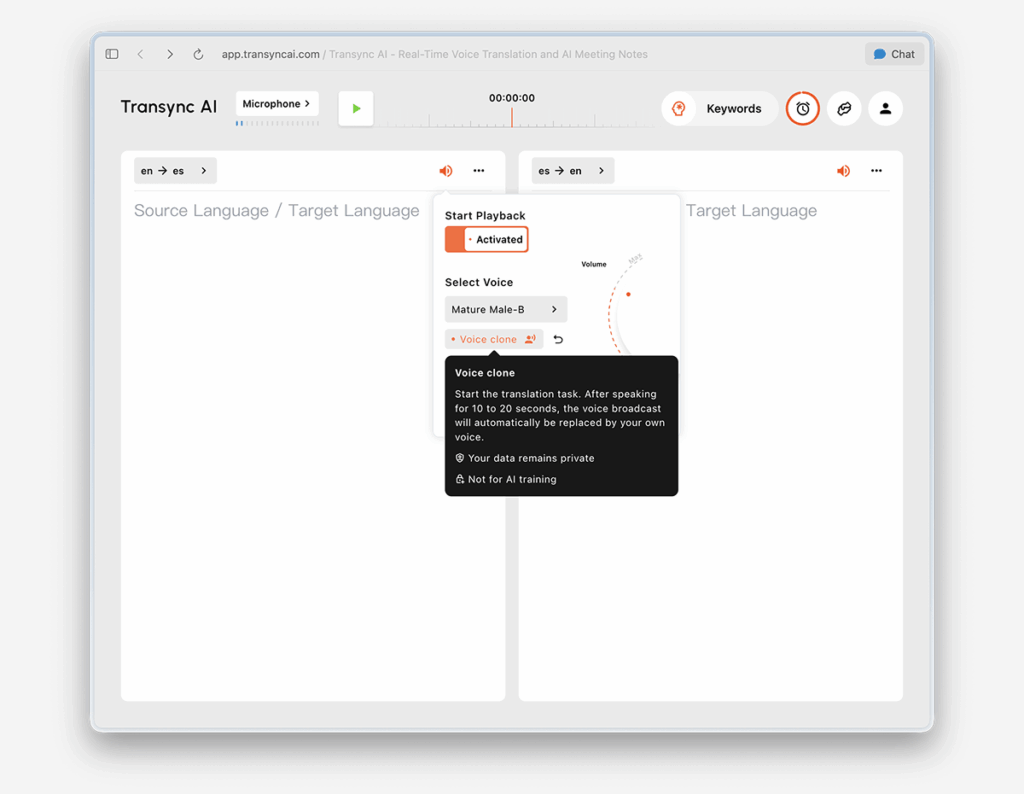
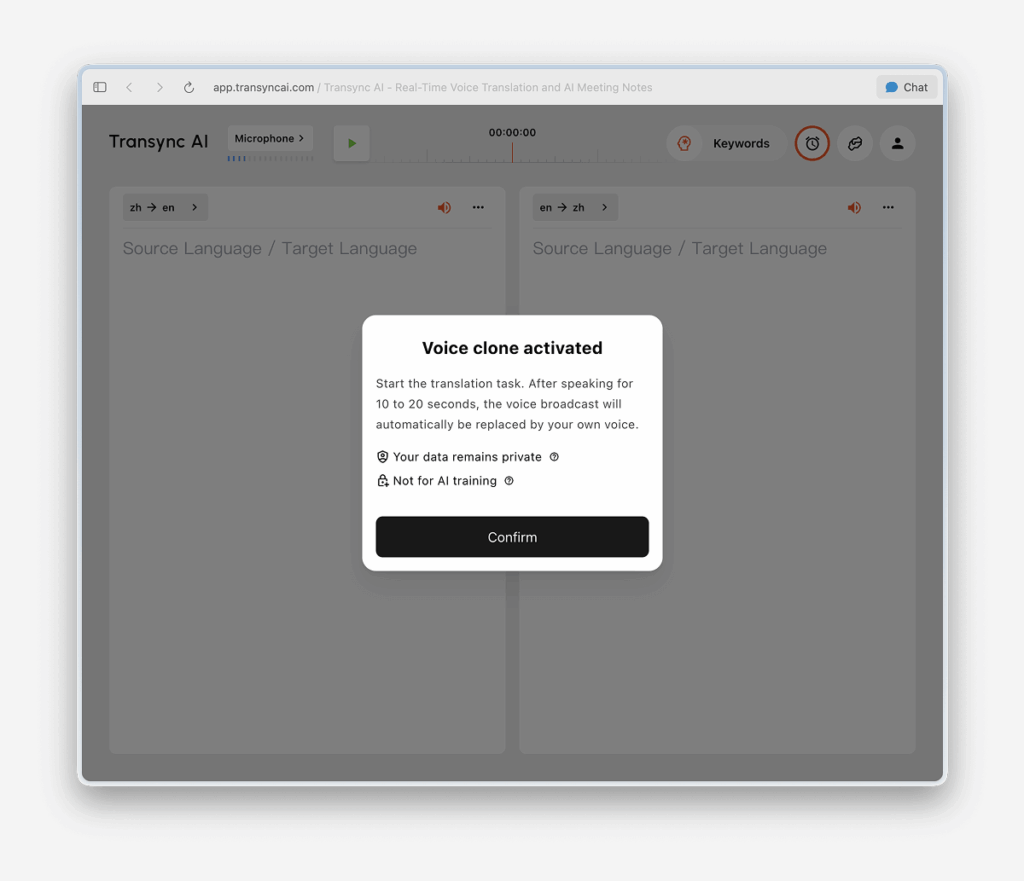
في الوقت نفسه، سيدخل تطبيق Voice Clone في وضع التجميع في الخلفية. استمر في التحدث بشكل طبيعي لمدة تتراوح بين 10 و20 ثانية حتى يتمكن برنامج Transync AI من التقاط بيانات صوتية كافية.
للحصول على أفضل النتائج، نوصي بما يلي:
- تحدث بشكل متواصل لمدة تتراوح بين 10 و 20 ثانية بدلاً من قراءة عبارة قصيرة جداً.
- استخدم سرعة كلام واضحة وطبيعية
- أكمل المجموعة الأولى في بيئة هادئة نسبياً
3. انتظر حتى يتحول التشغيل إلى صوتك المستنسخ #
لا يتم تفعيل خاصية استنساخ الصوت فوراً. خلال فترة التجميع، سيستمر تشغيل الترجمة باستخدام الصوت المحدد.
بعد حوالي 10 إلى 20 ثانية، ستظهر لك رسالة تنبيه:
يستخدم التشغيل الآن صوتك المستنسخ.
هذا يعني أن عملية جمع الصوت قد اكتملت وأن التشغيل قد تحول إلى صوتك المستنسخ.
إذا لم يتم التبديل كما هو متوقع، فجرب ما يلي:
- أبقِ جلسة الترجمة قيد التشغيل
- استمر في الحديث لفترة أطول قليلاً
- تأكد من أن الميكروفون يعمل بشكل صحيح وأن مستوى الضوضاء المحيطة منخفض.
- أعد محاولة استنساخ الصوت إذا لزم الأمر
4. استخدم صوتك المستنسخ في الاجتماعات القادمة #
بمجرد جمع نسخة الصوت بنجاح، لن تحتاج إلى جمعها مرة أخرى في اجتماعك التالي.
في الاجتماعات القادمة، يمكنك تشغيل تشغيل الصوت واستخدام صوتك المستنسخ الموجود لديك مباشرةً دون تكرار عملية الإعداد.
5. استخدمه عبر اللغات المدعومة #
بعد إنشاء نسخة الصوت بنجاح لمرة واحدة، يمكن استخدامها مع اللغات الأخرى التي تدعم هذه الميزة. في معظم الحالات، لا تحتاج إلى تكرار عملية جمع البيانات لكل لغة مستهدفة مدعومة.
يساعد هذا في الحفاظ على تجربة صوتية أكثر اتساقًا عند التبديل بين اللغات المدعومة.
6. ستظهر اللغات غير المدعومة على أنها غير متاحة #
خاصية استنساخ الصوت غير متاحة لجميع اللغات. بالنسبة للغات غير المدعومة حاليًا، سيظهر خيار استنساخ الصوت معطلاً، وعادةً ما يكون أقل شفافية.
عند تمرير مؤشر الماوس فوق الخيار المعطل، ستعرض Transync AI رسالة توضح أن ميزة استنساخ الصوت غير مدعومة لتلك اللغة. يمكنك الاستمرار في استخدام تشغيل الصوت العادي، ولكن لن يكون صوتك المستنسخ متاحًا لتلك اللغة بعد.
7. إعادة ضبط استنساخ الصوت #
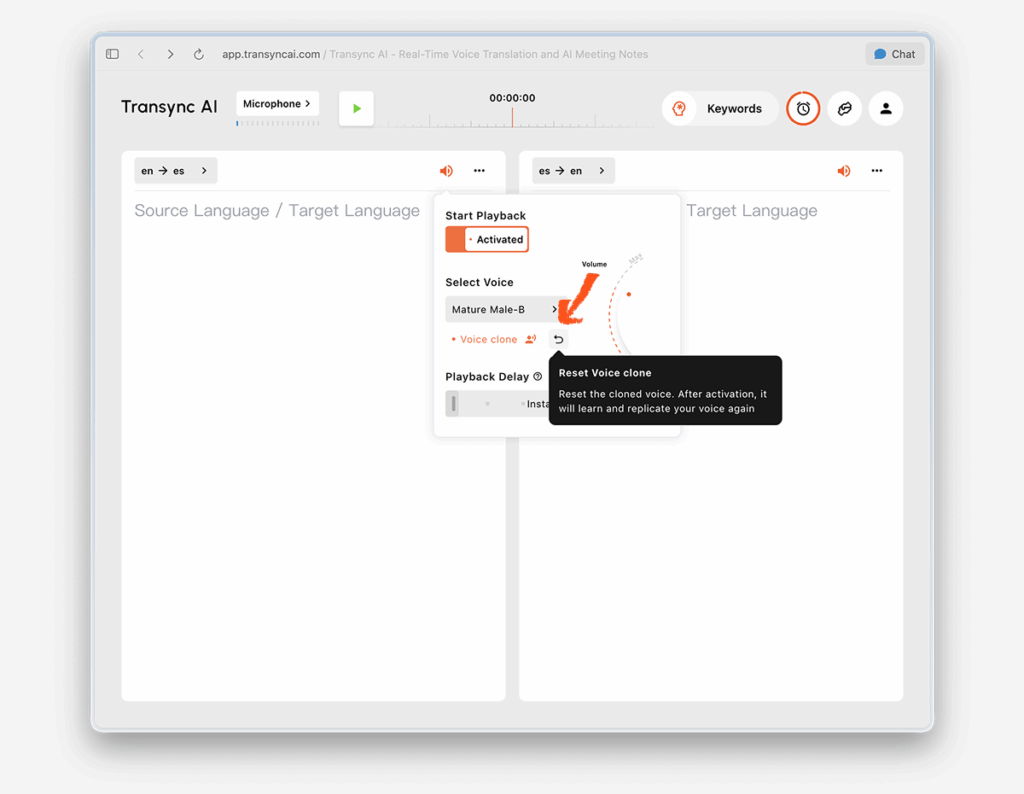
إذا كنت ترغب في إزالة النتيجة الحالية والحصول على نتيجة جديدة، فانقر فوق "إعادة تعيين استنساخ الصوت".
تؤدي إعادة الضبط إلى إزالة صوتك المستنسخ الحالي. بعد ذلك، في المرة القادمة التي تستخدم فيها ميزة استنساخ الصوت، سيقوم برنامج Transync AI بجمع صوتك مرة أخرى وإنشاء صوت مستنسخ جديد.
يُعد هذا مفيدًا إذا كنت ترغب في تحسين النتيجة أو إعادة إعداد النظام في بيئة أكثر هدوءًا.
خصوصية #
استنادًا إلى رسائل المنتج الحالية، تم تصميم Voice Clone وفقًا للمبادئ التالية:
- بيانات صوتك تبقى خاصة
- لا يتم استخدام بيانات صوتك لأغراض التدريب
للمزيد من المعلومات، انظر:
الأسئلة الشائعة #
هل يعمل تطبيق Voice Clone فوراً؟ #
لا. عند الاستخدام الأول، يحتاج برنامج Transync AI عادةً إلى ما بين 10 إلى 20 ثانية لجمع صوتك. خلال هذه الفترة، يستمر التشغيل بالصوت الذي اخترته. بمجرد اكتمال عملية الجمع، ستلاحظ أن التشغيل يستخدم الآن صوتك المستنسخ.
هل أحتاج إلى استنساخ صوتي بشكل منفصل لكل لغة؟ #
عادةً لا. بعد الإعداد الناجح، يمكن إعادة استخدام صوتك المستنسخ في الاجتماعات المستقبلية وعبر لغات أخرى تدعم خاصية استنساخ الصوت.
ماذا لو كانت اللغة لا تدعم خاصية استنساخ الصوت؟ #
لا يزال بإمكانك استخدام تشغيل الصوت القياسي لتلك اللغة. لكن ميزة استنساخ الصوت لن تكون متاحة هناك بعد.
يتوفر تطبيق Voice Clone حاليًا للغات الصينية (الماندرين)، والإنجليزية، والإسبانية، والروسية، والإيطالية، والفرنسية، والكورية، واليابانية، والألمانية، والبرتغالية.
ماذا لو أردت تسجيل صوتي مرة أخرى؟ #
استخدم خاصية "إعادة ضبط استنساخ الصوت" لمسح النسخة المستنسخة الحالية. بعد ذلك، اتبع خطوات التجميع مرة أخرى لإنشاء نسخة جديدة.


