
Voice Clone memungkinkan Transync AI menggunakan suara yang terdengar lebih mirip dengan suara Anda sendiri selama pemutaran suara. Setelah diaktifkan, Anda tidak perlu lagi hanya mengandalkan suara yang sudah diatur sebelumnya, sehingga pemutaran terjemahan terasa lebih alami dan personal di seluruh percakapan.
Sebelum memulai, pastikan Anda memahami cara memulai terjemahan waktu nyata dan menggunakan pemutaran suara:
- Mulai Cepat
- Cara Memulai Penerjemahan Waktu Nyata
- Cara Menggunakan Pemutaran Suara di Transync AI
- Cara Berbagi Audio Komputer
Jika Anda ingin memeriksa terlebih dahulu apakah suatu bahasa mendukung terjemahan, lihat Bahasa yang Didukung
Voice Clone saat ini didukung untuk bahasa-bahasa berikut:
- Bahasa Mandarin (Tionghoa)
- Bahasa inggris
- Spanyol
- Rusia
- Italia
- Perancis
- Korea
- Jepang
- Jerman
- Portugis
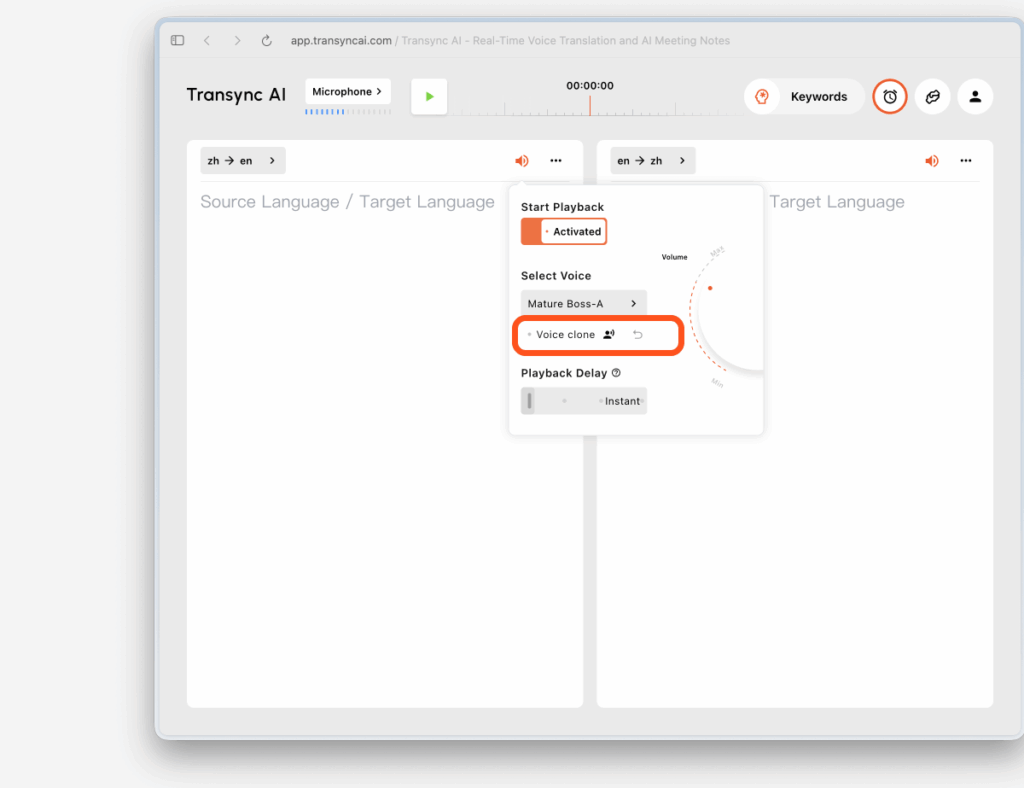
1. Aktifkan Pemutaran Suara dan Penggandaan Suara sebelum terjemahan dimulai. #
Sebelum memulai penerjemahan, buka pengaturan pemutaran suara untuk bahasa target dan aktifkan Pemutaran Suara dan Kloning Suara.
Hal ini menyiapkan dua hal sekaligus:
- Ucapan yang telah diterjemahkan akan diputar menggunakan suara yang Anda pilih.
- Voice Clone akan mulai bersiap untuk mengumpulkan suara Anda begitu proses penerjemahan dimulai.
Jika bahasa yang digunakan saat ini mendukung Kloning Suara, Anda akan melihat opsi Kloning Suara di pengaturan suara. Jika bahasa tersebut tidak didukung, opsi tersebut akan tampak tidak tersedia.
2. Mulai penerjemahan dan biarkan Voice Clone mengumpulkan suara Anda #
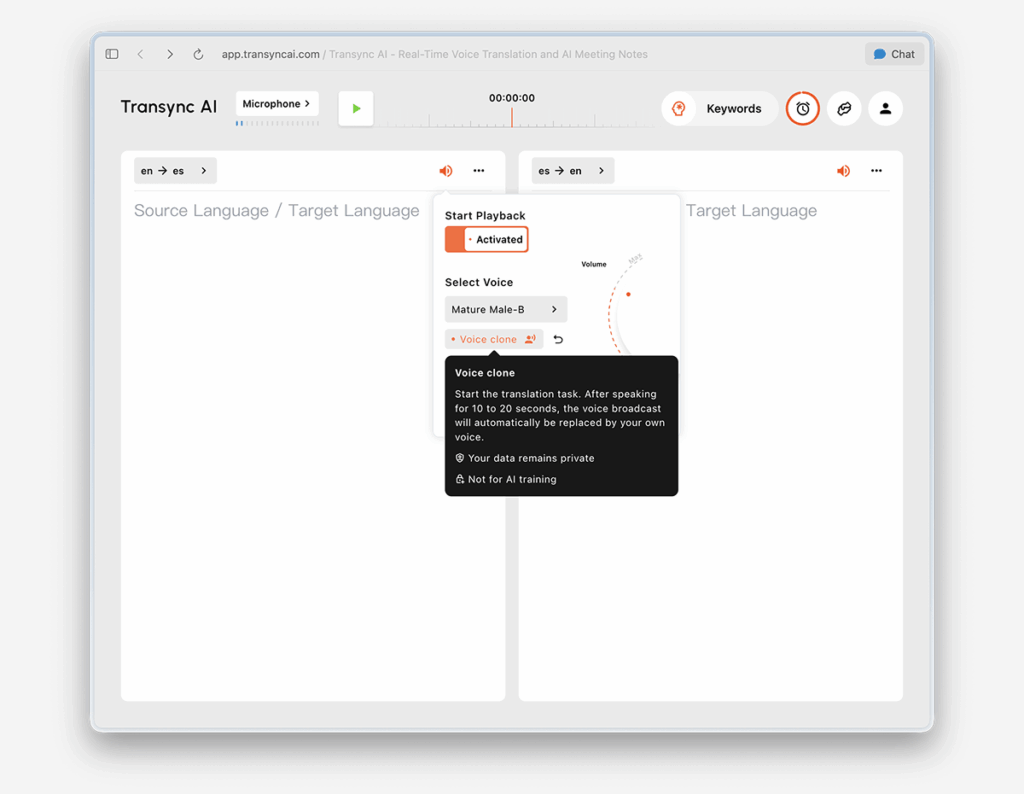
Setelah proses penerjemahan dimulai, pemutaran akan dimulai dengan suara yang Anda pilih di pengaturan pemutaran suara.
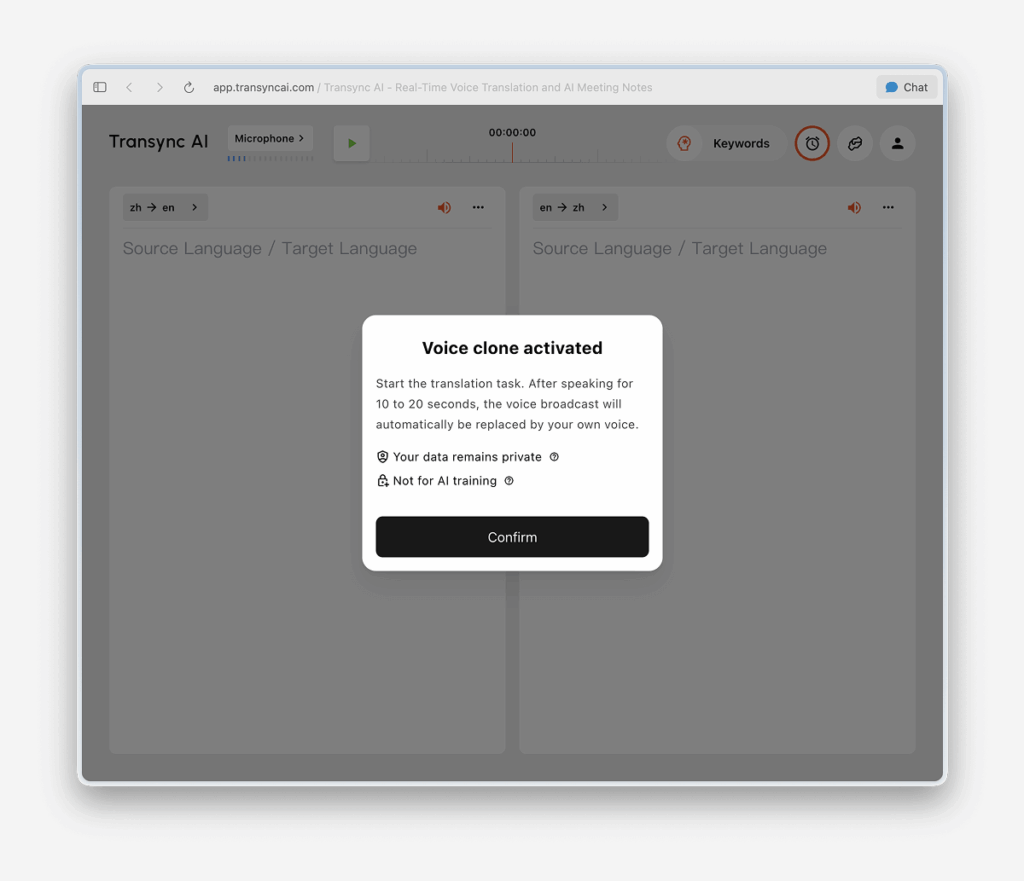
Pada saat yang sama, Voice Clone akan memasuki mode pengumpulan data di latar belakang. Teruslah berbicara secara alami selama sekitar 10 hingga 20 detik agar Transync AI dapat menangkap data suara yang cukup.
Untuk hasil terbaik, kami menyarankan Anda untuk:
- Bicaralah terus menerus selama 10 hingga 20 detik, alih-alih hanya membaca frasa yang sangat pendek.
- Gunakan kecepatan berbicara yang jelas dan alami.
- Selesaikan pengumpulan pertama di lingkungan yang relatif tenang.
3. Tunggu hingga pemutaran beralih ke suara kloning Anda. #
Fitur Kloning Suara tidak langsung berlaku. Selama periode pengumpulan data, pemutaran terjemahan akan terus menggunakan suara yang dipilih.
Setelah sekitar 10 hingga 20 detik, Anda akan melihat pesan pop-up:
Pemutaran sekarang menggunakan suara Anda yang telah dikloning.
Ini berarti pengumpulan suara telah selesai dan pemutaran telah beralih ke suara hasil kloning Anda.
Jika peralihan tidak terjadi seperti yang diharapkan, coba hal berikut:
- Pertahankan sesi penerjemahan tetap berjalan.
- Lanjutkan berbicara sedikit lebih lama.
- Pastikan mikrofon Anda berfungsi dengan baik dan kebisingan latar belakang diminimalkan.
- Coba lagi Kloning Suara jika diperlukan.
4. Gunakan suara kloningan Anda dalam rapat-rapat mendatang. #
Setelah Voice Clone berhasil dikumpulkan, Anda tidak perlu mengumpulkannya lagi di pertemuan berikutnya.
Pada rapat mendatang, Anda dapat mengaktifkan pemutaran suara dan menggunakan suara hasil kloning yang sudah ada secara langsung tanpa perlu mengulangi alur pengaturan.
5. Gunakan di berbagai bahasa yang didukung #
Setelah Voice Clone berhasil dibuat sekali, ia dapat digunakan di berbagai bahasa lain yang mendukung fitur ini. Dalam kebanyakan kasus, Anda tidak perlu mengulangi proses pengumpulan untuk setiap bahasa target yang didukung.
Ini membantu menjaga pengalaman suara Anda lebih konsisten saat beralih antara bahasa yang didukung.
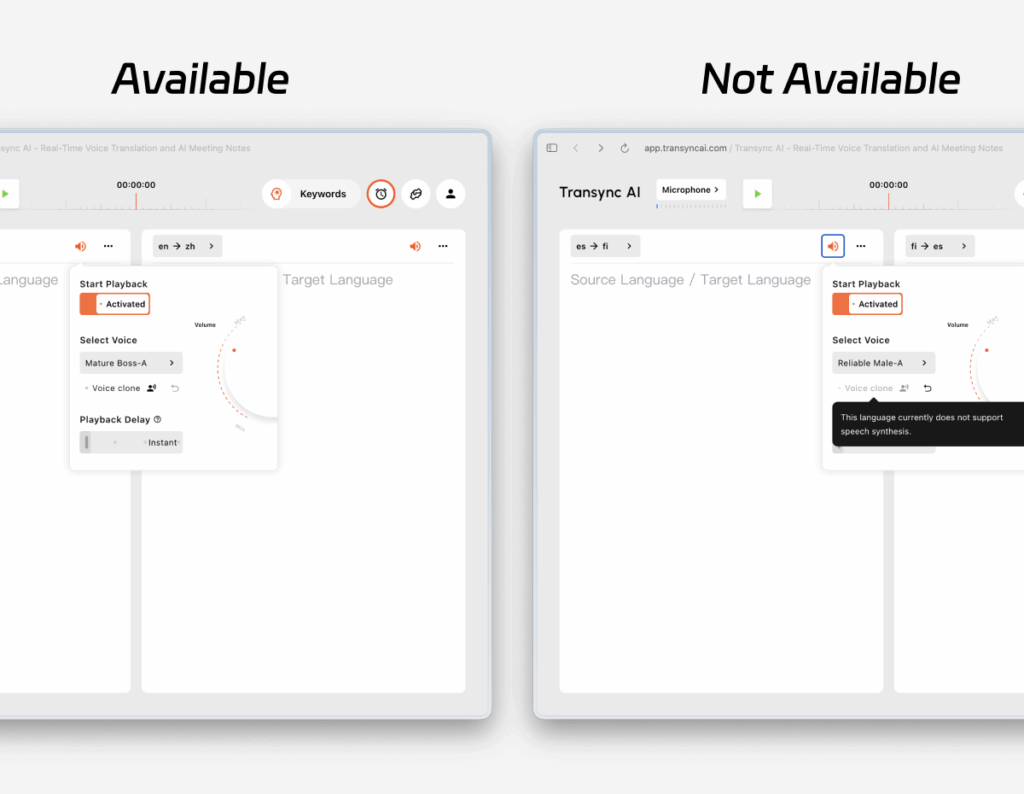
6. Bahasa yang tidak didukung akan tampak tidak tersedia. #
Fitur Kloning Suara tidak tersedia untuk semua bahasa. Untuk bahasa yang saat ini belum didukung, opsi Kloning Suara akan tampak dinonaktifkan, biasanya dengan opasitas yang berkurang.
Saat Anda mengarahkan kursor ke opsi yang dinonaktifkan, Transync AI akan menampilkan pesan yang menjelaskan bahwa Kloning Suara tidak didukung untuk bahasa tersebut. Anda masih dapat menggunakan pemutaran suara biasa, tetapi suara hasil kloning Anda belum tersedia untuk bahasa tersebut.
7. Atur Ulang Klon Suara #
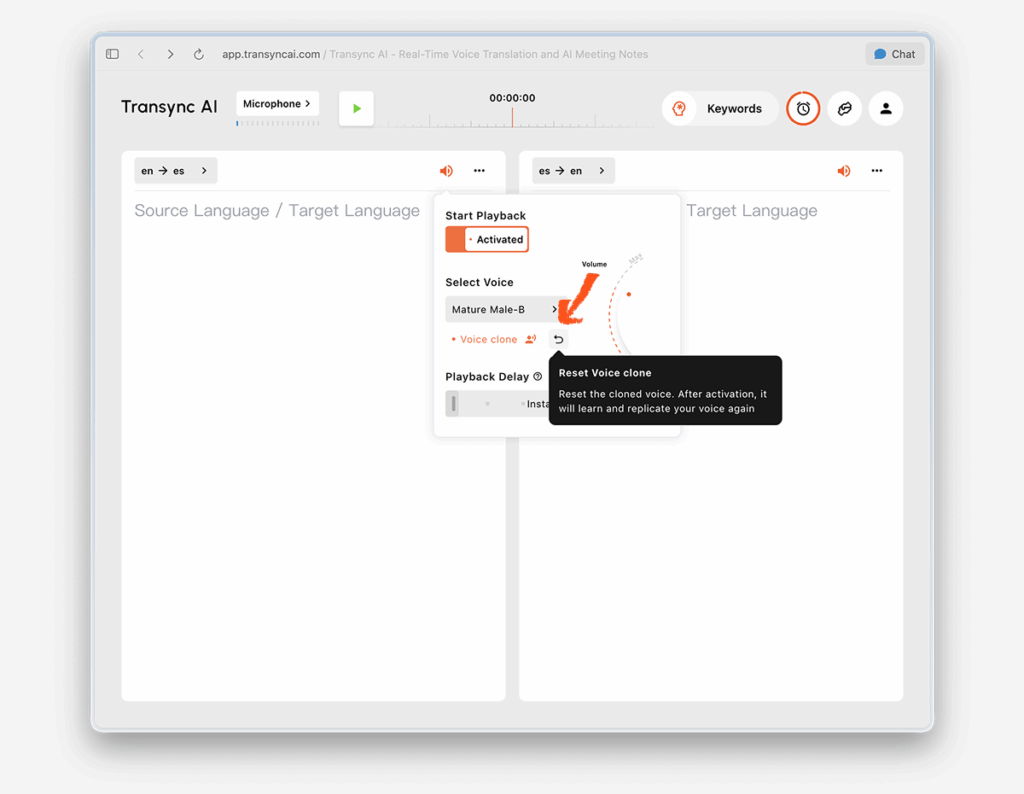
Jika Anda ingin menghapus hasil saat ini dan mengumpulkan hasil yang baru, klik Reset Voice Clone.
Mengatur ulang akan menghapus suara kloning Anda yang sudah ada. Setelah itu, lain kali Anda menggunakan Klon Suara, Transync AI akan mengumpulkan suara Anda lagi dan membuat suara kloning baru.
Ini berguna jika Anda ingin meningkatkan hasil atau mengatur ulang pengaturan di lingkungan yang lebih tenang.
Pribadi #
Berdasarkan pesan produk saat ini, Voice Clone dirancang dengan prinsip-prinsip berikut:
- Data suara Anda tetap terjaga kerahasiaannya.
- Data suara Anda tidak digunakan untuk pelatihan.
Untuk mempelajari lebih lanjut, lihat:
Tanya Jawab Umum #
Apakah Voice Clone langsung berfungsi? #
Tidak. Saat pertama kali digunakan, Transync AI biasanya membutuhkan waktu sekitar 10 hingga 20 detik untuk mengumpulkan suara Anda. Selama waktu tersebut, pemutaran berlanjut dengan suara yang Anda pilih. Setelah pengumpulan selesai, Anda akan melihat "Pemutaran sekarang menggunakan suara kloning Anda.".
Apakah saya perlu mengkloning suara saya secara terpisah untuk setiap bahasa? #
Biasanya tidak. Setelah pengaturan berhasil, suara hasil kloning Anda dapat digunakan kembali dalam rapat mendatang dan di berbagai bahasa lain yang mendukung Kloning Suara.
Bagaimana jika suatu bahasa tidak mendukung Voice Clone? #
Anda masih dapat menggunakan pemutaran suara standar untuk bahasa tersebut. Hanya saja, Voice Clone belum tersedia di sana.
Voice Clone saat ini tersedia untuk bahasa Mandarin, Inggris, Spanyol, Rusia, Italia, Prancis, Korea, Jepang, Jerman, dan Portugis.
Bagaimana jika saya ingin merekam suara saya lagi? #
Gunakan Reset Voice Clone untuk menghapus klon yang ada. Setelah itu, ulangi proses pengumpulan untuk membuat klon baru.


