




Apa itu Pemisahan Speaker?
Pemisahan Pembicara, juga disebut diarization pembicara, mengidentifikasi suara yang berbeda dan memberi label pada segmen transkrip sehingga Anda dapat melihat siapa yang mengatakan apa selama percakapan multibahasa.
Secara otomatis mengidentifikasi siapa yang mengatakan apa selama percakapan multibahasa, kemudian mengganti nama atau menugaskan kembali pembicara untuk catatan rapat yang lebih jelas.
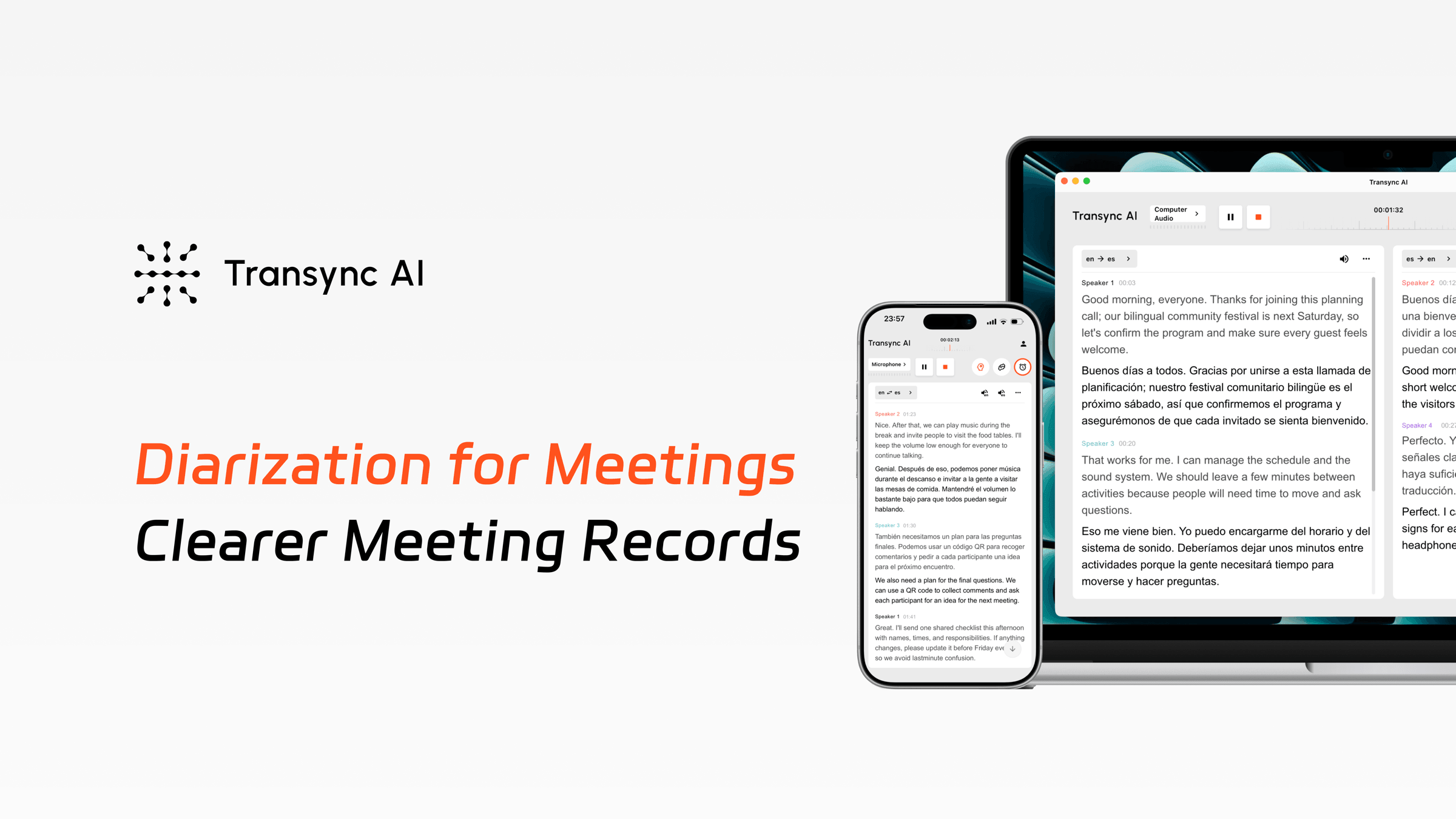
Fitur Pemisahan Pembicara secara otomatis mengatur percakapan berdasarkan pembicara, sehingga tim dapat mengikuti diskusi dengan lebih mudah selama penerjemahan langsung dan meninjau rekaman yang lebih rapi setelahnya.
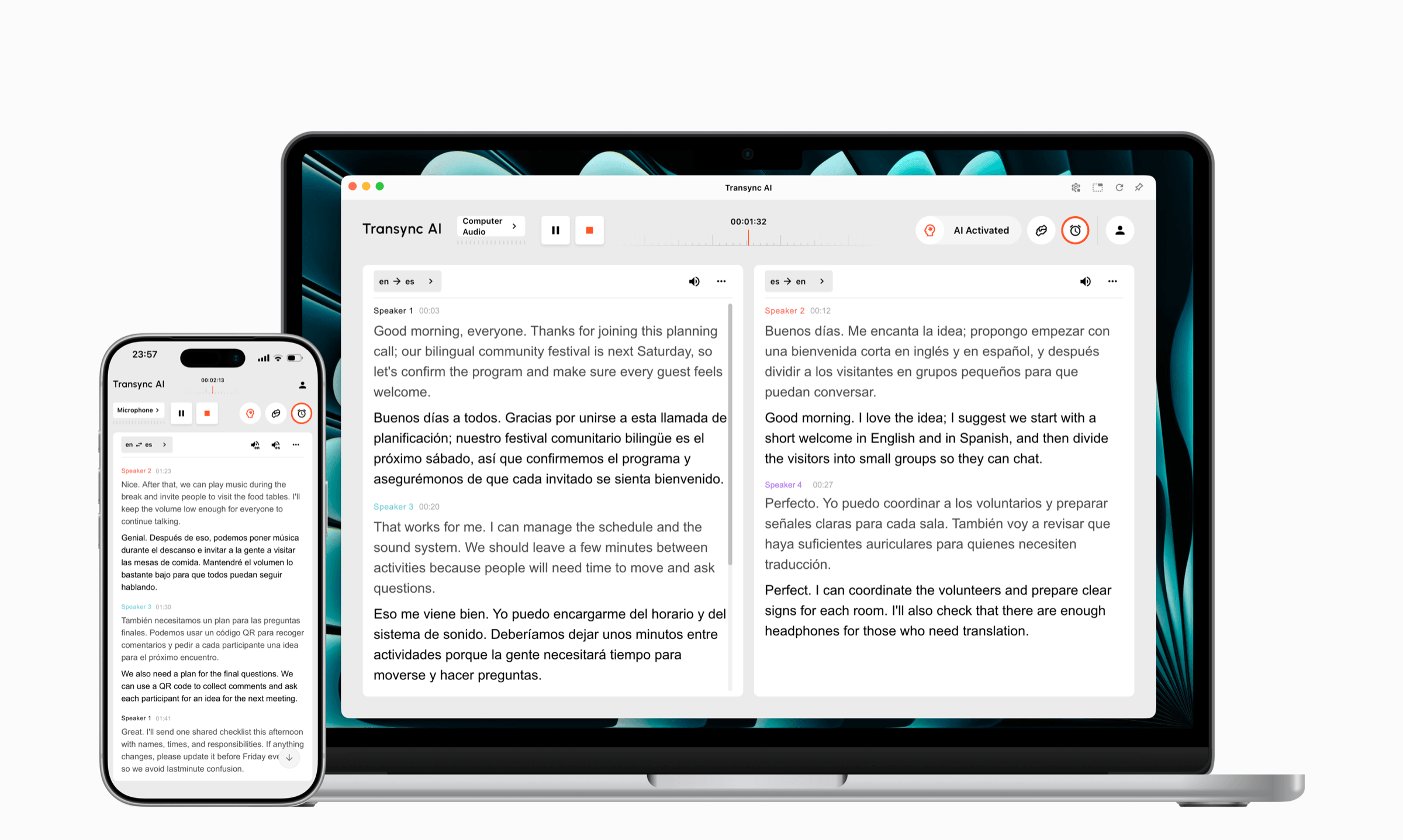
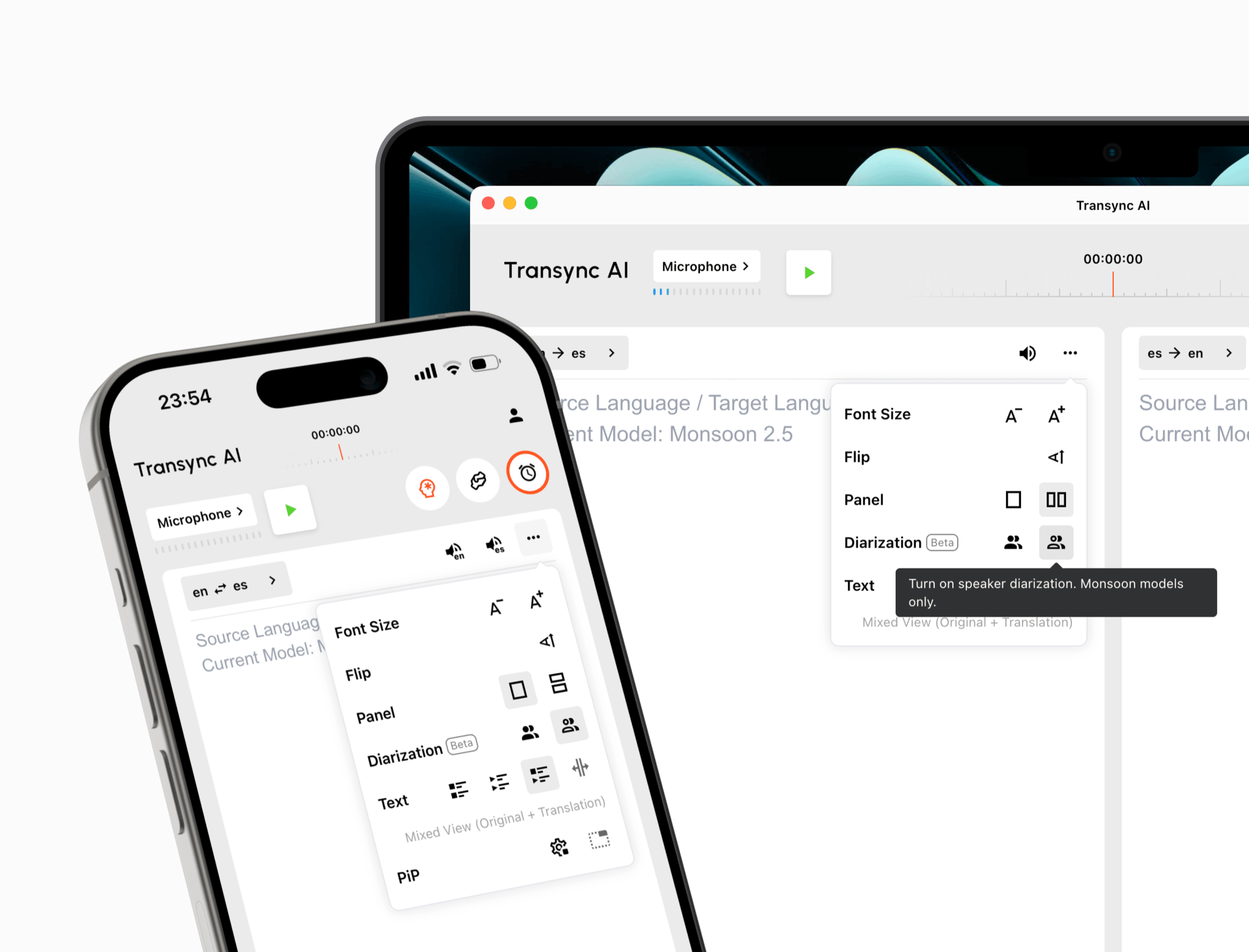
Menyalakan Diarisasi (Beta) dari panel terjemahan sebelum percakapan dimulai. Transync AI kemudian secara otomatis memberi label pada pembicara yang berbeda dengan nama yang jelas dan diberi kode warna seperti Pembicara 1, Pembicara 2, dan Pembicara 3.
Label pembicara muncul selama penerjemahan langsung, tetap tersedia dalam rekaman yang tersimpan, dan juga ditampilkan dalam ringkasan rapat yang dihasilkan AI, sehingga memudahkan untuk melihat siapa yang memberikan kontribusi pada setiap poin penting.
Ganti label umum dengan nama atau peran seseorang, seperti Jessica, Host, Pewawancara, atau Pelanggan. Pembicara yang namanya diganti akan diperbarui di seluruh catatan rapat, sehingga diskusi panjang lebih mudah dipindai dan dibagikan.
Anda juga dapat menyesuaikan warna speaker agar suara masing-masing karakter lebih mudah dibedakan.
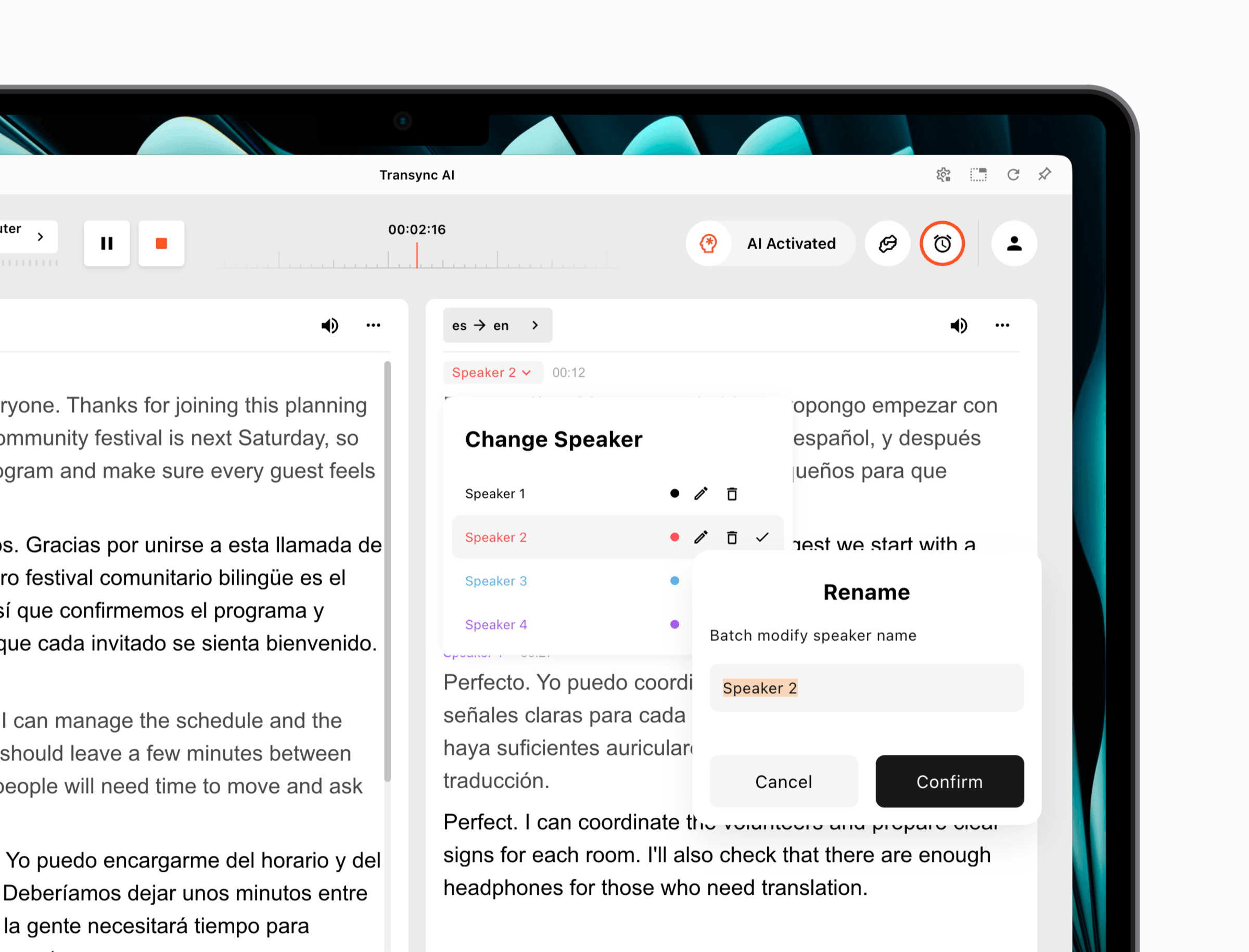
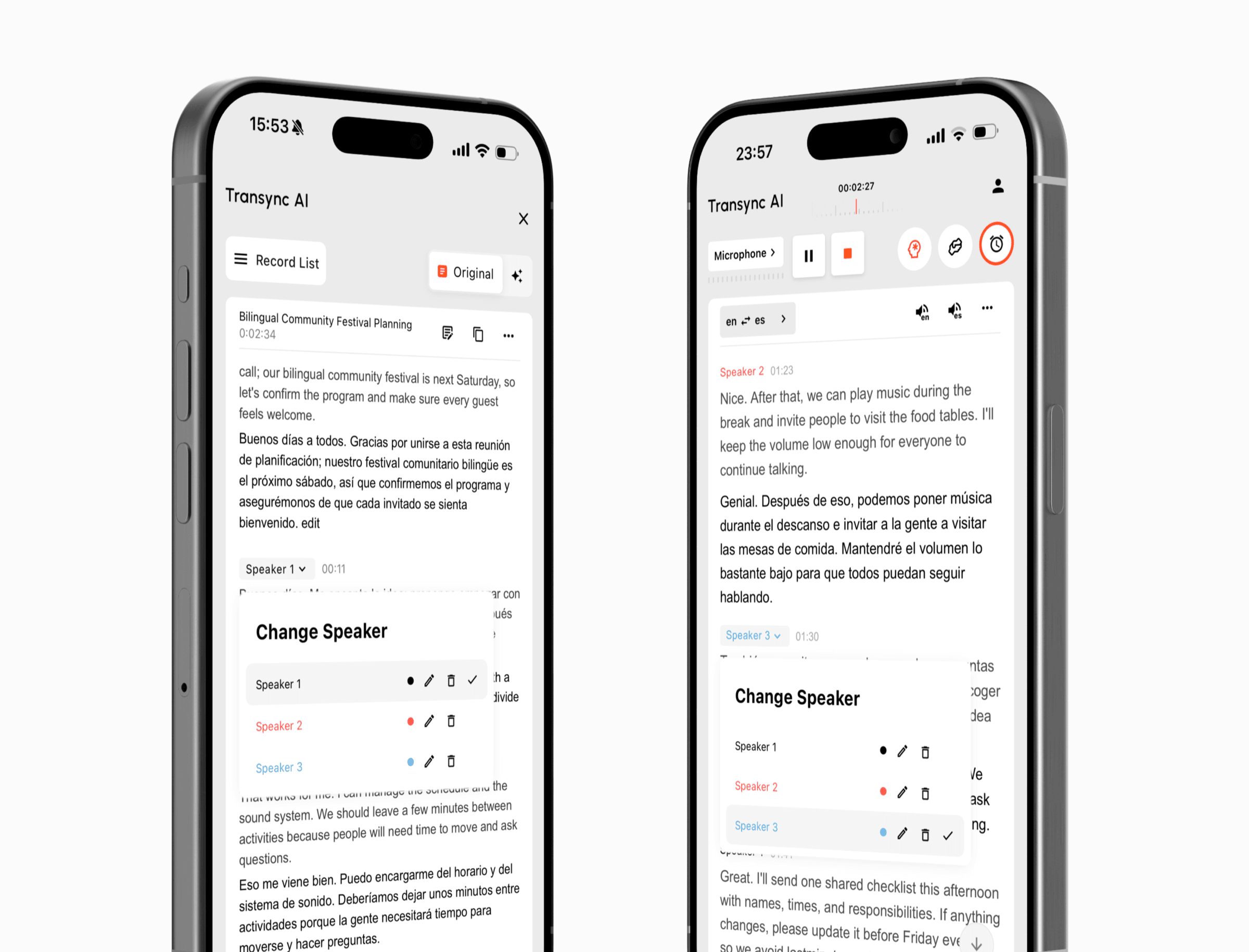
Jika segmen transkrip ditugaskan kepada orang yang salah, buka Ganti Pembicara dan pilih pembicara yang tepat. Ini memberi Anda cara praktis untuk membersihkan catatan tanpa harus menulis ulang percakapan.
Tinjau kembali penugasan pembicara sebelum membagikan rekaman atau menggunakannya dalam alur kerja tindak lanjut rapat.
Pemisahan Pembicara AI, juga dikenal sebagai diarization pembicara, mengidentifikasi suara-suara berbeda dalam sebuah percakapan dan memberi label pada segmen transkrip berdasarkan pembicara.
Buka panel terjemahan sebelum memulai tugas dan aktifkan Diarisasi (Beta). Opsi ini tersedia saat Anda menggunakan model Monsoon yang didukung.
Ya. Buka menu pembicara dan ganti nama label umum seperti Pembicara 1 menjadi nama atau peran seseorang. Nama baru tersebut akan diterapkan di seluruh catatan rapat.
Ya. Pilih segmen transkrip, lalu buka. Ganti Pembicara, dan menugaskannya ke pembicara yang tepat.
Label pembicara dapat muncul selama penerjemahan langsung dan dalam catatan terjemahan yang tersimpan, sehingga Anda dapat mengikuti diskusi secara real-time dan mengaturnya setelahnya.
Fitur ini masih dalam tahap penyempurnaan. Penugasan pembicara harus ditinjau ulang ketika rekaman berisi ucapan yang tumpang tindih, kebisingan latar belakang, atau suara yang mirip.
Gunakan Pemisahan Speaker dengan Terjemahan Waktu Nyata Dan Catatan Rapat AI untuk membuat catatan rapat multibahasa yang lebih jelas.
Jawaban singkat tentang label pembicara, pencatatan harian, penyuntingan transkrip, rekaman tersimpan, dan akurasi Beta.
Pemisahan Pembicara, juga disebut diarization pembicara, mengidentifikasi suara yang berbeda dan memberi label pada segmen transkrip sehingga Anda dapat melihat siapa yang mengatakan apa selama percakapan multibahasa.
Cocok untuk rapat tim, wawancara, kelas, kuliah, dan percakapan pelanggan di mana beberapa orang berbicara dan rekaman membutuhkan atribusi pembicara yang jelas.
Aktifkan Diarization (Beta) sebelum memulai tugas penerjemahan yang didukung. Transync AI secara otomatis menetapkan label berkode warna seperti Pembicara 1 dan Pembicara 2.
Label pembicara dapat muncul saat orang berbicara, sehingga memudahkan untuk mengikuti diskusi multibahasa dengan beberapa suara secara real time.
Label-label tersebut tetap tersimpan dalam catatan terjemahan sehingga Anda dapat meninjau kontribusi, keputusan, pertanyaan, dan hal-hal yang perlu ditindaklanjuti setelah percakapan.
Anda dapat mengganti label umum dengan nama atau peran, menyesuaikan warna pembicara, dan menggunakan Ubah Pembicara untuk menetapkan ulang segmen transkrip bila diperlukan.
Pemisahan suara antar pembicara masih terus ditingkatkan. Tinjau kembali tugas ketika percakapan mencakup ucapan yang tumpang tindih, kebisingan latar belakang, atau suara yang terdengar mirip.