




화자 분리란 무엇인가요?
화자 분리(화자 분할이라고도 함)는 서로 다른 목소리를 식별하고 대화록의 각 부분을 표시하여 다국어 대화에서 누가 무슨 말을 했는지 알 수 있도록 해줍니다.
다국어 대화 중 누가 무슨 말을 했는지 자동으로 식별하고, 회의 기록을 더욱 명확하게 하기 위해 화자의 이름을 바꾸거나 담당자를 변경합니다.
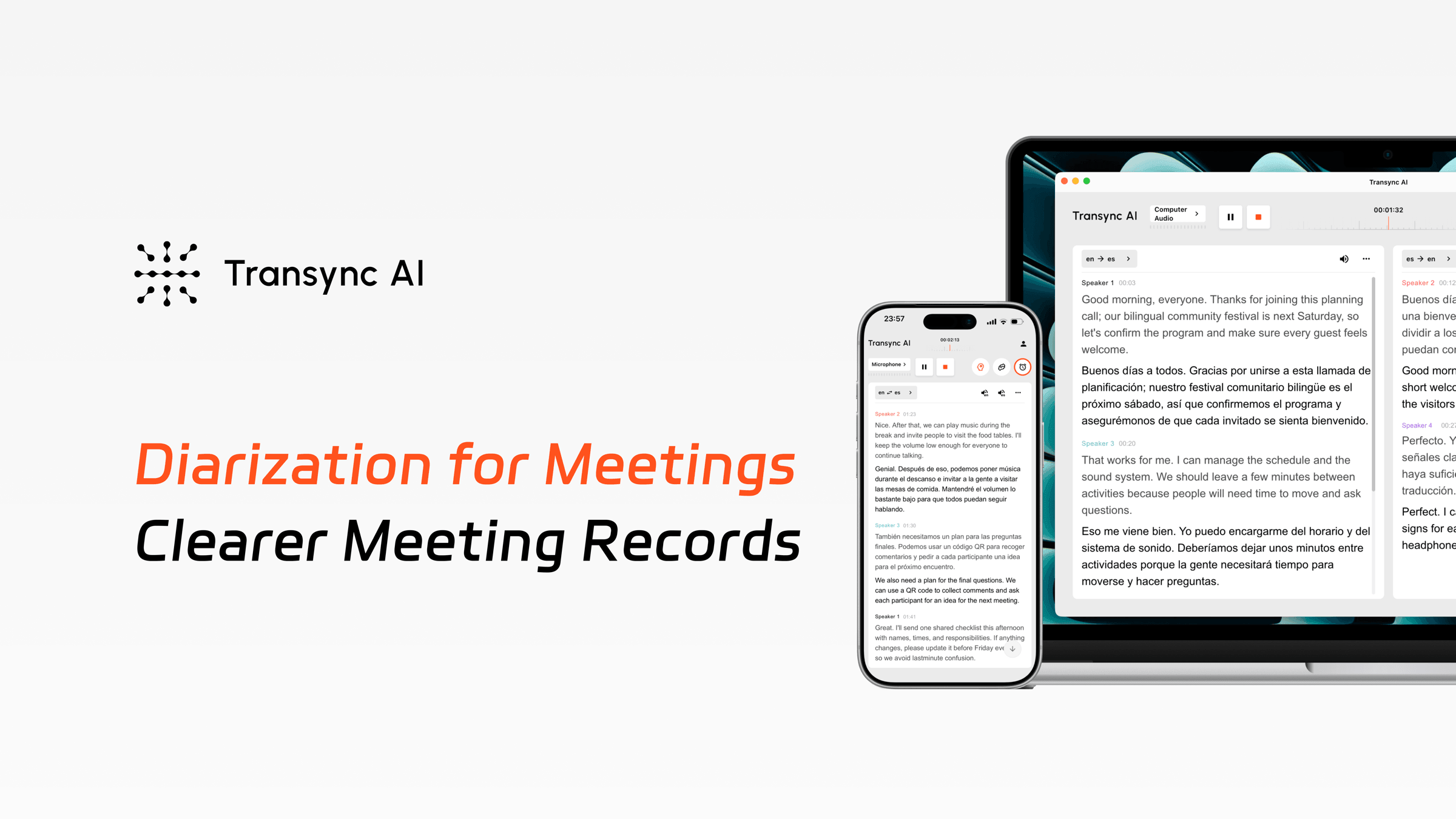
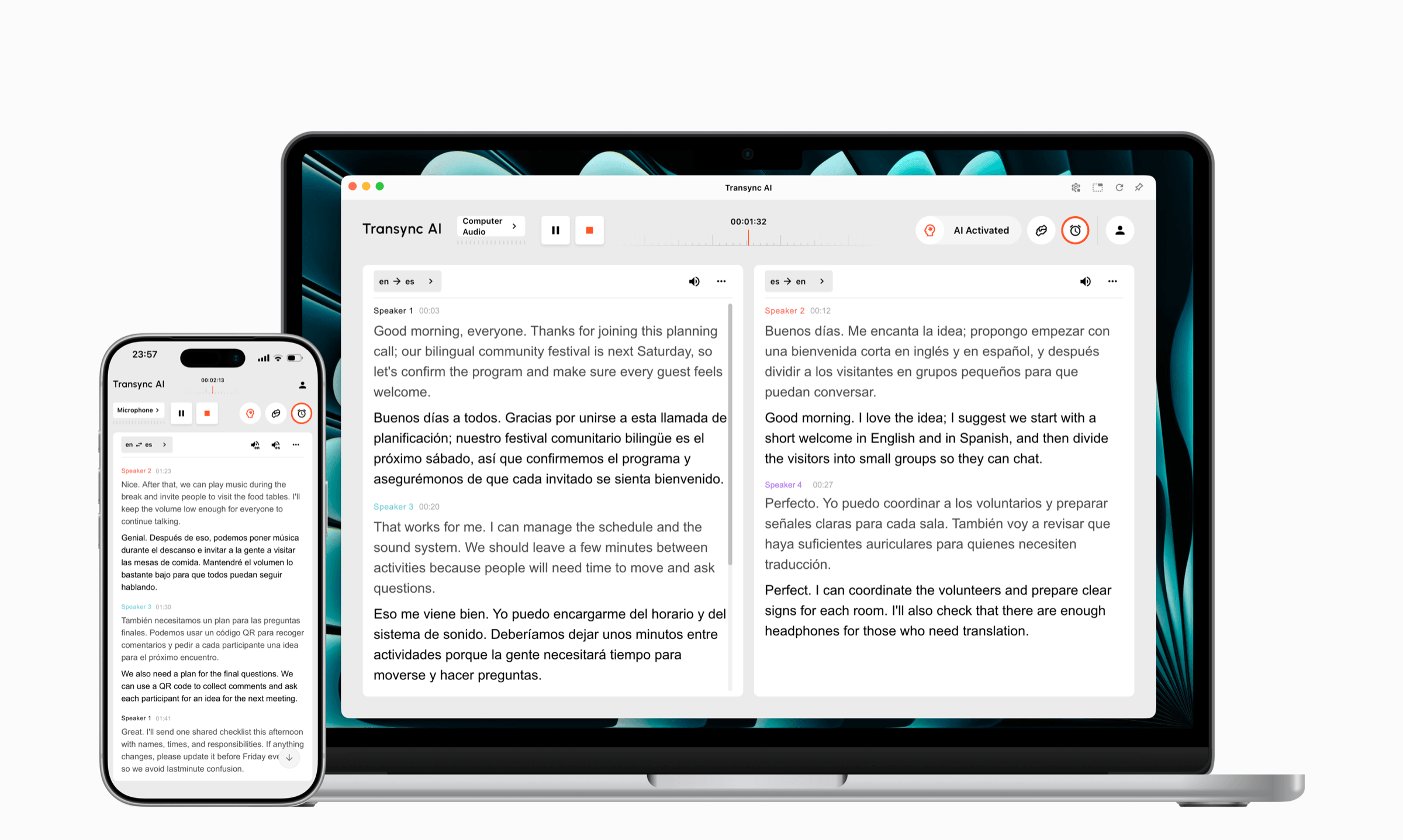
화자 분리 기능은 대화를 화자별로 자동 정리하여 팀원들이 실시간 번역 중에 토론 내용을 더 쉽게 파악하고 번역 후 정리된 기록을 검토할 수 있도록 도와줍니다.
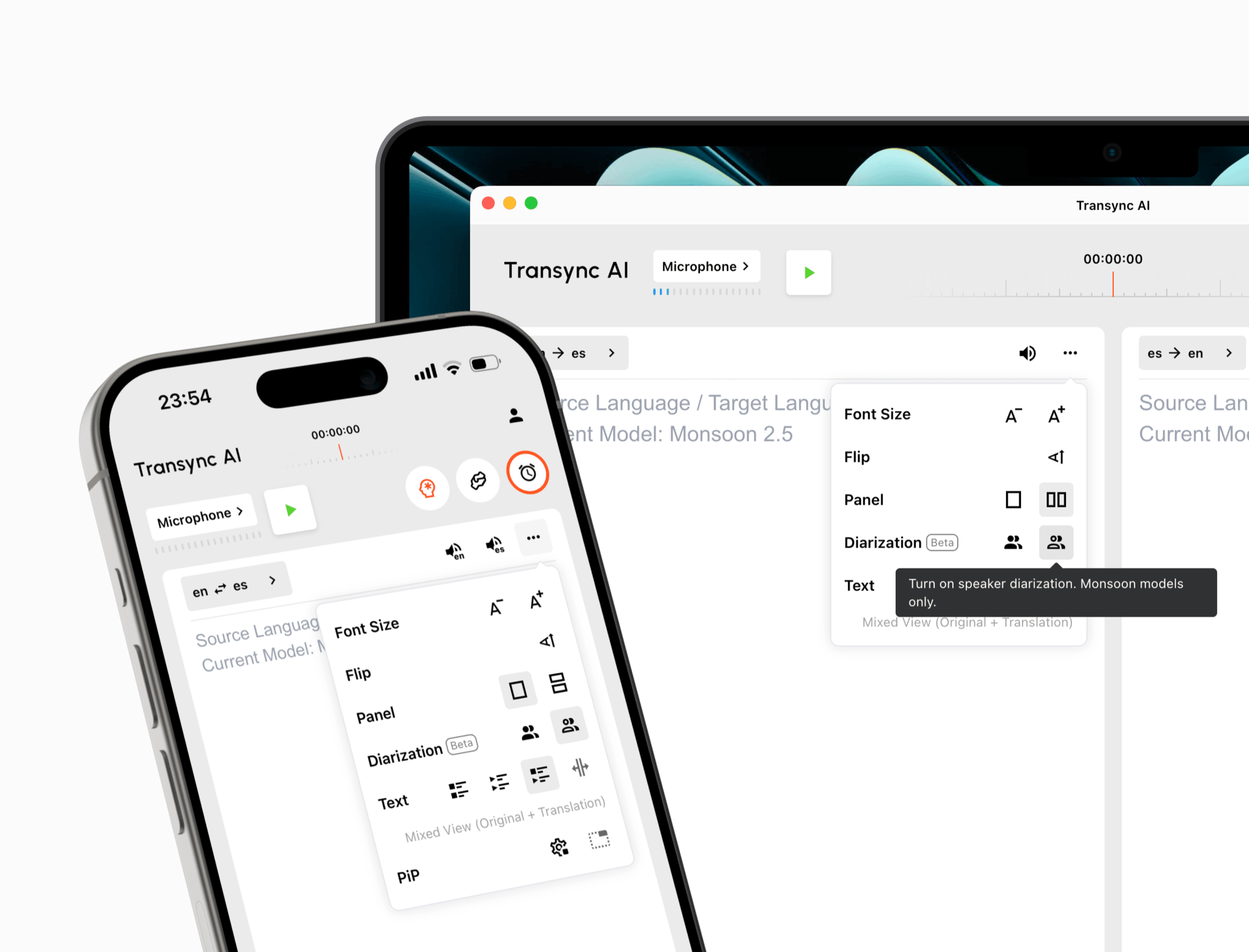
켜기 화자 분리(베타) 대화가 시작되기 전 번역 패널에서 화자를 입력할 수 있습니다. 그러면 Transync AI가 화자 1, 화자 2, 화자 3과 같이 명확하고 색상으로 구분된 이름으로 화자를 자동으로 표시합니다.
실시간 번역 중에 발신자 라벨이 표시되고, 저장된 기록에도 유지되며, AI가 생성한 회의 요약에도 표시되므로 각 핵심 사항에 누가 기여했는지 쉽게 확인할 수 있습니다.
일반적인 레이블을 제시카, 호스트, 인터뷰어, 고객과 같은 담당자 이름이나 역할로 바꾸세요. 발표자 이름이 변경되면 회의 기록 전체에 업데이트되어 긴 토론 내용을 더 쉽게 훑어보고 공유할 수 있습니다.
스피커 색상을 조정하여 개별 음성을 더 쉽게 구분할 수도 있습니다.
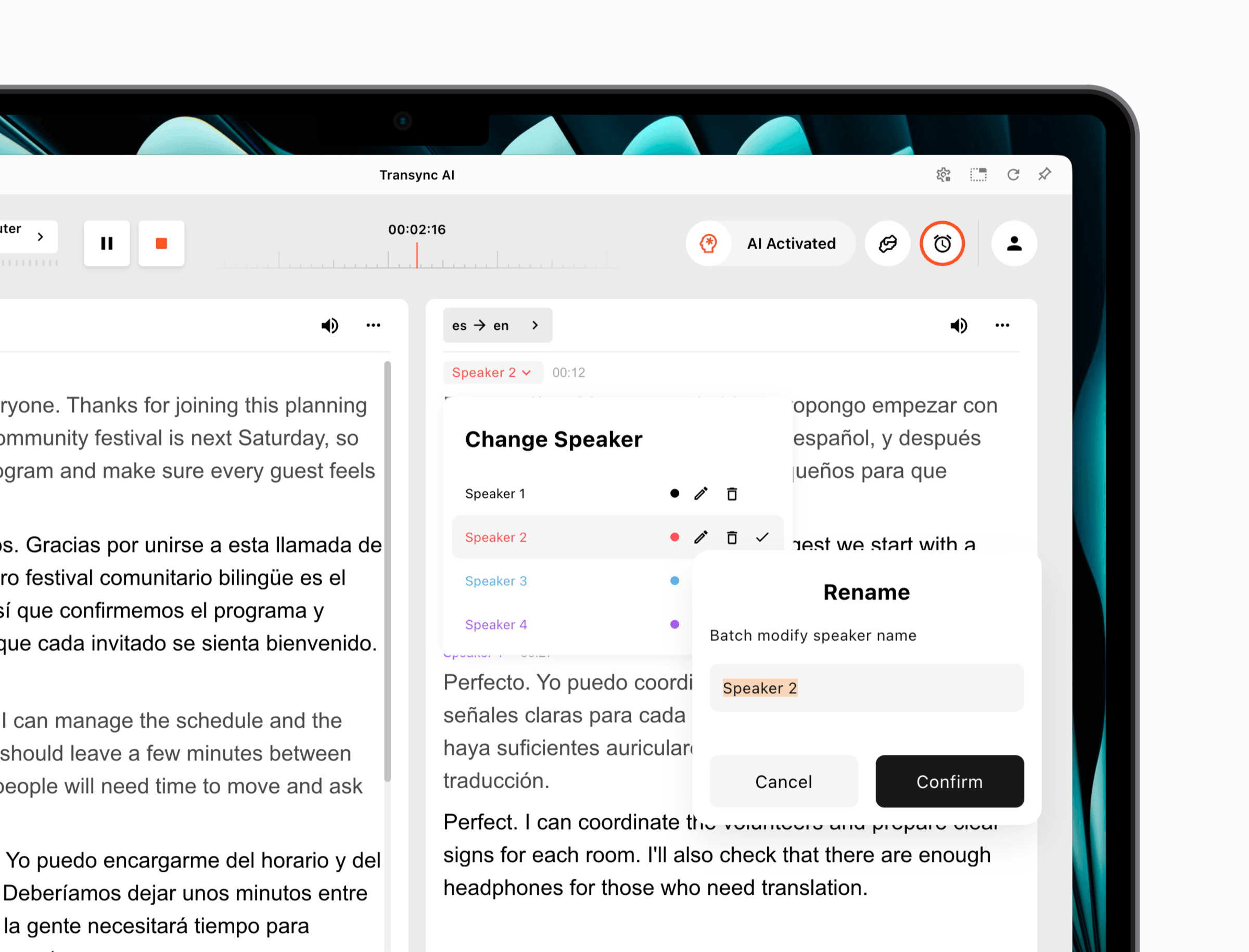
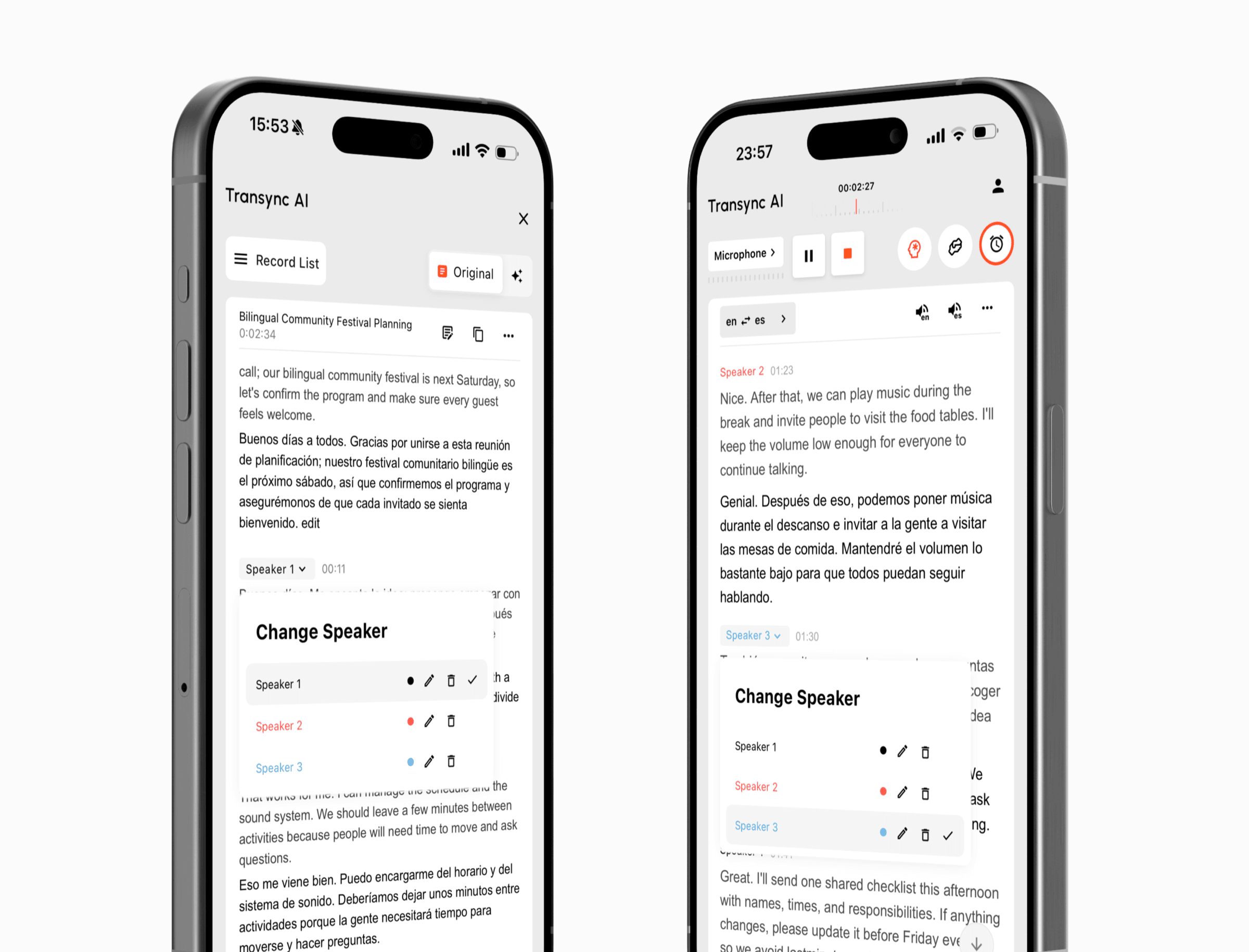
녹취록의 일부가 잘못된 사람에게 할당된 경우, 열기 스피커 변경 그리고 올바른 화자를 선택하세요. 이렇게 하면 대화 내용을 다시 쓰지 않고도 기록을 정리할 수 있는 실용적인 방법이 됩니다.
발표자 배정 내역을 공유하거나 회의 후속 조치 워크플로에 사용하기 전에 검토하십시오.
AI 화자 분리(화자 분할이라고도 함)는 대화에서 서로 다른 목소리를 식별하고 대화록의 각 부분을 화자별로 분류합니다.
작업을 시작하기 전에 번역 패널을 열고 활성화하세요. 화자 분리(베타). 지원되는 Monsoon 모델을 사용하는 경우 해당 옵션을 사용할 수 있습니다.
예. 발표자 메뉴를 열고 '발표자 1'과 같은 일반 레이블을 사용자의 이름이나 역할로 변경하세요. 새 이름은 회의 기록 전체에 적용됩니다.
예. 해당 녹취록 부분을 선택하고 열어주세요. 스피커 변경, 그리고 해당 발언을 올바른 화자에게 배정합니다.
화자 표시 기능은 실시간 번역 중에도, 저장된 번역 기록에도 표시되므로 실시간으로 토론 내용을 확인하고 나중에 정리할 수 있습니다.
해당 기능은 아직 개선 중입니다. 녹음 파일에 음성이 겹치거나, 배경 소음이 있거나, 비슷한 목소리가 포함된 경우 화자 지정을 재검토해야 합니다.
화자 표시, 대화 분리, 녹취록 편집, 저장된 기록 및 베타 정확도에 대한 간략한 답변입니다.
화자 분리(화자 분할이라고도 함)는 서로 다른 목소리를 식별하고 대화록의 각 부분을 표시하여 다국어 대화에서 누가 무슨 말을 했는지 알 수 있도록 해줍니다.
팀 회의, 면접, 수업, 강의, 고객과의 대화 등 여러 사람이 발언하고 발신자를 명확히 구분해야 하는 녹음 상황에 가장 적합합니다.
지원되는 번역 작업을 시작하기 전에 화자 분리(베타) 기능을 켜세요. Transync AI가 화자 1, 화자 2와 같은 색상으로 구분된 레이블을 자동으로 지정합니다.
말하는 동안 화자 표시가 나타나므로 여러 사람이 참여하는 다국어 토론을 실시간으로 더 쉽게 따라갈 수 있습니다.
레이블은 저장된 번역 기록에 남아 있으므로 대화 후에도 기여 내용, 결정 사항, 질문 및 후속 항목을 검토할 수 있습니다.
일반 레이블을 이름이나 역할로 바꾸고, 화자 색상을 조정하고, 필요에 따라 '화자 변경' 기능을 사용하여 녹취록 세그먼트를 다시 지정할 수 있습니다.
화자 분리 기능은 계속 개선 중입니다. 대화에 겹치는 말, 배경 소음 또는 비슷한 목소리가 포함된 경우 과제를 검토해 주세요.