
1. Set up translation
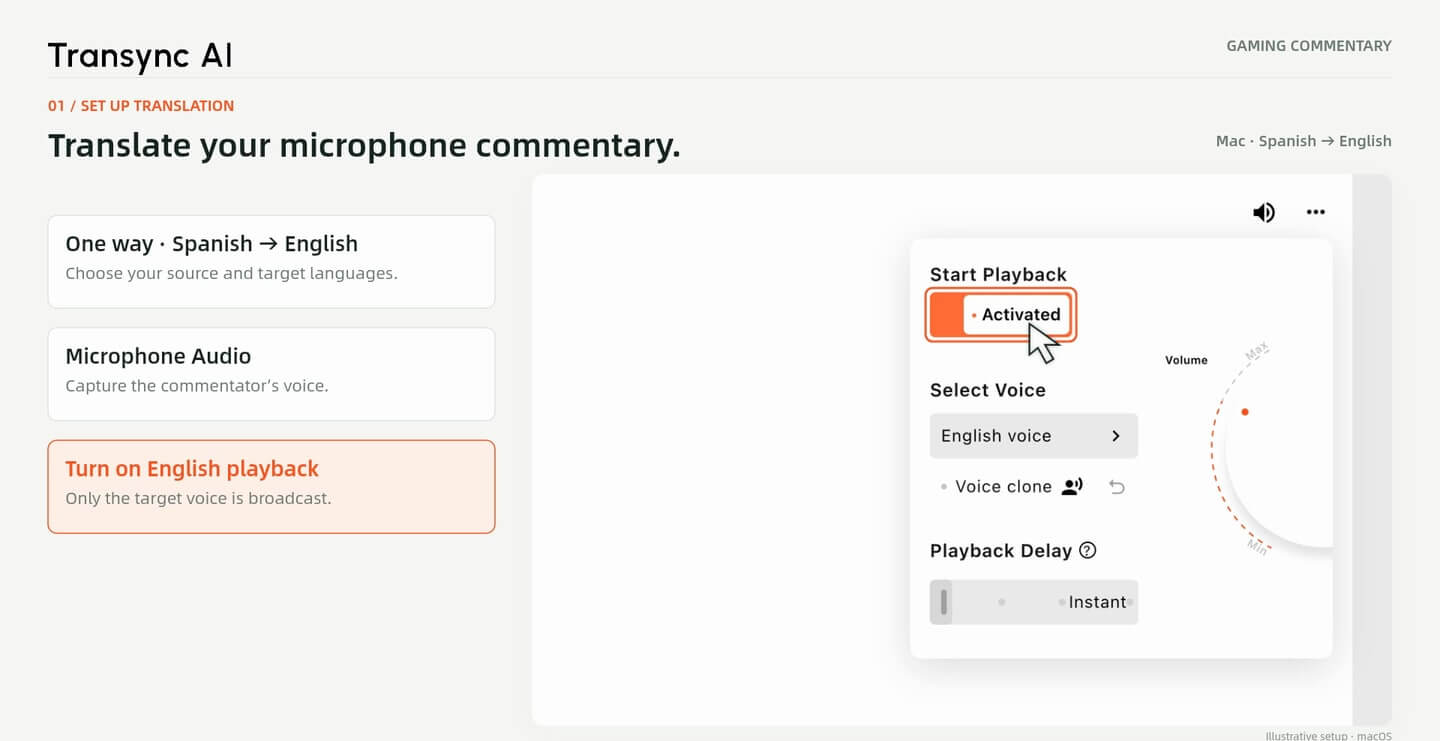
Choose One way, your language pair and Microphone Audio. Enable voice playback for the audience’s language.
Speak in your language while your viewers follow translated commentary and bilingual captions. Connect Transync AI to OBS with Virtual Microphone and Picture in Picture—the walkthrough uses Spanish to English on macOS.
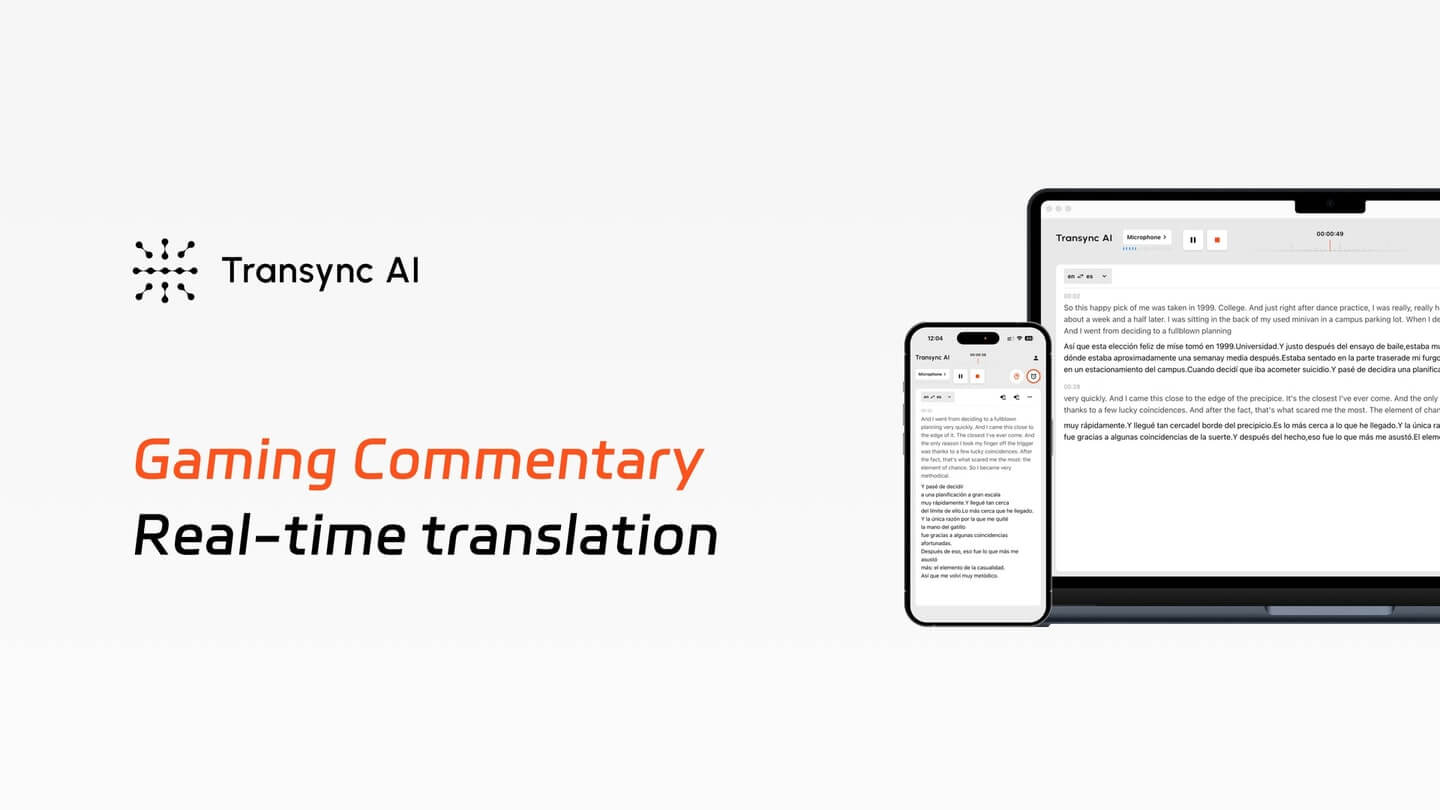
Keep speaking naturally
Use your microphone as the translation input while you commentate on the game or replay.
Give viewers two ways to follow
Route translated speech to OBS and add the bilingual subtitle window as a separate visual source.
Control the broadcast mix
Keep gameplay audio, translated voice and captions separate so you can check each part before going live.
Setup guide · macOS
Four stages: translate your voice, route the audio, capture the subtitles and test the scene.
1. Set up translation
Choose One way, your language pair and Microphone Audio. Enable voice playback for the audience’s language.
2. Connect translated voice
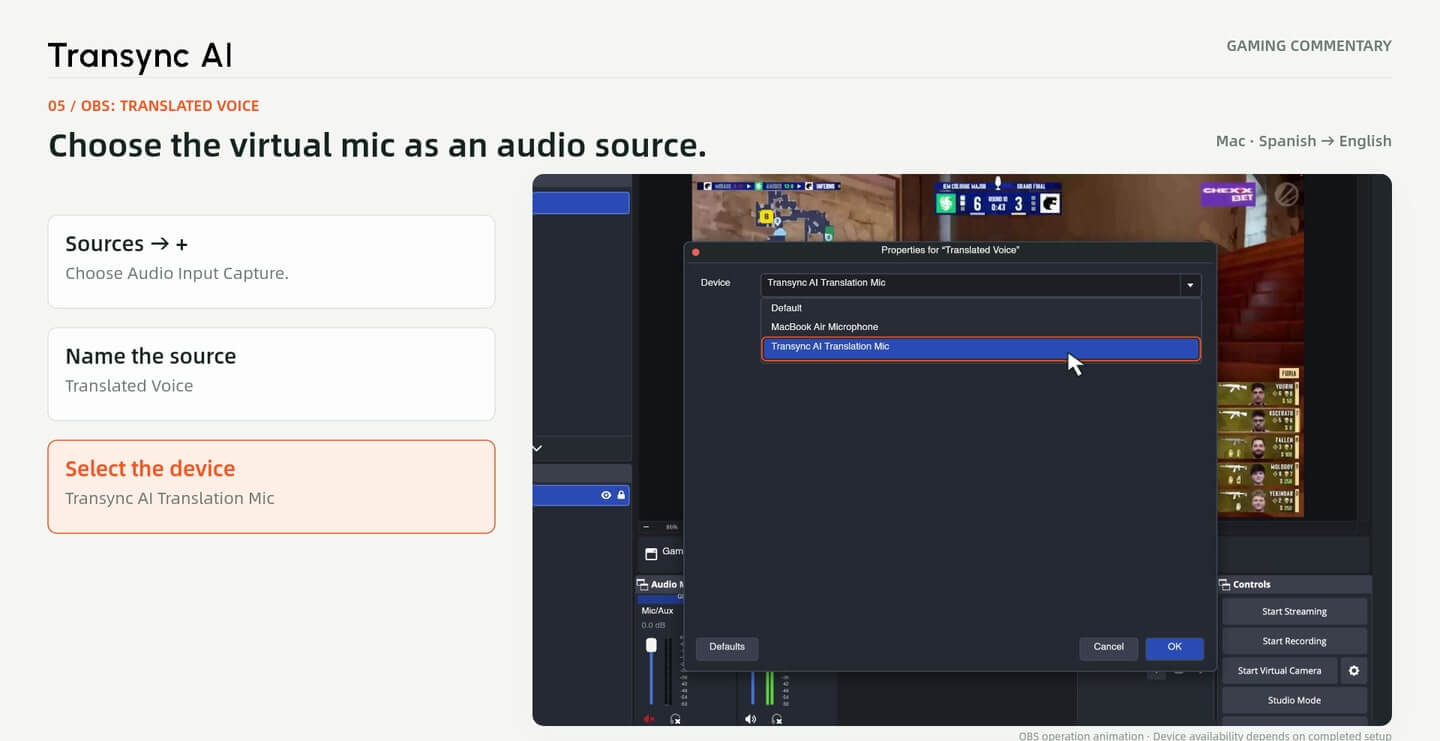
Activate Virtual Microphone, then select Transync AI Translation Mic in an OBS Audio Input Capture source.
3. Add bilingual captions
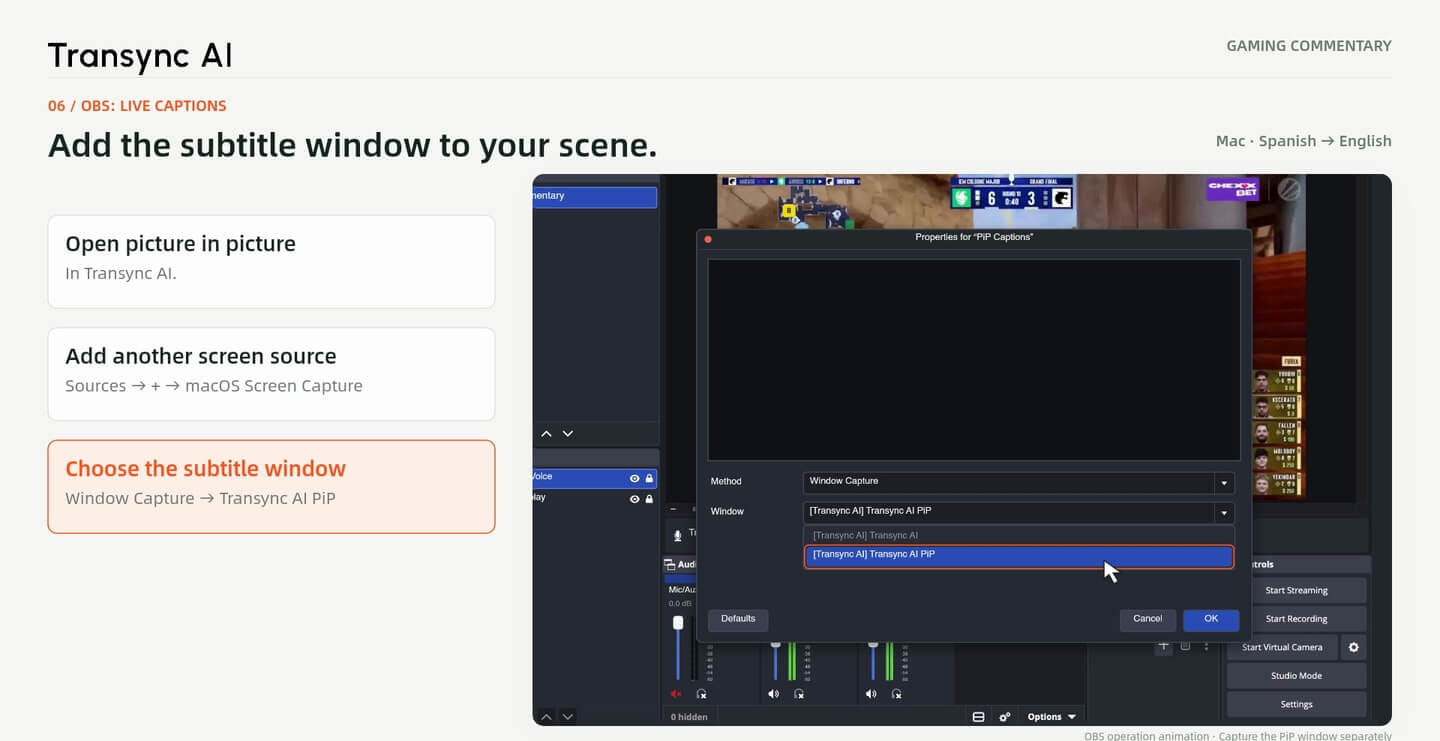
Open Picture in Picture and capture its window as a separate OBS source above the gameplay.
4. Check your scene
Position the captions, balance the audio sources and make a local test recording before streaming.
Open Transync AI and choose 편도. Set the language you speak as the source and the language your viewers should hear as the target. The example uses Spanish → English.
선택하다 마이크 오디오 and your commentary microphone. Turn on English voice playback for this example. This setup translates what you say; it is not the Computer Audio workflow for watching someone else’s stream.
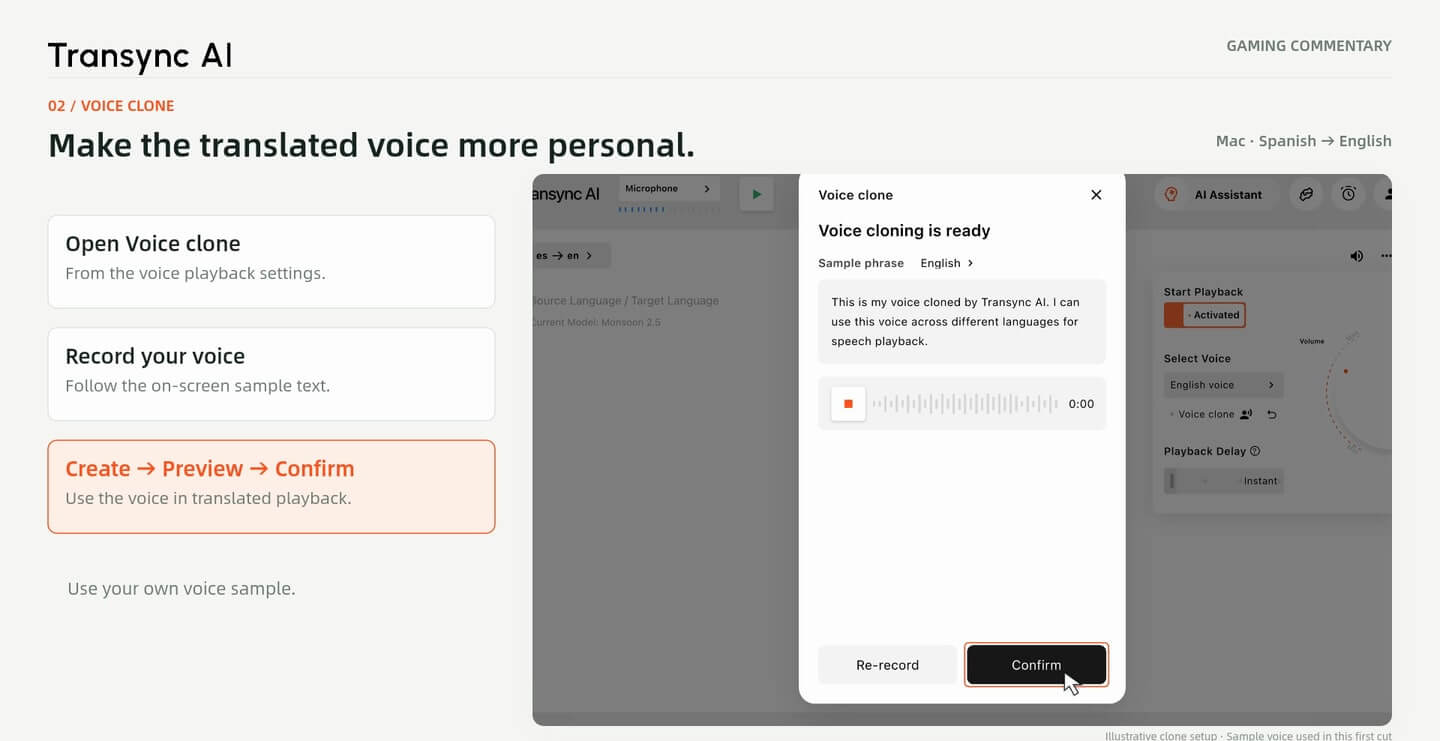
Voice Clone is optional. Open the target-language voice playback settings and follow the app’s prompts to prepare your own voice, where supported. Check the result before using it in your stream.
The V4 walkthrough illustrates a record, prepare and preview flow; available controls can vary by app version. Its translated audio uses a preset sample voice, not a demonstrated clone. Use your own voice or one you have permission to use.
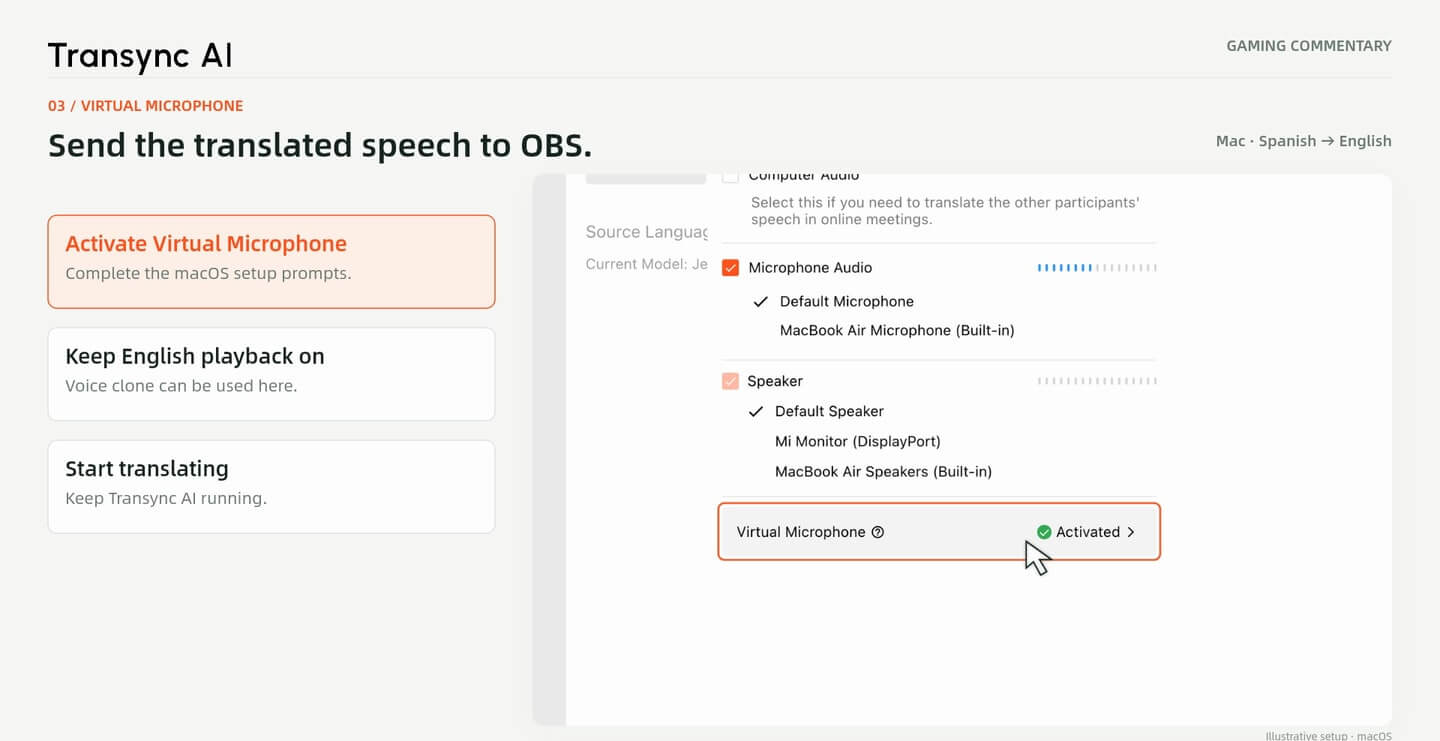
In Transync AI’s audio settings, activate 가상 마이크 and complete the macOS setup prompts. Keep the target-language voice playback enabled, start translation and leave Transync AI running.
Your real microphone remains the input to Transync AI. The virtual microphone is the translated-voice output that you select in OBS. Confirm that the device is available after setup before building your live scene.
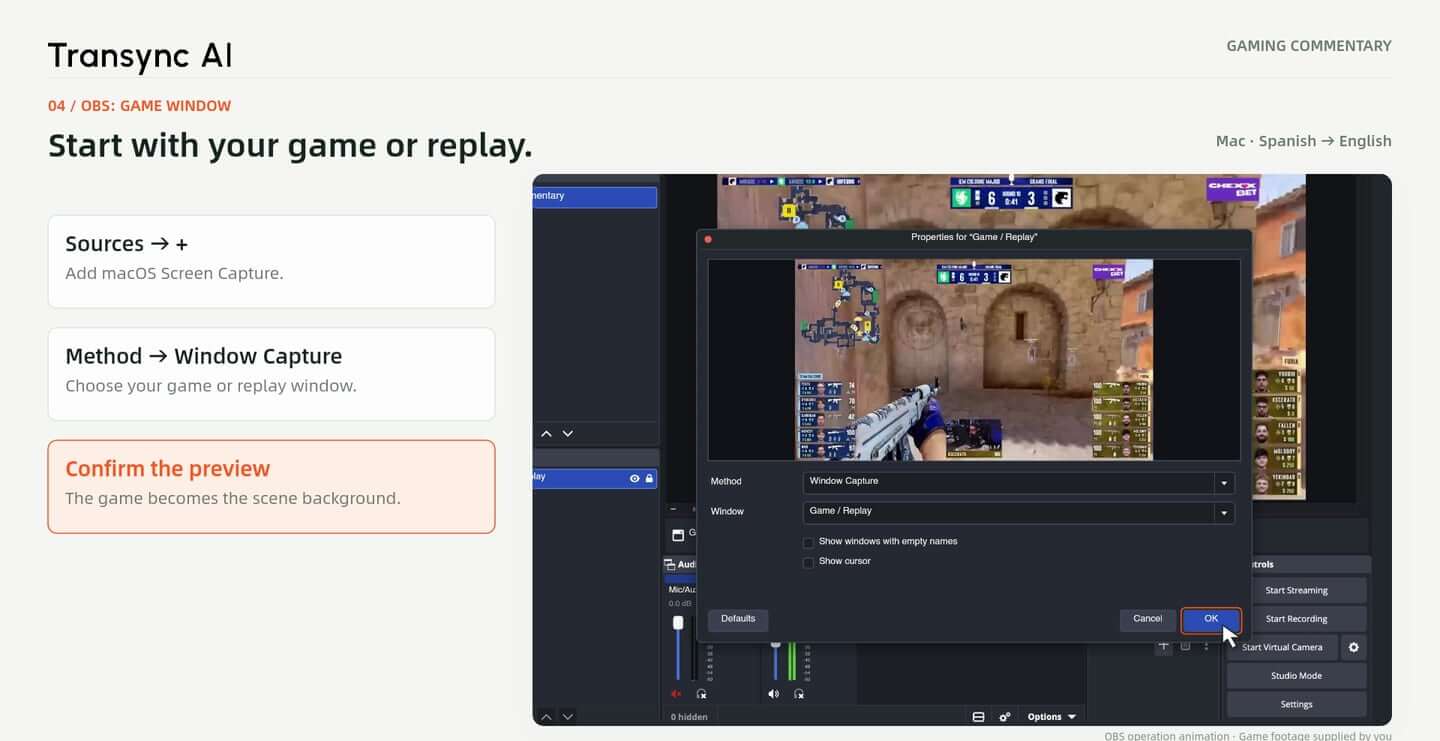
In the OBS Sources panel, select + and add macOS Screen Capture. Choose Window Capture, then select your game or replay window and check the preview.
Keep this source as the scene background. The walkthrough demonstrates the macOS route; capture options differ across operating systems and OBS versions. Only broadcast game footage or replays you have the right to use.
Add Audio Input Capture in OBS and give it a clear name, such as Translated Voice. Select Transync AI Translation Mic as the device, as shown in the walkthrough.
Speak into your real microphone and check whether the translated-voice meter responds. Keep this source separate from game audio so you can adjust the two independently. If the device is missing, finish the Transync AI virtual-microphone setup before continuing.
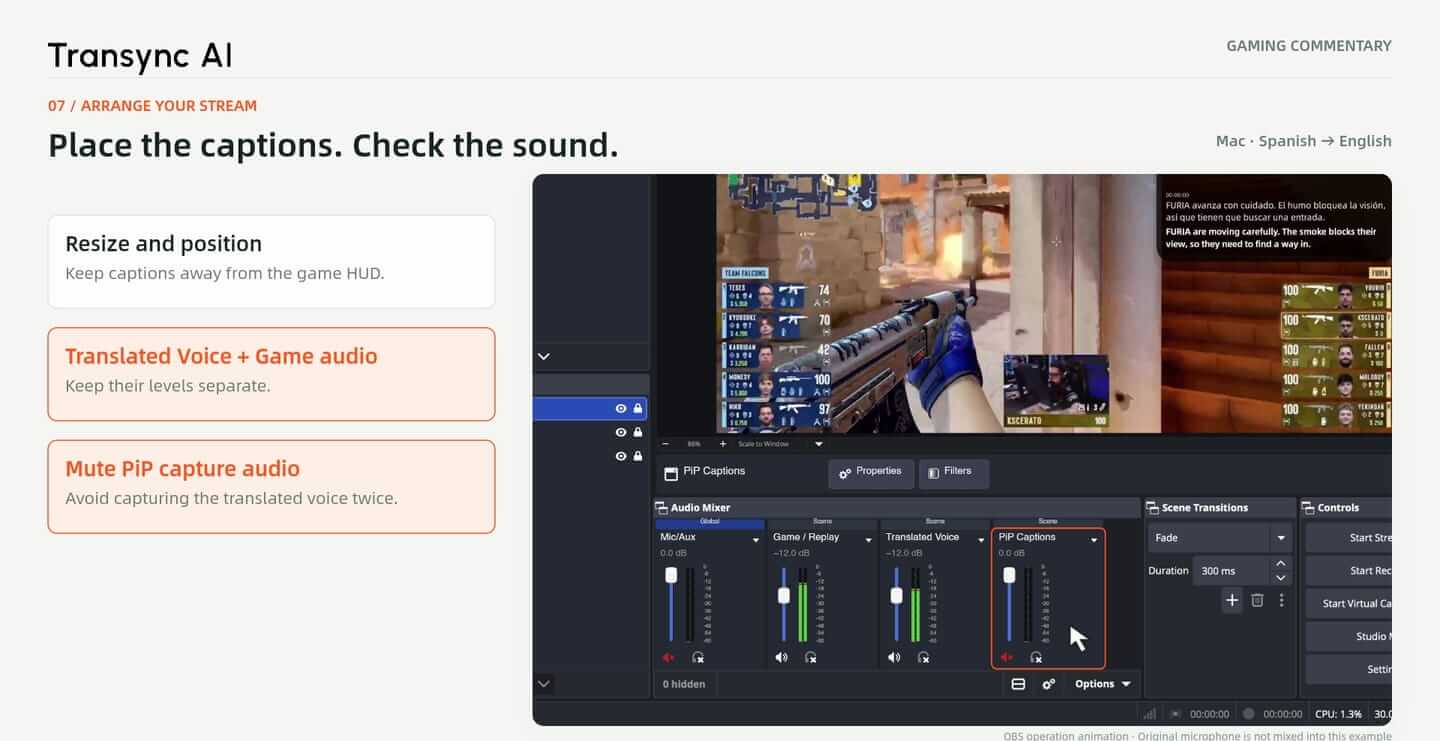
열려 있는 화면 속 화면 in Transync AI. In OBS, add another macOS Screen Capture source, choose Window Capture and select the Transync AI PiP subtitle window.
Place this source above the gameplay source and resize it in the preview. The example displays Spanish source text and English translation together. Keep the captions away from the game’s map, scores and other important on-screen information.
Keep game audio 그리고 Translated Voice on separate controls. If the PiP screen-capture source also carries the translated audio, mute that duplicate path so viewers do not hear it twice.
The example does not mix the original commentary microphone into OBS. Check any default microphone or desktop-audio sources in your own scene. Make a short local recording and listen for duplicated speech, feedback, volume imbalance and timing before you start streaming.
The example combines a game replay, Spanish-and-English captions and an English sample voice. It shows how the pieces can fit into a commentary scene without covering the central gameplay.
This is an illustrative workflow. OBS scenes combine a real window background with reconstructed demonstration content, and the full native audio route has not been verified in an end-to-end recording. Translation, voice quality and timing should be checked with your own microphone, game and stream setup.
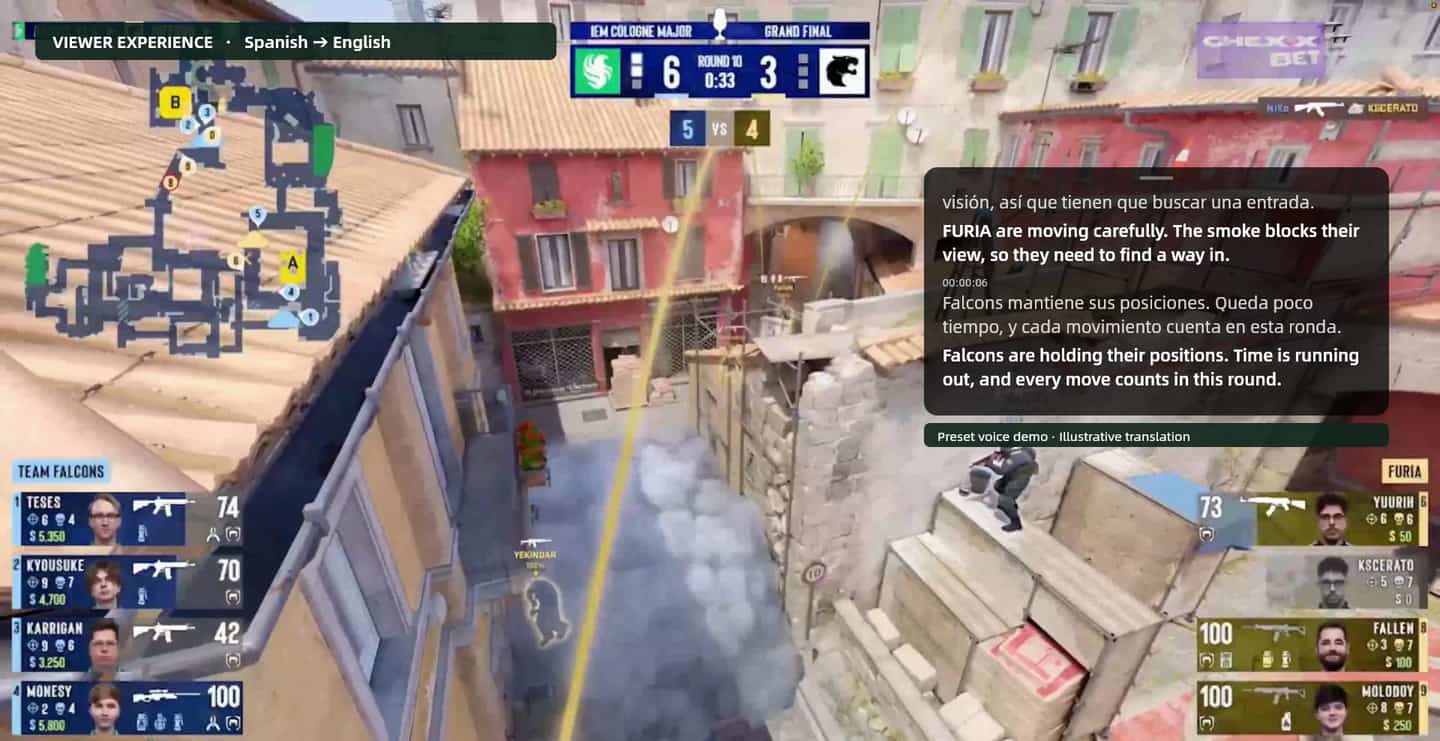
Frames from the Gaming Commentary V4 walkthrough. OBS interfaces contain composited demonstration content; translated audio uses a preset sample voice. These images are not evidence of live translation accuracy or a completed end-to-end OBS test.
Start with your microphone and language pair. Add the translated voice and captions to OBS, then check a local recording before going live.
빠른 답변
Microphone input, translated voice, captions and OBS setup.
This page is for creators broadcasting their own commentary through OBS. If you want to understand someone else’s livestream, use the separate Gaming Livestream Translation guide. See the viewer guide.
Microphone Audio captures what you say as the commentator. Computer Audio is a different input for sound playing on your computer; it is not the commentary input shown here.
No. You can use target-language voice playback with a preset voice. Voice Clone is an optional way to make playback sound closer to your own voice where supported.
For the translated commentary source, the walkthrough selects Transync AI Translation Mic in Audio Input Capture. Transync AI itself still uses your real microphone to hear your speech.
Check for duplicate capture paths. Keep Translated Voice separate, and mute PiP capture audio if it includes the same speech. Review desktop-audio and microphone sources, then listen to a local test recording.
No. This walkthrough shows macOS capture and virtual-microphone controls. Do not assume the same device names or setup steps apply to Windows.
No. The walkthrough uses a preset sample voice and illustrative bilingual text. The OBS scenes include reconstructed content; the complete native audio chain has not been demonstrated in an end-to-end recording.
Check your microphone input, language direction, voice playback, virtual-microphone device, OBS audio meters and caption position. Record locally to review sound and timing, and confirm you have permission to use any voice and game footage.