주요 콘텐츠로 건너뛰기
검색하려면 Enter 키를, 닫으려면 ESC 키를 누릅니다.
검색 닫기
Transync AI 로고 – Transync AI 실시간 번역 서비스의 공식 브랜드 로고입니다.
  • 무료 체험
메뉴
  • 도구
    • AI 실시간 번역
    • AI 라이브 회의 번역
    • AI 회의 노트
    • AI 음성 번역기
    • AI 어시스턴트: 키워드 및 컨텍스트
    • 지원 언어
  • 사용 사례
    • 줌 번역
    • Microsoft Teams 번역
    • Google Meet 번역
    • WhatsApp 음성 통화 번역
    • 대면 회의 통역
  • 블로그
  • 가격
  • 기업
  • 지원하다
  • 다운로드
  • 무료 체험
  • 도구
    • AI 실시간 번역
    • AI 라이브 회의 번역
    • AI 회의 노트
    • AI 음성 번역기
    • AI 어시스턴트: 키워드 및 컨텍스트
    • 지원 언어
  • 사용 사례
    • 줌 번역
    • Microsoft Teams 번역
    • Google Meet 번역
    • WhatsApp 음성 통화 번역
    • 대면 회의 통역
  • 블로그
  • 가격
  • 기업
  • 지원하다
  • 다운로드

hello@transyncai.com

시작하기

2
  • 빠른 시작
  • 문의하기

사용자 가이드

9
  • Transsync AI 등록 방법
  • 실시간 번역을 시작하는 방법
  • 컴퓨터 오디오를 공유하는 방법
  • Transync AI에서 음성 재생 기능을 사용하는 방법
  • 음성 복제 기능 사용 방법
  • 회의 기록 및 요약에 액세스하는 방법
  • AI 어시스턴트 사용 방법
  • 번역 기록 관리 방법
  • 충전 및 환불 요청 방법

기업

1
  • 기업 가이드

자원

3
  • 준수 보고서
  • 이용 약관 및 정책
  • 변경 사항
카테고리 보기
  • 집
  • 문서
  • 사용자 가이드
  • 음성 복제 기능 사용 방법

음성 복제 기능 사용 방법

3분 읽기

Voice Clone lets Transync AI use a voice that sounds closer to your own during voice playback. Once enabled, you do not have to rely only on preset voices, which makes translated playback feel more natural and more personal across conversations.

Before you start, make sure you are familiar with how to start real-time translation and use voice playback:

  • 빠른 시작
  • 실시간 번역을 시작하는 방법
  • Transync AI에서 음성 재생 기능을 사용하는 방법
  • 컴퓨터 오디오를 공유하는 방법

If you want to check whether a language supports translation first, see 지원 언어.

Voice Clone is currently supported for the following languages:

  • Chinese (Mandarin)
  • 영어
  • 스페인 사람
  • 러시아인
  • 이탈리아 사람
  • 프랑스 국민
  • 한국인
  • 일본어
  • 독일 사람
  • 포르투갈 인

1.  Turn on Voice Playback and Voice Clone before translation starts #

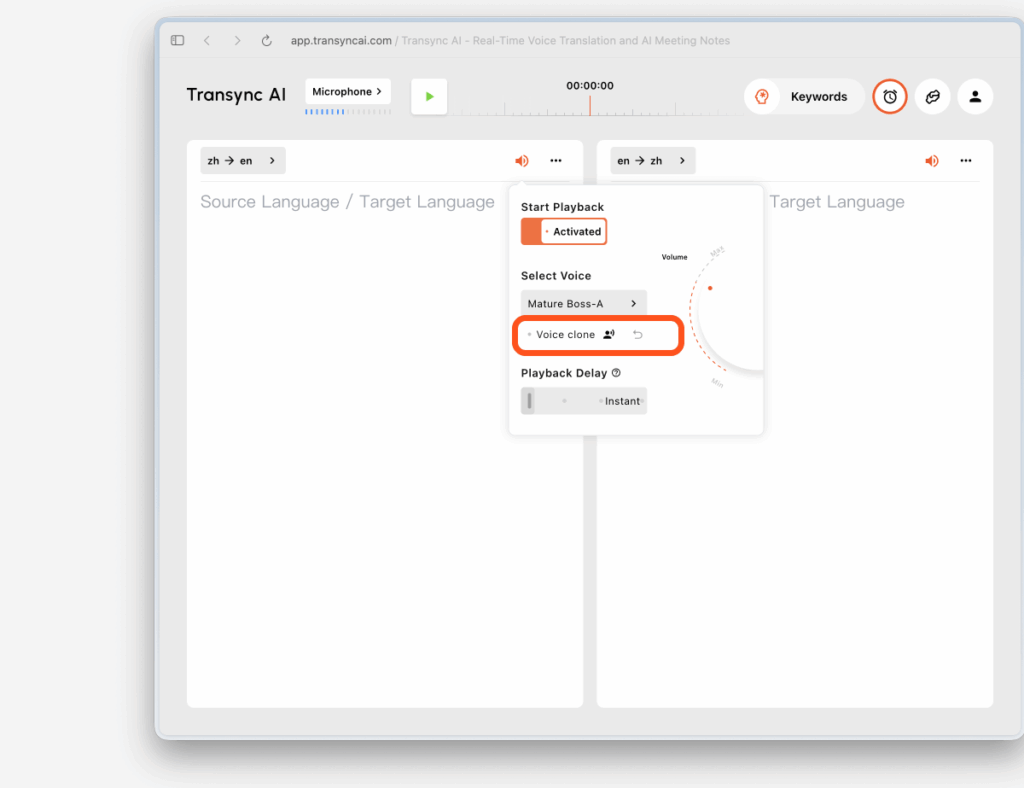
Before you start translation, open the voice playback settings for the target language and turn on both Voice Playback and Voice clone.

This sets up two things at the same time:

  • Translated speech will be played using the voice you selected
  • Voice Clone will start preparing to collect your voice once translation begins

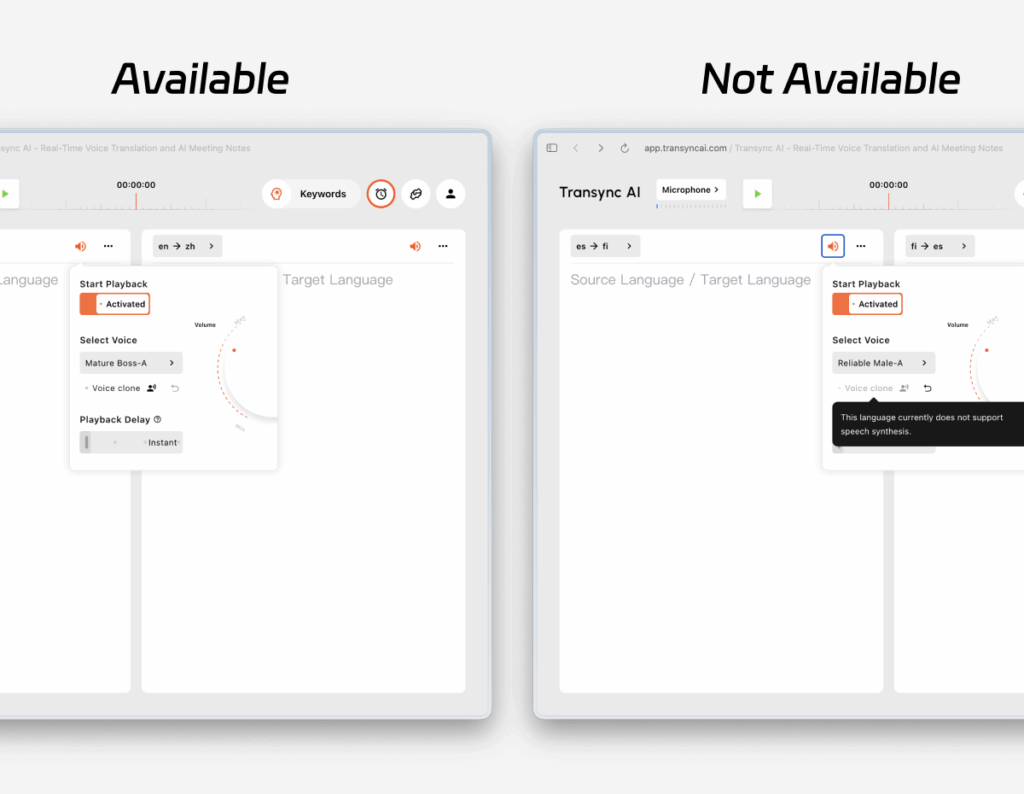
If the current language supports Voice Clone, you will see a Voice clone option in the voice settings. If the language is not supported, the option will appear unavailable.

Transync AI voice playback settings showing the Voice Clone toggle enabled before starting translation.

2. Start translation and let Voice Clone collect your voice #

After translation starts, playback will begin with the voice you selected in the voice playback settings.

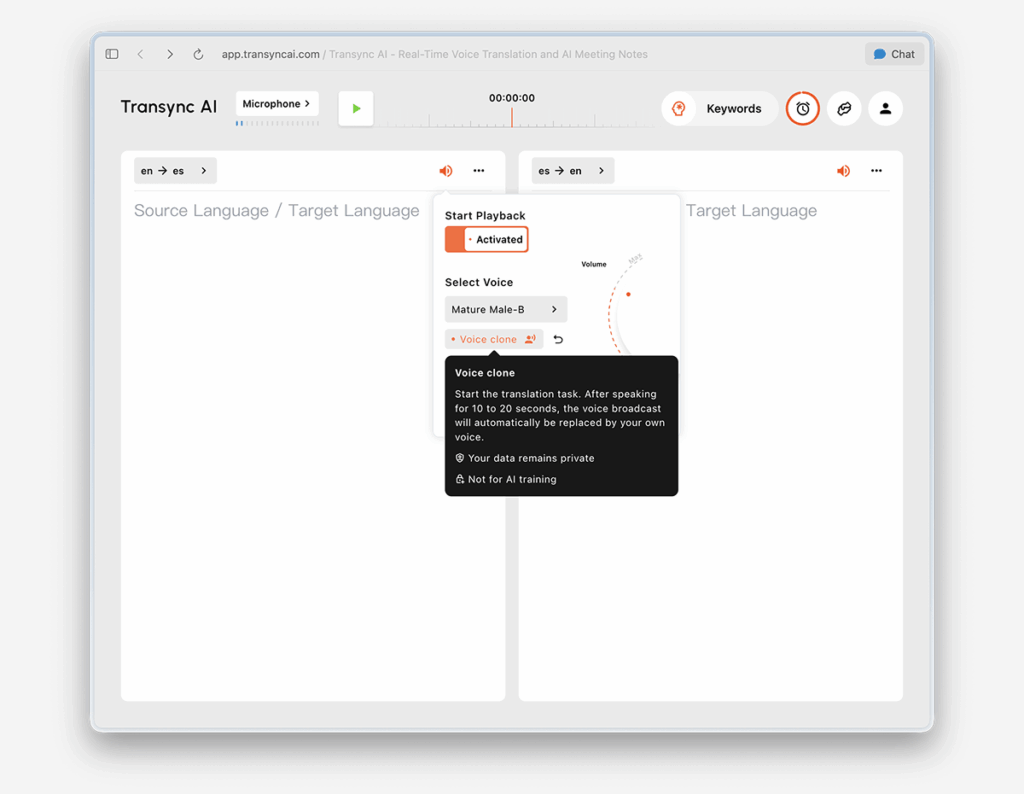
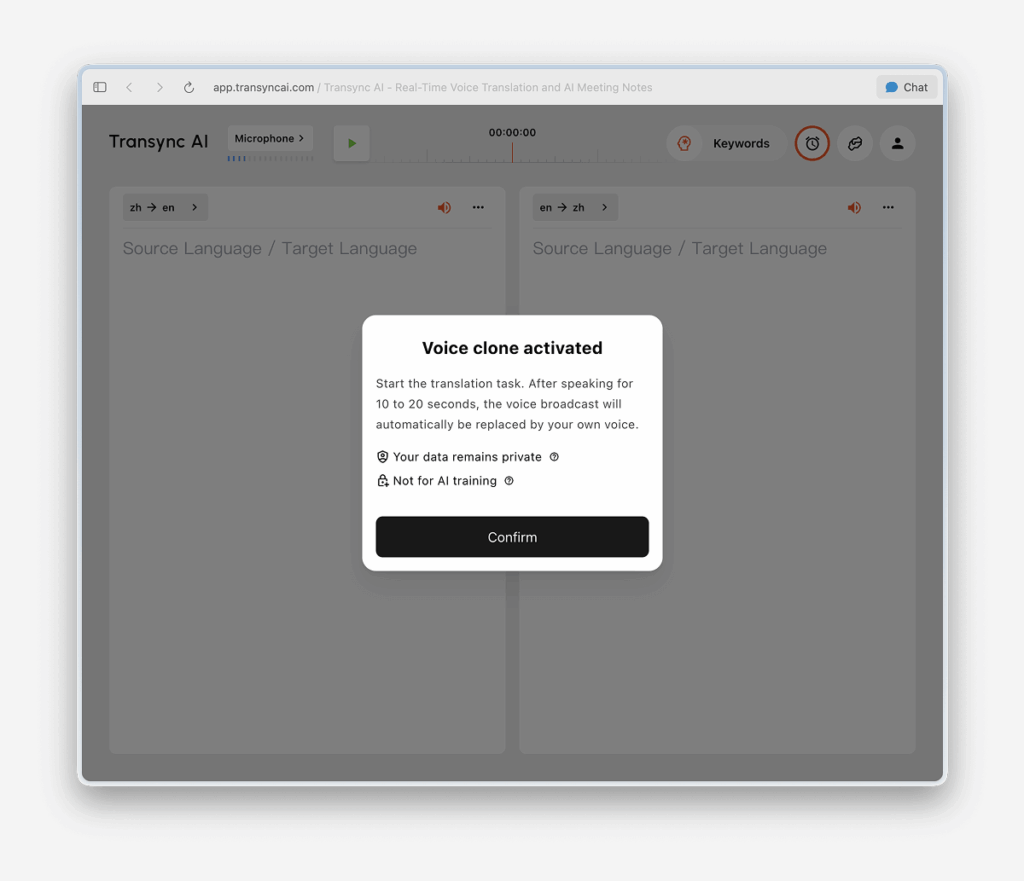
At the same time, Voice Clone will enter a collecting state in the background. Keep speaking naturally for around 10 to 20 seconds so Transync AI can capture enough voice data.

For the best result, we recommend that you:

  • Speak continuously for 10 to 20 seconds instead of reading only a very short phrase
  • Use a clear and natural speaking pace
  • Complete the first collection in a relatively quiet environment

3. Wait for playback to switch to your cloned voice #

Voice Clone does not take effect immediately. During the collection period, translated playback will continue using the selected voice.

After about 10 to 20 seconds, you will see a toast message:

Playback now uses your cloned voice.

This means voice collection is complete and playback has switched to your cloned voice.

If the switch does not happen as expected, try the following:

  • Keep the translation session running
  • Continue speaking for a little longer
  • Make sure your microphone is working properly and background noise is limited
  • Retry Voice Clone if needed

4. Use your cloned voice in future meetings #

Once Voice Clone has been collected successfully, you do not need to collect it again in your next meeting.

In future meetings, you can turn on voice playback and use your existing cloned voice directly without repeating the setup flow.

Transync AI interface showing a saved cloned voice available for use in future meetings.

5. Use it across supported languages #

After Voice Clone is successfully created once, it can be used across other languages that support this feature. In most cases, you do not need to repeat the collection process for every supported target language.

This helps keep your voice experience more consistent when switching between supported languages.

6. Unsupported languages will appear unavailable #

Voice Clone is not available for every language. For languages that are not currently supported, the Voice clone option will appear disabled, usually with reduced opacity.

When you hover over the disabled option, Transync AI will show a message explaining that Voice Clone is not supported for that language. You can still use regular voice playback, but your cloned voice will not be available for that language yet.

Transync AI voice clone settings showing that the selected language does not support Voice Clone.

7. Reset Voice Clone #

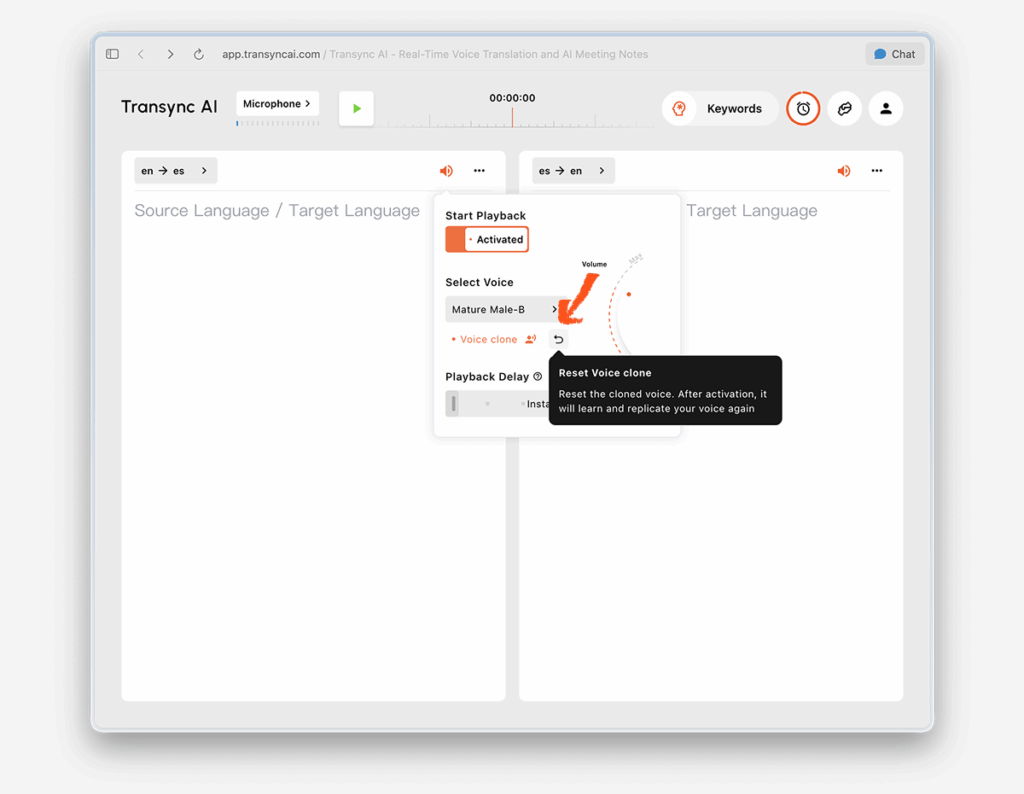
If you want to remove the current result and collect a new one, click Reset Voice Clone.

Resetting removes your existing cloned voice. After that, the next time you use Voice Clone, Transync AI will collect your voice again and create a new cloned voice.

This is useful if you want to improve the result or redo the setup in a quieter environment.

Transync AI settings screen with the Reset Voice Clone option for removing a saved voice clone.

은둔 #

Based on the current product messaging, Voice Clone is designed with the following principles:

  • Your voice data remains private
  • Your voice data is not used for training

To learn more, see:

  • 개인정보 보호정책
  • 준수 보고서
Transync AI privacy notice explaining how voice data is collected and used for Voice Clone.

자주 묻는 질문 #

Does Voice Clone work immediately? #

No. On first use, Transync AI usually needs around 10 to 20 seconds to collect your speech. During that time, playback continues with the voice you selected. Once collection is ready, you will see Playback now uses your cloned voice.

Do I need to clone my voice separately for each language? #

Usually not. After a successful setup, your cloned voice can be reused in future meetings and across other languages that support Voice Clone.

What if a language does not support Voice Clone? #

You can still use standard voice playback for that language. Voice Clone just will not be available there yet.

Voice Clone is currently available for Chinese (Mandarin), English, Spanish, Russian, Italian, French, Korean, Japanese, German, and Portuguese.

What if I want to record my voice again? #

Use Reset Voice Clone to clear the current clone. After that, go through the collection flow again to create a new one.

업데이트됨 2026년 4월 22일

이 문서가 도움이 되었나요?

  • 행복하다
  • 슬픈

이 기사를 공유하세요 :

  • 페이스북
  • 엑스
  • 링크드인
  • 핀터레스트
컴퓨터 오디오를 공유하는 방법
목차
  • 1.  Turn on Voice Playback and Voice Clone before translation starts
  • 2. Start translation and let Voice Clone collect your voice
  • 3. Wait for playback to switch to your cloned voice
  • 4. Use your cloned voice in future meetings
  • 5. Use it across supported languages
  • 6. Unsupported languages will appear unavailable
  • 7. Reset Voice Clone
  • 은둔
  • 자주 묻는 질문
    • Does Voice Clone work immediately?
    • Do I need to clone my voice separately for each language?
    • What if a language does not support Voice Clone?
    • What if I want to record my voice again?

小红书 抖소리 빌리빌리 知乎 유튜브 틱톡 링크드인

沪ICP备2025119728号

Contact:support@transyncai.com

제품

  • 도구
  • AI 실시간 번역
  • AI 라이브 미팅 번역
  • AI 회의 노트
  • AI 음성 번역기
  • AI 어시스턴트
  • 지원 언어
  • 사용 사례
  • 줌 번역
  • 팀 번역
  • Google Meet 번역
  • WhatsApp 번역
  • 대면 회의 통역

페이지

  • 가격
  • 블로그
  • 지원하다
  • 다운로드
  • 기업
  • 변경 사항
  • 무료 체험

자귀

  • 은둔
  • 서비스 약관
  • 신뢰 센터

© 2026 Transync AI – 실시간 번역.

한국어
English 简体中文 日本語 Русский Français Español Deutsch Italiano Čeština ไทย 繁體中文繁體中文 Português do Brasil العربية हिन्दी Bahasa Indonesia Tiếng Việt Türkçe Nederlands Polski Українська