주요 콘텐츠로 건너뛰기
검색하려면 Enter 키를, 닫으려면 ESC 키를 누릅니다.
검색 닫기
Transync AI 로고 – Transync AI 실시간 번역 서비스의 공식 브랜드 로고입니다.
  • 무료 체험
메뉴
  • 도구
    • AI 실시간 번역
    • AI 라이브 회의 번역
    • 프레젠테이션 모드
    • AI 회의 노트
    • AI 화자 분리
    • AI 음성 번역기
    • AI 어시스턴트: 키워드 및 컨텍스트
    • Picture-in-Picture, 떠다니는 자막
    • 지원 언어
  • 사용 사례
    • 줌 번역
    • Microsoft Teams 번역
    • Google Meet 번역
    • WhatsApp 음성 통화 번역
    • 대면 회의 통역
  • 블로그
  • 가격
  • 기업
  • 연락하다
  • 지원하다
  • 다운로드
  • 무료 체험
  • 도구
    • AI 실시간 번역
    • AI 라이브 회의 번역
    • 프레젠테이션 모드
    • AI 회의 노트
    • AI 화자 분리
    • AI 음성 번역기
    • AI 어시스턴트: 키워드 및 컨텍스트
    • Picture-in-Picture, 떠다니는 자막
    • 지원 언어
  • 사용 사례
    • 줌 번역
    • Microsoft Teams 번역
    • Google Meet 번역
    • WhatsApp 음성 통화 번역
    • 대면 회의 통역
  • 블로그
  • 가격
  • 기업
  • 연락하다
  • 지원하다
  • 다운로드

hello@transyncai.com

시작하기

4
  • 데스크톱 빠른 시작 가이드
  • 모바일 빠른 시작 가이드
  • 회의 오디오 설정 체크리스트
  • 문의하기

사용자 가이드

13
  • Transync AI 등록 방법
  • 실시간 번역을 시작하는 방법
  • Transync AI에서 번역 모드를 선택하는 방법
  • 컴퓨터 음성를 공유하는 방법
  • Transync AI에서 음성 재생 기능을 사용하는 방법
  • 음성 복제 기능 사용 방법
  • macOS에서 Virtual Microphone를 사용하는 방법
  • 윈도우에서 Virtual Microphone를 설정하는 방법
  • Picture-in-Picture 모드 사용 방법
  • 회의 기록 및 요약에 액세스하는 방법
  • AI 어시스턴트 사용 방법
  • 번역 기록 관리 방법
  • 충전 및 환불 요청 방법

프레젠테이션 모드

2
  • Transync AI에서 프레젠테이션 모드를 사용하는 방법
  • Transync AI 프레젠테이션에 참여하는 방법

기업

1
  • 기업 가이드

자원

3
  • 신뢰 센터
  • 이용 약관 및 정책
  • 변경 사항
카테고리 보기
  • 홈
  • 문서
  • 프레젠테이션 모드
  • Transync AI에서 프레젠테이션 모드를 사용하는 방법

Transync AI에서 프레젠테이션 모드를 사용하는 방법

8 min read

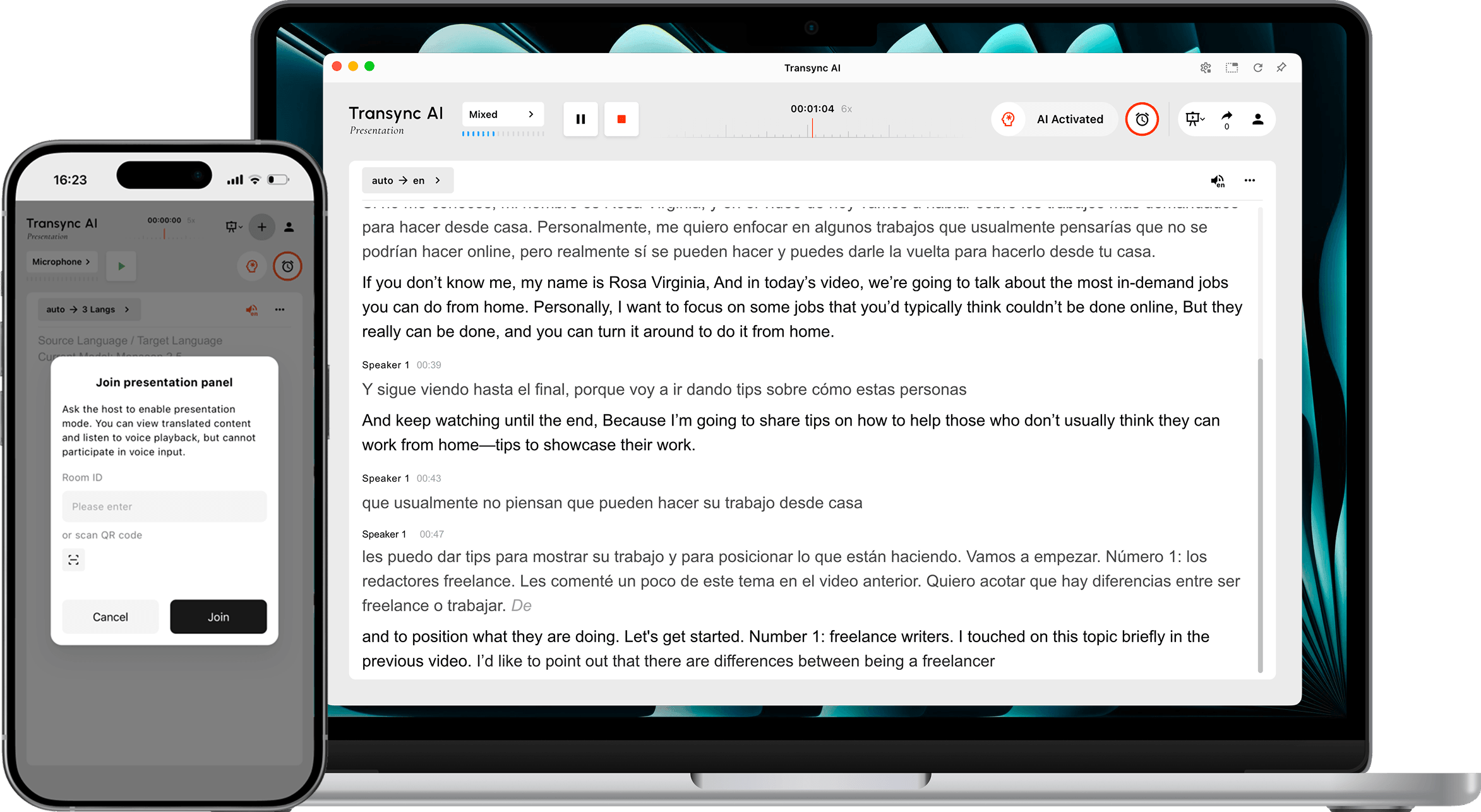
Presentation Mode sharing live translation from a host computer to an audience member's phone.
Presentation Mode lets one host share live translation with audience members on their own devices.
 

프레젠테이션 모드 lets one host share real-time translation with an audience. The host speaks in one source language, while each audience member follows the presentation in a language enabled by the host on their own device.

Use Presentation Mode for multilingual conferences, company presentations, training sessions, lectures, community events, or other one-to-many situations. Audience members can read the live translation and listen to voice playback, but they cannot speak into the host’s translation task.

메모: Presentation Mode is currently in beta. The usage shown in Transync AI may change based on the peak audience and the number of target languages. Review the displayed multiplier before starting.

Before You Start #

Prepare the following before opening the presentation to your audience:

  • Confirm that the host’s microphone is connected and selected in Transync AI.
  • Decide which language the host will speak, or use automatic source-language detection.
  • Collect the languages your audience needs so you can enable the right target languages before starting.
  • Choose where the audience will find the join link, QR code, or Room ID, such as a meeting invite, opening slide, event screen, or seat card.
  • If this is your first Transync AI task, complete the 데스크톱 빠른 시작 가이드 첫 번째.

Start a Presentation #

1. Switch to Presentation Mode #

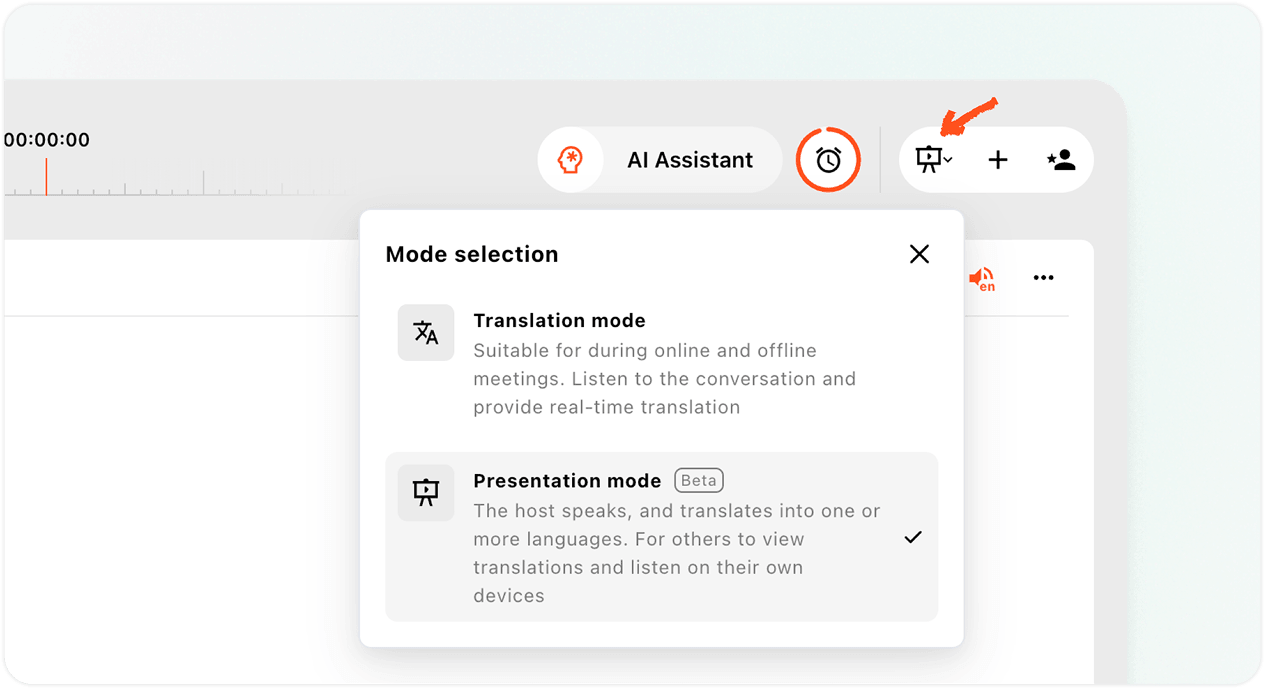
  1. 열기 Transync AI web app or desktop app and find the mode selector in the upper-right area of the translation interface.
  2. Open the mode menu.
  3. 선택하다 프레젠테이션 모드.

Presentation Mode is different from Multilingual Translation. Multilingual Translation creates several language outputs inside one translation task. Presentation Mode distributes the live translation to audience members on their own devices, where each person can choose an available language.

Select Presentation Mode from the mode-selection menu in Transync AI.
Select Presentation Mode from the mode-selection menu.
 

2. Review the Beta and Usage Notice #

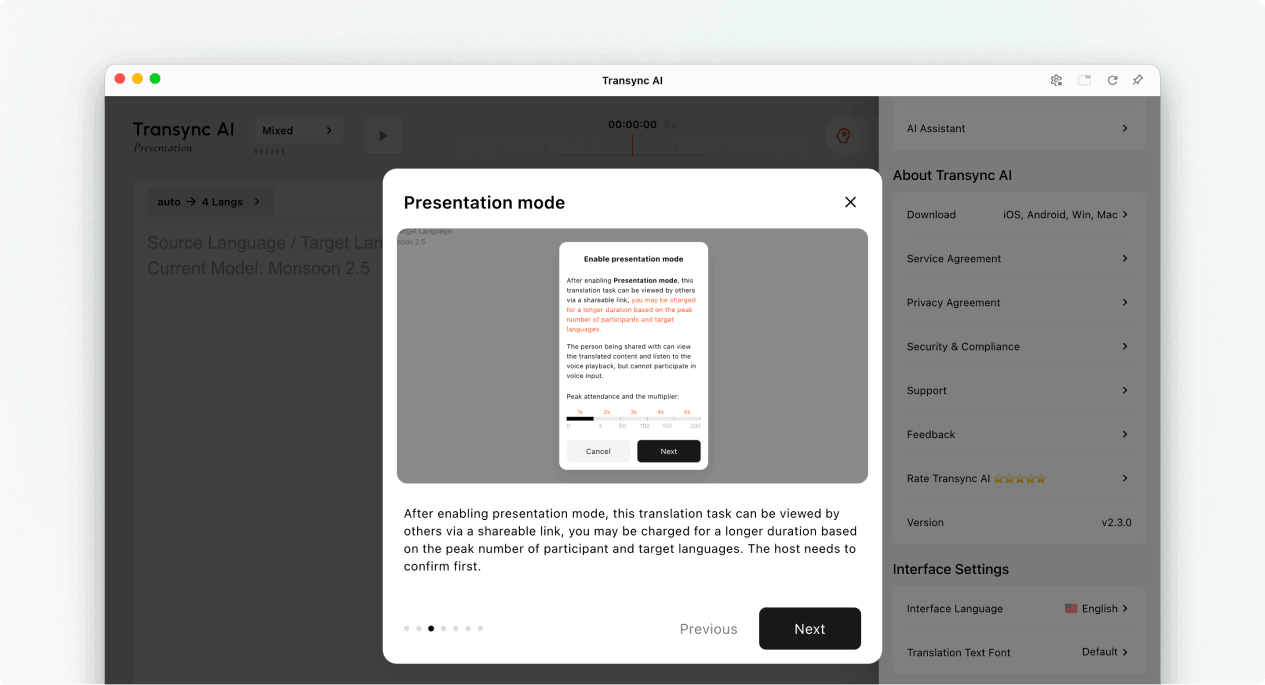
When you enable Presentation Mode, Transync AI explains what the audience can do and how presentation usage is calculated. Read this notice before continuing.

  • Audience members can view translated content on their own devices.
  • Audience members can listen with voice playback when it is available.
  • Audience members cannot contribute voice input to the host’s task.
  • The total multiplier is the participant multiplier plus the target language multiplier.

선택하다 Next when you are ready to configure the presentation languages.

Review the Presentation Mode beta and usage notice before continuing.
Review the beta and usage notice before configuring the presentation.
 

3. Choose the Source and Audience Languages #

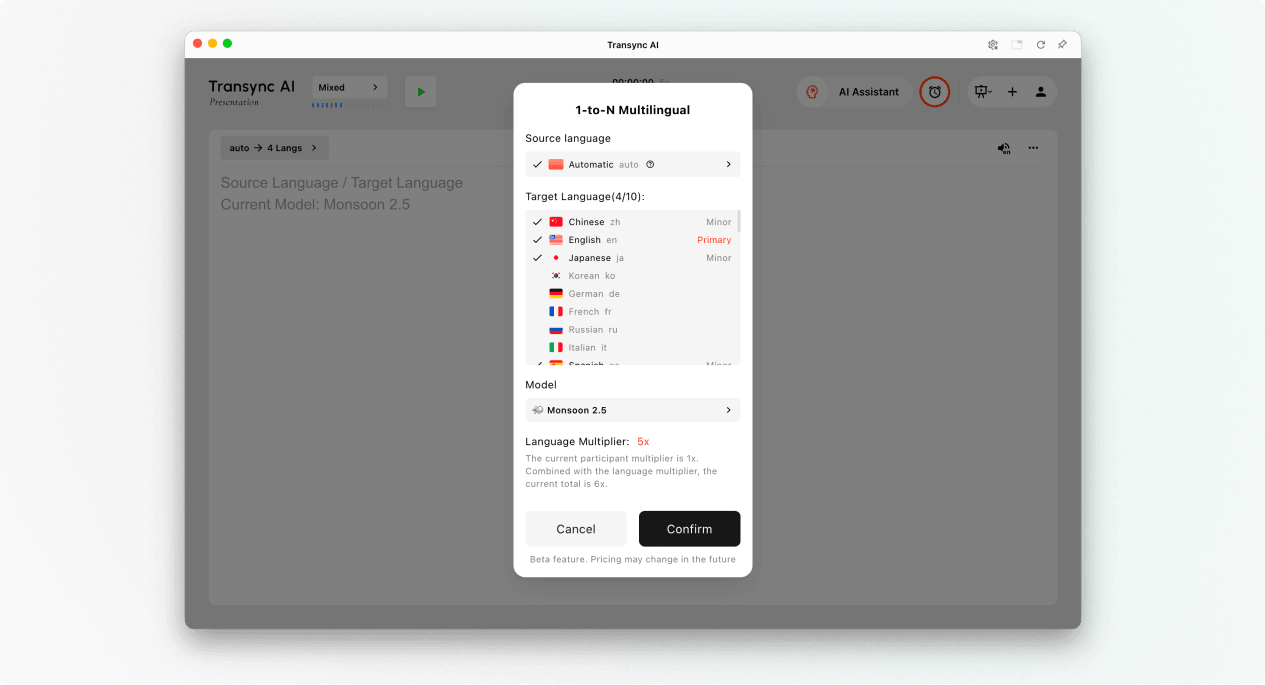
Configure the languages before the presentation starts:

  • Source Language: The language spoken by the host. Use Automatic if the source language should be detected, or select a specific language when the host will use one language consistently.
  • Target Languages: The languages that audience members can choose. The current design supports up to 10 target languages in one presentation task.
  • Primary: The main target language shown in the host’s presentation interface.
  • Minor: Additional target languages available to the audience.

Review the target language and total multipliers displayed in Transync AI. If the expected usage is higher than planned, reduce the enabled language set before starting.

Choose source and target languages for a Presentation Mode session in Transync AI.
Choose the source language and the target languages available to the audience.
 
Configure Voice Playback for Each Language (Optional) #

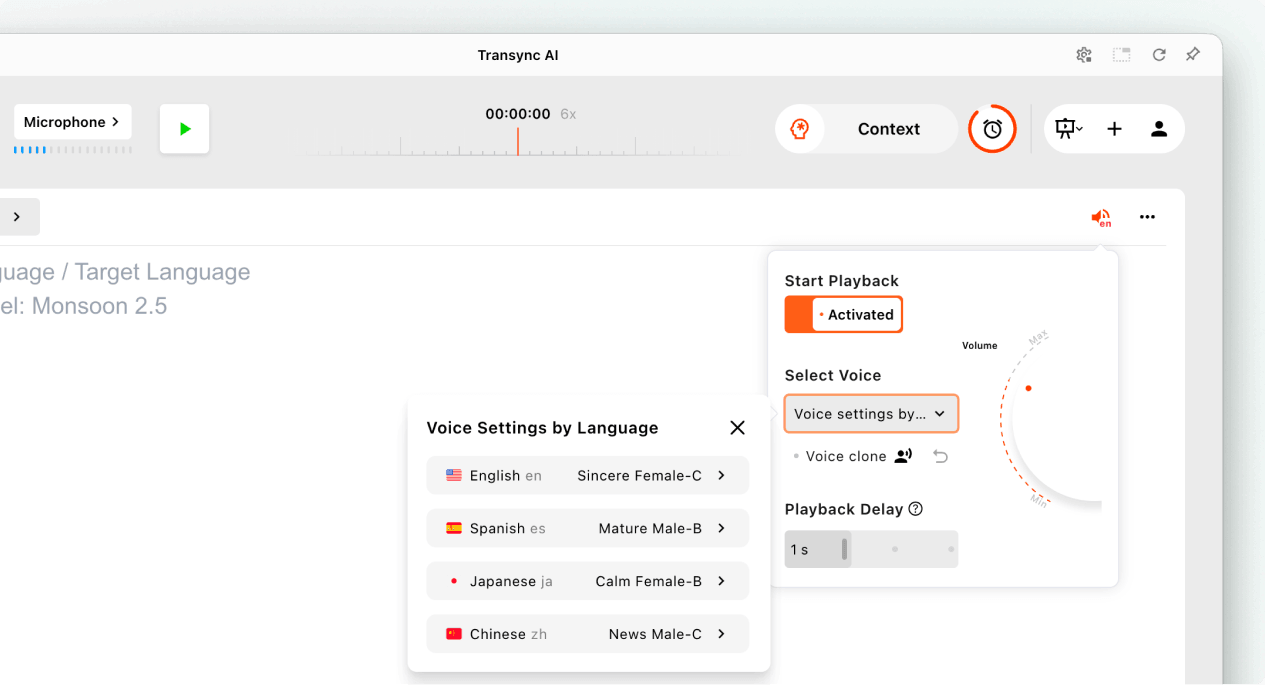
Before starting the presentation, open the Voice Playback settings if you want the audience to hear translated speech.

  • 켜기 Start Playback.
  • 열려 있는 Voice Settings by Language and select a voice for each target language.
  • Where 음성 복제 is available, select a cloned voice for the language.
  • Adjust the volume and playback delay for a comfortable listening experience.

These settings can be configured separately for each enabled target language before the presentation begins.

Configure voice playback, per-language voices, Voice Clone, volume, and playback delay before starting Presentation Mode.
Configure Voice Playback and select a voice for each target language before starting the presentation.
 

4. Start the Presentation #

  1. Select the microphone or audio source that contains the host’s speech.
  2. 클릭 Start button in the upper-left area.
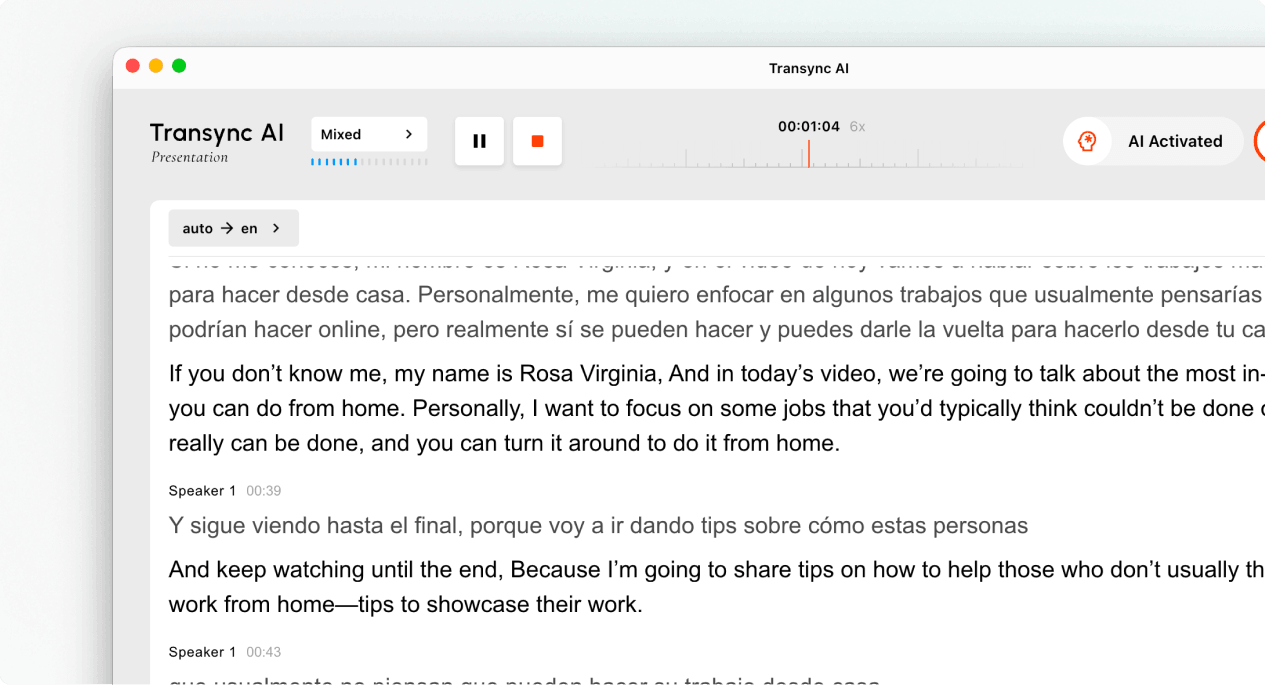
  3. Confirm that the task timer has started and that the host’s speech is appearing as live text.

Speak naturally and keep the microphone close enough to capture clear audio. If the audience will use voice playback, remind them that headphones can help prevent echo in shared spaces.

Run live translation in Presentation Mode in Transync AI.
Start the presentation and confirm that live text is appearing.
 

5. Invite Your Audience #

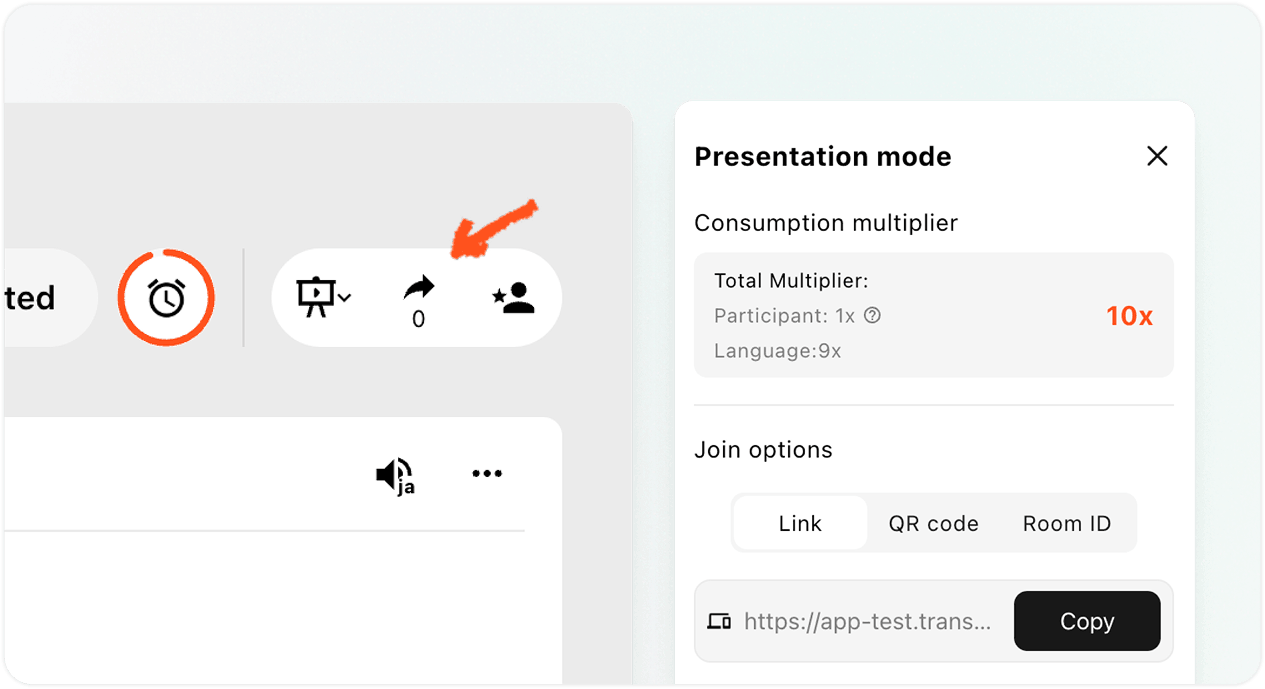
Open the Share panel in the upper-right corner. You can invite the audience in three ways:

  • Link: Copy the link into a meeting invitation, email, chat, or event page.
  • QR code: Display the QR code on a slide, screen, printed card, or event sign so audience members can scan it with a phone.
  • Room ID: Ask audience members to enter the Room ID from the Presentation Mode join entry in Transync AI.

Send audience members the Transync AI 프레젠테이션에 참여하는 방법 guide when they need step-by-step joining instructions. If Transync AI asks an audience member to sign in, they should complete sign-in and then return to the join confirmation.

Open Presentation Mode sharing options for a link, QR code, or Room ID.
Invite the audience with a link, QR code, or Room ID.
 

Manage and End the Presentation #

6. Manage the Live Presentation #

During the presentation, the host can:

  • Check the current online audience count from the Share panel.
  • Review the usage multiplier displayed by Transync AI.
  • Reopen the Link, QR code, or Room ID when another audience member needs to join.
  • Use the available language controls to review the languages offered to the audience.

Audience members choose their own viewing language from the languages enabled by the host. The host can see the audience count, but Presentation Mode does not provide an audience-member list in the live panel.

메모: Language controls may vary by app version. Before relying on an in-session language change, confirm that the required languages are already enabled.

7. End the Presentation and Choose Whether to Share the Transcript #

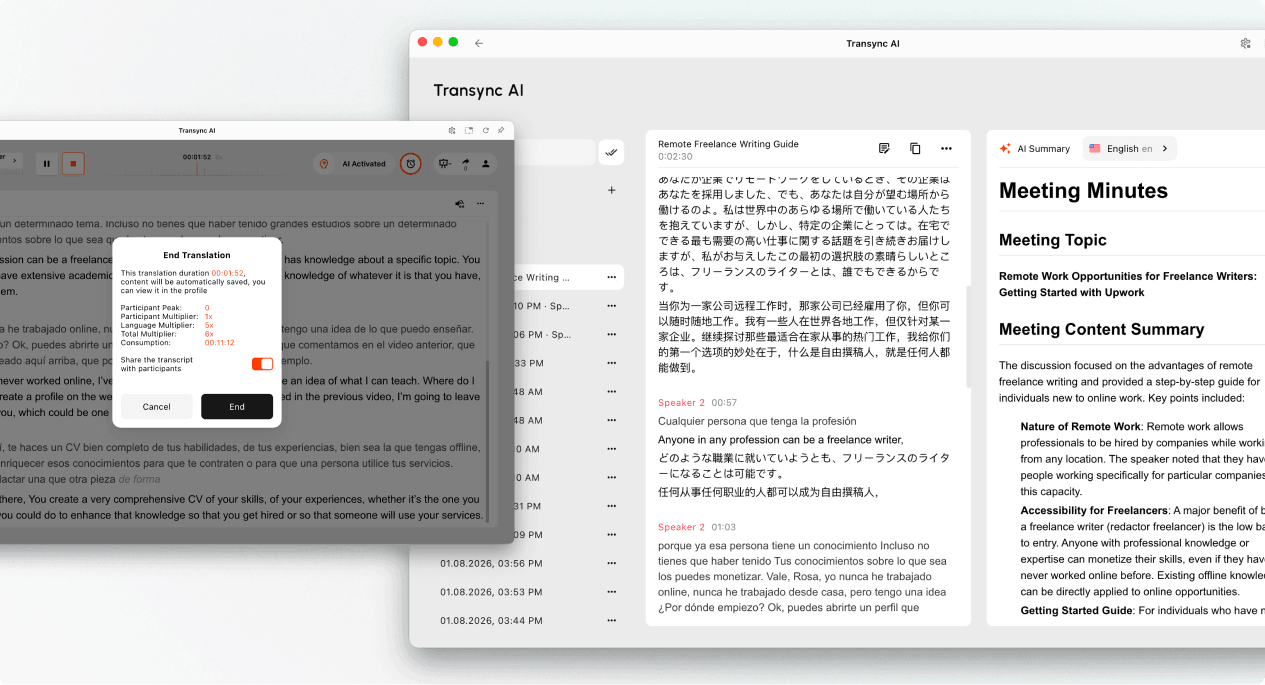
  1. 선택하다 End when the presentation is finished.
  2. Review the task duration, participant peak, displayed multiplier, and final consumption.
  3. If the option is available, choose whether to enable Share the transcript with participants.
  4. Confirm that you want to end the presentation.

Only share the transcript when the presentation content is appropriate for the audience to retain. If transcript sharing is not enabled, the audience receives an end notice without a shared record.

End a Presentation Mode session and review its saved translation record and meeting summary.
End the presentation, choose whether to share the transcript, and review the saved record.
 

8. Review Usage and Records #

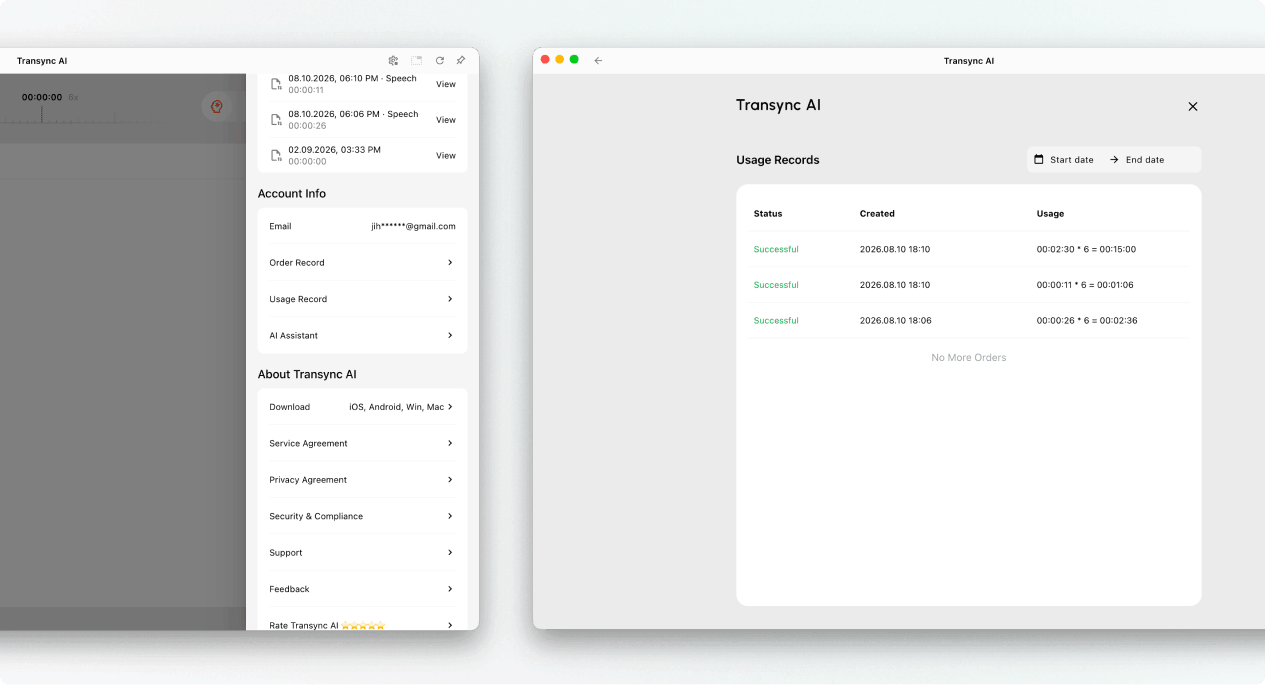
The host can open Translation History to review the saved presentation record. Presentation usage can also be reviewed from Profile → Usage Record.

How Presentation Mode Usage Is Calculated #

Presentation Mode usage is based on two components: the peak number of audience members and the number of enabled target languages.

Participant Multiplier #

The participant multiplier is determined by the highest number of audience members who are online at the same time during the presentation.

Peak Audience Members Participant Multiplier
0–3 1x
4–50 2x
51–100 3x
101–150 4x
151–200 5x

Target Language Multiplier #

The target language multiplier starts at 1x and increases by 1x for each enabled target language.

Number of Target Languages Target Language Multiplier
1 2x
2 3x
3 4x
4 5x
5 6x
6 7x
7 8x
8 9x
9 10x

Total Multiplier = Participant Multiplier + Target Language Multiplier

For example, if the peak audience is 30 people and the host enables 4 target languages, the participant multiplier is 2x and the target language multiplier is 5x. The total multiplier is therefore 7x.

For record organization and exports, see 번역 기록 관리 방법. For transcripts and AI-generated summaries, see 회의 기록 및 요약에 액세스하는 방법.

Review Presentation Mode usage records in the Transync AI account profile.
Open Profile → Usage Record to review Presentation Mode consumption.
 

Troubleshooting #

The audience cannot join #

Confirm that the presentation is still active. Reopen the Share panel and send a fresh copy of the link, QR code, or Room ID. If the audience sees a sign-in request, ask them to sign in and then confirm the join request.

The audience sees no new text #

Check that the host’s task is still active, the correct microphone is selected, and live text is appearing in the host interface. If the host interface is not receiving speech, resolve the audio input before asking the audience to rejoin.

An audience member selected the wrong language #

Ask the audience member to open the language selector and choose another language enabled by the host. If the required language is not listed, check the host’s target-language settings.

Usage is higher than expected #

Confirm the peak audience tier and the number of enabled target languages. Add the participant multiplier and target language multiplier, then compare the result with the task entry in Usage Record.

자주 묻는 질문 #

How is Presentation Mode different from Multilingual Translation? #

Multilingual Translation produces several target languages in one task. Presentation Mode also lets the host distribute the live translation to an audience, with each audience member following on their own device.

Can audience members speak into the host’s task? #

No. Audience members can view translations and listen to voice playback, but they cannot provide voice input to the host’s task.

How many target languages can the host enable? #

The current Presentation Mode design supports up to 10 target languages. Check the current app interface for the languages available in your task.

How is Presentation Mode usage calculated? #

Add the participant multiplier for the peak audience tier to the target language multiplier. The target language multiplier starts at 1x and increases by 1x for each enabled target language. Review the tables above and compare the total multiplier with the value displayed in the presentation workflow.

What happens after the presentation ends? #

The host’s content is saved to Translation History. If the host enables transcript sharing, audience members can open the shared record from their account after the presentation.

Related Articles #

  • Transync AI 프레젠테이션에 참여하는 방법
  • 데스크톱 빠른 시작 가이드
  • Transync AI에서 음성 재생 기능을 사용하는 방법
  • 번역 기록 관리 방법
  • 회의 기록 및 요약에 액세스하는 방법
업데이트됨 8월 12, 2026

이 문서가 도움이 되었나요?

  • 도움이 됨
  • 도움이 되지 않음

이 기사를 공유하세요 :

  • 페이스북
  • 엑스
  • 링크드인
  • 핀터레스트
Transync AI 프레젠테이션에 참여하는 방법Transync AI 프레젠테이션에 참여하는 방법
목차
  • Before You Start
  • Start a Presentation
    • 1. Switch to Presentation Mode
    • 2. Review the Beta and Usage Notice
    • 3. Choose the Source and Audience Languages
      • Configure Voice Playback for Each Language (Optional)
    • 4. Start the Presentation
    • 5. Invite Your Audience
  • Manage and End the Presentation
    • 6. Manage the Live Presentation
    • 7. End the Presentation and Choose Whether to Share the Transcript
    • 8. Review Usage and Records
  • How Presentation Mode Usage Is Calculated
    • Participant Multiplier
    • Target Language Multiplier
  • Troubleshooting
    • The audience cannot join
    • The audience sees no new text
    • An audience member selected the wrong language
    • Usage is higher than expected
  • 자주 묻는 질문
    • How is Presentation Mode different from Multilingual Translation?
    • Can audience members speak into the host's task?
    • How many target languages can the host enable?
    • How is Presentation Mode usage calculated?
    • What happens after the presentation ends?
  • Related Articles

RedNote Douyin 빌리빌리 知乎 유튜브 TikTok 링크드인

沪ICP备2025119728号

연락하다:support@transyncai.com

도구

  • 도구
  • AI 실시간 번역
  • AI 라이브 미팅 번역
  • AI 회의 노트
  • AI 음성 번역기
  • AI 어시스턴트
  • Picture-in-Picture, 떠다니는 자막
  • 지원 언어
  • 사용 사례
  • 줌 번역
  • Microsoft Teams 번역
  • Google Meet 번역
  • WhatsApp 번역
  • 대면 회의 통역

페이지

  • 가격
  • 블로그
  • 지원하다
  • 다운로드
  • 기업
  • 변경 사항
  • 무료 체험

자원

  • 트랜싱크 AI 관련 정보
  • Transync AI를 비교해 보세요
  • Transync AI 대안

약관

  • 개인정보처리방침
  • 서비스 약관
  • 신뢰 센터

© 2026 Transync AI – 실시간 번역.

한국어
English 简体中文 日本語 Русский Français Español Deutsch Italiano Čeština ไทย 繁體中文繁體中文 Português do Brasil العربية हिन्दी Bahasa Indonesia Tiếng Việt Türkçe Nederlands Polski Українська