
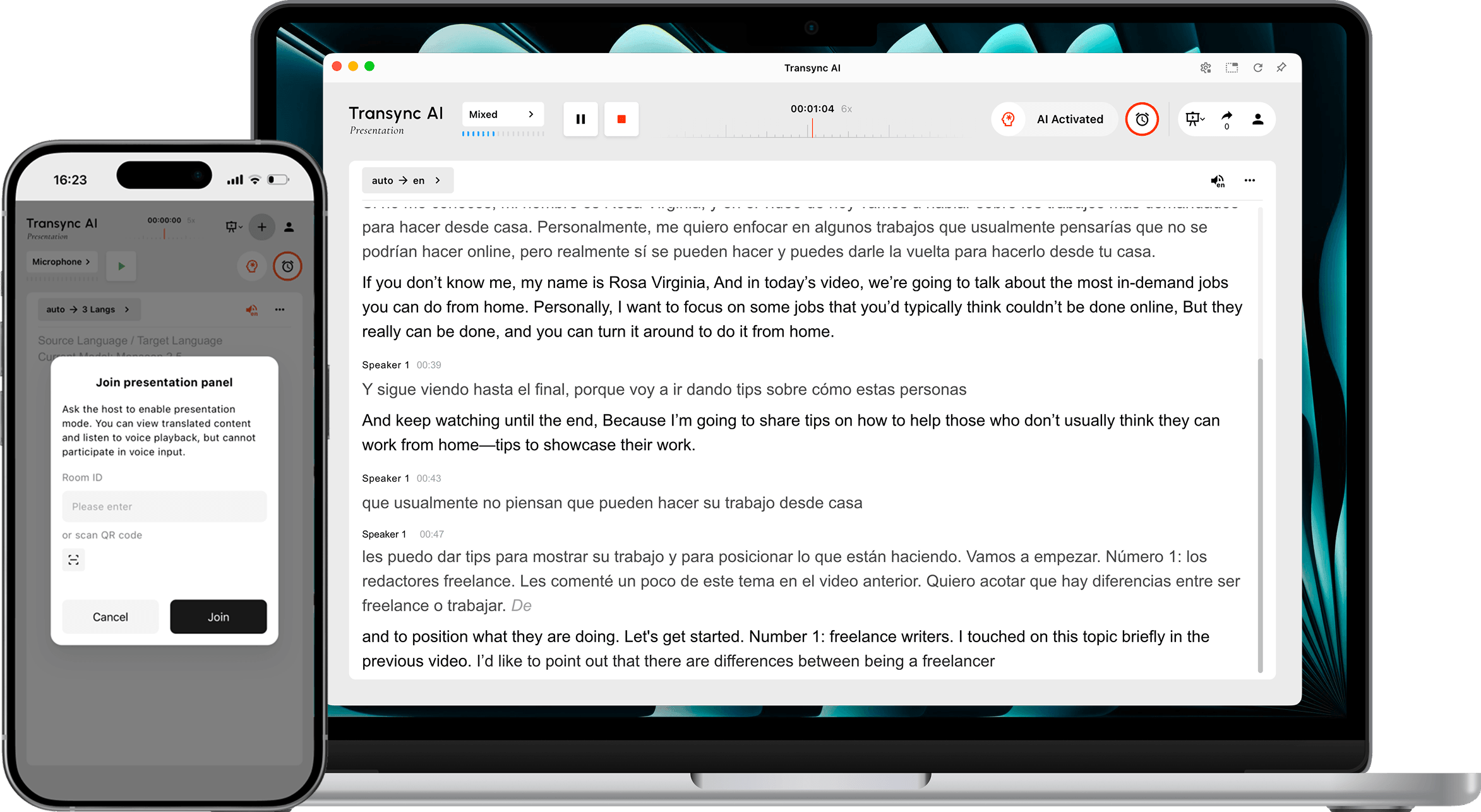
Sunum Modu Bu özellik, sunucunun gerçek zamanlı çeviriyi izleyicilerle paylaşmasına olanak tanır. Sunucu kaynak dilde konuşurken, her izleyici sunucunun kendi cihazında etkinleştirdiği bir dilde sunumu takip eder.
Çok dilli konferanslar, şirket sunumları, eğitim oturumları, dersler, topluluk etkinlikleri veya diğer çok katılımcılı durumlar için Sunum Modunu kullanın. İzleyiciler canlı çeviriyi okuyabilir ve ses kaydını dinleyebilir, ancak sunucunun çeviri görevine müdahale edemezler.
Not: Sunum Modu şu anda beta aşamasındadır. Transync AI'da gösterilen kullanım, en yüksek izleyici kitlesine ve hedef dil sayısına bağlı olarak değişebilir. Başlamadan önce görüntülenen çarpanı inceleyin.
Başlamadan Önce #
Sunumu dinleyicilerinize açmadan önce aşağıdakileri hazırlayın:
- Sunucunun mikrofonunun bağlı ve Transync AI'da seçili olduğundan emin olun.
- Sunucunun hangi dili konuşacağına karar verin veya otomatik kaynak dil algılama özelliğini kullanın.
- Başlamadan önce doğru hedef dilleri etkinleştirebilmek için hedef kitlenizin ihtiyaç duyduğu dilleri toplayın.
- Katılımcıların katılım bağlantısını, QR kodunu veya Oda Kimliğini nerede bulacağını seçin; örneğin toplantı davetiyesinde, açılış slaytında, etkinlik ekranında veya oturma kartında.
- Bu sizin ilk Transync AI görevinizse, aşağıdaki adımları tamamlayın. Masaüstü Hızlı Başlangıç Kılavuzu Birinci.
Sunum Başlat #
1. Sunum Moduna Geçin #
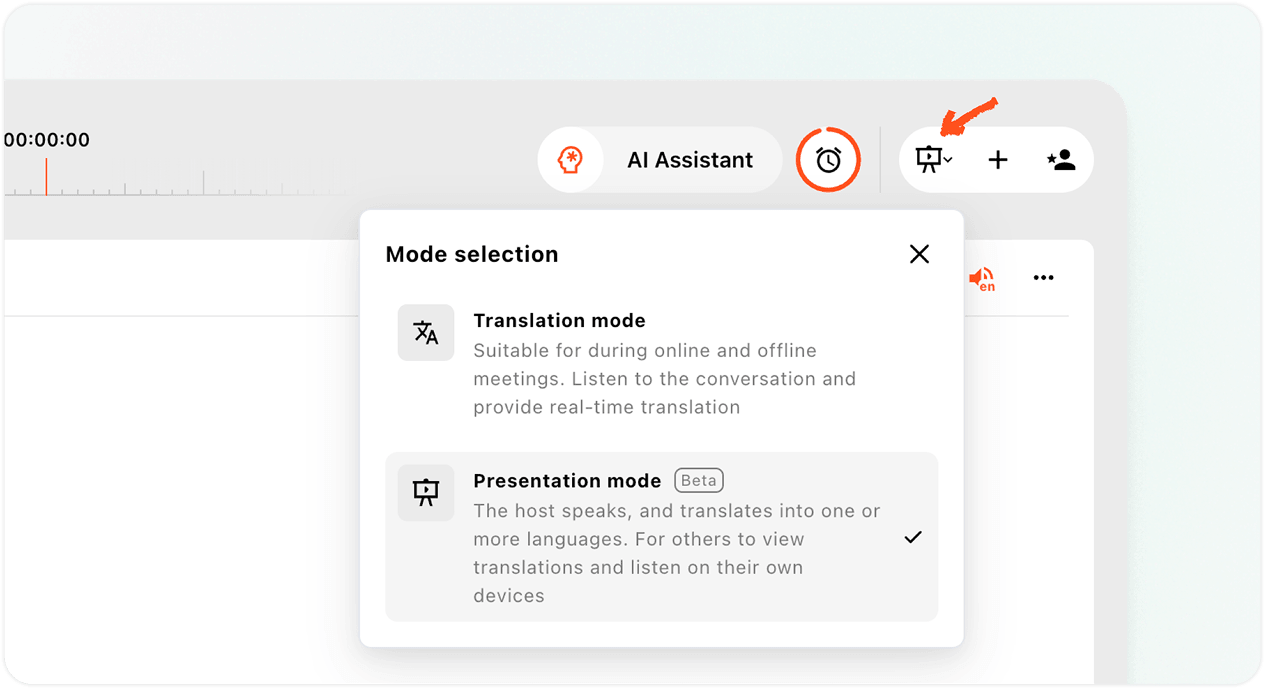
- Açın Transync yapay zeka web uygulaması Veya masaüstü uygulamasını kullanın ve çeviri arayüzünün sağ üst köşesindeki mod seçiciyi bulun.
- Mod menüsünü açın.
- Seçme Sunum Modu.
Sunum Modu, Çok Dilli Çeviriden farklıdır. Çok Dilli Çeviri, tek bir çeviri görevi içinde birden fazla dil çıktısı oluşturur. Sunum Modu ise canlı çeviriyi izleyicilere kendi cihazlarında dağıtır ve her kişi mevcut dillerden birini seçebilir.
2. Beta ve Kullanım Bildirimini İnceleyin #
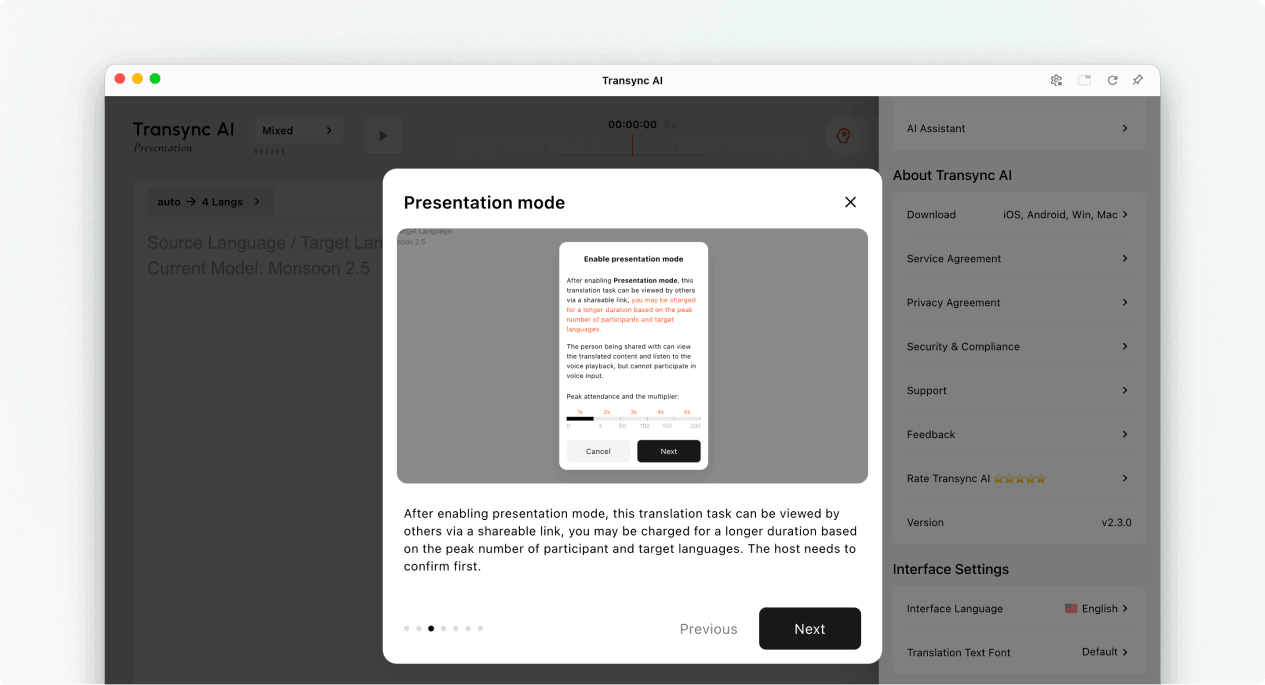
Sunum Modunu etkinleştirdiğinizde, Transync AI izleyicilerin neler yapabileceğini ve sunum kullanımının nasıl hesaplandığını açıklar. Devam etmeden önce bu uyarıyı okuyun.
- İzleyiciler çevrilmiş içeriği kendi cihazlarında görüntüleyebilirler.
- Dinleyiciler, mevcut olduğunda sesli kayıt özelliğiyle dinleyebilirler.
- İzleyiciler sunucunun konuşmasına sesli olarak katkıda bulunamazlar.
- Toplam çarpan, katılımcı çarpanı artı hedef dil çarpanıdır.
Seçme Sonraki Sunum dillerini yapılandırmaya hazır olduğunuzda.
3. Kaynak ve Hedef Kitle Dillerini Seçin #
Sunum başlamadan önce dilleri yapılandırın:
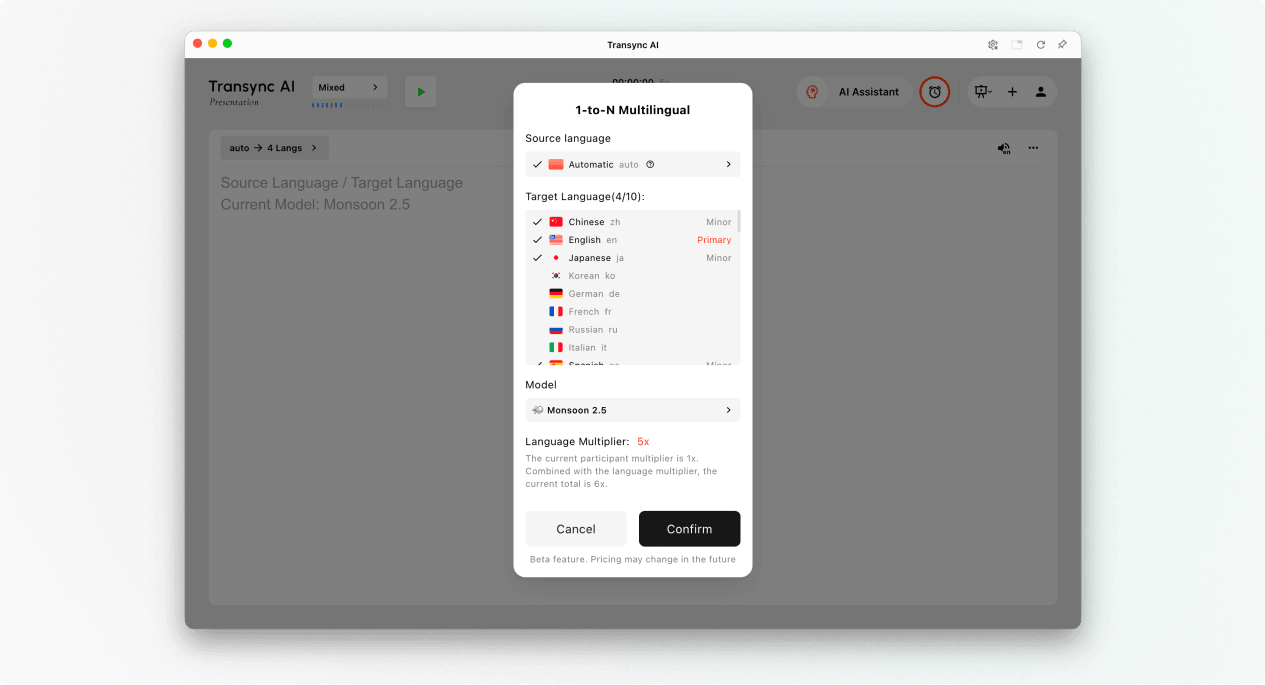
- Kaynak DilSunucunun konuştuğu dil. Kaynak dilin algılanması gerekiyorsa Otomatik'i kullanın veya sunucu sürekli olarak tek bir dil kullanacaksa belirli bir dil seçin.
- Hedef Diller: İzleyicilerin seçebileceği diller. Mevcut tasarım, tek bir sunum görevinde 9 hedef dile kadar destek vermektedir.
- ÖncelikSunucunun sunum arayüzünde gösterilen ana hedef dil.
- Küçük: İzleyicilere sunulan ek hedef diller.
Transync AI'da görüntülenen hedef dili ve toplam çarpanları inceleyin. Beklenen kullanım planlanandan yüksekse, başlamadan önce etkin dil kümesini azaltın.
Her dil için ses oynatma ayarlarını yapılandırın (İsteğe bağlı) #
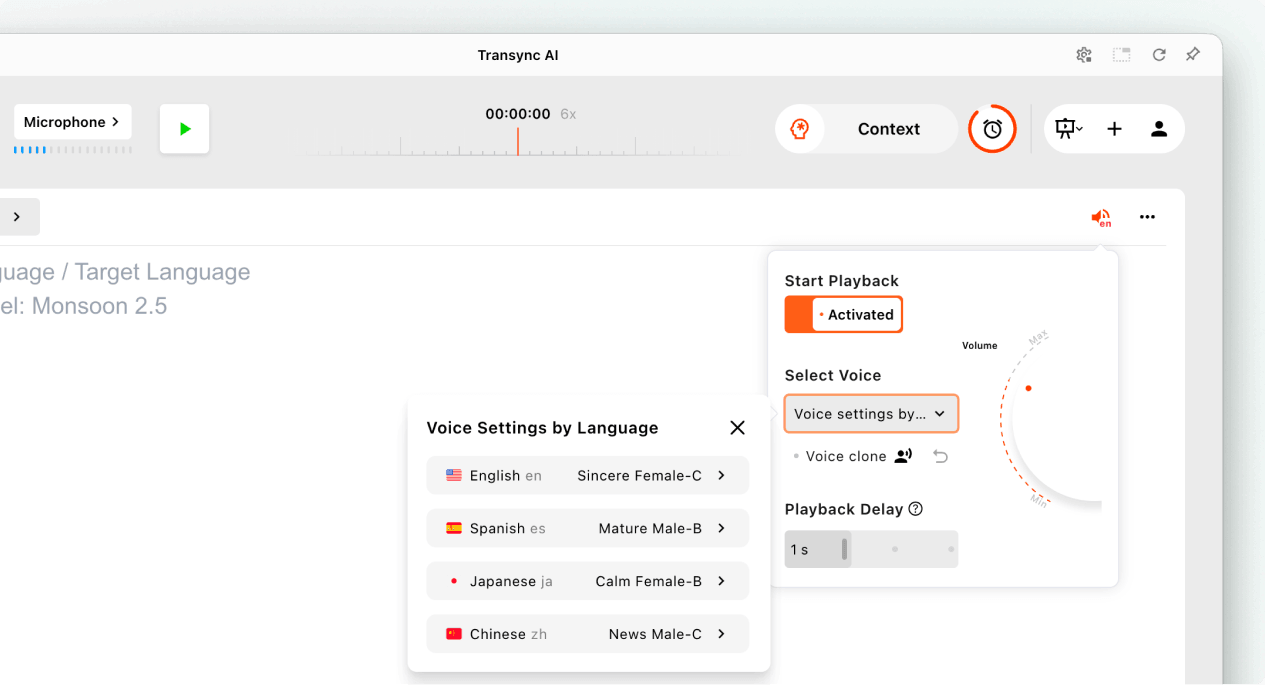
Sunuma başlamadan önce, dinleyicilerin çevrilmiş konuşmayı duymasını istiyorsanız Ses Oynatma ayarlarını açın.
- Açın Oynatmayı Başlat.
- Açık Dil Bazında Ses Ayarları ve her hedef dil için bir ses seçin.
- Nerede Ses Klonu Mevcutsa, dil için klonlanmış bir ses seçin.
- Rahat bir dinleme deneyimi için ses seviyesini ve oynatma gecikmesini ayarlayın.
Bu ayarlar, sunum başlamadan önce etkinleştirilmiş her hedef dil için ayrı ayrı yapılandırılabilir.
4. Sunuma Başlayın #
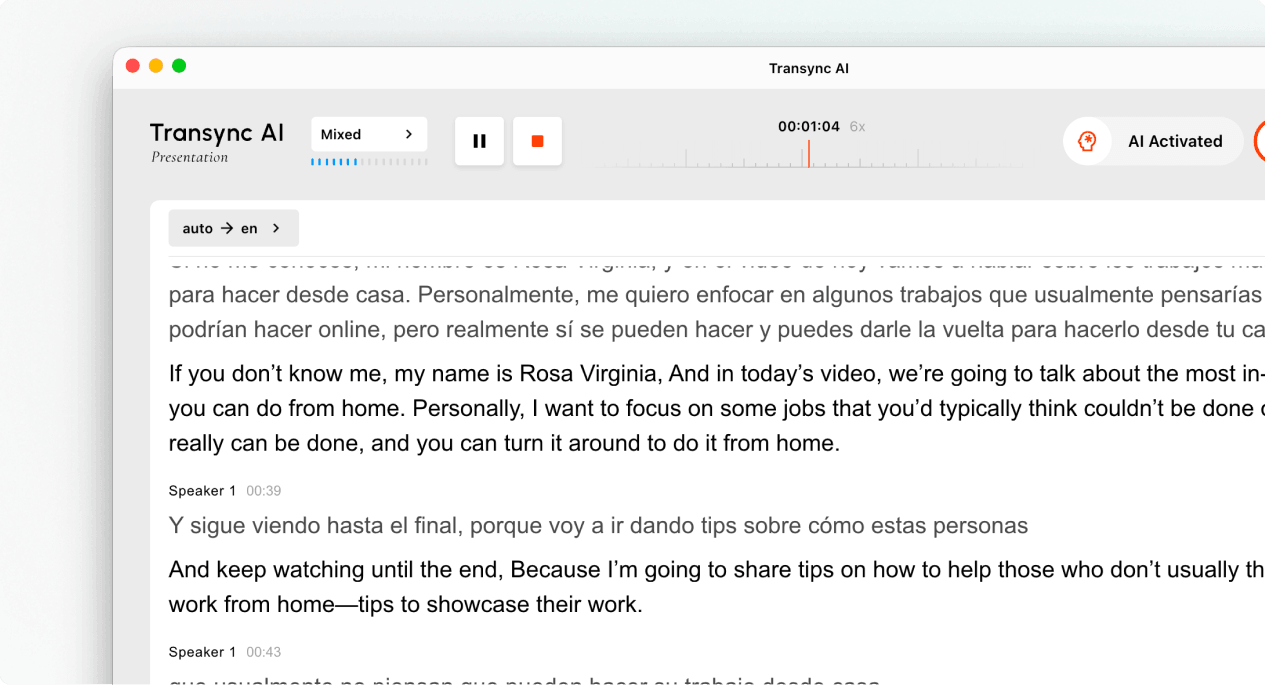
- Sunucunun konuşmasını içeren mikrofonu veya ses kaynağını seçin.
- Tıklayın Başlangıç Sol üst köşedeki düğme.
- Görev zamanlayıcısının başladığını ve sunucunun konuşmasının canlı metin olarak göründüğünü doğrulayın.
Doğal bir şekilde konuşun ve net ses kaydı almak için mikrofonu yeterince yakın tutun. Eğer dinleyiciler ses kaydını kullanacaklarsa, kulaklıkların ortak alanlarda yankıyı önlemeye yardımcı olabileceğini hatırlatın.
5. İzleyicilerinizi Davet Edin #
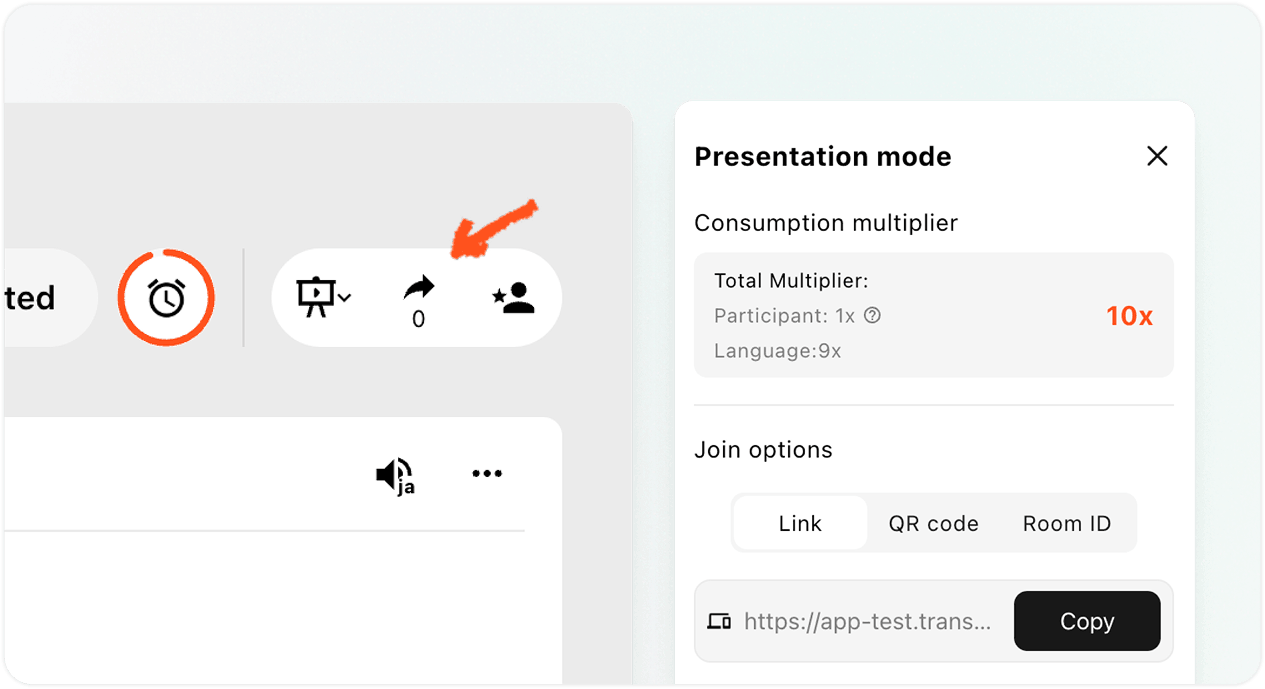
Sağ üst köşedeki Paylaş panelini açın. İzleyicileri üç şekilde davet edebilirsiniz:
- Bağlantı: Bağlantıyı bir toplantı davetine, e-postaya, sohbete veya etkinlik sayfasına kopyalayın.
- QR koduQR kodunu bir slayt, ekran, basılı kart veya etkinlik tabelasında gösterin, böylece izleyiciler telefonlarıyla tarayabilirler.
- Oda Kimliği: İzleyicilerden Transync AI'deki Sunum Modu katılım girişinden Oda Kimliğini girmelerini isteyin.
Seyircilere gönderin Transync Yapay Zeka Sunumuna Nasıl Katılabilirsiniz? Kullanıcılara adım adım katılım talimatları gerektiğinde rehberlik eder. Transync AI, bir izleyiciden oturum açmasını isterse, kullanıcı oturum açma işlemini tamamladıktan sonra katılım onayına geri dönmelidir.
Sunumu Yönetin ve Sonlandırın #
6. Canlı Sunumu Yönetin #
Sunum sırasında sunucu şunları yapabilir:
- Paylaş panelinden güncel çevrimiçi izleyici sayısını kontrol edin.
- Transync AI tarafından görüntülenen kullanım çarpanını inceleyin.
- Başka bir katılımcının dahil olması gerektiğinde bağlantıyı, QR kodunu veya oda kimliğini yeniden açın.
- İzleyicilere sunulan dilleri incelemek için mevcut dil kontrollerini kullanın.
İzleyiciler, sunucunun etkinleştirdiği diller arasından kendi izleme dillerini seçerler. Sunucu izleyici sayısını görebilir, ancak Sunum Modu canlı panelde izleyici listesi sağlamaz.
Not: Dil kontrolleri uygulama sürümüne göre değişiklik gösterebilir. Oturum içi dil değişikliğine güvenmeden önce, gerekli dillerin zaten etkinleştirilmiş olduğundan emin olun.
7. Sunumu sonlandırın ve metni paylaşmayı seçin. #
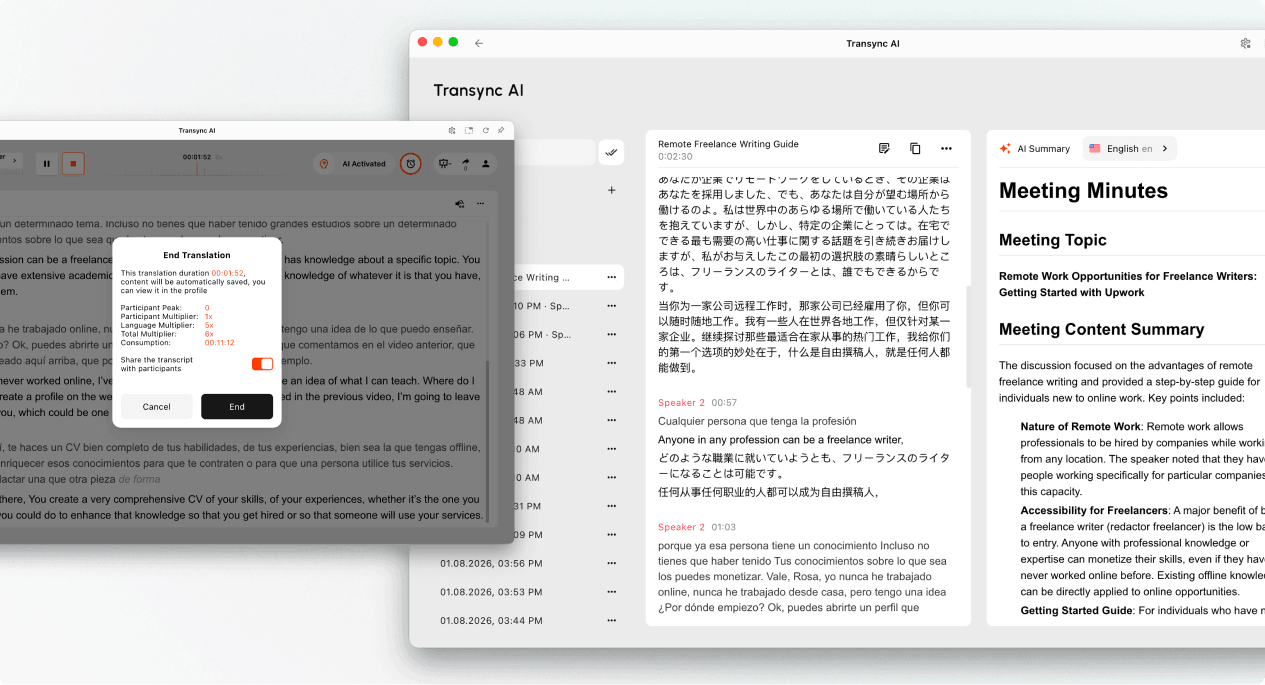
- Seçme Son Sunum bittiğinde.
- Görev süresini, katılımcının en yüksek değerini, görüntülenen çarpanı ve nihai tüketimi inceleyin.
- Seçenek mevcutsa, etkinleştirip etkinleştirmemeyi seçin. Konuşma metnini katılımcılarla paylaşın..
- Sunumu sonlandırmak istediğinizi onaylayın.
Sunum içeriği izleyicilerin hatırlaması için uygun olduğunda yalnızca sunum metnini paylaşın. Sunum metni paylaşımı etkinleştirilmemişse, izleyiciler paylaşılan bir kayıt olmadan sunumun sona erdiğine dair bir bildirim alırlar.
8. Kullanım ve Kayıtları Gözden Geçirin #
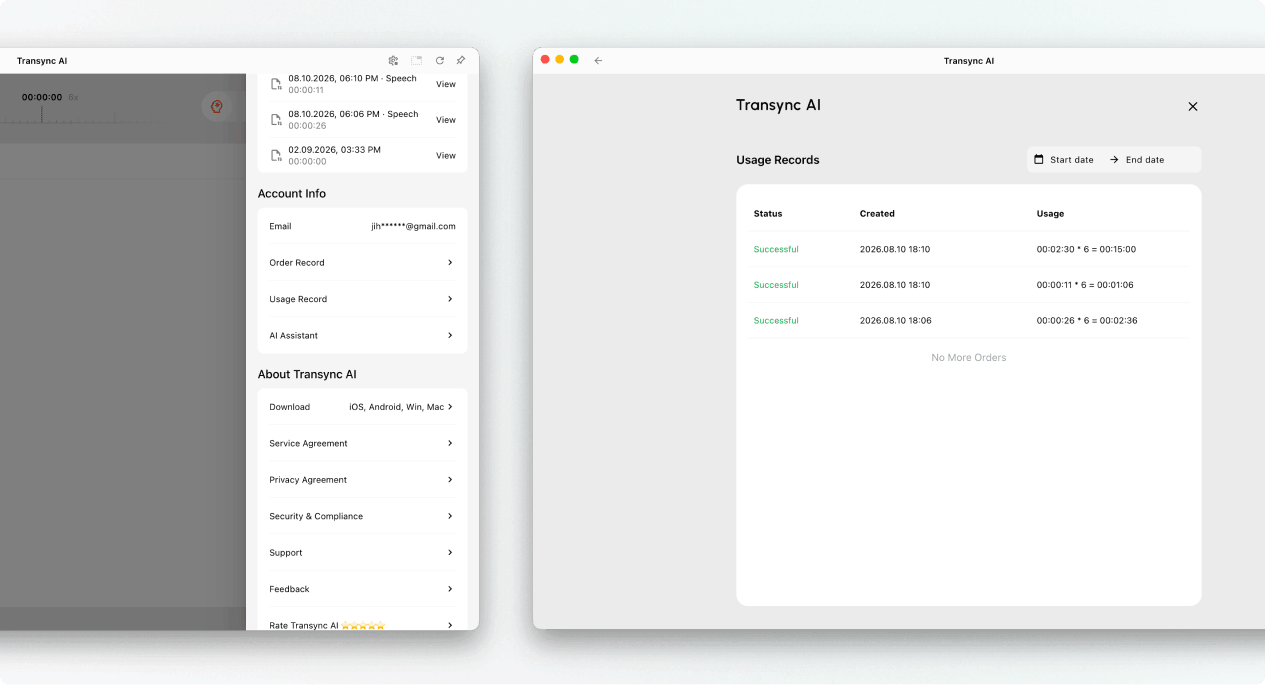
Sunumu yöneten kişi, kaydedilmiş sunum kaydını incelemek için Çeviri Geçmişi'ni açabilir. Sunum kullanımı da buradan incelenebilir. Profil → Kullanım Kaydı.
Sunum Modu Kullanımı Nasıl Hesaplanır? #
Sunum Modu kullanımı iki bileşene bağlıdır: en yüksek izleyici sayısı ve etkinleştirilmiş hedef dil sayısı.
Katılımcı Çarpanı #
Katılımcı çarpanı, sunum sırasında aynı anda çevrimiçi olan izleyici sayısının en yüksek değeriyle belirlenir.
| Zirve İzleyici Kitlesi | Katılımcı Çarpanı |
|---|---|
| 0–3 | 1x |
| 4–50 | 2x |
| 51–100 | 3x |
| 101–150 | 4x |
| 151–200 | 5x |
Hedef Dil Çarpanı #
Hedef dil çarpanı 1x'ten başlar ve etkinleştirilen her hedef dil için 1x artar.
| Hedef Dil Sayısı | Hedef Dil Çarpanı |
|---|---|
| 1 | 2x |
| 2 | 3x |
| 3 | 4x |
| 4 | 5x |
| 5 | 6x |
| 6 | 7x |
| 7 | 8x |
| 8 | 9x |
| 9 | 10x |
Toplam Çarpan = Katılımcı Çarpanı + Hedef Dil Çarpanı
Örneğin, en yüksek izleyici sayısı 30 kişi ise ve sunucu 4 hedef dili etkinleştirirse, katılımcı çarpanı 2x ve hedef dil çarpanı 5x olur. Dolayısıyla toplam çarpan 7x'tir.
Kayıtların düzenlenmesi ve dışa aktarılması için bkz. Çeviri Kayıtları Nasıl Yönetilir?. Transkriptler ve yapay zeka tarafından oluşturulan özetler için bakınız. Toplantı Transkriptlerine ve Özetlerine Nasıl Erişilir?.
Sorun giderme #
Seyirciler katılamaz. #
Sunumun hala aktif olduğunu doğrulayın. Paylaş panelini yeniden açın ve bağlantının, QR kodunun veya Oda Kimliğinin yeni bir kopyasını gönderin. İzleyiciler bir oturum açma isteği görürlerse, oturum açmalarını ve ardından katılma isteğini onaylamalarını isteyin.
Seyirciler yeni bir metin görmüyor. #
Sunucunun görevinin hala aktif olduğundan, doğru mikrofonun seçili olduğundan ve sunucu arayüzünde canlı metnin göründüğünden emin olun. Sunucu arayüzü konuşma almıyorsa, izleyicilerden tekrar katılmalarını istemeden önce ses girişini düzeltin.
Bir izleyici yanlış dili seçti. #
İzleyiciden dil seçiciyi açmasını ve sunucunun etkinleştirdiği dillerden birini seçmesini isteyin. İstenen dil listede yoksa, sunucunun hedef dil ayarlarını kontrol edin.
Kullanım beklenenden daha yüksek. #
En yüksek izleyici kitlesi düzeyini ve etkinleştirilmiş hedef dil sayısını doğrulayın. Katılımcı çarpanını ve hedef dil çarpanını ekleyin, ardından sonucu Kullanım Kaydı'ndaki görev girişiyle karşılaştırın.
SSS #
Sunum Modu ile Çok Dilli Çeviri arasındaki fark nedir? #
Çok Dilli Çeviri, tek bir görevde birden fazla hedef dil üretir. Sunum Modu ayrıca sunucunun canlı çeviriyi izleyicilere dağıtmasına olanak tanır; her izleyici kendi cihazından takip edebilir.
Seyirciler sunucunun konuşmasına müdahale edebilir mi? #
Hayır. İzleyiciler çevirileri görüntüleyebilir ve ses kaydını dinleyebilir, ancak sunucunun görevine sesli girdi sağlayamazlar.
Sunucu kaç tane hedef dili etkinleştirebilir? #
Mevcut Sunum Modu tasarımı 9 adede kadar hedef dili desteklemektedir. Görevinizde kullanılabilen diller için mevcut uygulama arayüzünü kontrol edin.
Sunum Modu kullanımının hesaplanması nasıl yapılır? #
En yüksek izleyici kitlesi düzeyi için katılımcı çarpanını hedef dil çarpanına ekleyin. Hedef dil çarpanı 1x'ten başlar ve etkinleştirilen her hedef dil için 1x artar. Yukarıdaki tabloları inceleyin ve toplam çarpanı sunum iş akışında görüntülenen değerle karşılaştırın.
Sunum bittikten sonra ne olur? #
Sunucunun içeriği Çeviri Geçmişine kaydedilir. Sunucu transkript paylaşımını etkinleştirirse, izleyiciler sunumdan sonra paylaşılan kaydı kendi hesaplarından açabilirler.


