
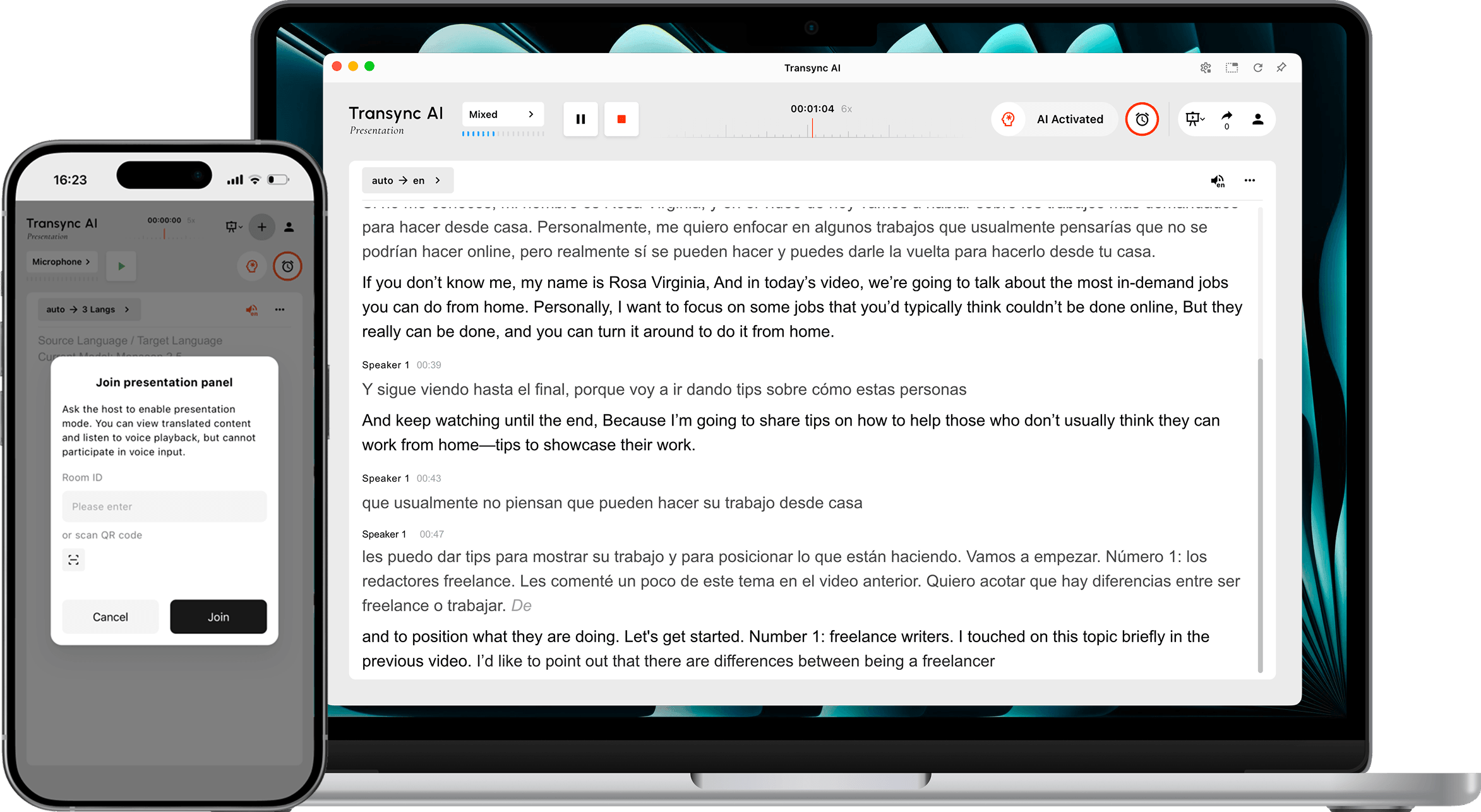
Mode de présentation Permet à un présentateur de partager une traduction en temps réel avec son public. Le présentateur s'exprime dans une langue source, tandis que chaque participant suit la présentation dans une langue activée par le présentateur sur son propre appareil.
Utilisez le mode Présentation pour les conférences multilingues, les présentations d'entreprise, les formations, les cours magistraux, les événements communautaires ou toute autre situation impliquant un public de plusieurs personnes. Les participants peuvent lire la traduction en direct et écouter la relecture audio, mais ne peuvent pas interagir avec l'animateur pendant la traduction.
Note: Le mode Présentation est actuellement en version bêta. L'utilisation affichée par Transync AI peut varier en fonction de l'audience maximale et du nombre de langues cibles. Veuillez vérifier le multiplicateur affiché avant de commencer.
Avant de commencer #
Préparez les éléments suivants avant de présenter votre exposé à votre public :
- Vérifiez que le microphone de l'hôte est connecté et sélectionné dans Transync AI.
- Choisissez la langue que parlera l'hôte ou utilisez la détection automatique de la langue source.
- Recensez les langues dont votre public a besoin afin de pouvoir activer les langues cibles appropriées avant de commencer.
- Choisissez où le public trouvera le lien de participation, le code QR ou l'identifiant de salle, par exemple sur une invitation à la réunion, une diapositive d'ouverture, un écran d'événement ou une carte de siège.
- S'il s'agit de votre première tâche Transync AI, veuillez compléter le Guide de démarrage rapide pour ordinateur de bureau d'abord.
Démarrer une présentation #
1. Passez en mode présentation #
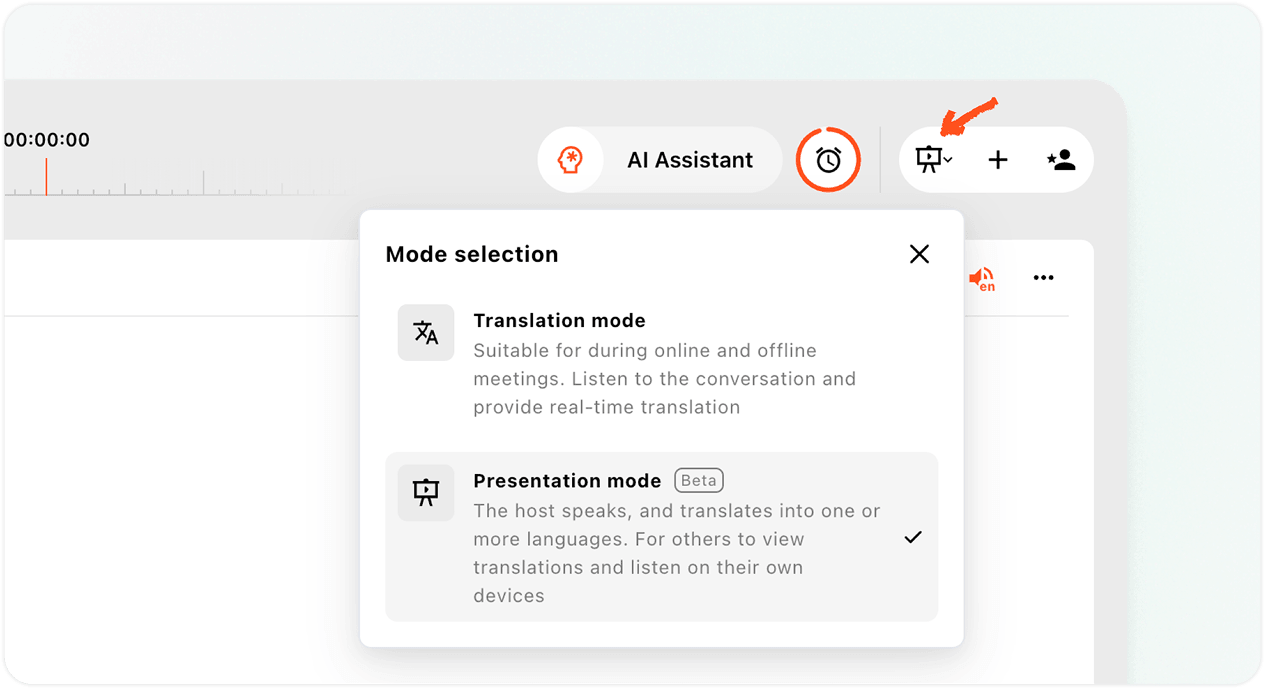
- Ouvrez le Application Web Transync AI ou l'application de bureau et trouvez le sélecteur de mode dans la partie supérieure droite de l'interface de traduction.
- Ouvrez le menu des modes.
- Sélectionner Mode de présentation.
Le mode Présentation diffère de la traduction multilingue. La traduction multilingue génère plusieurs traductions au sein d'une même tâche. Le mode Présentation, quant à lui, diffuse la traduction en direct aux participants sur leurs appareils, chacun pouvant choisir la langue souhaitée.
2. Consultez les notes d'utilisation et la version bêta #
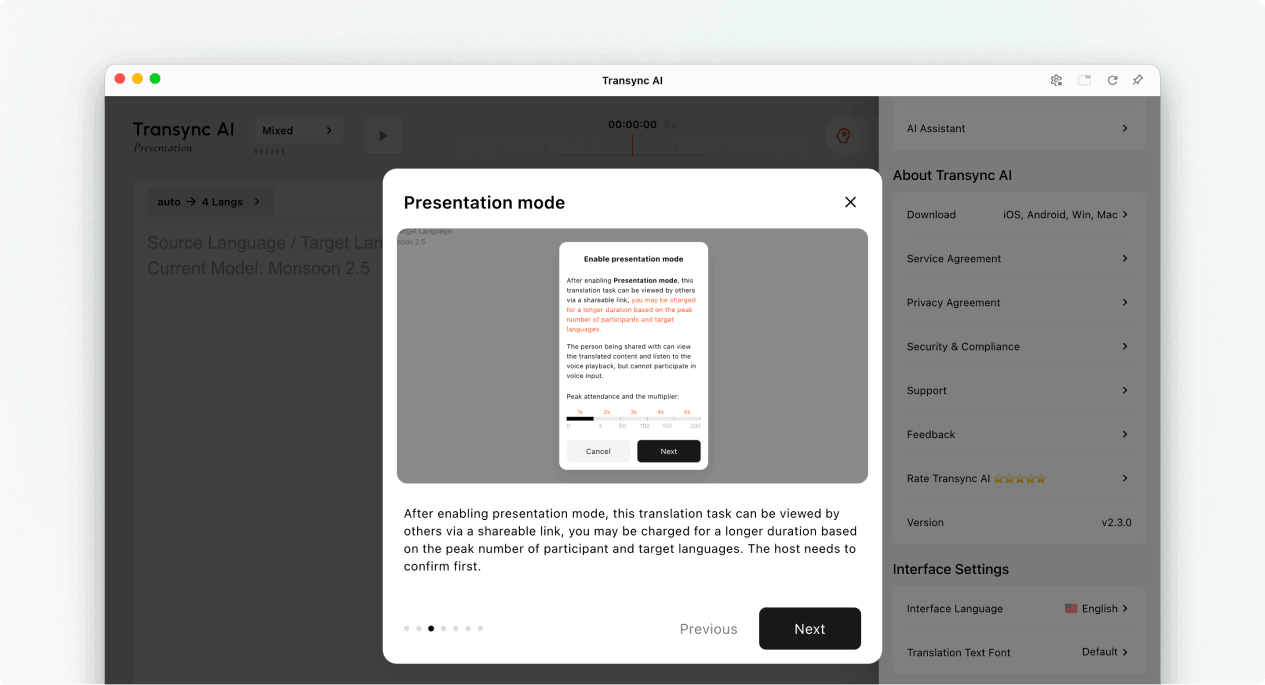
Lorsque vous activez le mode Présentation, Transync AI explique les actions possibles pour le public et le mode de calcul de l'utilisation de la présentation. Veuillez lire cette notice avant de continuer.
- Les membres du public peuvent consulter le contenu traduit sur leurs propres appareils.
- Les membres du public peuvent écouter la diffusion audio lorsqu'elle est disponible.
- Les membres du public ne peuvent pas contribuer vocalement à la tâche de l'animateur.
- Le multiplicateur total est la somme du multiplicateur du participant et du multiplicateur de la langue cible.
Sélectionner Suivant lorsque vous serez prêt à configurer les langues de présentation.
3. Choisir les langues source et cible #
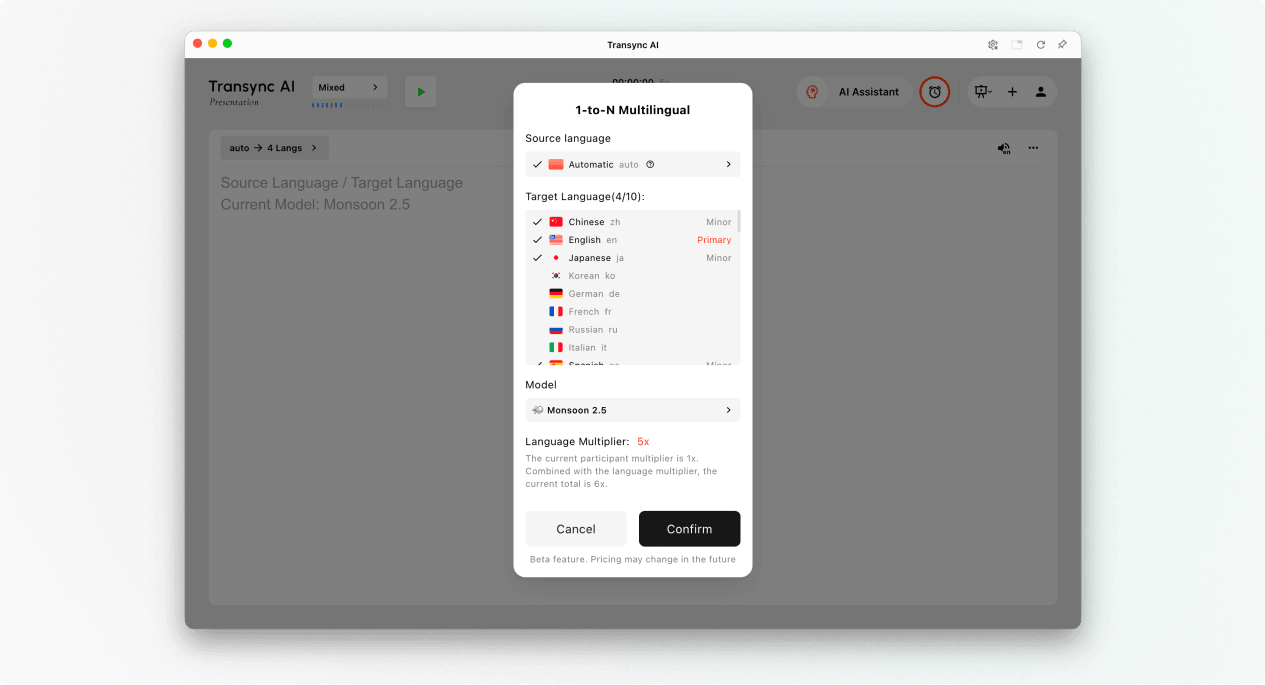
Configurez les langues avant le début de la présentation :
- Langue sourceLangue parlée par l'hôte. Utilisez « Automatique » si la langue source doit être détectée, ou sélectionnez une langue spécifique si l'hôte utilise toujours la même langue.
- Langues ciblesLes langues que les membres du public peuvent choisir. La conception actuelle prend en charge jusqu'à 9 langues cibles pour une même présentation.
- Primaire: La langue cible principale affichée dans l'interface de présentation de l'hôte.
- MineureAutres langues cibles disponibles pour le public.
Vérifiez la langue cible et les multiplicateurs totaux affichés dans Transync AI. Si l'utilisation prévue est supérieure aux prévisions, réduisez le nombre de langues activées avant de commencer.
Configurer la lecture vocale pour chaque langue (facultatif) #
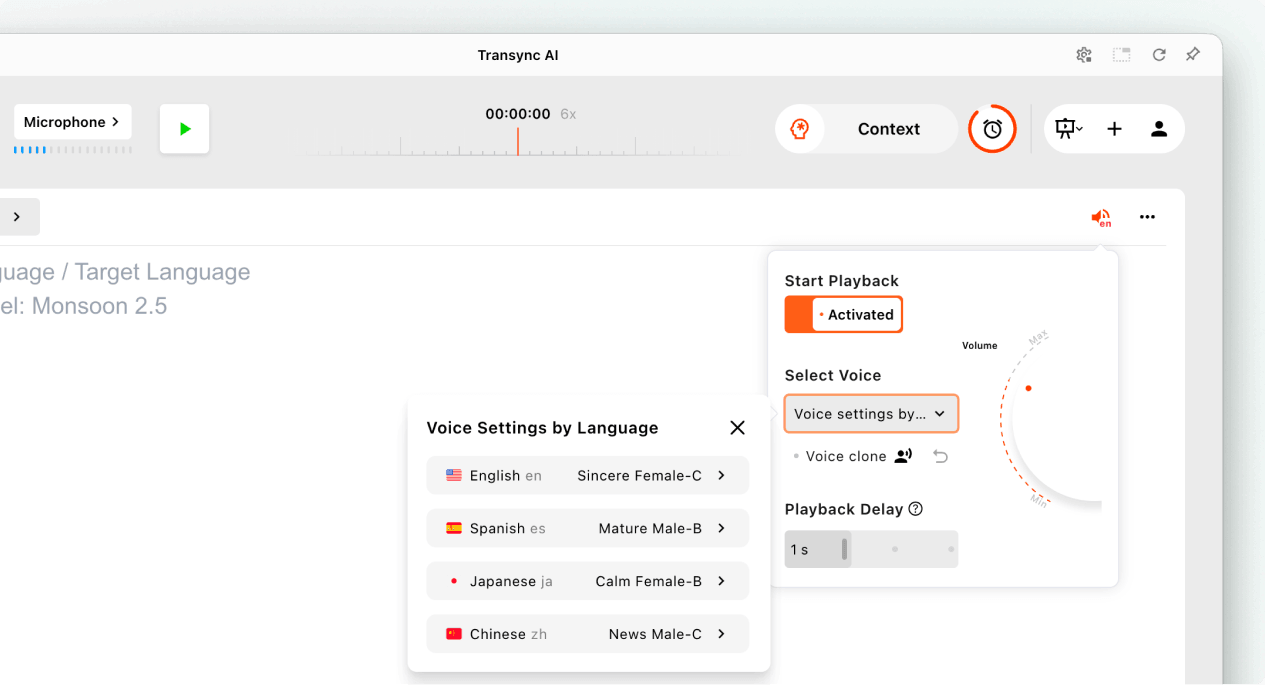
Avant de commencer la présentation, ouvrez les paramètres de lecture vocale si vous souhaitez que le public entende la traduction vocale.
- Allumer Démarrer la lecture.
- Ouvrir Paramètres vocaux par langue et sélectionnez une voix pour chaque langue cible.
- Où Clone vocal est disponible, sélectionnez une voix clonée pour la langue.
- Réglez le volume et le délai de lecture pour une expérience d'écoute confortable.
Ces paramètres peuvent être configurés séparément pour chaque langue cible activée avant le début de la présentation.
4. Début de la présentation #
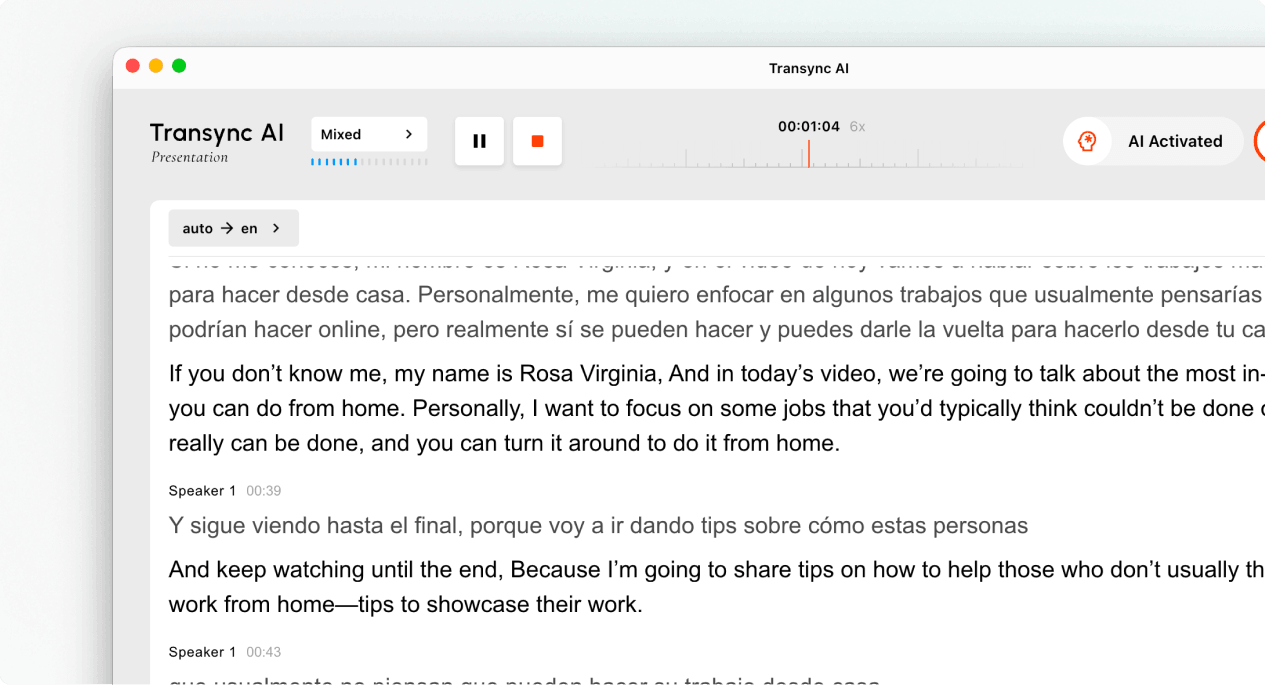
- Sélectionnez le microphone ou la source audio qui contient la parole de l'animateur.
- Cliquez sur le Commencer bouton situé dans la zone supérieure gauche.
- Vérifiez que le minuteur de la tâche a démarré et que le discours de l'hôte s'affiche sous forme de texte en direct.
Parlez naturellement et gardez le microphone suffisamment près pour capter un son clair. Si le public utilise la lecture audio, rappelez-lui que le port d'écouteurs peut atténuer l'écho dans les espaces partagés.
5. Invitez votre public #
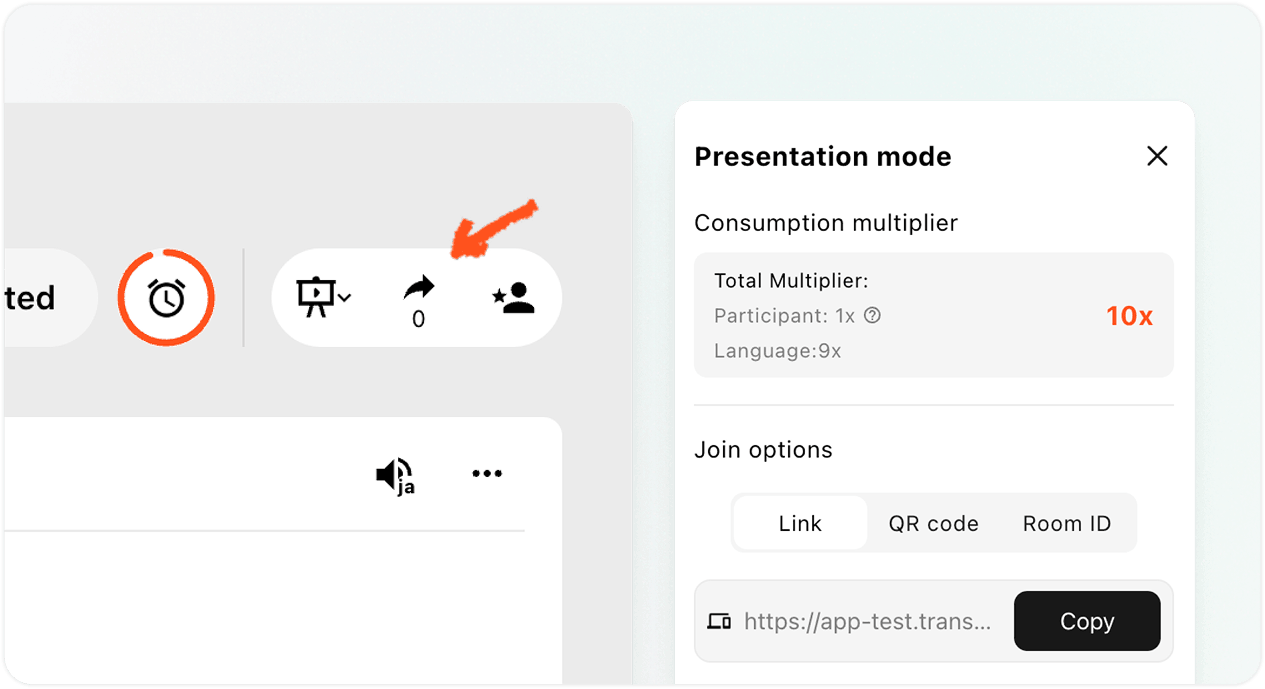
Ouvrez le panneau Partager en haut à droite. Vous pouvez inviter votre public de trois manières :
- LienCopiez le lien dans une invitation à une réunion, un e-mail, une conversation instantanée ou une page d'événement.
- code QRAffichez le code QR sur une diapositive, un écran, une carte imprimée ou un panneau d'affichage afin que les membres du public puissent le scanner avec leur téléphone.
- ID de la chambreDemandez aux participants de saisir l'identifiant de la salle à partir de l'entrée de participation en mode présentation dans Transync AI.
Envoyez aux membres du public le Comment participer à une présentation Transync AI L'IA de Transync fournit un guide aux participants lorsqu'ils ont besoin d'instructions de connexion étape par étape. Si Transync AI demande à un participant de se connecter, celui-ci doit effectuer la connexion puis revenir à la confirmation de connexion.
Gérer et terminer la présentation #
6. Gérer la présentation en direct #
Au cours de la présentation, l'animateur peut :
- Consultez le nombre actuel de spectateurs en ligne dans le panneau Partager.
- Examinez le multiplicateur d'utilisation affiché par Transync AI.
- Rouvrez le lien, le code QR ou l'identifiant de salle lorsqu'un autre participant doit se connecter.
- Utilisez les commandes de langue disponibles pour consulter les langues proposées au public.
Les participants choisissent leur langue de visionnage parmi celles proposées par l'animateur. Ce dernier peut consulter le nombre de participants, mais le mode Présentation n'affiche pas la liste des participants dans le panneau en direct.
Note: Les options de langue peuvent varier selon la version de l'application. Avant de modifier la langue en cours de session, assurez-vous que les langues requises sont bien activées.
7. Terminez la présentation et choisissez si vous souhaitez partager la transcription. #
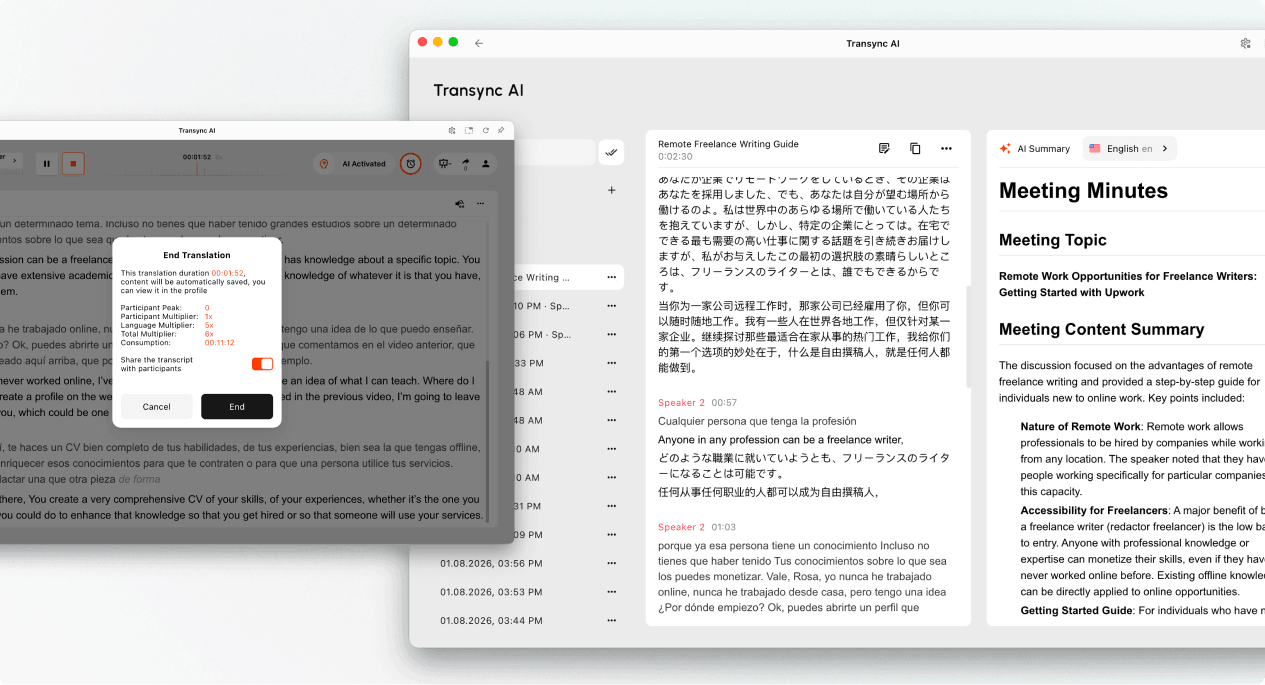
- Sélectionner Fin lorsque la présentation est terminée.
- Examinez la durée de la tâche, le pic du participant, le multiplicateur affiché et la consommation finale.
- Si l'option est disponible, choisissez si vous souhaitez l'activer. Partager la transcription avec les participants.
- Confirmez que vous souhaitez mettre fin à la présentation.
Ne partagez la transcription que si le contenu de la présentation est approprié pour que le public puisse le conserver. Si le partage de la transcription n'est pas activé, le public reçoit un message de fin sans qu'aucun enregistrement ne soit partagé.
8. Examiner l'utilisation et les enregistrements #
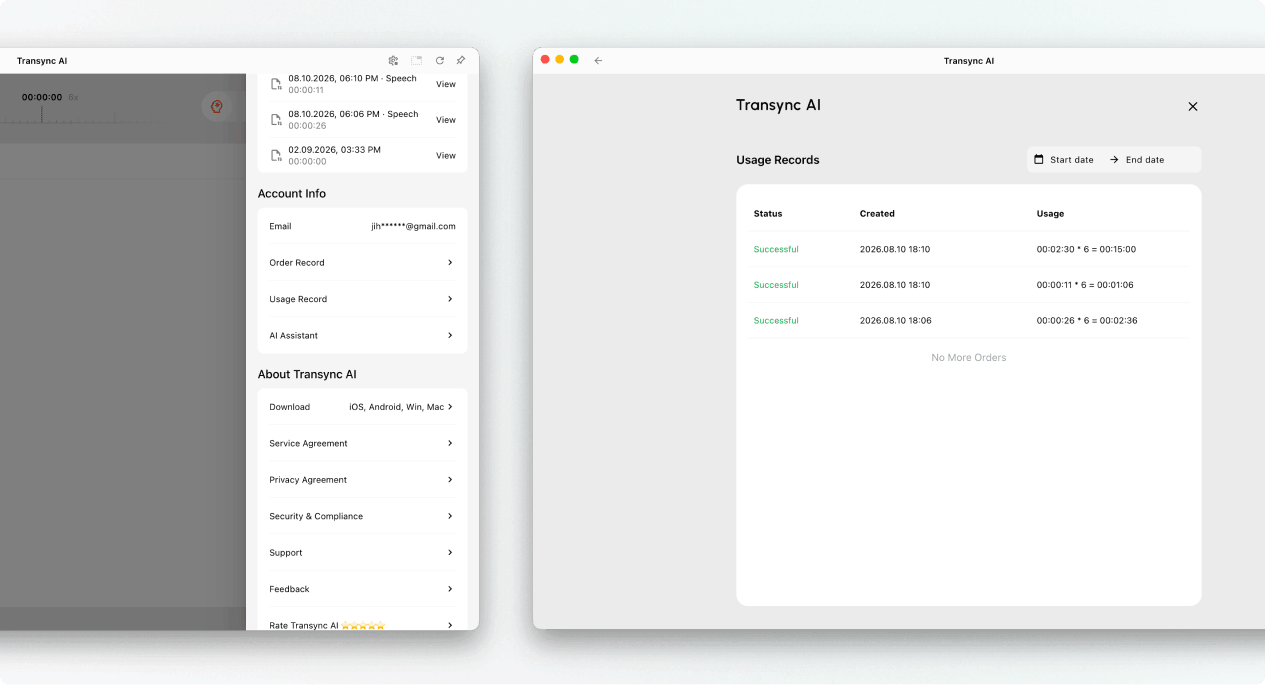
L'hôte peut consulter l'historique des traductions pour examiner l'enregistrement de la présentation. L'utilisation de la présentation peut également être consultée depuis Profil → Historique d'utilisation.
Calcul du taux d'utilisation du mode présentation #
L’utilisation du mode Présentation repose sur deux éléments : le nombre maximal de participants et le nombre de langues cibles activées.
Multiplicateur de participants #
Le multiplicateur de participants est déterminé par le nombre maximal de membres du public connectés simultanément pendant la présentation.
| Membres du public de pointe | Multiplicateur de participants |
|---|---|
| 0–3 | 1x |
| 4–50 | 2x |
| 51–100 | 3x |
| 101–150 | 4x |
| 151–200 | 5x |
Multiplicateur de langue cible #
Le coefficient multiplicateur de la langue cible commence à 1x et augmente de 1x pour chaque langue cible activée.
| Nombre de langues cibles | Multiplicateur de langue cible |
|---|---|
| 1 | 2x |
| 2 | 3x |
| 3 | 4x |
| 4 | 5x |
| 5 | 6x |
| 6 | 7x |
| 7 | 8x |
| 8 | 9x |
| 9 | 10x |
Multiplicateur total = Multiplicateur du participant + Multiplicateur de la langue cible
Par exemple, si l'audience maximale est de 30 personnes et que l'organisateur propose 4 langues cibles, le multiplicateur de participants est de 2x et le multiplicateur de langues cibles est de 5x. Le multiplicateur total est donc de 7x.
Pour l'organisation et l'exportation des enregistrements, voir Comment gérer les enregistrements de traduction. Pour les transcriptions et les résumés générés par l'IA, voir Comment accéder aux transcriptions et résumés des réunions.
Dépannage #
Le public ne peut pas se joindre #
Vérifiez que la présentation est toujours active. Rouvrez le panneau de partage et envoyez une nouvelle copie du lien, du code QR ou de l'identifiant de salle. Si les participants voient une demande de connexion, invitez-les à se connecter, puis confirmez leur participation.
Le public ne voit aucun nouveau texte #
Vérifiez que la tâche de l'animateur est toujours active, que le bon microphone est sélectionné et que le texte s'affiche correctement dans son interface. Si l'interface ne reçoit pas de son, résolvez le problème d'entrée audio avant d'inviter le public à se reconnecter.
Un membre du public a sélectionné la mauvaise langue #
Demandez au participant d'ouvrir le sélecteur de langue et de choisir une autre langue proposée par l'animateur. Si la langue souhaitée n'est pas disponible, vérifiez les paramètres de langue cible de l'animateur.
L'utilisation est plus élevée que prévu #
Vérifiez le niveau d'audience maximal et le nombre de langues cibles activées. Additionnez le coefficient multiplicateur de participants et le coefficient multiplicateur de langues cibles, puis comparez le résultat avec l'entrée de tâche dans l'historique d'utilisation.
FAQ #
En quoi le mode Présentation diffère-t-il de la traduction multilingue ? #
La traduction multilingue permet de traiter plusieurs langues cibles en une seule tâche. Le mode Présentation permet également à l'animateur de diffuser la traduction en direct à un public, chaque participant pouvant la suivre sur son propre appareil.
Les membres du public peuvent-ils intervenir dans la tâche de l'animateur ? #
Non. Les membres du public peuvent consulter les traductions et écouter la lecture audio, mais ils ne peuvent pas intervenir vocalement dans la tâche de l'animateur.
Combien de langues cibles l'hôte peut-il prendre en charge ? #
Le mode Présentation actuel prend en charge jusqu'à 9 langues cibles. Consultez l'interface de l'application pour connaître les langues disponibles pour votre tâche.
Comment est calculée l'utilisation du mode Présentation ? #
Ajoutez le coefficient multiplicateur de participants correspondant au pic d'audience au coefficient multiplicateur de la langue cible. Ce dernier est initialement de 1 et augmente de 1 pour chaque langue cible activée. Consultez les tableaux ci-dessus et comparez le coefficient multiplicateur total avec la valeur affichée dans le flux de travail de présentation.
Que se passe-t-il après la fin de la présentation ? #
Le contenu de l'animateur est enregistré dans l'historique des traductions. Si l'animateur active le partage de la transcription, les participants pourront ouvrir l'enregistrement partagé depuis leur compte après la présentation.


