
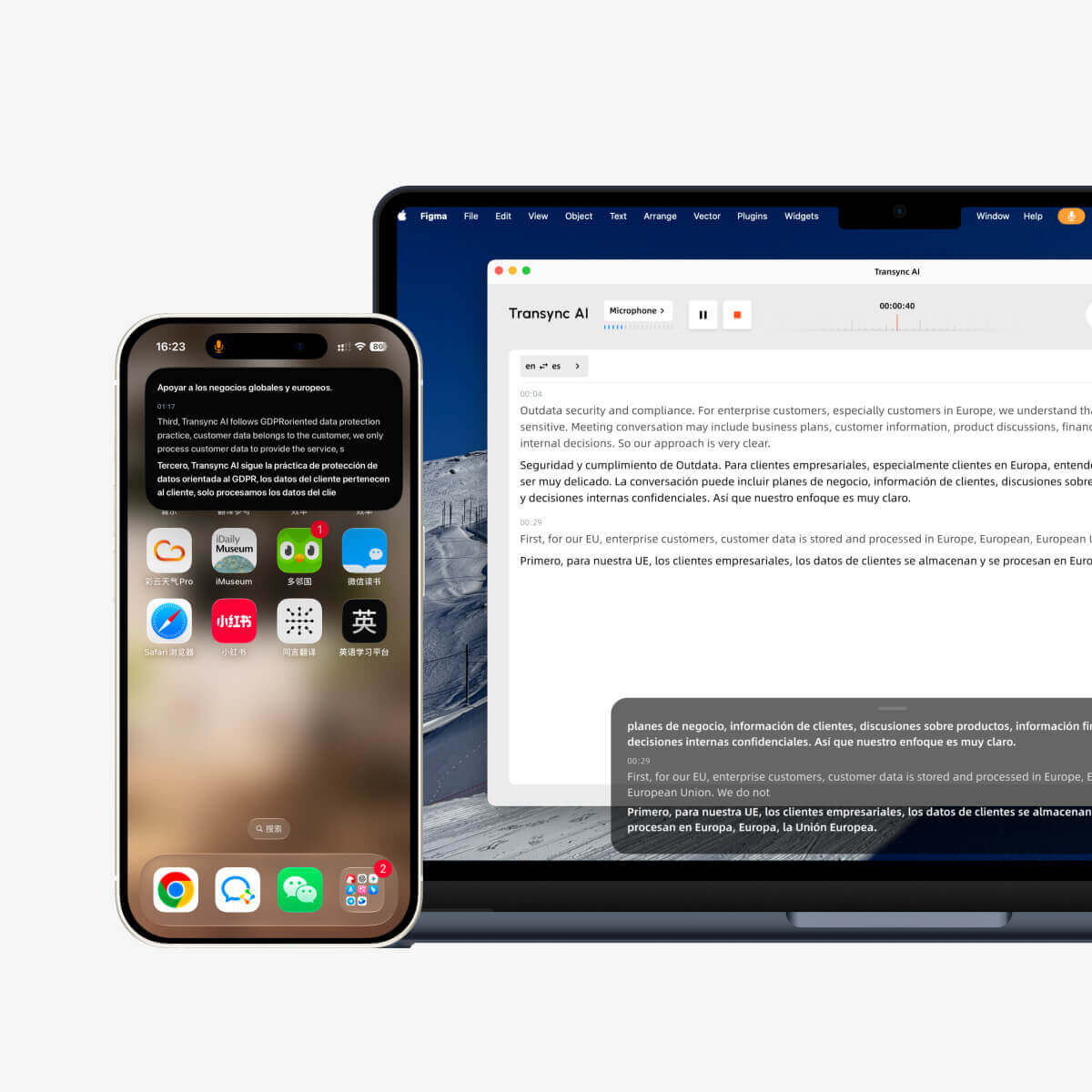
Le mode Image dans l'image (PiP) vous permet de conserver les sous-titres en direct visibles dans une fenêtre flottante tout en utilisant d'autres applications. Il est particulièrement utile lors de réunions, de présentations, de la consultation de contenus partagés ou de la prise de notes, pendant que Transync AI poursuit la traduction en temps réel.
PiP est disponible sur Windows, macOS, iOS et Android. Il est actuellement non disponible sur la version Web.
Avant d'utiliser PiP, assurez-vous d'avoir déjà lancé une tâche de traduction. Si vous débutez avec Transync AI, vous pouvez consulter notre documentation. Démarrage rapide ou apprendre Comment démarrer la traduction en temps réel d'abord.
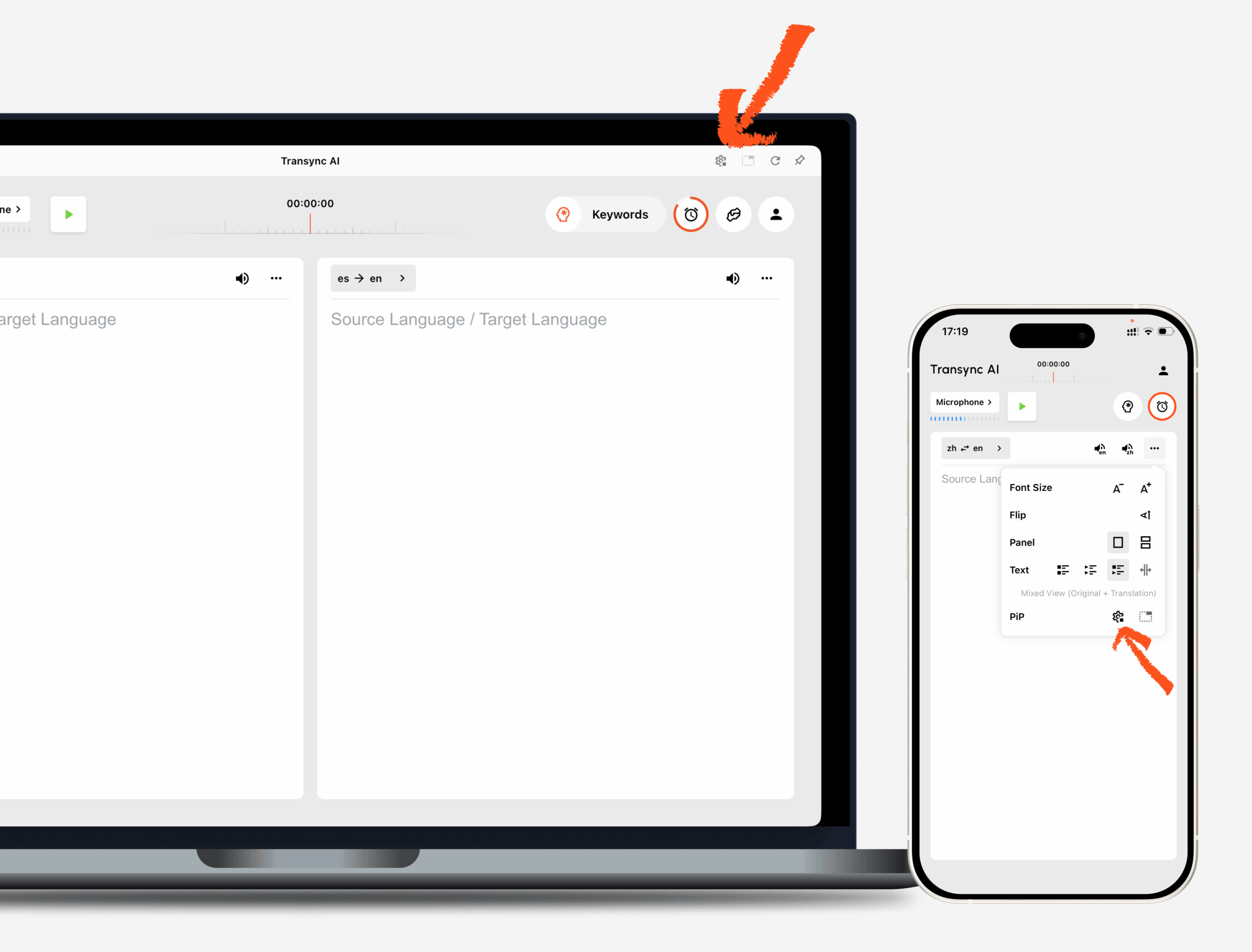
1. Ouvrez les paramètres PiP #
Ouvrir Paramètres Dans Transync AI, accédez à la section des paramètres PiP. Vous pouvez y configurer l'affichage de la fenêtre de sous-titres flottante avant d'utiliser le mode PiP pendant une tâche de traduction.
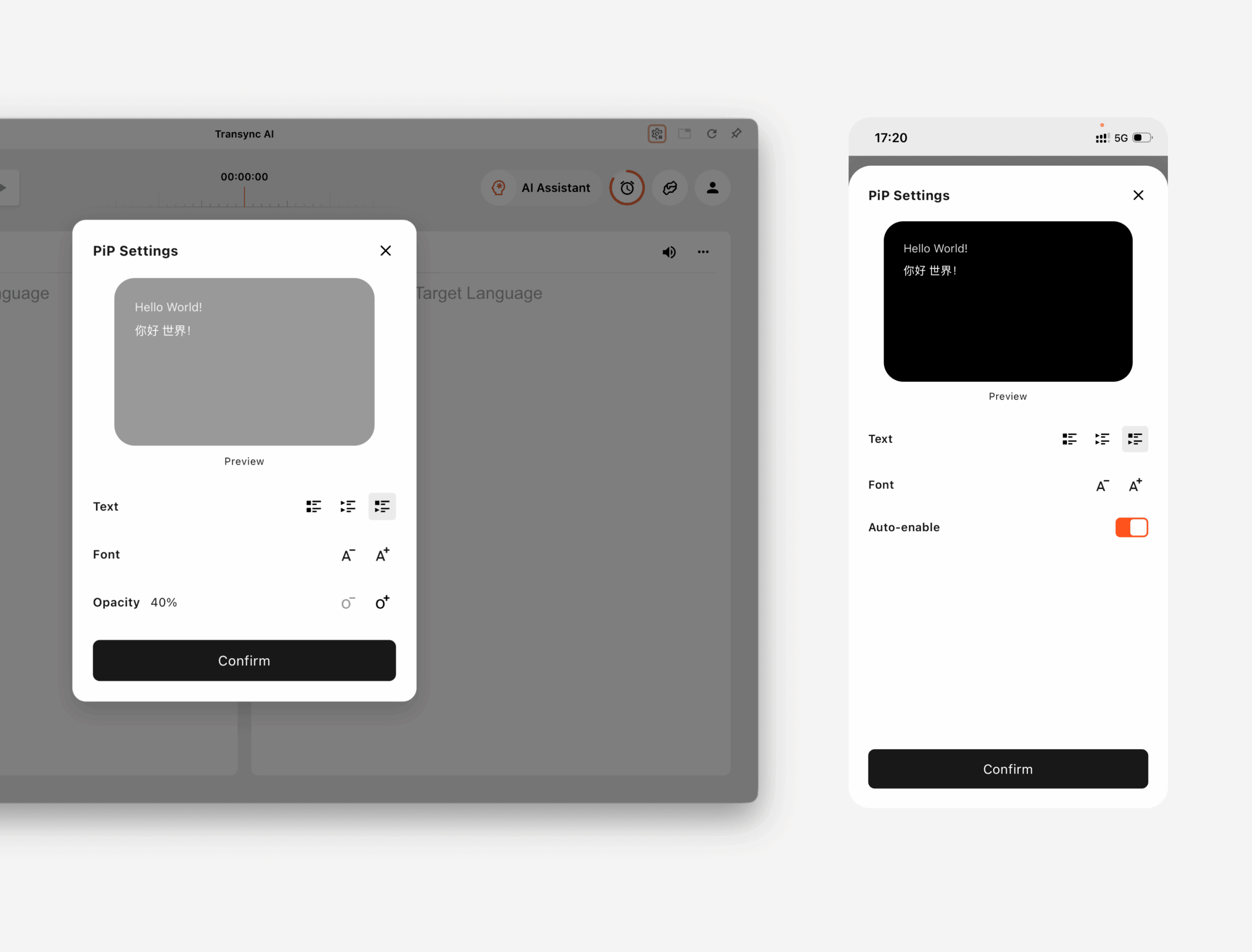
Sur Windows et macOS, vous pouvez ajuster:
- Mode d'affichage des sous-titres
- Taille de la police
- Transparence des fenêtres
Sur iOS et Android, vous pouvez ajuster:
- Mode d'affichage des sous-titres
- Taille de la police
- Activation automatique du mode PiP
2. Choisissez un mode d'affichage des sous-titres #
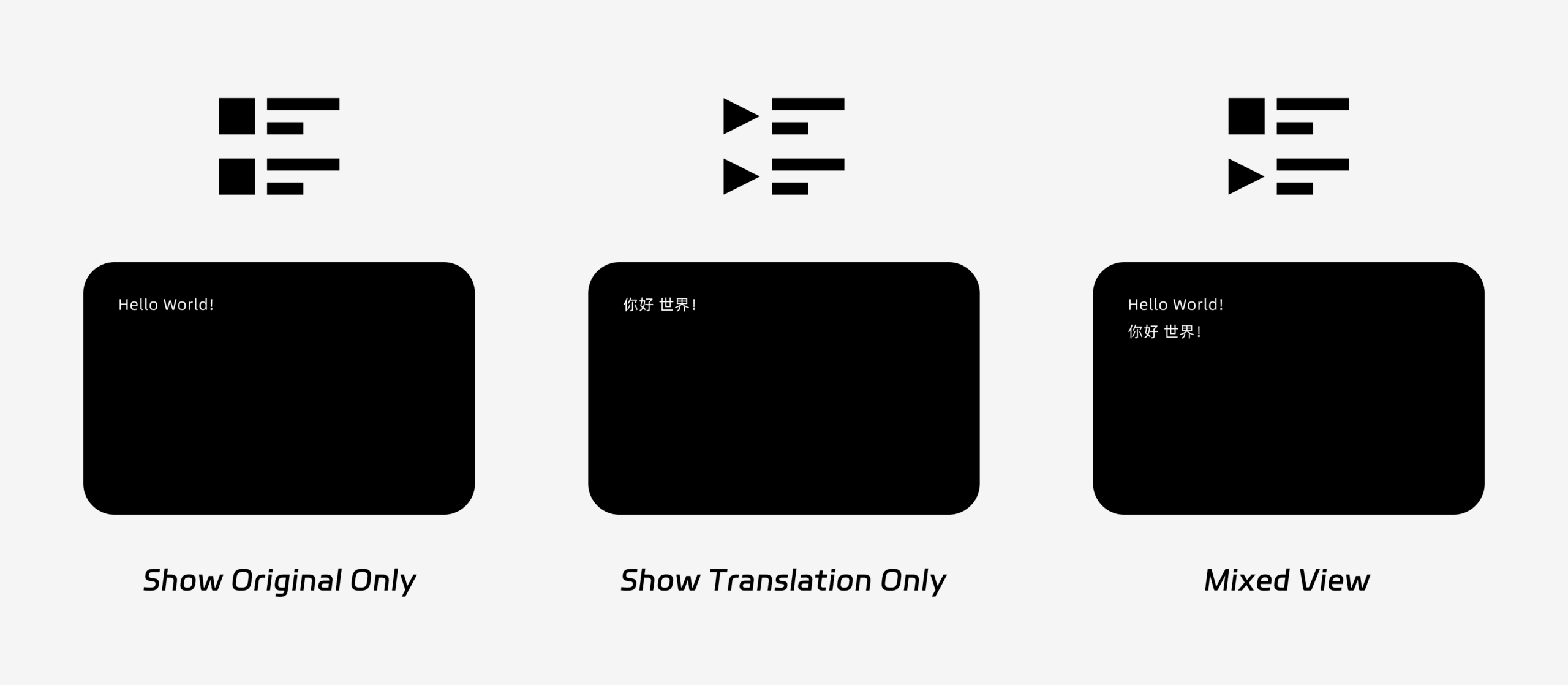
PiP prend en charge trois modes d'affichage des sous-titres:
- Afficher uniquement l'original: Affiche uniquement le texte du discours original.
- Afficher uniquement la traduction: Affiche uniquement le texte traduit.
- Vue mixteAffiche à la fois le texte original et le texte traduit.
Choisissez le mode d'affichage en fonction de votre cas d'utilisation. Pour les réunions, Afficher uniquement la traduction offre une vue plus nette. Pour l'apprentissage des langues ou la révision bilingue, Vue mixte peut vous aider à comparer le texte original et le texte traduit.
3. Ajuster la taille et l'affichage de la police #
Utiliser Taille de la police pour faciliter la lecture des sous-titres dans la fenêtre PiP flottante.
Sous Windows et macOS, vous pouvez également ajuster la transparence des fenêtres. Une fenêtre plus transparente évite que les sous-titres ne masquent le contenu de la réunion, les diapositives ou les écrans partagés. Une fenêtre moins transparente facilite la lecture des sous-titres.
Si vous utilisez également la synthèse vocale pendant la traduction, vous souhaiterez peut-être en savoir plus sur Comment utiliser la lecture vocale dans Transync AI
4. Commencez à utiliser PiP #
Après avoir configuré les paramètres PiP, lancez une tâche de traduction comme d'habitude.
Utilisez PiP sous Windows ou macOS
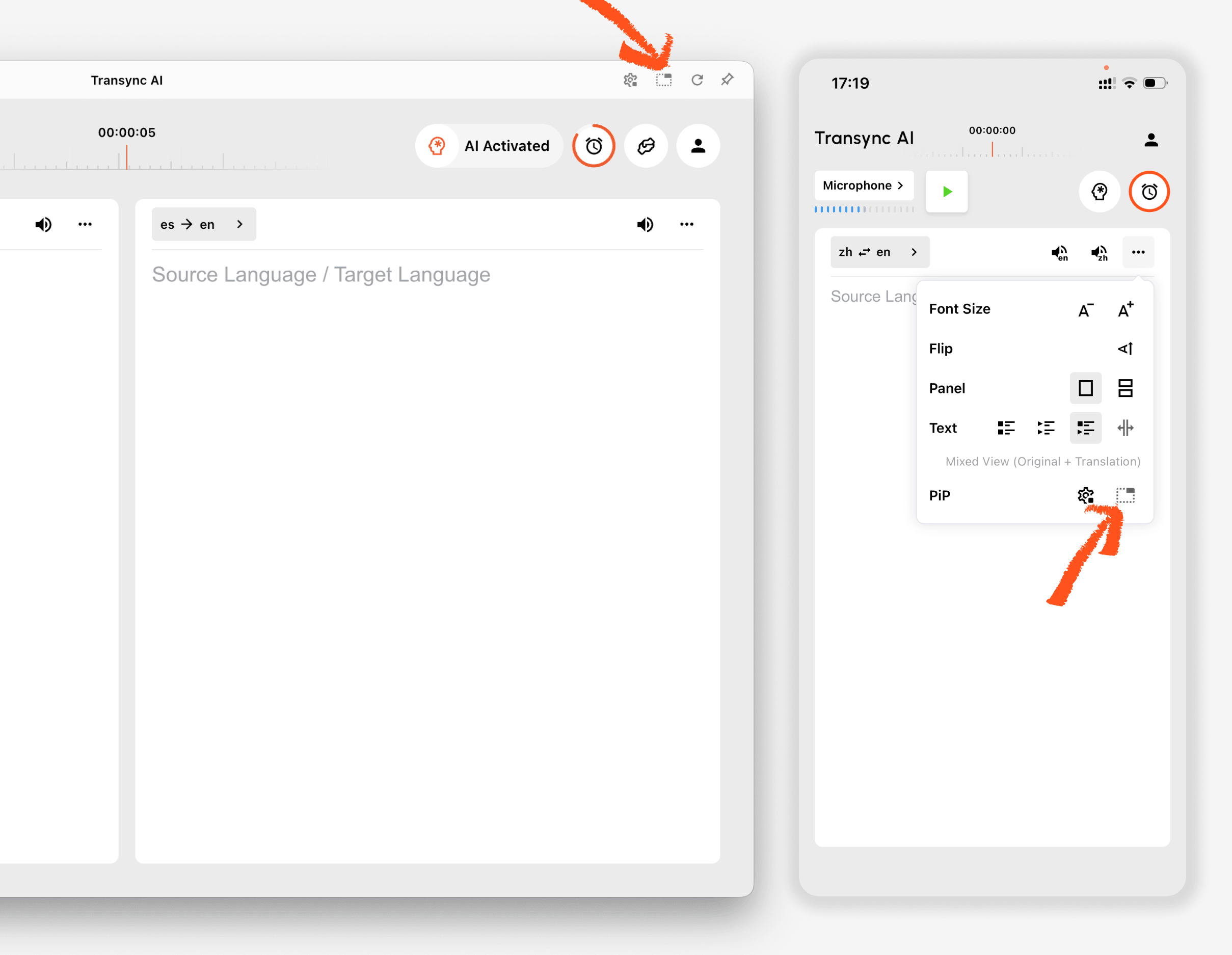
Une fois les sous-titres générés, cliquez sur Pépin Cliquez sur le bouton pour ouvrir la fenêtre de sous-titres flottante. Vous pouvez déplacer la fenêtre PiP à l'endroit qui vous convient sur votre écran lorsque vous utilisez Zoom, Microsoft Teams, Google Meet, un navigateur, un document ou d'autres applications. Transync AI mémorise la dernière position de la fenêtre PiP sur votre bureau ; ainsi, la fenêtre de sous-titres se rouvrira là où vous l'aviez laissée lors de votre prochaine utilisation du mode PiP.
Si vous devez traduire l'audio d'une réunion depuis votre ordinateur, vous pouvez également consulter Comment partager l'audio de l'ordinateur
Utilisez PiP sur iOS ou Android
Sur les appareils mobiles, le mode PiP peut être lancé manuellement ou automatiquement.
Si Activation automatique du mode PiP Si la fonction PiP est activée, elle démarrera automatiquement lorsque vous réduirez l'application Transync AI pendant une tâche de traduction active.
Si Activation automatique du mode PiP est éteint, appuyez sur Pépin Appuyez manuellement sur le bouton pour ouvrir la fenêtre de sous-titres flottante.
Cela vous permet de garder les traductions visibles tout en utilisant d'autres applications mobiles.
5. Lorsque le mode PiP n'est pas disponible #
La fonction PiP n'est pas disponible sur la version Web de Transync AI. Pour l'utiliser, veuillez utiliser l'application Windows, macOS, iOS ou Android.
Si la fenêtre PiP n'apparaît pas, vérifiez que:
- Une tâche de traduction est en cours d'exécution.
- Vous utilisez une plateforme prise en charge.
- Sur mobile, l'activation automatique du mode PiP est activée si vous souhaitez que le mode PiP démarre automatiquement.


