跳至主要内容
按回车键搜索,或按 ESC 键关闭
关闭搜索
Transync AI 标志 – Transync AI 实时翻译服务的官方品牌标志
  • 免费试用
菜单
  • 产品
    • AI 实时翻译
    • AI 会议翻译
    • AI 会议纪要
    • AI 语音翻译
    • AI助手:关键词和上下文
    • 画中画浮动字幕
    • 支持的语言
  • 用例
    • Zoom 翻译
    • Microsoft Teams 翻译
    • Google Meet 翻译
    • WhatsApp 翻译语音通话
    • 现场会议翻译
  • 博客
  • 定价
  • 企业版
  • 支持
  • 下载
  • 免费试用
  • 产品
    • AI 实时翻译
    • AI 会议翻译
    • AI 会议纪要
    • AI 语音翻译
    • AI助手:关键词和上下文
    • 画中画浮动字幕
    • 支持的语言
  • 用例
    • Zoom 翻译
    • Microsoft Teams 翻译
    • Google Meet 翻译
    • WhatsApp 翻译语音通话
    • 现场会议翻译
  • 博客
  • 定价
  • 企业版
  • 支持
  • 下载

hello@transyncai.com

入门

2
  • 快速入门
  • 联系我们

用户指南

11
  • 如何注册Transync AI
  • 如何开始实时翻译
  • 如何共享电脑音频
  • 如何在 Transync AI 中使用语音播放功能
  • 如何使用语音克隆
  • 如何使用虚拟麦克风
  • 如何使用画中画模式
  • 如何访问会议记录和摘要
  • 如何使用AI助手
  • 如何管理翻译记录
  • 如何充值和申请退款

企业版

1
  • 企业指南

资源

3
  • 信任中心
  • 条款和政策
  • 变更日志
查看类别
  • 家
  • 文档
  • 用户指南
  • 如何使用画中画模式

如何使用画中画模式

阅读时间:3分钟

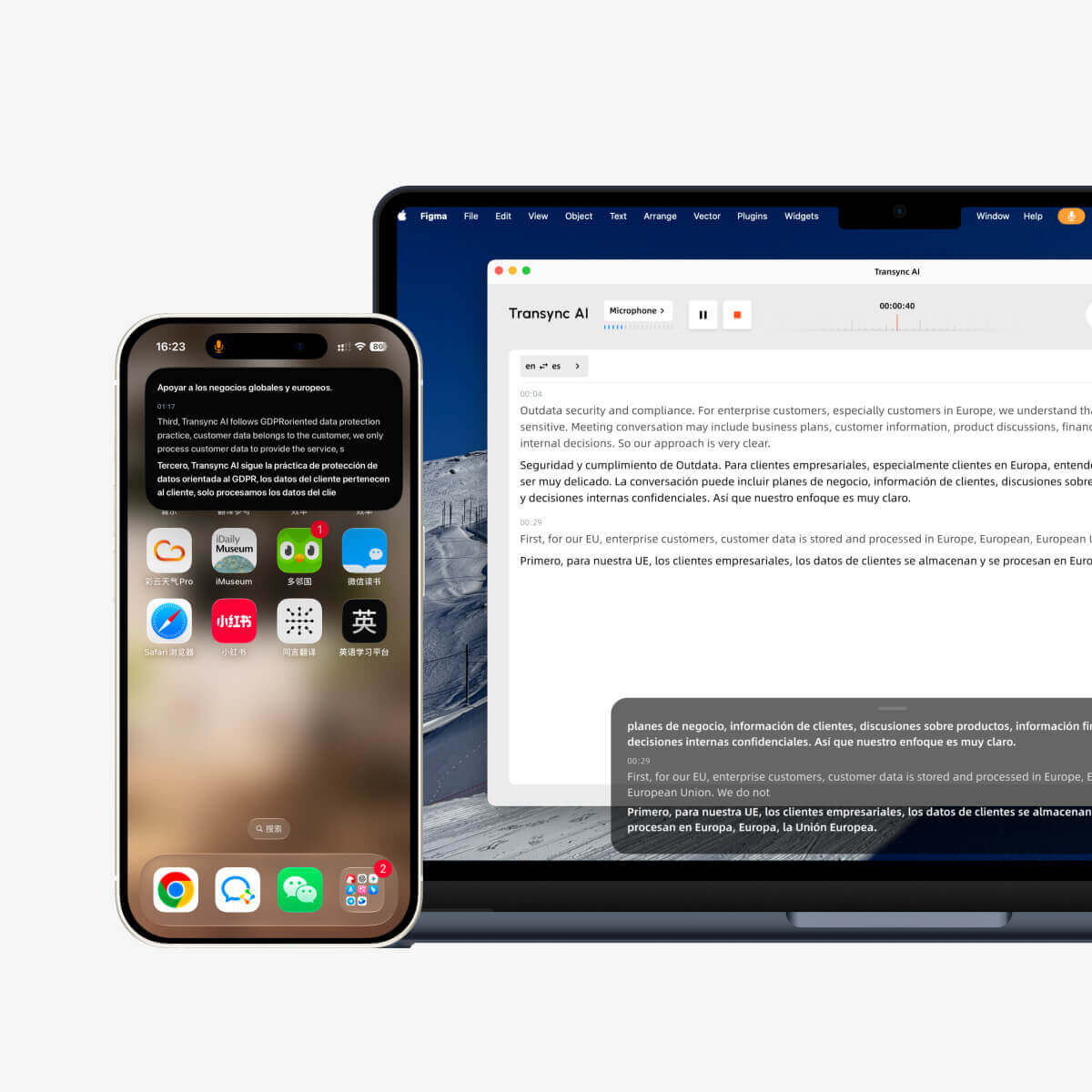
Picture-in-Picture mode, or PiP, lets you keep live subtitles visible in a floating window while using other apps. It is useful when you are in a meeting, watching a presentation, viewing shared content, or taking notes while Transync AI continues translating in real time.

PiP is available on Windows, macOS, iOS, and Android. It is currently not available on the web version.

Before using PiP, make sure you have already started a translation task. If you are new to Transync AI, you may want to check our 快速入门 或学习 如何开始实时翻译 。

Transync AI Picture-in-Picture subtitles floating over desktop and mobile screens during translation.

1. Open PiP Settings #

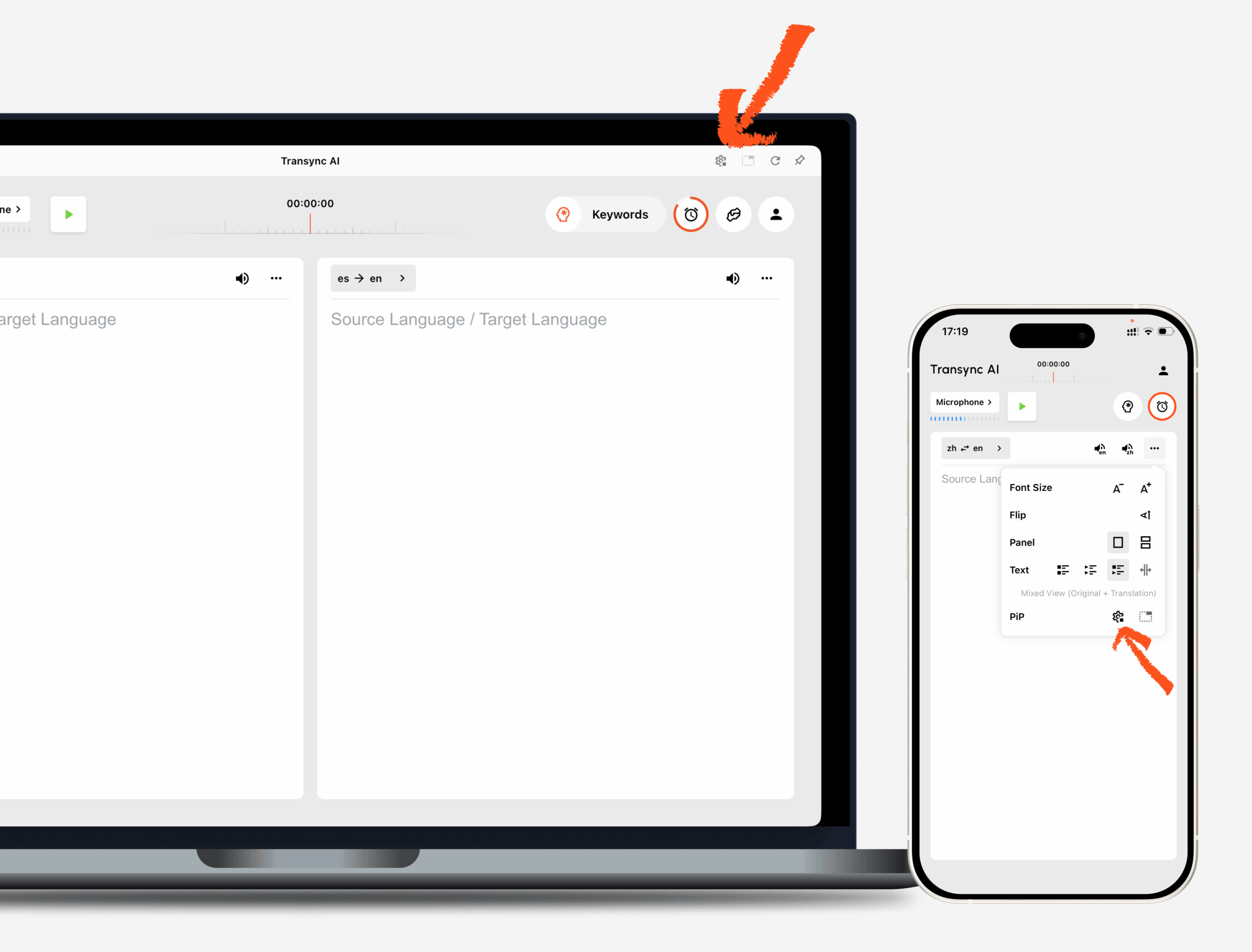
打开 Settings in Transync AI and find the PiP settings section. You can configure how the floating subtitle window appears before using PiP during a translation task.

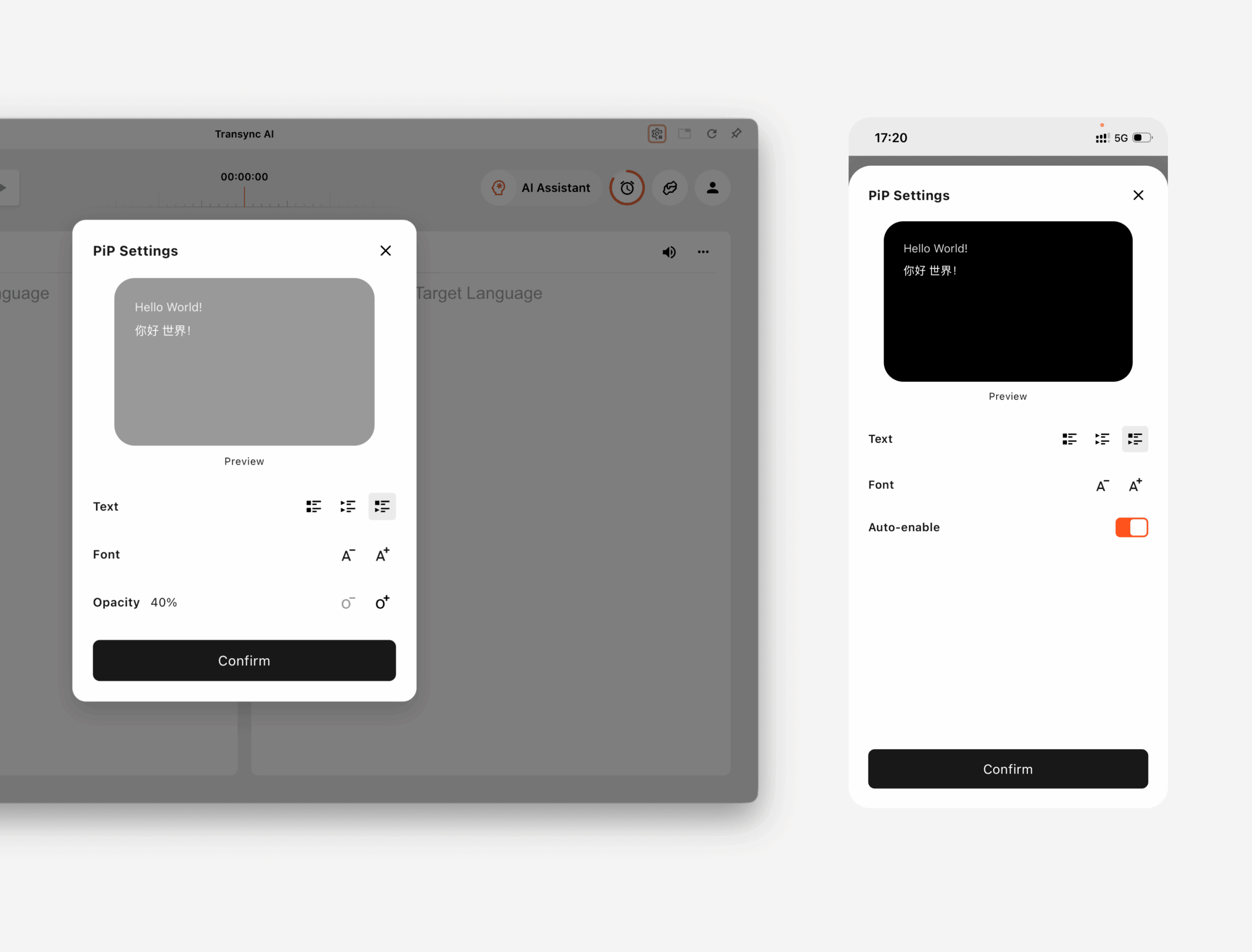
On Windows 和 macOS, you can adjust:

  • Subtitle display mode
  • Font size
  • Window transparency

On iOS 和 Android, you can adjust:

  • Subtitle display mode
  • Font size
  • Auto-enable PiP
PiP settings in the Transync AI desktop and mobile translation interface.

2. Choose a Subtitle Display Mode #

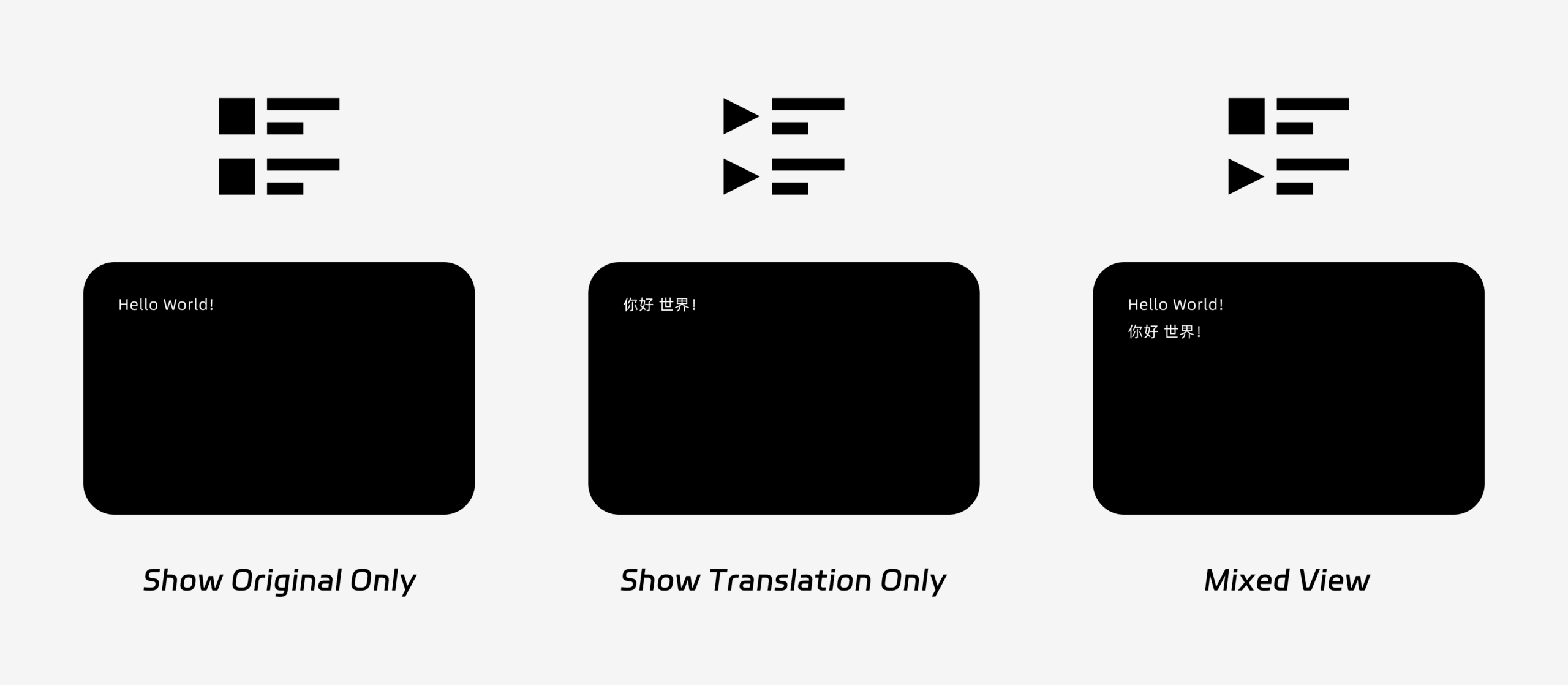
PiP supports three subtitle display modes:

  • Show original only: Displays only the original speech text.
  • Show translation only: Displays only the translated text.
  • Mixed view: Displays both the original text and the translated text.

Choose the display mode based on your use case. For meetings, Show translation only provides a cleaner view. For language learning or bilingual review, Mixed view can help you compare the original and translated text.

Three PiP subtitle display modes: Show Original Only, Show Translation Only, and Mixed View.

3. Adjust Font Size and Display #

使用 Font Size to make subtitles easier to read in the floating PiP window.

On Windows and macOS, you can also adjust window transparency. A more transparent window helps prevent subtitles from blocking meeting content, slides, or shared screens. A less transparent window can make subtitles easier to read.

If you also use voice output during translation, you may want to learn more about 如何在 Transync AI 中使用语音播放功能.

PiP settings panel showing subtitle display mode, font size, opacity, and auto-enable options.

4. Start Using PiP #

After configuring PiP settings, start a translation task as usual.

Use PiP on Windows or macOS

Once subtitles are being generated, click the PiP button to open the floating subtitle window. You can move the PiP window to a convenient position on your screen while using Zoom, Microsoft Teams, Google Meet, browsers, documents, or other apps.

If you need to translate meeting audio from your computer, you can also check 如何共享电脑音频.

Use PiP on iOS or Android

On mobile devices, PiP can be started manually or automatically.

If Auto-enable PiP is turned on, PiP will start automatically when you minimize the Transync AI app during an active translation task.

If Auto-enable PiP is turned off, tap the PiP button manually to open the floating subtitle window.

This allows you to keep translations visible while using other mobile apps.

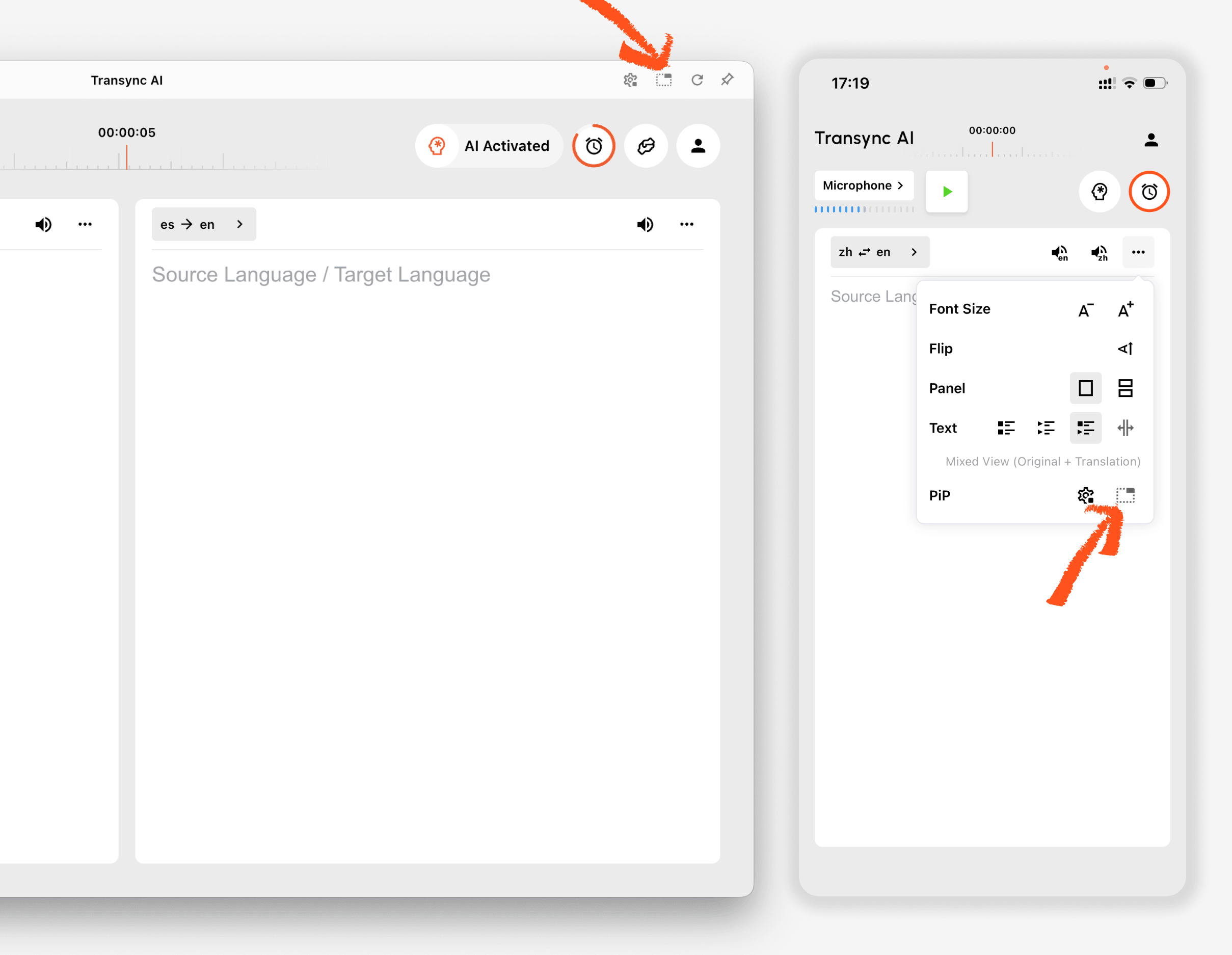
PiP button in the Transync AI desktop and mobile translation interface.

5. When PiP Is Not Available #

PiP is not available on the web version of Transync AI. To use PiP, please use the Windows, macOS, iOS, or Android app.

If the PiP window does not appear, check that:

  • A translation task is currently running.
  • You are using a supported platform.
  • On mobile, Auto-enable PiP is turned on if you want PiP to start automatically.
更新 2026年5月9日

此文件有帮助吗?

  • 快乐的
  • 伤心

分享这篇文章 :

  • Facebook
  • 十
  • LinkedIn
  • Pinterest
如何使用虚拟麦克风
目录
  • 1. Open PiP Settings
  • 2. Choose a Subtitle Display Mode
  • 3. Adjust Font Size and Display
  • 4. Start Using PiP
  • 5. When PiP Is Not Available

小红书 抖音 哔哩哔哩 知乎 YouTube 抖音 LinkedIn

沪ICP备2025119728号

Contact:support@transyncai.com

产品

  • 工具
  • AI实时翻译
  • AI Live Meeting 翻译
  • 人工智能会议记录
  • AI 语音翻译
  • 人工智能助手
  • 画中画浮动字幕
  • 支持的语言
  • 用例
  • Zoom 翻译
  • Teams 翻译
  • Google Meet 翻译
  • WhatsApp翻译
  • 现场会议翻译

页面

  • 定价
  • 博客
  • 支持
  • 下载
  • 企业版
  • 变更日志
  • 免费试用

条款

  • 隐私政策
  • 服务条款
  • 信任中心

© 2026 Transync AI – 实时翻译。.

简体中文
English 日本語 한국어 Русский Français Español Deutsch Italiano Čeština ไทย 繁體中文繁體中文 Português do Brasil العربية हिन्दी Bahasa Indonesia Tiếng Việt Türkçe Nederlands Polski Українська