
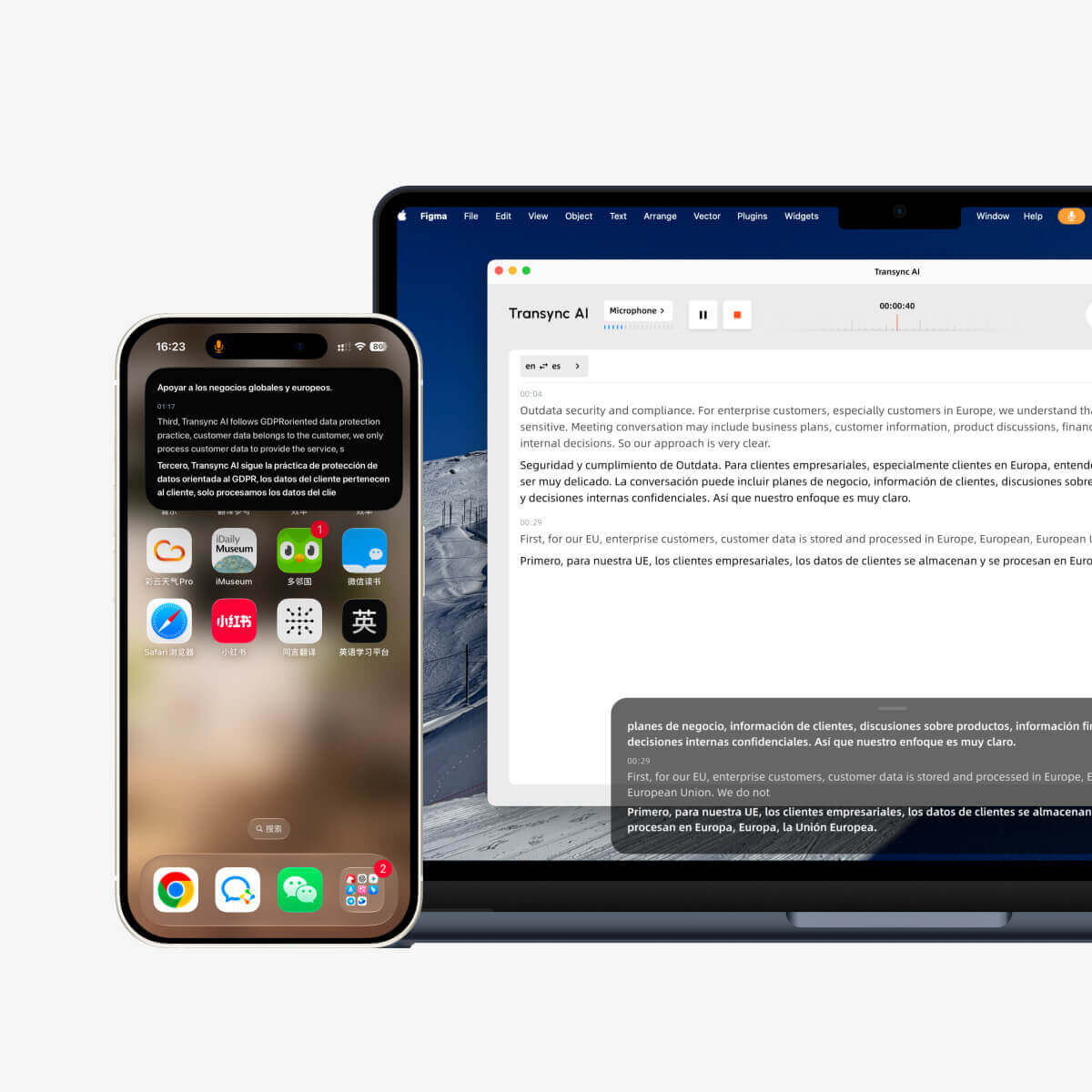
Met de Picture-in-Picture-modus, ofwel PiP, blijven live ondertitels zichtbaar in een zwevend venster terwijl je andere apps gebruikt. Dit is handig tijdens vergaderingen, presentaties, het bekijken van gedeelde content of het maken van aantekeningen, terwijl Transync AI in realtime blijft vertalen.
PiP is beschikbaar op Windows, macOS, iOS en Android. Het is momenteel niet beschikbaar in de webversie.
Voordat u PiP gebruikt, moet u ervoor zorgen dat u al een vertaaltaak bent gestart. Als u Transync AI nog niet eerder hebt gebruikt, kunt u onze handleiding raadplegen. Snelstart of leren Hoe start je met realtimevertaling? Eerst.
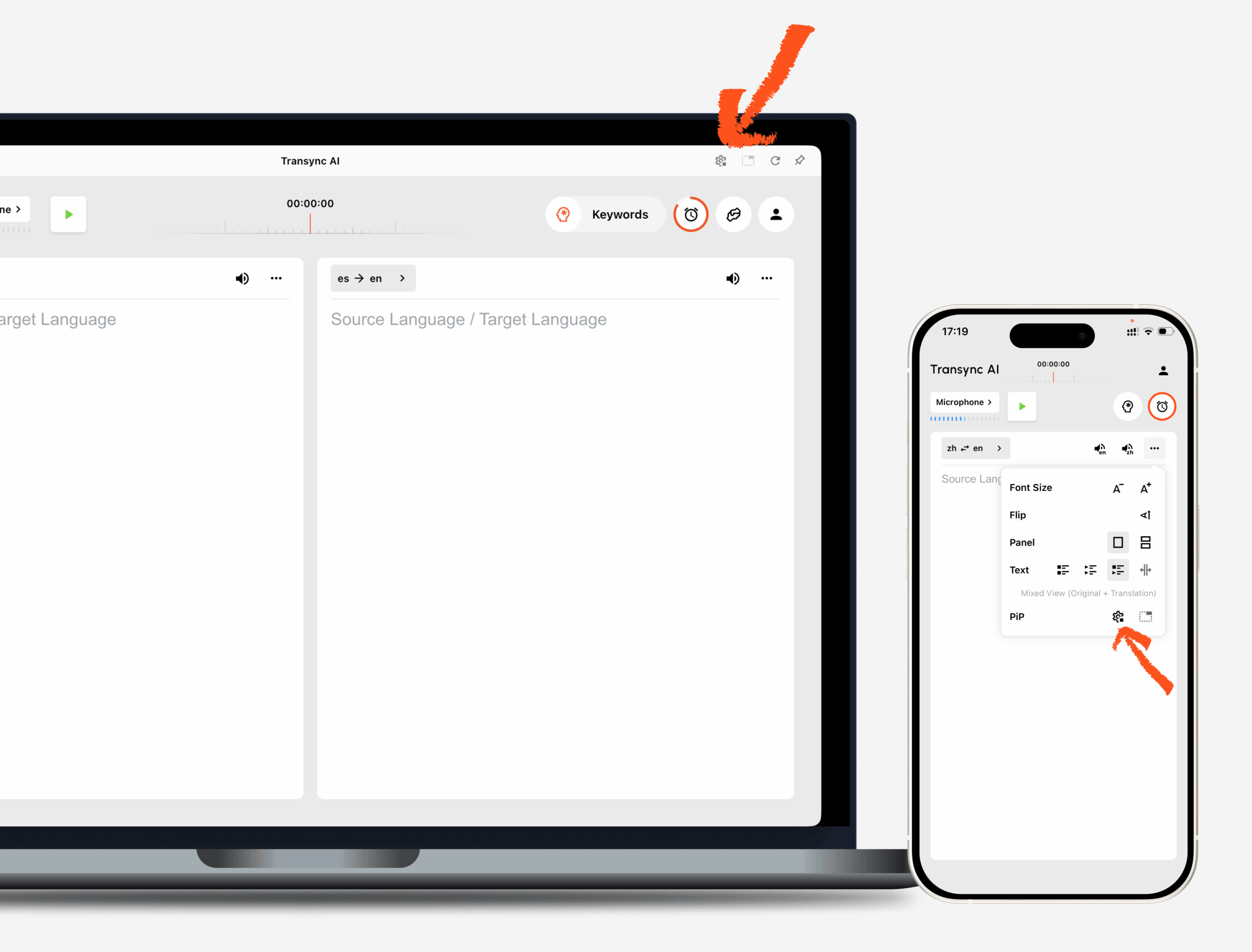
1. Open de PiP-instellingen #
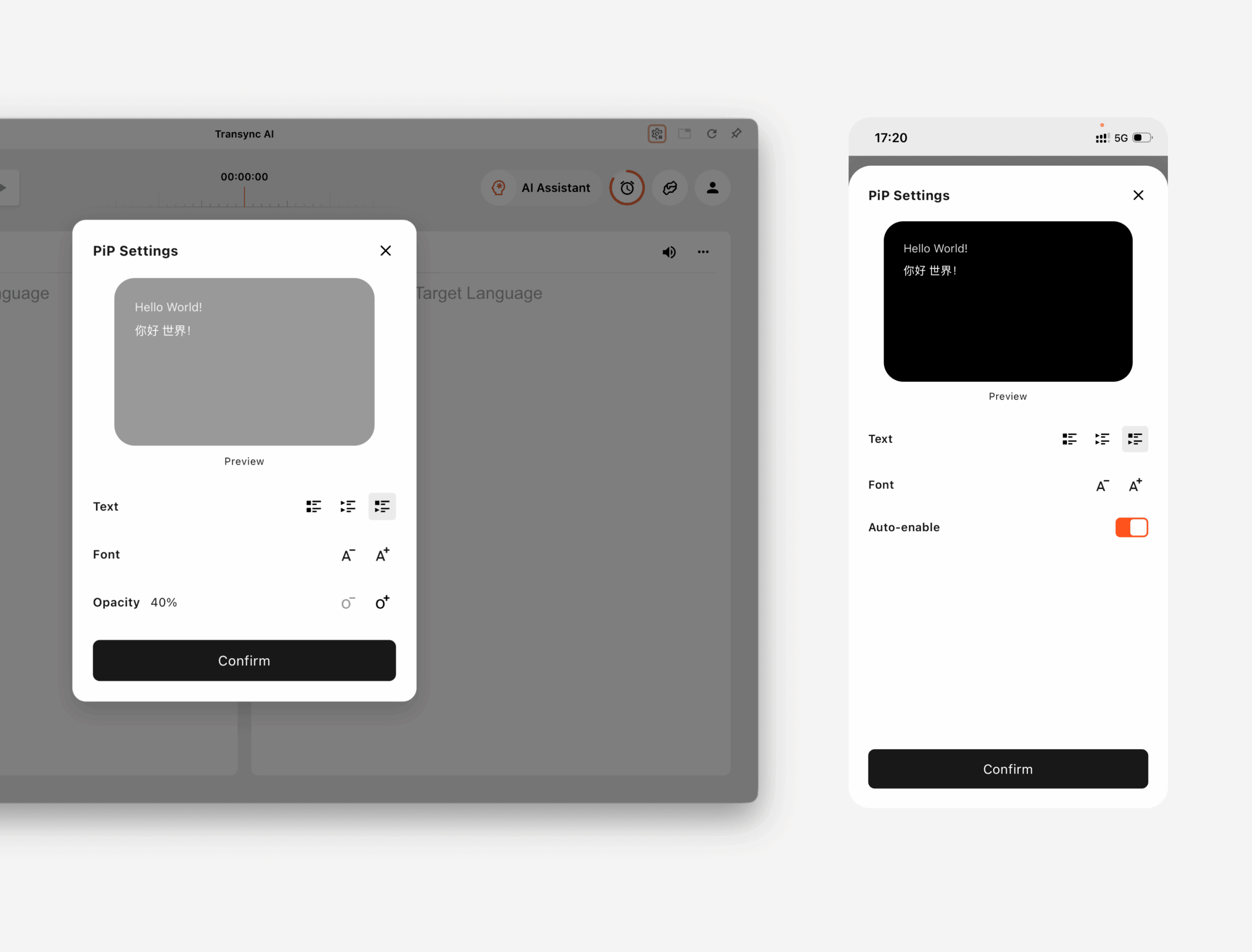
Open Instellingen In Transync AI vind je de PiP-instellingen. Daar kun je configureren hoe het zwevende ondertitelvenster wordt weergegeven voordat je PiP gebruikt tijdens een vertaaltaak.
Op Windows en macOS, Je kunt het volgende aanpassen:
- Ondertitelweergavemodus
- Lettergrootte
- Venstertransparantie
Op iOS en Android, Je kunt het volgende aanpassen:
- Ondertitelweergavemodus
- Lettergrootte
- PiP automatisch inschakelen
2. Kies een ondertitelingsweergavemodus #
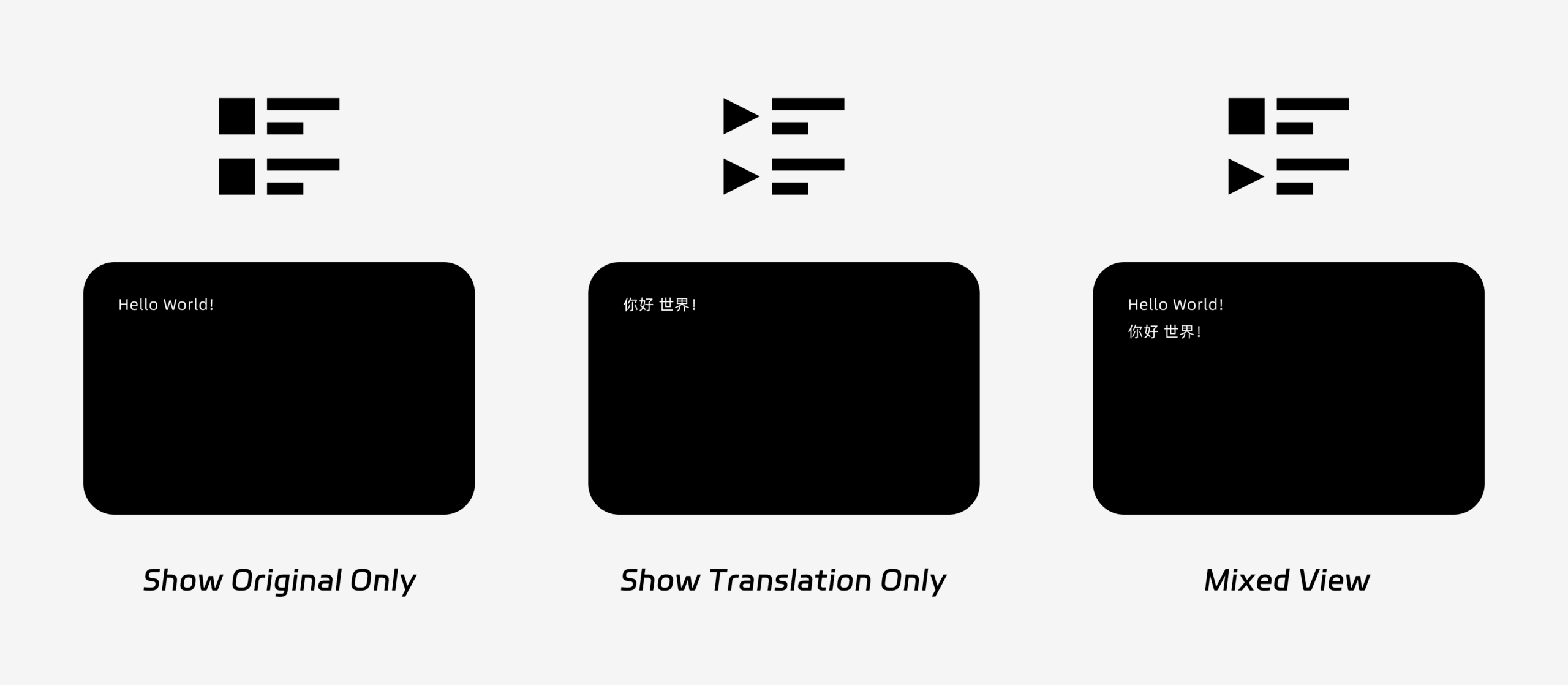
PiP ondersteunt drie weergavemodi voor ondertitels:
- Alleen het origineel weergeven: Toont alleen de originele spraaktekst.
- Alleen vertaling weergeven: Toont alleen de vertaalde tekst.
- Gemengde weergave: Toont zowel de originele tekst als de vertaalde tekst.
Kies de weergavemodus op basis van uw gebruikssituatie. Voor vergaderingen, Alleen vertaling weergeven Biedt een helderder beeld. Voor taalonderwijs of tweetalige herhalingsoefeningen., Gemengde weergave Kan je helpen de originele en de vertaalde tekst te vergelijken.
3. Lettergrootte en weergave aanpassen #
Gebruik Lettergrootte om ondertitels beter leesbaar te maken in het zwevende PiP-venster.
Op Windows en macOS kun je ook de venstertransparantie aanpassen. Een transparanter venster voorkomt dat ondertitels de inhoud van de vergadering, dia's of gedeelde schermen blokkeren. Een minder transparant venster maakt ondertitels gemakkelijker leesbaar.
Als u tijdens het vertalen ook spraakuitvoer gebruikt, wilt u wellicht meer weten over... Hoe gebruik je spraakweergave in Transync AI?
4. Begin met het gebruik van PiP #
Nadat je de PiP-instellingen hebt geconfigureerd, start je zoals gebruikelijk een vertaaltaak.
Gebruik PiP op Windows of macOS.
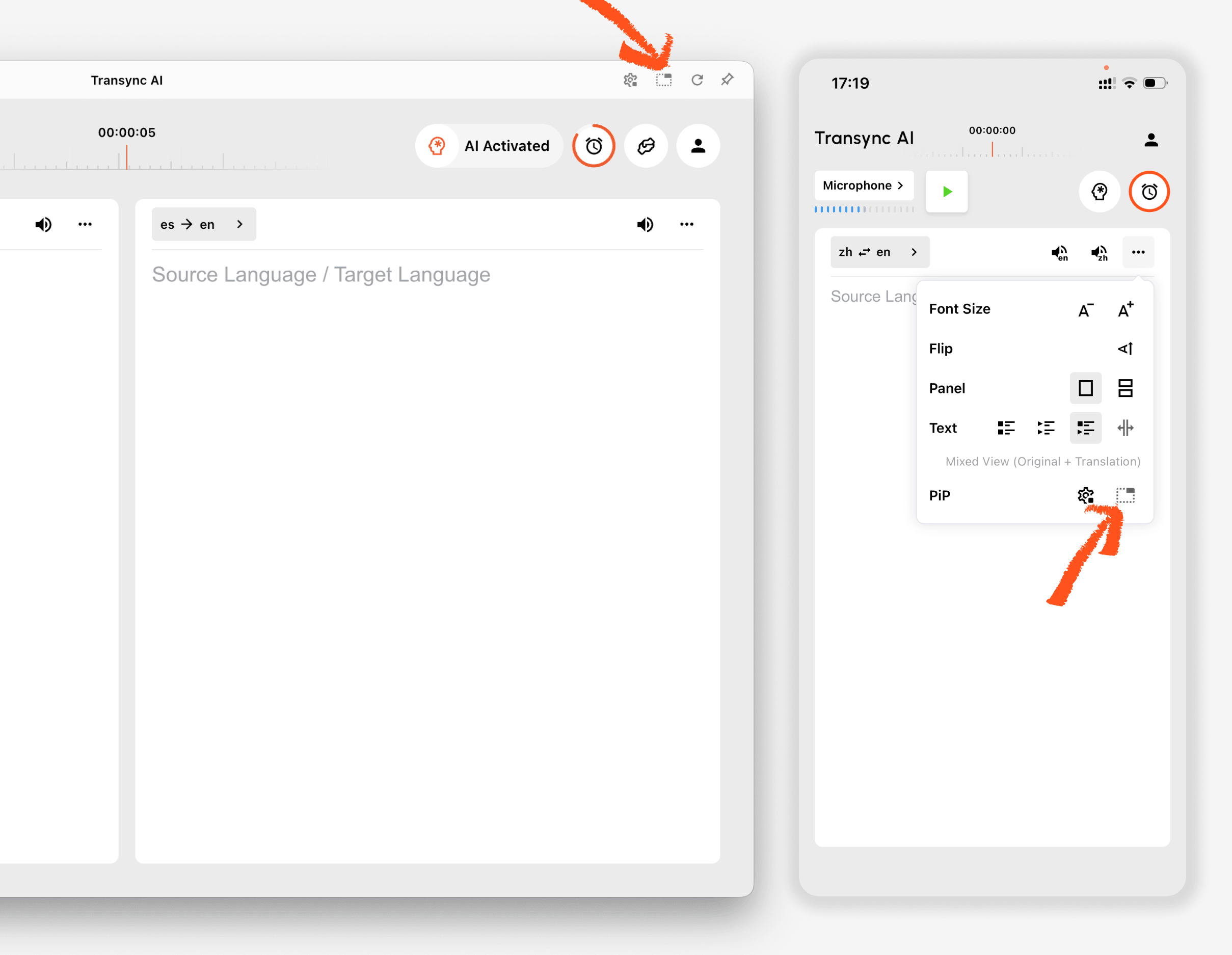
Zodra de ondertitels worden gegenereerd, klikt u op de Pip Gebruik de knop om het zwevende ondertitelvenster te openen. Je kunt het PiP-venster naar een handige positie op je scherm verplaatsen tijdens het gebruik van Zoom, Microsoft Teams, Google Meet, browsers, documenten of andere apps. Transync AI onthoudt de laatst gebruikte positie van het PiP-venster op je bureaublad, zodat het ondertitelvenster de volgende keer dat je PiP gebruikt, weer op dezelfde plek wordt geopend.
Als je de audio van een vergadering vanaf je computer wilt vertalen, kun je ook kijken bij... Hoe u computeraudio deelt
Gebruik PiP op iOS of Android.
Op mobiele apparaten kan PiP handmatig of automatisch worden gestart.
Als PiP automatisch inschakelen Als deze functie is ingeschakeld, start PiP automatisch wanneer u de Transync AI-app minimaliseert tijdens een actieve vertaaltaak.
Als PiP automatisch inschakelen is uitgeschakeld, tik op de Pip Druk handmatig op de knop om het zwevende ondertitelvenster te openen.
Hierdoor blijven vertalingen zichtbaar terwijl u andere mobiele apps gebruikt.
5. Wanneer PiP niet beschikbaar is #
PiP is niet beschikbaar in de webversie van Transync AI. Om PiP te gebruiken, dient u de Windows-, macOS-, iOS- of Android-app te gebruiken.
Als het PiP-venster niet verschijnt, controleer dan het volgende:
- Er wordt momenteel een vertaaltaak uitgevoerd.
- Je maakt gebruik van een ondersteund platform.
- Op mobiele apparaten is 'PiP automatisch inschakelen' ingeschakeld als je wilt dat PiP automatisch start.


