Ga naar de hoofdinhoud
Druk op Enter om te zoeken of ESC om te sluiten
Zoeken sluiten
Transync AI-logo – het officiële merklogo van Transync AI, een realtime vertaalservice.
  • Gratis proefperiode
Menu
  • Product
    • AI-realtime vertaling
    • AI Live Meeting Vertaling
    • AI-vergadernotities
    • AI-stemvertaler
    • AI-assistent: trefwoorden en context
    • Picture-in-Picture zwevende ondertitels
    • Ondersteunde talen
  • Gebruiksscenario's
    • Zoomvertaling
    • Microsoft Teams-vertaling
    • Google Meet-vertaling
    • WhatsApp-vertaling voor spraakoproepen
    • Vertaling van een fysieke bijeenkomst
  • Blog
  • Prijzen
  • Onderneming
  • Steun
  • Download
  • Gratis proefperiode
  • Product
    • AI-realtime vertaling
    • AI Live Meeting Vertaling
    • AI-vergadernotities
    • AI-stemvertaler
    • AI-assistent: trefwoorden en context
    • Picture-in-Picture zwevende ondertitels
    • Ondersteunde talen
  • Gebruiksscenario's
    • Zoomvertaling
    • Microsoft Teams-vertaling
    • Google Meet-vertaling
    • WhatsApp-vertaling voor spraakoproepen
    • Vertaling van een fysieke bijeenkomst
  • Blog
  • Prijzen
  • Onderneming
  • Steun
  • Download

hello@transyncai.com

Aan de slag

3
  • Snelstartgids voor desktop
  • Snelstartgids voor mobiele apparaten
  • Neem contact met ons op

Gebruikershandleiding

13
  • Hoe Transync AI te registreren
  • Hoe start je met realtimevertaling?
  • Hoe kies je een vertaalmodus in Transync AI?
  • Hoe u computeraudio deelt
  • Hoe gebruik je spraakweergave in Transync AI?
  • Hoe gebruik je Voice Clone?
  • Hoe gebruik je de virtuele microfoon op macOS?
  • Hoe stel je een virtuele microfoon in op Windows?
  • Hoe gebruik je de beeld-in-beeldmodus?
  • Toegang krijgen tot vergadertranscripties en samenvattingen
  • Hoe de AI-assistent te gebruiken
  • Hoe vertaalrecords te beheren
  • Hoe u kunt opwaarderen en een terugbetaling kunt aanvragen

Onderneming

1
  • Bedrijfsgids

Bronnen

3
  • Vertrouwenscentrum
  • Voorwaarden en beleid
  • Wijzigingslogboek
Categorieën bekijken
  • Thuis
  • Documenten
  • Gebruikershandleiding
  • Hoe kies je een vertaalmodus in Transync AI?

Hoe kies je een vertaalmodus in Transync AI?

Leestijd: 3 minuten

Transync AI supports different translation modes so each task can match the way people are communicating. Before you start a translation task, choose the mode that fits your scenario: Eenrichtingsvertaling, Tweewegvertaling, of Meertalige vertaling.

What Are Translation Modes? #

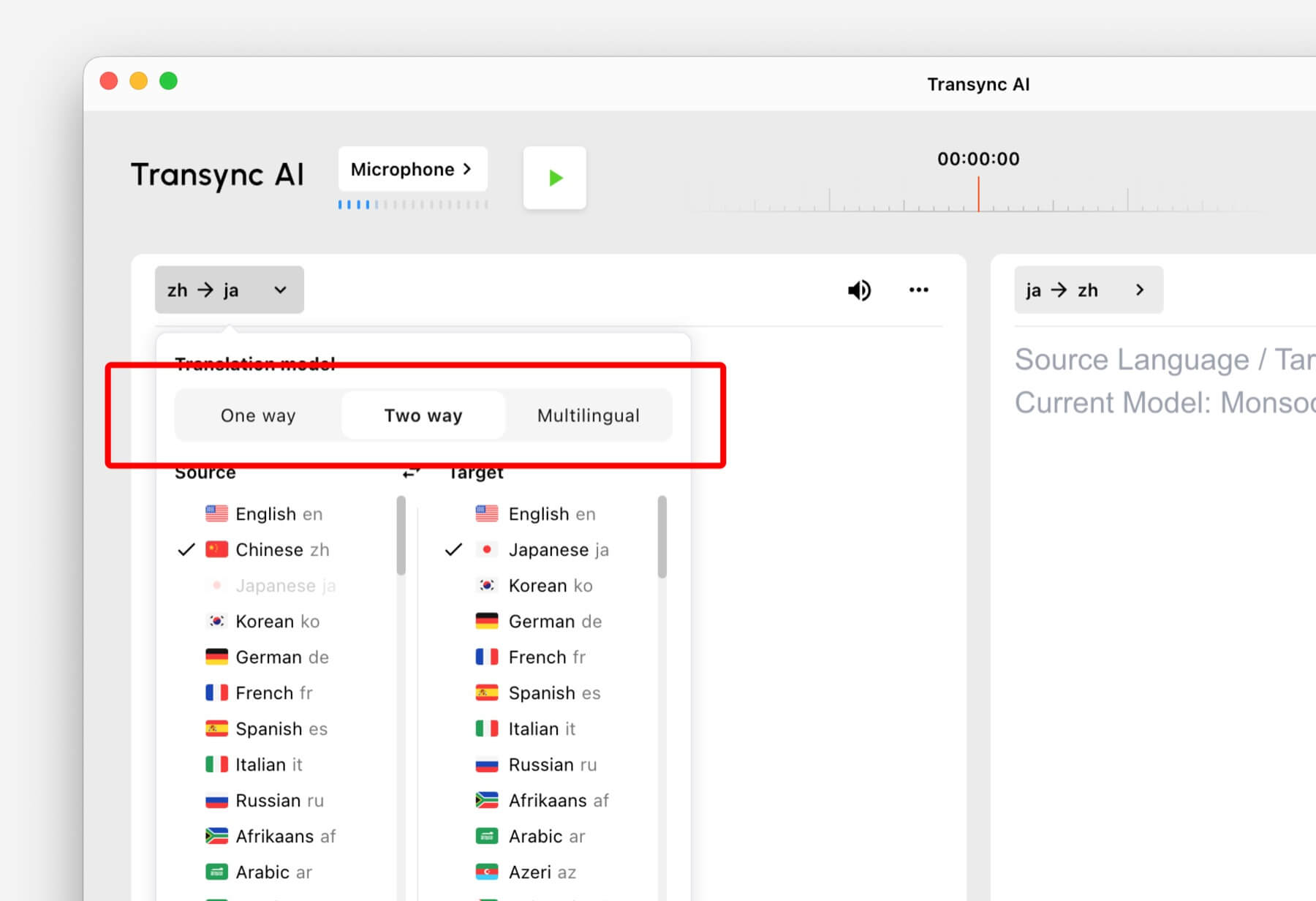
Translation modes control how Transync AI handles the direction of speech and the target language output. In the app, these options may appear as One way, Two way, En Meertalig.

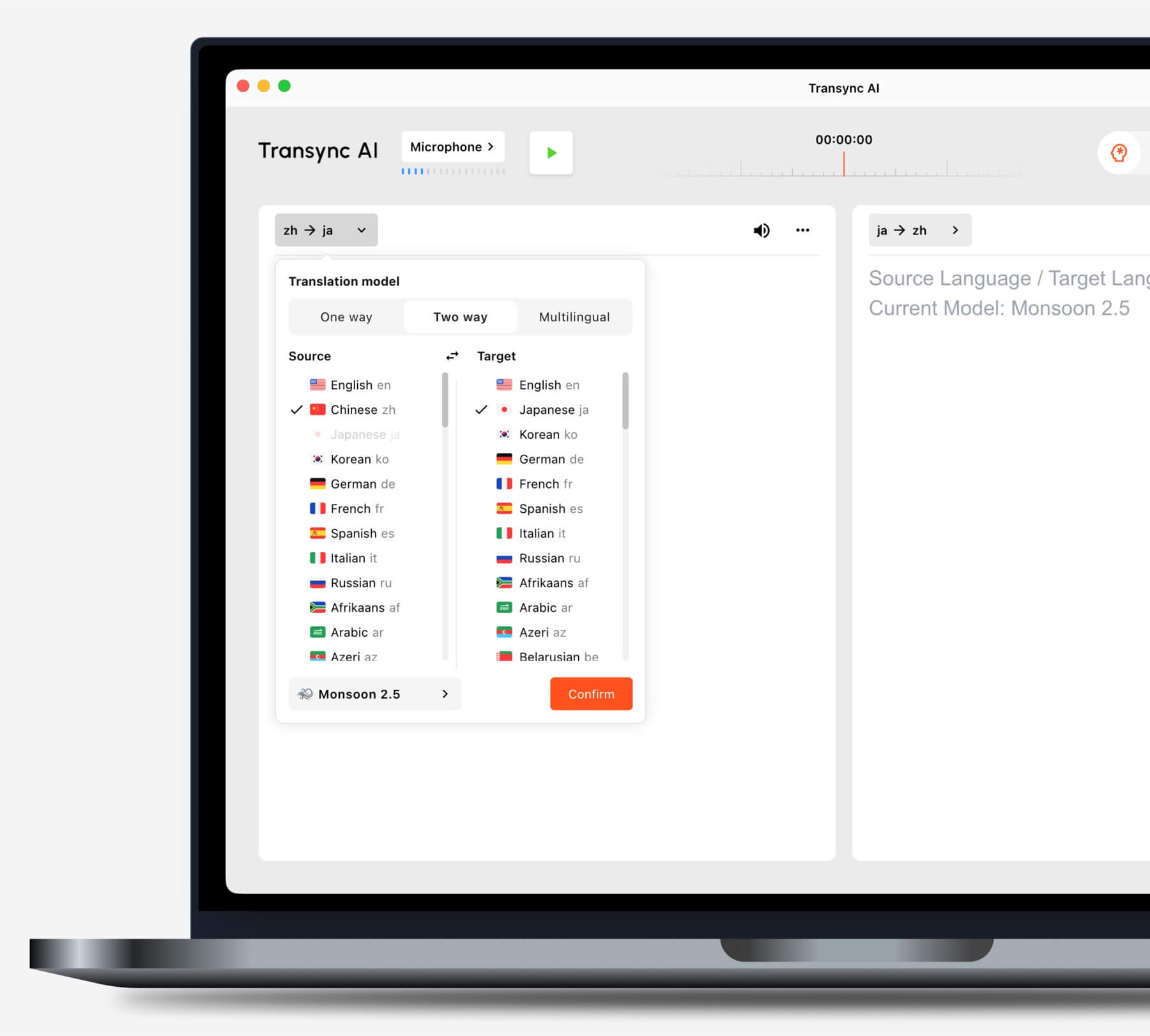
Select One way, Two way, or Multilingual translation mode in Transync AI
Choose the translation mode that matches your scenario before starting a task.

Choose a Mode Based on Your Scenario #

Eenrichtingsvertaling #

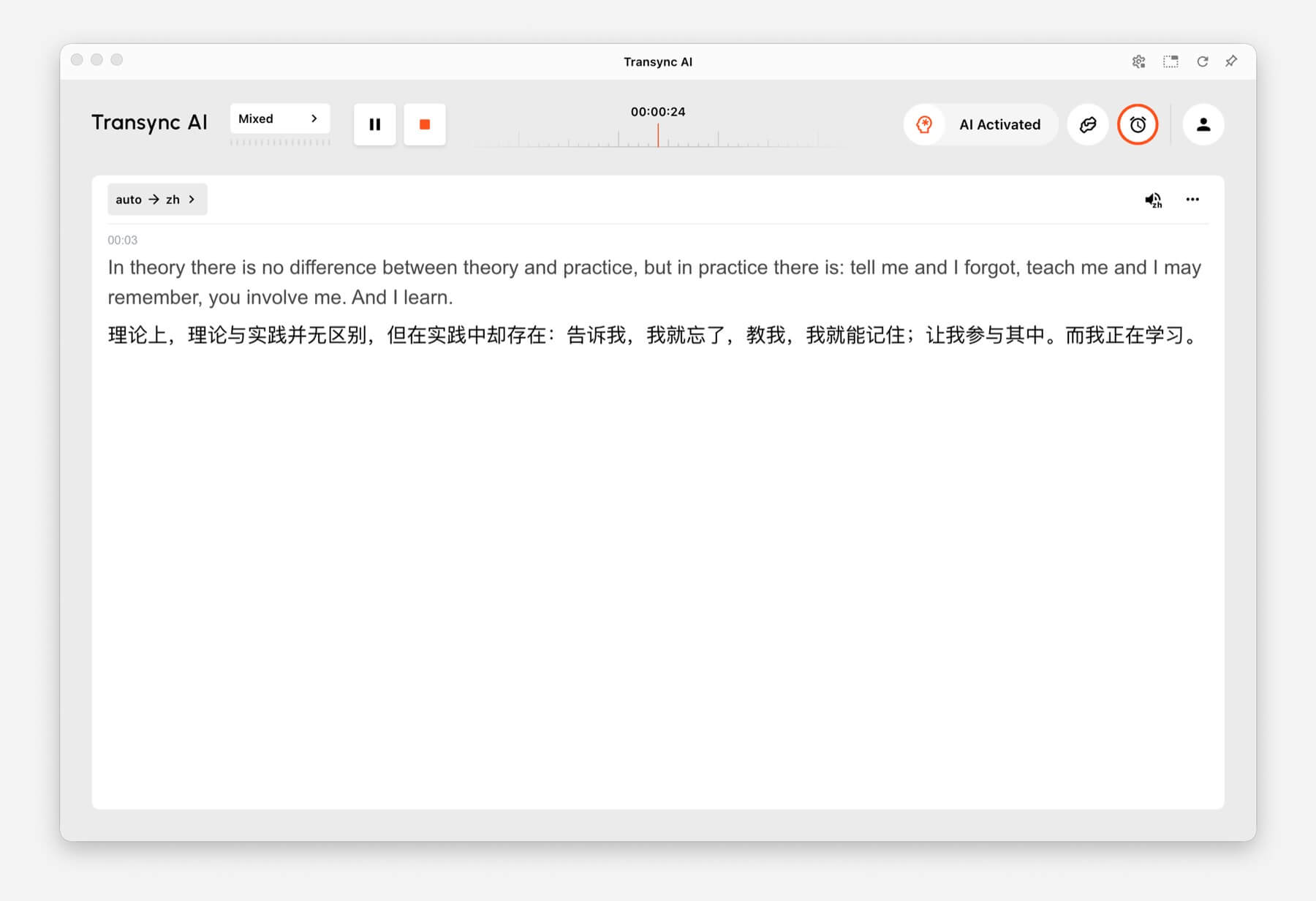
Gebruik Eenrichtingsvertaling when you mainly need to listen, such as during a class, lecture, webinar, video, training session, or talk. This mode is useful when one speaker or one audio source needs to be translated into your target language.

One-way Translation showing source audio translated into Chinese in Transync AI
One-way Translation is designed for listening scenarios such as lectures, webinars, and classes.

Tweewegvertaling #

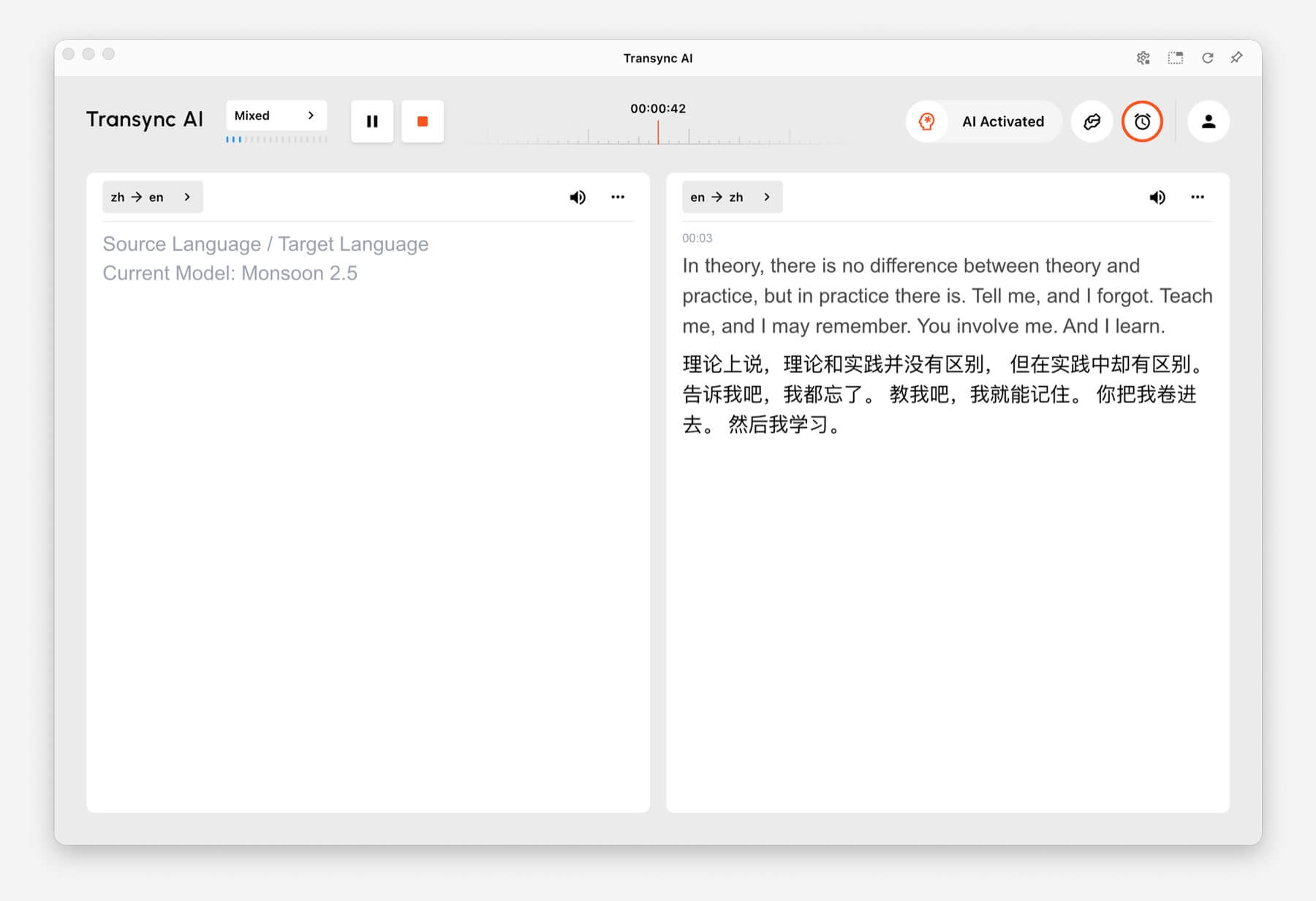
Gebruik Tweewegvertaling for back-and-forth conversations, including meetings, calls, interviews, travel conversations, customer discussions, and in-person communication. This mode is designed for situations where both sides speak and respond.

Two-way Translation showing Chinese and English panels in Transync AI
Two-way Translation supports back-and-forth conversations between two languages.

Meertalige vertaling #

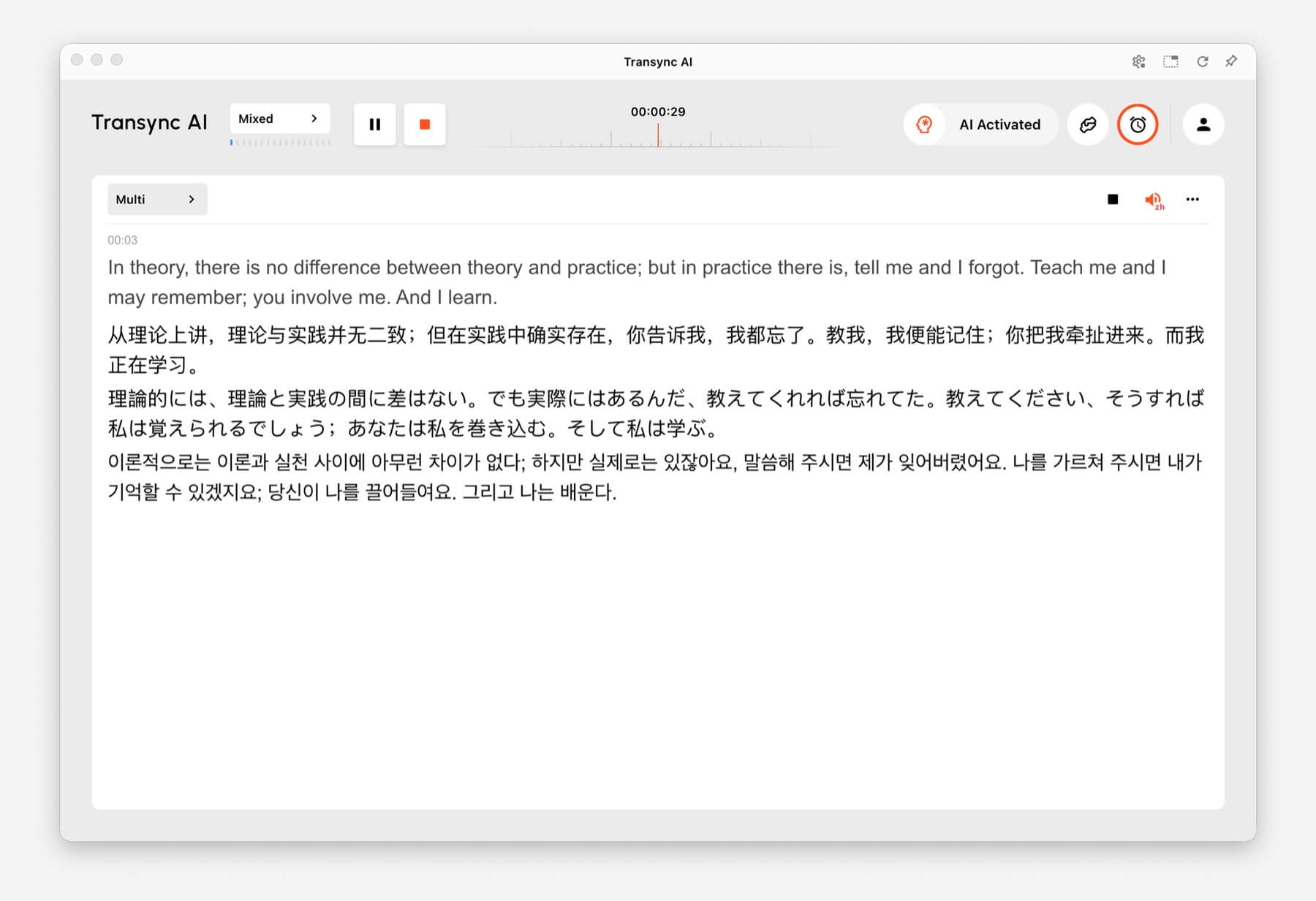
Gebruik Meertalige vertaling when one task needs several target languages at the same time. This is helpful for global teams, multilingual meetings, international training, and sessions where participants need to follow the same content in different languages.

Multilingual Translation showing one task translated into English, Chinese, Japanese, and Korean
Multilingual Translation can output multiple target languages in the same task.

How to Switch Translation Modes #

Mode selector tabs for One way, Two way, and Multilingual translation in Transync AI
Switch between One way, Two way, and Multilingual before you start translating.
  1. Open Transync AI on desktop, mobile, web, or the app you normally use.
  2. Open the language or translation settings before starting the task.
  3. Selecteer One way, Two way, of Meertalig based on your scenario.
  4. Choose your source and target language settings, then start translation.

If you are not sure which mode to choose, start with Eenrichtingsvertaling for listening scenarios, Tweewegvertaling for conversations, and Meertalige vertaling when multiple target languages are needed in one task.

How Billing Works for Translation Modes #

Eenrichtingsvertaling En Tweewegvertaling are billed at the standard 1x rate. Meertalige vertaling is billed based on the number of languages selected.

  • 3 languages: 2x time consumption.
  • Each additional language: adds 1x time consumption.
  • Maximum: 10 languages, which counts as 9x time consumption.

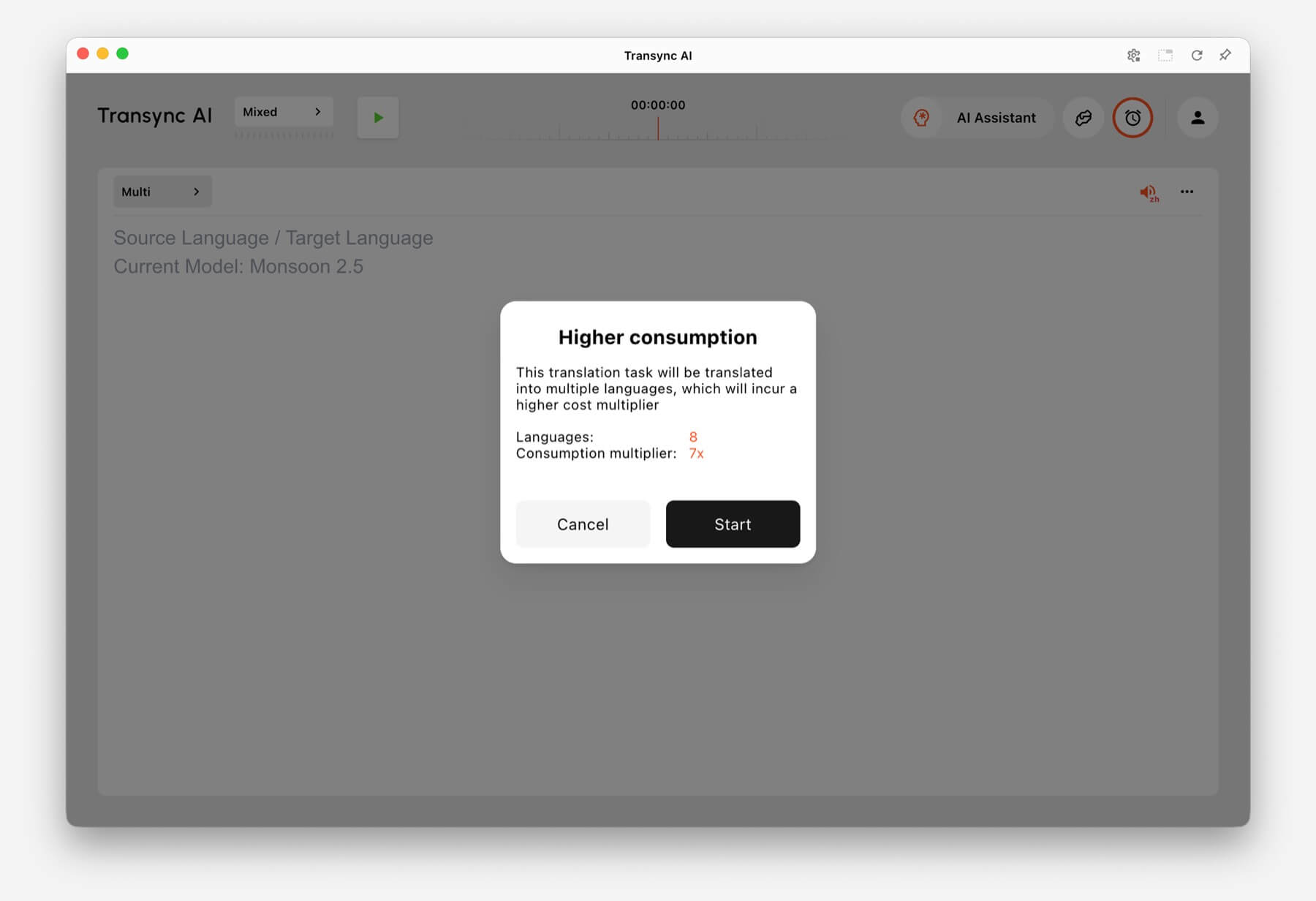
For example, selecting 8 languages in Multilingual Translation counts as 7x time consumption. Transync AI shows a higher consumption warning before you start when the selected language count increases usage.

Higher consumption warning showing 8 languages and 7x consumption multiplier in Transync AI
When many languages are selected, Transync AI shows the multilingual consumption multiplier before the task starts.

Veelgestelde vragen #

Can I change modes after starting a task? #

For the most reliable setup, choose the translation mode before starting the task. If you need a different mode, stop the current task and start a new one with the correct mode.

Which mode should I use for online meetings? #

Gebruik Tweewegvertaling for normal meeting conversations. Use Meertalige vertaling if the same meeting needs output in several target languages.

Which mode should I use for classes or lectures? #

Gebruik Eenrichtingsvertaling when you mainly listen to a speaker, class, lecture, webinar, or video.

How is Multilingual Translation billed? #

Multilingual Translation starts from at least 3 languages and counts as 2x time consumption. Each additional language adds 1x, up to 10 languages at 9x time consumption.

Geüpdatet op 24 juni 2026

Is dit document nuttig?

  • Nuttig
  • Niet nuttig

Deel dit bericht:

  • Facebook
  • X
  • LinkedIn
  • Pinterest
Hoe start je met realtimevertaling?Hoe u computeraudio deelt
Inhoudsopgave
  • What Are Translation Modes?
  • Choose a Mode Based on Your Scenario
    • Eenrichtingsvertaling
    • Tweewegvertaling
    • Meertalige vertaling
  • How to Switch Translation Modes
  • How Billing Works for Translation Modes
  • Veelgestelde vragen
    • Can I change modes after starting a task?
    • Which mode should I use for online meetings?
    • Which mode should I use for classes or lectures?
    • How is Multilingual Translation billed?

RedNote Douyin Bilibili 知乎 YouTube TikTok LinkedIn

沪ICP备2025119728号

Contact:support@transyncai.com

Product

  • Hulpmiddelen
  • AI Realtime vertaling
  • AI Live Meeting-vertaling
  • AI-vergadernotities
  • AI-stemvertaler
  • AI-assistent
  • Picture-in-Picture zwevende ondertitels
  • Ondersteunde talen
  • Gebruiksscenario's
  • Zoom-vertaling
  • Microsoft Teams-vertaling
  • Google Meet-vertaling
  • WhatsApp-vertaling
  • Vertaling van een fysieke bijeenkomst

Pagina's

  • Prijzen
  • Blog
  • Steun
  • Download
  • Onderneming
  • Wijzigingslogboek
  • Gratis proefperiode

Bronnen

  • Transync AI-feiten
  • Vergelijk Transync AI
  • Transync AI-alternatieven

Voorwaarden

  • Privacy
  • Servicevoorwaarden
  • Vertrouwenscentrum

© 2026 Transync AI – Real-Time Translation.

Nederlands
English 简体中文 日本語 한국어 Русский Français Español Deutsch Italiano Čeština ไทย 繁體中文繁體中文 Português do Brasil العربية हिन्दी Bahasa Indonesia Tiếng Việt Türkçe Polski Українська