
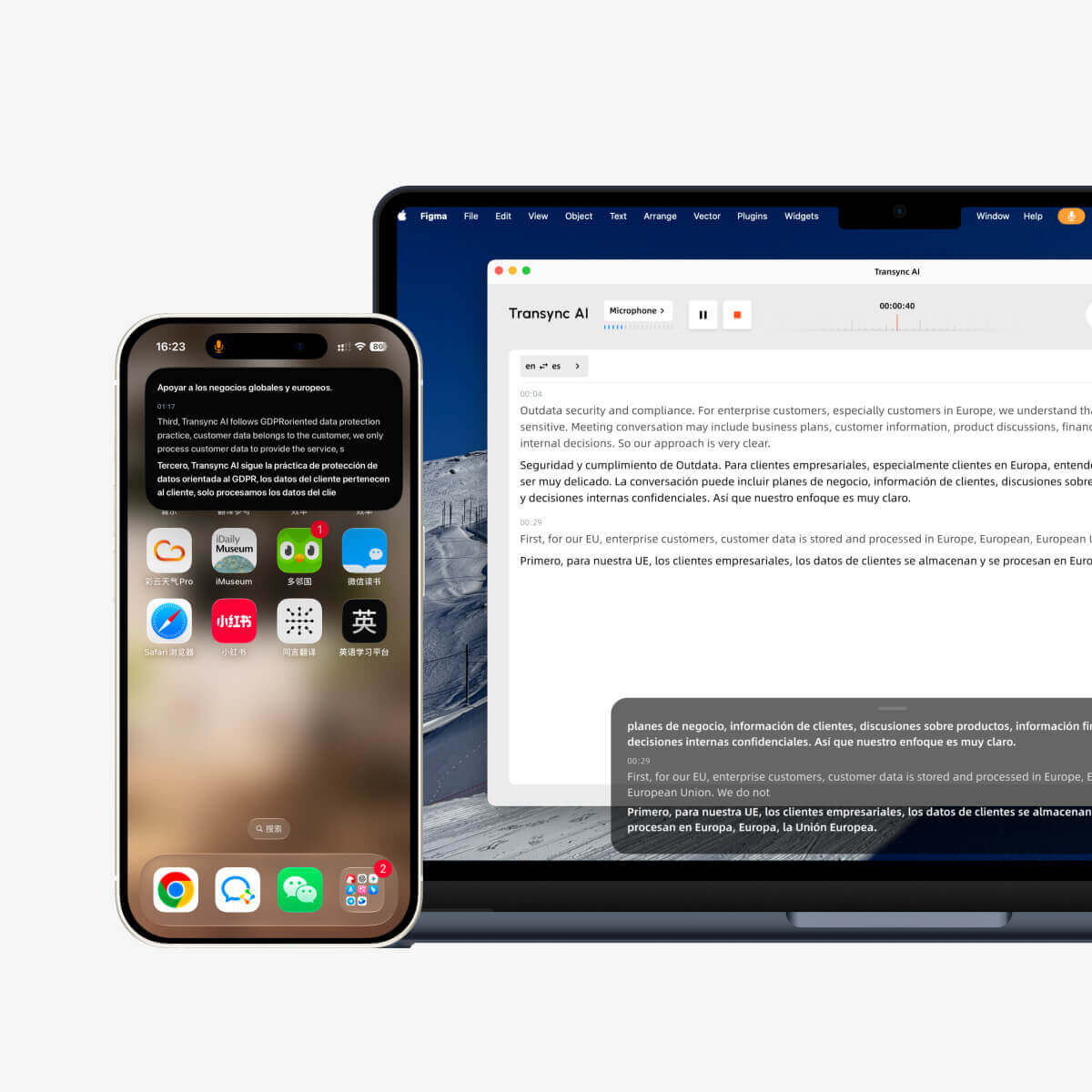
Mode Picture-in-Picture, atau PiP, memungkinkan Anda untuk tetap menampilkan subtitle langsung di Windows mengambang sambil menggunakan aplikasi lain. Fitur ini berguna saat Anda sedang rapat, menonton presentasi, melihat konten yang dibagikan, atau mencatat sementara Transync AI terus menerjemahkan secara real-time.
PiP tersedia di Windows, macOS, iOS, dan Android. Saat ini tidak tersedia di versi Web.
Sebelum menggunakan PiP, pastikan Anda telah memulai tugas penerjemahan. Jika Anda baru mengenal Transync AI, Anda mungkin ingin memeriksa panduan kami terlebih dahulu. Mulai Cepat atau belajar Cara Memulai Penerjemahan Waktu Nyata Pertama.
1. Buka Pengaturan PiP #
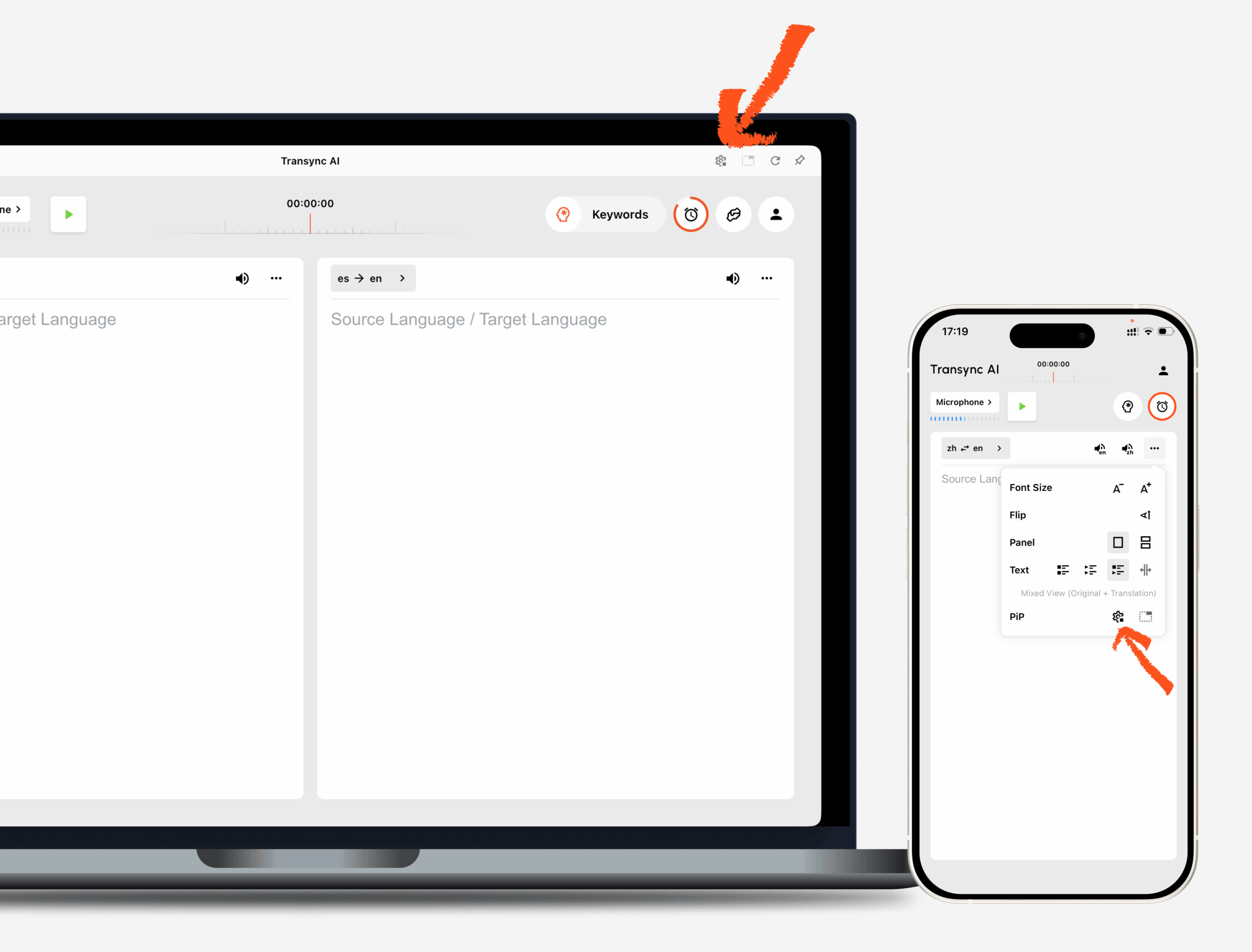
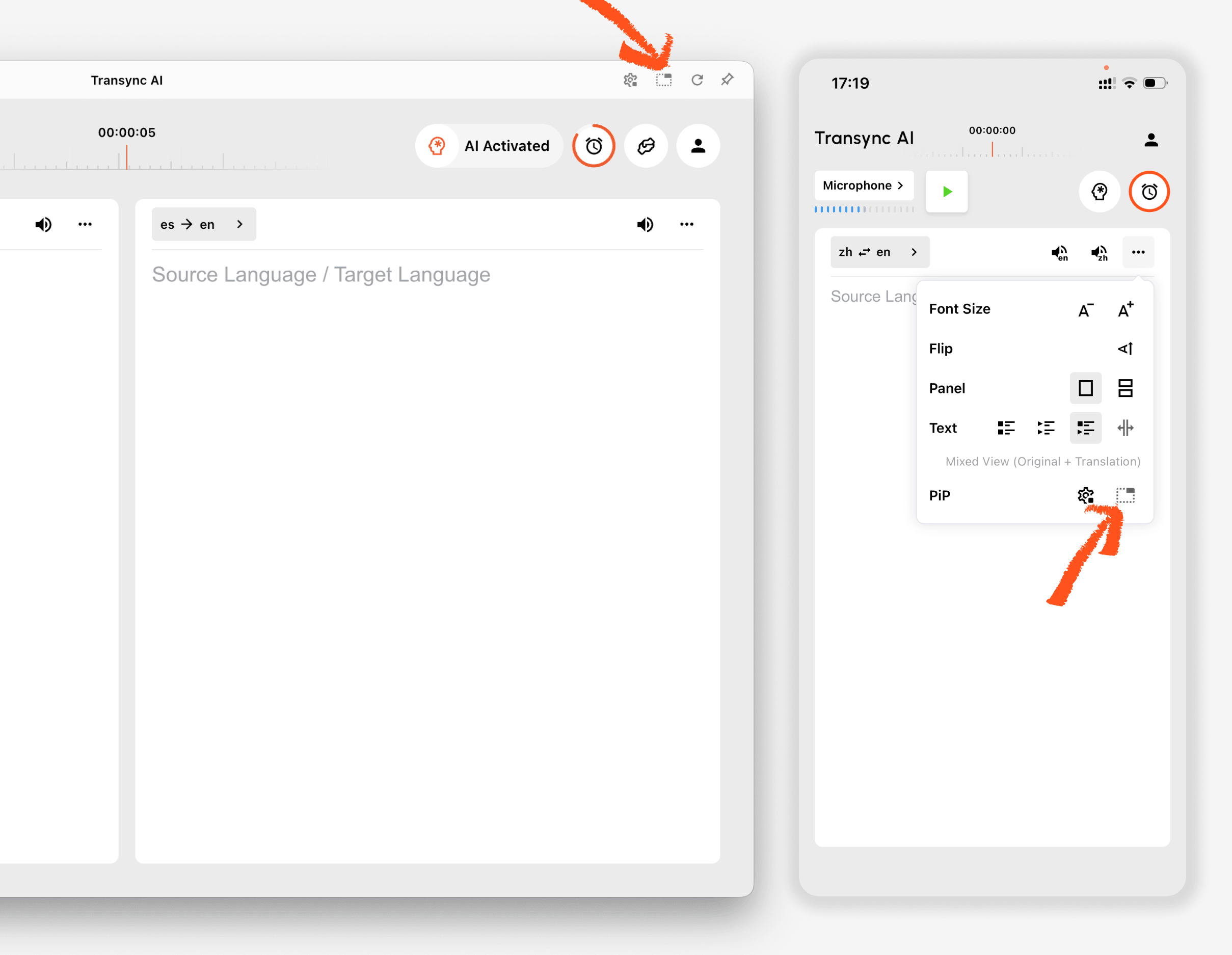
Membuka Pengaturan Di Transync AI, temukan bagian pengaturan PiP. Anda dapat mengkonfigurasi tampilan Windows subtitle mengambang sebelum menggunakan PiP selama tugas penerjemahan.
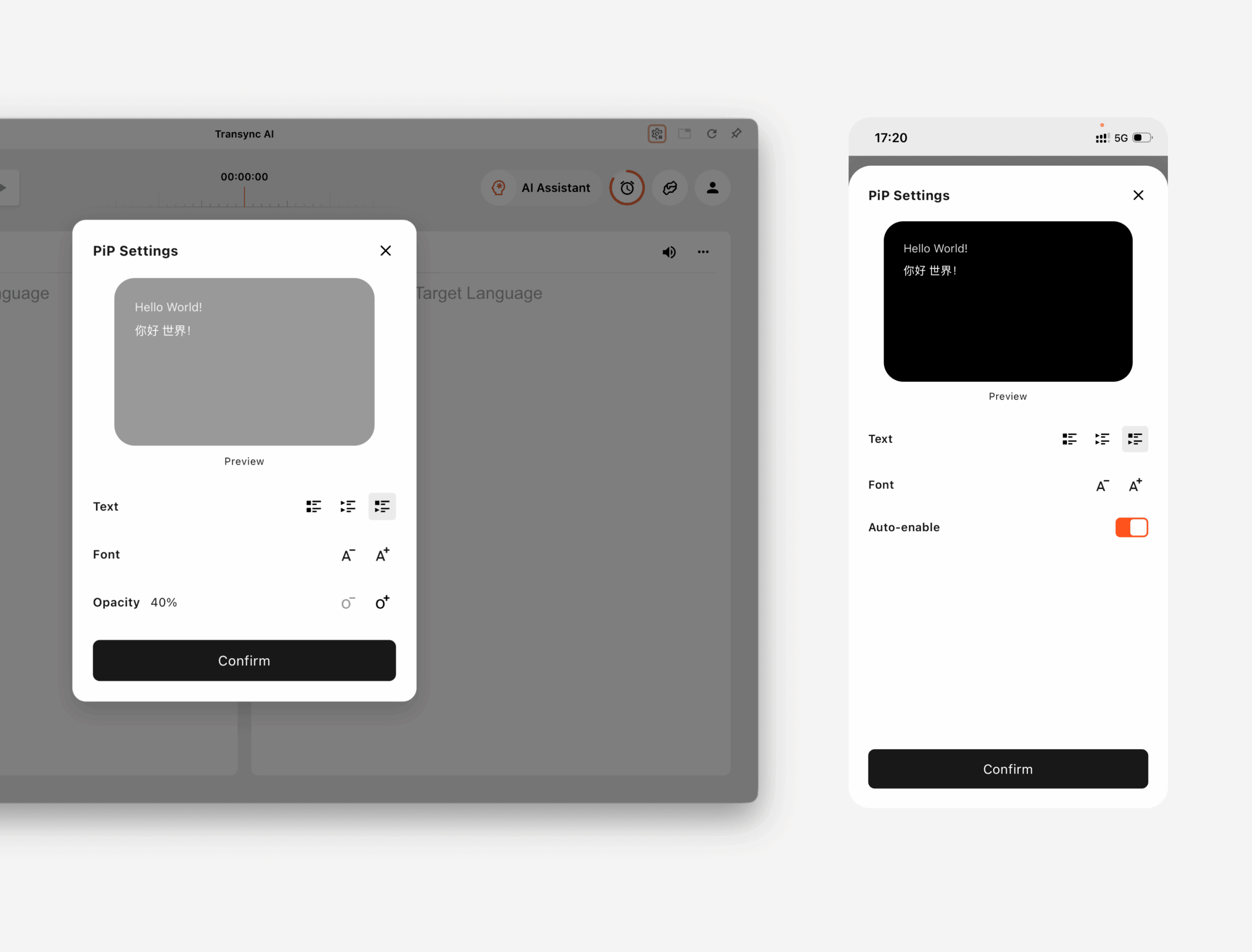
Pada Windows dan macOS, Anda dapat menyesuaikan:
- Mode tampilan subtitle
- Ukuran font
- Transparansi Windows
Pada iOS dan Android, Anda dapat menyesuaikan:
- Mode tampilan subtitle
- Ukuran font
- Aktifkan PiP secara otomatis
2. Pilih Mode Tampilan Subtitle #
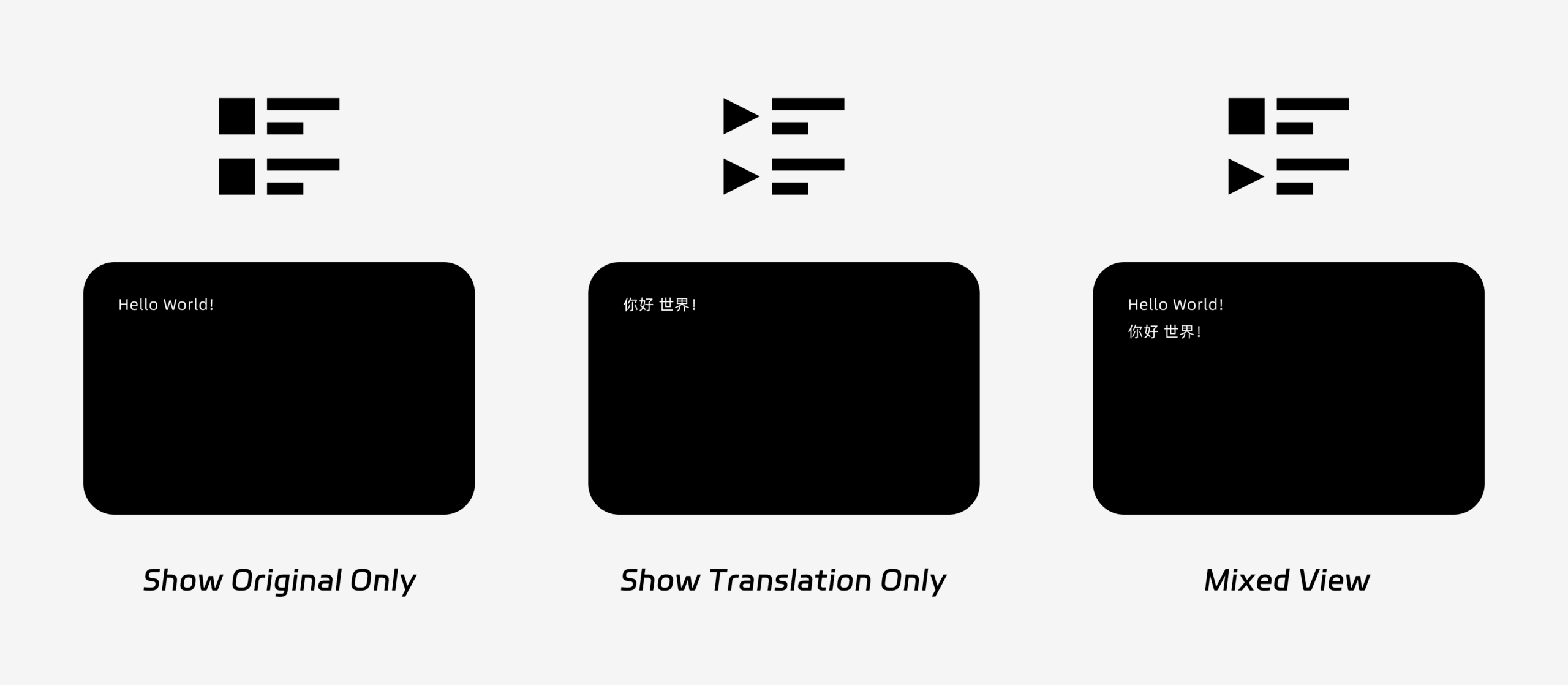
PiP mendukung tiga mode tampilan subtitle:
- Tampilkan hanya yang asli: Hanya menampilkan teks ucapan asli.
- Tampilkan terjemahan saja: Hanya menampilkan teks terjemahan.
- Pandangan campuranMenampilkan teks asli dan teks terjemahan.
Pilih mode tampilan berdasarkan kebutuhan Anda. Untuk rapat, Tampilkan terjemahan saja Memberikan tampilan yang lebih bersih. Untuk pembelajaran bahasa atau ulasan dwibahasa, Pandangan campuran dapat membantu Anda membandingkan teks asli dan teks terjemahan.
3. Sesuaikan Ukuran dan Tampilan Huruf #
Menggunakan Ukuran Huruf untuk mempermudah pembacaan subtitle di Windows PiP mengambang.
Di Windows dan macOS, Anda juga dapat menyesuaikan transparansi Windows. Windows yang lebih transparan membantu mencegah teks terjemahan menghalangi konten rapat, slide, atau layar yang dibagikan. Windows yang kurang transparan dapat membuat teks terjemahan lebih mudah dibaca.
Jika Anda juga menggunakan output suara selama penerjemahan, Anda mungkin ingin mempelajari lebih lanjut tentang hal ini. Cara Menggunakan Pemutaran Suara di Transync AI
4. Mulai Menggunakan PiP #
Setelah mengkonfigurasi pengaturan PiP, mulai tugas penerjemahan seperti biasa.
Gunakan PiP di Windows atau macOS
Setelah subtitle dihasilkan, klik PiP Tekan tombol untuk membuka jendela subtitle mengambang. Anda dapat memindahkan jendela PiP ke posisi yang nyaman di layar Anda saat menggunakan Zoom, Microsoft Teams, Google Meet, peramban, dokumen, atau aplikasi lainnya. Transync AI mengingat posisi terakhir jendela PiP di desktop, sehingga jendela subtitle dapat dibuka kembali di tempat Anda meninggalkannya saat Anda menggunakan PiP lagi.
Jika Anda perlu menerjemahkan audio rapat dari komputer Anda, Anda juga dapat memeriksa Cara Berbagi Audio Komputer
Gunakan PiP di iOS atau Android
Pada perangkat seluler, PiP dapat dimulai secara manual atau otomatis.
Jika Aktifkan PiP secara otomatis Jika diaktifkan, PiP akan dimulai secara otomatis saat Anda meminimalkan aplikasi Transync AI selama tugas penerjemahan aktif.
Jika Aktifkan PiP secara otomatis jika dimatikan, ketuk PiP Tekan tombol secara manual untuk membuka Windows subtitle mengambang.
Ini memungkinkan Anda untuk tetap melihat terjemahan saat menggunakan aplikasi seluler lainnya.
5. Saat PiP Tidak Tersedia #
PiP tidak tersedia di versi Web Transync AI. Untuk menggunakan PiP, silakan gunakan aplikasi Windows, macOS, iOS, atau Android.
Jika Windows PiP tidak muncul, periksa hal berikut:
- Saat ini sedang berlangsung tugas penerjemahan.
- Anda menggunakan platform yang didukung.
- Di perangkat seluler, opsi Auto-enable PiP diaktifkan jika Anda ingin PiP berjalan secara otomatis.


