Přejít k hlavnímu obsahu
Stiskněte Enter pro vyhledávání nebo ESC pro zavření
Zavřít vyhledávání
Logo Transync AI – oficiální logo značky pro překladatelskou službu Transync AI v reálném čase
  • Bezplatná zkušební verze
Menu
  • Produkt
    • Překlad v reálném čase s umělou inteligencí
    • Překlad živých setkání s umělou inteligencí
    • Poznámky ze schůzky s umělou inteligencí
    • Hlasový překladač s umělou inteligencí
    • AI Assistant: Klíčová slova a kontext
    • Obraz v obraze s plovoucími titulky
    • Podporované jazyky
  • Případy použití
    • Překlad Zoomu
    • Překlad Microsoft Teams
    • Překlad Google Meet
    • Hlasový hovor s překladem WhatsApp
    • Překlad osobních schůzek
  • Blog
  • Ceny
  • Podnik
  • Podpora
  • Stáhnout
  • Bezplatná zkušební verze
  • Produkt
    • Překlad v reálném čase s umělou inteligencí
    • Překlad živých setkání s umělou inteligencí
    • Poznámky ze schůzky s umělou inteligencí
    • Hlasový překladač s umělou inteligencí
    • AI Assistant: Klíčová slova a kontext
    • Obraz v obraze s plovoucími titulky
    • Podporované jazyky
  • Případy použití
    • Překlad Zoomu
    • Překlad Microsoft Teams
    • Překlad Google Meet
    • Hlasový hovor s překladem WhatsApp
    • Překlad osobních schůzek
  • Blog
  • Ceny
  • Podnik
  • Podpora
  • Stáhnout

hello@transyncai.com

Začínáme

2
  • Rychlý start
  • Kontaktujte nás

Uživatelská příručka

11
  • Jak zaregistrovat Transync AI
  • Jak spustit překlad v reálném čase
  • Jak sdílet zvuk z počítače
  • Jak používat přehrávání hlasu v Transync AI
  • Jak používat klonování hlasu
  • Jak používat virtuální mikrofon
  • Jak používat režim obraz v obraze
  • Jak získat přístup k přepisům a shrnutím schůzek
  • Jak používat asistenta s umělou inteligencí
  • Jak spravovat záznamy o překladech
  • Jak dobít peníze a požádat o vrácení peněz

Podnik

1
  • Průvodce podnikem

Zdroje

3
  • Centrum důvěryhodnosti
  • Podmínky a zásady
  • Seznam změn
Zobrazit kategorie
  • Domov
  • Dokumenty
  • Uživatelská příručka
  • Jak používat režim obraz v obraze

Jak používat režim obraz v obraze

3 minuty čtení

Picture-in-Picture mode, or PiP, lets you keep live subtitles visible in a floating window while using other apps. It is useful when you are in a meeting, watching a presentation, viewing shared content, or taking notes while Transync AI continues translating in real time.

PiP is available on Windows, macOS, iOS, and Android. It is currently not available on the web version.

Before using PiP, make sure you have already started a translation task. If you are new to Transync AI, you may want to check our Rychlý start nebo se učit Jak spustit překlad v reálném čase první.
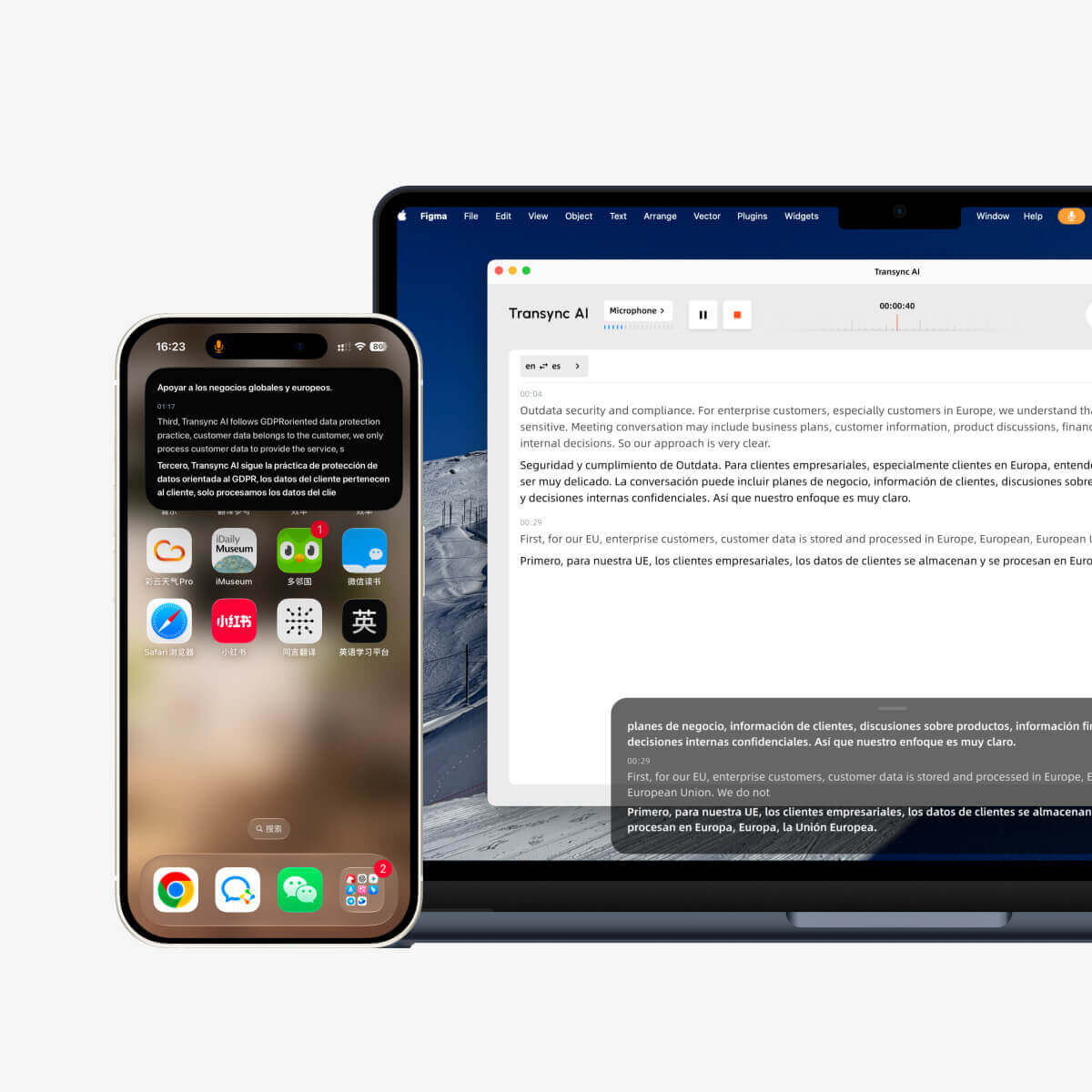
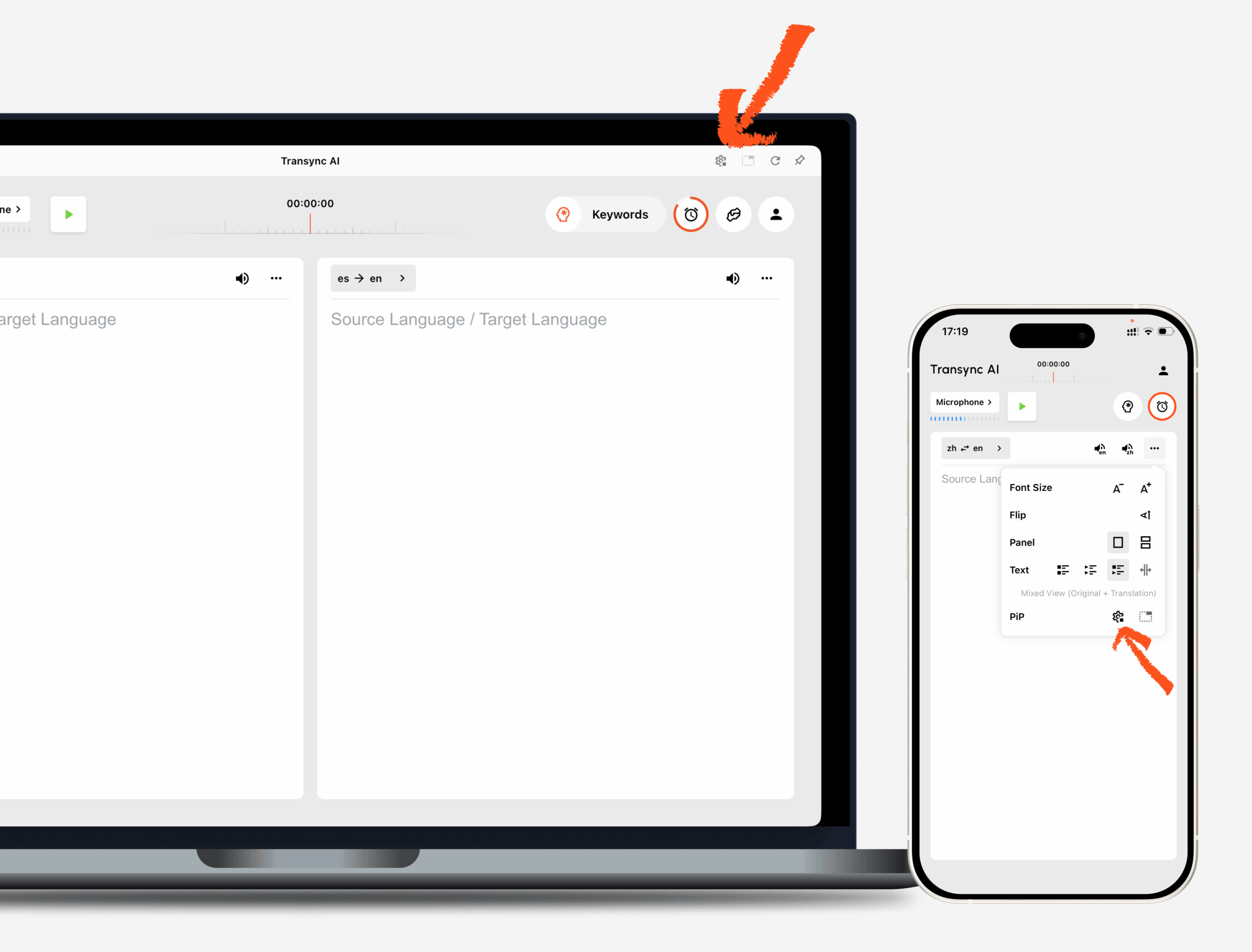
Transync AI Picture-in-Picture subtitles floating over desktop and mobile screens during translation.

1. Open PiP Settings #

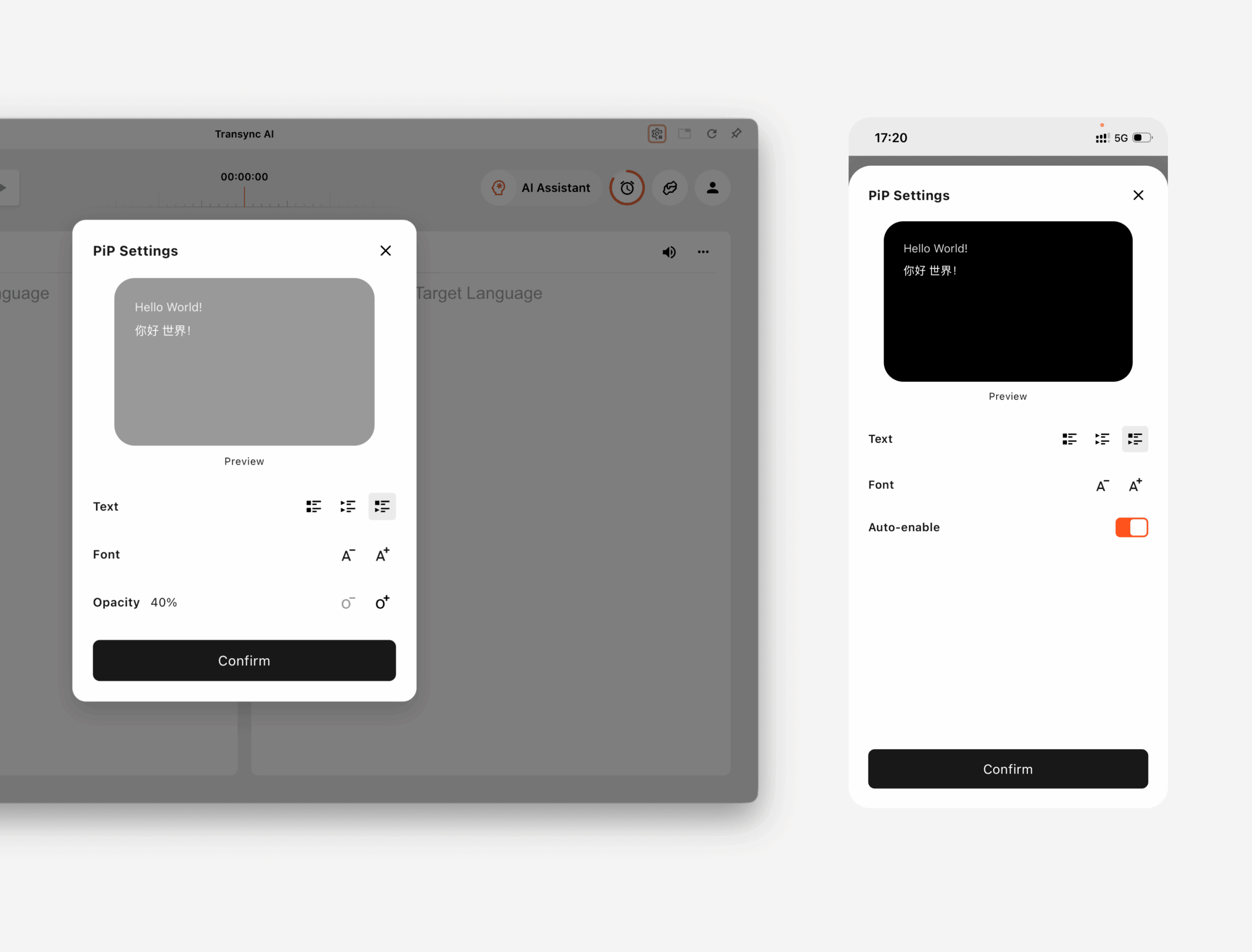
OTEVŘENO Settings in Transync AI and find the PiP settings section. You can configure how the floating subtitle window appears before using PiP during a translation task.

On Windows a macOS, you can adjust:

  • Subtitle display mode
  • Font size
  • Window transparency

On iOS a Android, you can adjust:

  • Subtitle display mode
  • Font size
  • Auto-enable PiP
PiP settings in the Transync AI desktop and mobile translation interface.

2. Choose a Subtitle Display Mode #

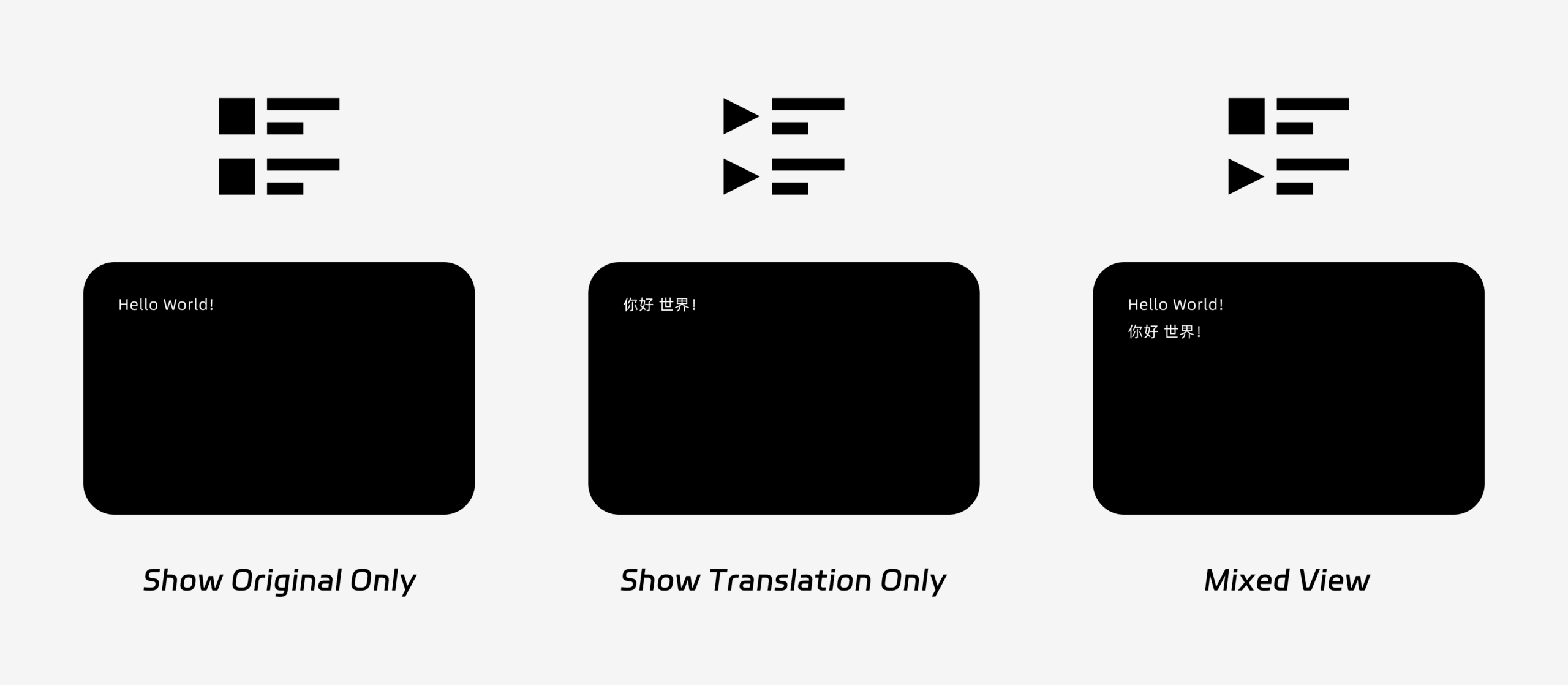
PiP supports three subtitle display modes:

  • Show original only: Displays only the original speech text.
  • Show translation only: Displays only the translated text.
  • Mixed view: Displays both the original text and the translated text.

Choose the display mode based on your use case. For meetings, Show translation only provides a cleaner view. For language learning or bilingual review, Mixed view can help you compare the original and translated text.

Three PiP subtitle display modes: Show Original Only, Show Translation Only, and Mixed View.

3. Adjust Font Size and Display #

Použití Font Size to make subtitles easier to read in the floating PiP window.

On Windows and macOS, you can also adjust window transparency. A more transparent window helps prevent subtitles from blocking meeting content, slides, or shared screens. A less transparent window can make subtitles easier to read.

If you also use voice output during translation, you may want to learn more about Jak používat přehrávání hlasu v Transync AI.

PiP settings panel showing subtitle display mode, font size, opacity, and auto-enable options.

4. Start Using PiP #

After configuring PiP settings, start a translation task as usual.

Use PiP on Windows or macOS

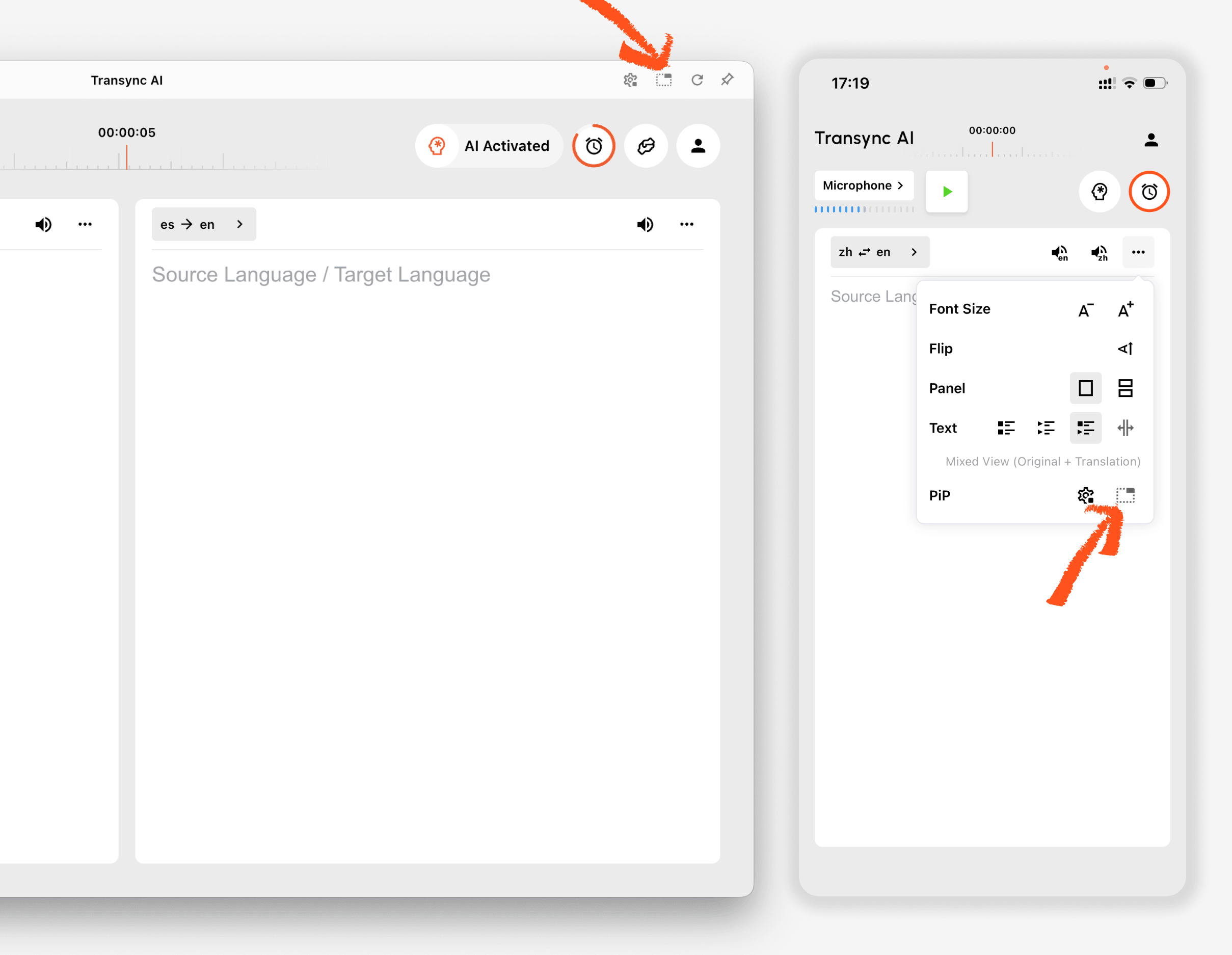
Once subtitles are being generated, click the PiP button to open the floating subtitle window. You can move the PiP window to a convenient position on your screen while using Zoom, Microsoft Teams, Google Meet, browsers, documents, or other apps.

If you need to translate meeting audio from your computer, you can also check Jak sdílet zvuk z počítače.

Use PiP on iOS or Android

On mobile devices, PiP can be started manually or automatically.

If Auto-enable PiP is turned on, PiP will start automatically when you minimize the Transync AI app during an active translation task.

If Auto-enable PiP is turned off, tap the PiP button manually to open the floating subtitle window.

This allows you to keep translations visible while using other mobile apps.

PiP button in the Transync AI desktop and mobile translation interface.

5. When PiP Is Not Available #

PiP is not available on the web version of Transync AI. To use PiP, please use the Windows, macOS, iOS, or Android app.

If the PiP window does not appear, check that:

  • A translation task is currently running.
  • You are using a supported platform.
  • On mobile, Auto-enable PiP is turned on if you want PiP to start automatically.
Aktualizováno dne 2026 5. 9. 2026

Je tento dokument užitečný?

  • Šťastný
  • Smutný

Sdílet tento článek:

  • Facebook
  • X
  • LinkedIn
  • Pinterest
Jak používat virtuální mikrofon
Obsah
  • 1. Open PiP Settings
  • 2. Choose a Subtitle Display Mode
  • 3. Adjust Font Size and Display
  • 4. Start Using PiP
  • 5. When PiP Is Not Available

小红书 抖音 Bilibili 知乎 YouTube Tiktok LinkedIn

沪ICP备2025119728号

Contact:support@transyncai.com

Produkt

  • Nástroje
  • Překlad v reálném čase s umělou inteligencí
  • Překlad živých setkání s umělou inteligencí
  • Poznámky ze schůzky s umělou inteligencí
  • Hlasový překladač s umělou inteligencí
  • Asistent umělé inteligence
  • Obraz v obraze s plovoucími titulky
  • Podporované jazyky
  • Případy použití
  • Překlad Zoomu
  • Překlad Teams
  • Překlad Google Meet
  • Překlad WhatsAppu
  • Překlad osobních schůzek

Stránky

  • Ceny
  • Blog
  • Podpora
  • Stáhnout
  • Podnik
  • Seznam změn
  • Bezplatná zkušební verze

Podmínky

  • Soukromí
  • Podmínky služby
  • Centrum důvěryhodnosti

© 2026 Transync AI – Překlad v reálném čase.

Čeština
English 简体中文 日本語 한국어 Русский Français Español Deutsch Italiano ไทย 繁體中文繁體中文 Português do Brasil العربية हिन्दी Bahasa Indonesia Tiếng Việt Türkçe Nederlands Polski Українська