
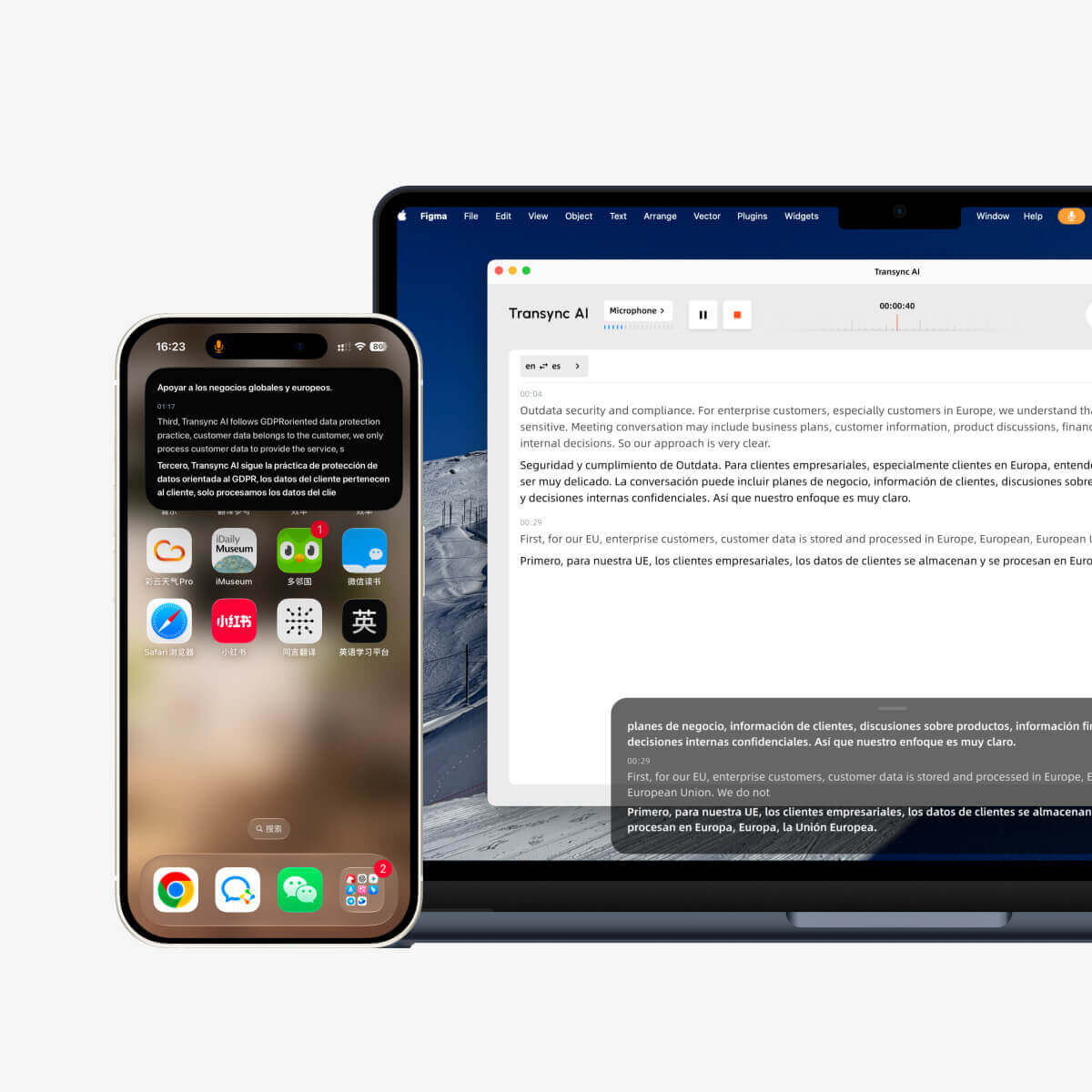
Picture-in-Picture modu (PiP), diğer uygulamaları kullanırken canlı altyazıları yüzen bir pencerede görünür halde tutmanızı sağlar. Bu özellik, bir toplantıdayken, sunum izlerken, paylaşılan içeriği görüntülerken veya Transync AI gerçek zamanlı çeviriye devam ederken not alırken kullanışlıdır.
PiP şu platformlarda mevcuttur: Windows, macOS, iOS ve Android. Şu anda Web sürümünde mevcut değil.
PiP'i kullanmadan önce, çeviri görevine başlamış olduğunuzdan emin olun. Transync AI'ye yeniyseniz, kılavuzumuza göz atmak isteyebilirsiniz. Hızlı Başlangıç veya öğrenin Gerçek Zamanlı Çeviri Nasıl Başlatılır Birinci.
1. PiP Ayarlarını Açın #
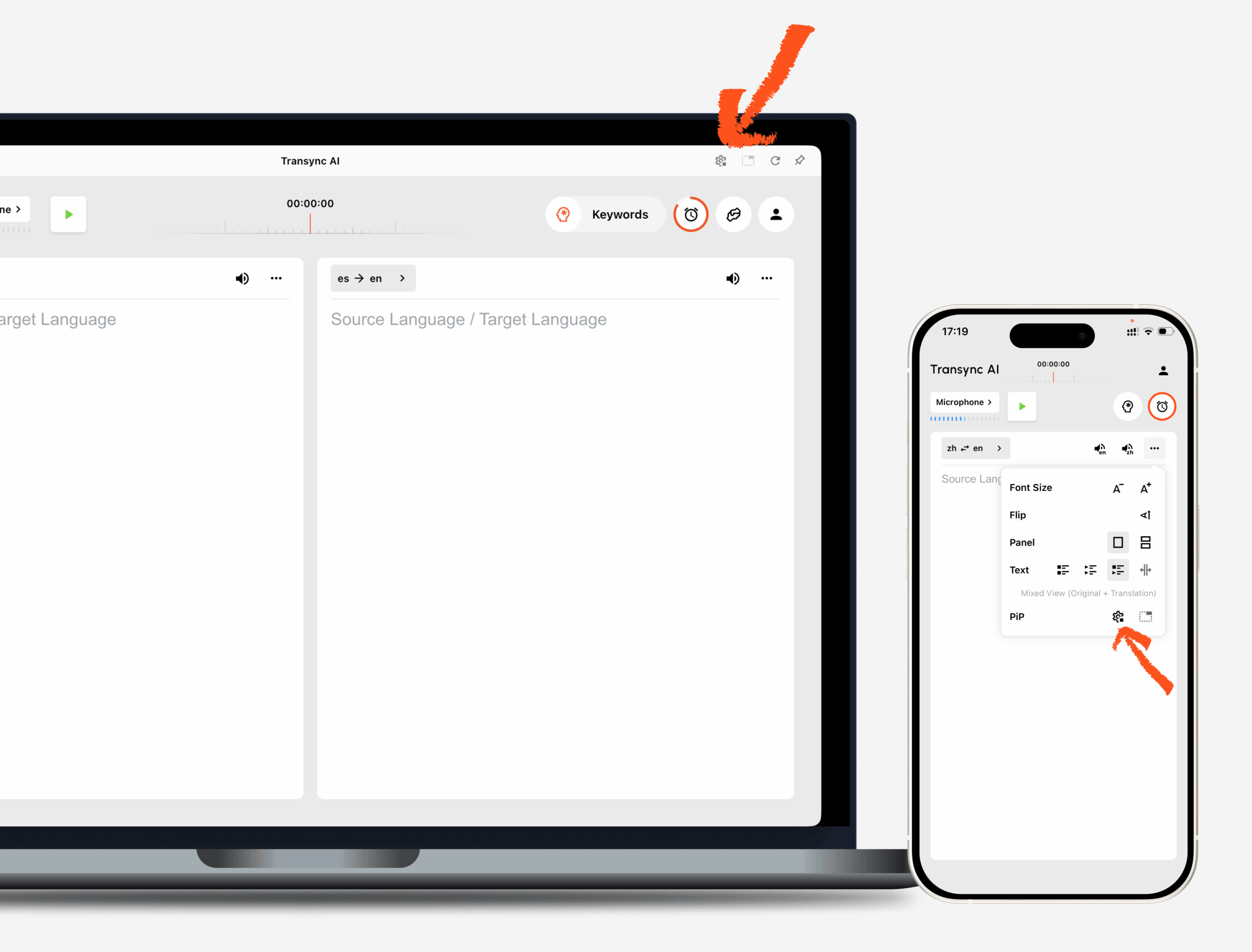
Açık Ayarlar Transync AI'da PiP ayarları bölümünü bulun. Çeviri görevi sırasında PiP'yi kullanmadan önce kayan altyazı penceresinin nasıl görüneceğini yapılandırabilirsiniz.
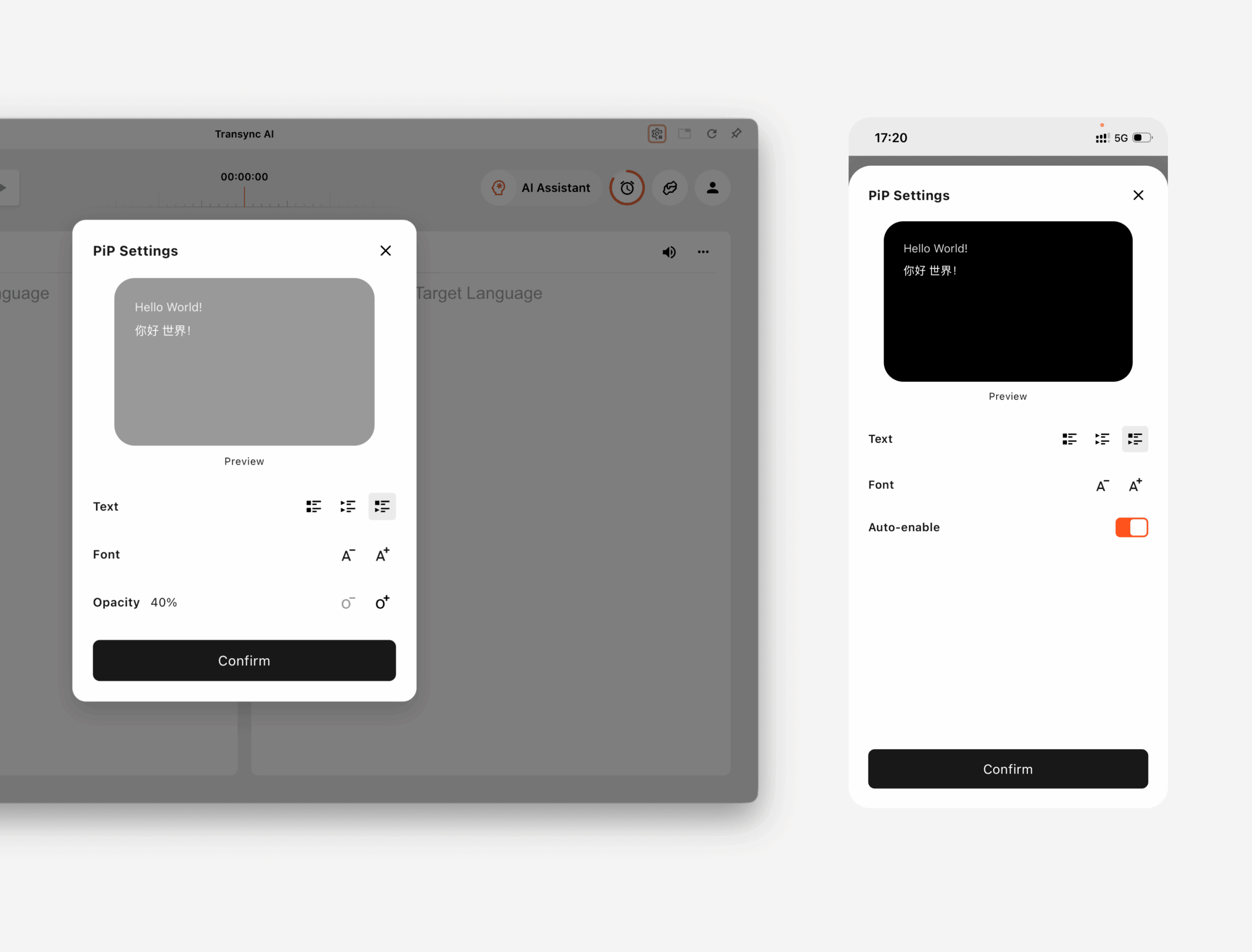
Açık Windows ve macOS, Şunları ayarlayabilirsiniz:
- Altyazı görüntüleme modu
- Yazı tipi boyutu
- Pencere şeffaflığı
Açık iOS ve Android, Şunları ayarlayabilirsiniz:
- Altyazı görüntüleme modu
- Yazı tipi boyutu
- PiP'i otomatik olarak etkinleştir
2. Altyazı Görüntüleme Modunu Seçin #
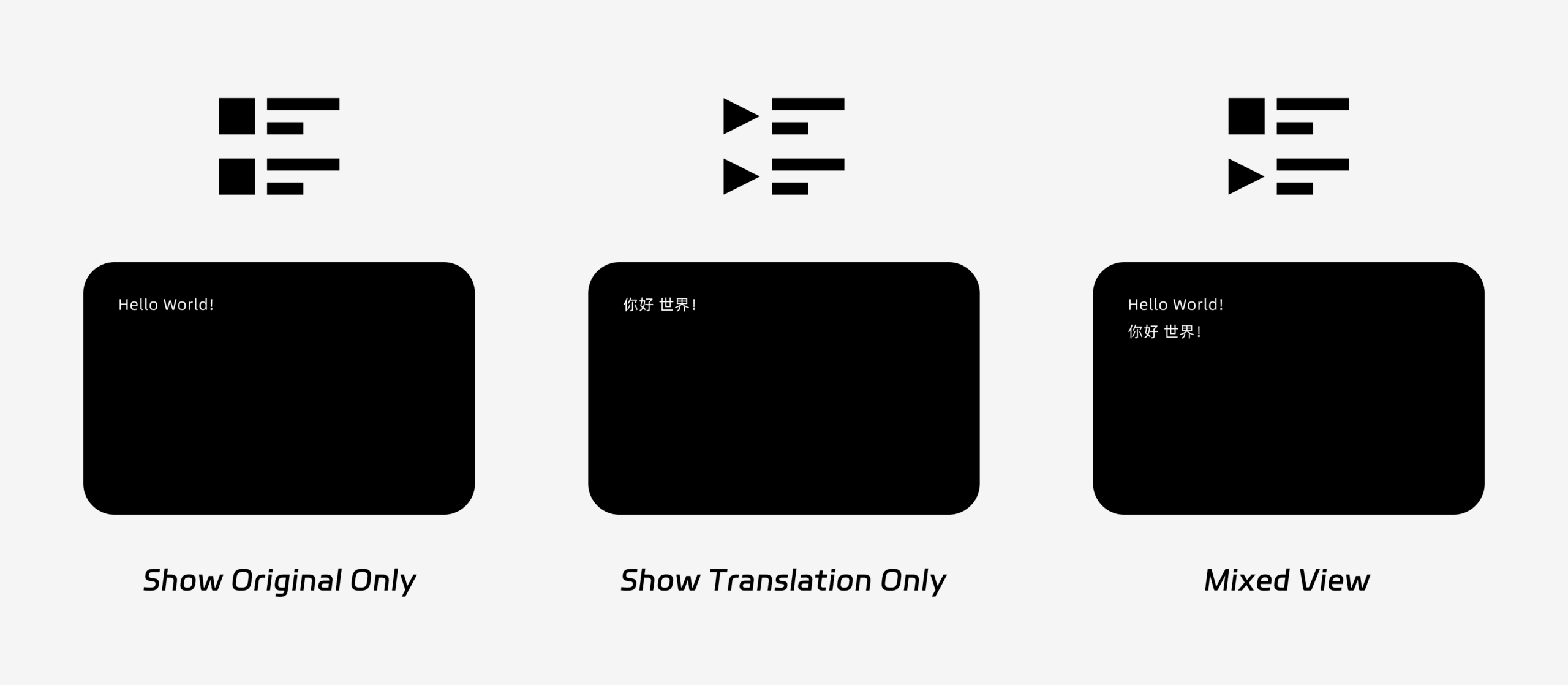
PiP üç altyazı görüntüleme modunu destekler:
- Yalnızca orijinalini gösterYalnızca orijinal konuşma metnini görüntüler.
- Yalnızca çeviriyi gösterYalnızca çevrilmiş metni görüntüler.
- Karma görünümOrijinal metni ve çevrilmiş metni birlikte görüntüler.
Kullanım amacınıza göre görüntüleme modunu seçin. Toplantılar için, Yalnızca çeviriyi göster Daha net bir görünüm sağlar. Dil öğrenimi veya iki dilli tekrar için, Karma görünüm Orijinal ve çevrilmiş metni karşılaştırmanıza yardımcı olabilir.
3. Yazı Tipi Boyutunu ve Görüntüyü Ayarlayın #
Kullanmak Yazı Tipi Boyutu Altyazıların, resim içinde resim (PiP) penceresinde daha kolay okunmasını sağlamak.
Windows ve macOS'ta pencere şeffaflığını da ayarlayabilirsiniz. Daha şeffaf bir pencere, altyazıların toplantı içeriğini, slaytları veya paylaşılan ekranları engellemesini önlemeye yardımcı olur. Daha az şeffaf bir pencere ise altyazıların okunmasını kolaylaştırabilir.
Çeviri sırasında ses çıkışını da kullanıyorsanız, bu konu hakkında daha fazla bilgi edinmek isteyebilirsiniz. Transync AI'da Ses Oynatma Nasıl Kullanılır?
4. PiP'i Kullanmaya Başlayın #
PiP ayarlarını yapılandırdıktan sonra, her zamanki gibi bir çeviri görevi başlatın.
PiP'i Windows veya macOS'ta kullanın.
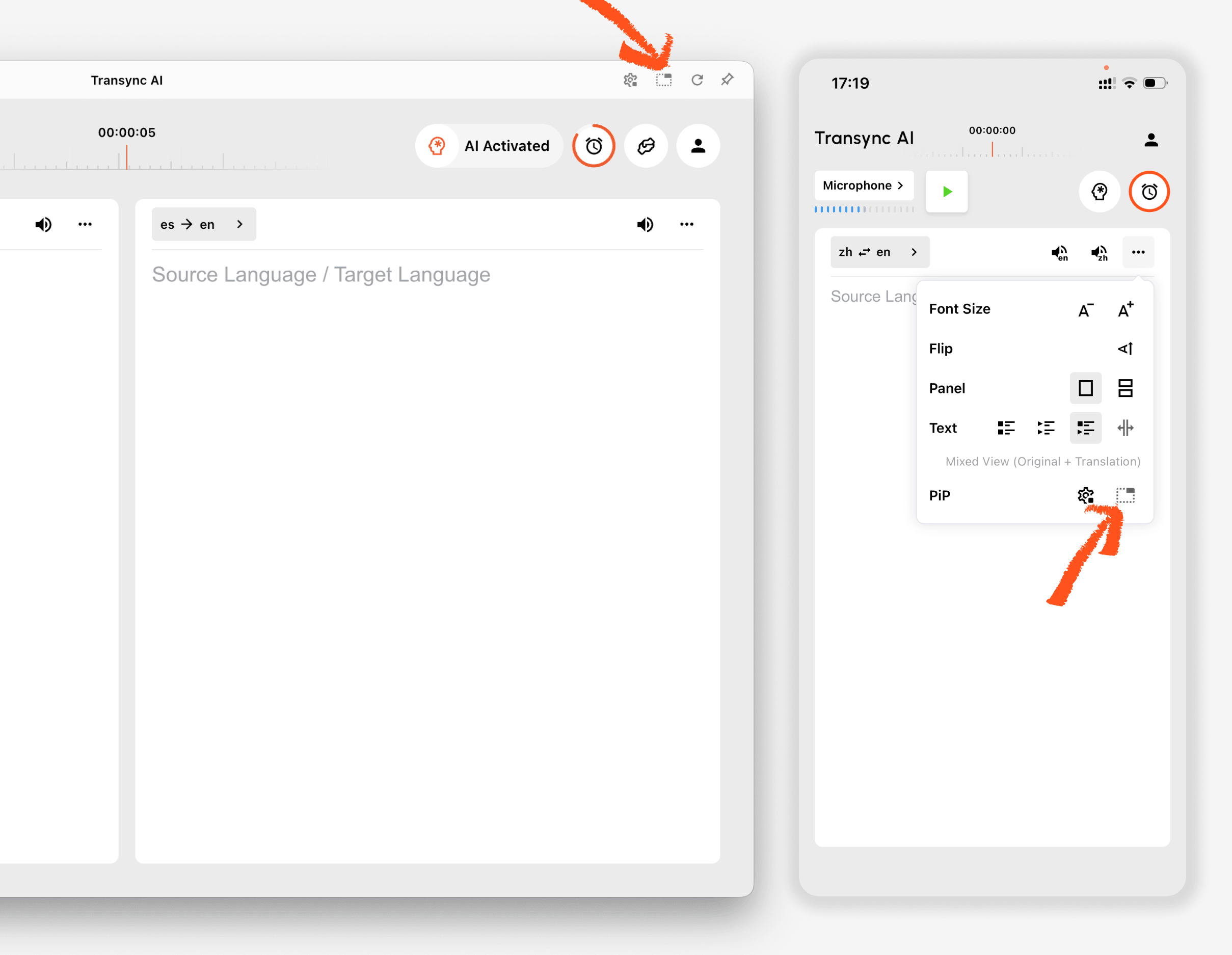
Altyazılar oluşturulmaya başlandıktan sonra, tıklayın. PiP Kaydırılabilir altyazı penceresini açmak için düğmeyi kullanın. Zoom, Microsoft Teams, Google Meet, tarayıcılar, belgeler veya diğer uygulamaları kullanırken PiP penceresini ekranınızda uygun bir konuma taşıyabilirsiniz. Transync AI, masaüstündeki son PiP penceresi konumunu hatırlar, böylece bir sonraki PiP kullanımınızda altyazı penceresi bıraktığınız yerden yeniden açılabilir.
Bilgisayarınızdan toplantı sesini çevirmeniz gerekiyorsa, bunu da kontrol edebilirsiniz. Bilgisayar Sesi Nasıl Paylaşılır
PiP özelliğini iOS veya Android'de kullanın.
Mobil cihazlarda, resim içinde resim (PiP) özelliği manuel veya otomatik olarak başlatılabilir.
Eğer PiP'i otomatik olarak etkinleştir Etkinleştirildiğinde, aktif bir çeviri görevi sırasında Transync AI uygulamasını simge durumuna küçülttüğünüzde PiP otomatik olarak başlayacaktır.
Eğer PiP'i otomatik olarak etkinleştir Kapalıysa, dokunun. PiP Yüzen altyazı penceresini açmak için düğmeyi manuel olarak kullanın.
Bu sayede diğer mobil uygulamaları kullanırken çevirilerinizi görünür halde tutabilirsiniz.
5. PiP Kullanılamadığında #
PiP özelliği Transync AI'nin web sürümünde mevcut değildir. PiP özelliğini kullanmak için lütfen Windows, macOS, iOS veya Android uygulamasını kullanın.
Picture-in-Picture (PiP) penceresi görünmüyorsa, şunları kontrol edin:
- Şu anda bir çeviri görevi çalışıyor.
- Desteklenen bir platform kullanıyorsunuz.
- Mobil cihazlarda, PiP'nin otomatik olarak başlamasını istiyorsanız Otomatik PiP'yi etkinleştir seçeneğini açın.


