
Chế độ hình trong hình (Picture-in-Picture, hay PiP) cho phép bạn theo dõi phụ đề trực tiếp trong một cửa sổ nổi trong khi sử dụng các ứng dụng khác. Chế độ này rất hữu ích khi bạn đang họp, xem thuyết trình, xem nội dung được chia sẻ hoặc ghi chú trong khi Transync AI tiếp tục dịch theo thời gian thực.
PiP có sẵn trên Windows, macOS, iOS và Android. Hiện tại Không có sẵn trên phiên bản web.
Trước khi sử dụng PiP, hãy đảm bảo bạn đã bắt đầu một tác vụ dịch thuật. Nếu bạn mới sử dụng Transync AI, bạn có thể tham khảo hướng dẫn của chúng tôi. Bắt đầu nhanh hoặc học Cách bắt đầu dịch thuật thời gian thực Đầu tiên.
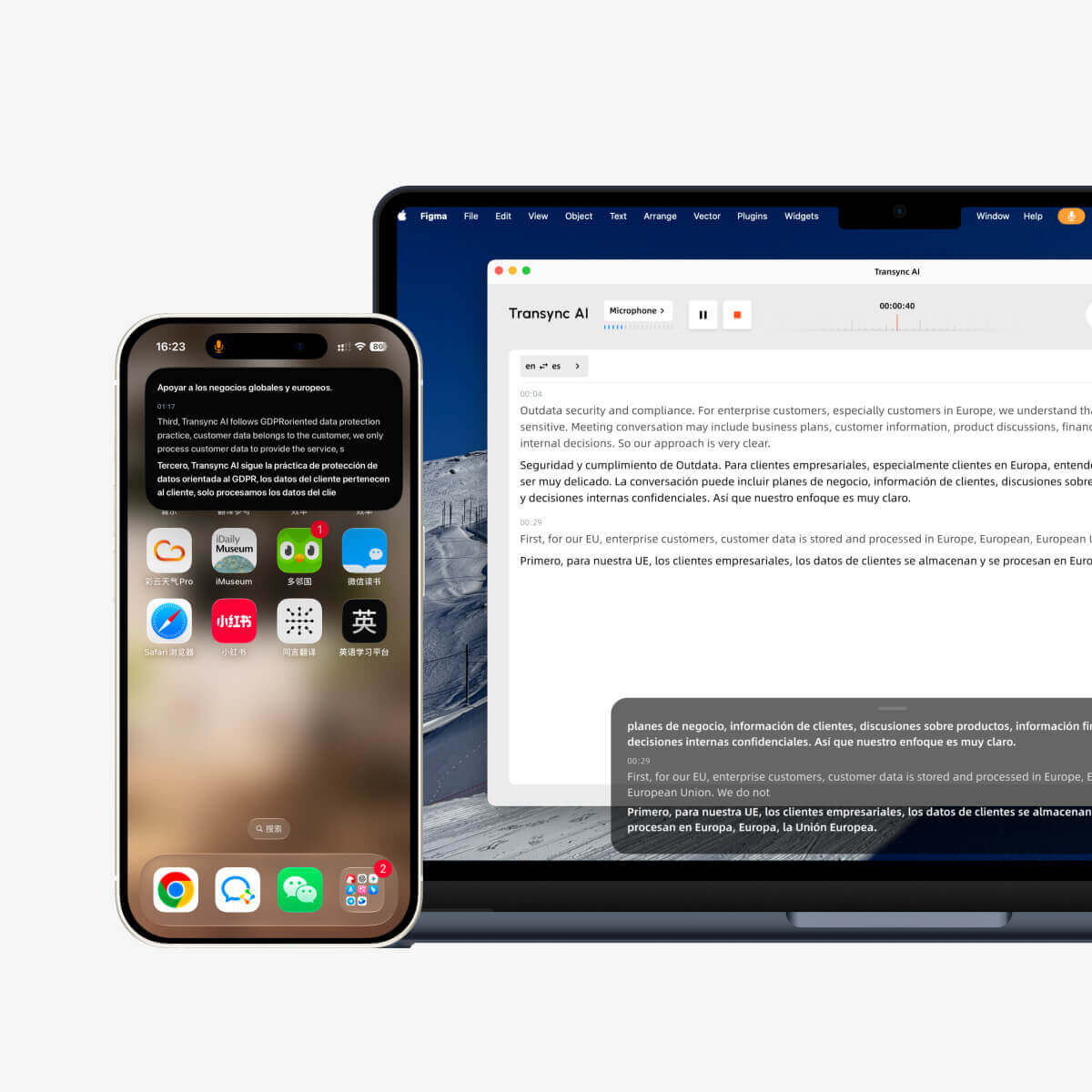
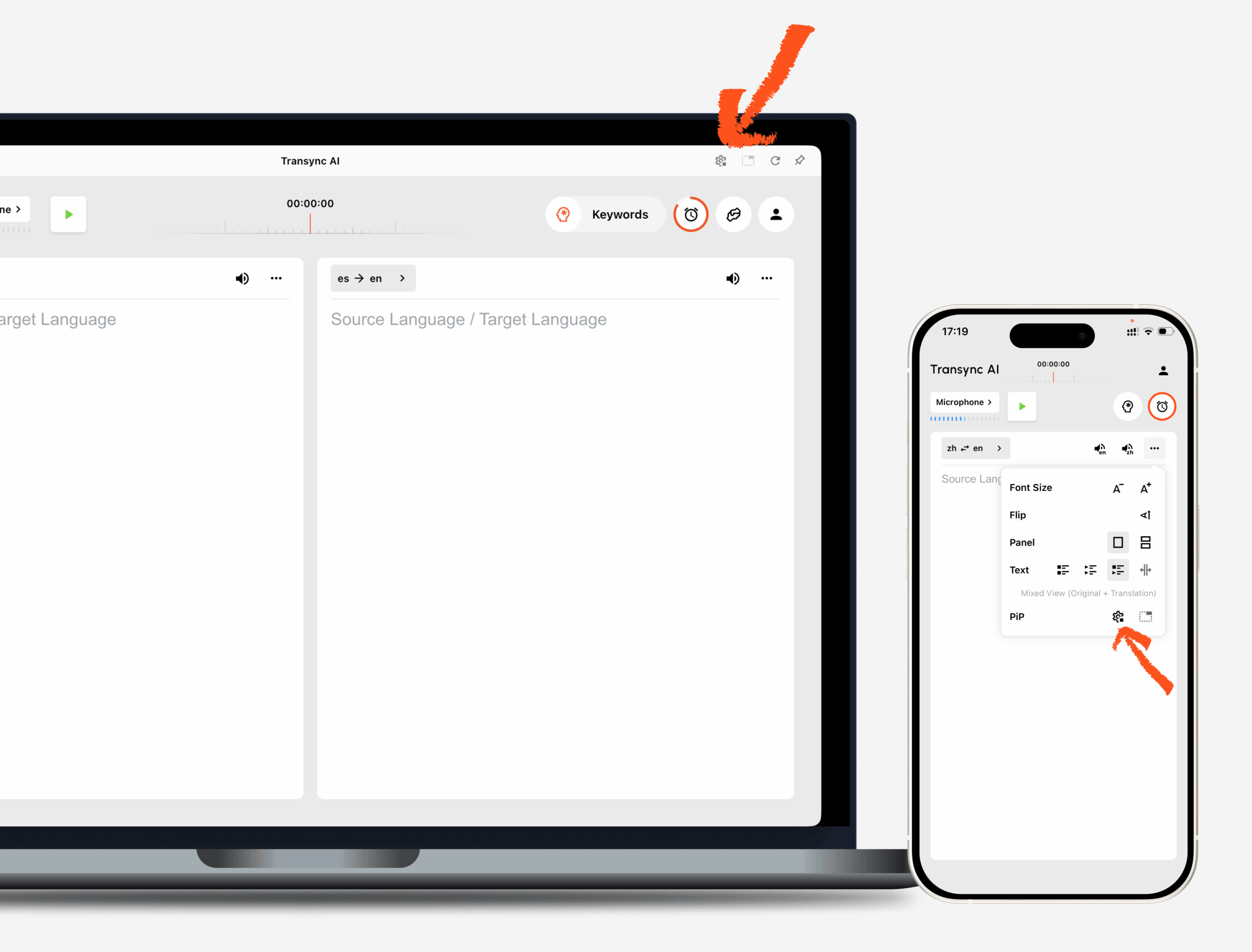
1. Mở cài đặt PiP #
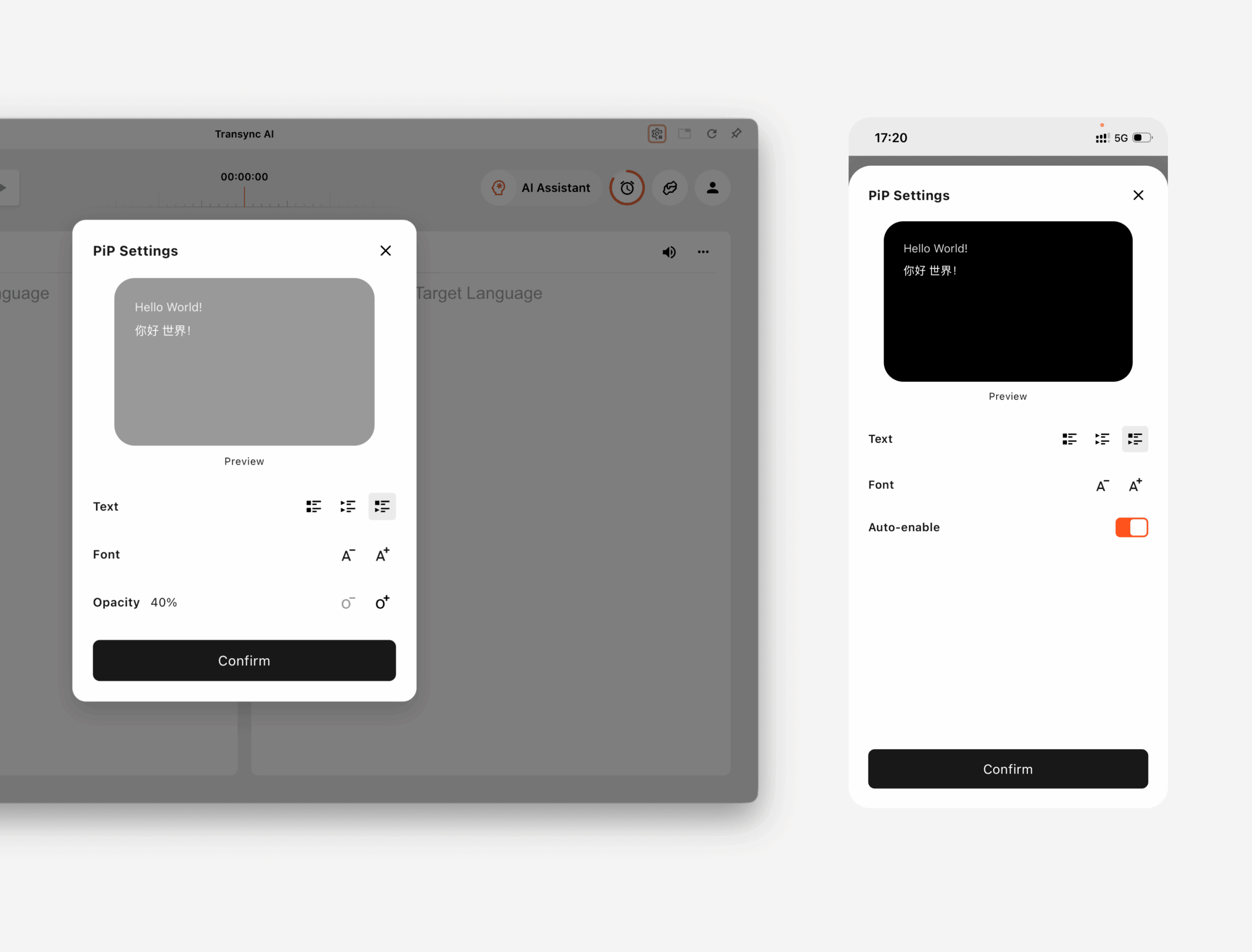
Mở Cài đặt Trong Transync AI, hãy tìm phần cài đặt PiP. Bạn có thể cấu hình cách cửa sổ phụ đề nổi hiển thị trước khi sử dụng PiP trong quá trình dịch.
TRÊN Windows và macOS, Bạn có thể điều chỉnh:
- Chế độ hiển thị phụ đề
- Kích thước phông chữ
- Độ trong suốt của cửa sổ
TRÊN iOS và Android, Bạn có thể điều chỉnh:
- Chế độ hiển thị phụ đề
- Kích thước phông chữ
- Tự động bật chế độ hình trong hình (PiP).
2. Chọn chế độ hiển thị phụ đề #
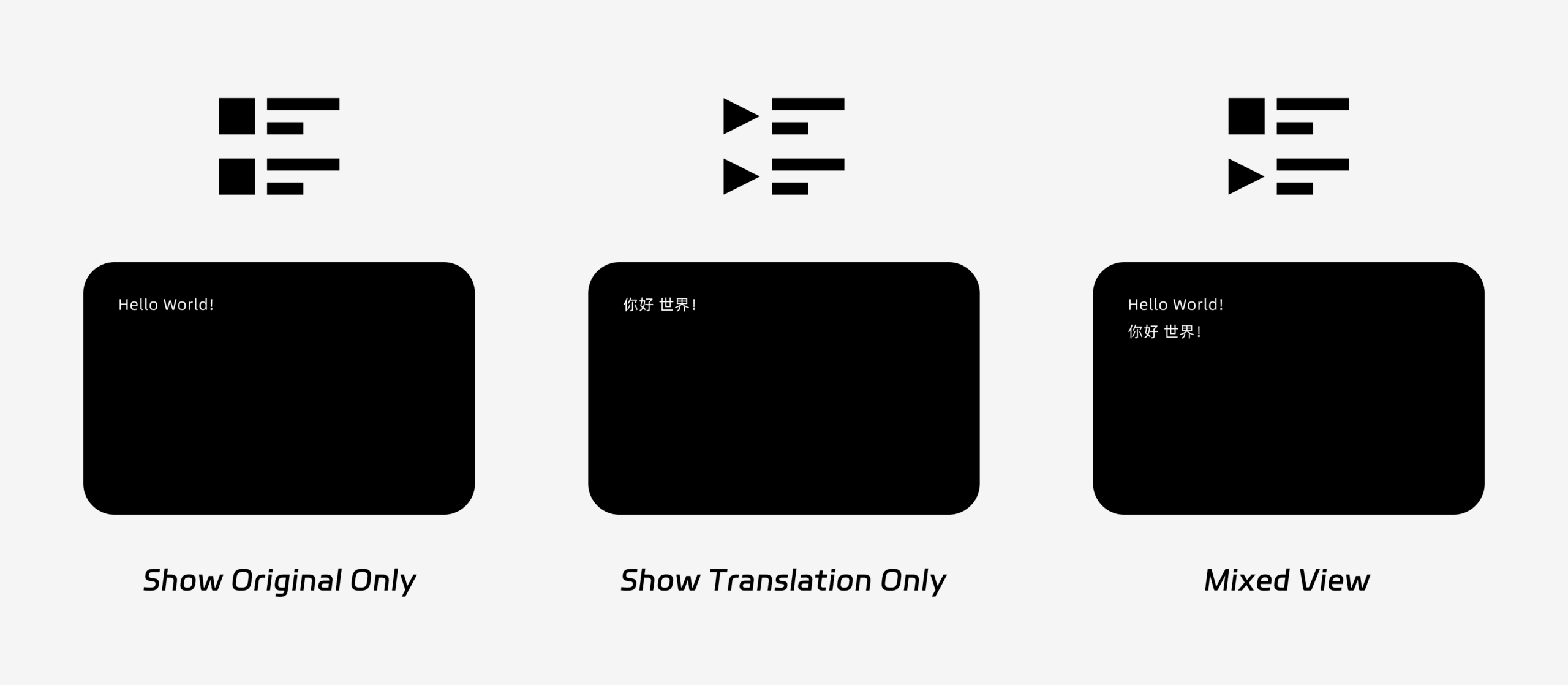
PiP hỗ trợ ba chế độ hiển thị phụ đề:
- Chỉ hiển thị bản gốcChỉ hiển thị văn bản lời nói gốc.
- Chỉ hiển thị bản dịchChỉ hiển thị văn bản đã dịch.
- Quan điểm trái chiềuHiển thị cả văn bản gốc và văn bản đã dịch.
Chọn chế độ hiển thị dựa trên trường hợp sử dụng của bạn. Ví dụ: Đối với các cuộc họp, Chỉ hiển thị bản dịch Cung cấp một cái nhìn rõ ràng hơn. Thích hợp cho việc học ngôn ngữ hoặc ôn tập song ngữ., Quan điểm trái chiều có thể giúp bạn so sánh văn bản gốc và văn bản đã dịch.
3. Điều chỉnh kích thước phông chữ và hiển thị #
Sử dụng Kích thước phông chữ Để phụ đề dễ đọc hơn trong cửa sổ hình trong hình (PiP) nổi.
Trên Windows và macOS, bạn cũng có thể điều chỉnh độ trong suốt của cửa sổ. Windows trong suốt hơn giúp ngăn phụ đề che khuất nội dung cuộc họp, slide hoặc màn hình được chia sẻ. Windows ít trong suốt hơn có thể giúp phụ đề dễ đọc hơn.
Nếu bạn cũng sử dụng tính năng đọc giọng nói trong quá trình dịch, bạn có thể muốn tìm hiểu thêm về... Hướng dẫn sử dụng tính năng phát lại giọng nói trong Transync AI
4. Bắt đầu sử dụng PiP #
Sau khi cấu hình cài đặt PiP, hãy bắt đầu tác vụ dịch như bình thường.
Sử dụng PiP trên Windows hoặc macOS
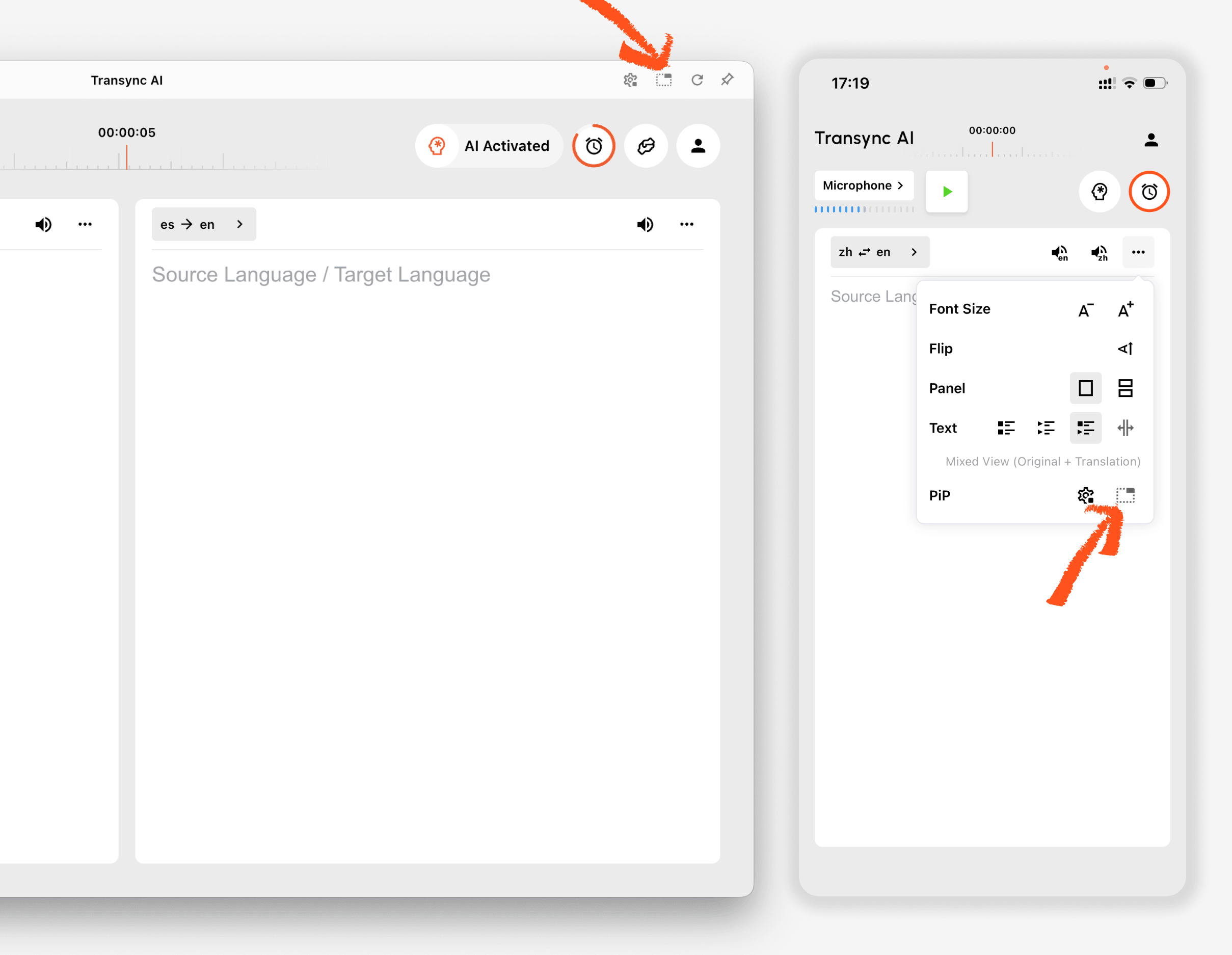
Khi phụ đề đang được tạo, hãy nhấp vào PiP Nút này dùng để mở cửa sổ phụ đề nổi. Bạn có thể di chuyển cửa sổ PiP đến vị trí thuận tiện trên màn hình khi sử dụng Zoom, Microsoft Teams, Google Meet, trình duyệt, tài liệu hoặc các ứng dụng khác. Transync AI ghi nhớ vị trí cửa sổ PiP cuối cùng trên màn hình, vì vậy cửa sổ phụ đề có thể mở lại ở vị trí bạn đã để lại vào lần tiếp theo bạn sử dụng PiP.
Nếu bạn cần dịch âm thanh cuộc họp từ máy tính, bạn cũng có thể kiểm tra Cách chia sẻ âm thanh máy tính
Sử dụng tính năng PiP trên iOS hoặc Android.
Trên thiết bị di động, tính năng PiP có thể được khởi động thủ công hoặc tự động.
Nếu như Tự động bật chế độ hình trong hình (PiP). Khi tính năng này được bật, PiP sẽ tự động khởi động khi bạn thu nhỏ ứng dụng Transync AI trong quá trình dịch thuật đang diễn ra.
Nếu như Tự động bật chế độ hình trong hình (PiP). đã tắt, hãy chạm vào PiP Nhấn nút thủ công để mở cửa sổ phụ đề nổi.
Điều này cho phép bạn vẫn hiển thị các bản dịch trong khi sử dụng các ứng dụng di động khác.
5. Khi PiP không khả dụng #
Tính năng PiP không khả dụng trên phiên bản web của Transync AI. Để sử dụng PiP, vui lòng sử dụng ứng dụng dành cho Windows, macOS, iOS hoặc Android.
Nếu cửa sổ PiP không hiện ra, hãy kiểm tra những điều sau:
- Hiện đang có một tác vụ dịch thuật đang được thực hiện.
- Bạn đang sử dụng nền tảng được hỗ trợ.
- Trên thiết bị di động, tùy chọn "Tự động bật PiP" được bật nếu bạn muốn PiP tự động khởi động.


