
Để tham gia Chế độ Trình chiếu trong Transync AI, hãy sử dụng liên kết, mã QR hoặc ID Phòng do người chủ trì chia sẻ. Sau khi tham gia, bạn có thể chọn một trong các ngôn ngữ mà người chủ trì đã bật và theo dõi bản dịch trực tiếp trên thiết bị của mình.
Khán giả có thể đọc văn bản gốc và văn bản dịch, cũng như nghe lại bằng giọng nói khi có sẵn. Khán giả không được phép nói vào hoặc điều khiển quá trình dịch thuật của người dẫn chương trình.
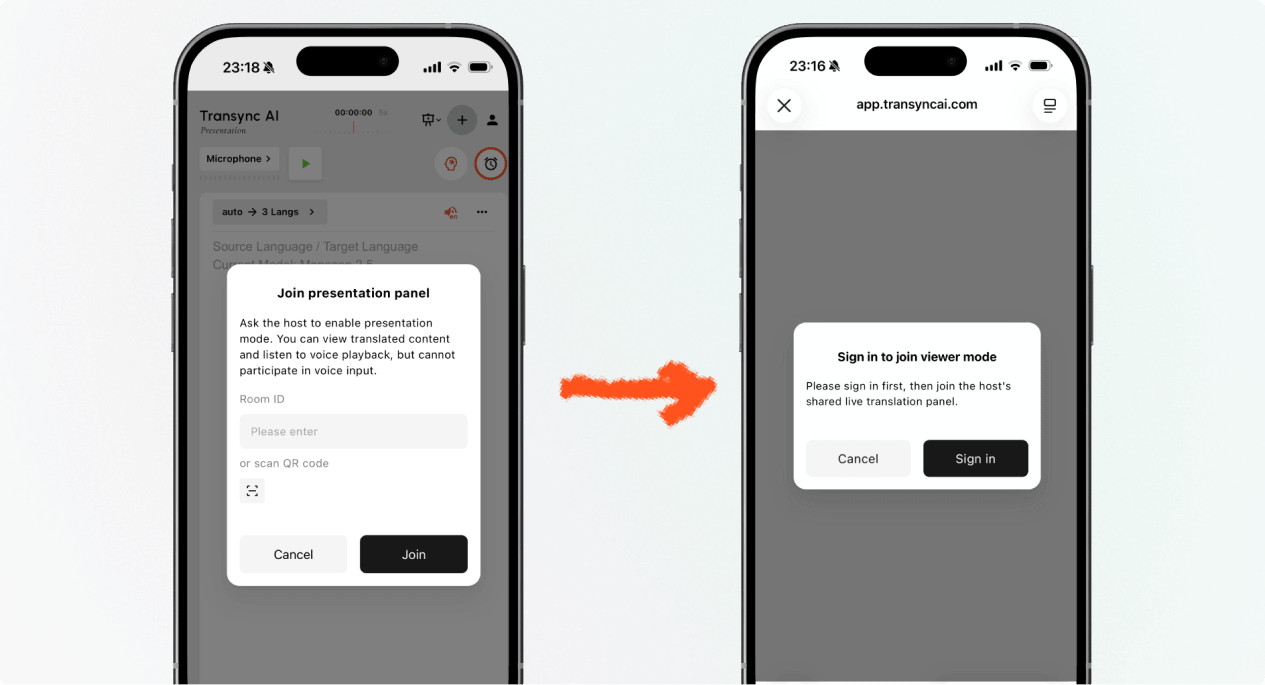
1. Tham gia Chế độ Trình chiếu bằng Liên kết hoặc Mã QR #
- Mở đường dẫn do người chủ trì gửi hoặc quét mã QR của bài thuyết trình bằng điện thoại của bạn.
- Kiểm tra tên hoặc tài khoản ẩn danh của người đang trình bày bài thuyết trình.
- Nếu Transync AI yêu cầu bạn đăng nhập, hãy hoàn tất đăng nhập và quay lại Chế độ Trình chiếu.
- Lựa chọn Tham gia.
Khi bạn tham gia Chế độ Trình chiếu bằng liên kết hoặc mã QR, thiết bị của bạn có thể mở trải nghiệm web hoặc đề nghị tiếp tục trong ứng dụng Transync AI. Nếu bài thuyết trình không còn hoạt động, hãy yêu cầu người chủ trì cung cấp liên kết, mã QR hoặc ID phòng mới.
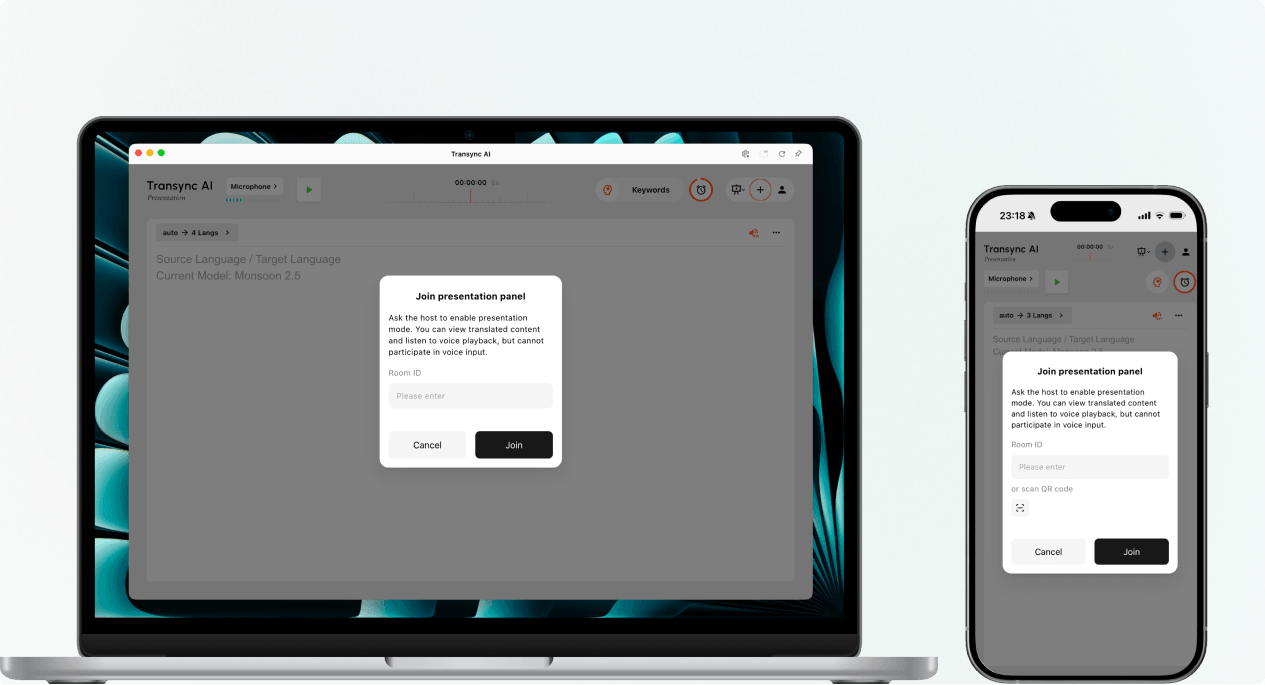
2. Tham gia Chế độ Trình chiếu bằng ID Phòng #
- Mở mục tham gia Chế độ Trình chiếu trong Ứng dụng web Transync AI hoặc ứng dụng Transync AI.
- Nhập ID phòng do người chủ trì cung cấp, hoặc sử dụng nút quét để quét mã QR của bài thuyết trình.
- Lựa chọn Tham gia.
Ghi chú: Mã phòng (Room ID) chỉ hoạt động khi bài thuyết trình của người chủ trì đang diễn ra. Nếu bạn không thể tham gia Chế độ thuyết trình, hãy xác nhận lại Mã phòng và liên hệ với người chủ trì.
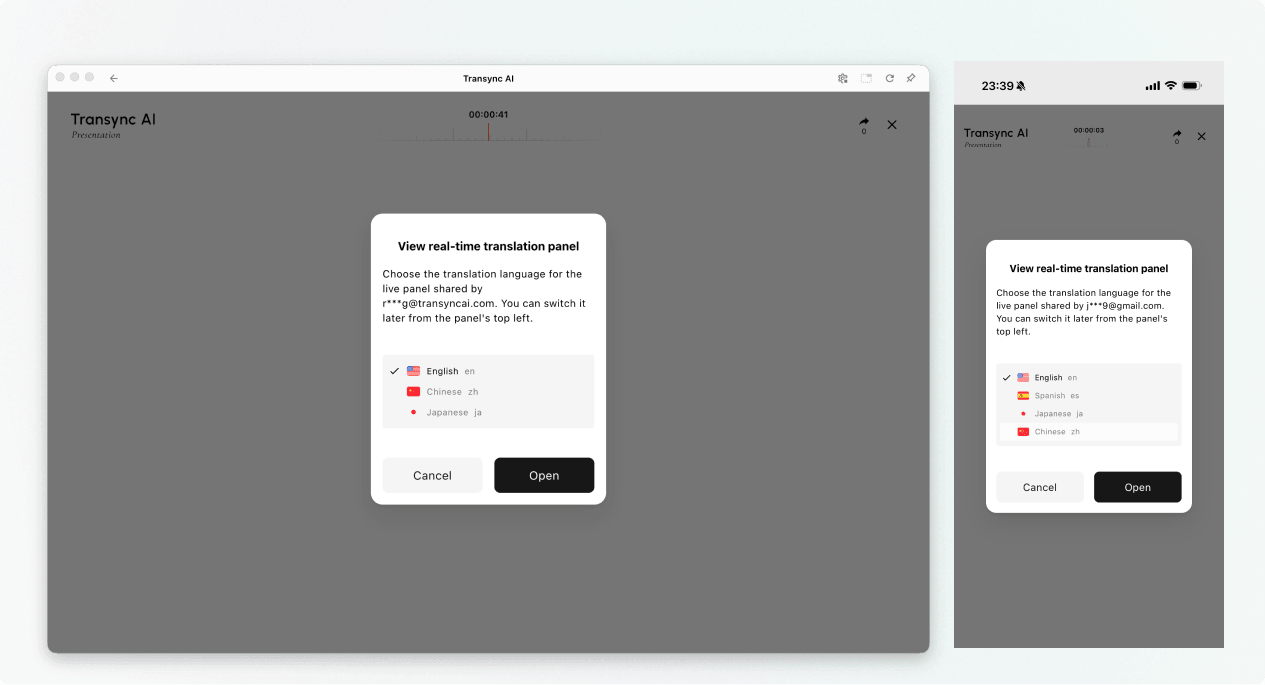
3. Chọn ngôn ngữ của bạn #
Trước khi bảng trình chiếu trực tiếp mở ra, hãy chọn ngôn ngữ bạn muốn đọc và nghe. Danh sách này chứa các ngôn ngữ đích được người chủ trì kích hoạt. Ngôn ngữ nguồn của người chủ trì cũng có thể được hiển thị để tham khảo.
- Chọn một ngôn ngữ dịch có sẵn.
- Xem lại ngôn ngữ nguồn được hiển thị.
- Lựa chọn Mở Để chuyển sang Chế độ Trình chiếu và mở bảng trình chiếu.
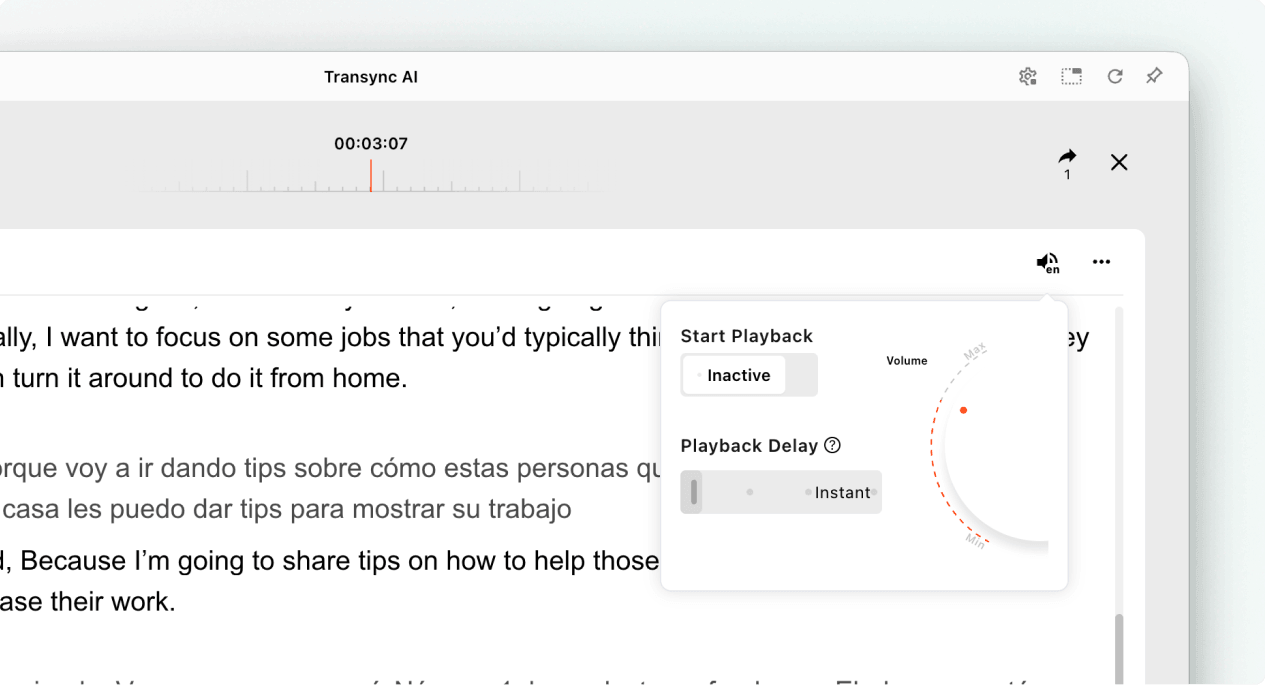
4. Đọc và nghe trong suốt bài thuyết trình #
Sau khi bạn tham gia Chế độ Trình bày, bảng trình bày sẽ hiển thị bài phát biểu của người dẫn chương trình và bản dịch theo thời gian thực. Bạn có thể:
- Đọc văn bản gốc và văn bản dịch.
- Hãy sử dụng các nút điều khiển hiển thị có sẵn để giúp văn bản dễ đọc hơn.
- Hãy bật tính năng phát lại giọng nói khi tính năng này khả dụng cho ngôn ngữ đã chọn.
- Khi nghe nhạc ở không gian chung, hãy sử dụng tai nghe để giảm tiếng vọng và tránh làm phiền những người khác.
- Xem số lượng người xem trực tuyến hiện tại khi nó được hiển thị.
Để biết thêm thông tin về cài đặt nghe, vui lòng xem Hướng dẫn sử dụng tính năng phát lại giọng nói trong Transync AI.
5. Chuyển đổi ngôn ngữ #
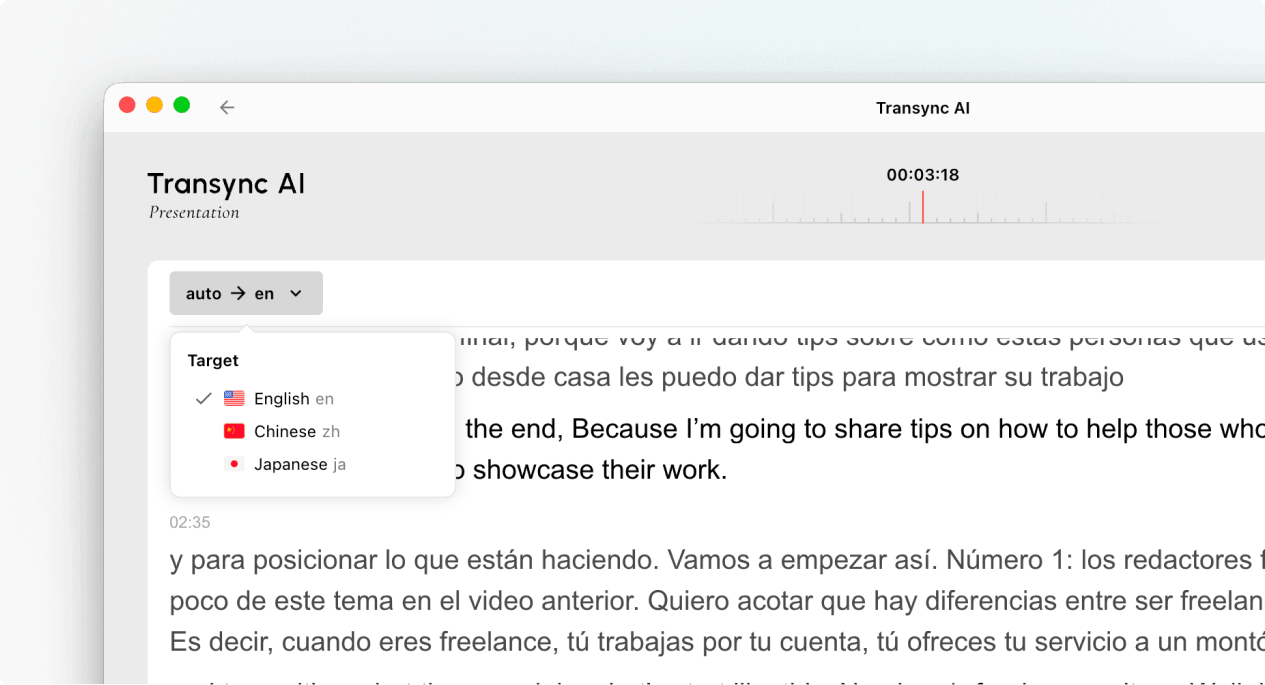
Nếu bạn muốn theo dõi bài thuyết trình bằng ngôn ngữ khác, hãy mở trình chọn ngôn ngữ và chọn ngôn ngữ khác mà người chủ trì đã bật. Nếu ngôn ngữ bạn cần không có trong danh sách, hãy hỏi người chủ trì xem liệu ngôn ngữ đó có thể được thêm vào bài thuyết trình hay không.
6. Rời khỏi hoặc tiếp tục thuyết trình #
Rời khỏi bảng trình bày của bạn không có nghĩa là kết thúc nhiệm vụ của người chủ trì. Nếu bài thuyết trình của người chủ trì vẫn đang hoạt động, bạn có thể tham gia Chế độ Trình bày lại bằng cách sử dụng liên kết đang hoạt động, mã QR hoặc ID Phòng.
Khi Transync AI yêu cầu bạn xác nhận thoát, hãy chọn Ra Chỉ khi bạn muốn đóng bảng điều khiển khán giả của mình.
7. Xem bản ghi được chia sẻ sau khi thuyết trình #
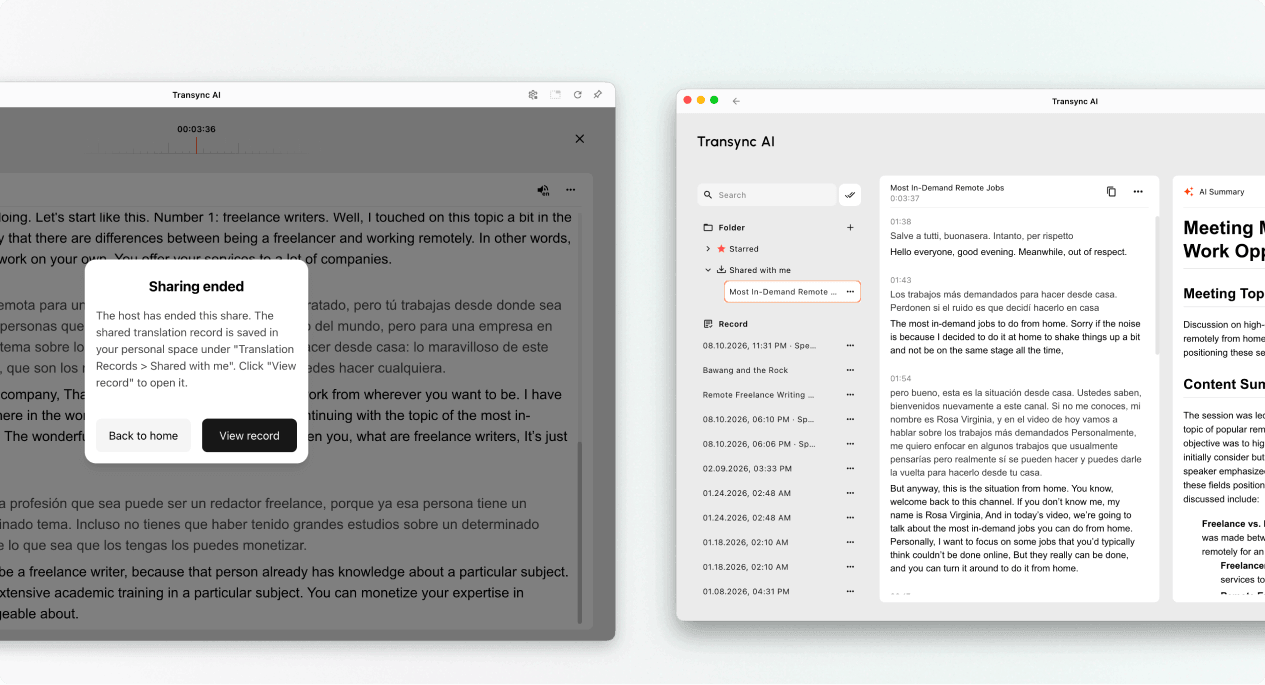
Khi người dẫn chương trình kết thúc bài thuyết trình, Transync AI sẽ hiển thị thông báo chia sẻ đã kết thúc. Nếu người dẫn chương trình chọn chia sẻ bản ghi, hãy chọn... Xem bản ghi hoặc mở Trang cá nhân → Lịch sử dịch thuật → Đã chia sẻ với tôi.
Nếu người chủ trì không chia sẻ bản ghi, bạn có thể đóng thông báo kết thúc nhưng sẽ không nhận được bản ghi bài thuyết trình được chia sẻ.
Khắc phục sự cố #
Tôi được yêu cầu đăng nhập. #
Hoàn tất đăng nhập và quay lại để tham gia Chế độ Trình bày. Nếu bạn chưa có tài khoản, hãy làm theo hướng dẫn. Cách đăng ký Transync AI, Sau đó, hãy mở lại liên kết trình chiếu đang hoạt động hoặc ID phòng.
Tôi không thể tham gia Chế độ Trình chiếu #
Có thể người chủ trì chưa bắt đầu Chế độ Trình chiếu, hoặc bài thuyết trình đã kết thúc. Hãy liên hệ với người chủ trì và yêu cầu tùy chọn tham gia đang hoạt động.
Tôi không thể tìm thấy ngôn ngữ của mình #
Khán giả chỉ có thể chọn ngôn ngữ được người dẫn chương trình cho phép. Hãy hỏi người dẫn chương trình xem ngôn ngữ đó có thể được thêm vào hay không.
Tôi không thể nghe lại giọng nói #
Kiểm tra âm lượng thiết bị, xác nhận rằng tính năng phát lại giọng nói khả dụng và đã được bật, đồng thời đảm bảo ngôn ngữ chính xác đã được chọn. Bạn vẫn có thể tiếp tục đọc văn bản được dịch trực tiếp ngay cả khi tính năng phát lại giọng nói đã tắt.
Câu hỏi thường gặp #
Tôi có cần tài khoản Transync AI không? #
Nếu quy trình tham gia yêu cầu bạn đăng nhập, hãy hoàn tất đăng nhập trước khi tham gia. Trải nghiệm đăng ký cụ thể có thể khác nhau tùy thuộc vào thiết bị, trình duyệt và phiên bản sản phẩm hiện tại.
Tôi có thể nói trong khi thuyết trình được không? #
Không. Khán giả chỉ ngồi xem và nghe. Chỉ người dẫn chương trình mới lồng tiếng cho phần thuyết trình.
Tôi có thể thay đổi ngôn ngữ sau khi đăng ký không? #
Vâng, bạn có thể chuyển sang ngôn ngữ khác mà máy chủ đã kích hoạt cho bài thuyết trình hiện tại.
Tôi có thể tham gia lại sau khi đã rời đi không? #
Có, miễn là bài thuyết trình của người chủ trì vẫn hoạt động và bạn vẫn còn liên kết, mã QR hoặc ID phòng hợp lệ.
Tôi sẽ nhận được bản ghi chép sau khi bài thuyết trình kết thúc chứ? #
Chỉ khi người chủ trì chọn chia sẻ. Bản ghi bài thuyết trình được chia sẻ sẽ xuất hiện trong mục "Được chia sẻ với tôi" sau khi tác vụ kết thúc.


