
Чтобы подключиться к презентационному режиму в Transync AI, используйте ссылку, QR-код или идентификатор комнаты, предоставленные организатором. После подключения вы можете выбрать один из языков, доступных организатору, и следить за переводом в реальном времени на своем устройстве.
Зрители могут читать оригинальный и переведенный текст, а также слушать аудиоверсию, если она доступна. Зрители не могут говорить в голос ведущего или управлять процессом перевода.
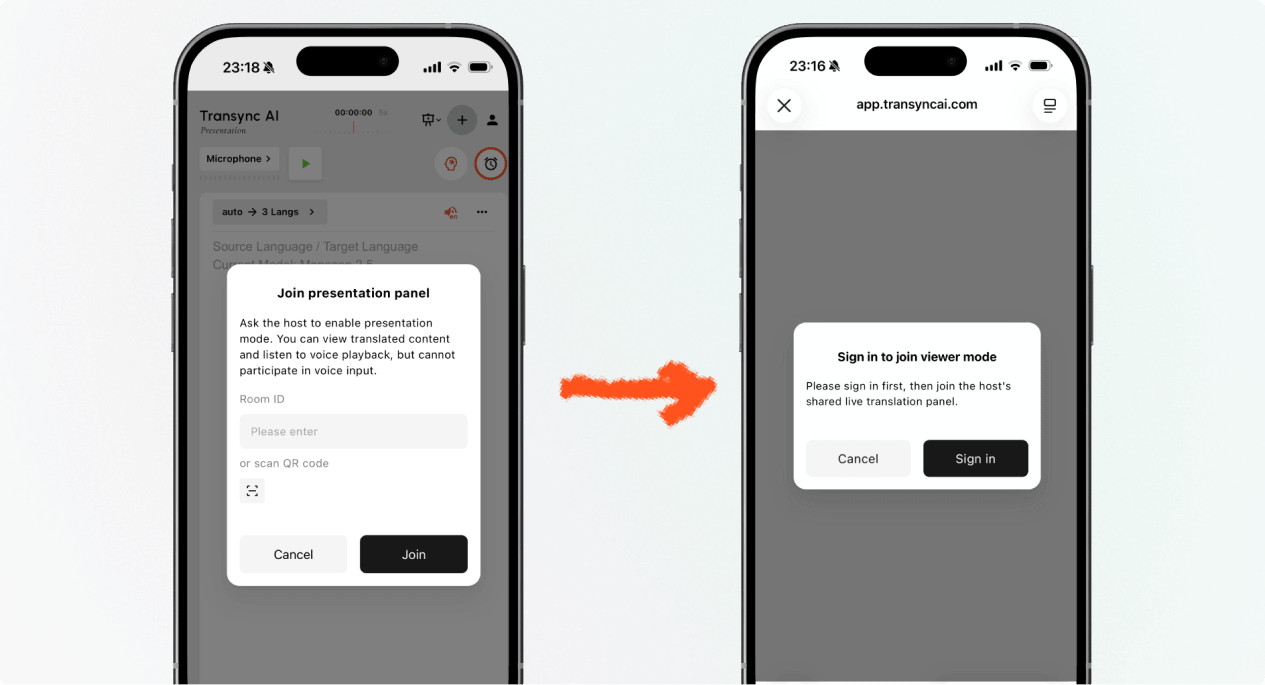
1. Перейдите в режим презентации, используя ссылку или QR-код. #
- Откройте ссылку, отправленную организатором, или отсканируйте QR-код презентации с помощью телефона.
- Проверьте имя или скрытую учетную запись человека, демонстрирующего презентацию.
- Если Transync AI запросит вход в систему, завершите вход и вернитесь, чтобы перейти в режим презентации.
- Выбирать Присоединиться.
При подключении к режиму презентации по ссылке или QR-коду ваше устройство может открыть веб-версию или предложить продолжить в приложении Transync AI. Если презентация больше не активна, запросите у организатора новую активную ссылку, QR-код или идентификатор помещения.
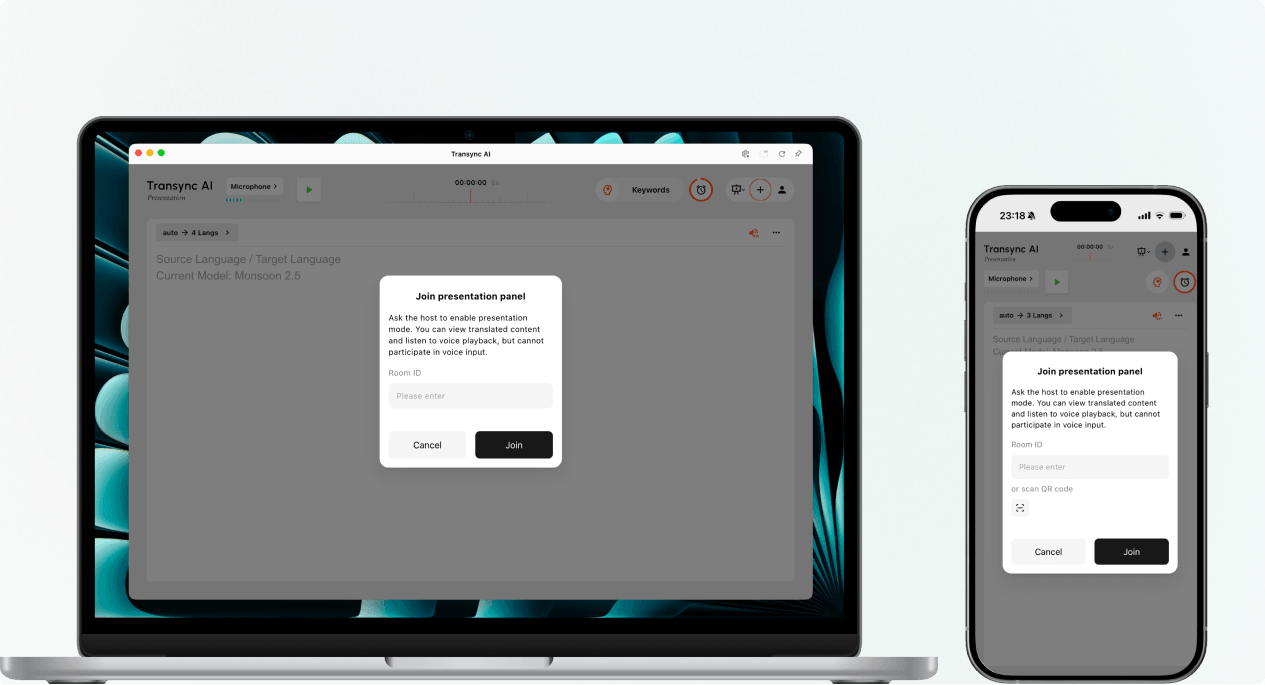
2. Подключитесь к режиму презентации, используя идентификатор комнаты. #
- Откройте запись о присоединении в режиме презентации. Веб-приложение Transync AI или приложение Transync AI.
- Введите идентификатор комнаты, предоставленный организатором, или воспользуйтесь кнопкой сканирования, чтобы отсканировать QR-код презентации.
- Выбирать Присоединиться.
Примечание: Идентификатор комнаты (Room ID) работает только во время активной презентации организатора. Если вы не можете подключиться к режиму презентации, подтвердите идентификатор комнаты и свяжитесь с организатором.
3. Выберите язык #
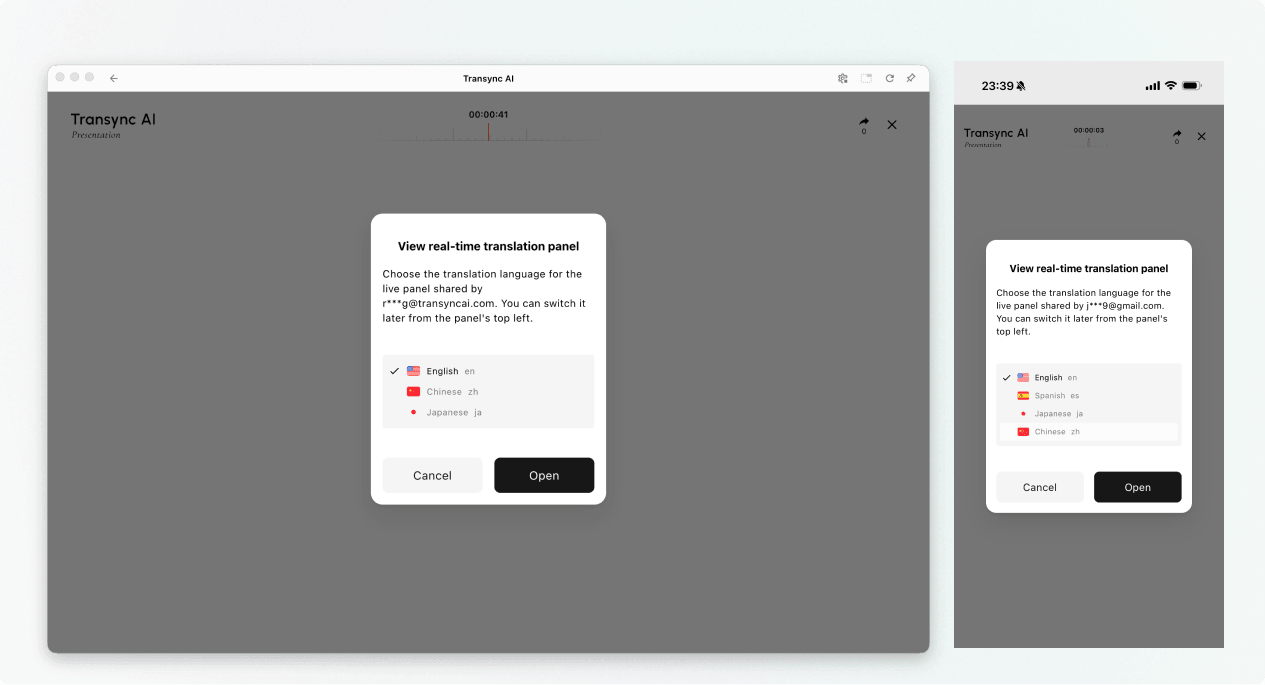
Перед открытием панели прямой трансляции выберите язык, на котором вы хотите читать и слушать. В списке представлены целевые языки, включенные организатором. Для справки также может отображаться исходный язык организатора.
- Выберите один из доступных языков перевода.
- Проверьте отображаемый исходный язык.
- Выбирать Открыть Чтобы перейти в режим презентации и открыть панель презентации.
4. Читайте и слушайте во время презентации. #
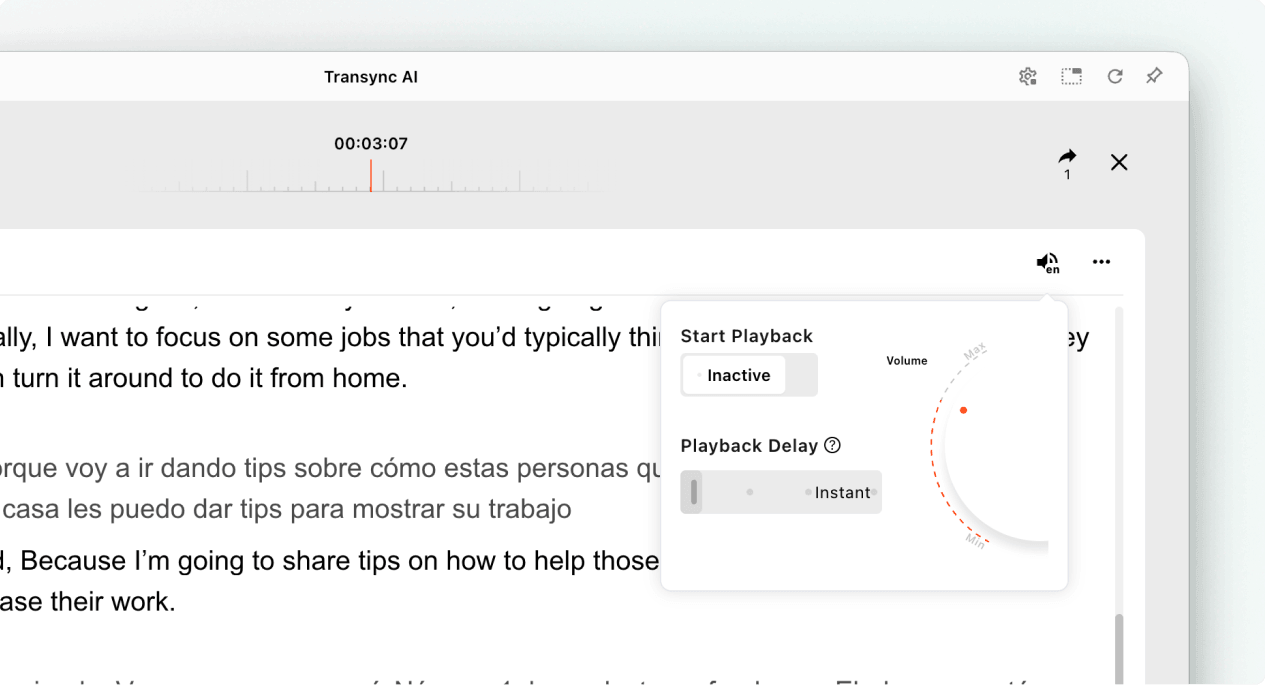
После перехода в режим презентации на панели презентации в режиме реального времени отображается речь ведущего и её перевод. Вы можете:
- Прочитайте оригинальный текст и переведенный текст.
- Используйте доступные элементы управления отображением, чтобы сделать текст более читабельным.
- Включите воспроизведение голоса, если оно доступно для выбранного языка.
- При прослушивании музыки в общем помещении используйте наушники, чтобы уменьшить эхо и не мешать другим слушателям.
- Просмотрите текущее количество онлайн-аудитории, когда оно отобразится.
Для получения дополнительной информации о настройках прослушивания см. Как использовать воспроизведение голоса в Transync AI.
5. Переключение языков #
Если вы хотите следить за презентацией на другом языке, откройте меню выбора языка и выберите другой язык, поддерживаемый организатором. Если нужного вам языка нет в списке, спросите организатора, можно ли добавить его в презентацию.
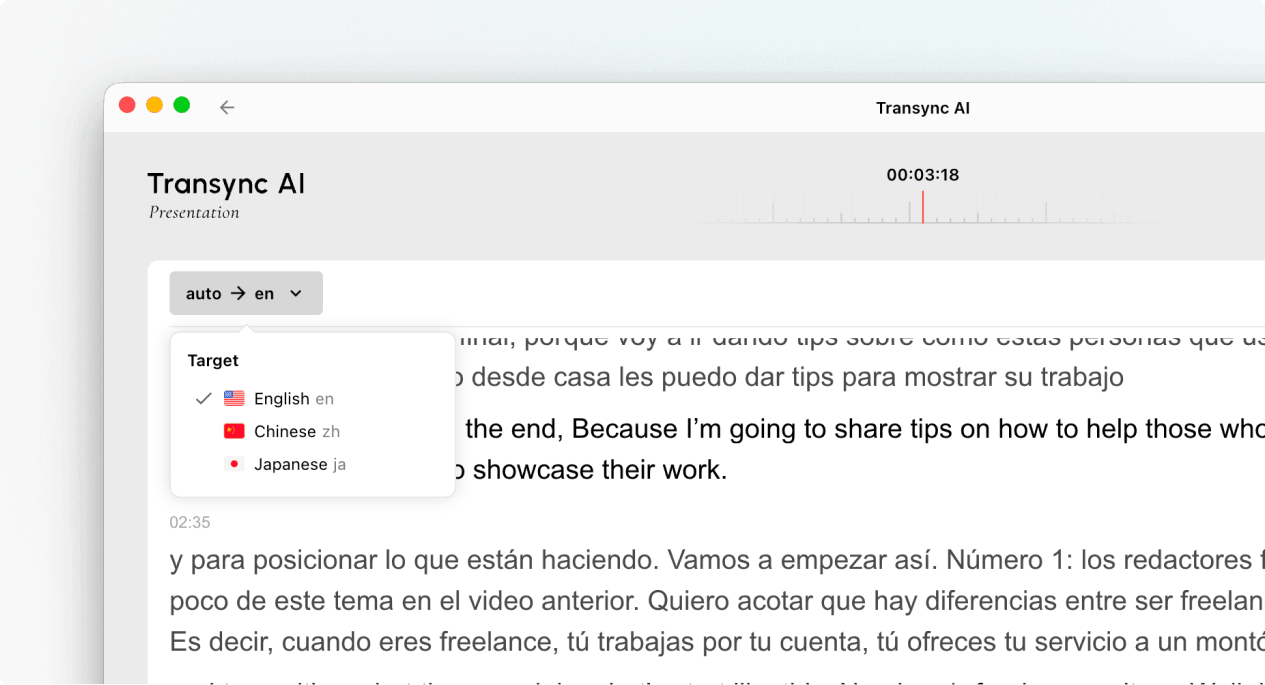
6. Покинуть презентацию или вернуться к ней. #
Выход из панели презентации не завершает работу организатора. Если презентация организатора все еще активна, вы можете снова войти в режим презентации, используя активную ссылку, QR-код или идентификатор комнаты.
Когда Transync AI запросит подтверждение выхода, выберите... Выход только если вы хотите закрыть панель для обсуждения с аудиторией.
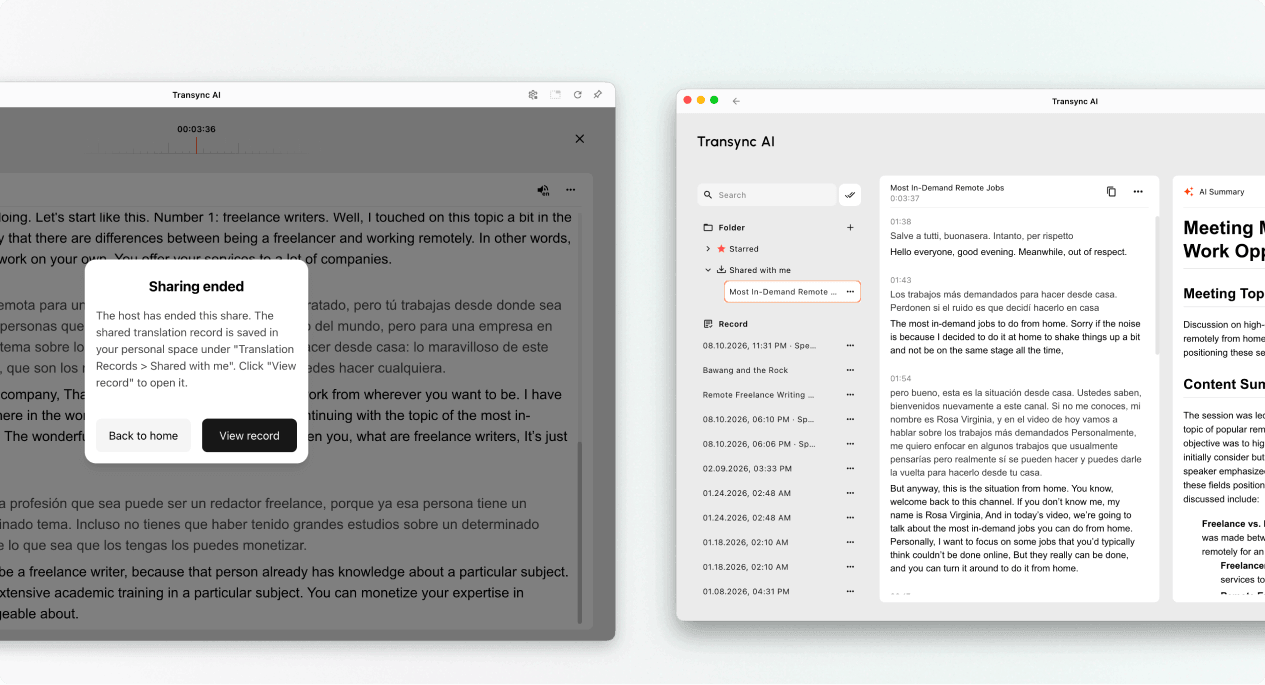
7. Просмотр общей записи после презентации. #
Когда ведущий завершает презентацию, Transync AI отображает сообщение о завершении демонстрации. Если ведущий решил поделиться стенограммой, выберите соответствующий пункт. Просмотреть запись или открытый Профиль → История переводов → Поделились со мной.
Если организатор не предоставил доступ к стенограмме, вы можете закрыть заключительное сообщение, но не получите доступ к записи презентации.
Поиск неисправностей #
Меня просят войти в систему. #
Завершите авторизацию и вернитесь, чтобы перейти в режим презентации. Если у вас нет учетной записи, выполните следующие действия. Как зарегистрировать Transync AI, Затем снова откройте активную ссылку на презентацию или идентификатор помещения.
Я не могу перейти в режим презентации. #
Возможно, организатор не запустил режим презентации, или презентация завершилась. Свяжитесь с организатором и запросите активный вариант подключения.
Я не могу найти свой язык. #
Участники аудитории могут выбирать только те языки, которые включены организатором. Уточните у организатора, можно ли добавить нужный язык.
Я не могу слышать воспроизведение голоса. #
Проверьте громкость вашего устройства, убедитесь, что воспроизведение голоса доступно и включено, и что выбран правильный язык. Вы можете продолжать читать переведенный текст в режиме реального времени, даже если воспроизведение голоса отключено.
Часто задаваемые вопросы #
Нужна ли мне учетная запись Transync AI? #
Если при регистрации вас попросят войти в систему, завершите вход перед регистрацией. Точный процесс входа может зависеть от устройства, браузера и текущей версии продукта.
Могу ли я высказаться во время презентации? #
Нет. Панель для зрителей предназначена для просмотра и прослушивания. Только ведущий вносит голосовой вклад в презентацию.
Могу ли я изменить язык после регистрации? #
Да, вы можете переключиться на другой язык, который включен для активной презентации организатором.
Могу ли я снова присоединиться после ухода? #
Да, если презентация организатора остается активной и у вас по-прежнему есть действительная ссылка, QR-код или идентификатор комнаты.
Получу ли я стенограмму после презентации? #
Только если организатор решит поделиться презентацией. Записи презентаций, которыми поделились, отображаются в разделе «Доступно мне» после завершения задачи.


