
Per partecipare alla Modalità Presentazione in Transync AI, utilizza il link, il codice QR o l'ID della stanza condivisi dall'organizzatore. Dopo aver effettuato l'accesso, potrai scegliere una delle lingue abilitate dall'organizzatore e seguire la traduzione in tempo reale sul tuo dispositivo.
Il pubblico può leggere il testo originale e la traduzione e ascoltare la riproduzione vocale, se disponibile. Il pubblico non può intervenire o controllare il lavoro di traduzione del presentatore.
1. Partecipa alla modalità Presentazione tramite un link o un codice QR #
- Apri il link inviato dall'organizzatore oppure scansiona il codice QR della presentazione con il tuo telefono.
- Verifica il nome o l'account mascherato della persona che sta condividendo la presentazione.
- Se Transync AI ti chiede di accedere, completa la procedura di accesso e torna alla modalità Presentazione.
- Selezionare Giuntura.
Quando accedi alla Modalità Presentazione tramite un link o un codice QR, il tuo dispositivo potrebbe aprire la versione web oppure offrirti di continuare nell'app Transync AI. Se la presentazione non è più attiva, chiedi all'organizzatore un nuovo link, codice QR o ID della sala.
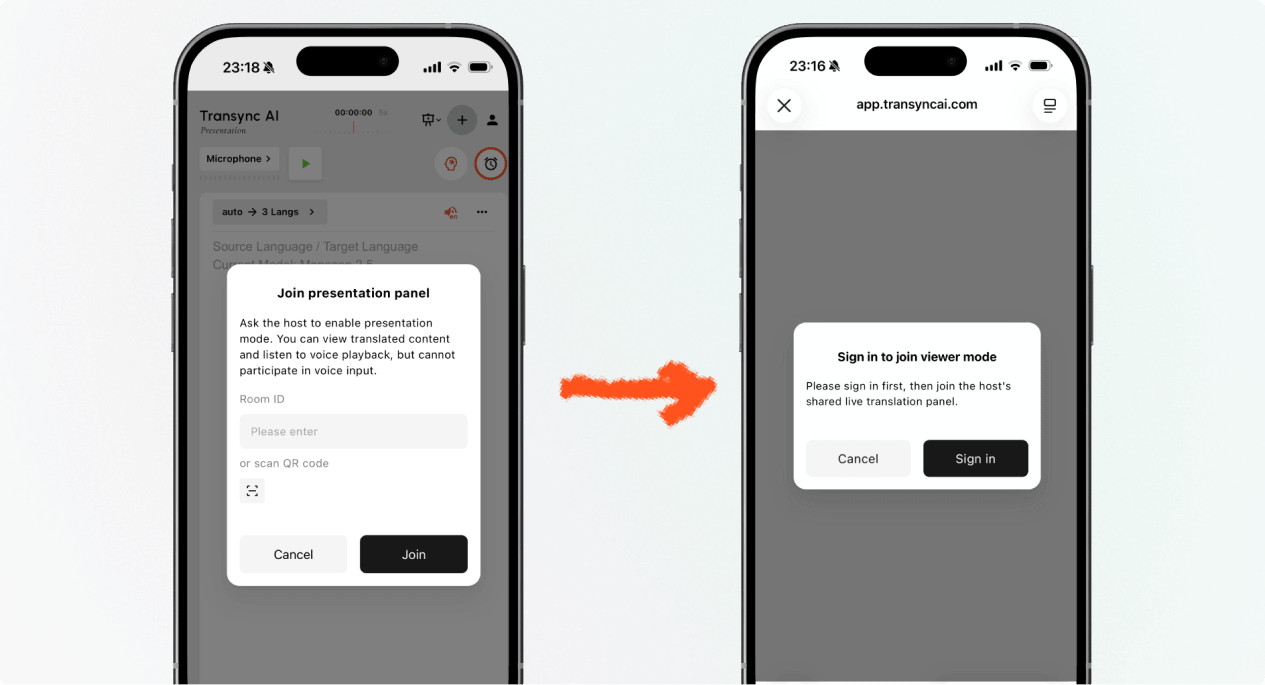
2. Partecipa alla modalità presentazione con un ID stanza #
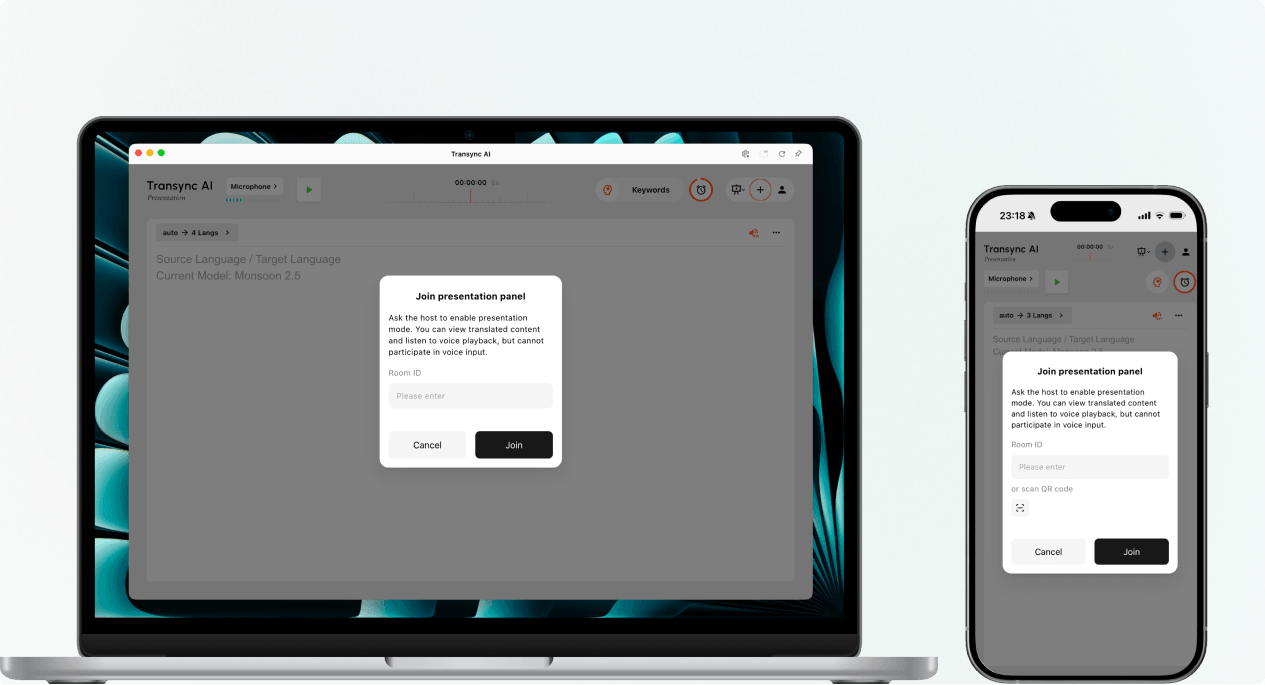
- Apri la modalità Presentazione unisciti alla voce nel Applicazione web Transync AI o l'app Transync AI.
- Inserisci l'ID della sala fornito dall'organizzatore oppure utilizza il pulsante di scansione per scansionare il codice QR della presentazione.
- Selezionare Giuntura.
Nota: L'ID della sala funziona solo durante la presentazione dell'organizzatore. Se non riesci ad accedere alla modalità Presentazione, verifica l'ID della sala e contatta l'organizzatore.
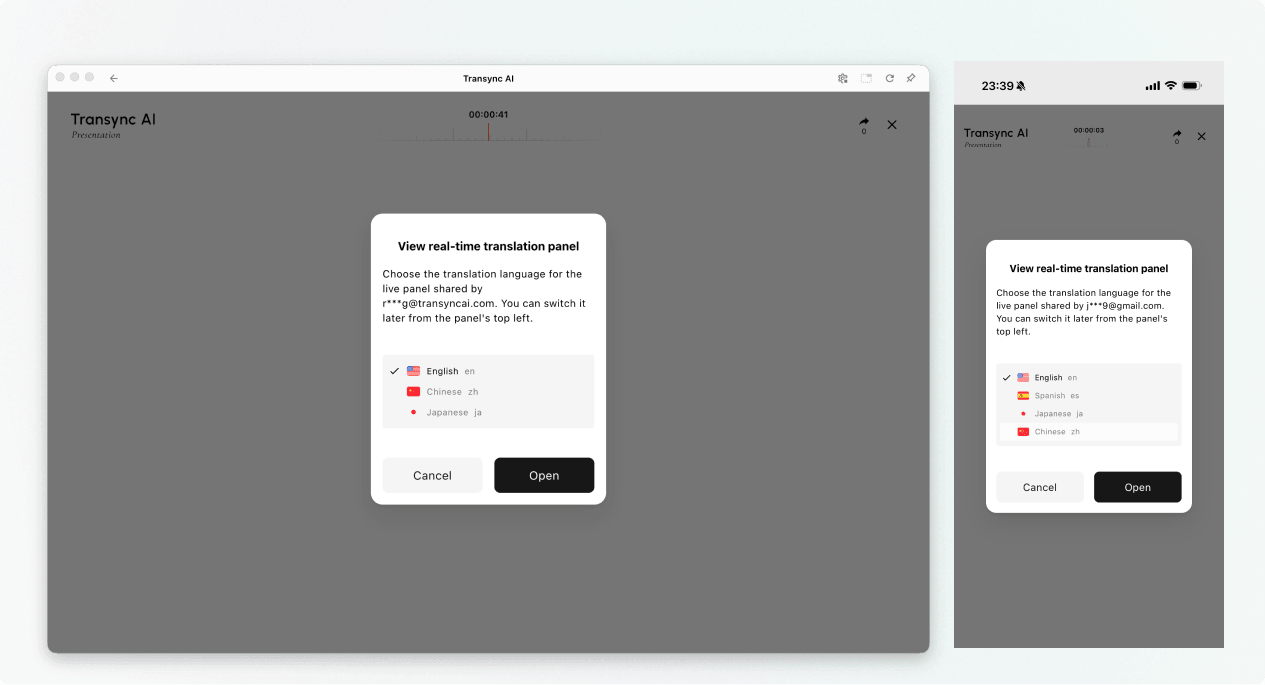
3. Scegli la tua lingua #
Prima dell'apertura del pannello della presentazione in diretta, scegli la lingua che desideri leggere e ascoltare. L'elenco contiene le lingue di destinazione abilitate dal relatore. Potrebbe essere visualizzata anche la lingua di origine del relatore a titolo di riferimento.
- Seleziona una delle lingue di traduzione disponibili.
- Esamina il codice sorgente visualizzato.
- Selezionare Aprire per attivare la modalità Presentazione e aprire il pannello Presentazione.
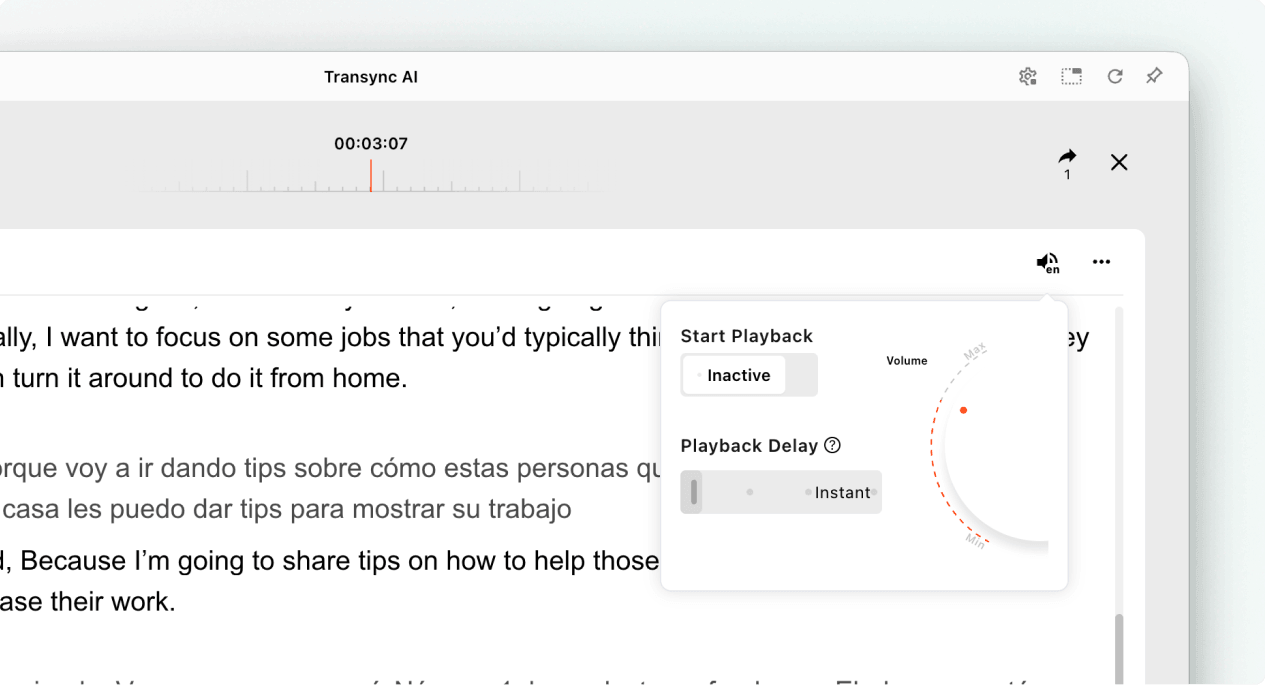
4. Leggere e ascoltare durante la presentazione #
Dopo aver attivato la Modalità presentazione, il pannello di presentazione mostra il discorso del relatore e la traduzione in tempo reale. È possibile:
- Leggi il testo originale e il testo tradotto.
- Utilizza i controlli di visualizzazione disponibili per rendere il testo più leggibile.
- Attiva la riproduzione vocale se disponibile per la lingua selezionata.
- Quando si ascolta in uno spazio condiviso, è consigliabile utilizzare le cuffie per ridurre l'eco ed evitare di disturbare gli altri spettatori.
- Visualizza il numero attuale di spettatori online quando viene mostrato.
Per ulteriori informazioni sulle impostazioni di ascolto, consultare Come utilizzare la riproduzione vocale in Transync AI.
5. Cambia lingua #
Se desideri seguire la presentazione in un'altra lingua, apri il selettore della lingua e scegli una lingua abilitata dal relatore. Se la lingua di cui hai bisogno non è presente nell'elenco, chiedi al relatore se è possibile aggiungerla alla presentazione.
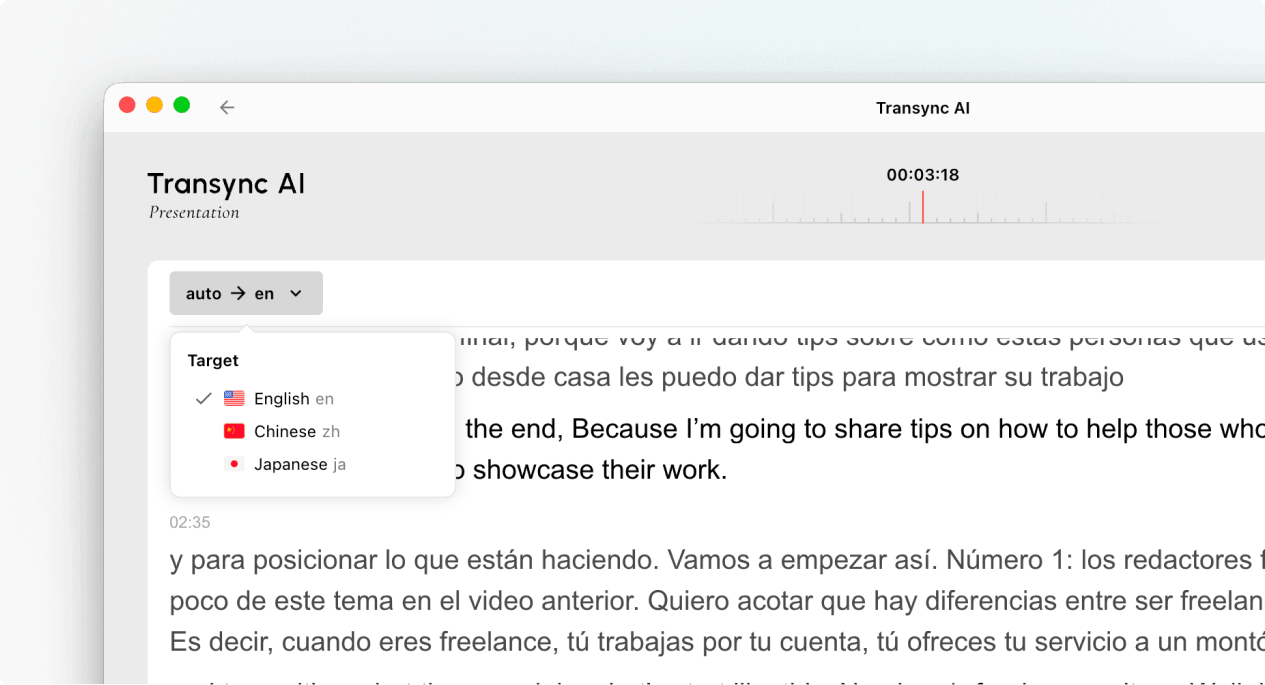
6. Abbandonare o rientrare nella presentazione #
Uscire dal pannello della presentazione non interrompe l'attività del relatore. Se la presentazione del relatore è ancora attiva, è possibile rientrare in modalità Presentazione utilizzando il link attivo, il codice QR o l'ID della sala.
Quando Transync AI ti chiede di confermare l'uscita, seleziona Uscita solo se desideri chiudere il pannello del pubblico.
7. Visualizzare una registrazione condivisa dopo la presentazione #
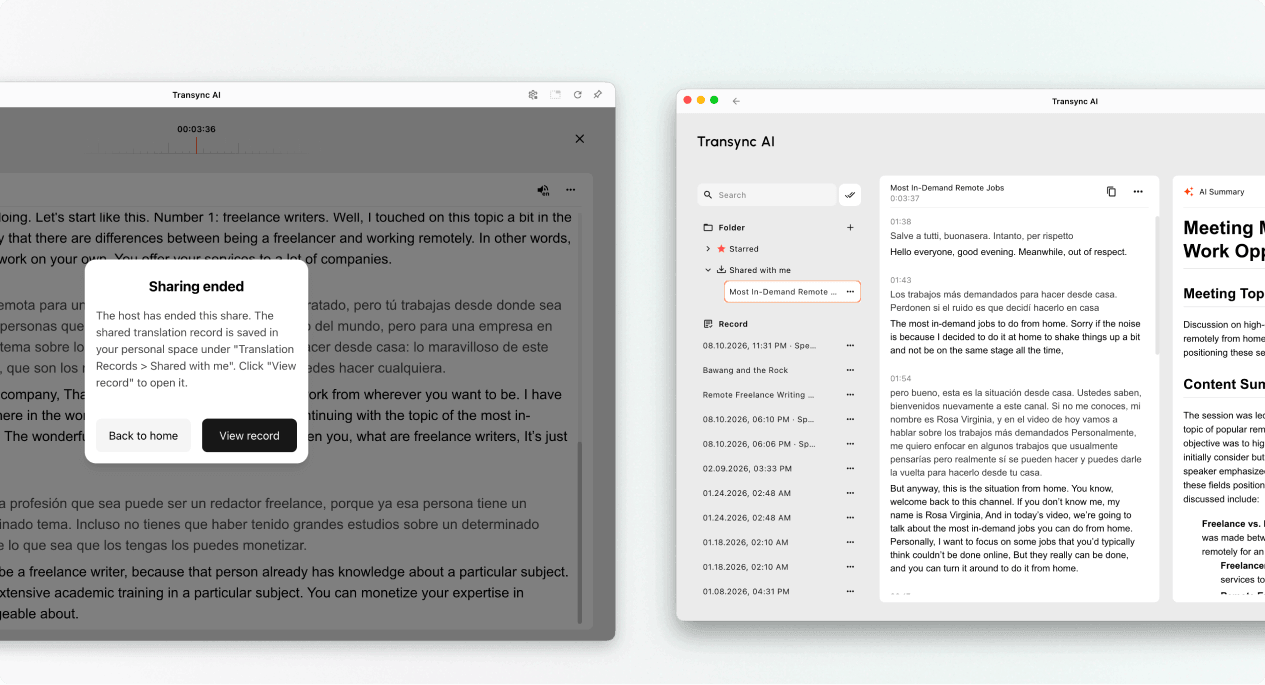
Quando il presentatore termina la presentazione, Transync AI mostra un messaggio di fine condivisione. Se il presentatore ha scelto di condividere la trascrizione, seleziona Visualizza il record o aperto Profilo → Cronologia delle traduzioni → Condivise con me.
Se il relatore non ha condiviso la trascrizione, è possibile chiudere il messaggio di chiusura, ma non si riceverà la registrazione condivisa della presentazione.
Risoluzione dei problemi #
Mi viene chiesto di accedere #
Completa l'accesso e torna indietro per partecipare alla Modalità presentazione. Se non hai un account, segui Come registrare Transync AI, quindi riaprire il collegamento alla presentazione attiva o l'ID della stanza.
Non riesco ad accedere alla Modalità presentazione #
È possibile che l'organizzatore non abbia avviato la modalità presentazione, oppure che la presentazione sia terminata. Contatta l'organizzatore e richiedi un'opzione di partecipazione attiva.
Non riesco a trovare la mia lingua #
Il pubblico può selezionare solo le lingue abilitate dall'organizzatore. Chiedi all'organizzatore se è possibile aggiungere la lingua.
Non riesco ad ascoltare la riproduzione vocale #
Controlla il volume del dispositivo, verifica che la riproduzione vocale sia disponibile e abilitata e assicurati che sia selezionata la lingua corretta. Puoi continuare a leggere il testo tradotto in tempo reale anche quando la riproduzione vocale è disattivata.
Domande frequenti #
Ho bisogno di un account Transync AI? #
Se la procedura di accesso richiede di effettuare il login, completate l'accesso prima di unirvi al gruppo. La procedura di accesso esatta può variare a seconda del dispositivo, del browser e della versione del prodotto in uso.
Posso intervenire durante la presentazione? #
No. Il pubblico è destinato a guardare e ascoltare. Solo il presentatore può intervenire vocalmente durante la presentazione.
Posso cambiare la lingua dopo l'iscrizione? #
Sì, è possibile passare a un'altra lingua abilitata dal relatore per la presentazione in corso.
Posso rientrare dopo aver lasciato il gruppo? #
Sì, a condizione che la presentazione del relatore rimanga attiva e che si disponga ancora di un link, un codice QR o un ID della stanza validi.
Riceverò la trascrizione dopo la presentazione? #
Solo se l'organizzatore sceglie di condividerlo. Le registrazioni delle presentazioni condivise vengono visualizzate in "Condivise con me" al termine dell'attività.


