
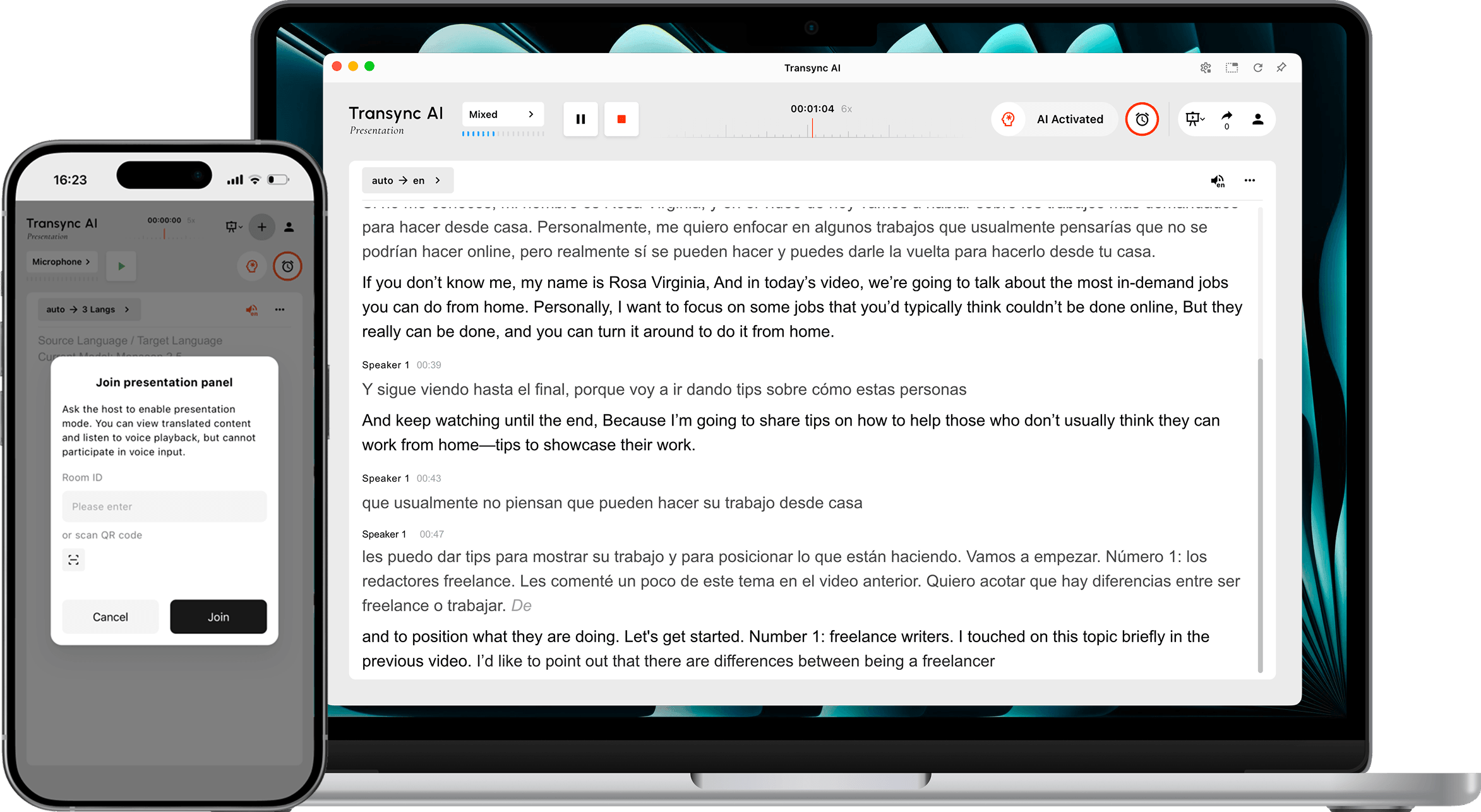
Modalità di presentazione Consente a un presentatore di condividere la traduzione in tempo reale con il pubblico. Il presentatore parla in una lingua di origine, mentre ogni membro del pubblico segue la presentazione nella lingua abilitata dal presentatore sul proprio dispositivo.
Utilizzate la modalità Presentazione per conferenze multilingue, presentazioni aziendali, sessioni di formazione, lezioni, eventi comunitari o altre situazioni con un pubblico di massa. I partecipanti possono leggere la traduzione in tempo reale e ascoltare la riproduzione audio, ma non possono intervenire durante la traduzione del relatore.
Nota: La modalità Presentazione è attualmente in versione beta. L'utilizzo mostrato in Transync AI potrebbe variare in base al picco di pubblico e al numero di lingue di destinazione. Prima di iniziare, si prega di verificare il moltiplicatore visualizzato.
Prima di iniziare #
Prima di iniziare la presentazione, preparate quanto segue:
- Verificare che il microfono del presentatore sia collegato e selezionato in Transync AI.
- Decidi quale lingua parlerà l'host oppure utilizza il rilevamento automatico della lingua di origine.
- Raccogli le lingue di cui il tuo pubblico ha bisogno, in modo da poter abilitare le lingue di destinazione corrette prima di iniziare.
- Scegli dove il pubblico troverà il link di partecipazione, il codice QR o l'ID della stanza, ad esempio in un invito alla riunione, nella diapositiva iniziale, nella schermata dell'evento o nel cartellino del posto.
- Se questa è la tua prima attività Transync AI, completala Guida rapida per desktop Primo.
Avvia una presentazione #
1. Passa alla modalità Presentazione #
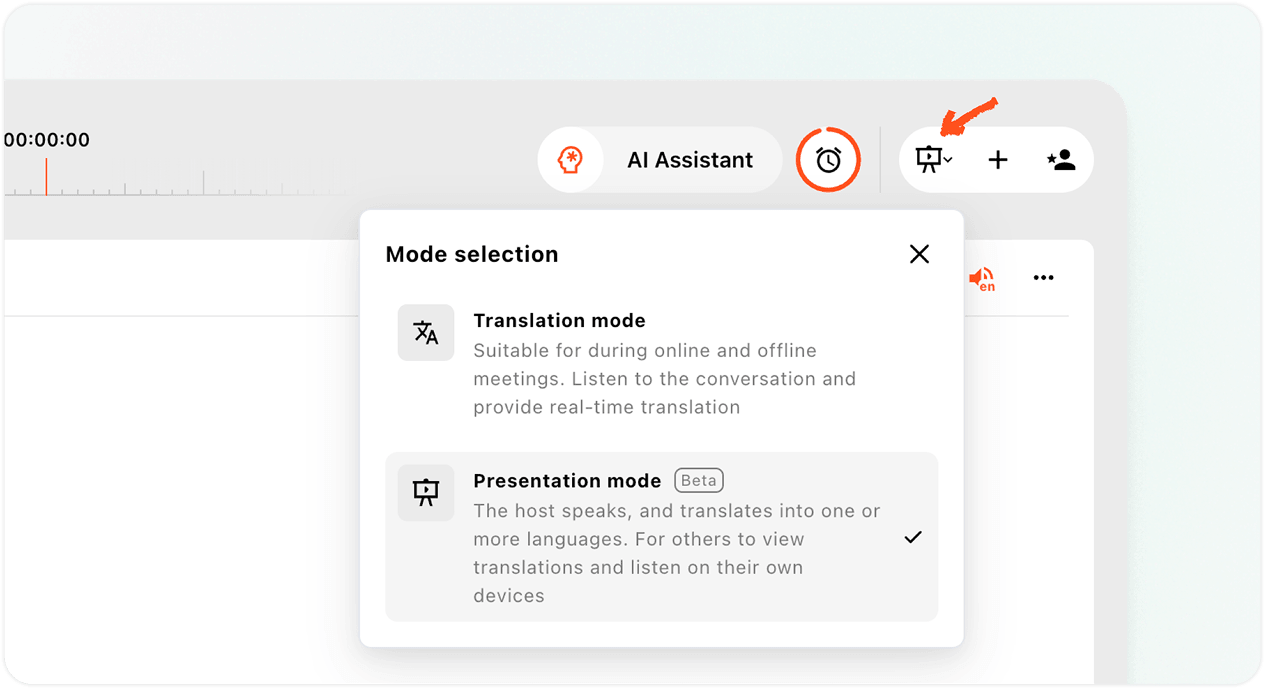
- Apri il Applicazione web Transync AI oppure l'app desktop e trova il selettore della modalità nell'area in alto a destra dell'interfaccia di traduzione.
- Apri il menu delle modalità.
- Selezionare Modalità di presentazione.
La modalità Presentazione è diversa dalla Traduzione multilingue. La Traduzione multilingue crea output in diverse lingue all'interno di un'unica attività di traduzione. La modalità Presentazione distribuisce la traduzione in tempo reale ai membri del pubblico sui loro dispositivi, dove ciascuno può scegliere una lingua disponibile.
2. Esaminare l'informativa sulla versione beta e sull'utilizzo. #
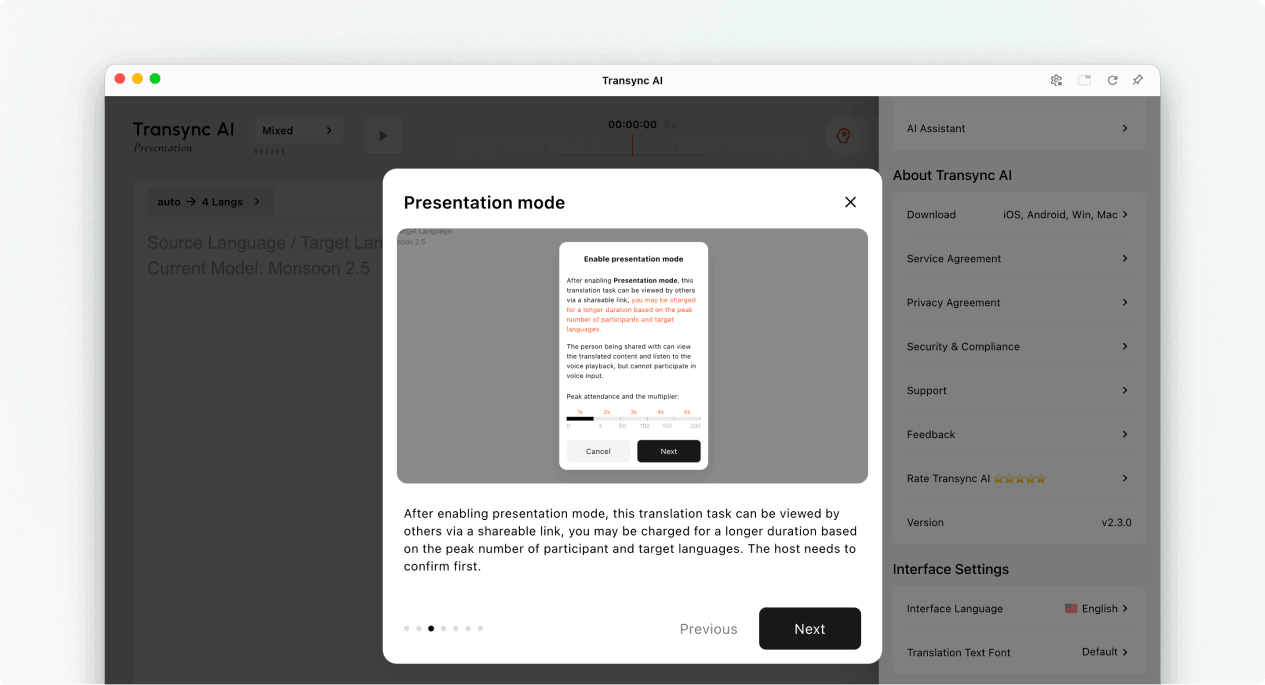
Quando si attiva la Modalità presentazione, Transync AI spiega cosa può fare il pubblico e come viene calcolato l'utilizzo della presentazione. Leggere questo avviso prima di continuare.
- Gli spettatori possono visualizzare i contenuti tradotti sui propri dispositivi.
- Gli spettatori possono ascoltare con la riproduzione vocale attiva, se disponibile.
- Il pubblico non può intervenire vocalmente durante l'attività del presentatore.
- Il moltiplicatore totale è dato dalla somma del moltiplicatore del partecipante e del moltiplicatore della lingua di destinazione.
Selezionare Prossimo quando sei pronto a configurare le lingue di presentazione.
3. Scegliere la lingua di origine e la lingua di destinazione #
Configura le lingue prima dell'inizio della presentazione:
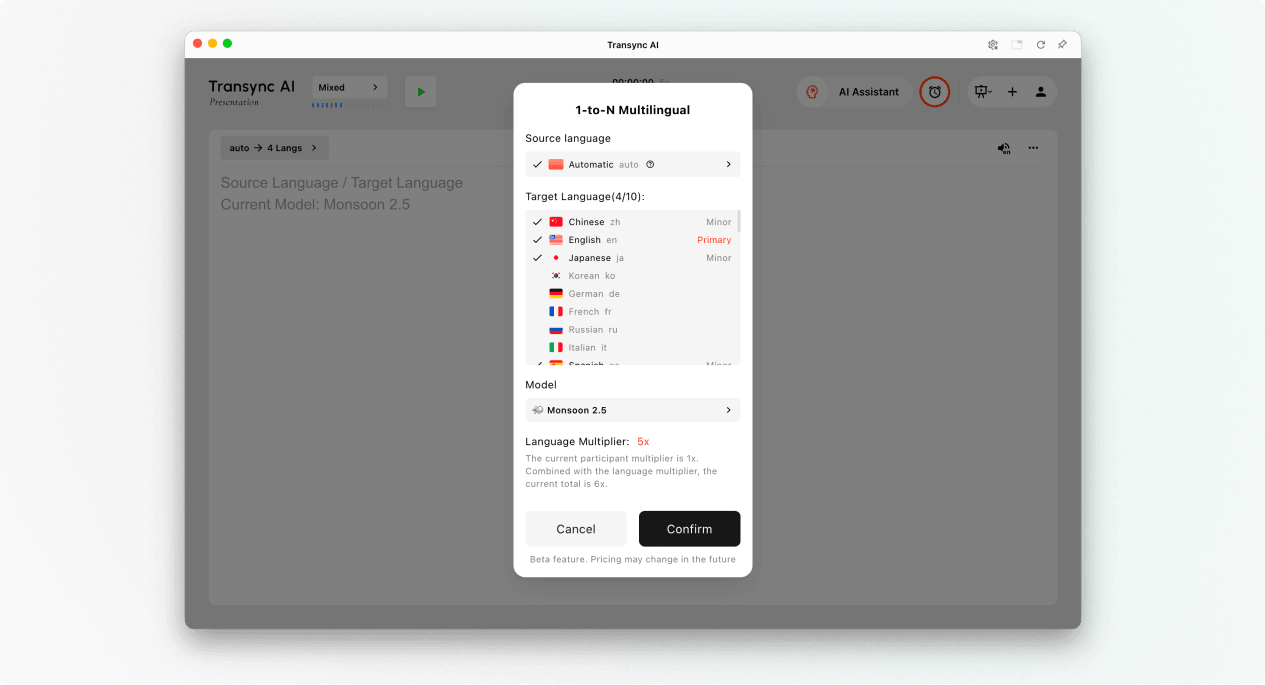
- Lingua sorgenteLingua parlata dall'host. Utilizzare Automatico se si desidera che la lingua di origine venga rilevata, oppure selezionare una lingua specifica quando l'host utilizzerà sempre la stessa lingua.
- Lingue di destinazione: Le lingue che i membri del pubblico possono scegliere. Il design attuale supporta fino a 9 lingue di destinazione in una singola presentazione.
- Primario: La lingua di destinazione principale visualizzata nell'interfaccia di presentazione dell'host.
- Minore: Ulteriori lingue di destinazione disponibili per il pubblico.
Esamina la lingua di destinazione e i moltiplicatori totali visualizzati in Transync AI. Se l'utilizzo previsto è superiore a quello pianificato, riduci il set di lingue abilitate prima di iniziare.
Configura la riproduzione vocale per ciascuna lingua (facoltativo) #
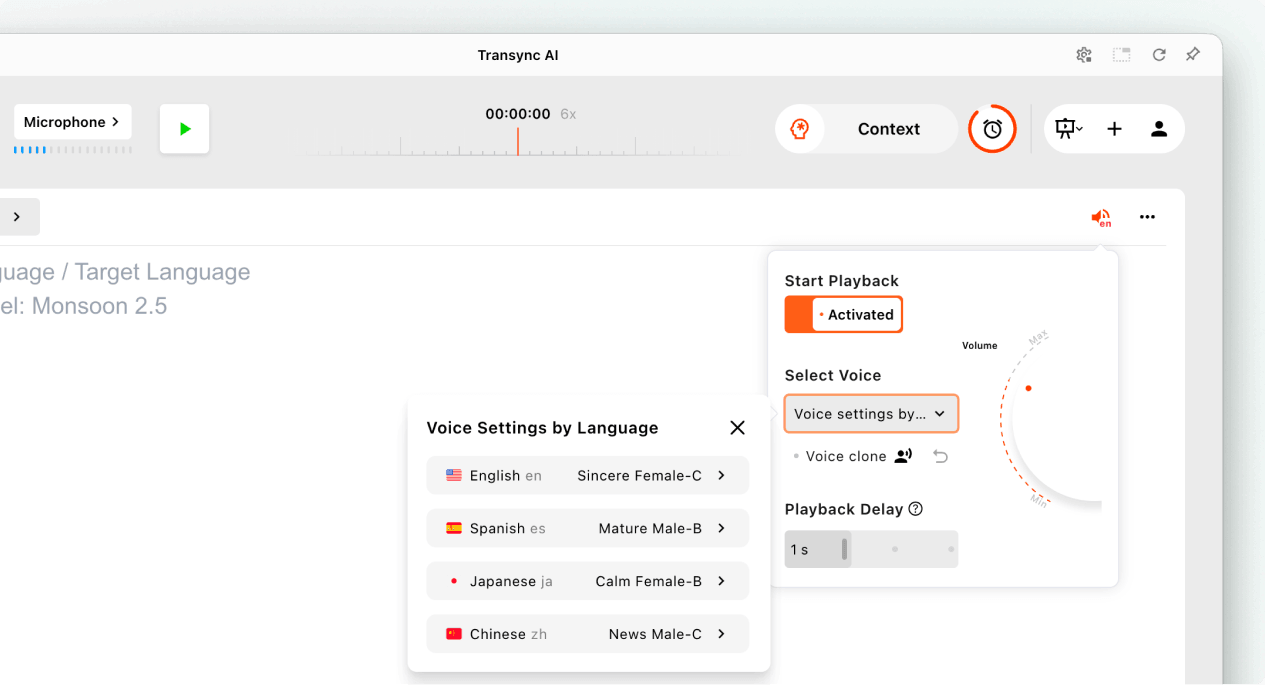
Prima di iniziare la presentazione, apri le impostazioni di riproduzione vocale se desideri che il pubblico ascolti la traduzione.
- Accendere Avvia la riproduzione.
- Aprire Impostazioni vocali per lingua e selezionare una voce per ciascuna lingua di destinazione.
- Dove Clone vocale è disponibile, seleziona una voce clonata per la lingua.
- Regola il volume e il ritardo di riproduzione per un'esperienza di ascolto confortevole.
Queste impostazioni possono essere configurate separatamente per ciascuna lingua di destinazione abilitata prima dell'inizio della presentazione.
4. Inizia la presentazione #
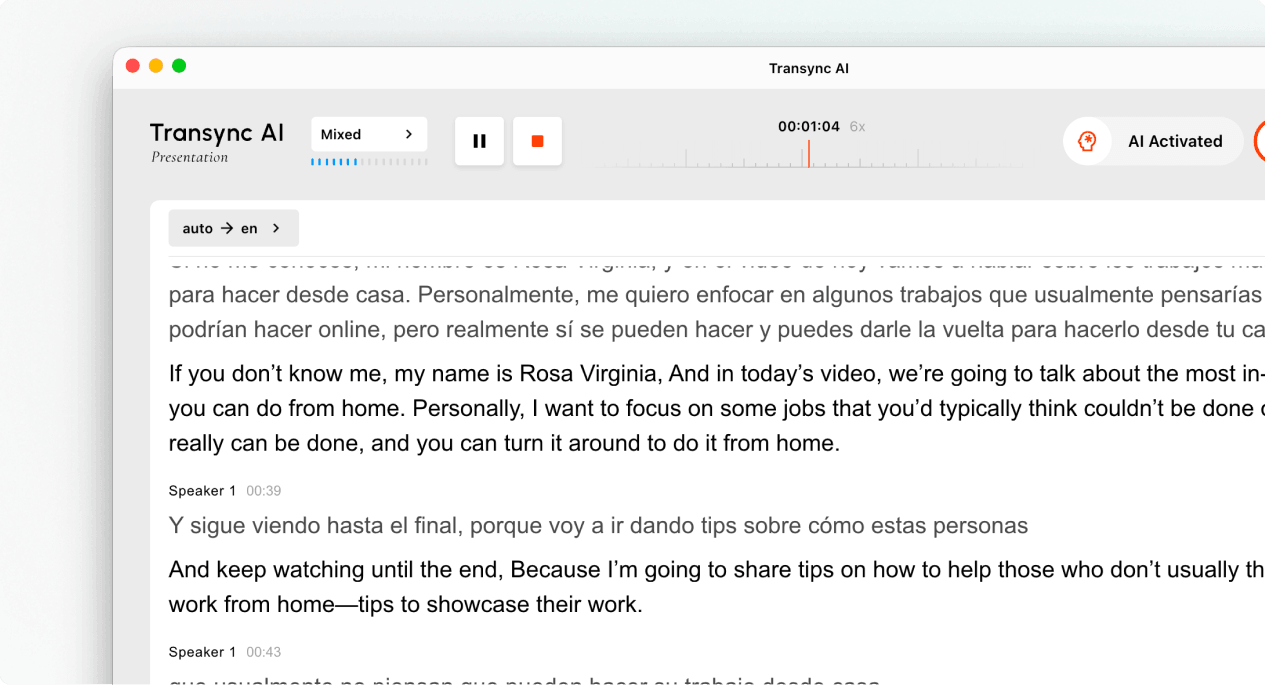
- Seleziona il microfono o la sorgente audio che contiene la voce del presentatore.
- Fare clic su Inizio pulsante nell'area in alto a sinistra.
- Verifica che il timer dell'attività sia partito e che l'audio del presentatore venga visualizzato come testo in tempo reale.
Parlate in modo naturale e tenete il microfono abbastanza vicino da catturare un audio chiaro. Se il pubblico utilizzerà la riproduzione vocale, ricordategli che le cuffie possono aiutare a prevenire l'eco in spazi condivisi.
5. Invita il tuo pubblico #
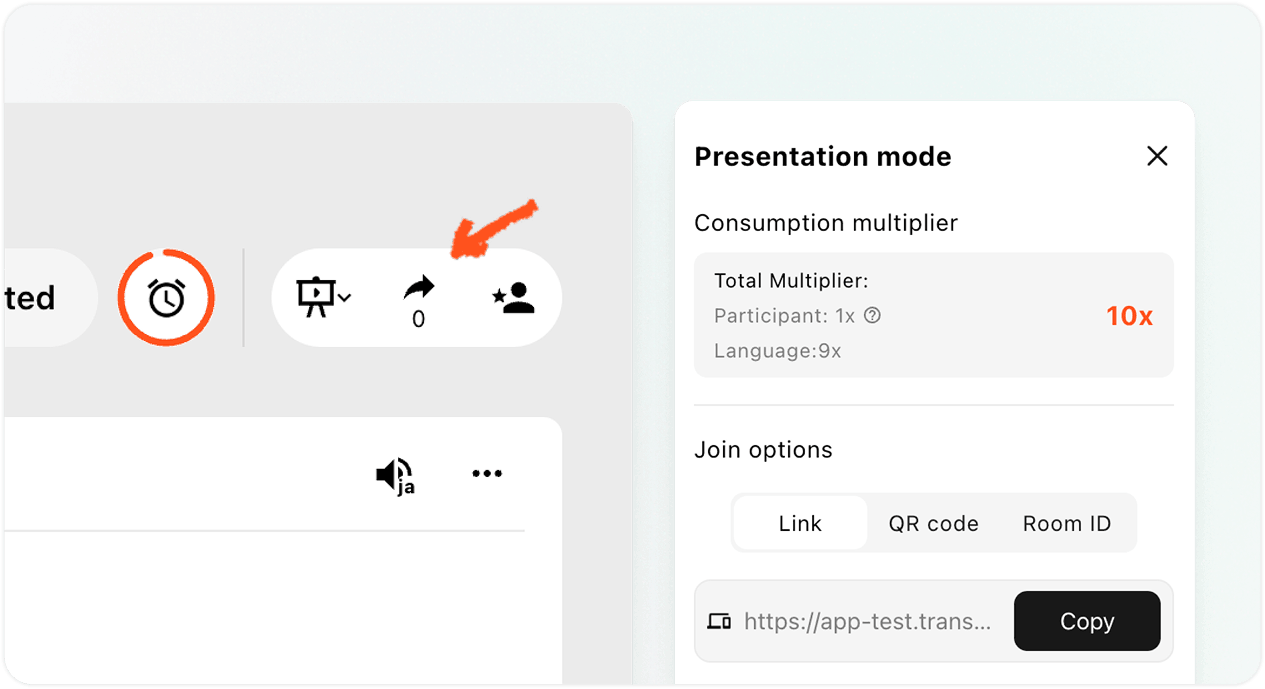
Apri il pannello Condividi nell'angolo in alto a destra. Puoi invitare il pubblico in tre modi:
- CollegamentoCopia il link in un invito a una riunione, in un'e-mail, in una chat o nella pagina di un evento.
- codice QRVisualizza il codice QR su una diapositiva, uno schermo, un biglietto stampato o un cartello dell'evento, in modo che i partecipanti possano scansionarlo con il proprio telefono.
- ID della stanza: Chiedere ai membri del pubblico di inserire l'ID della sala dalla voce di accesso alla modalità presentazione in Transync AI.
Inviare ai membri del pubblico il Come partecipare a una presentazione di Transync AI fornire una guida quando sono necessarie istruzioni dettagliate per l'accesso. Se Transync AI chiede a un membro del pubblico di effettuare l'accesso, questi dovrà completare la procedura e quindi tornare alla schermata di conferma dell'accesso.
Gestire e concludere la presentazione #
6. Gestire la presentazione dal vivo #
Durante la presentazione, il presentatore può:
- È possibile verificare il numero attuale di spettatori online dal pannello Condividi.
- Esamina il moltiplicatore di utilizzo visualizzato da Transync AI.
- Riapri il link, il codice QR o l'ID della stanza quando un altro partecipante deve unirsi.
- Utilizza i controlli della lingua disponibili per visualizzare le lingue offerte al pubblico.
Il pubblico può scegliere la propria lingua di visualizzazione tra quelle abilitate dal presentatore. Il presentatore può visualizzare il numero di spettatori, ma la modalità Presentazione non fornisce un elenco dei partecipanti nel pannello in diretta.
Nota: Le impostazioni della lingua possono variare a seconda della versione dell'app. Prima di affidarsi alla modifica della lingua durante la sessione, verificare che le lingue desiderate siano già abilitate.
7. Concludi la presentazione e scegli se condividere la trascrizione. #
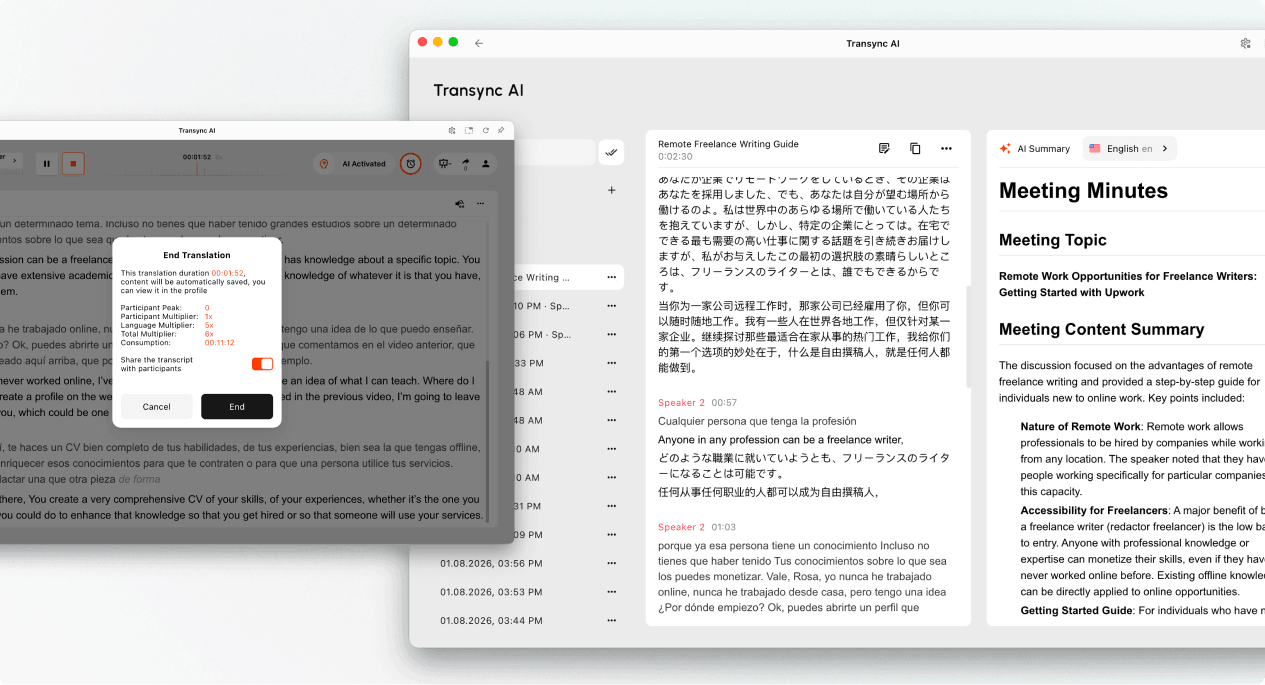
- Selezionare FINE al termine della presentazione.
- Esamina la durata dell'attività, il picco di partecipanti, il moltiplicatore visualizzato e il consumo finale.
- Se l'opzione è disponibile, scegli se abilitarla Condividi la trascrizione con i partecipanti.
- Conferma di voler terminare la presentazione.
Condividi la trascrizione solo se il contenuto della presentazione è adatto al pubblico e può essere memorizzato. Se la condivisione della trascrizione non è abilitata, il pubblico riceverà un avviso di fine presentazione senza che venga condivisa la registrazione.
8. Revisione dell'utilizzo e dei registri #
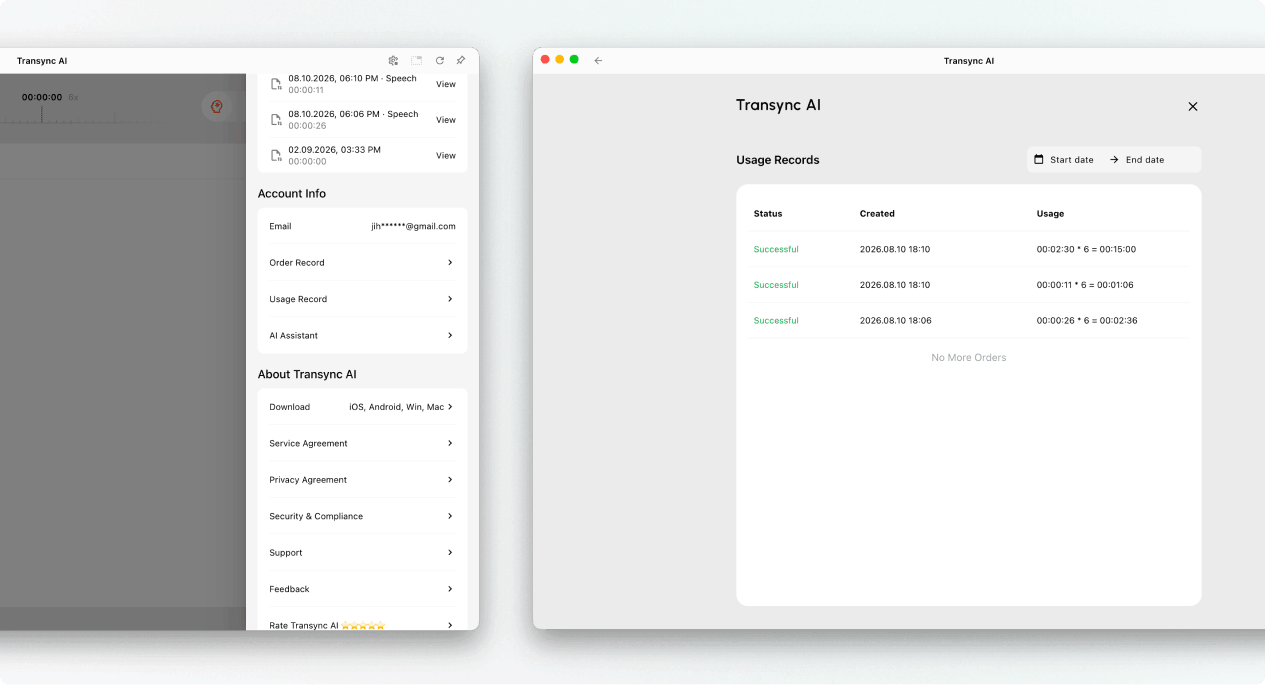
L'host può aprire la Cronologia delle traduzioni per rivedere la registrazione della presentazione salvata. L'utilizzo della presentazione può essere rivisto anche da Profilo → Storico utilizzo.
Come viene calcolato l'utilizzo della modalità presentazione #
L'utilizzo della modalità Presentazione si basa su due componenti: il numero massimo di partecipanti e il numero di lingue di destinazione abilitate.
Moltiplicatore dei partecipanti #
Il moltiplicatore dei partecipanti è determinato dal numero massimo di spettatori che risultano online contemporaneamente durante la presentazione.
| Membri del pubblico di punta | Moltiplicatore dei partecipanti |
|---|---|
| 0–3 | 1x |
| 4–50 | 2x |
| 51–100 | 3x |
| 101–150 | 4x |
| 151–200 | 5 volte |
Moltiplicatore della lingua di destinazione #
Il moltiplicatore della lingua di destinazione parte da 1x e aumenta di 1x per ogni lingua di destinazione abilitata.
| Numero di lingue di destinazione | Moltiplicatore della lingua di destinazione |
|---|---|
| 1 | 2x |
| 2 | 3x |
| 3 | 4x |
| 4 | 5 volte |
| 5 | 6x |
| 6 | 7 volte |
| 7 | 8x |
| 8 | 9x |
| 9 | 10x |
Moltiplicatore totale = Moltiplicatore del partecipante + Moltiplicatore della lingua di destinazione
Ad esempio, se il picco di pubblico è di 30 persone e l'organizzatore abilita 4 lingue di destinazione, il moltiplicatore dei partecipanti è 2x e il moltiplicatore delle lingue di destinazione è 5x. Il moltiplicatore totale è quindi 7x.
Per l'organizzazione dei record e le esportazioni, vedere Come gestire i record di traduzione. Per le trascrizioni e i riassunti generati dall'IA, vedere Come accedere alle trascrizioni e ai riepiloghi delle riunioni.
Risoluzione dei problemi #
Il pubblico non può partecipare #
Verifica che la presentazione sia ancora attiva. Riapri il pannello Condividi e invia una nuova copia del link, del codice QR o dell'ID della sala. Se i partecipanti visualizzano una richiesta di accesso, chiedi loro di effettuare il login e poi di confermare la richiesta di partecipazione.
Il pubblico non vede alcun nuovo testo #
Verifica che l'attività del presentatore sia ancora attiva, che sia selezionato il microfono corretto e che il testo in tempo reale venga visualizzato nell'interfaccia del presentatore. Se l'interfaccia del presentatore non riceve l'audio, risolvi il problema di input audio prima di chiedere al pubblico di rientrare.
Uno spettatore ha selezionato la lingua sbagliata. #
Chiedi al partecipante di aprire il selettore della lingua e di scegliere un'altra lingua abilitata dal relatore. Se la lingua desiderata non è presente nell'elenco, verifica le impostazioni della lingua di destinazione del relatore.
L'utilizzo è superiore alle aspettative. #
Conferma il livello di pubblico massimo e il numero di lingue di destinazione abilitate. Aggiungi il moltiplicatore dei partecipanti e il moltiplicatore della lingua di destinazione, quindi confronta il risultato con la voce dell'attività nel Registro di utilizzo.
Domande frequenti #
In che modo la modalità di presentazione si differenzia dalla traduzione multilingue? #
La traduzione multilingue produce traduzioni in diverse lingue in un'unica operazione. La modalità presentazione consente inoltre al relatore di trasmettere la traduzione in diretta al pubblico, con ogni partecipante che può seguirla sul proprio dispositivo.
I membri del pubblico possono intervenire durante lo svolgimento del compito del presentatore? #
No. Gli spettatori possono visualizzare le traduzioni e ascoltare la riproduzione audio, ma non possono fornire input vocali al presentatore.
Quante lingue di destinazione può supportare il sistema host? #
La modalità Presentazione attualmente supporta fino a 9 lingue di destinazione. Verifica l'interfaccia dell'app per conoscere le lingue disponibili per la tua attività.
Come viene calcolato l'utilizzo della modalità Presentazione? #
Aggiungi il moltiplicatore dei partecipanti per il livello di pubblico di punta al moltiplicatore della lingua di destinazione. Il moltiplicatore della lingua di destinazione parte da 1x e aumenta di 1x per ogni lingua di destinazione abilitata. Esamina le tabelle sopra e confronta il moltiplicatore totale con il valore visualizzato nel flusso di lavoro della presentazione.
Cosa succede dopo la fine della presentazione? #
Il contenuto del relatore viene salvato nella Cronologia delle traduzioni. Se il relatore abilita la condivisione della trascrizione, i partecipanti possono aprire la registrazione condivisa dal proprio account al termine della presentazione.


