
Chcete-li se připojit k režimu prezentace v Transync AI, použijte odkaz, QR kód nebo ID místnosti sdílené hostitelem. Po připojení si můžete vybrat jeden z jazyků povolených hostitelem a sledovat živý překlad na svém vlastním zařízení.
Publikum si může přečíst originální i přeložený text a poslouchat ho s hlasovým přehráváním, pokud je k dispozici. Publikum nemohou hovořit do překladatelské úlohy moderátora ani ji ovládat.
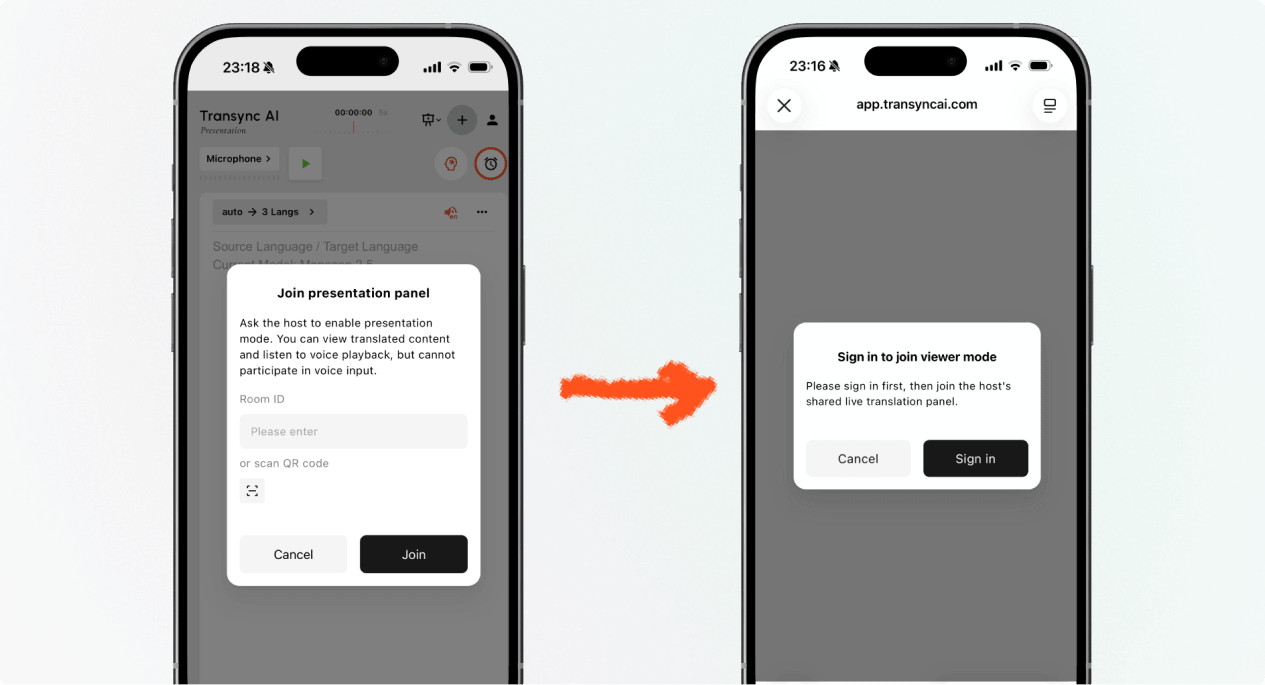
1. Připojte se k režimu prezentace pomocí odkazu nebo QR kódu #
- Otevřete odkaz zaslaný hostitelem nebo naskenujte QR kód prezentace telefonem.
- Zkontrolujte jméno nebo maskovaný účet osoby, která prezentaci sdílí.
- Pokud vás Transync AI vyzve k přihlášení, dokončete přihlášení a vraťte se do režimu prezentace.
- Vybrat Připojit se.
Když se připojíte k režimu prezentace pomocí odkazu nebo QR kódu, vaše zařízení může otevřít webový zážitek nebo nabídnout pokračování v aplikaci Transync AI. Pokud prezentace již není aktivní, požádejte hostitele o nový aktivní odkaz, QR kód nebo ID místnosti.
2. Připojte se k režimu prezentace pomocí ID místnosti #
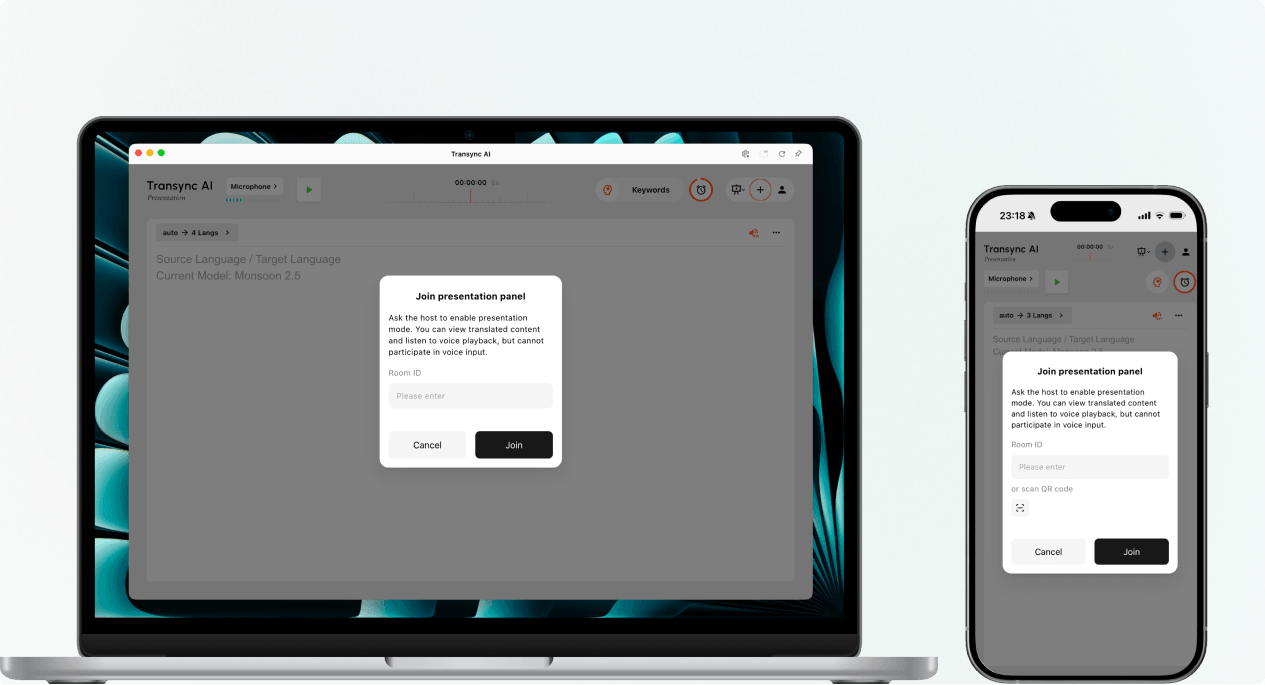
- Otevřete položku připojení k režimu prezentace v Webová aplikace Transync s umělou inteligencí nebo aplikaci Transync s umělou inteligencí.
- Zadejte ID místnosti poskytnuté hostitelem nebo použijte tlačítko skenování k naskenování QR kódu prezentace.
- Vybrat Připojit se.
Poznámka: ID místnosti funguje pouze tehdy, když je aktivní prezentace hostitele. Pokud se nemůžete připojit k režimu prezentace, ověřte ID místnosti a kontaktujte hostitele.
3. Vyberte si jazyk #
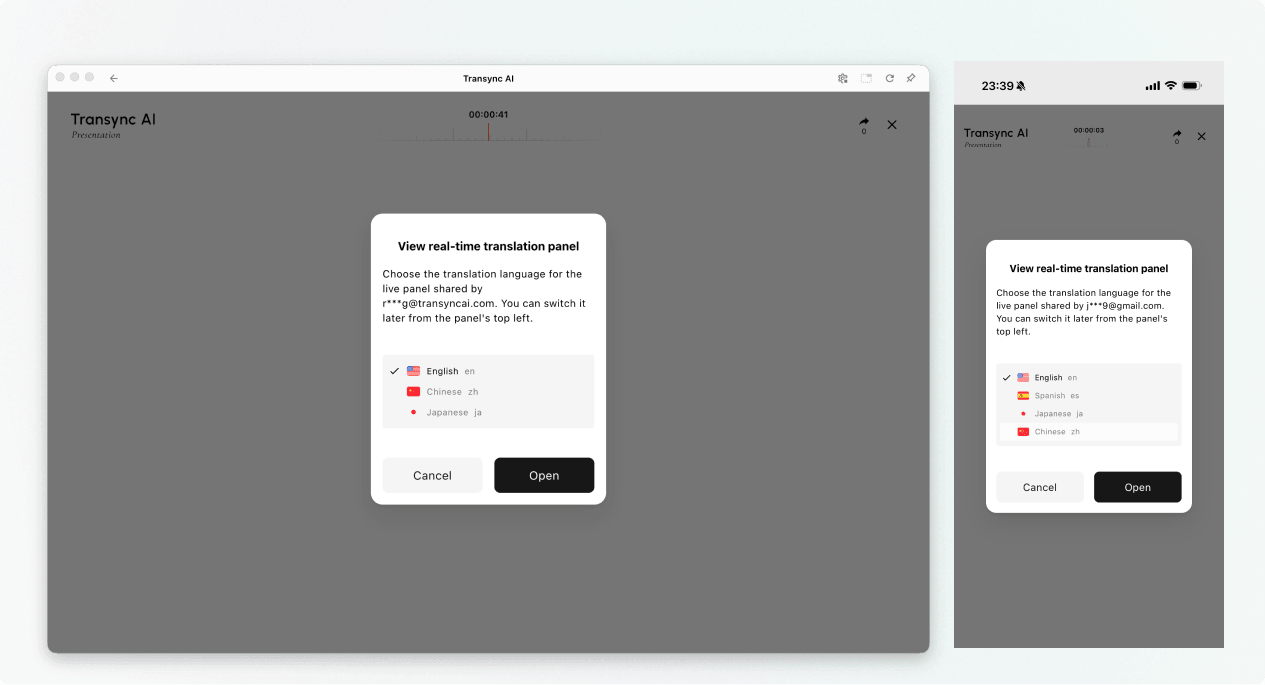
Než se otevře panel živé prezentace, vyberte jazyk, který chcete číst a poslouchat. Seznam obsahuje cílové jazyky povolené hostitelem. Pro informaci může být zobrazen i zdrojový jazyk hostitele.
- Vyberte jeden dostupný jazyk překladu.
- Zkontrolujte zobrazený zdrojový jazyk.
- Vybrat OTEVŘENO pro vstup do režimu prezentace a otevření panelu prezentací.
4. Čtěte a poslouchejte během prezentace #
Po připojení k režimu prezentace se na prezentačním panelu v reálném čase zobrazuje projev hostitele a jeho překlad. Můžete:
- Přečtěte si původní text a přeložený text.
- Pro snazší čtení textu použijte dostupné ovládací prvky zobrazení.
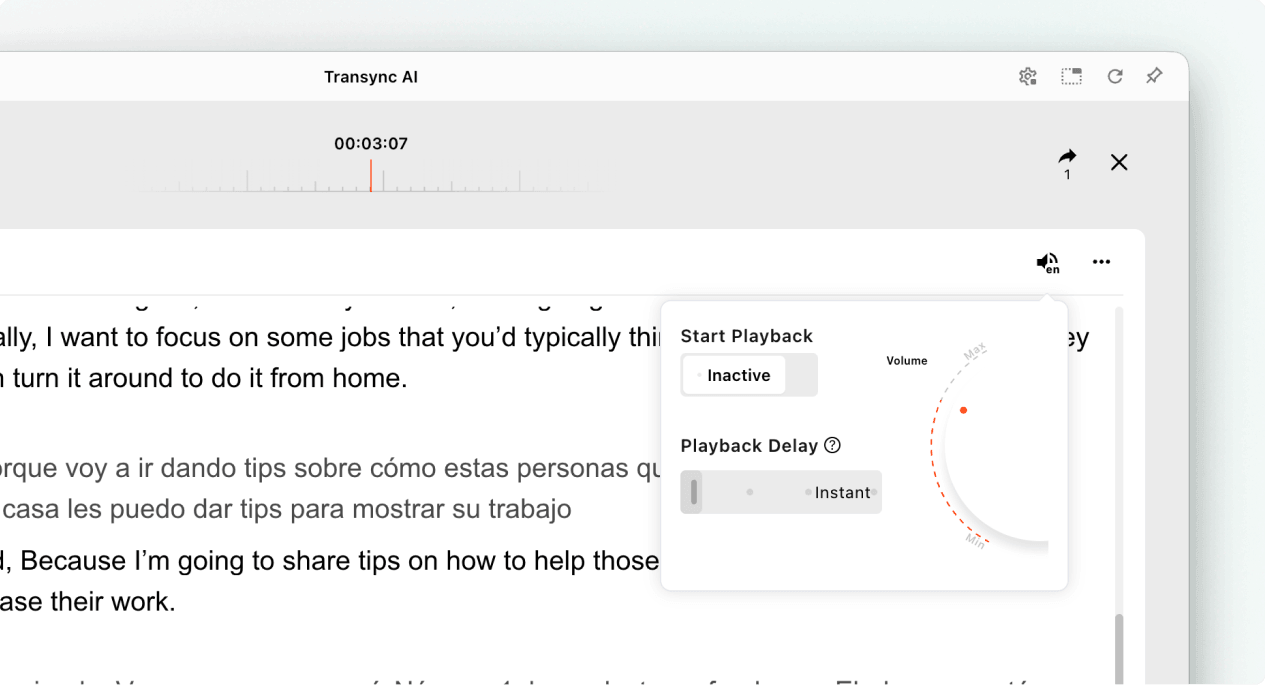
- Zapněte přehrávání hlasu, pokud je k dispozici pro vybraný jazyk.
- Při poslechu ve sdíleném prostoru používejte sluchátka, abyste snížili ozvěnu a nerušili ostatní členy publika.
- Zobrazit aktuální počet online publika, když je zobrazen.
Více informací o nastavení poslechu naleznete Jak používat přehrávání hlasu v Transync AI.
5. Přepínání jazyků #
Pokud chcete prezentaci sledovat v jiném jazyce, otevřete volič jazyků a vyberte jiný jazyk, který hostitel umožňuje. Pokud požadovaný jazyk není v seznamu uveden, zeptejte se hostitele, zda jej lze do prezentace přidat.
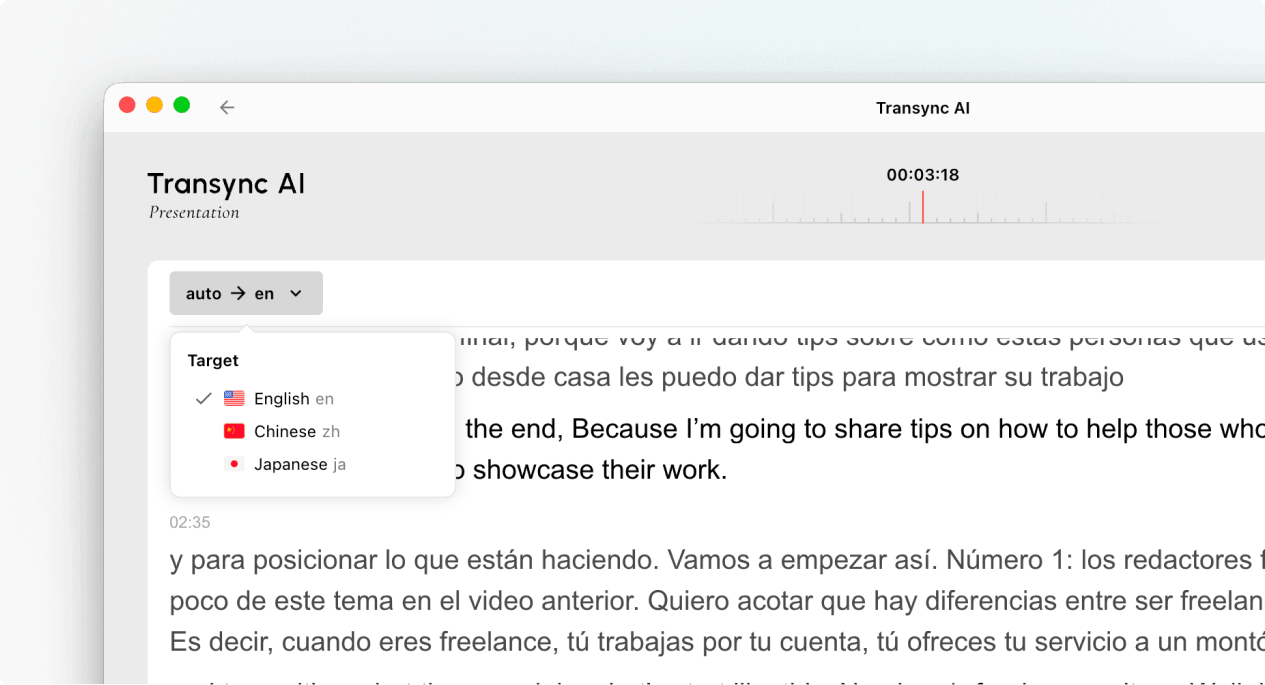
6. Opusťte prezentaci nebo se k ní znovu připojte #
Opuštěním panelu prezentace úkol hostitele neukončíte. Pokud je prezentace hostitele stále aktivní, můžete se k režimu prezentace znovu připojit pomocí aktivního odkazu, QR kódu nebo ID místnosti.
Když vás Transync AI požádá o potvrzení ukončení, vyberte Výstup pouze pokud chcete zavřít panel publika.
7. Zobrazení sdíleného záznamu po prezentaci #
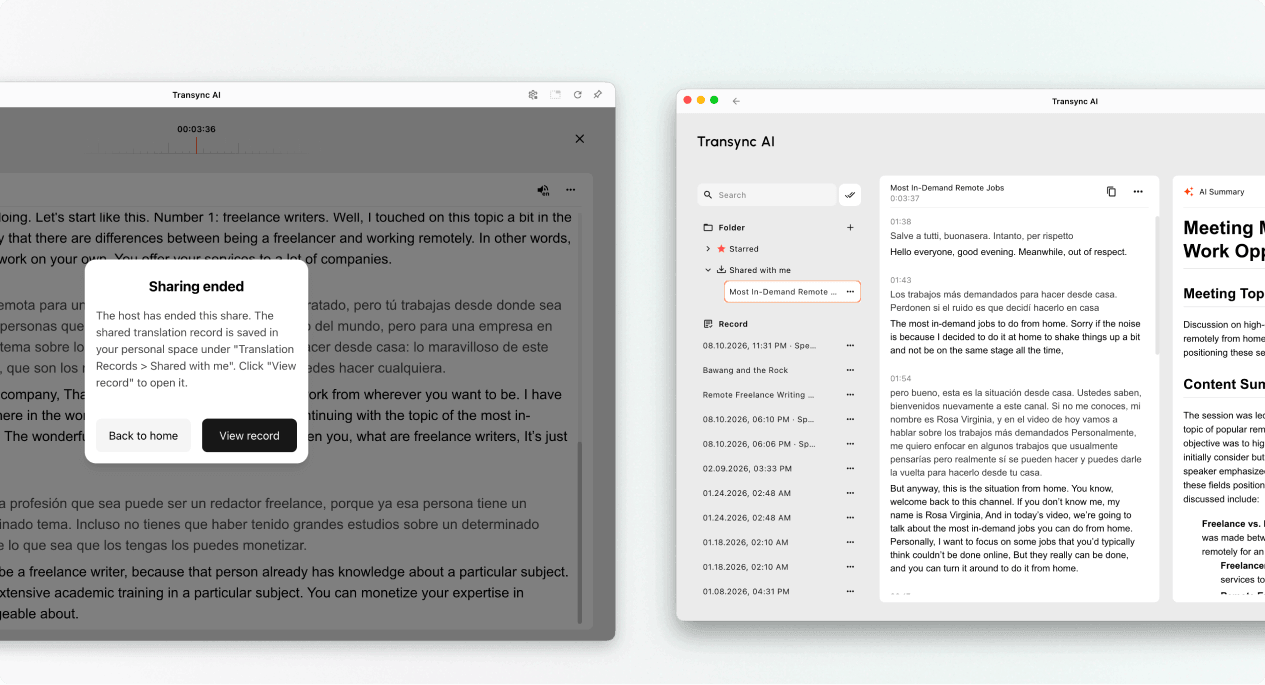
Když hostitel ukončí prezentaci, Transync AI zobrazí zprávu o ukončení sdílení. Pokud se hostitel rozhodl sdílet přepis, vyberte Zobrazit záznam nebo otevřené Profil → Historie překladů → Sdíleno se mnou.
Pokud hostitel nesdílel přepis, můžete závěrečnou zprávu zavřít, ale neobdržíte sdílený záznam prezentace.
Odstraňování problémů #
Jsem vyzván k přihlášení #
Dokončete přihlášení a vraťte se do režimu prezentace. Pokud nemáte účet, postupujte podle pokynů Jak zaregistrovat Transync AI, a poté znovu otevřete aktivní odkaz na prezentaci nebo ID místnosti.
Nemohu se připojit k režimu prezentace #
Hostitel možná nespustil režim prezentace nebo prezentace skončila. Kontaktujte hostitele a požádejte o aktuálně aktivní možnost připojení.
Nemůžu najít svůj jazyk #
Členové publika si mohou vybrat pouze jazyky povolené hostitelem. Zeptejte se hostitele, zda lze jazyk přidat.
Neslyším přehrávání hlasu #
Zkontrolujte hlasitost zařízení, ověřte, zda je k dispozici a povoleno přehrávání hlasu, a ujistěte se, že je vybrán správný jazyk. Můžete pokračovat ve čtení živě přeloženého textu, i když je přehrávání hlasu vypnuté.
Často kladené otázky #
Potřebuji účet Transync AI? #
Pokud vás proces připojení vyzve k přihlášení, dokončete přihlášení před připojením. Přesný způsob přihlášení může záviset na zařízení, prohlížeči a aktuální verzi produktu.
Můžu do prezentace hovořit? #
Ne. Panel publika slouží ke sledování a poslechu. Hlasové vstupy pro prezentaci poskytuje pouze moderátor.
Mohu si po registraci změnit jazyk? #
Ano, můžete přepnout na jiný jazyk, který hostitel povolil pro aktivní prezentaci.
Můžu se po odchodu znovu připojit? #
Ano, pokud je prezentace hostitele aktivní a stále máte platný odkaz, QR kód nebo ID místnosti.
Dostanu přepis po prezentaci? #
Pouze pokud se hostitel rozhodne ji sdílet. Záznamy sdílených prezentací se po skončení úlohy zobrazí v sekci Sdíleno se mnou.


