
Para entrar no Modo de Apresentação no Transync AI, use o link, o código QR ou o ID da sala compartilhado pelo anfitrião. Após entrar, você pode escolher um dos idiomas habilitados pelo anfitrião e acompanhar a tradução ao vivo no seu próprio dispositivo.
Os membros da plateia podem ler o texto original e traduzido e ouvir a reprodução em áudio quando disponível. Os membros da plateia não podem falar durante a tradução feita pelo apresentador nem controlá-la.
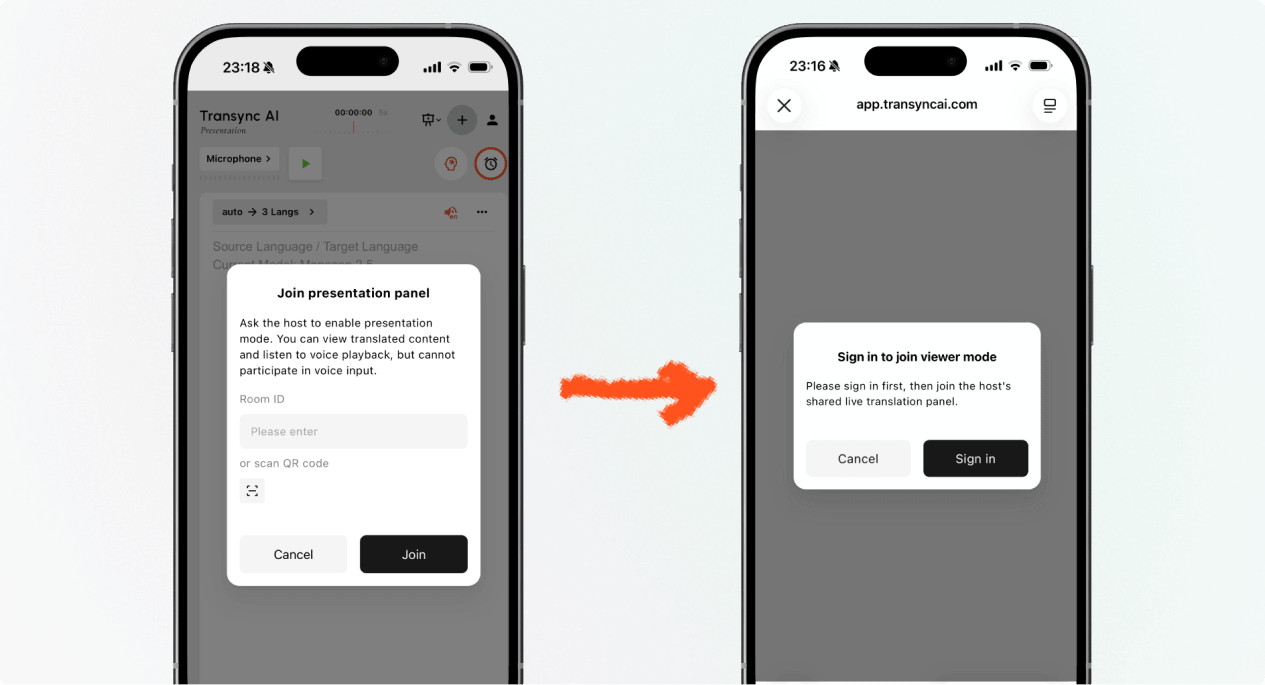
1. Entre no Modo de Apresentação com um Link ou Código QR #
- Abra o link enviado pelo anfitrião ou digitalize o código QR da apresentação com seu celular.
- Confira o nome ou a conta mascarada da pessoa que está compartilhando a apresentação.
- Se o Transync AI solicitar que você faça login, conclua o processo e retorne ao Modo de Apresentação.
- Selecione Juntar.
Ao entrar no Modo de Apresentação com um link ou código QR, seu dispositivo poderá abrir a experiência web ou oferecer a opção de continuar no aplicativo Transync AI. Se a apresentação não estiver mais ativa, solicite ao anfitrião um novo link, código QR ou ID da sala.
2. Entre no Modo de Apresentação com o ID da Sala. #
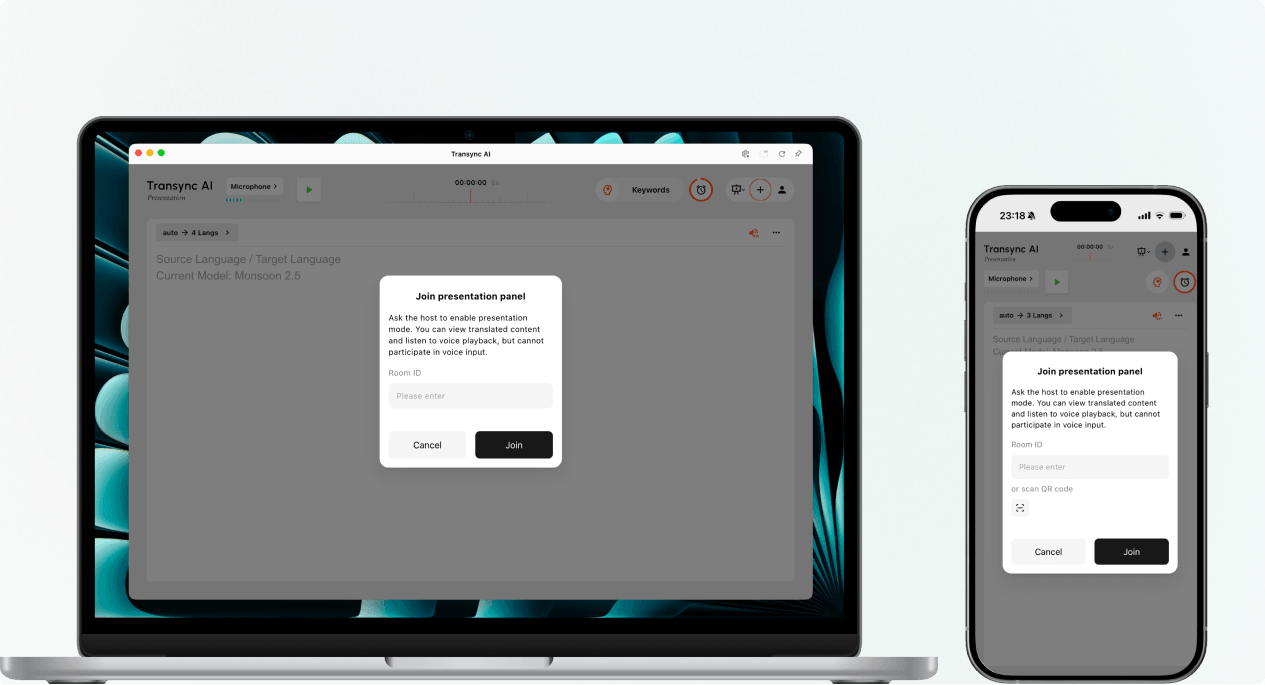
- Abra a entrada de entrada do Modo de Apresentação no Aplicativo web de IA Transync ou o aplicativo Transync AI.
- Insira o ID da sala fornecido pelo anfitrião ou use o botão de leitura para escanear o código QR da apresentação.
- Selecione Juntar.
Observação: O ID da sala só funciona enquanto a apresentação do anfitrião estiver ativa. Se você não conseguir entrar no Modo de Apresentação, confirme o ID da sala e entre em contato com o anfitrião.
3. Escolha seu idioma #
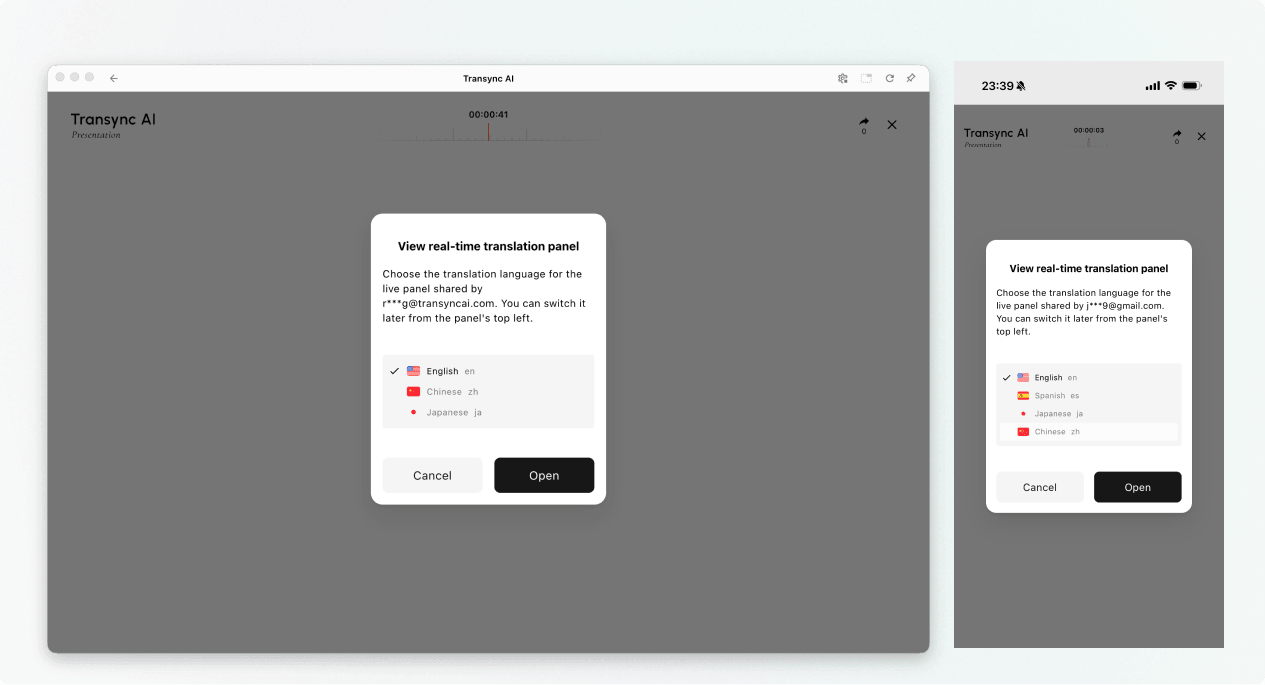
Antes de o painel de apresentação ao vivo abrir, escolha o idioma que deseja ler e ouvir. A lista contém os idiomas de destino habilitados pelo apresentador. O idioma de origem do apresentador também pode ser exibido para referência.
- Selecione um dos idiomas de tradução disponíveis.
- Analise o idioma de origem exibido.
- Selecione Abrir Para entrar no Modo de Apresentação e abrir o painel de apresentação.
4. Leia e ouça durante a apresentação. #
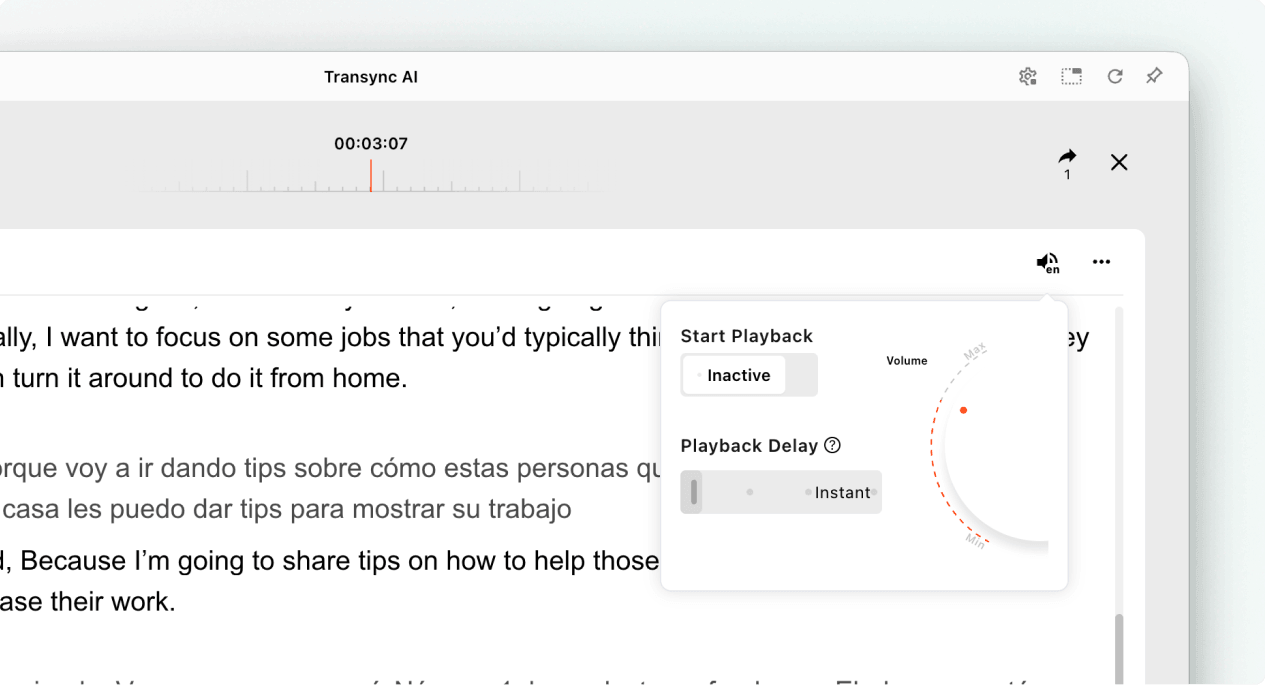
Após entrar no Modo de Apresentação, o painel de apresentação exibe a fala do apresentador e a tradução em tempo real. Você pode:
- Leia o texto original e o texto traduzido.
- Utilize os controles de exibição disponíveis para facilitar a leitura do texto.
- Ative a reprodução de voz quando estiver disponível para o idioma selecionado.
- Use fones de ouvido ao ouvir em um espaço compartilhado para reduzir o eco e evitar perturbar os outros espectadores.
- Veja a contagem atual de espectadores online quando ela for exibida.
Para obter mais informações sobre as configurações de audição, consulte Como usar a reprodução de voz no Transync AI.
5. Alternar idiomas #
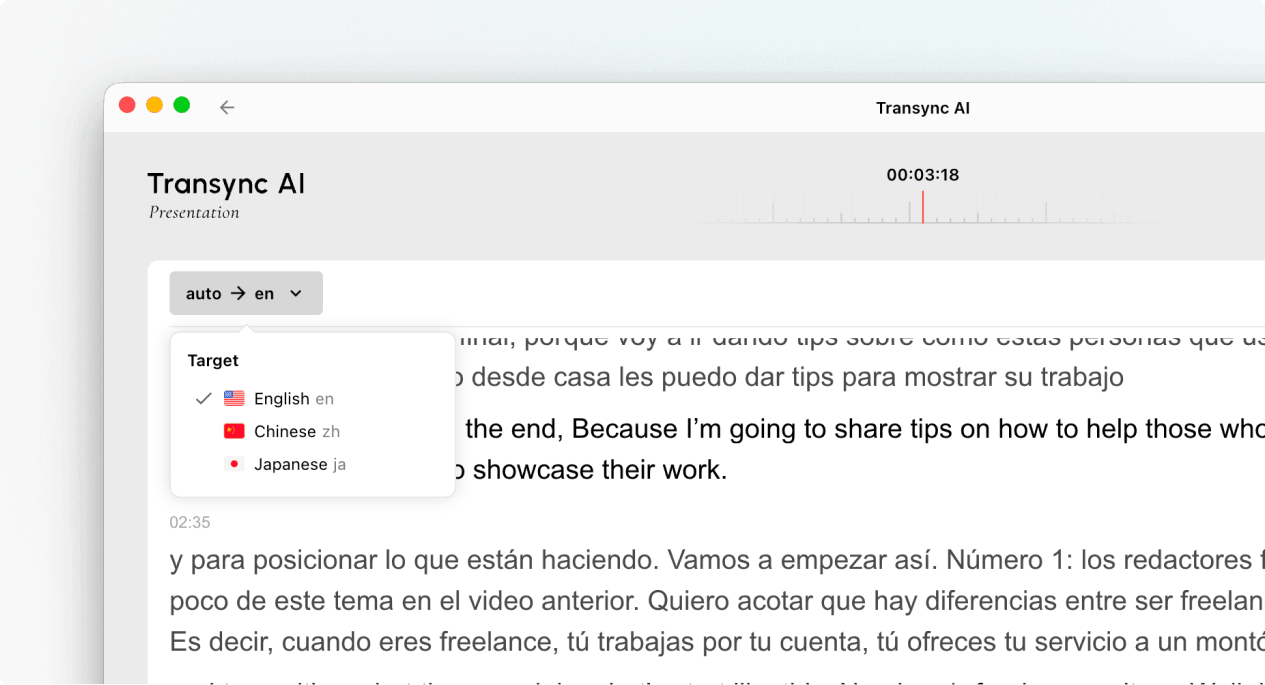
Se você deseja acompanhar a apresentação em outro idioma, abra o seletor de idiomas e escolha outro idioma habilitado pelo apresentador. Se o idioma desejado não estiver listado, pergunte ao apresentador se ele pode ser adicionado à apresentação.
6. Sair ou voltar a participar da apresentação #
Sair do painel de apresentação não encerra a tarefa do anfitrião. Se a apresentação do anfitrião ainda estiver ativa, você pode entrar novamente no Modo de Apresentação usando o link ativo, o código QR ou o ID da sala.
Quando a Transync AI pedir que você confirme a saída, selecione Saída Somente se você quiser fechar o painel da sua audiência.
7. Visualizar um registro compartilhado após a apresentação #
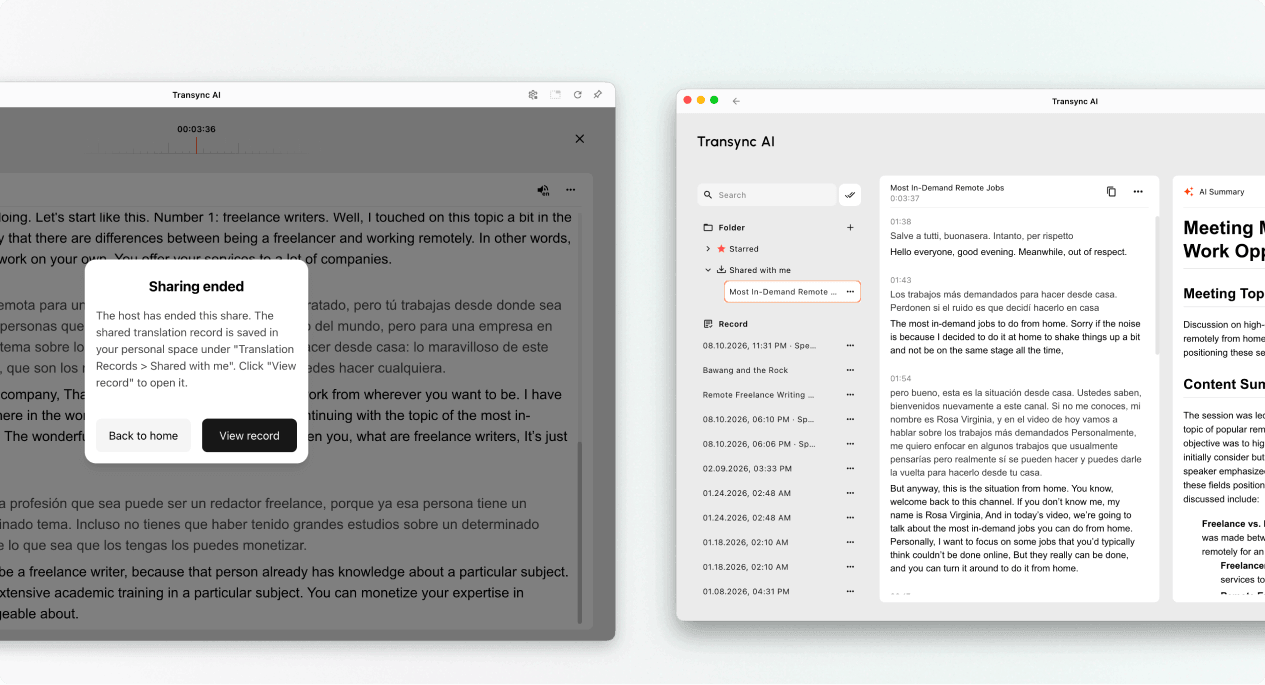
Quando o anfitrião encerra a apresentação, o Transync AI exibe uma mensagem de compartilhamento encerrado. Se o anfitrião optou por compartilhar a transcrição, selecione Ver registro ou aberto Perfil → Histórico de traduções → Compartilhado comigo.
Se o anfitrião não compartilhou a transcrição, você pode fechar a mensagem final, mas não receberá um registro compartilhado da apresentação.
Solução de problemas #
Me pediram para fazer login. #
Conclua o login e retorne para entrar no Modo de Apresentação. Se você não tiver uma conta, siga as instruções. Como registrar o Transync AI, Em seguida, reabra o link da apresentação ativa ou o ID da sala.
Não consigo entrar no Modo de Apresentação. #
O anfitrião pode não ter iniciado o Modo de Apresentação, ou a apresentação pode ter terminado. Entre em contato com o anfitrião e solicite uma opção de participação ativa.
Não consigo encontrar meu idioma. #
Os participantes da audiência só podem selecionar os idiomas habilitados pelo anfitrião. Pergunte ao anfitrião se o idioma desejado pode ser adicionado.
Não consigo ouvir a reprodução de voz. #
Verifique o volume do seu dispositivo, confirme se a reprodução de voz está disponível e ativada e certifique-se de que o idioma correto esteja selecionado. Você pode continuar lendo o texto traduzido ao vivo mesmo com a reprodução de voz desativada.
Perguntas frequentes #
Preciso de uma conta Transync AI? #
Se o processo de adesão solicitar que você faça login, conclua o login antes de entrar. A experiência exata de entrada pode variar dependendo do dispositivo, navegador e versão atual do produto.
Posso falar durante a apresentação? #
Não. O painel da plateia serve para assistir e ouvir. Somente o apresentador fornece informações de voz para a apresentação.
Posso alterar meu idioma depois de me cadastrar? #
Sim, você pode alternar para outro idioma que o anfitrião tenha habilitado para a apresentação ativa.
Posso voltar a participar depois de ter saído? #
Sim, desde que a apresentação do anfitrião permaneça ativa e você ainda tenha um link, código QR ou ID da sala válidos.
Receberei a transcrição após a apresentação? #
Somente se o anfitrião optar por compartilhar. Os registros de apresentações compartilhadas aparecem em "Compartilhado comigo" após o término da tarefa.


