
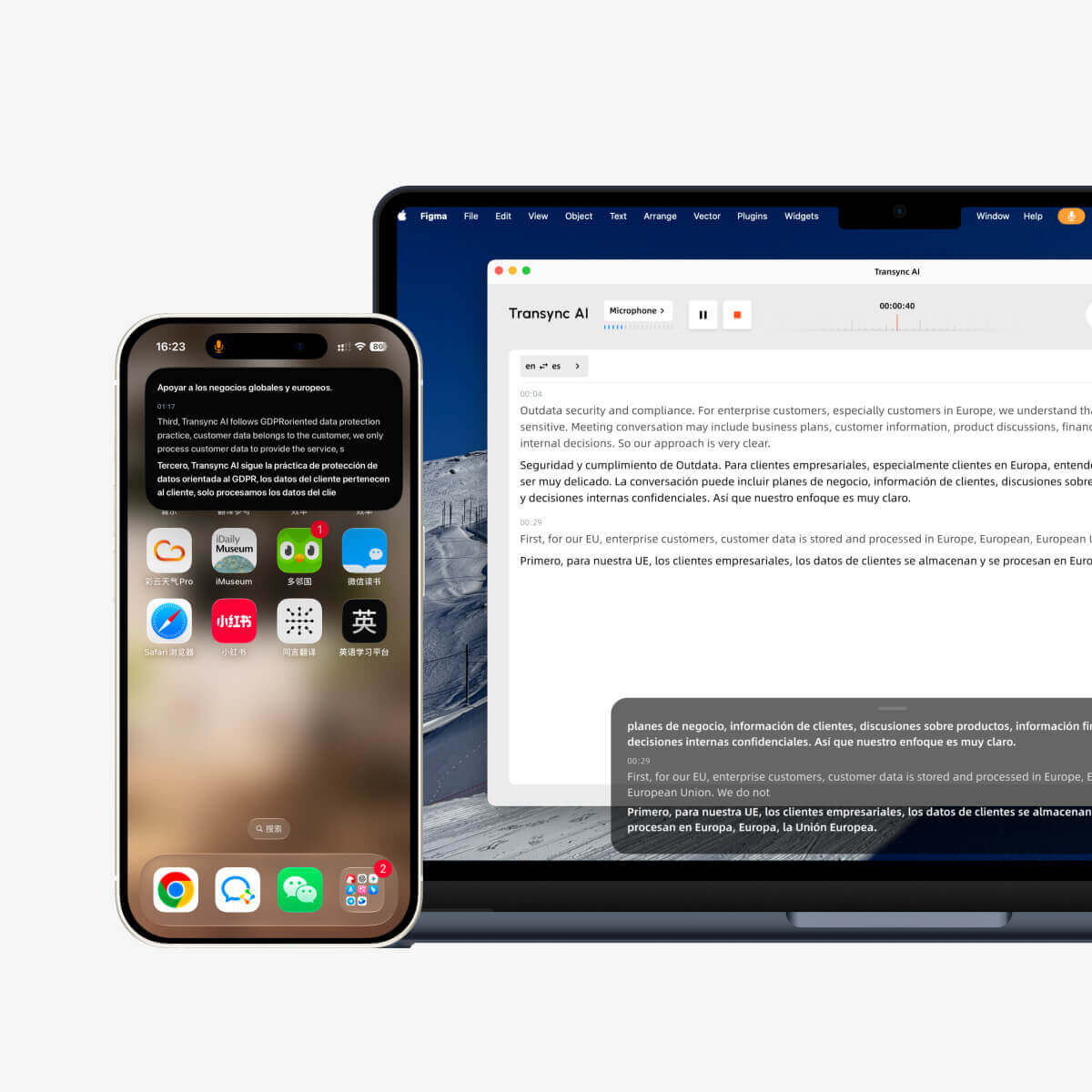
O modo Picture-in-Picture, ou PiP, permite que você mantenha legendas ao vivo visíveis em uma janela flutuante enquanto usa outros aplicativos. É útil quando você está em uma reunião, assistindo a uma apresentação, visualizando conteúdo compartilhado ou fazendo anotações enquanto a IA Transync continua traduzindo em tempo real.
O PiP está disponível em Windows, macOS, iOS e Android. Atualmente é Não disponível na versão Web..
Antes de usar o PiP, certifique-se de já ter iniciado uma tarefa de tradução. Se você é novo no Transync AI, talvez queira consultar nosso guia. Início rápido ou aprender Como iniciar a tradução em tempo real primeiro.
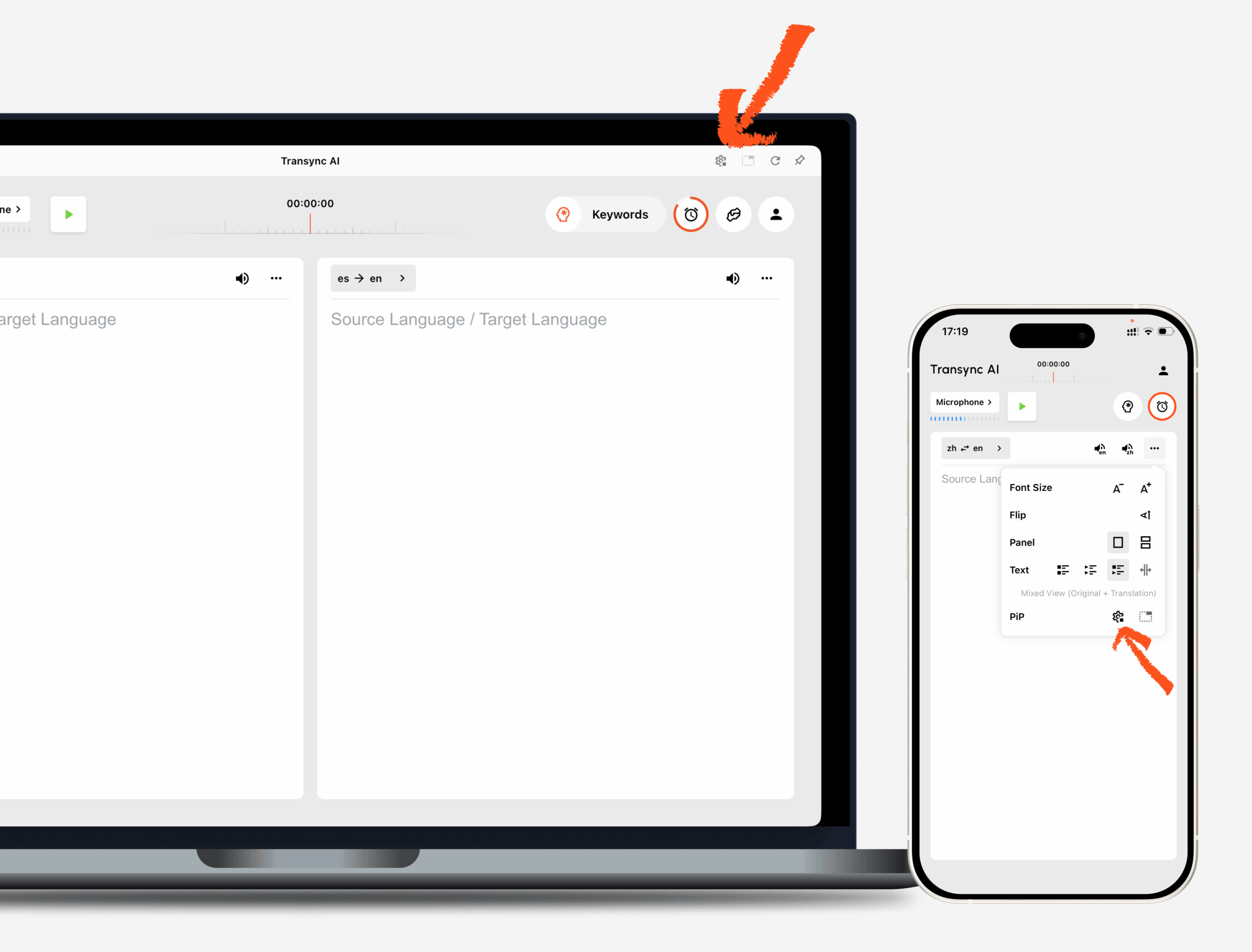
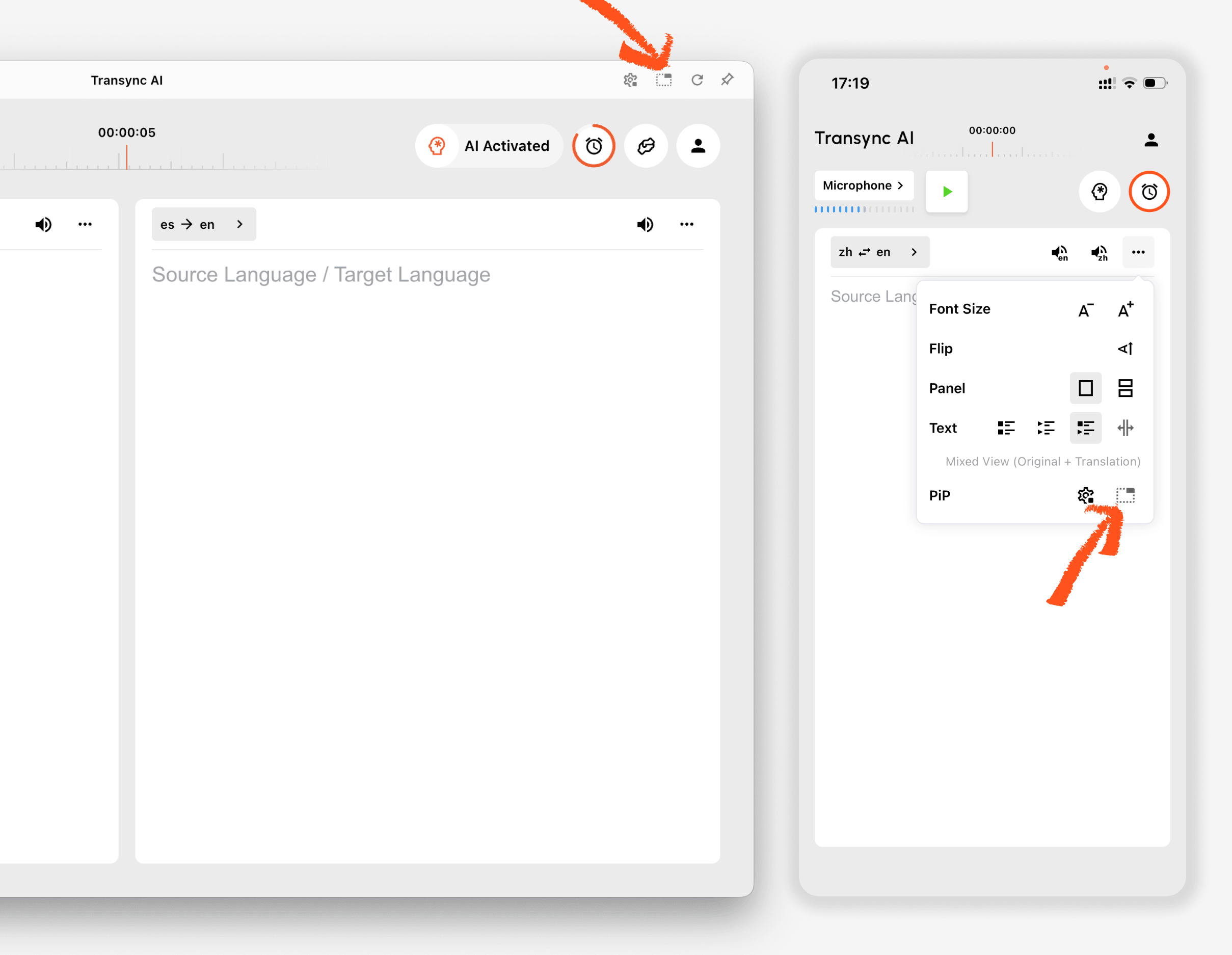
1. Abra as configurações de PiP (Picture-in-Picture). #
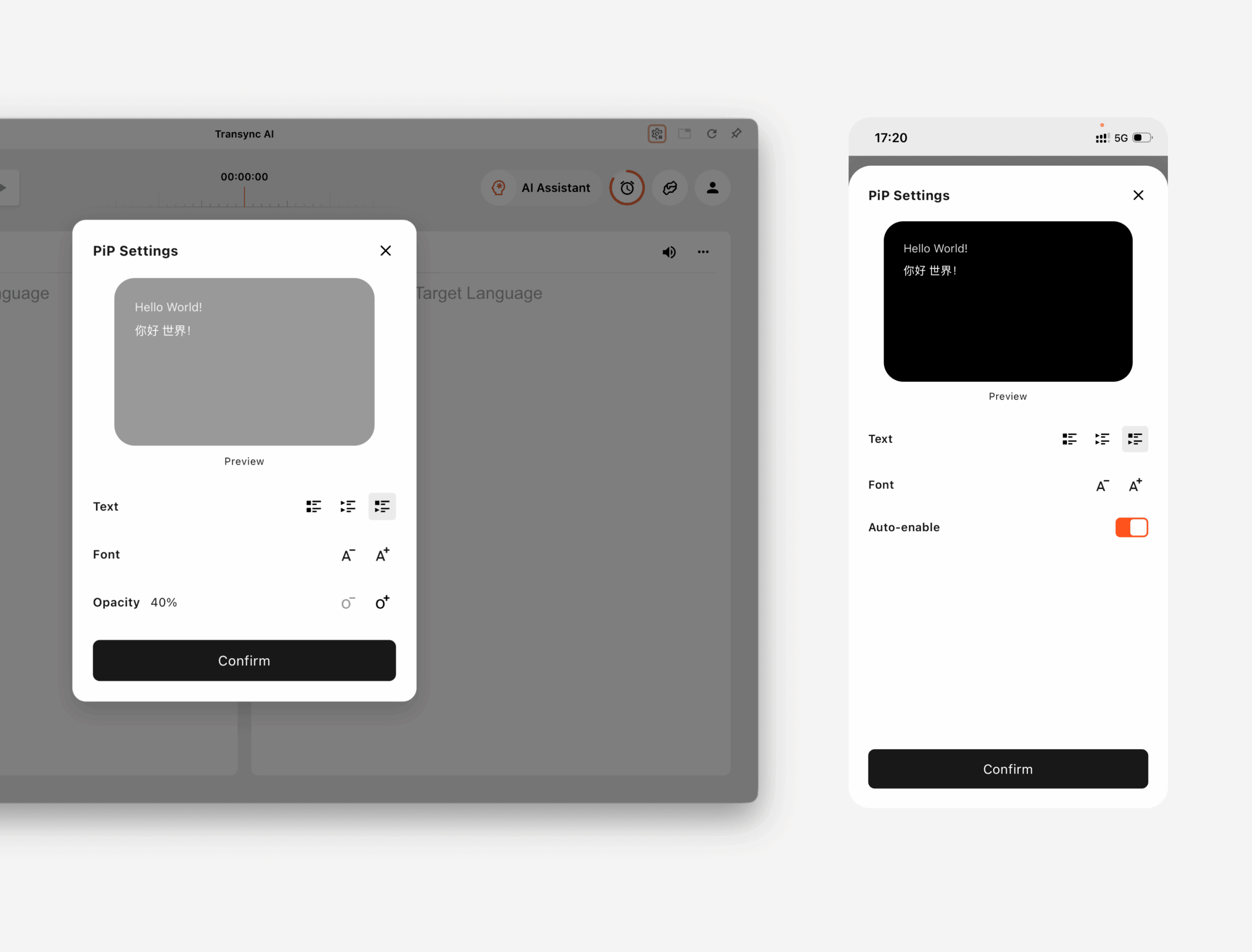
Abrir Configurações No Transync AI, encontre a seção de configurações PiP. Você pode configurar como a janela flutuante de legendas aparece antes de usar o PiP durante uma tarefa de tradução.
Sobre Windows e macOS, Você pode ajustar:
- Modo de exibição de legendas
- Tamanho da fonte
- Transparência da janela
Sobre iOS e Android, Você pode ajustar:
- Modo de exibição de legendas
- Tamanho da fonte
- Ativar PiP automaticamente
2. Escolha um modo de exibição de legendas. #
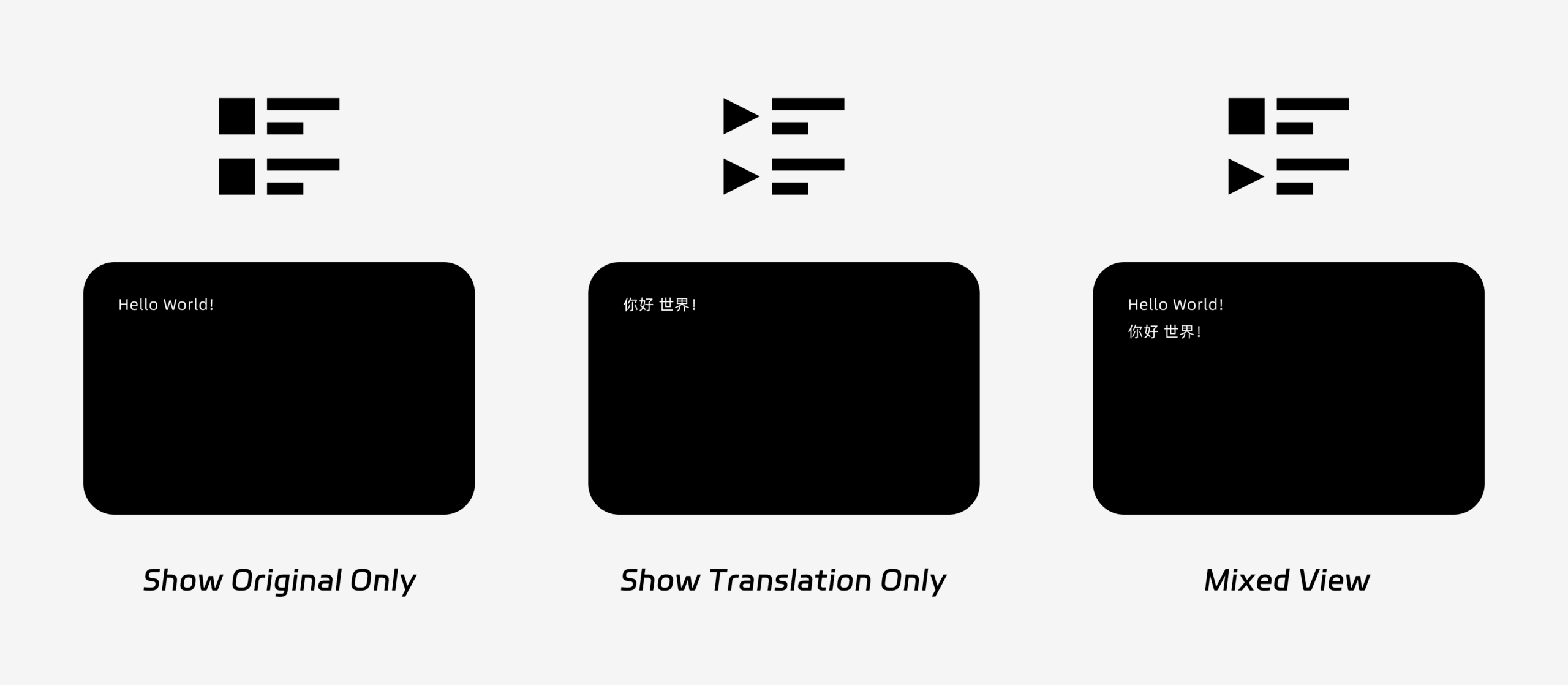
O PiP suporta três modos de exibição de legendas:
- Mostrar apenas o originalExibe apenas o texto original da fala.
- Mostrar somente a traduçãoExibe apenas o texto traduzido.
- Visão mistaExibe tanto o texto original quanto o texto traduzido.
Escolha o modo de exibição com base no seu caso de uso. Para reuniões, Mostrar somente a tradução Proporciona uma visualização mais clara. Para aprendizado de idiomas ou revisão bilíngue, Visão mista Pode ajudar você a comparar o texto original com o traduzido.
3. Ajustar o tamanho e a exibição da fonte #
Usar Tamanho da fonte Para facilitar a leitura das legendas na janela flutuante PiP.
No Windows e no macOS, você também pode ajustar a transparência da janela. Uma janela mais transparente ajuda a evitar que as legendas bloqueiem o conteúdo da reunião, os slides ou as telas compartilhadas. Uma janela menos transparente pode facilitar a leitura das legendas.
Se você também usa saída de voz durante a tradução, talvez queira saber mais sobre Como usar a reprodução de voz no Transync AI
4. Comece a usar o PiP #
Após configurar as definições de PiP, inicie uma tarefa de tradução como de costume.
Use o PiP no Windows ou macOS
Assim que as legendas forem geradas, clique em PiP Botão para abrir a janela flutuante de legendas. Você pode mover a janela PiP para uma posição conveniente na sua tela enquanto usa o Zoom, Microsoft Teams, Google Meet, navegadores, documentos ou outros aplicativos. A IA da Transync memoriza a última posição da janela PiP na área de trabalho, para que a janela de legendas possa reabrir onde você a deixou na próxima vez que usar o PiP.
Se precisar traduzir o áudio de uma reunião do seu computador, você também pode verificar Como compartilhar áudio do computador
Use o recurso PiP no iOS ou Android.
Em dispositivos móveis, o PiP pode ser iniciado manualmente ou automaticamente.
Se Ativar PiP automaticamente Se ativado, o recurso PiP será iniciado automaticamente quando você minimizar o aplicativo Transync AI durante uma tarefa de tradução ativa.
Se Ativar PiP automaticamente Se estiver desligado, toque no PiP Pressione o botão manualmente para abrir a janela flutuante de legendas.
Isso permite que você mantenha as traduções visíveis enquanto usa outros aplicativos móveis.
5. Quando o PiP não estiver disponível #
O recurso PiP não está disponível na versão Web do Transync AI. Para usar o PiP, utilize o aplicativo para Windows, macOS, iOS ou Android.
Se a janela PiP não aparecer, verifique se:
- Uma tarefa de tradução está em andamento.
- Você está usando uma plataforma compatível.
- Em dispositivos móveis, a opção "Ativar PiP automaticamente" é ativada se você quiser que o PiP inicie automaticamente.


