
La fonction de clonage vocal permet à Transync AI d'utiliser une voix plus proche de la vôtre lors de la lecture. Une fois activée, vous n'êtes plus limité aux voix prédéfinies, ce qui rend la lecture traduite plus naturelle et plus personnelle lors des conversations.
Avant de commencer, assurez-vous de bien savoir comment démarrer la traduction en temps réel et utiliser la lecture vocale:
- Démarrage rapide
- Comment démarrer la traduction en temps réel
- Comment utiliser la lecture vocale dans Transync AI
- Comment partager l'audio de l'ordinateur
Si vous souhaitez vérifier au préalable si une langue prend en charge la traduction, consultez Langues prises en charge
Voice Clone est actuellement pris en charge pour les langues suivantes:
- Chinois (mandarin)
- Anglais
- Espagnol
- russe
- italien
- Français
- coréen
- japonais
- Allemand
- portugais
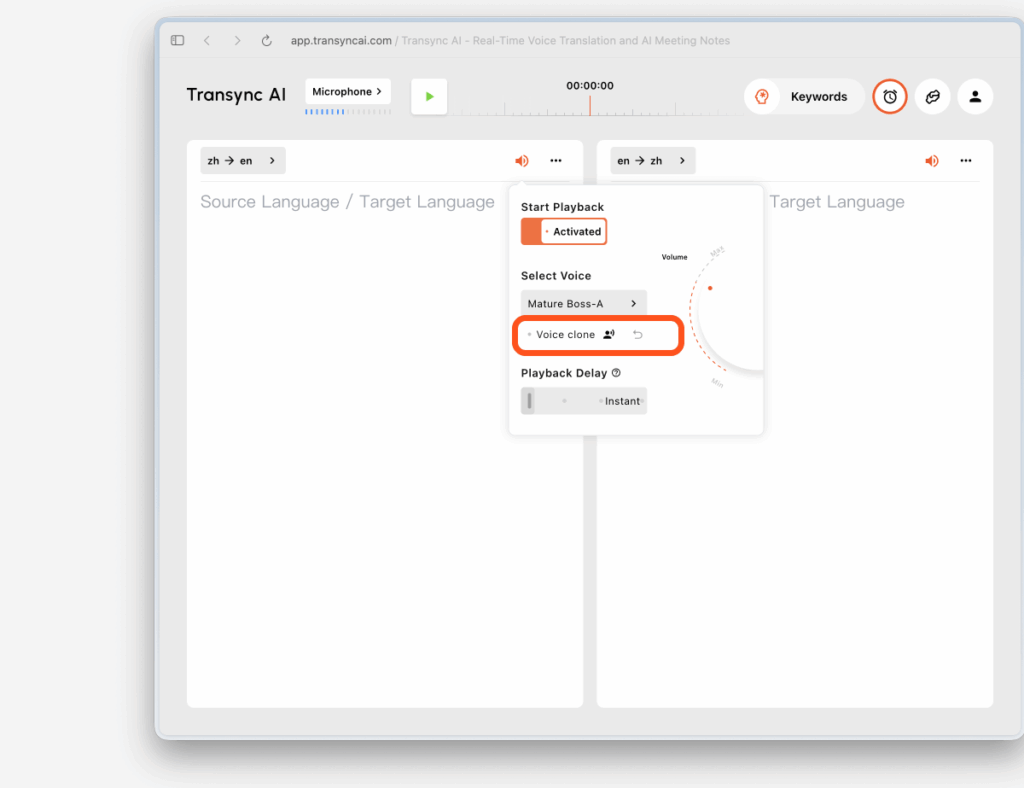
1. Activez la lecture vocale et le clonage vocal avant de commencer la traduction. #
Avant de commencer la traduction, ouvrez les paramètres de lecture vocale pour la langue cible et activez à la fois la lecture vocale et le clonage vocal.
Cela permet de mettre en place deux choses simultanément:
- La traduction sera lue avec la voix que vous avez sélectionnée.
- Voice Clone commencera à se préparer à enregistrer votre voix dès que la traduction débutera.
Si la langue actuelle prend en charge la fonction de clonage vocal, l'option correspondante apparaîtra dans les paramètres vocaux. Dans le cas contraire, l'option sera indisponible.
2. Lancez la traduction et laissez Voice Clone collecter votre voix. #
Une fois la traduction lancée, la lecture commencera avec la voix que vous avez sélectionnée dans les paramètres de lecture vocale.
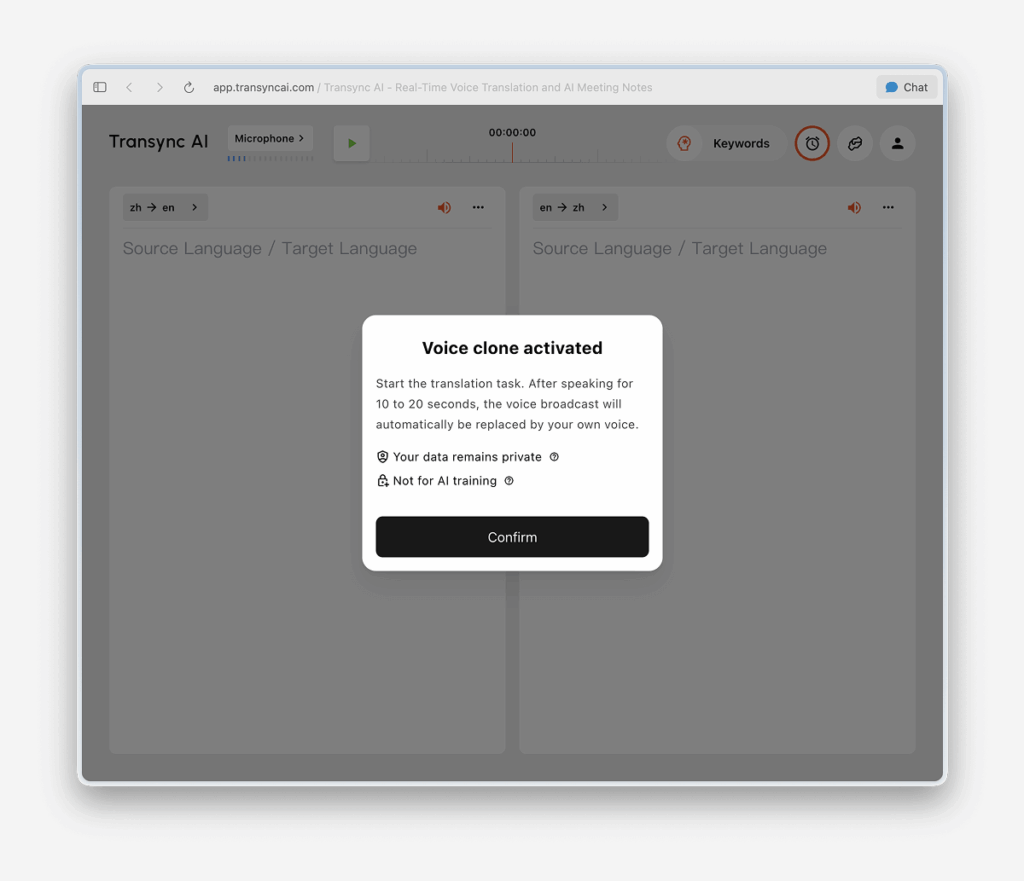
Dans le même temps, Voice Clone passera en mode collecte en arrière-plan. Continuez à parler naturellement pendant environ 10 à 20 secondes afin que Transync AI puisse enregistrer suffisamment de données vocales.
Pour un résultat optimal, nous vous recommandons de:
- Parlez sans interruption pendant 10 à 20 secondes au lieu de lire seulement une très courte phrase.
- Parlez à un rythme clair et naturel.
- Effectuez la première collecte dans un environnement relativement calme.
3. Attendez que la lecture bascule sur votre voix clonée. #
La fonction de clonage vocal n'est pas immédiate. Pendant la période de collecte, la lecture traduite continuera d'utiliser la voix sélectionnée.
Au bout de 10 à 20 secondes environ, vous verrez apparaître un message:
La lecture utilise désormais votre voix clonée.
Cela signifie que l'enregistrement de la voix est terminé et que la lecture est désormais basée sur votre voix clonée.
Si la commutation ne s'effectue pas comme prévu, essayez ce qui suit:
- Maintenez la session de traduction en cours.
- Continuez à parler encore un peu.
- Assurez-vous que votre microphone fonctionne correctement et que le bruit de fond est limité.
- Réessayez Voice Cloner si nécessaire
4. Utilisez votre voix clonée lors des prochaines réunions. #
Une fois le clone vocal collecté avec succès, vous n'aurez plus besoin de le collecter lors de votre prochaine réunion.
Lors des prochaines réunions, vous pourrez activer la lecture vocale et utiliser directement votre voix clonée existante sans avoir à répéter la procédure de configuration.
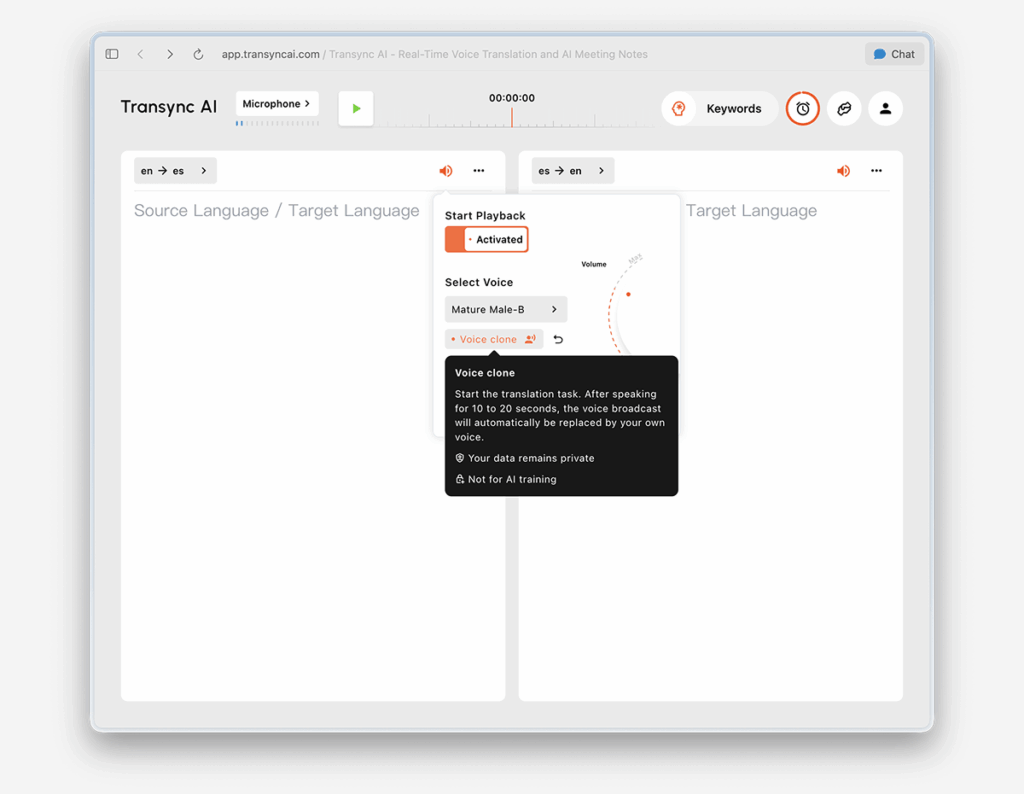
5. Utilisez-le dans les langues prises en charge. #
Une fois Voice Clone créé avec succès, il peut être utilisé dans d'autres langues compatibles avec cette fonctionnalité. Dans la plupart des cas, il n'est pas nécessaire de répéter le processus de création pour chaque langue cible prise en charge.
Cela permet de garantir une expérience vocale plus cohérente lors du passage d'une langue prise en charge à une autre.
6. Les langues non prises en charge apparaîtront comme indisponibles. #
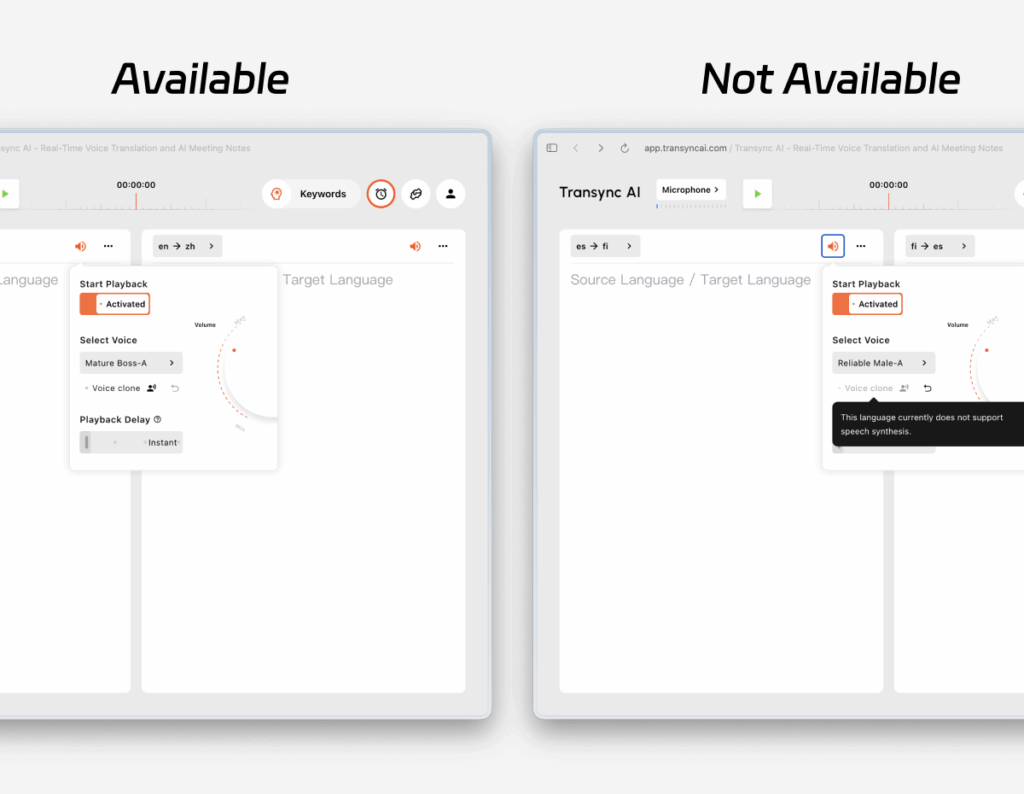
La fonction de clonage vocal n'est pas disponible pour toutes les langues. Pour les langues non prises en charge, l'option de clonage vocal apparaîtra désactivée, généralement avec une opacité réduite.
Lorsque vous survolez l'option désactivée, Transync AI affiche un message expliquant que la fonction de clonage vocal n'est pas prise en charge pour cette langue. Vous pouvez toujours utiliser la lecture vocale classique, mais votre voix clonée ne sera pas encore disponible pour cette langue.
7. Réinitialiser le clone vocal #
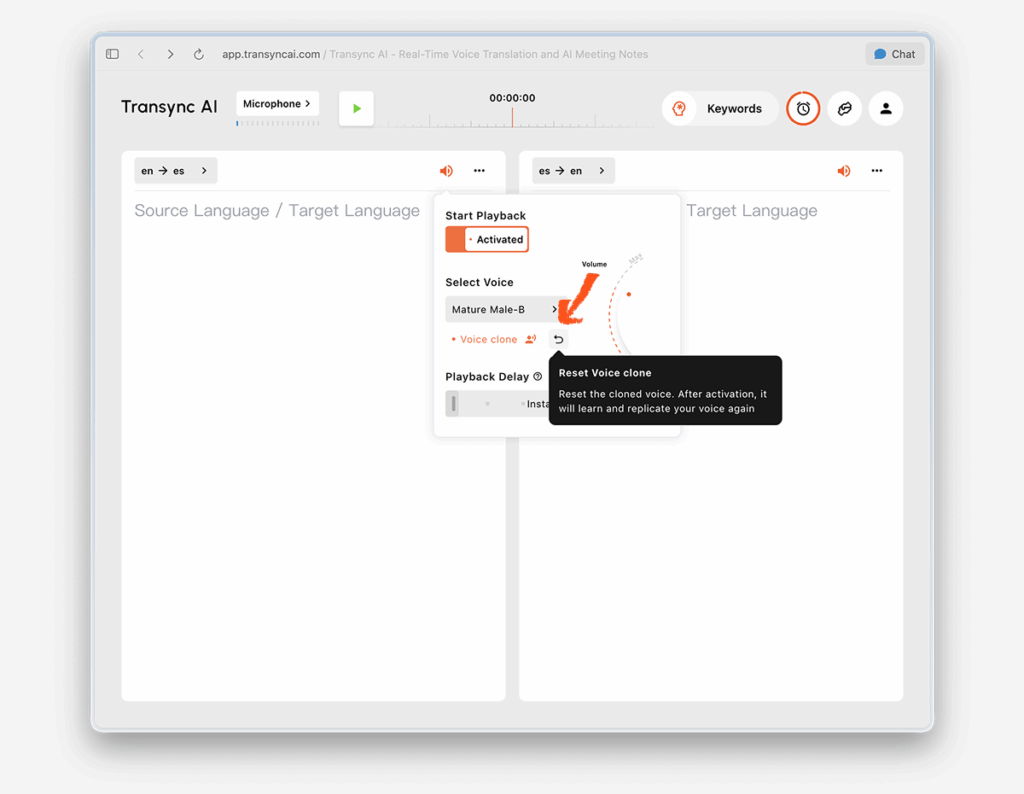
Si vous souhaitez supprimer le résultat actuel et en obtenir un nouveau, cliquez sur Réinitialiser le clone vocal.
La réinitialisation supprime votre voix clonée existante. Ensuite, lors de votre prochaine utilisation de Voice Clone, Transync AI enregistrera à nouveau votre voix et créera une nouvelle voix clonée.
Ceci est utile si vous souhaitez améliorer le résultat ou refaire la configuration dans un environnement plus calme.
Confidentialité #
D’après la communication actuelle sur le produit, Voice Clone est conçu selon les principes suivants:
- Vos données vocales restent confidentielles.
- Vos données vocales ne sont pas utilisées à des fins d'entraînement.
Pour en savoir plus, consultez:
FAQ #
Voice Clone fonctionne-t-il immédiatement? #
Non. Lors de la première utilisation, Transync AI a généralement besoin de 10 à 20 secondes pour enregistrer votre voix. Pendant ce temps, la lecture se poursuit avec la voix que vous avez sélectionnée. Une fois l'enregistrement terminé, le message « La lecture utilise désormais votre voix clonée » s'affichera.
Dois-je cloner ma voix séparément pour chaque langue? #
Généralement non. Une fois la configuration réussie, votre voix clonée peut être réutilisée lors de réunions ultérieures et dans d'autres langues prenant en charge le clonage vocal.
Que se passe-t-il si une langue ne prend pas en charge Voice Clone? #
Vous pouvez toujours utiliser la lecture vocale standard pour cette langue. La fonction Voice Clone n'y sera simplement pas encore disponible.
Voice Clone est actuellement disponible en chinois (mandarin), anglais, espagnol, russe, italien, français, coréen, japonais, allemand et portugais.
Et si je veux enregistrer ma voix à nouveau? #
Utilisez la fonction « Réinitialiser le clone vocal » pour supprimer le clone actuel. Ensuite, suivez à nouveau la procédure de création pour en créer un nouveau.


