
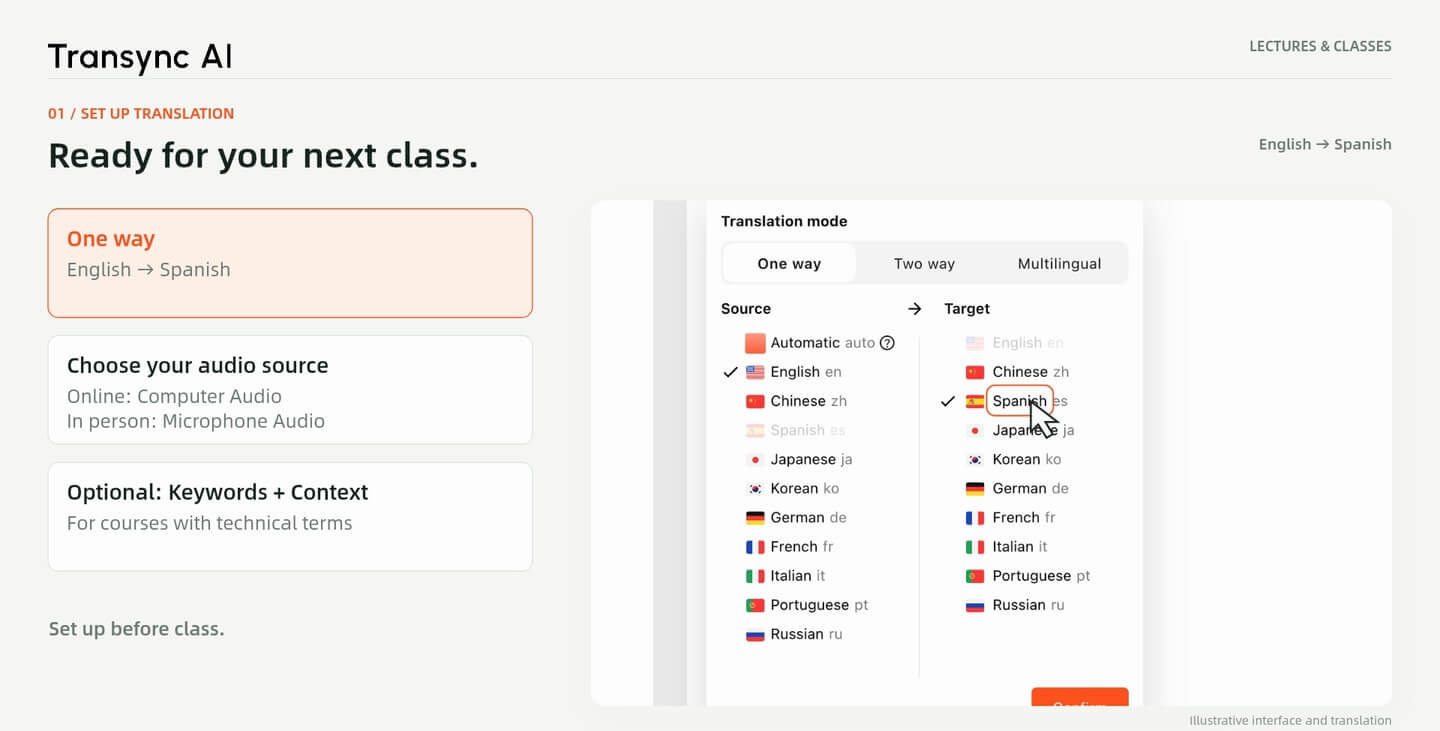
1. Choose your languages
Select One way, then choose the language of the lecture and the language you want to read.
Use lecture translation to follow online and in-person classes with real-time bilingual text. Add course terminology before class, then review the saved transcript, generate a summary and export your notes afterward.
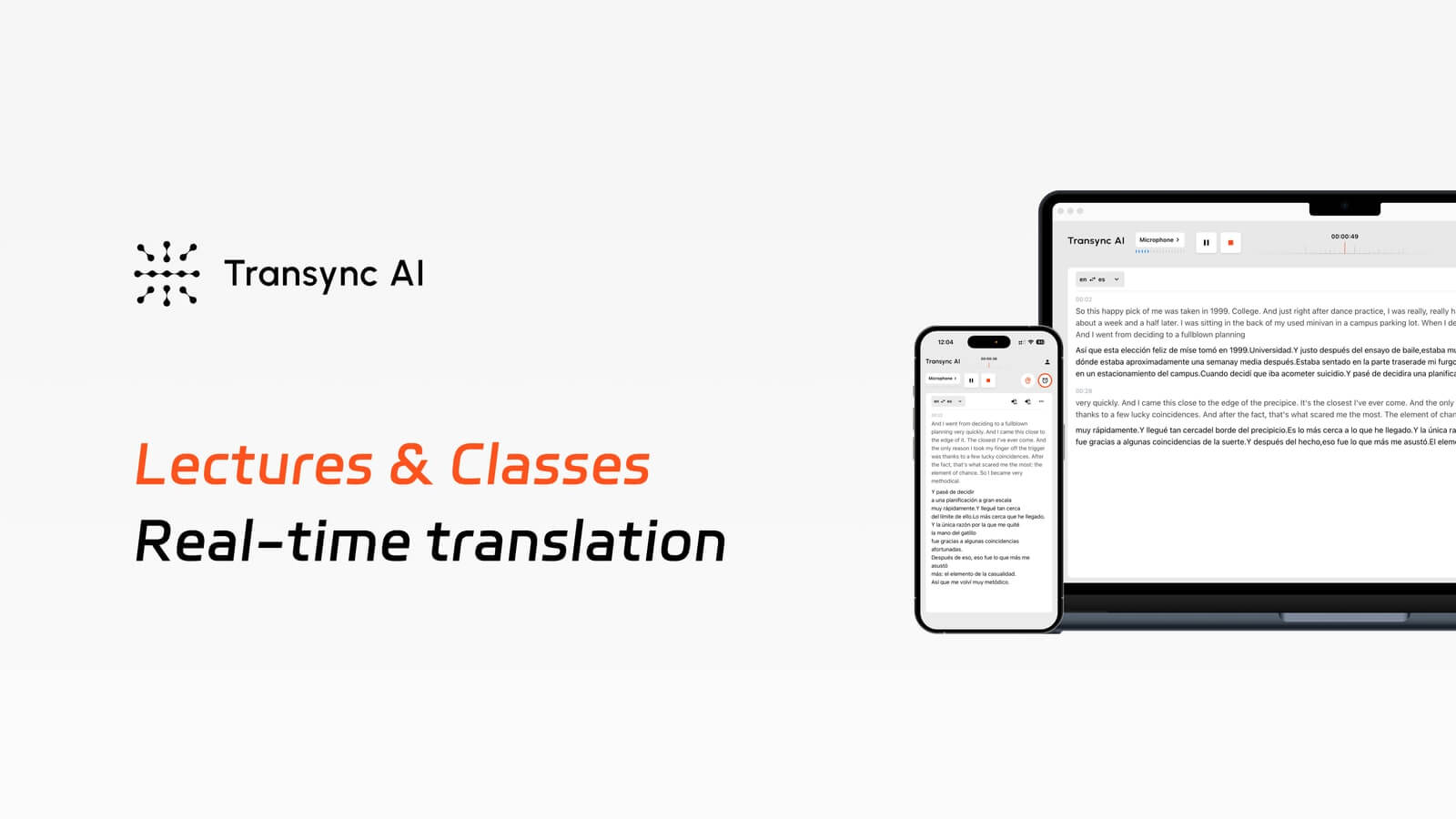
English → Spanish · Video walkthrough of lecture setup, summaries and note export. Interface demonstrations and illustrative translation. Watch on YouTube.
The lecture keeps moving
When you stop to look up a phrase, the next explanation may already be underway. Read translated text alongside the original speech.
Every subject has its own vocabulary
Technical terms and course-specific names need context. Prepare the terms you expect before class starts.
Understanding in class is only half the work
Return to the saved transcript after class, summarize the key points and keep a copy for revision.
Guía de configuración
Set up before class. This example uses One way translation from English to Spanish.
1. Choose your languages
Select One way, then choose the language of the lecture and the language you want to read.
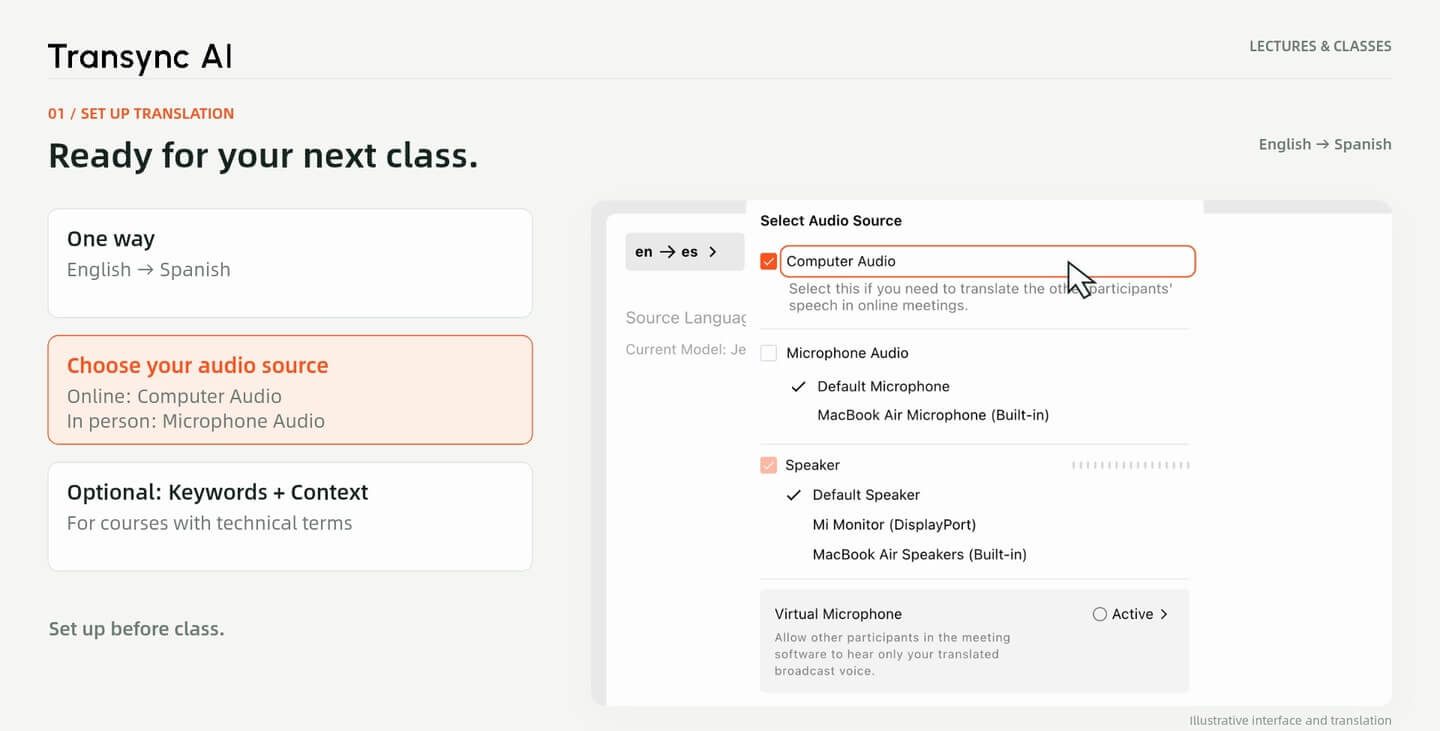
2. Select the audio source
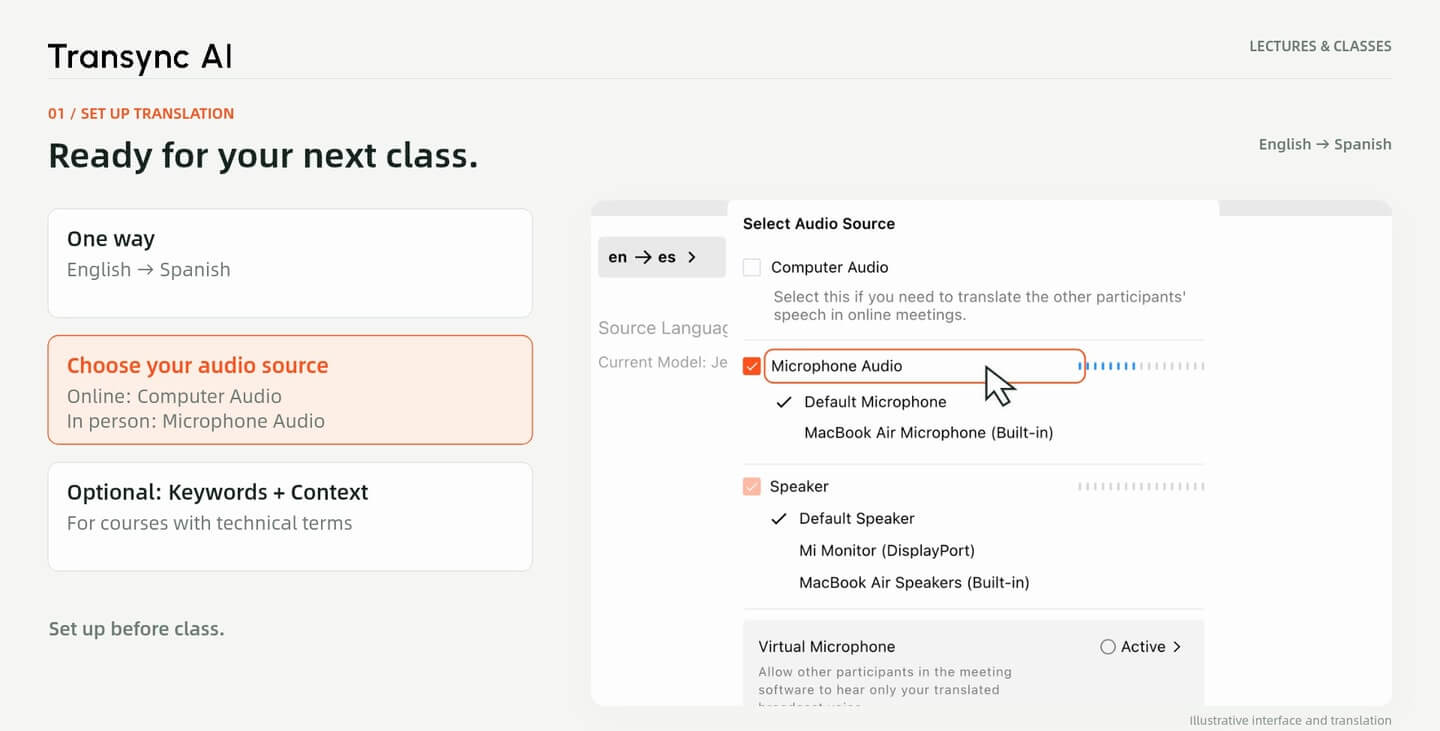
Choose Computer Audio for an online class, or Microphone Audio when you are attending in person.
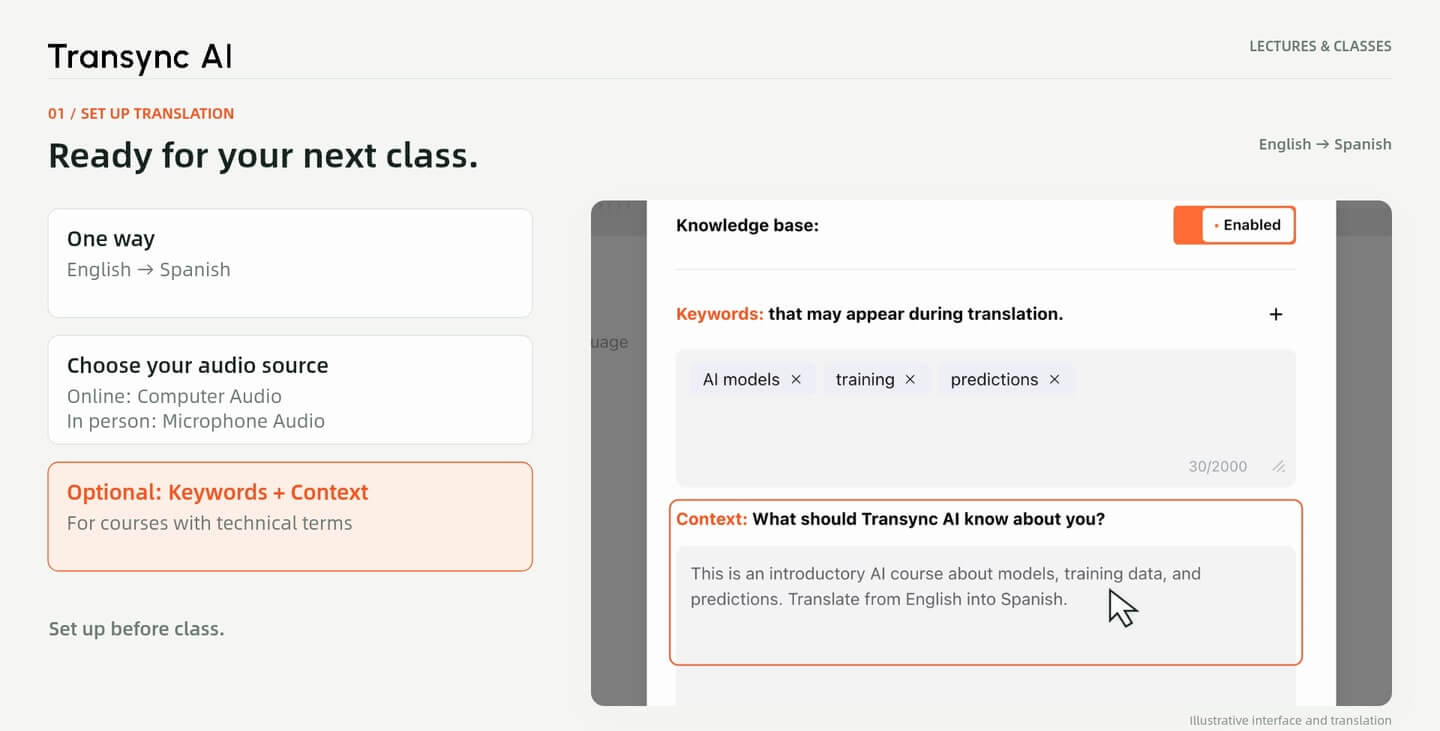
3. Add course context
For technical subjects, optionally add Keywords and Context in AI Assistant before the lesson.
4. Start translation
Start translating when the lesson begins. Follow the original text and translation as the lecturer speaks.
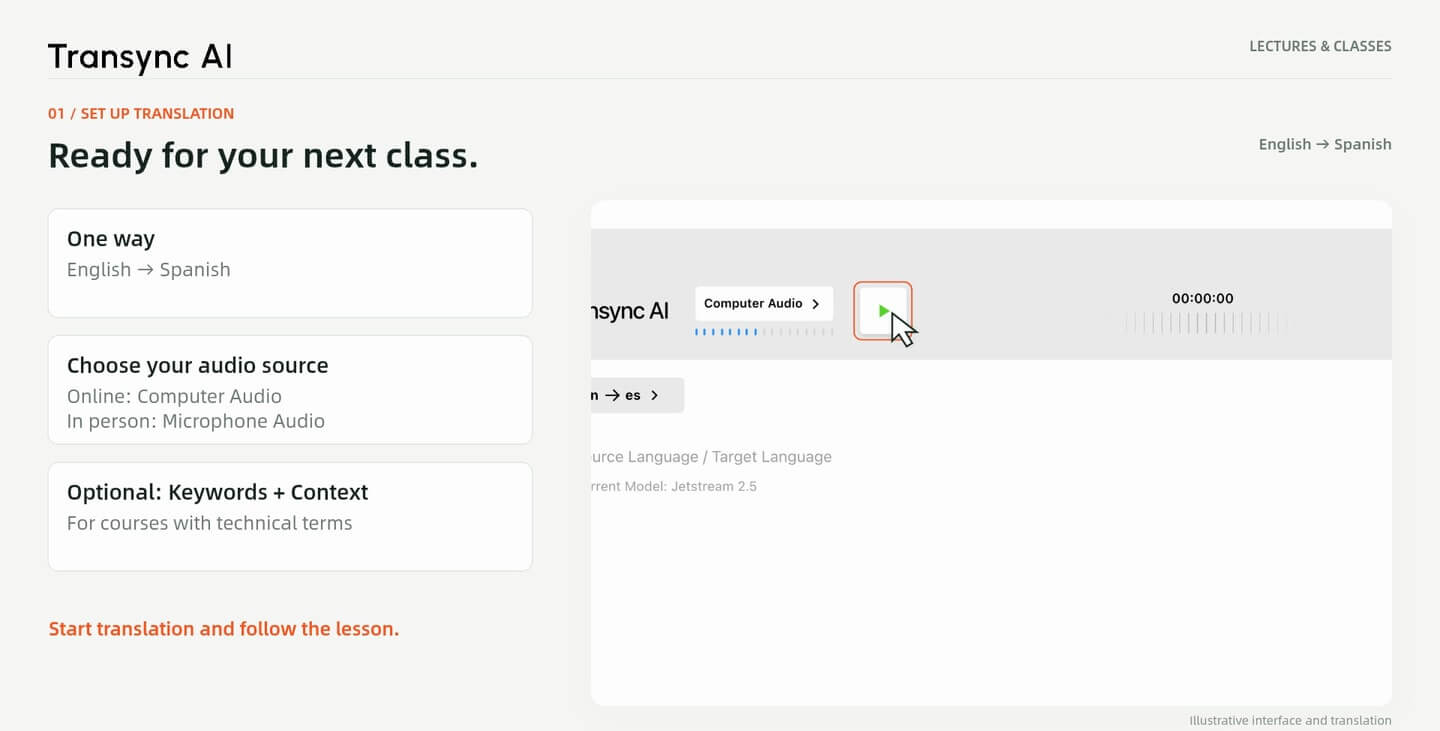
Play the class on your computer and select Audio de computadora in Transync AI. Choose your language pair, then start translation.
Follow the lesson with the original text and translation while the course audio plays.
Elegir Microphone Audio to translate speech from the classroom. Select the lecture language and your preferred translation language before starting.
Use a microphone that can pick up the lecturer clearly, and follow the class or venue’s rules for audio capture.
Add course vocabulary under Palabras clave and a short description of the subject under Contexto.
For example, the walkthrough prepares terms such as “AI models,” “training” and “predictions” for an introductory AI lesson.
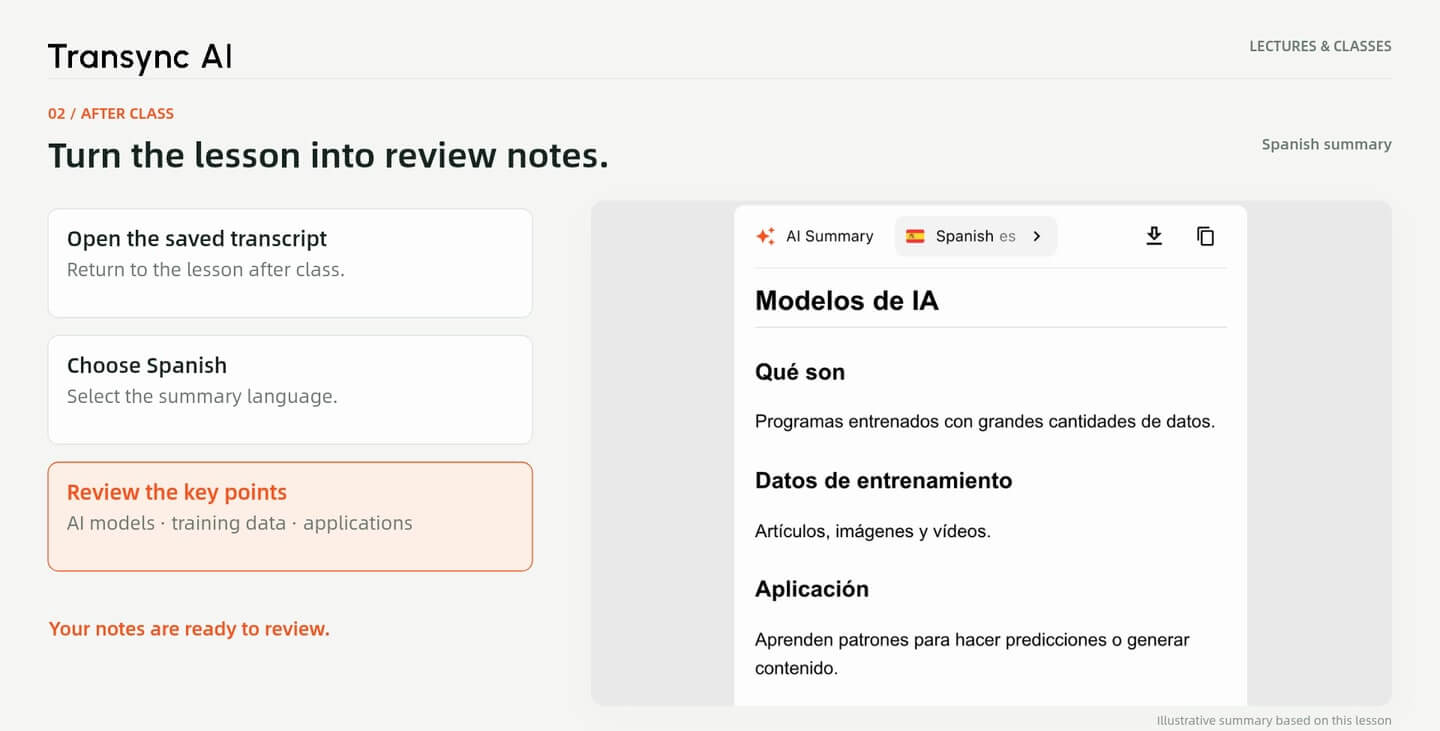
When class ends, open the saved transcript. Choose the summary language and start Resumen de IA.
The example creates a Spanish summary. Review the key points alongside the transcript, and check important details against your course materials.
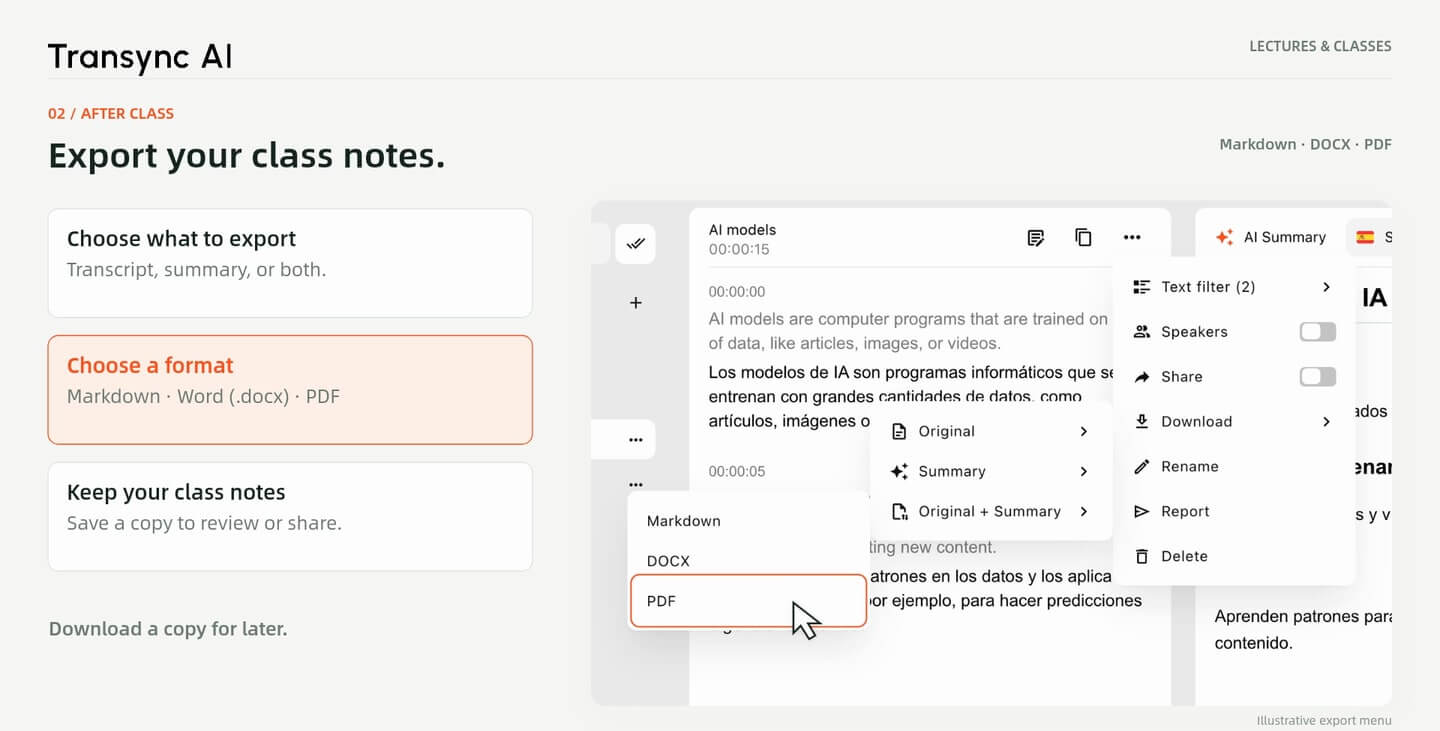
Open the transcript’s More → Download menu. Choose Original, Resumen o Original + Summary.
Save the content as Markdown, Word (.docx) o PDF for later review.
Frames from the Lecture V7 walkthrough. Interface, translation, summary and export screens are illustrative demonstrations.
Set up Transync AI before your next class, then return to the transcript and summary when it is time to revise.
Respuestas rápidas
Audio setup, course vocabulary and notes for after class.
Yes. Use Computer Audio for a class playing on your computer, or Microphone Audio for a lecture you attend in person.
The lecture walkthrough uses One way: from the lecturer’s language to your preferred reading language. The example is English to Spanish.
No. This is an optional setup step for subjects with technical terms or course-specific vocabulary.
Open the saved transcript after class. You can revisit the text and generate a summary in your selected summary language.
Choose Original, Summary or Original + Summary in the Download menu. The walkthrough shows Markdown, DOCX (Word) and PDF formats.
AI output can contain errors, especially with unclear audio or unfamiliar terms. Check important details against the original lecture and course materials.
Choose an available source and target language in Transync AI. The walkthrough uses English and Spanish; see the supported languages page for the current options. View supported languages.