
Transync AIとは何ですか?
Transync AIのピクチャーインピクチャー機能は、ユーザーが会議に参加したり、プレゼンテーションを視聴したり、共有コンテンツを閲覧したり、他のアプリを使用したりしている間も、バイリンガル字幕を画面上に表示し続けるため、ウィンドウを切り替えることなく翻訳内容を確認できます。.
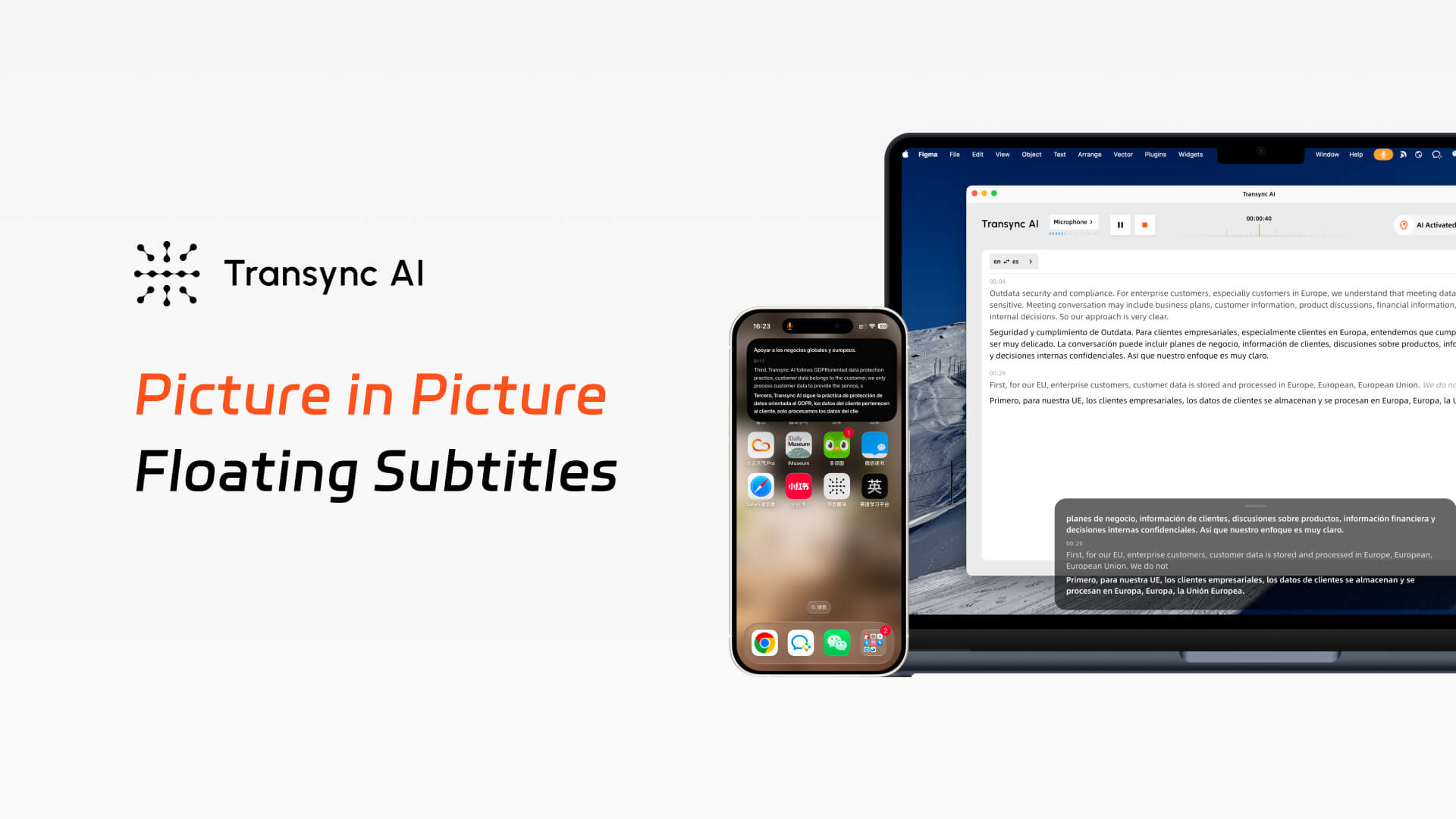
Transync AI のピクチャーインピクチャー字幕機能を使えば、元の音声と翻訳されたテキストをコンパクトなフローティングウィンドウに表示できます。デスクトップでスライドプレゼンテーションを行っている場合でも、モバイルでアプリを切り替えている場合でも、ワークフローを中断することなくリアルタイム翻訳を表示し続けることができます。
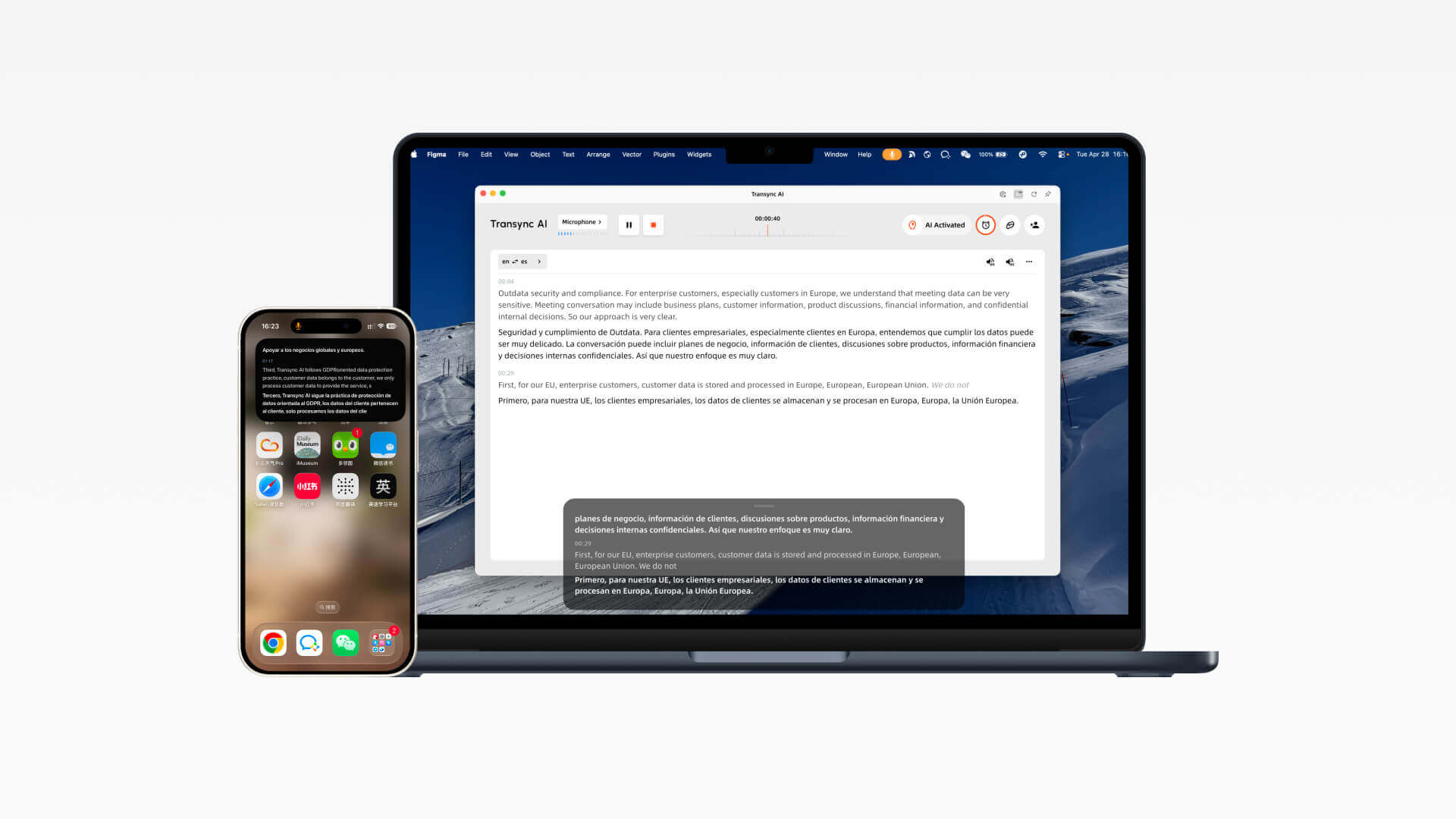
フローティング字幕ガイド
翻訳タスクの開始後に、フローティング字幕をオンにします。デスクトップでは、字幕ウィンドウは他のアプリの上に表示されます。iOSでは、手動で開くことも、Transync AIがバックグラウンドで実行されているときに自動的に表示することもできます。
1. MacまたはWindowsでTransync AIを開き、言語ペアを選択して、リアルタイム翻訳タスクを開始します。
2.タスクが開始されたら、インターフェースの右上隅にあるピクチャーインピクチャーコントロールをクリックして、フローティング字幕を有効にします。
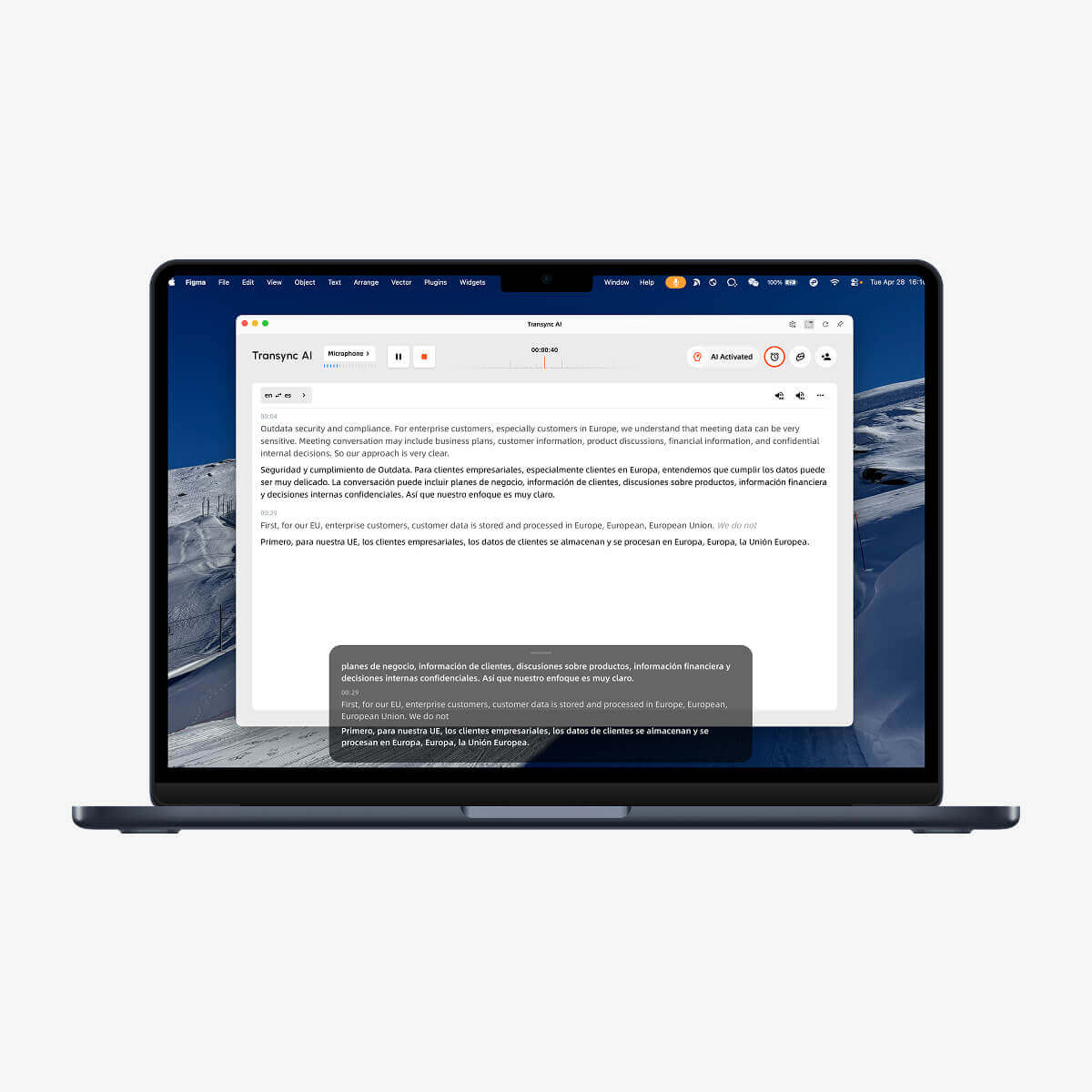
3.アプリの上に黒いフローティング字幕ウィンドウが表示され、そのまま表示されるため、スライドのプレゼンテーションやウィンドウの切り替え中も翻訳された字幕が表示され続けます。
4. iOSでは、翻訳バーの右上隅にあるコントロールをタップするか、Transync AIをバックグラウンドに移動して、システムが自動的にフローティングキャプションウィンドウを開くようにします。
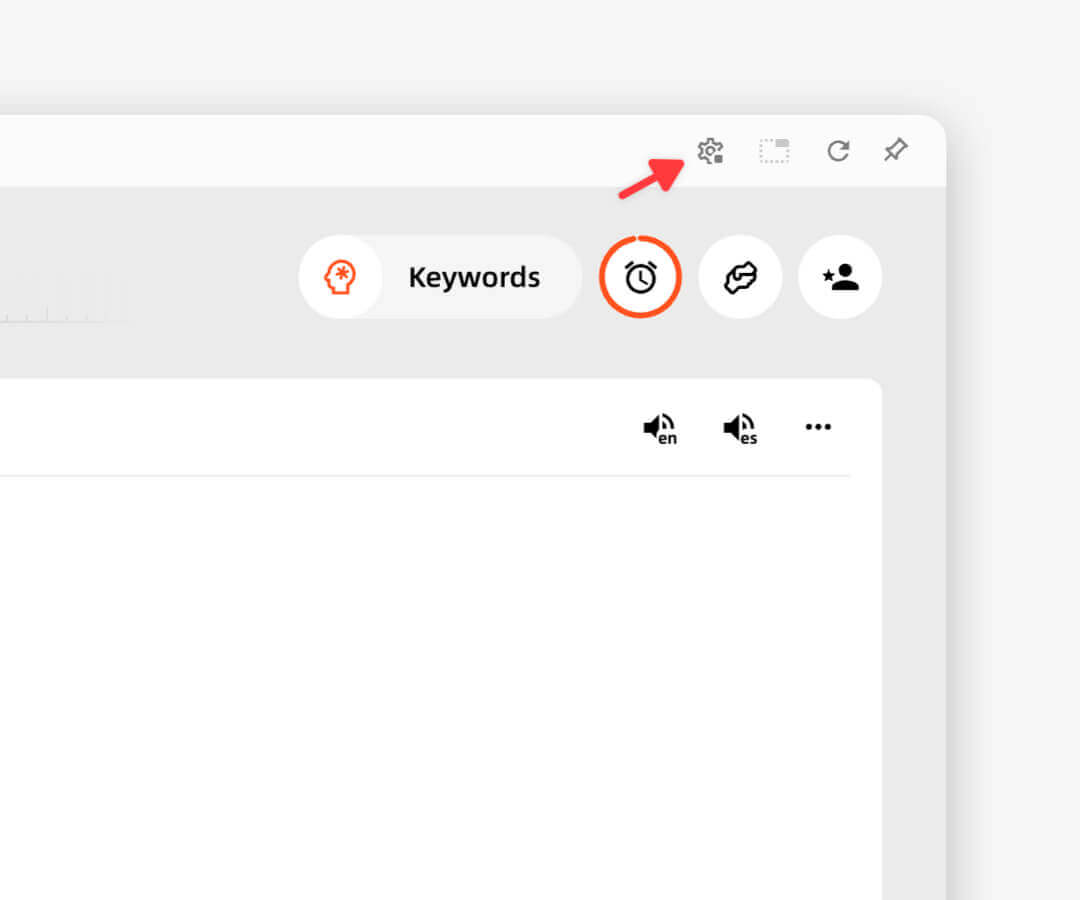
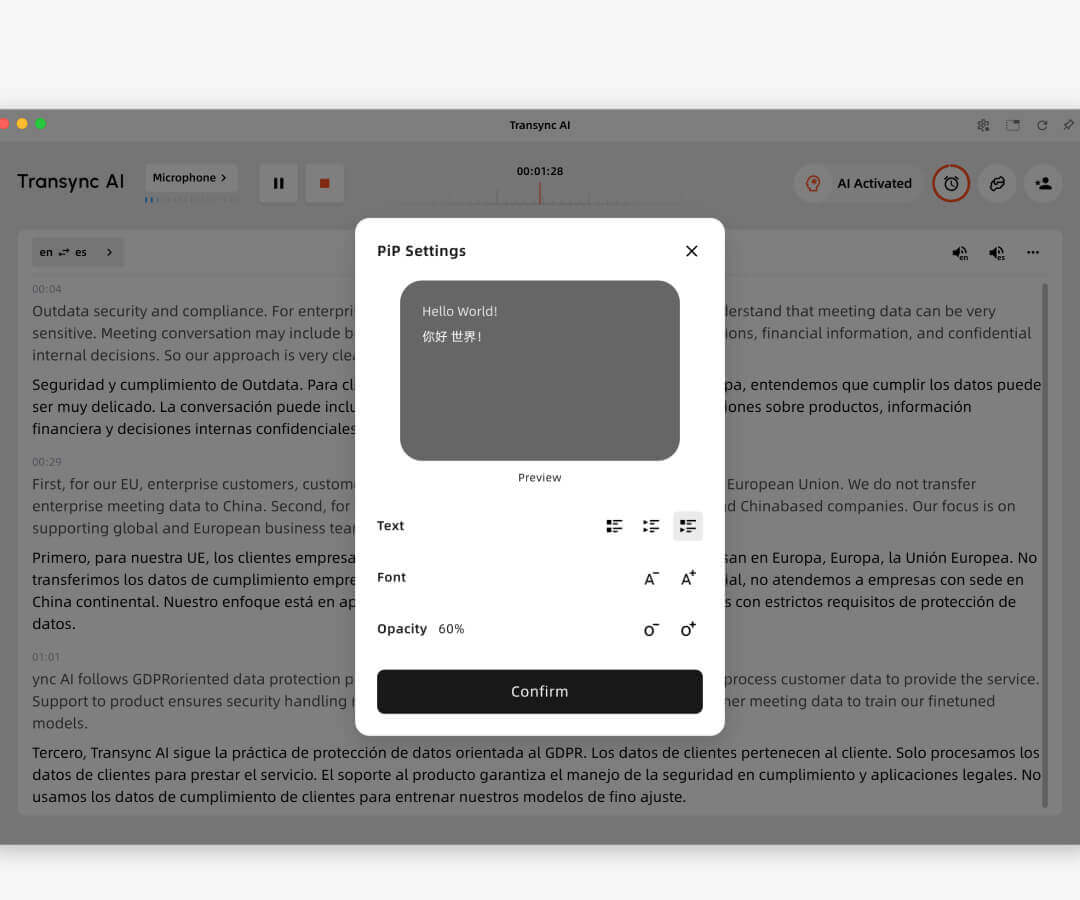
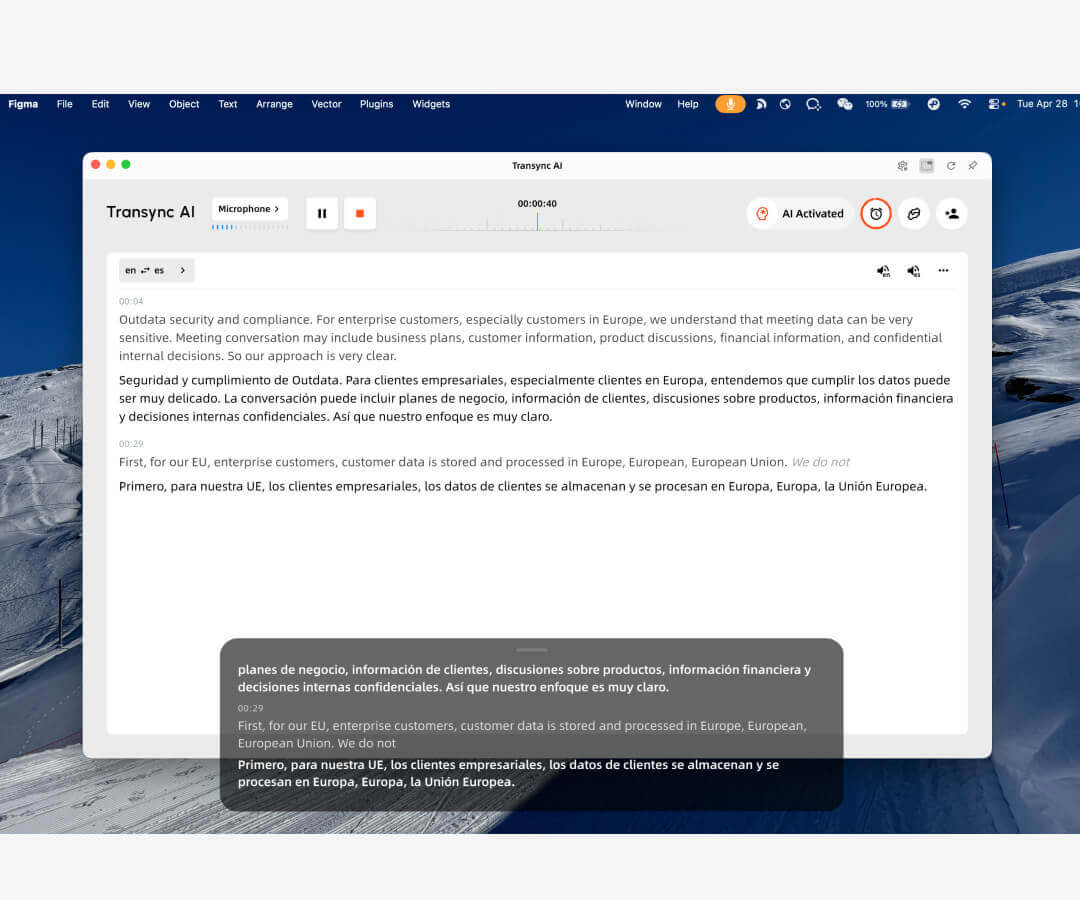
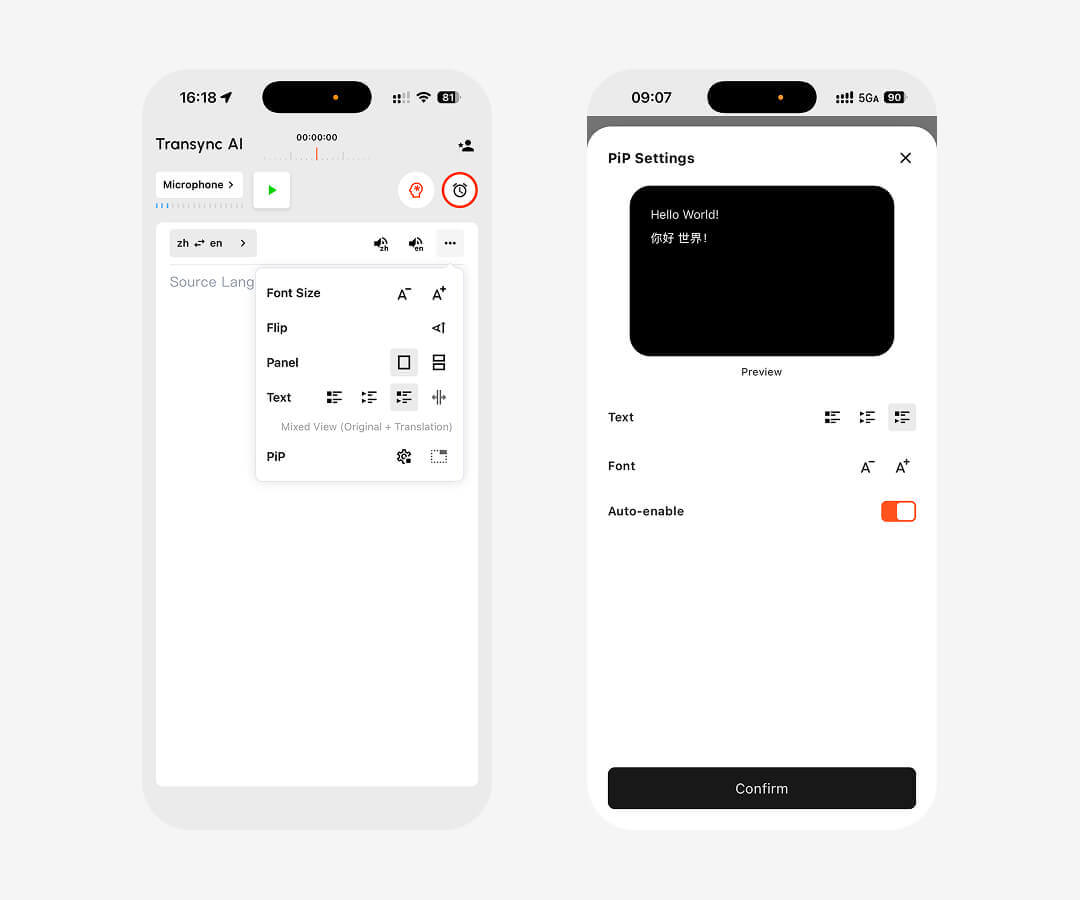
デスクトップ版では、翻訳作業開始後、右上隅からピクチャーインピクチャー字幕を有効にできます。フローティング字幕ウィンドウは現在使用しているアプリの上に表示され、必要に応じてウィンドウから直接翻訳を一時停止または再開できます。Transync AIは最後に使用したPiPウィンドウの位置を記憶するため、ワークスペースを再調整することなく、プレゼンテーション、デモ、多言語での議論などを継続できます。
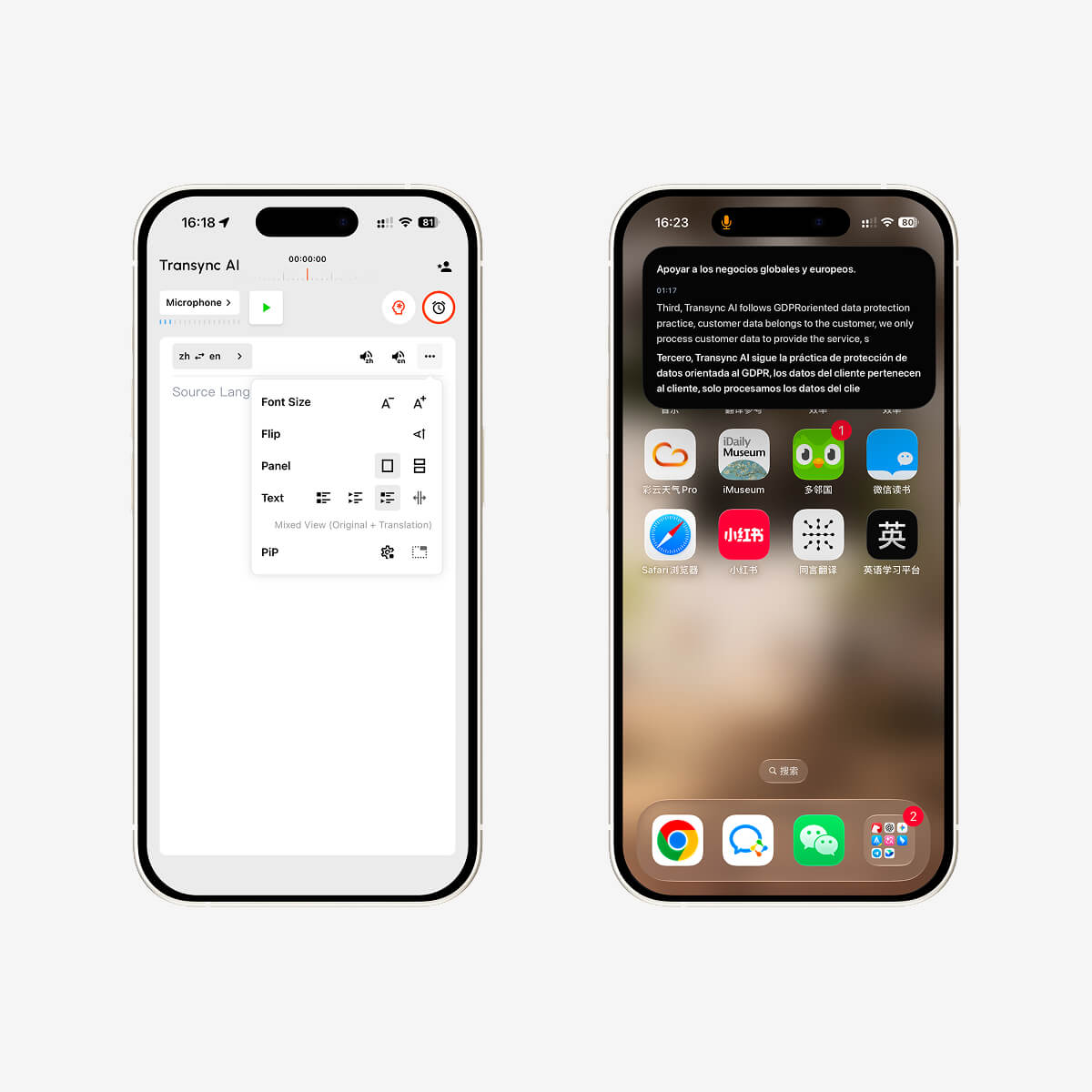
iPhoneでは、翻訳バーの右上隅からフローティング字幕ウィンドウを起動できます。Transync AIをバックグラウンドにすると、iOSは自動的にフローティングウィンドウを開き、原文と翻訳内容をリアルタイムで表示します。
Transync AIは現在、Mac、Windows、iOSでピクチャーインピクチャーのフローティング字幕に対応しています。デスクトップではプレゼンテーションや会議中に、iPhoneではアプリを切り替えたり、翻訳をコンパクトなフローティングウィンドウに表示させたりする際に使用できます。
Transync AIで翻訳タスクを開始し、デスクトップインターフェースの右上隅にあるピクチャーインピクチャーボタンをクリックします。すると、黒いフローティング字幕ウィンドウが表示され、他のアプリの上に表示されたままになります。
iOSで翻訳タスクを開始したら、翻訳バーの右上隅にあるピクチャーインピクチャーコントロールをタップしてください。Transync AIをバックグラウンドに移動させると、システムがリアルタイムで原文と翻訳文を表示するフローティングウィンドウを自動的に表示します。
フローティング字幕はスライドやデモ画面の上に常に表示されるため、Transync AIに頻繁に切り替えることなく、バイリンガル字幕を表示し続けることができます。これにより、翻訳を常に確認しながら、プレゼンテーション、授業、多言語での会話などをより簡単に行うことができます。
はい。iOSでは、フローティングウィンドウに元の音声テキストと翻訳されたコンテンツの両方をリアルタイムで表示できます。デスクトップ版では、フローティング字幕ウィンドウは、翻訳された字幕を他のアプリの上に常に鮮明に表示するように設計されています。
作業場所を問わず、リアルタイム翻訳を常に表示できます。Mac、Windows、またはiOSにTransync AI をダウンロードし、翻訳タスクを開始して、会議、プレゼンテーション、通話、日常の多言語コミュニケーションでピクチャーインピクチャーのフローティング字幕を有効にしましょう。
フローティング字幕、会議、プレゼンテーション、モバイル利用、プライバシー、プラットフォーム、対応言語に関する簡潔な回答。.
Transync AIのピクチャーインピクチャー機能は、ユーザーが会議に参加したり、プレゼンテーションを視聴したり、共有コンテンツを閲覧したり、他のアプリを使用したりしている間も、バイリンガル字幕を画面上に表示し続けるため、ウィンドウを切り替えることなく翻訳内容を確認できます。.
会議、プレゼンテーション、画面共有、モバイルでの会話、オンライン授業、そしてユーザーが別のアプリや画面に集中しながら翻訳された字幕を表示する必要があるワークフローに最適です。.
人間の通訳者は、重大な法的、医療、または公式なイベントに最適です。一方、Transync AIは、スピード、可用性、低コストが重要な、頻繁な会議、オンライン通話、授業、日常的な多言語コミュニケーションに適しています。.
会議の字幕は通常、特定の会議プラットフォーム内でのみ表示されます。Transync AIは複数の会議アプリに対応し、バイリンガル字幕、音声再生、会議メモ、翻訳された音声出力のための仮想マイクサポートを追加します。.
Transync AIは、ビジネスコミュニケーションとプライバシーを重視するワークフロー向けに設計されています。顧客データは翻訳サービスを提供するために処理され、AIの学習には使用されません。Voice Cloneも、学習のために元の録音データを保存することはありません。.
Transync AIは、macOS、Windows、iOS、Android、ブラウザベースのユースケースを含む、デスクトップ、モバイル、Webワークフローをサポートしています。Zoom、Microsoft Teams、Google Meet、WhatsApp通話、対面会議などでも使用できます。.
Transync AIは、中国語、英語、日本語、韓国語、広東語、ドイツ語、フランス語、ロシア語、イタリア語、スペイン語など、60以上の言語に対応したリアルタイム翻訳を提供しています。.