
How to Share Computer Audio #
To ensure Transync AI can translate every participant in your meeting, you need to share your computer’s system audio. This allows Transync AI to capture voices not only from your microphone but also from Zoom, Teams, or Google Meet.You can visit our official website to learn more.
1. Enable “Computer Audio” in Transync AI #
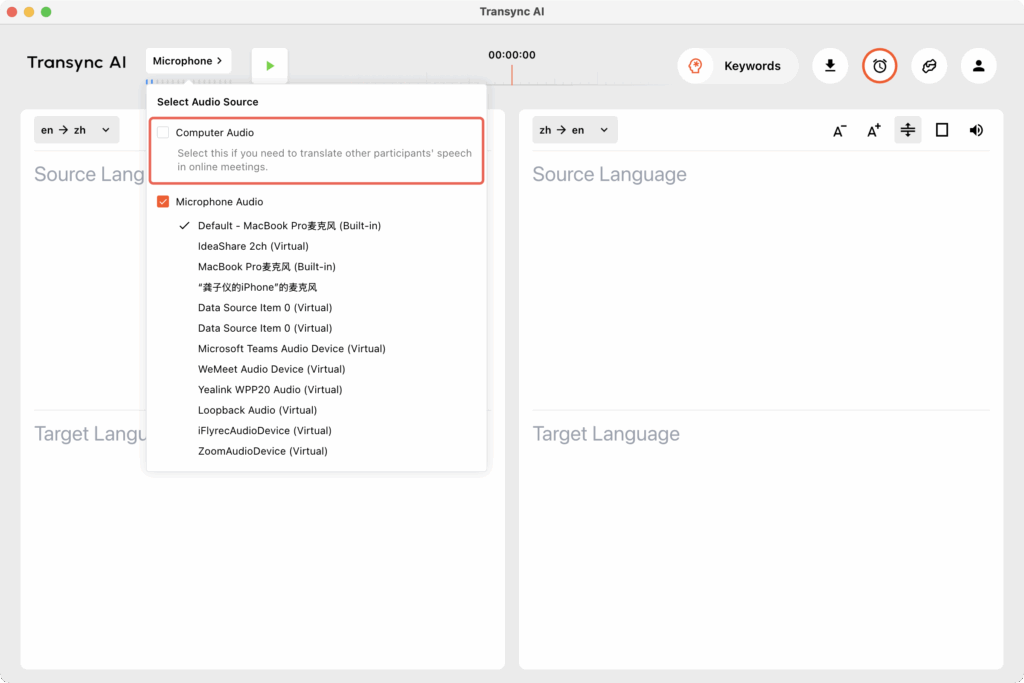
Before you start translation, open the Transync AI app and check “Computer Audio.”
This ensures meeting sound is captured directly from your device for translation.
For desktop app (MacOS,Win) #
For the web app #
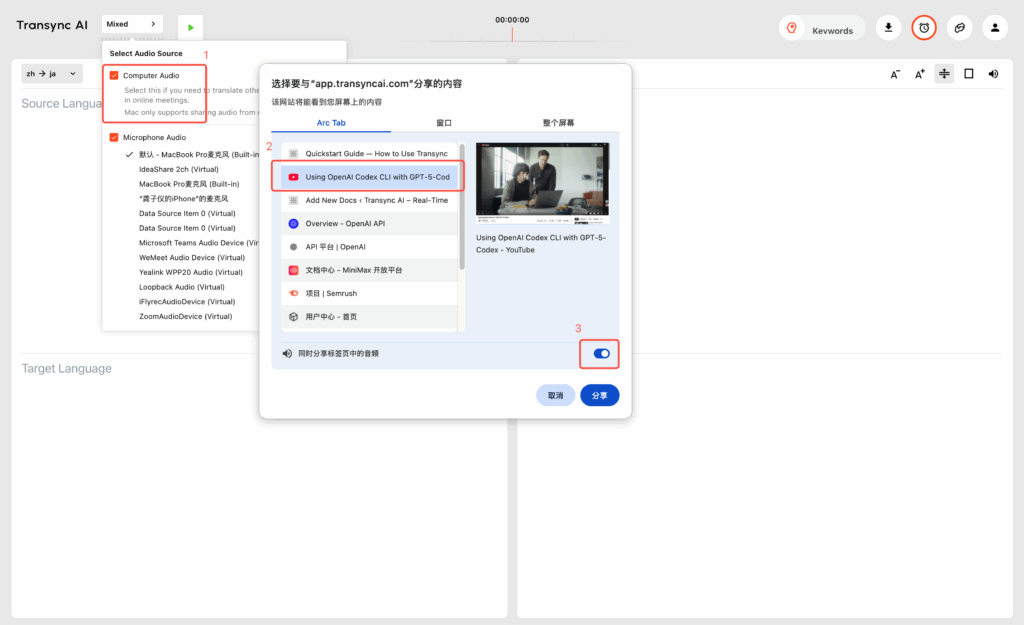
The web version only supports sharing the sound from browser tabs, so if you need to capture audio from videos or conferencing software, please ensure that the video and conferencing software are also using the web version. Click on the corresponding tab and select “Share computer sound simultaneously.”
For mobile applications #
At the moment, mobile system audio sharing is not fully supported. On some phones, floating window mode may help capture audio more directly.
2. Confirm Your Input and Output Devices #
Make sure your computer’s input and output devices are set correctly:
- Input = the microphone you are actually using
- Output = the speaker or headphones you are actually using
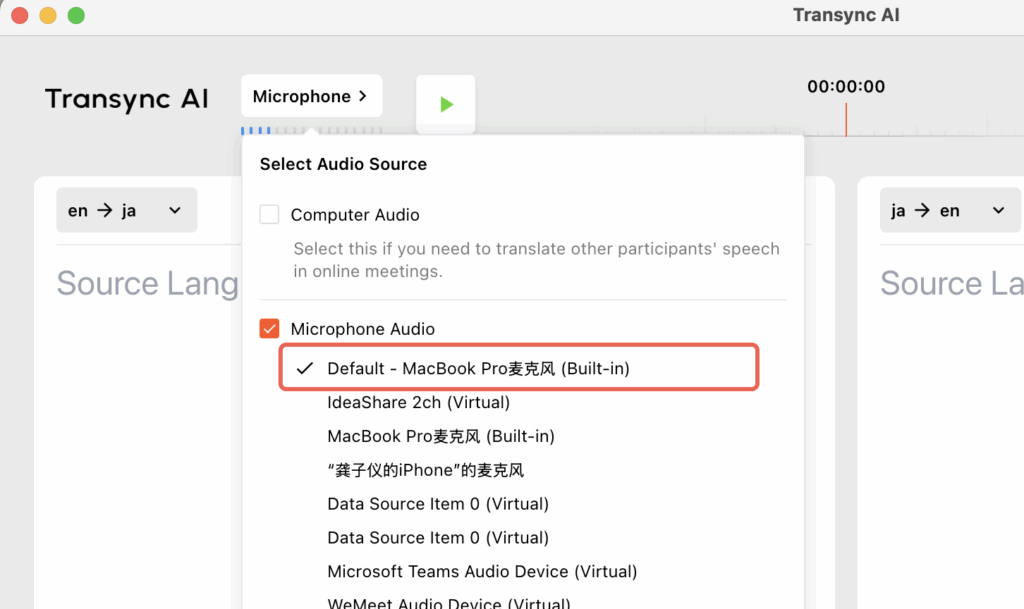
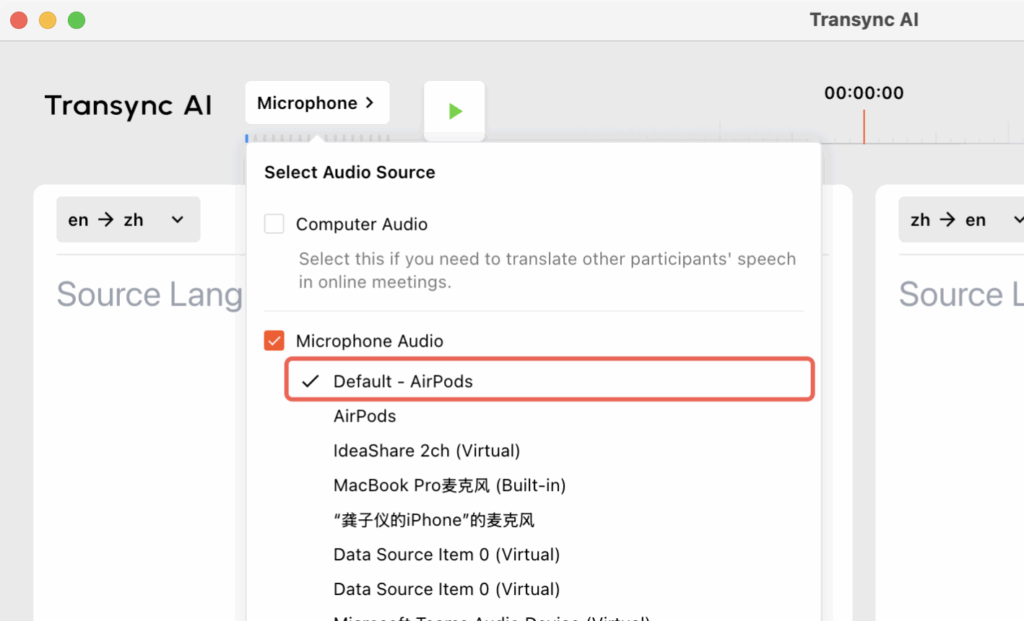
It’s also important that the microphone selected in Transync AI matches your computer’s current audio settings.
3. Start Translation #
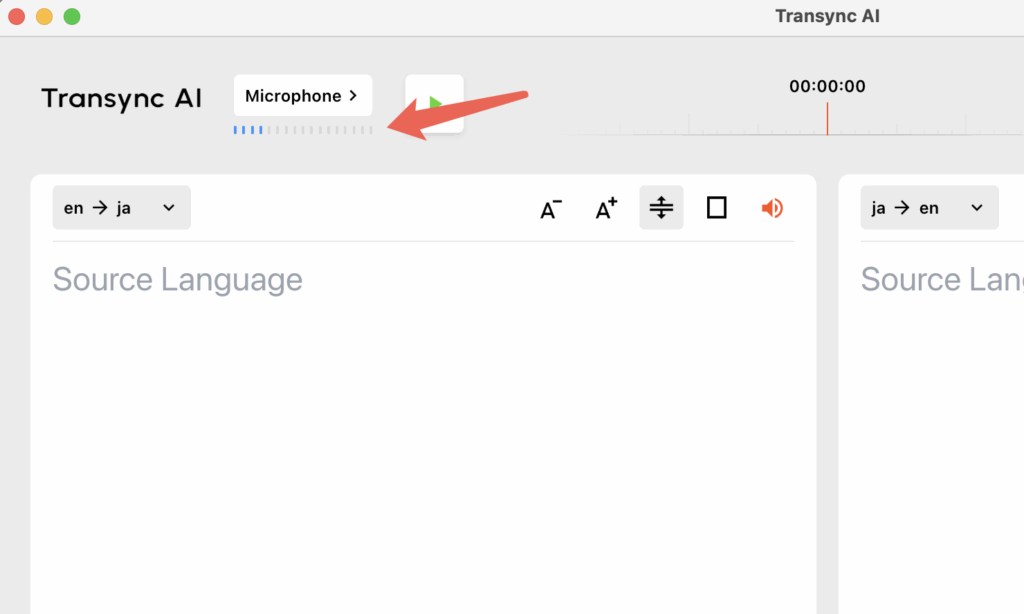
You can check if the microphone is working in Transync AI. Generally, if Transync AI can receive sound from the microphone, there will be a blue square fluctuating under the microphone selection button.
You can start translating after the computer audio has been shared and the language pair has been confirmed.
Want translated speech to be played out loud instead of only showing subtitles? Learn how to enable voice playback, choose a voice, and adjust playback delay in our guide: How to Use Voice Playback in Transync AI
4. Troubleshooting #
If you are unable to access the microphone or computer audio, we can confirm the audio settings step by step. Please follow the steps below.
For Windows client #
Select the sound button in the lower right corner of the computer’s taskbar to check the sound settings. or (win+ctrl+v)
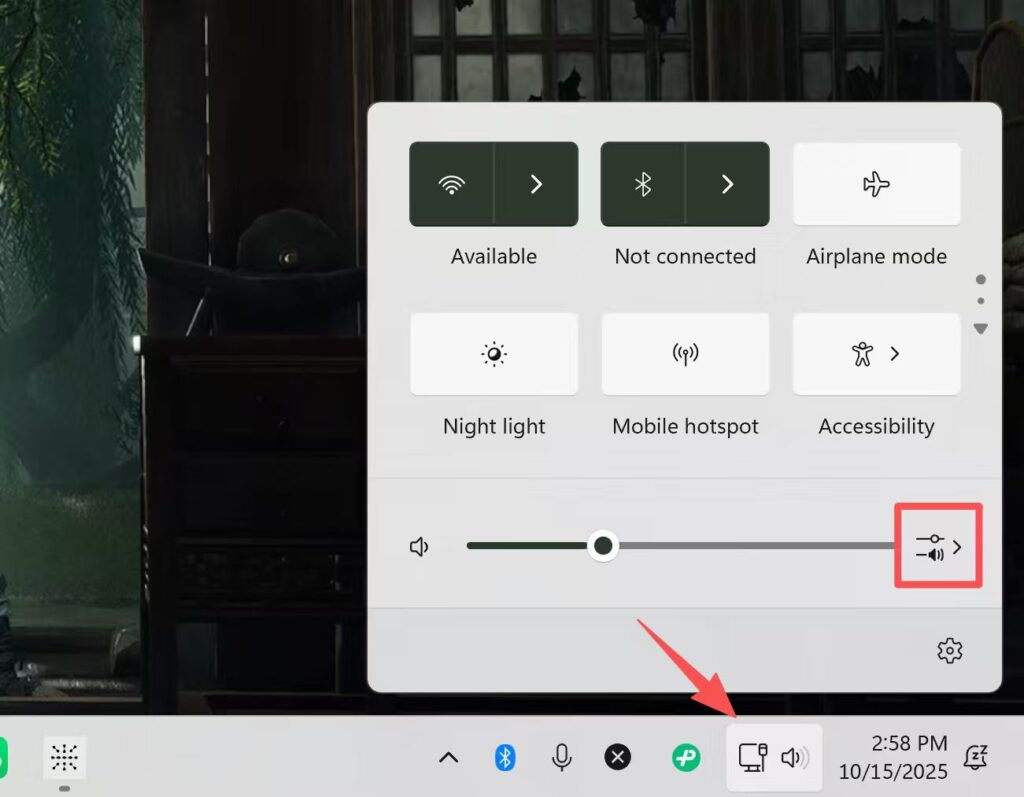
Click for more volume settings.
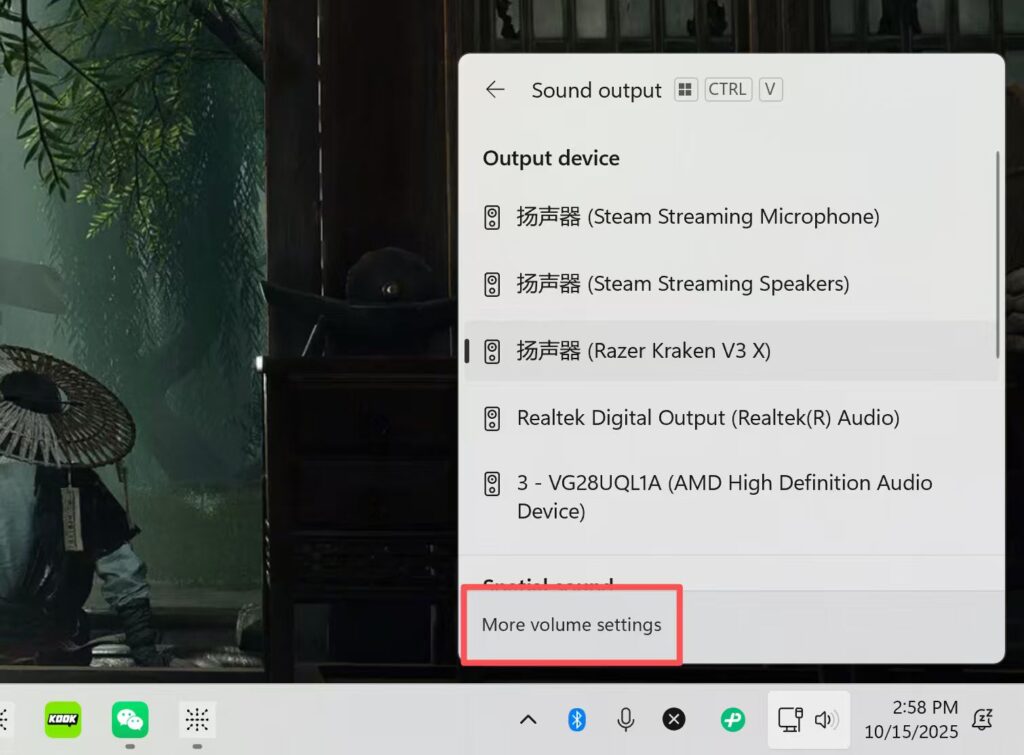
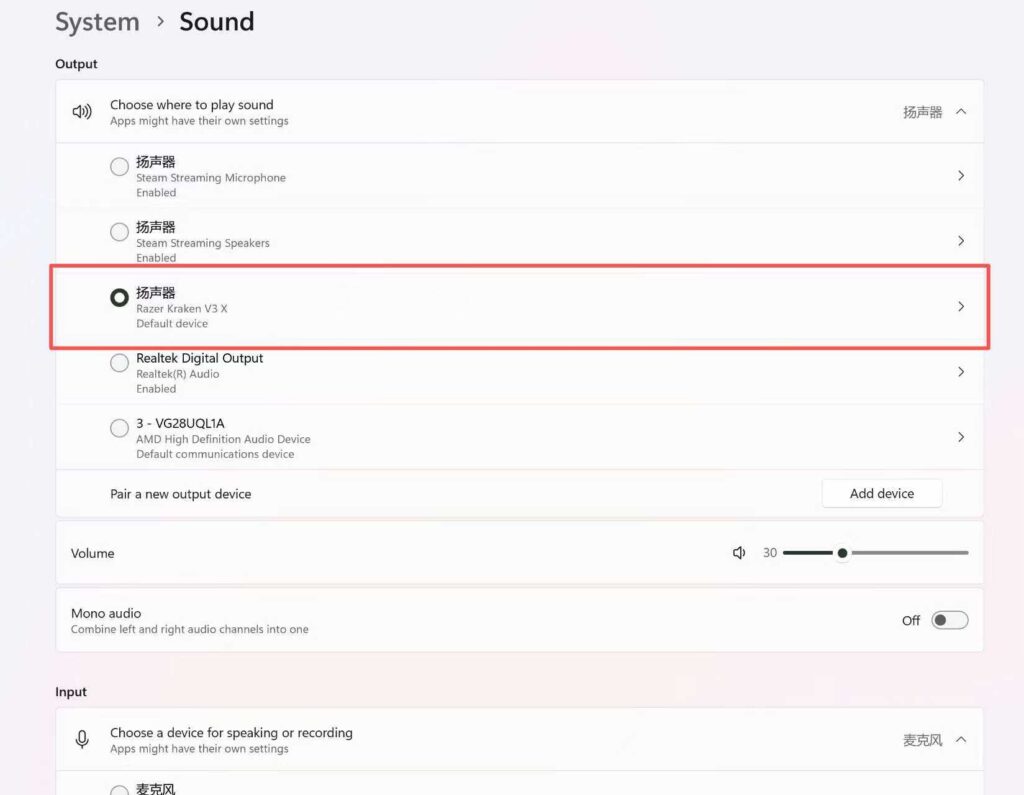
Make sure the device selected in the output is the one you are currently using, such as speakers or headphones.Make sure the slider at Volume fluctuates when there is sound.
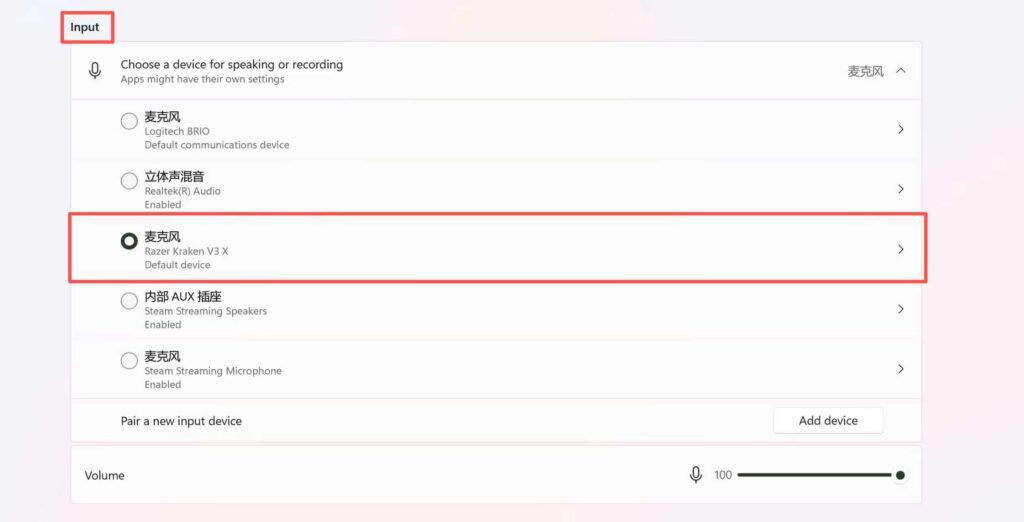
Make sure the device selected in the input is the one you are currently using, such as a speaker or headphones.Make sure the slider at Volume fluctuates when there is sound.
Important: Ensure that the microphone in Transync AI matches the input settings in your computer’s audio settings.
For MacOS #
Open the computer settings and select Sound. Check if the Output and Input match your expectations, and make sure that the volume slider fluctuates when you speak.
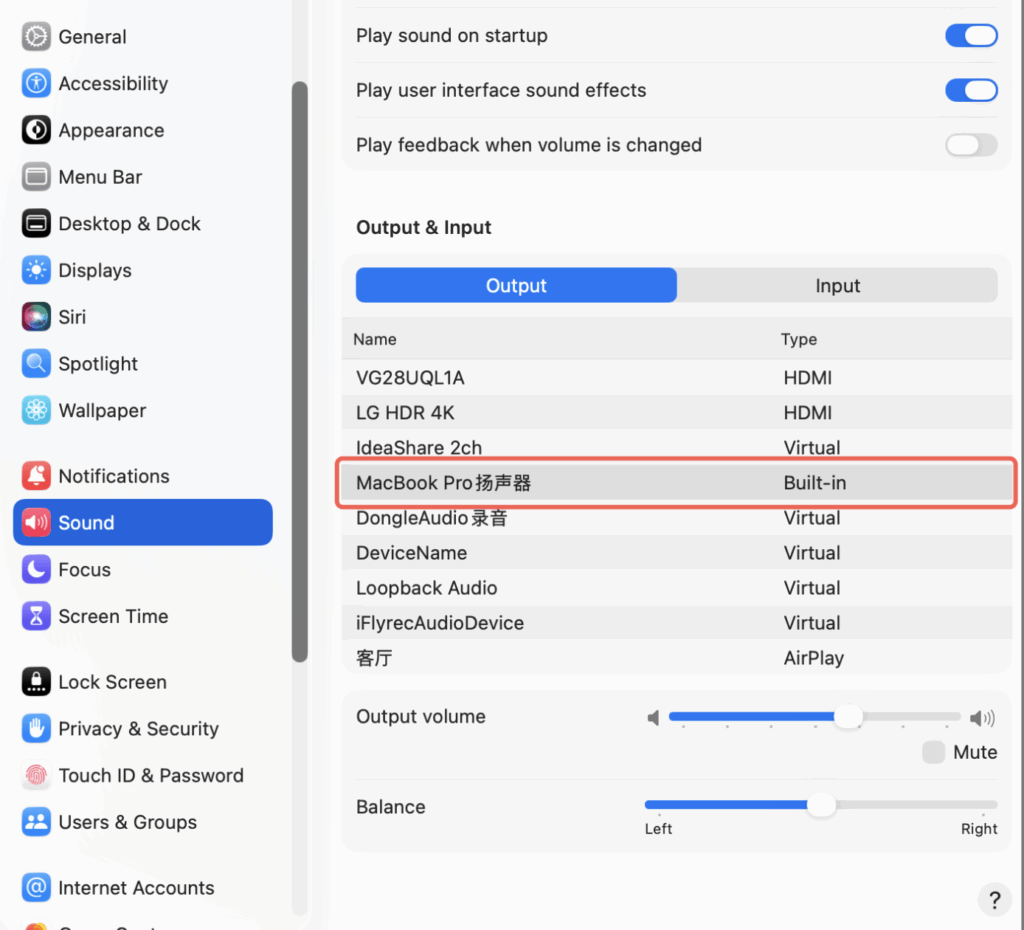
If you are wearing headphones, please check whether the input and output match your expected devices.
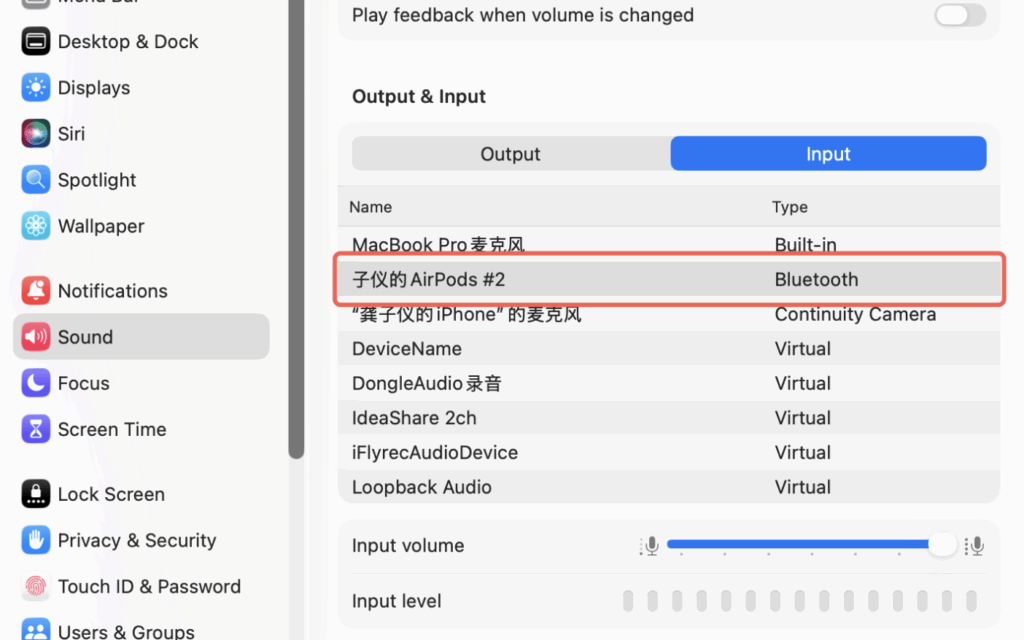
Please make sure that the input and output options in your computer’s sound settings match those selected in Transync AI. If you do not see your headphones or other devices here, please close and restart Transync AI.
Tips #
- Turn on Computer Audio before joining or starting the meeting
- Double-check your selected microphone if no sound is being picked up
- If you are using the web app, remember it only captures browser-tab audio, not audio from desktop apps
You can download it now and give it a try https://www.transyncai.com/download/


