Transync AI Enterprise guide: Organizations allow you to conveniently manage unified membership top-ups for numerous members while benefiting from more favorable usage rates.
To get started, follow these steps:
1. Create a Transync AI account.
2. Create an organization within that account.
3. Invite members to join your organization, and optionally start subscriptions for them.
You can also manage billing, view invoices, and track member usage from the admin dashboard.
Video guide #
1. Create a Transync AI account. #
- Open the Transync AI desktop, mobile, or web application, or simply open the website. https://app.transyncai.com
- Log in using your email address or your preferred login method.
- After you finish logging in, you will be directed to your personal workspace by default. All of your top-ups and duration cards will be applied within this personal workspace.
2. Create a business organization #
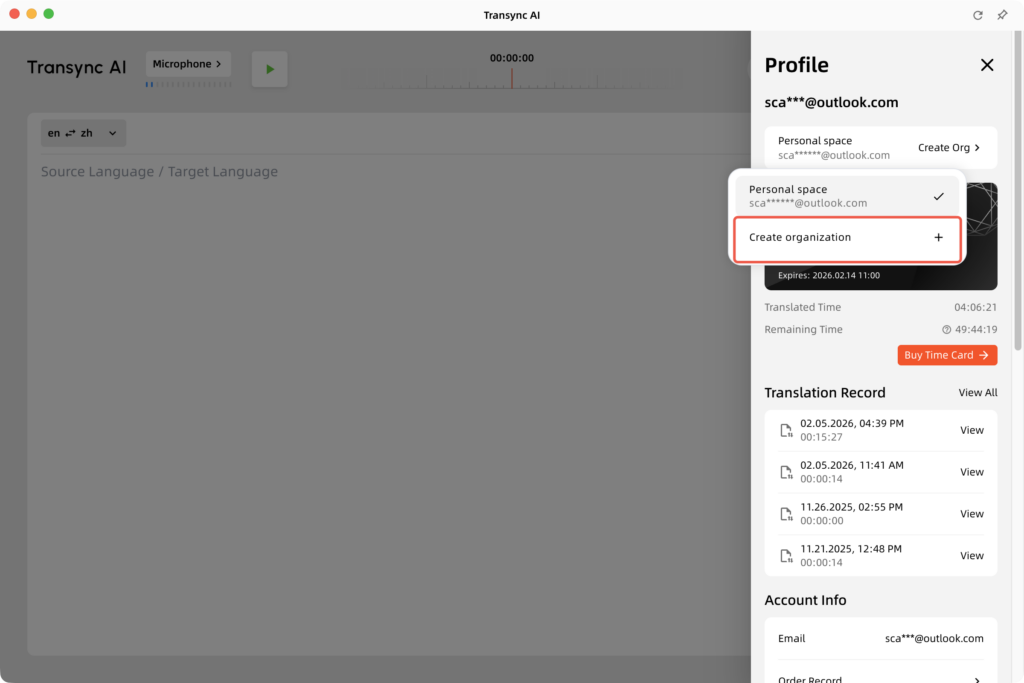
- Open Transync AI and click on the Personal Center in the upper right corner.
- Click to create an organization.
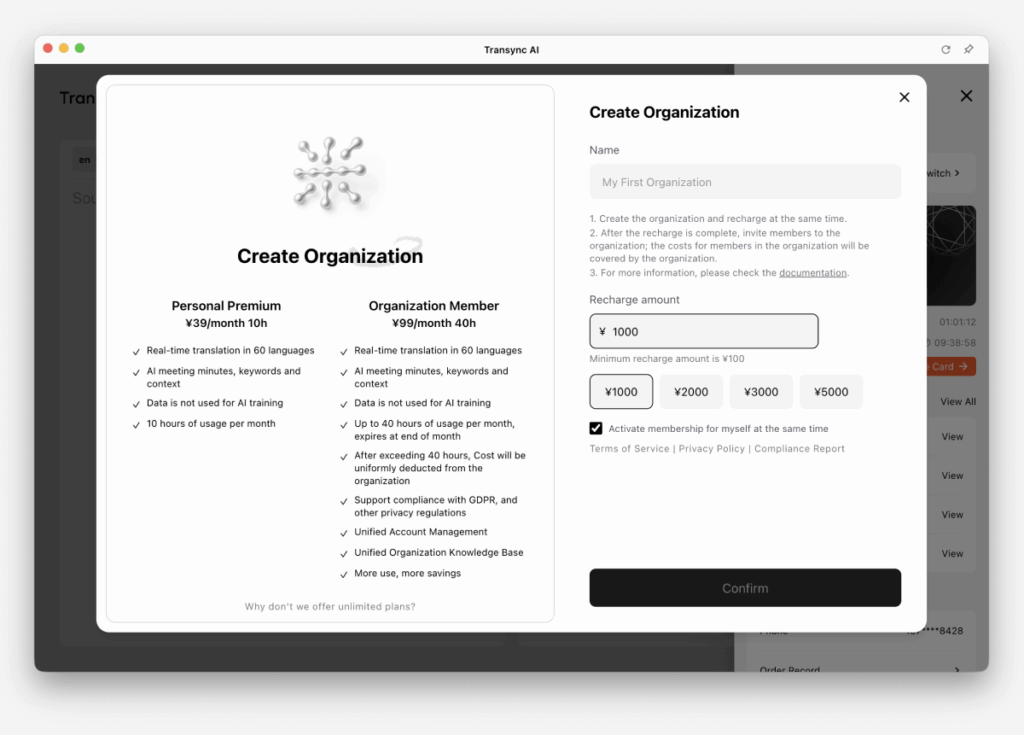
- In the organization creation window, you can view the differences between an organization account and a personal premium account.
On this page, please complete the following:
– Your organization’s name
– The initial top-up amount
– Optional: Start a subscription for the organization creator
If you enable this option, the organization creator will be added as an active subscribed member immediately after the organization is created.
3. Invite members to join the organization #
3.1 Invite members to join #
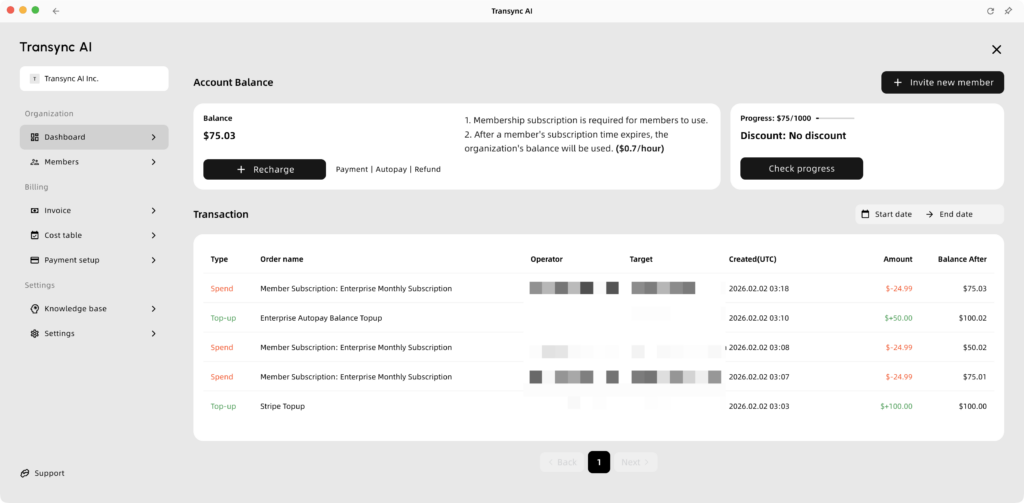
- Once the organization has been created, you will be automatically redirected to the organization dashboard.
- On the dashboard, you can view your organization balance, track spending progress, and review top-up and consumption history.
- Click “Invite New Member” and enter the member’s email address.
- You can choose one of the following invitation methods:
-Invite only: Add the member to the organization without starting a subscription
-Invite and subscribe: Add the member and start a subscription at the same time - Review the invitation details and confirm to send the organization invitation.
3.2 Organization balance managementnagement #
Organization balances serve two primary purposes:
- Subscriptions for Organization Members
The balance is used to activate subscriptions for members within your organization. Please refer to our Enterprise pricing for specific member subscription rates. For members with active subscriptions, ensure the organization balance remains sufficient to guarantee that the next billing cycle can be correctly deducted. A member can join the organization without an active subscription. In that case, no subscription fee is charged until a subscription is started for that member. - Excess Usage Coverage
Once a member has exhausted the included hours for their current month, any additional usage costs will be deducted directly from the organization’s balance.

3.3 Discount for meeting the spending threshold. #
The consumption-based discount is valid for one year. Once your organization’s spending reaches a certain threshold during that year, a discount will be applied to all subsequent charges. This includes:
- Organization member subscription fees
- Costs for additional usage time
In the following year, the discount level will automatically drop by one tier. However, if you have reached the highest tier, you will automatically receive a maximum discount of 10% in the subsequent year.

4. Member joins an organization (Member perspective) #
- Regardless of whether they have already registered, the invitee will receive an invitation notification via their account’s associated email or SMS.
- After the invitee logs in to the Transync AI application, they will receive a pop-up notification asking them to confirm whether they want to join the organization. They can confirm immediately through the initial pop-up. They can click “Decide Later” and complete the verification process at a later time within the Personal Center.
- Once the invitee accepts the invitation, their workspace will automatically switch to the organization. Consequently, all subsequent expenses for these members will be covered by the organization.

5. Member management (Admin’s perspective). #
5.1 Members subscription management #
- Switch to Member Stand. Here, you can view the organization’s balance and manage its members.
- Here you can view the following member statuses:
- Here, you can click “Add Member” to invite a new member and choose whether to start a subscription for them during the invitation process.
- If you wish to remove a member from the organization, that member must not currently be in an active membership period.
| Status | Description | Actions |
| Subscribed | Member has a valid subscription and auto-renew is on. If it shows a specific number of remaining months, it means the membership will automatically renew after the current subscription expires. This typically occurs when a member is subscribed on an annual basis. | Cancel Subscription |
| Paused | Subscription is active until the end of the period, but auto-renew is disabled. | Resume |
| Joined | Joined Member is in the organization but does not currently have an active subscription. This can mean the member joined without a subscription, or that a previous subscription has ended. | Start (Immediate billing) |
| Pending | Invitation sent, but the user has not yet accepted. | Resend / Revoke |
| Declined | The user has turned down the invitation to join. | Re-invite |

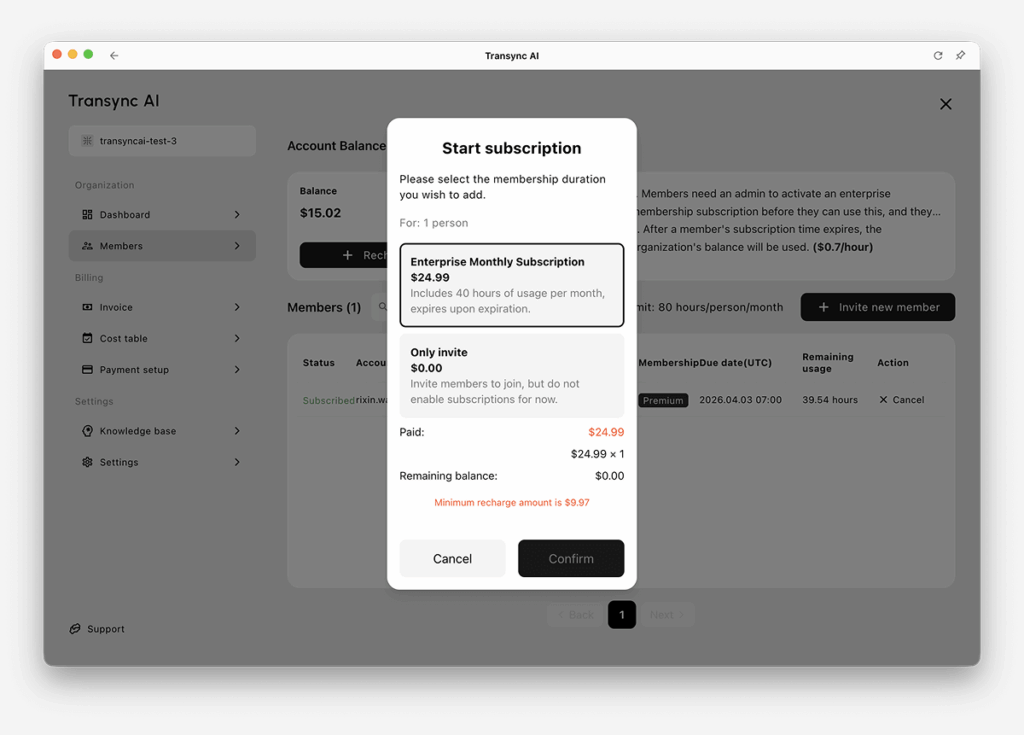
5.2 Set member usage limits #
Set a monthly usage limit for each member. Charges will not be automatically deducted from the enterprise account if the limit is exceeded.
Member usage limits refresh every calendar month.
The default limit is 80 hours. Modifying this value will update the usage limits for all members within the organization simultaneously.
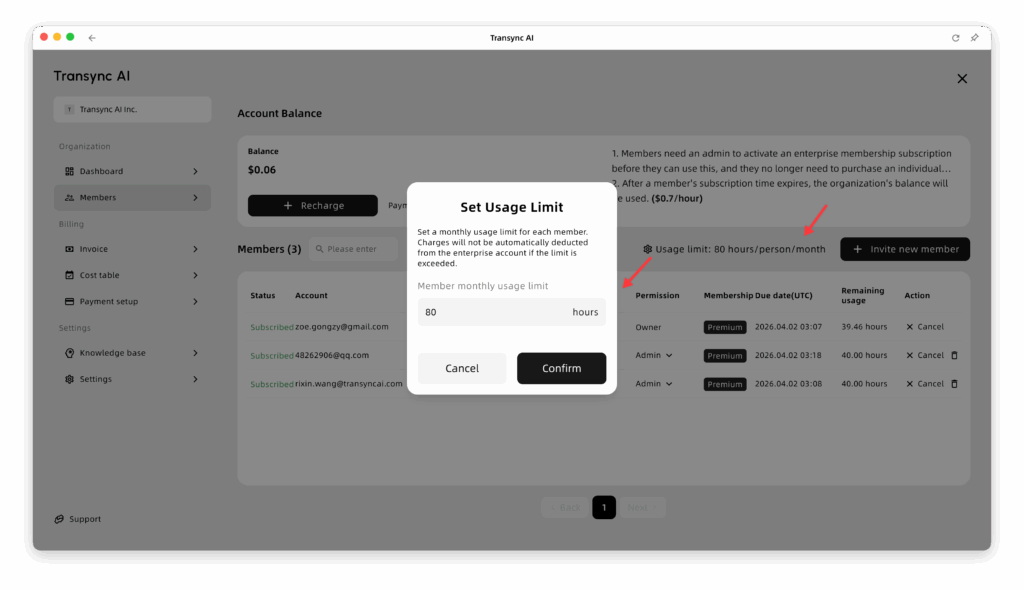
6. Billing management #
6.1 Inovice #
- If you need an invoice, you can click on the “Invoice” tab within the Billing section.
- There are two different scenarios:
- If you use Stripe (credit card payments):
We will automatically send the invoice to your email address. You can also view your invoices directly in this section. - If you use Alipay:
Please click here to contact our customer service. You will need to provide your billing information so that we can issue the invoice for you.
- If you use Stripe (credit card payments):
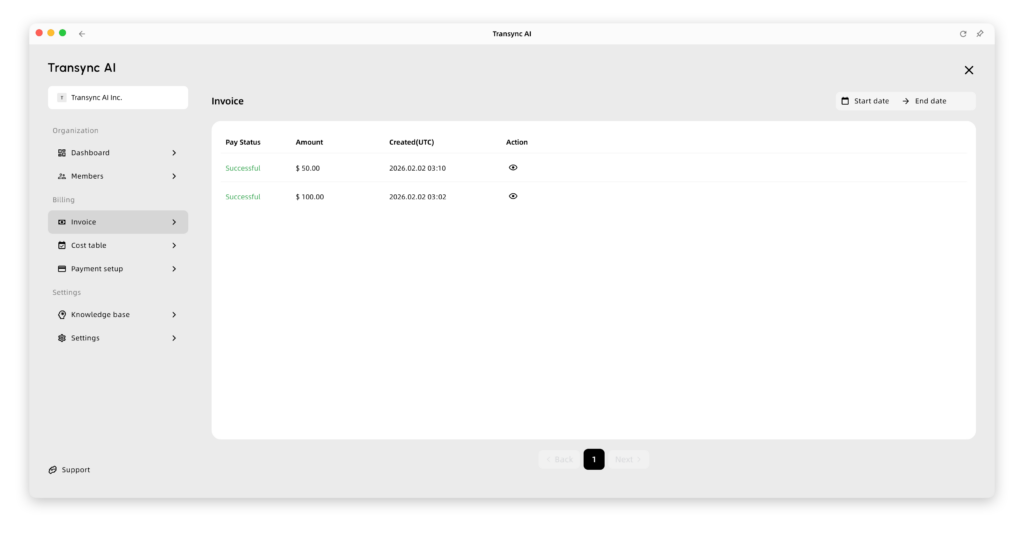
6.2 Cost table #
- To view your Cost Table, click on “Billing” and then select “Cost Table.”
- Here, you can monitor the duration used by every member of the organization for each translation task. You can also see whether the duration was deducted from their individual subscription account or from the organization’s balance.
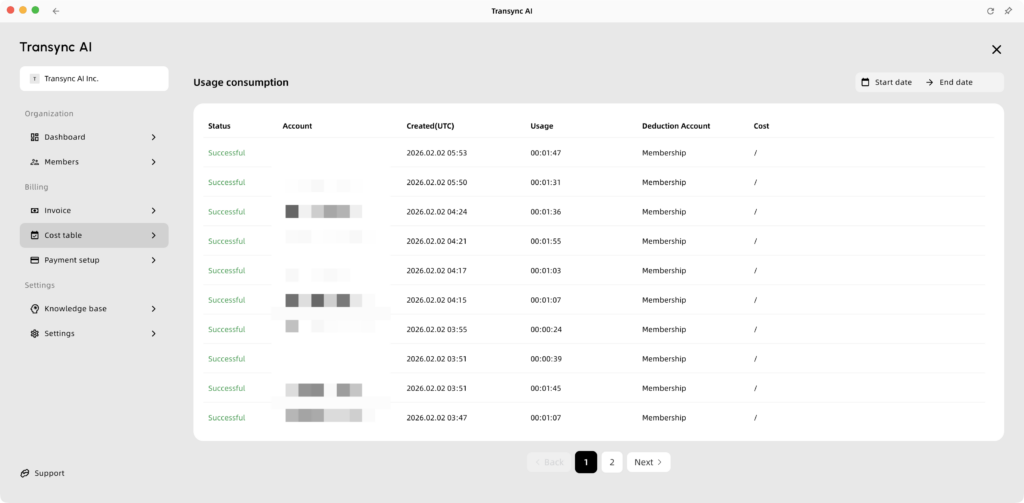
6.3 Payment Setup #
- To set up your payment method, you can switch to the Billing & Payment Setup section. Here, you can perform the following actions:
- Automatic Top-up Binding: You can link a credit card and configure automatic top-up settings. For example, you can set the system to automatically recharge a specific amount whenever your balance falls below a certain threshold.
- Balance Alerts: You can set up balance warnings. When your balance drops below a predefined value, we will automatically send an email to your inbox. This ensures that your organization’s overall business operations continue to run smoothly and steadily.

7. Settings #
7.1 Knowledge base #
- In the Knowledge Base, you can set keywords and context that will be automatically applied to every translation task for all members within the organization. This provides a very convenient way to perform unified management of context and the knowledge base.
- Organization members can also view this information within the AI Assistant located at the top of every translation task.

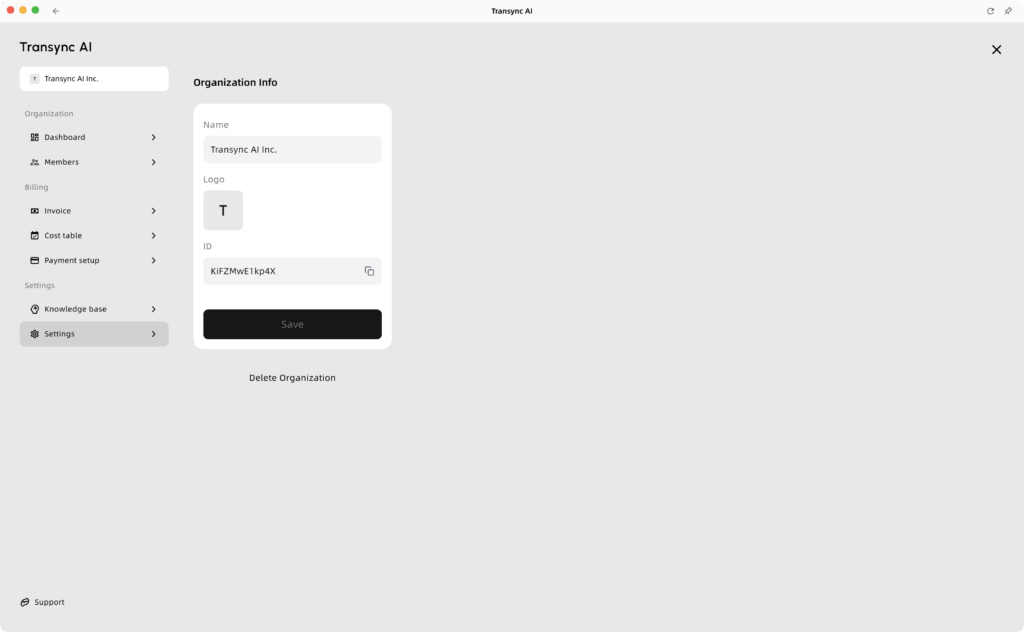
7.2 Settings #
In the general settings, you can manage the following options:
- Set your organization’s name
- Upload the organization’s logo
- Exit the organization
- Delete the organization
Self-service organization deletion is only available when the organization balance is 0. If there is any remaining balance, please contact support@transyncai.com to process a refund before deleting the organization.