
This mobile quickstart guide helps you use Transync AI on iOS and Android for AI real-time translation, bilingual subtitles, voice playback, Picture-in-Picture, and reviewing translation records after a conversation. It is designed for mobile meetings, travel conversations, classes, videos, and on-the-go multilingual communication where the translation needs to match the real conversation context.
Note for online meetings: If you need to translate an online meeting or app call, such as WhatsApp, Zoom, Microsoft Teams, or Google Meet, we recommend using the Transync AI desktop app when possible. The desktop workflow gives you more reliable computer audio capture, voice playback routing, and Virtual Microphone support. The mobile app is better for in-person conversations, travel, classes, videos, and quick listening scenarios.
If you are new to Transync AI, download first. You can also review How to Register Transync AI and the general How to Start Real-Time Translation guide before using the mobile app.
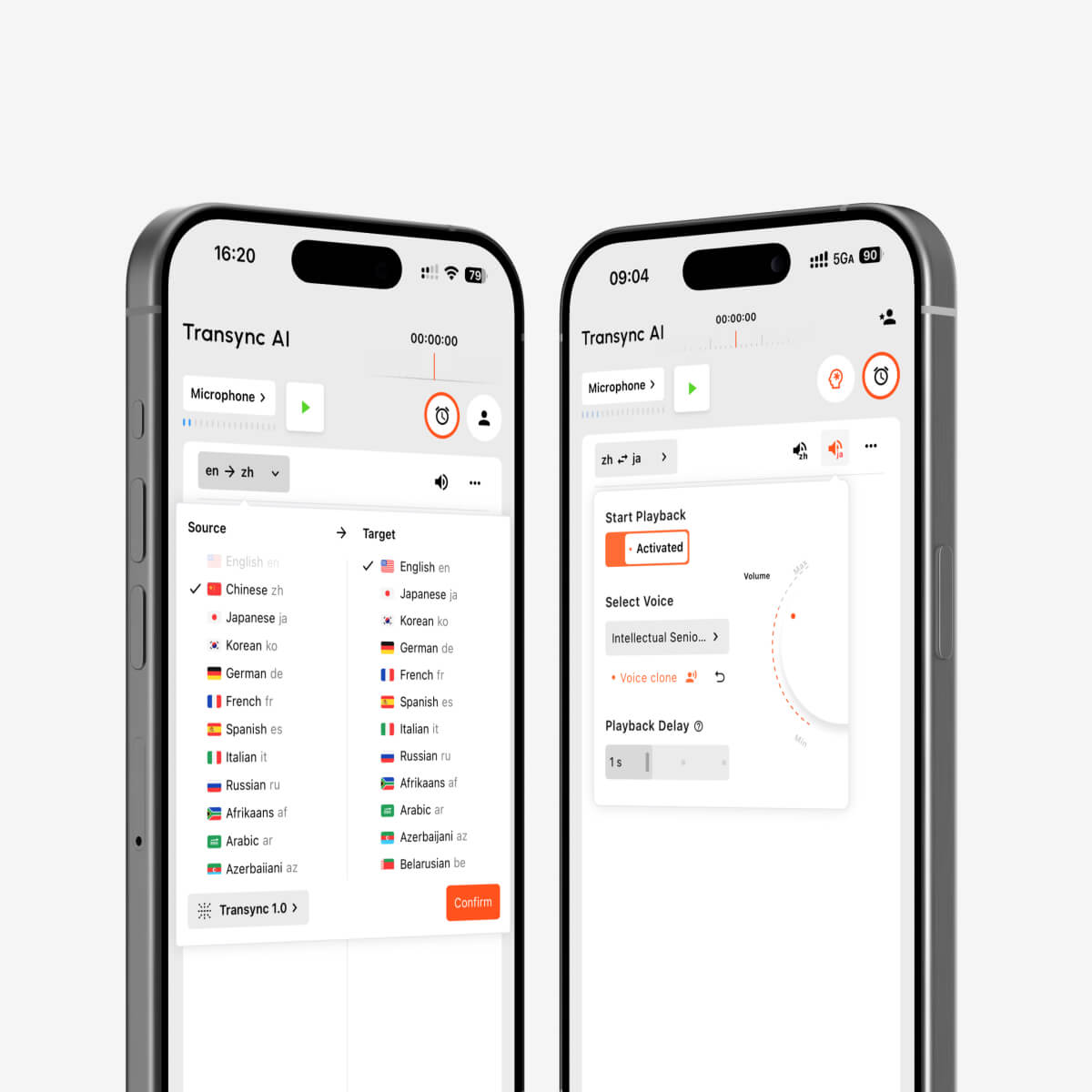
Before you start #
- Install the Transync AI mobile app and sign in to your account.
- Allow microphone permission when the app asks for it, then choose your translation mode before selecting languages.
- Use a stable network connection for lower latency and smoother translation.
- If you plan to listen to translated speech, check your phone volume, speaker, or headphones before starting.
1. Choose your translation mode #
Before selecting languages, choose the translation mode that matches your mobile scenario: One-way Translation for listening, Two-way Translation for conversations, or Multilingual Translation when one task needs multiple target languages.
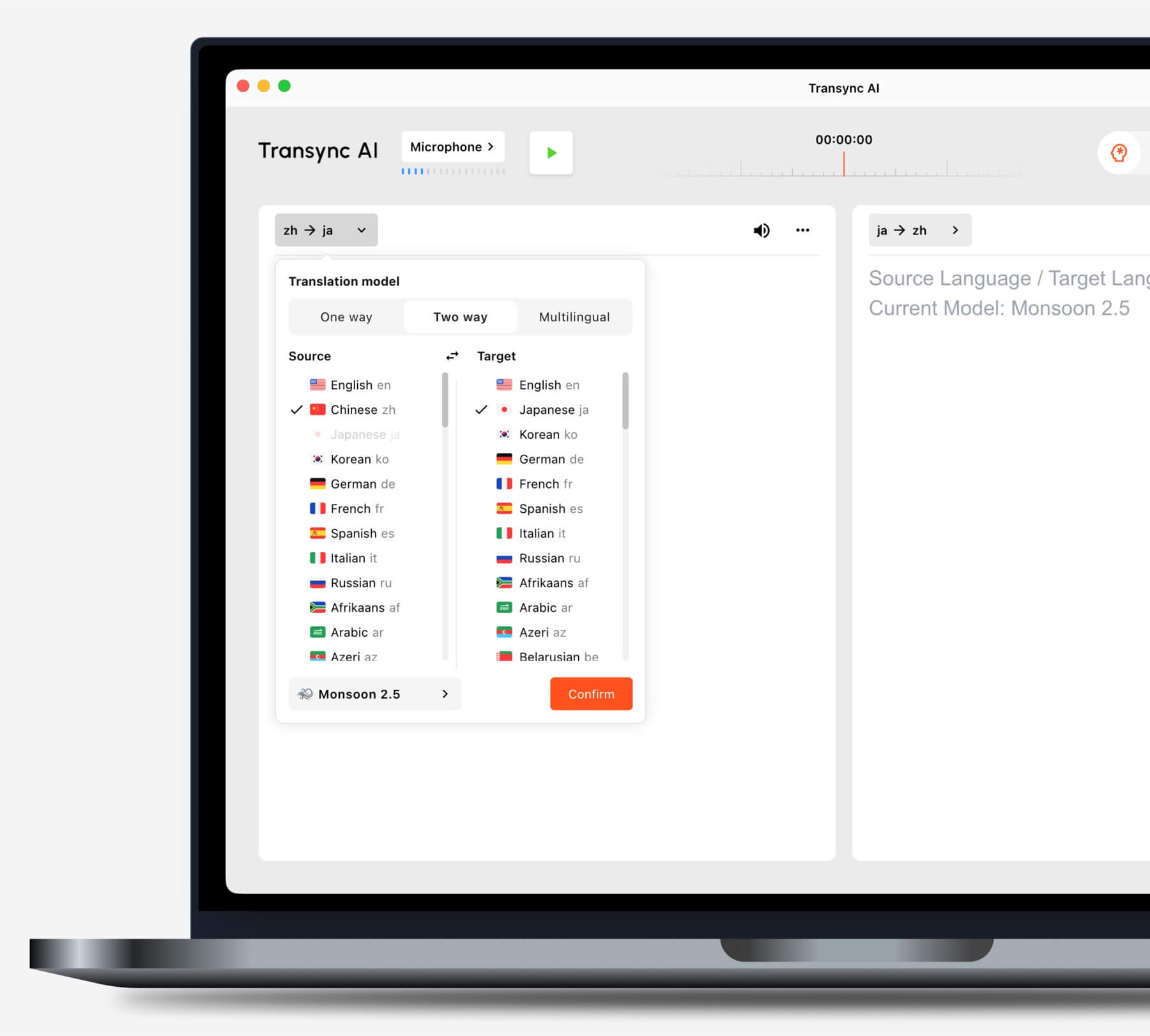
For the full mode comparison, see How to Choose a Translation Mode in Transync AI.
2. Choose your languages #
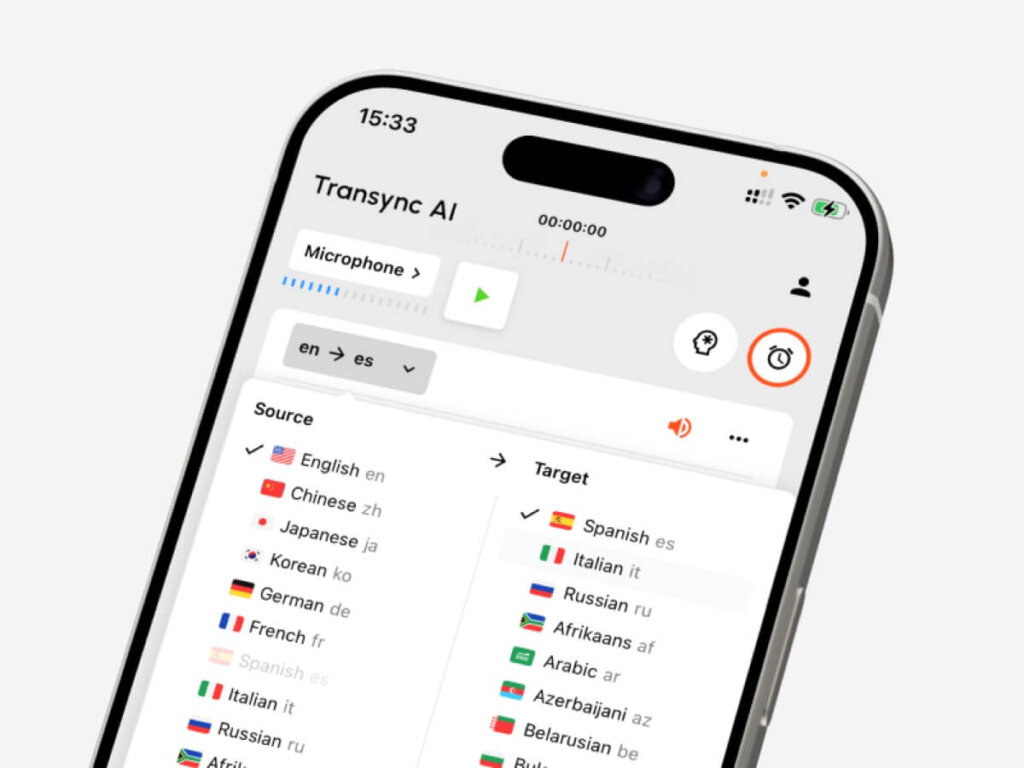
After choosing the translation mode, select the source and target languages on your phone. For example, choose English to Spanish if you want English speech translated into Spanish, or Japanese to English if you want to understand Japanese speech in English.
Choose the language direction based on what you want to read or hear. You can change the language pair before starting a new translation task. For travel, classes, business calls, or daily conversations, choose the pair and mode that best fit the context.
Transync AI supports translation across 60+ languages for multilingual meetings, travel conversations, classes, and everyday communication. For the full language list, visit the Supported Languages page.
3. Add AI Assistant keywords and context #
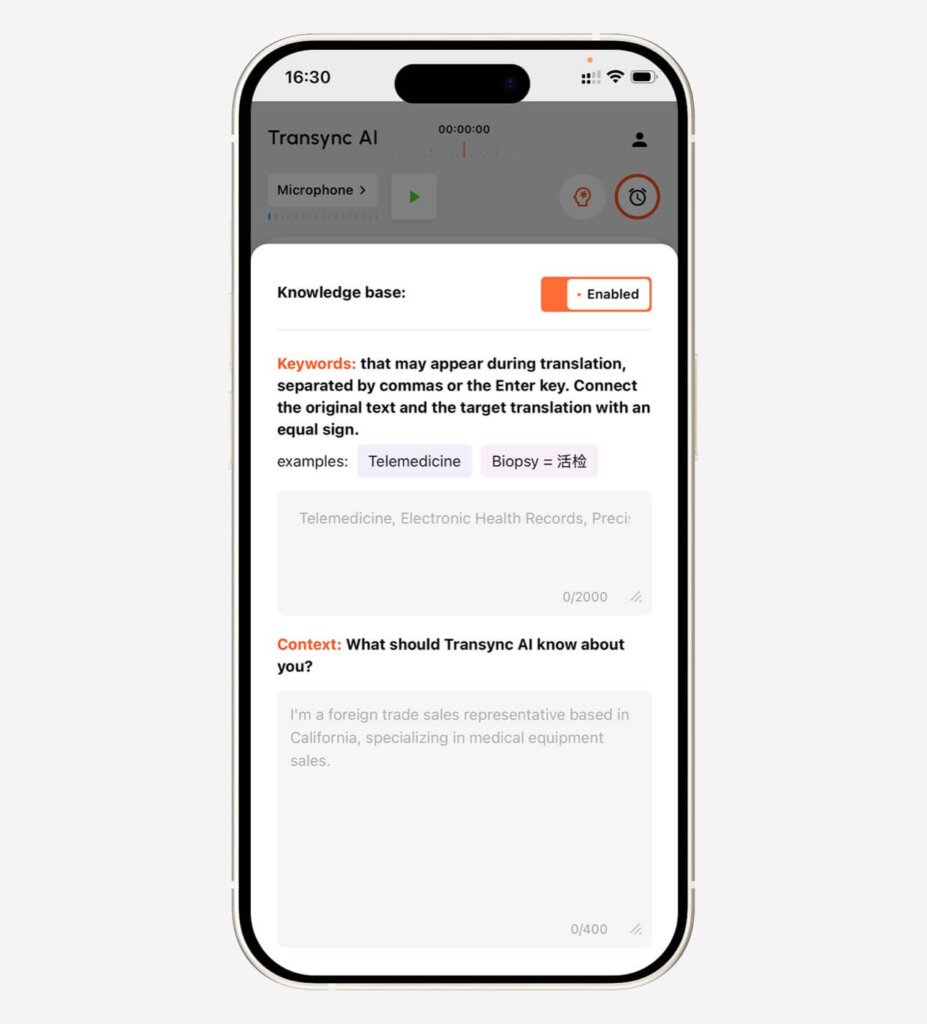
Before you start a mobile translation task, use AI Assistant when the conversation includes names, product terms, technical vocabulary, or a specific professional background. Keywords and context help Transync AI prepare for the conversation before translation begins.
- Add short keywords for names, brands, course terms, medical terms, legal terms, or other important phrases.
- Add context such as your meeting topic, travel scenario, class subject, business background, or industry terminology.
- If a keyword should translate into a specific target term, connect the source word and target word with an equal sign.
- For detailed setup, see How to Use the AI Assistant
4. Configure the translation panel before starting #
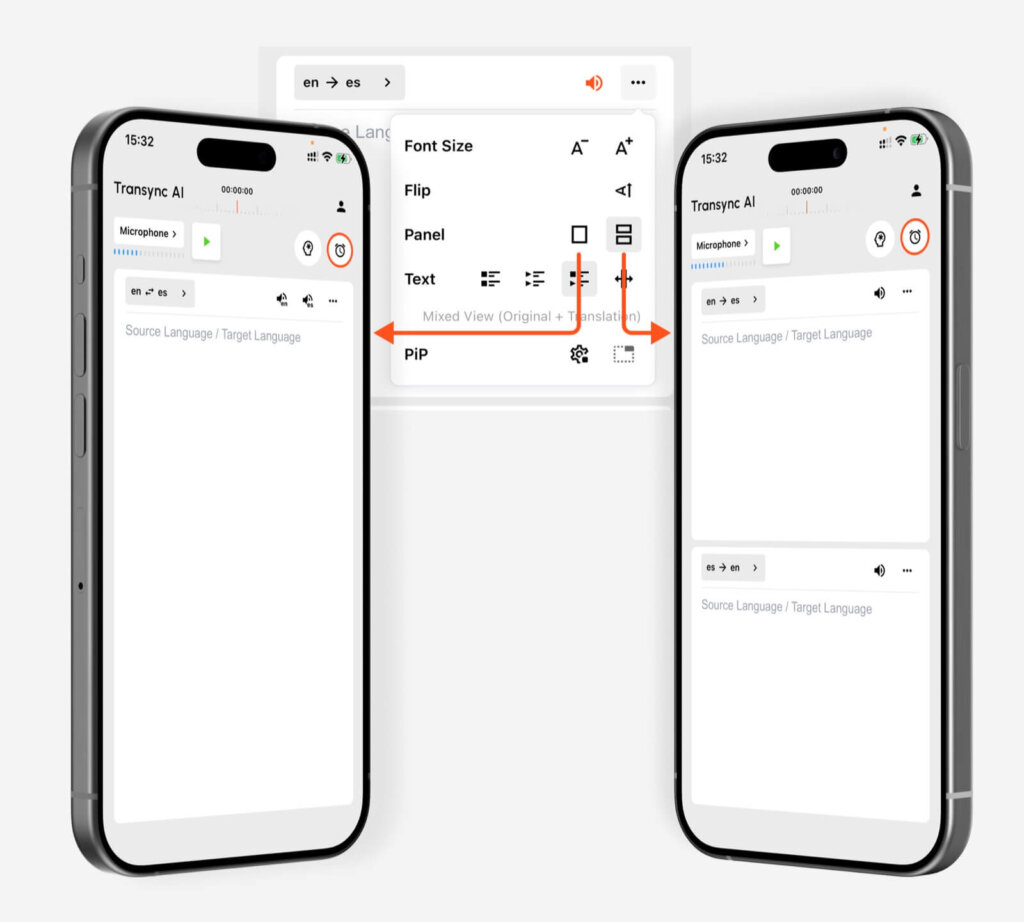
Before you start translation on mobile, open the panel settings and choose the layout that fits your conversation. You can adjust the font size, flip the reading direction, and switch between a single-panel or dual-panel view depending on how you want to follow the source and target languages.
Use a single panel when you want a simpler screen for one translation direction. Use dual panels when you need two-way conversation support, such as speaking back and forth between two languages. You can also choose the text display mode, such as original only, translation only, or mixed view, before starting the translation task.
5. Start a live translation task #
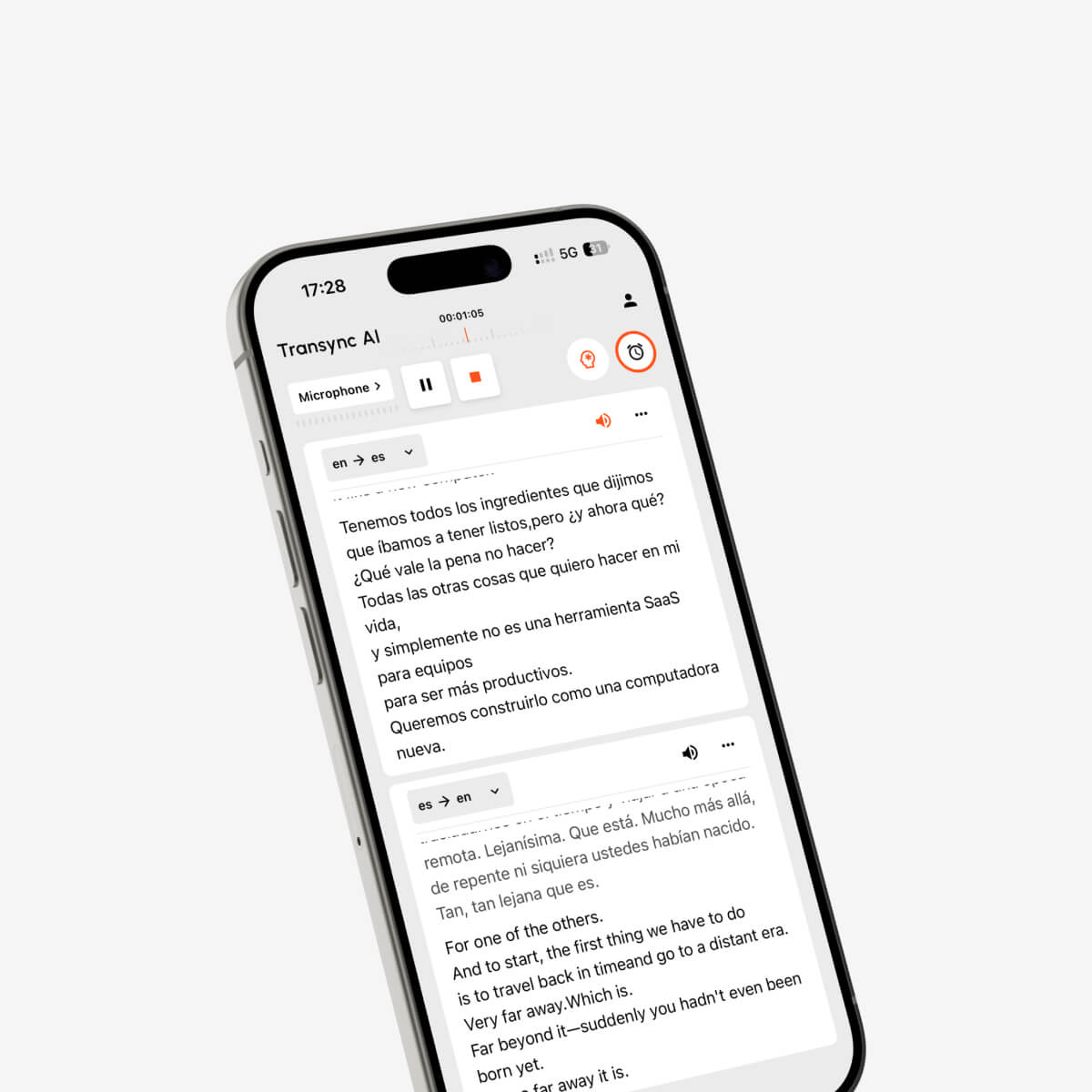
Tap Start Translation when you are ready. Speak clearly or place the phone close enough to the speaker so Transync AI can capture the audio. The app will display the original text and translated text in real time.
Use Pause if you temporarily do not need translation. Tap Stop when the conversation or meeting is finished so the session can be saved as a record.
6. Use Picture-in-Picture subtitles on mobile #
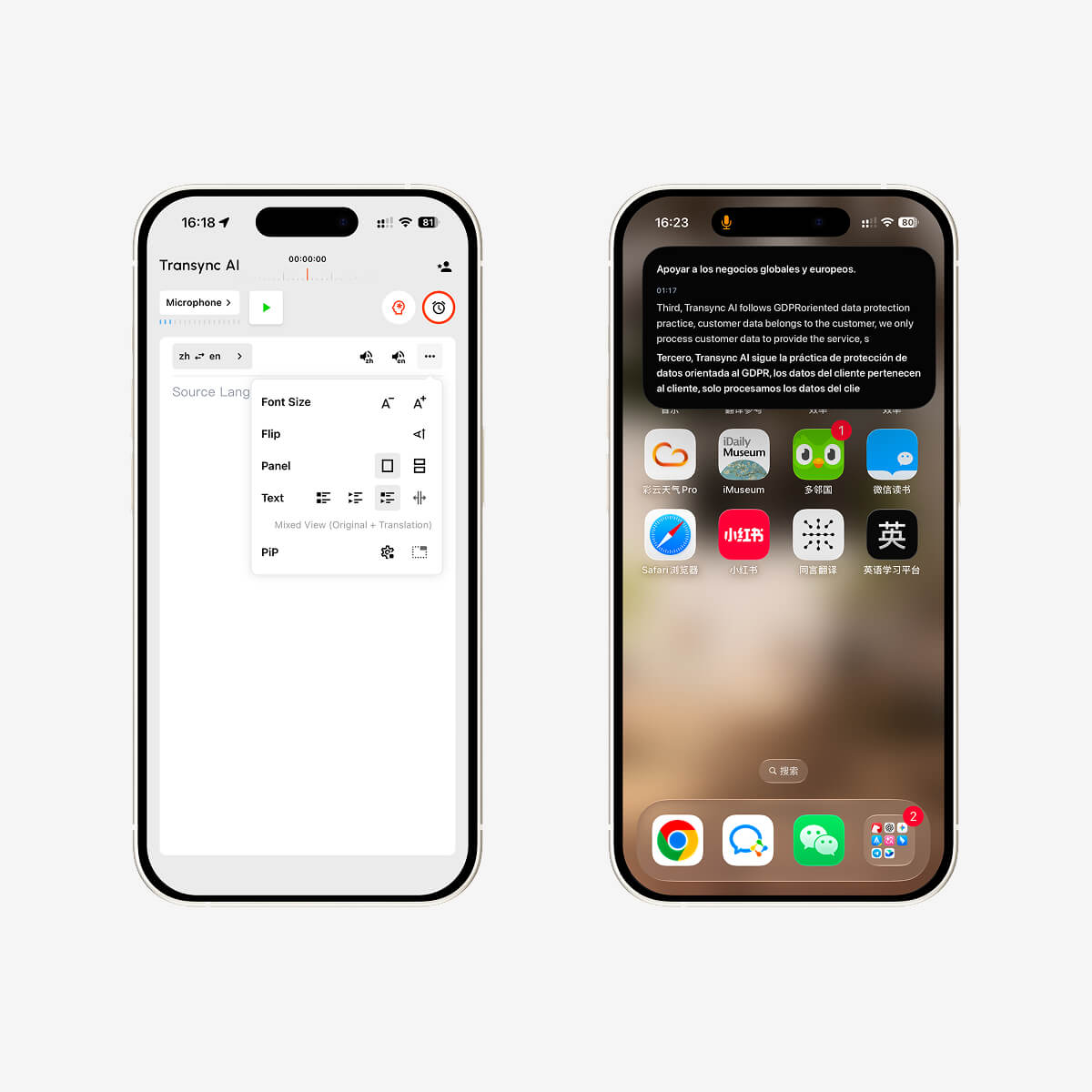
Picture-in-Picture is the mobile subtitle mode in Transync AI. It keeps translated subtitles visible in a floating window when you minimize Transync AI, check other apps, join a meeting, watch shared content, or follow a conversation on your phone.
Before starting a translation task, open the PiP settings and choose how subtitles should appear. You can adjust the text layout and font size, and decide whether PiP should start automatically when you leave the app.
- Show original only if you only need the captured speech.
- Show translation only if you want the cleanest translated subtitle view.
- Use mixed view if you want to see both original and translated text.
- Turn on auto-enable PiP if you want the floating subtitle window to appear automatically after minimizing the app.
- For detailed PiP settings, see How to Use Picture-in-Picture Mode
7. Turn on voice playback when you need audio output #
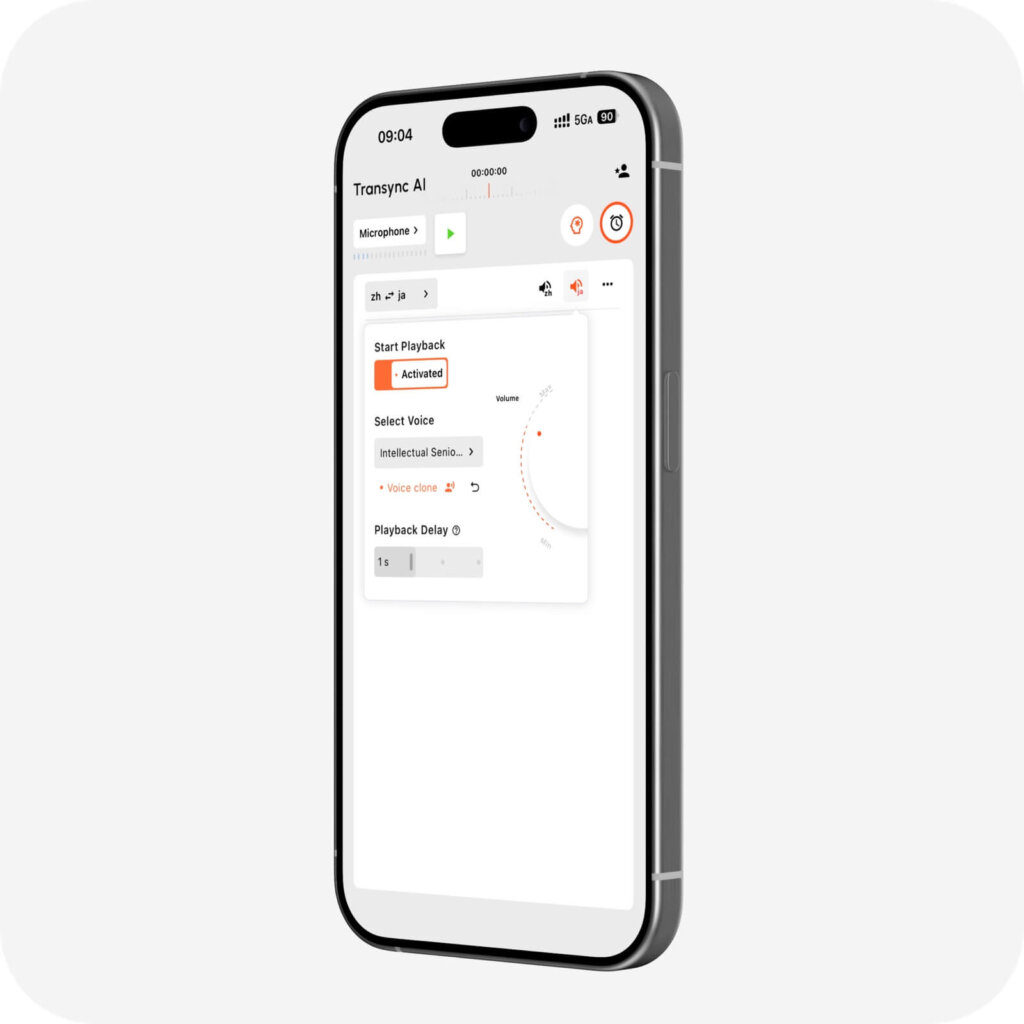
Voice Playback can read translations aloud on your phone. This is helpful in face-to-face conversations, classes, travel situations, or mobile calls where you want translated speech instead of only subtitles.
For voice settings and playback behavior, see How to Use Voice Playback in Transync AI
8. Use Voice Clone for more personal translated speech #
If you have set up Voice Clone, translated speech can sound closer to your own voice. This can make mobile conversations feel more natural when you are speaking across languages.
Voice Clone does not store your recordings for AI training. To set it up, follow How to Use Voice Clone
9. Understand mobile audio limits #
Mobile translation works best when Transync AI can clearly hear the audio through the microphone. Some mobile systems limit direct system audio capture from other apps, so the desktop app may be better for complex online meetings where you need full computer audio capture or virtual microphone output.
If you need to translate desktop meeting audio or send translated speech back into Zoom, Teams, or Google Meet, use the desktop workflow and review How to Share Computer Audio and the virtual microphone guides.
10. Review your records after the session #
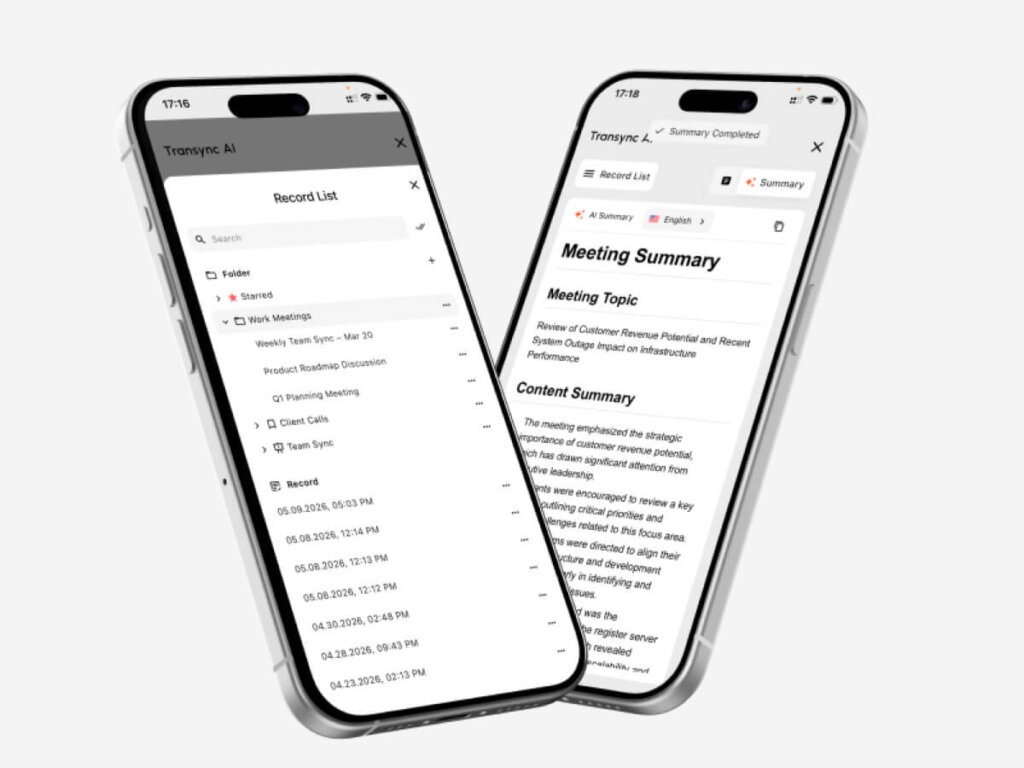
After stopping translation, open your records to review previous sessions. Records help you return to important conversations, meeting content, and follow-up information later.
- Use How to Manage Translation Records to organize saved translation sessions.
- Use How to Access Meeting Transcripts and Summaries when you need transcripts or summaries.
Recommended mobile setup #
For most mobile use cases, the recommended setup is: allow microphone permission, choose the right translation mode with How to Choose a Translation Mode in Transync AI, select the correct language pair, add AI Assistant keywords and context when needed, configure the panel layout, start translation, enable PiP if you need floating subtitles, and turn on Voice Playback when translated speech should be heard aloud. After the session, use How to Manage Translation Records to review and organize saved sessions. For full meeting audio routing, use the desktop app instead.


