
How to Set Up Virtual Microphone on Windows #
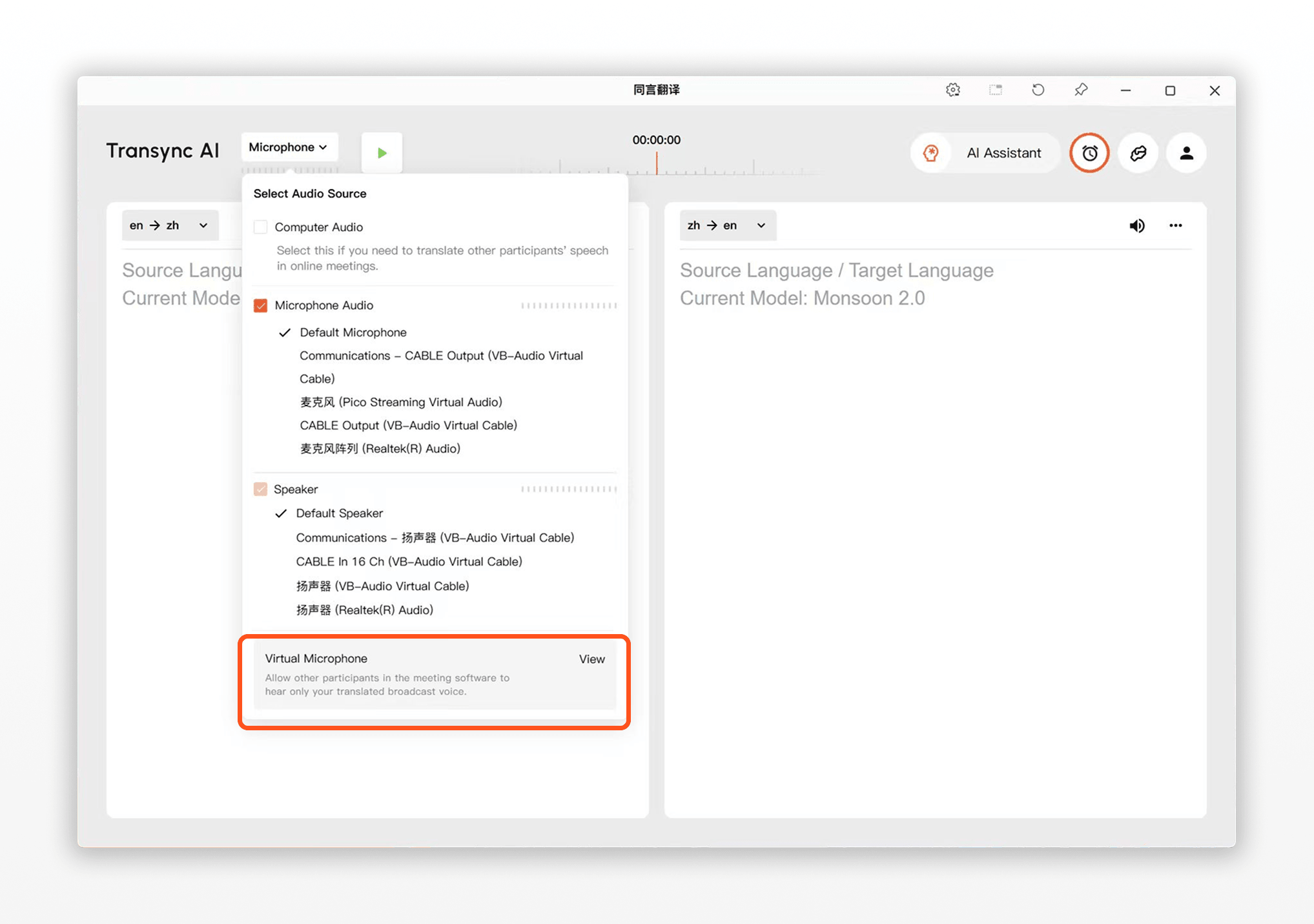
Transync AI Virtual Microphone lets other participants in your meeting hear your translated voice directly through the meeting microphone input. Instead of playing translated audio from your speaker, Transync AI sends the translated voice to a virtual audio device that can be selected in Zoom, Microsoft Teams, Google Meet, or other meeting apps.
Use this feature when you want to speak naturally in your own language while other meeting participants hear the translated speech. For example, you can speak English, turn on English → Spanish voice playback, and choose the virtual microphone as the microphone input in your meeting software so others hear the Spanish playback directly.
This guide is for Windows. If you are using macOS, please refer to How to Use Virtual Microphone on macOS instead.
Follow the in-app setup guide #
You can also open the Virtual Microphone setup guide inside Transync AI and follow the steps one by one. The in-app guide helps you check each setting in order, from selecting the virtual audio devices to confirming the microphone input in your meeting app.
Supported devices and meeting platforms #
On Windows, Transync AI Virtual Microphone can be used with both the Transync AI Windows app and the Transync AI web version.
It works with online meeting platforms that let you choose a microphone input, including Zoom, Microsoft Teams, Google Meet, and other browser-based or desktop meeting apps.
Before you start #
If you are new to Transync AI, these guides may help:
You should also make sure that Transync AI can capture your real microphone and that Voice Playback works for the target language direction you want to broadcast.
Important: Turn on only the playback direction you want others to hear #
For Virtual Microphone, we recommend enabling Voice Playback only for the language direction you want to broadcast.
- If you speak English and want others to hear Spanish, turn on Voice Playback only for English → Spanish.
- Do not also turn on Spanish → English playback unless you intentionally want that audio to be sent into the meeting too.
If both directions are enabled, the other participant’s speech may be translated and played back through your virtual microphone. This can make the other person hear their own speech translated back from your side.
1. Download and install VB-Audio VB-CABLE #
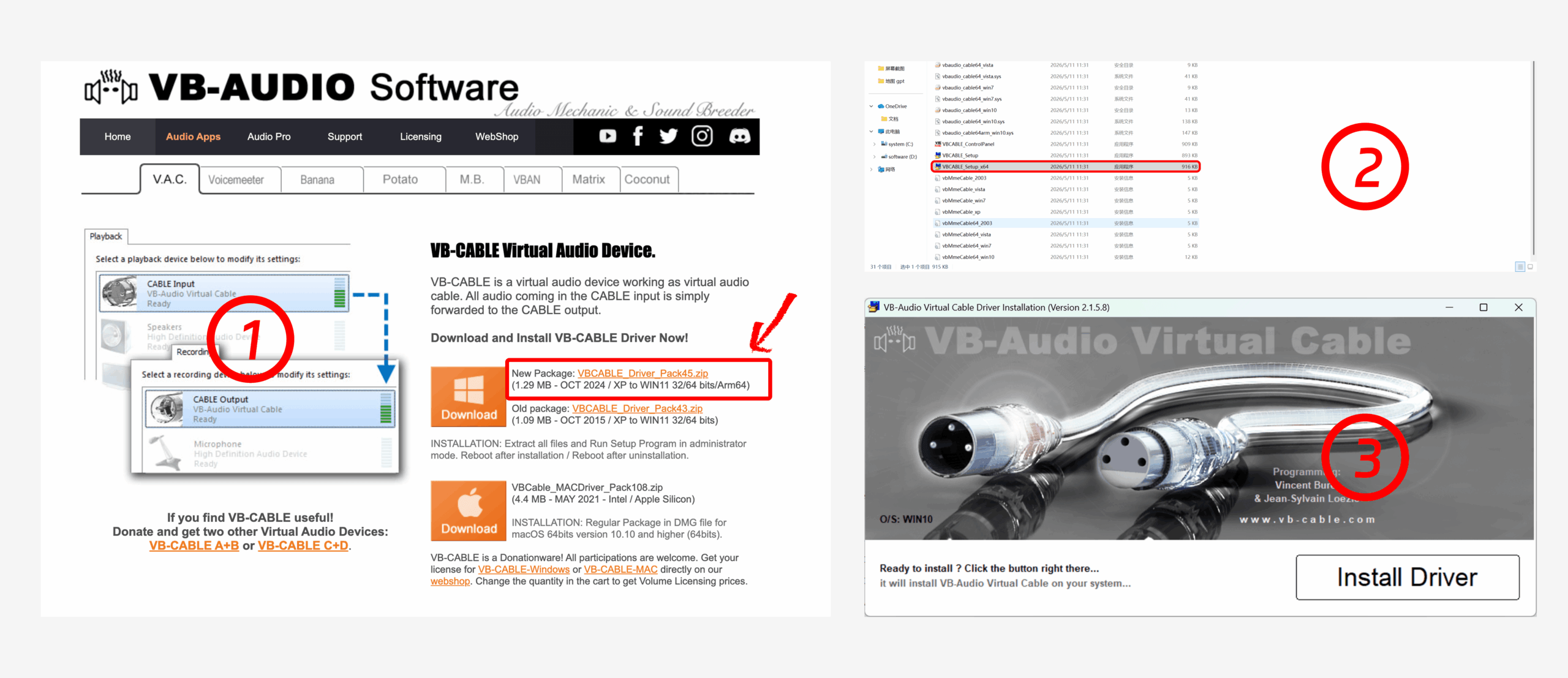
Download a third-party virtual microphone or virtual audio plugin first. We recommend VB-Audio Virtual Cable, which creates the virtual audio devices needed to connect Transync AI’s translated voice playback to your meeting software.
Download the package, extract the ZIP file to a local folder, then run the 64-bit setup file if you are using 64-bit Windows. In the installer window, click Install Driver. After installation, restart your computer if the installer or Windows prompts you to do so.
2. Select CABLE Input as the Transync AI speaker output #
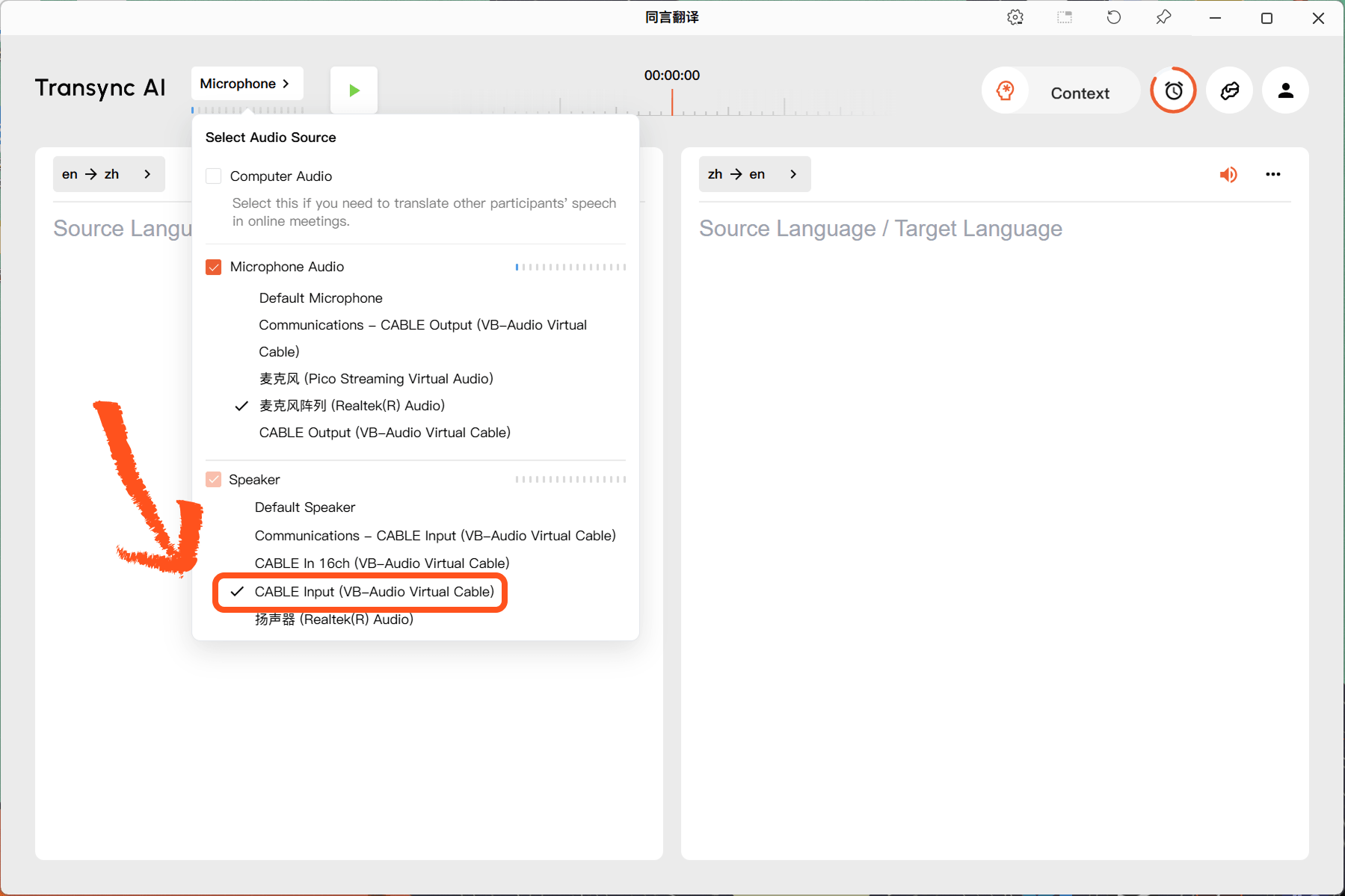
Open the Microphone menu in Transync AI. Under the Speaker section, select CABLE Input (VB-Audio Virtual Cable).
Important: After installing VB-CABLE, CABLE Output (VB-Audio Virtual Cable) may become the selected microphone. In the Microphone section, reselect the actual microphone you want to use. Then, under Speaker, select CABLE Input (VB-Audio Virtual Cable).
This step sends Transync AI’s translated voice playback into the virtual audio cable instead of playing it directly through your physical speakers.
3. Turn on Voice Playback for the language you want to broadcast #
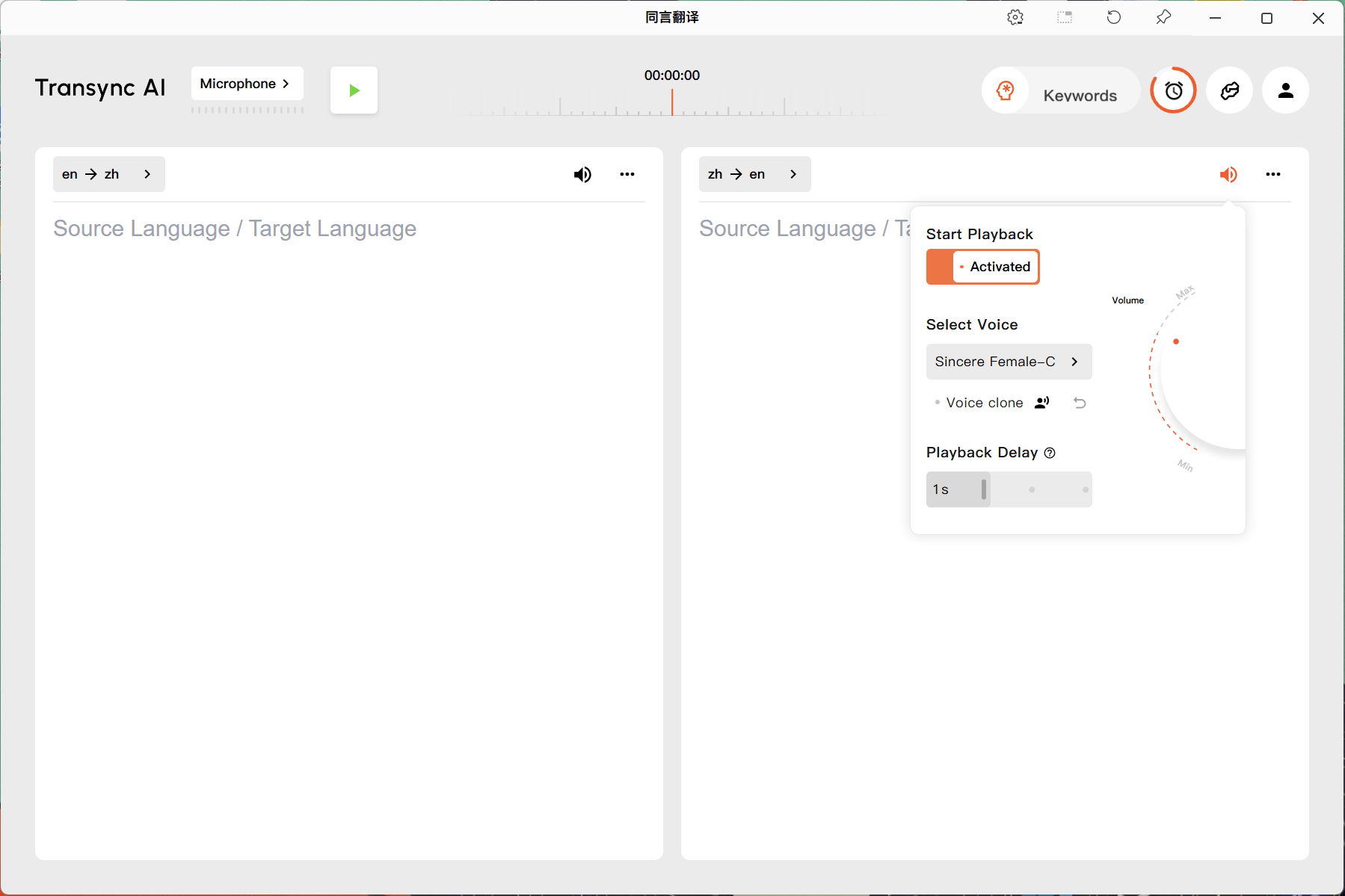
Open the Voice Playback settings for the direction other participants need to hear. For example, if you speak English and want the meeting to hear Chinese, open the English → Chinese side and turn on Voice Playback.
You can select a voice and adjust playback delay if needed. If you want the translated voice to sound closer to your own voice, see How to Use Voice Clone
After Virtual Microphone is enabled, we recommend setting the Voice Playback delay to Instant whenever possible. This sends translated speech to the virtual microphone as soon as it is generated and helps reduce lag for meeting participants.
4. Start the translation task #
Click the Start button in Transync AI to begin the translation task. Keep Transync AI running while you are in the meeting so translated voice playback can continue to flow into the virtual audio device.
5. Select CABLE Output as your meeting microphone #
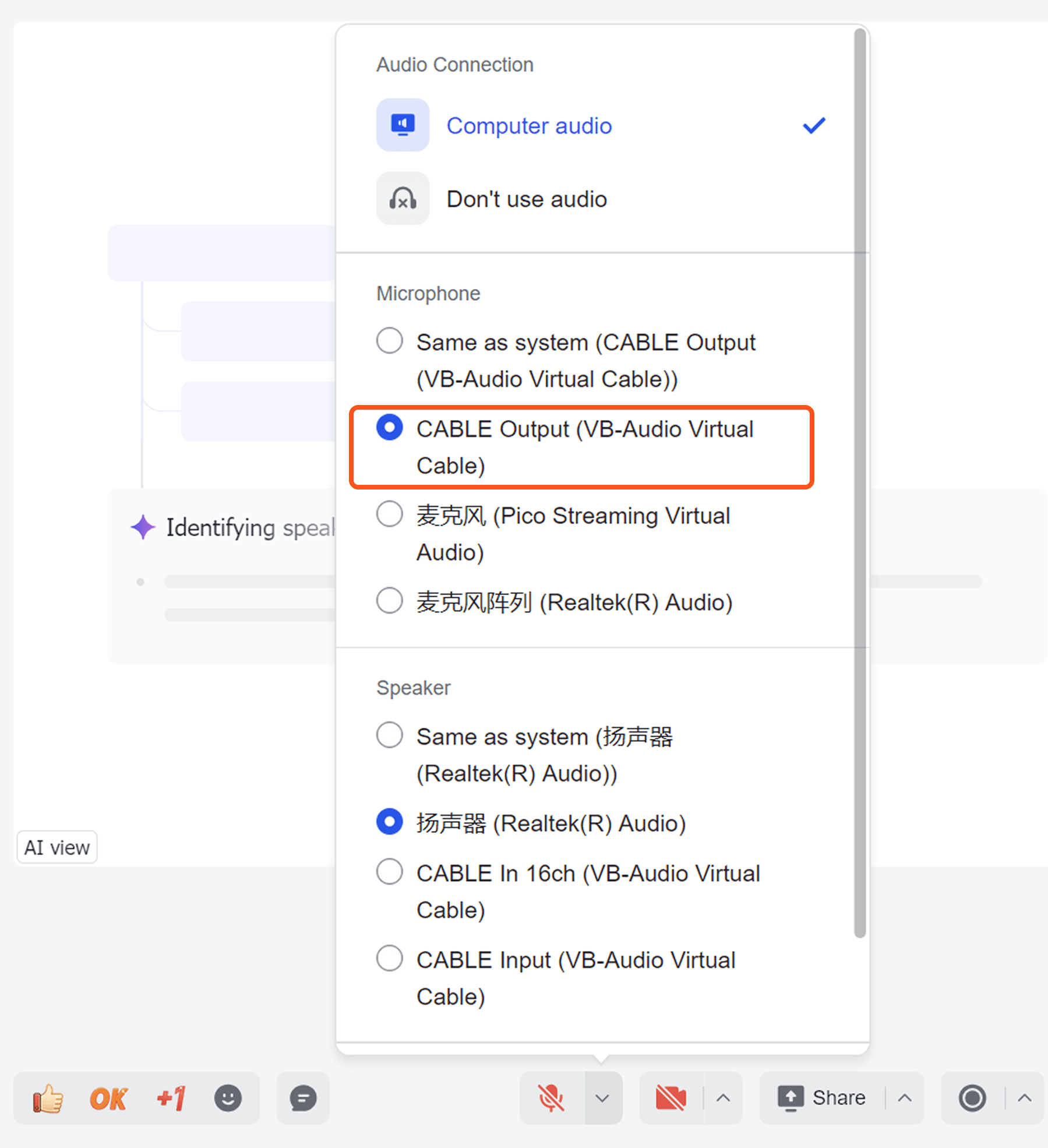
Open your meeting software, such as Zoom, Microsoft Teams, or Google Meet. In the meeting audio settings, select CABLE Output (VB-Audio Virtual Cable) as your microphone input.
After this, other participants will hear the translated playback from Transync AI through your meeting microphone input.
Tips #
- Install the third-party virtual microphone or virtual audio plugin before the meeting starts, especially if this is your first time using it.
- In Transync AI, select CABLE Input as the speaker output.
- In your meeting app, select CABLE Output as the microphone input.
- Enable only the Voice Playback direction you want to broadcast.
- If other participants cannot hear the translated voice, check both the Transync AI speaker output and the meeting microphone input.
FAQs #
What is the difference between Windows and macOS Virtual Microphone setup? #
On macOS, Virtual Microphone can be activated directly in Transync AI. On Windows, you first need to install a third-party virtual microphone or virtual audio plugin, then connect Transync AI’s speaker output to your meeting app’s microphone input. For macOS steps, see How to Use Virtual Microphone on macOS
Do other participants hear my original voice? #
When the setup is configured correctly, other participants hear the translated playback through the virtual microphone input, not your original microphone audio.
Do I still need to select my real microphone in Transync AI? #
Yes. Transync AI still needs your real microphone to capture your speech. Your meeting software should use CABLE Output as the microphone input, while Transync AI should use your actual microphone as the audio source.
Should I turn on Voice Playback for both language directions? #
Usually no. For Virtual Microphone, we recommend turning on only the direction you want other participants to hear.
Can I use Voice Clone with Virtual Microphone? #
Yes. If the target language supports Voice Clone, you can use it together with Virtual Microphone. See How to Use Voice Clone


